 MyRecover



Where Do Temp Files Go When Deleted in Windows 10/11?
This guide answers the core questions: where do temp files go windows 10 and where do temp files go when deleted? We detail their lifecycle, safe deletion impacts, and crucial recovery steps for accidental removal.

By Delores / Updated on December 31, 2025


Preface
Your computer will run slowly if there are a lot of temporary files. While tools like Disk Cleanup promise a quick fix, you may ask: Where do temp files go when deleted after you hit "delete"? It’s the key to freeing up precious space, safeguarding your data, and demystifying what really happens when you clean your digital house.
Let's look at these temporary files—how they're made, where they go, and most importantly, how to get them back if you decide you need them.
About Temporary Files in Windows 10/11
Your computer is constantly active, performing many tasks at once. Temporary files are helper files created to support these immediate tasks.
In short, temporary files (or "temp files") are created by your operating system and applications to manage short-term jobs. They work behind the scenes to keep operations running efficiently.
For example, when a document auto-saves, those backups are often temp files. When you install a program, the installer places its working files in a temp folder. Your web browser saves website data as temporary files to speed up your next visit to that site. Their purpose is to improve performance, so your system does not have to recreate information for every single task.
Temporary files come in a few main categories that can fill up your storage:
⭕ Installation Files: These are the working files used during software setup. They should delete automatically after installation finishes, but sometimes they remain.
⭕ Log Files: These text files record events from applications or Windows, useful for diagnosing problems. They can build up over a long period.
⭕ Error Report and Memory Dump Files: Generated when a program crashes, these files can be very large. They are typically only needed for sending error details and are not required afterward.
With this basic understanding, we can now explore where temp files are located in Windows 10, before we decide to remove them.
Is It Safe to Delete Temporary Files in Windows 10/11?
Is it safe to delete temporary files in Windows 10 or 11? Yes, it is generally safe to delete temporary files in Windows 10/11. Doing so can free up significant storage space and help improve system performance. Windows has built-in tools (like Disk Cleanup and the Storage Settings cleaner) designed specifically for this task, which safely target only non-essential temporary data.
Important Safeguard: It is best to use these official Windows tools rather than manually deleting files from the Temp folders, as this ensures you don't accidentally remove something currently in use by the system or an application.
Temporary Files Location in Windows 10/11
Temporary file locations vary by operating system, but commonly include C:\Users\\AppData\Local\Temp on Windows, with quick access often via %temp% to reach user-specific directories, while applications and browsers use their own folders too.
Here is how to get to the Windows temporary files location:
- Current User (Quick Access): C:\Users\YourUserName\AppData\Local\Temp, press Win + R, type %temp%, and press Enter to open the folder.
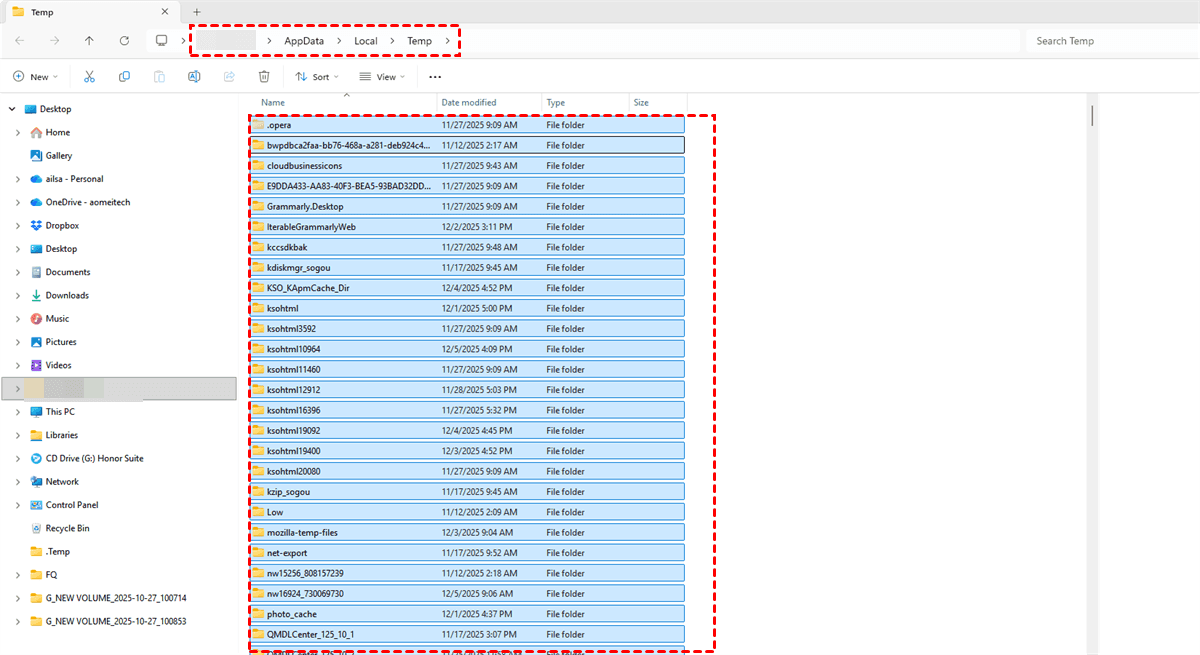
- System Temp Folder: C:\Windows\Temp (Requires admin rights).
- Program-Specific: Some apps keep temps in their own folders (e.g., AppData\Roaming).
What Happens If You Delete Your Temp Files?
Deleting your temporary files frees up storage space and removes clutter. It does not harm your operating system or personal documents.
Positive Results:
- Frees Up Storage Space: This is the main benefit. You can reclaim gigabytes of space being used by unnecessary files.
- May Improve Performance: A very full drive can slow down your computer. Freeing up space can help. Clearing certain caches (like Windows Update cache) can also fix update errors.
- Resolves Some Glitches: Deleting corrupt temporary data can solve minor app or system issues.
- Enhances Privacy: Removes cached web browser data and other temporary records of your activity.
Temporary & Minor Side Effects:
- Slightly Slower First Loads: Apps (especially your web browser) may be a fraction slower the next time you open them, as they rebuild their local caches (e.g., website images).
- Reset of Some Preferences: Some apps may forget minor temporary settings, like the position of a dialog box.
- Loss of Unrecovered Data: If you were editing a document and it was only saved in a temporary auto-recovery file, that unsaved work would be lost.
The effects are overwhelmingly positive. The minor, temporary downsides are far outweighed by the benefits of regained space and a cleaner system. It is a recommended maintenance task.
How to Delete Temporary Files in Windows 10/11?
You can delete temporary files in Windows 10/11 in Windows Settings, or delete them via Storage Sense. Here is how:
Use the Storage Settings tool. It's the safest and most effective built-in method.
1. Click Start > Settings > System > Storage.
2. Select Temporary files.
3. Check the boxes for the items you want to remove (like "Temporary files" and "Delivery Optimization Files").
4. Tap Remove files.

To delete temporary system and app files automatically, you can use Storage Sense to delete:
1. Click Start > Settings > System > Storage.
2. Toggle Storage Sense to On.
3. Then click Storage Sense to configure, tick the option “Keep Windows running smoothly by automatically cleaning up temporary system and app files”, and configure the cleanup schedule.
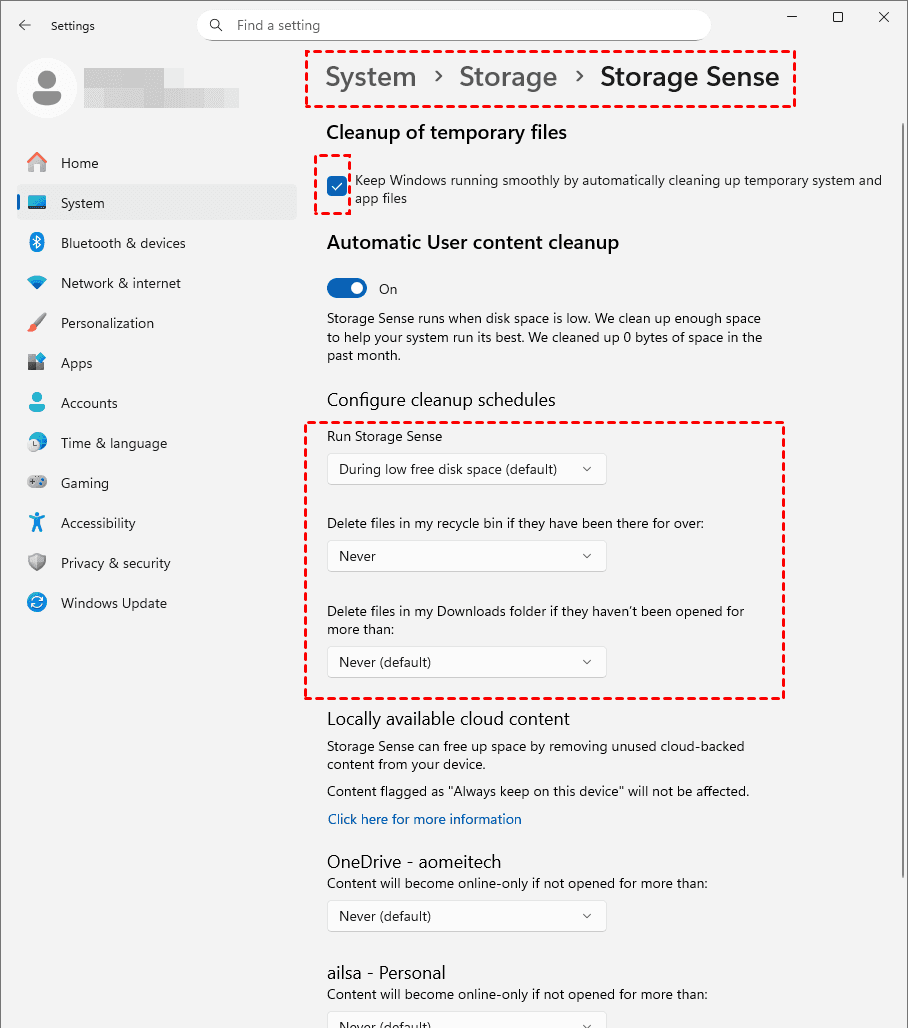
4. Then the Storage Sense will clean up your temporary files on your schedule.
Where Do Temp Files Go When Deleted?
When you delete temp files, they usually go to the Recycle Bin first (if deleted normally), then get permanently removed as space is needed, but often they're just marked as available space on the drive, making them recoverable with special software until overwritten.
Windows stores them in %TEMP% (like C:\Users\YourUserName\AppData\Local\Temp) and C:\Windows\Temp. Deleting them manually from these folders usually bypasses the Recycle Bin for permanent removal.
Files deleted via Disk Cleanup or from the %temp% folder typically bypass the Recycle Bin entirely. They go straight to the "marked as free space" stage we discussed. This is done because they are considered non-essential system data.
Recover Temporary Files with MyRecover
Oops. You cleared out temp files and suddenly realize a crucial document auto-save or a downloaded installer you needed was in there. Don’t panic. While tricky, recovering temporary files is often possible if you act quickly.
Immediate Actions:
- Stop using the drive immediately. Every new file saved or program installed risks overwriting the very data you want back.
- Check Backup: If you have File History or a system image backup, restore from there.
- Use File Recovery Software: This is the most common and effective method for immediate, non-backup data. A reliable tool can scan the drive's raw sectors.
To recover temporary files easily and fast, we’ll use a tool like MyRecover, which is designed for user-friendliness and deep scanning.
1. Download and install MyRecover on a drive instead of the drive you’re recovering files from. Launch MyRecover.
 100% Secure
2. Tap Deleted Files Recovery, choose the drive where the deleted temporary files were located, and hit Scan. Wait for the process to complete, and hit OK.

3. Preview and select the temporary files you need, and hit Recover.

4. Choose a target location to save these files.


- Notes:✎
- Once the scan completes, you’ll see a vast list of recoverable files. Use the filters on the left—especially "Filter by Path" to navigate to Temp or AppData folders, or "Filter by Type" (e.g., Document, Image). You can also use the search bar to look for specific filenames.
- MyRecover allows you to preview many file types directly, so you can verify the file is intact before recovery.
- Besides, you can also try MyRecover Technician to recover files from unlimited computers within a company if you’re an administrator.

 MyRecover
- Recover Deleted Files Easily with Simple Clicks
- 1000+ File Formats Supported
- Support HDD, SSD, External Hard Drive, USB Drive, SD Card, etc.
- Quickly Find Files Using File Types, Name, Size, etc.
- Preview Files Before Recovering
- Recover Unlimited Data
 100% Secure
FAQs about Temporary Files Deletion
Q: Is it really safe to delete everything in the Temp folder?
A: Yes, but use the right tool. For safety, use Windows' Disk Cleanup. It avoids files in use. Manual deletion while programs are running can cause crashes. Best practice: restart your PC first, then use Disk Cleanup.
Q: Do deleted temp files go to the Recycle Bin?
A: No, they do not. Cleanup tools like Disk Cleanup or manually pressing Shift+Delete permanently erase them, bypassing the Recycle Bin. This is why knowing where temp files go when deleted and how to recover them is important.
Q: Can deleting temp files cause problems or damage my computer?
A: It won’t damage hardware but can cause software hiccups. Deleting a file that an app is using may crash it or cause errors. Usually, closing and restarting the app fixes this, as it regenerates needed files.
Q: How often should I clean out my temporary files?
A: Once a month is good for most users. Heavy users may benefit from every two weeks. Use Windows' "Storage Sense" to automate the process based on disk space or a schedule.
Q: What's the difference between "Temporary Files" in Disk Cleanup and browser cache?
A: In Disk Cleanup, "Temporary Files" are system/application files in folders like %temp%. "Temporary Internet Files" is the cache for older browsers (IE, legacy Edge). Modern browsers (Chrome, Firefox, and new Edge) store caches separately in AppData.
Q: I deleted a temp file, and now a program won't work. What should I do?
A: First, close and restart the program. If that fails, restart your PC. If the issue persists, try repairing the app via Settings > Apps. As a last resort, you can attempt file recovery software or reinstall the program.
Q: Why do temp files come back even after I delete them?
A: This is normal. Temporary files are constantly recreated by your OS and apps (e.g., browser caches, logs). Cleaning removes old, unused files to free space, not stop their creation.
Q: Can I change the location where Windows stores temporary files?
A: Technically, yes, by editing the TEMP and TMP environment variables, but it's not recommended. It can cause software conflicts. For advanced users, redirecting the folder via symbolic links is an option, but the default location is best for most people.

Stay Updated With Our
Latest Tips
Add us as a preferred source on Google to never miss helpful guides.
 Add as preferred source >>