 MyRecover



How to Fix Windows Cannot Initialize the Device Driver for This Hardware (Code 37)
The "Windows cannot initialize the device driver for this hardware (code 37)" error is a common Device Manager issue that prevents Windows from properly loading the driver required for a specific hardware device. You will learn several reliable fixes that help restore proper device functionality in this guide.

By Aria / Updated on March 12, 2026


Windows Cannot Initialize the Device Driver for This Hardware. (Code 37)
I Bought a Logitech 310 Webcam for my windows 7 64-bit PC, so I can use video calling feature but the device seems to work properly on my Windows 10 Laptop. But in my PC where I want to use it. I downloaded the software and driver for the webcam also and installed it successfully, but it says Windows cannot initialize the device driver for this hardware. (Code 37) under the webcam tab. Please someone help I want to use the webcam very urgent and I don't want to waste any money, please help.
- Question from Anonymous
When checking Device Manager in Windows, some users may encounter the message "Windows cannot initialize the device driver for this hardware (Code 37)". This error usually appears next to a device with a yellow warning icon, indicating that Windows failed to properly load the driver required for that hardware. It means that Windows cannot correctly initialize the device driver, preventing the operating system from communicating with the hardware. As a result, the device cannot function normally until the driver issue is resolved.
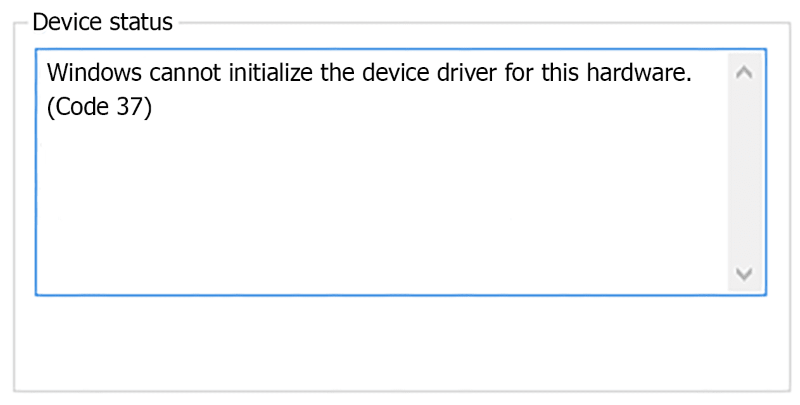
Devices commonly affected by Code 37 include USB devices, network adapters, sound cards, graphics cards, and external storage devices. When the error occurs, the device may stop responding, fail to start, or become completely unusable within the system. The good news is that this problem is usually related to driver configuration or system conflicts rather than hardware failure.
Common Causes of Code 37 Driver Error
Before trying to fix the code 37 error, it is important to understand what may prevent Windows from initializing the device driver properly. In most cases, the issue is related to driver configuration problems, system conflicts, or corrupted files rather than a physical hardware failure. Several factors can lead to this error:
🔔Corrupted or Incompatible Device Drivers
If the installed driver becomes damaged or incompatible with the current Windows version, the operating system may fail to load it during initialization. This commonly happens after driver updates, system upgrades, or incomplete driver installations.
🔉Incorrect Driver Installation
Installing the wrong driver version or interrupting the installation process can leave the device driver in an incomplete state. As a result, Windows cannot properly initialize the hardware.
📂Corrupted System Files
Certain Windows system files are responsible for managing device drivers. If these files become corrupted due to malware, unexpected shutdowns, or system errors, driver initialization may fail.
📌Hardware Changes or Conflicts
Adding new hardware, connecting external devices, or modifying system components may sometimes create conflicts between drivers, preventing Windows from initializing the affected device.
How to Fix the Windows Code 37 Error
After understanding the possible causes, now you can apply these practical solutions to restore the device driver. It is recommended to try them in order until the Windows cannot initialize the device driver for this hardware (Code 37) error is resolved.
Method 1. Restart Your Computer
If the Code 37 error is caused by a temporary system glitch or incomplete driver loading during startup, restarting the computer may allow Windows to initialize the driver correctly. A simple system restart can often resolve temporary driver initialization issues.
Step 1. Click the "Start" menu and select "Power" > "Restart".

Step 2. After the system restarts, open Device Manager and check whether the device still shows the error.
Method 2. Scan for Hardware Changes
Sometimes Windows may fail to detect a device properly after driver installation or hardware connection. Scanning for hardware changes forces the system to re-detect connected devices and reload the corresponding drivers, which may help resolve the code 37 issues.
Step 1. Press "Win" + "X" and choose "Device Manager" to open it.

Step 2. Click "Action" in the top menu and choose "Scan for hardware changes".
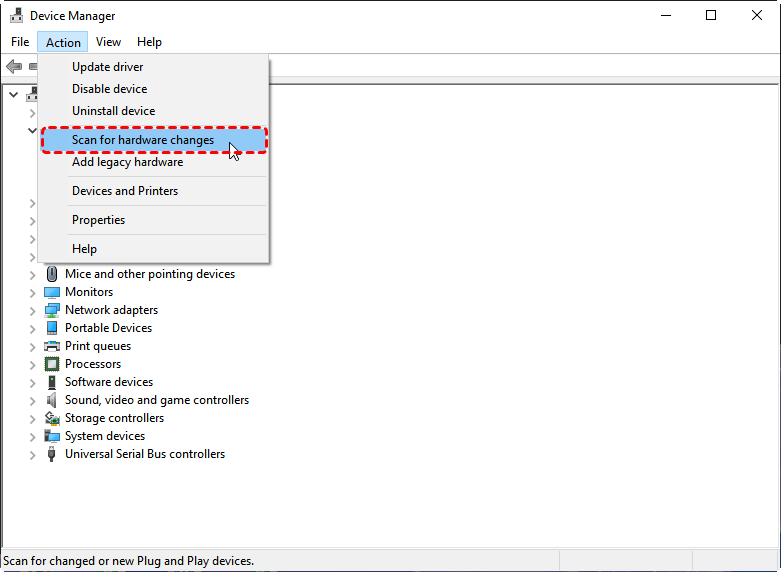
Step 3. Wait for Windows to refresh the device list and check if the device works normally.
Method 3. Update the Device Driver
Outdated or incompatible drivers are one of the most common reasons for Code 37 errors. Updating the driver allows Windows to install a newer and compatible version, which can fix driver configuration problems and restore communication between the system and the hardware.
Step 1. Press "Win" + "X" and choose "Device Manager" to open it.
Step 2. Locate the device showing the code 37 error and right-click it, then select "Update driver".

Step 3. Choose "Search automatically for updated driver software" to install the latest driver.
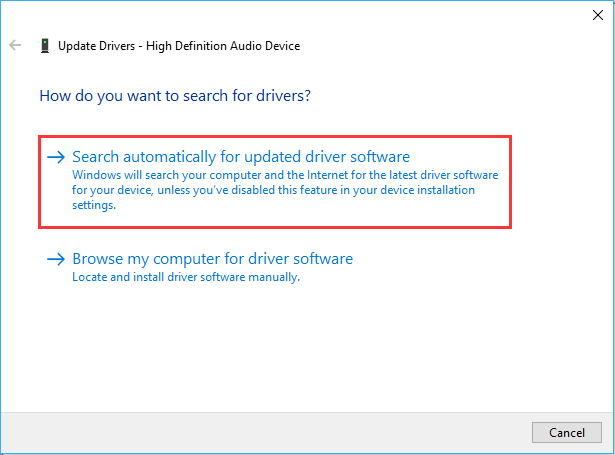
Alternatively, you can try to download the latest driver from the hardware vendor’s website.
Method 4. Roll Back the Driver
If the Code 37 error appeared after a recent driver update, the new driver version may be incompatible with the hardware or system configuration. Rolling back the driver restores the previously installed version, which may function correctly.
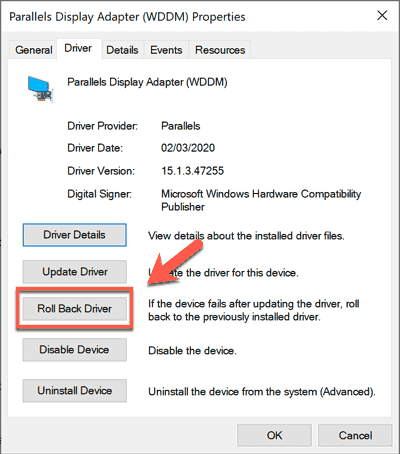
Step 1. Open Device Manager and right-click the affected device.
Step 2. Select "Properties", then go to the "Driver" tab.
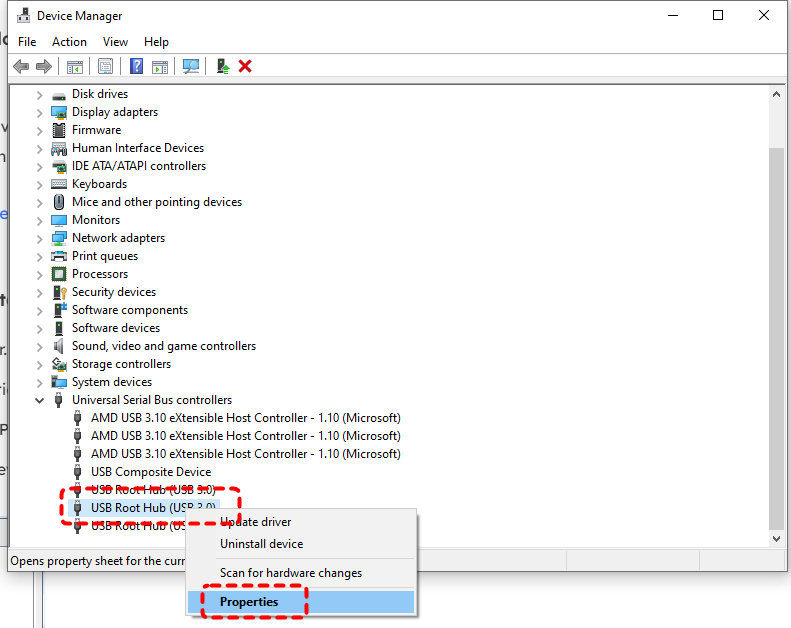
Step 3. Click "Roll Back Driver" and follow the on-screen instructions.
Method 5. Reinstall the Device Driver
If the driver files are corrupted or improperly installed, reinstalling the driver can rebuild the driver configuration. This process removes the problematic driver and allows Windows to install a clean version.
Step 1. Open Device Manager and right-click the problematic device.
Step 2. Select "Uninstall device" and confirm the removal.

Step 3. Restart the computer so Windows can automatically reinstall the driver.
Method 6. Run an SFC Scan
Corrupted system files can prevent Windows from properly loading hardware drivers. The System File Checker (SFC) tool scans for damaged system files and repairs them automatically, which may resolve the "Windows cannot initialization the device driver for this hardware" failure.
Step 1. Type "Command Prompt" in the search bar and right click on it, then choose "Run as administrator".

Step 2. Enter the command "sfc /scannow" and press "Enter".

Step 3. Wait for the scan to complete, then restart the computer to check if the error persists.
Method 7. Scan for Malware or Viruses
Malware or virus infections can sometimes damage system files or interfere with device drivers. Running a full system scan helps detect and remove malicious programs that may be causing the Code 37 error.
Step 1. Go to "Setting" > "Update & Security" > "Windows Security".
Step 2. Select "Virus & threat protection" and choose "Full scan" under the "Scan options" to start the scan for entire system and drivers.
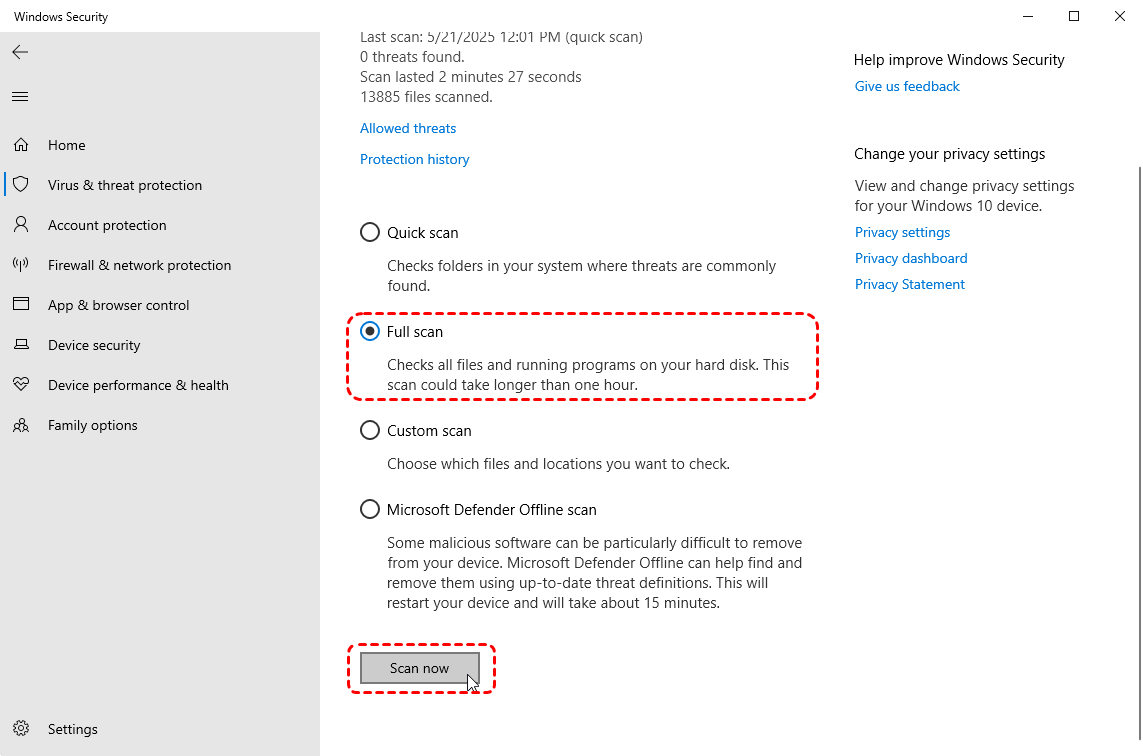
Step 3. If any malware or threats are detected, follow the instructions to remove or quarantine them.
Method 8. Run the Windows Hardware Troubleshooter
Windows includes built-in troubleshooting tools designed to detect and fix hardware-related issues automatically. Running the hardware troubleshooter may identify driver conflicts or configuration problems causing the Code 37 error.
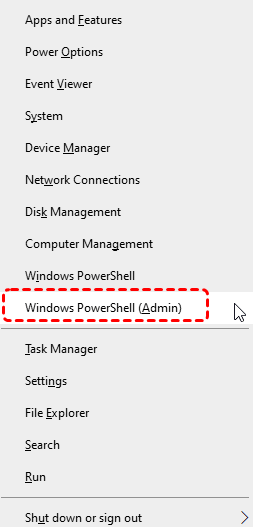
Step 1. Press "Win" + "X" and choose "Windows PowerShell (Admin)" to open it.
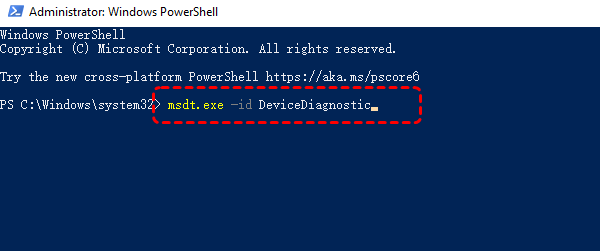
Step 2. Enter the following command "msdt.exe -id DeviceDiagnostic" and hit the "Enter" key. This will open the "Hardware and Devices" window.
Step 3. Click "Advanced options" and check the box of "Apply repairs automatically", then click "Next" to start the troubleshooting process.

How to Recover Data If the Device Stops Working
In most situations, the Windows Code 37 error only affects the device driver, meaning the hardware temporarily stops functioning because Windows cannot initialize the driver correctly. However, if the affected device is a storage device, such as a USB drive, external hard disk, or memory card, you may suddenly lose access to important files stored on it.
In such a case, it is important to recover the data as soon as possible before it gets overwritten. A professional data recovery tool like MyRecover can help scan the affected drive and restore lost files that became inaccessible due to driver errors, system conflicts, or device failures. It is designed specifically for Windows systems and supports recovering files from internal drives, external hard drives, USB devices, SD cards, and over 500 types of storage media.

 MyRecover
- Recover deleted & lost files from HDD, SSD, USB, SD card, camera as you need.
- Support 1000+ formats of photos, videos, docs, archives, emails, compressed files, etc.
- Reliable rescue for deletion, formatted disk, emptied Recycle Bin, system crashes and more.
 100% Secure
Step 1. Download and install MyRecover on your computer from the official website or the Microsoft Store.
Step 2. Launch the program and select the drive where your files were stored, such as the external device or system drive, then click "Scan" to start searching for lost data.

Step 3. After the scan finishes, browse the results and use the "Filter" function to quickly locate the files you need. Select the target files and click "Recover".

⚠️Options in the Filter feature:
-
Type: Different file types, such as images, videos, documents, mails, webpage, compressed files, etc. are included.
-
Data Modified: Sort files by modification time, you can choose to list them from most recent to oldest or from oldest to most recent.
-
Size: It allows you to filter file size from less than 512KB to 512KB ~10MB to 10MB~100MB and above.
-
Keyword: Type the keywords of the file name you want to recover into the search box.
Step 4. Save them to a different location to avoid overwriting existing data.

Once the recovery process is done, you can access the recovered files by clicking on the destination folder path or the "Browse" button.
The End
In a word, by following a structured troubleshooting process in the guide, you can often fix the "Windows cannot initialize the device driver for this hardware" error and restore the device to normal operation. If the error affects a storage device and important files become inaccessible, using a professional recovery tool like MyRecover can help retrieve lost data before performing further repairs.
For users who need more advanced features, the MyRecover Professional edition unlocks unlimited recovery capacity and file content preview before restoration. It also offers a powerful feature that allows you to recover data from an unbootable PC, ensuring your files remain accessible even when the system fails to start.

Stay Updated With Our
Latest Tips
Add us as a preferred source on Google to never miss helpful guides.
 Add as preferred source >>