 MyRecover



Windows Checking for Updates Stuck? Fixed in Easy Steps
A Windows system that remains stuck on "Checking for updates" typically indicates issues with the Windows Update service stack, corrupted update caches, or stalled background dependencies. This article explains why failures at any stage can halt progress indefinitely and presents a tiered set of fixes to resolve the issue without unnecessary system disruption.

By Aria / Updated on February 4, 2026


Windows 10 Stuck "Checking for Updates"
Windows said that there was and update that I needed to install but when I tried to the update page in settings got stuck checking for updates. Any solution?
- Question from Sargdons
Keeping Windows up to date is essential for system security, stability, and performance. Normally, checking for updates is a short background process. At this stage, the system is actively connecting to Microsoft’s update servers, verifying installed components, checking system compatibility, and preparing update metadata. Under normal circumstances, this process lasts only a few seconds or minutes.
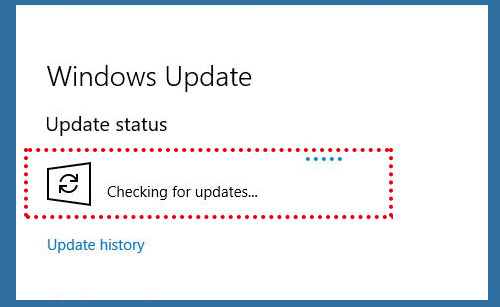
However, when you click "Check for updates", Windows gets stuck on the "Checking for updates" screen for hours on end. It usually signals that something in the update pipeline has gone wrong. A stalled screen often means Windows Update services are unable to communicate properly, system files are corrupted, or background dependencies are blocked. This issue often feels ambiguous because there is no error code or progress bar, just endless waiting.
Why Windows Checking for Updates Gets Stuck
Understanding the root causes of Windows update check freezes can help you choose a more suitable solution. The most common causes behind the issue including:
- Windows update services are not responding properly,
- Network interruptions or DNS conflicts,
- Corrupted update cache or metadata,
- Conflicts with third-party security software,
- Pending updates or incomplete servicing stack operations,
- System file or component store corruption,
- Microsoft server or regional CDN issues.
How to Fix Windows Checking for Updates Stuck
Once the root causes are clear, you can begin resolving the issue using the methods below. This article provides several effective methods to help you resolve the issue of Windows getting stuck while checking for updates. If one method fails, move on to the next one. Let's explore the detailed steps.
Restart Your PC
Sometimes, this is simply due to an occasional system or PC glitch or freeze, and a simple restart can refresh your system and resolve temporary system malfunctions. Save all open files and close any running programs, then click "Start" > "Power" > "Restart" to reboot your PC. After reboot, click "Check for updates" again to check if the issue persists.

Check Your Network Connection
During the Windows update check phase, your PC must have a stable internet connection to access Microsoft’s update servers and check for available updates. Follow these steps to keep a stable connection:
- Switch to a wired internet connection if possible,
- Disable VPNs or proxy services temporarily.
Once your network connection is stable, try updating Windows again to check if the error is still here.
Run the Windows Update Troubleshooter
Microsoft provides a built-in tool—Windows update troubleshooter to diagnose update problems. This tool can automatically repair common service and configuration issues that prevent the update from installing.
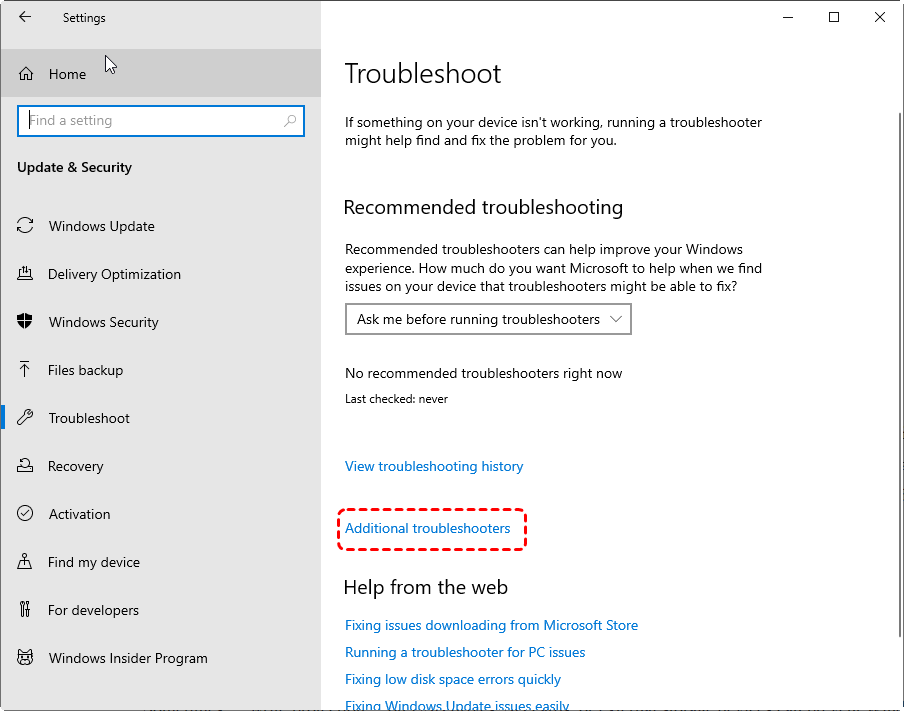
Step 1. Go to "Settings" > "Update & Security" > "Troubleshoot", then click "Additional troubleshooters".
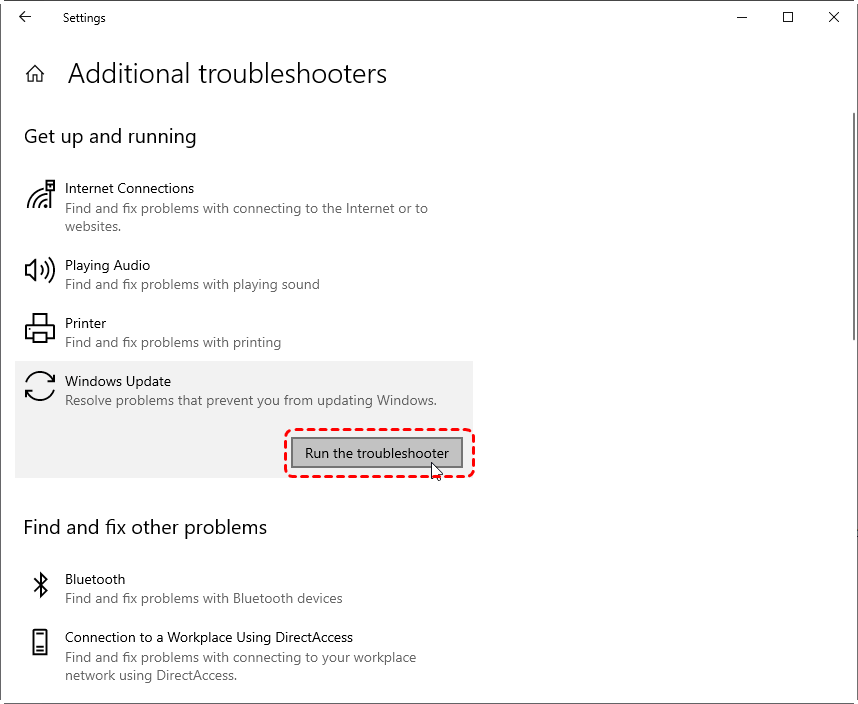
Step 2. Choose "Windows Update" and click on "Run the Troubleshooter".
Step 3. Wait for the process to complete, run checking for updates again.
Reset Windows Update Components
Corrupted update components can prevent your system to connect to Microsoft's update servers. That’s what causes the Windows checking for updates to get stuck on Windows. Resetting update components can clear corrupted cache files.
Step 1. Locate Command Prompt in the Start menu and right click on it, then choose "Run as administrator".

Step 2. Type the following commands one by one and press "Enter" after each one:
- net stop cryptSvc
- net stop bits
- net stop msiserver
- net stop wuauserv
- ren C:\Windows\SoftwareDistribution SoftwareDistribution.old
- ren C:\Windows\System32\catroot2 Catroot2.old
- net start wuauserv
- net start cryptSvc
- net start bits
- net start msiserver
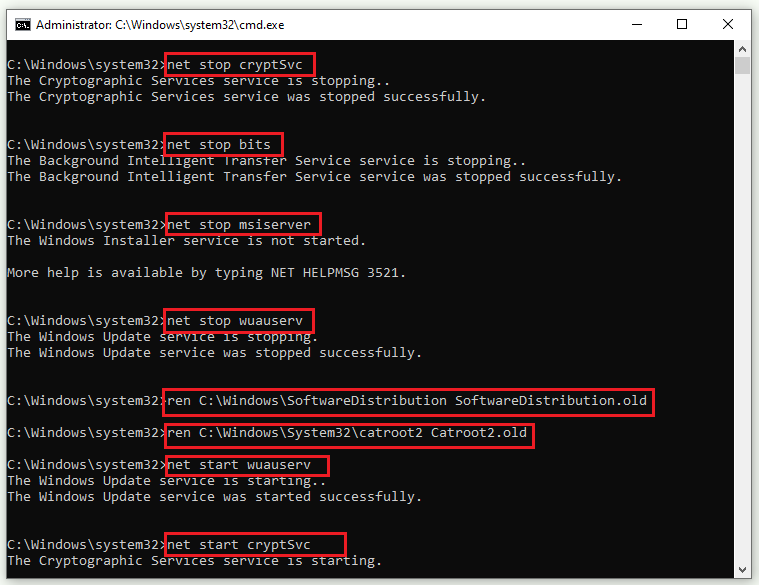
Step 3. After the command is completed, close Command Prompt and restart your computer. Try "Check for updates" again to see if the stuck issue is removed.
Disable Antivirus Program Temporarily
Sometimes certain third-party antivirus software may flag the Windows update process as unsafe and interfere with it, causing Windows to get stuck indefinitely while checking for updates. Temporarily disabling the third-party antivirus software may resolve this issue. Remember to re-enable it once Windows Update returns to normal.
Clean Up Disk Space
Low disk space is a silent contributor to Windows stuck on checking for updates. While the update check itself only requires a small amount of network data transfer, the system will first verify that there is sufficient storage space for the download package even after the check is complete. If there is insufficient space, the download will be blocked, and the process will remain stuck in the "Checking for update" phase indefinitely.
Step 1. Type "Disk Cleanup" in the Search box and open it.
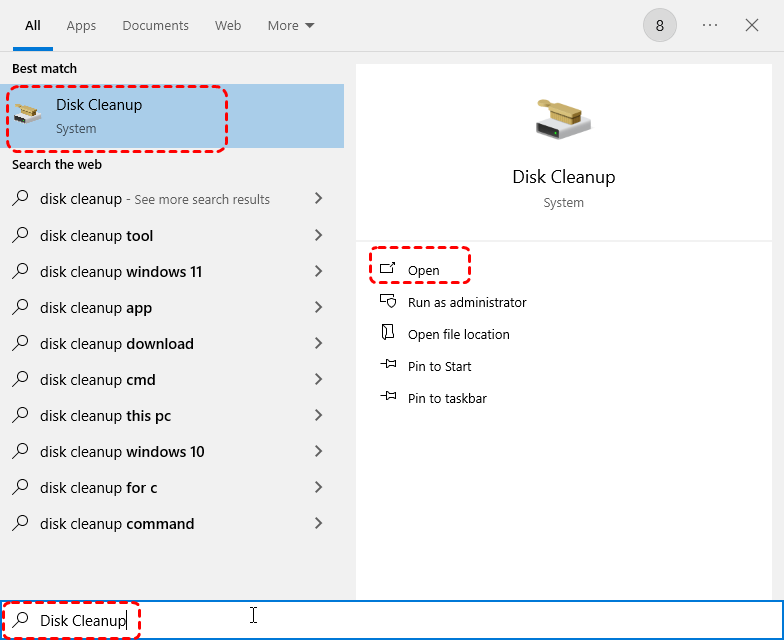
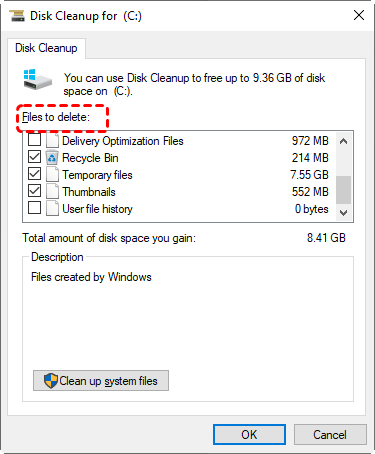
Step 2. Select your system drive to clean.
Step 3. Choose the files you wish to delete, such as Temporary files, Thumbnails, Recycle Bin, etc. and click "OK" to remove them.
Disable Updates for Microsoft Products
Optional Microsoft product updates may cause conflicts. Turning off Update for Microsoft products can simplify update detection and prevent unnecessary delays.
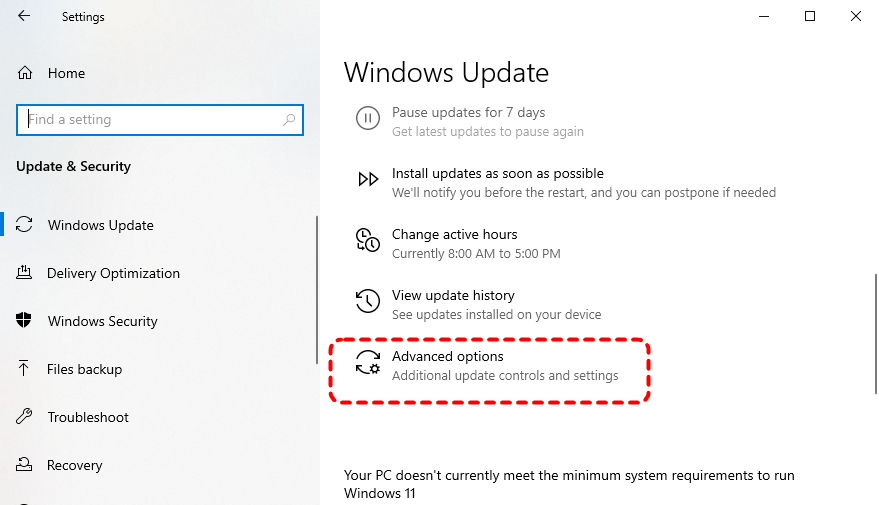
Step 1. Go to "Settings" > "Update & Security" > "Advanced options".
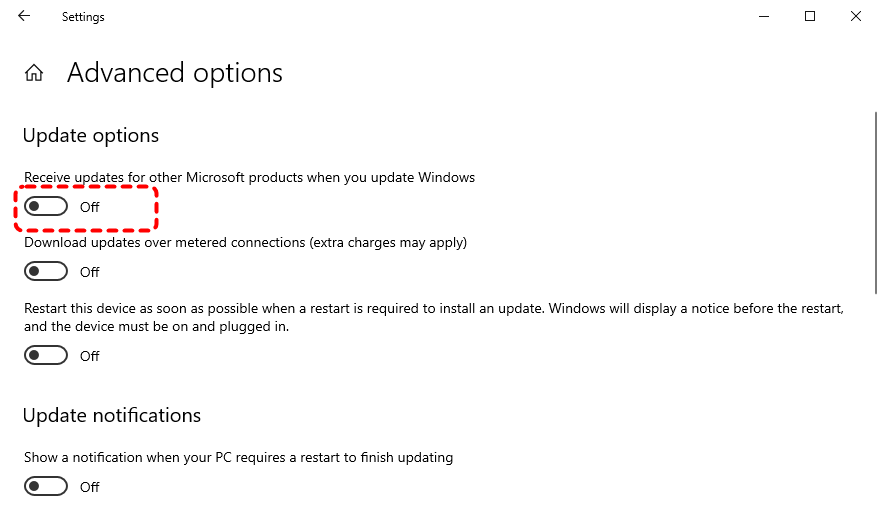
Step 2. Turn off "Receive updates for other Microsoft products when you update Windows".
Step 3. Reboot your PC to check if the stuck issue is resolved.
Run System File Checker
Corrupted system files are one of the underlying causes of a stuck Windows checking for updates. System files form the foundation of Windows operation, and the Windows Update service itself relies on these files. When critical system files become corrupted, the update components may crash while querying the server, and errors such as 0x80070490 may even occur.
Step 1. Run Command Prompt as administrator.
Step 2. Enter the following command one by one to check system files:
DISM /Online /Cleanup-Image /RestoreHealth
sfc /scannow

Step 3. Restart your computer and check if the issue is still here.
How to Recover Missing Files After Windows Update
Sometimes, Windows Update can remove your files, wipe your system, or even crash system, especially if the update process is interrupted. If documents, photos, or work files disappear after troubleshooting the Windows checking for updates stuck issue or Windows Update, data recovery should be your next priority. This is where a dedicated data recovery solution MyRecover become essential.
It is designed to handle file loss caused by emptied Recycle Bin, system updates, inaccessible partition or crashes. It also supports deep scanning of system drives, recovers files even after update-related errors, and preserves original file structure.

 MyRecover
- 500+ Devices Supported | SSD, HDD, USB Flash Drive, SD Sard, etc.
- 1000+ File Formats Supported | PNG, MP4, MP3, TXT, ZIP, MSG, etc.
- 500+ Data Loss Scenarios | Deletion, Format, System Crash, Virus Attack, etc.
 100% Secure
Step 1. Download and install MyRecover on your computer from Microsoft Store or its official site, avoid installing it on the drive with lost files.
Step 2. Launch the program and select the drive to scan, then click "Scan" to search for recoverable files.

Step 3. After the scan completes, choose the files you attempt to recover from the recoverable lists and click "Recover".

Step 4. Select a directory different from the original drive to save the recovered files to prevent from overwriting.

Once the process is done, you can verify the recovered files by clicking on the destination folder path or the "Browse" button.
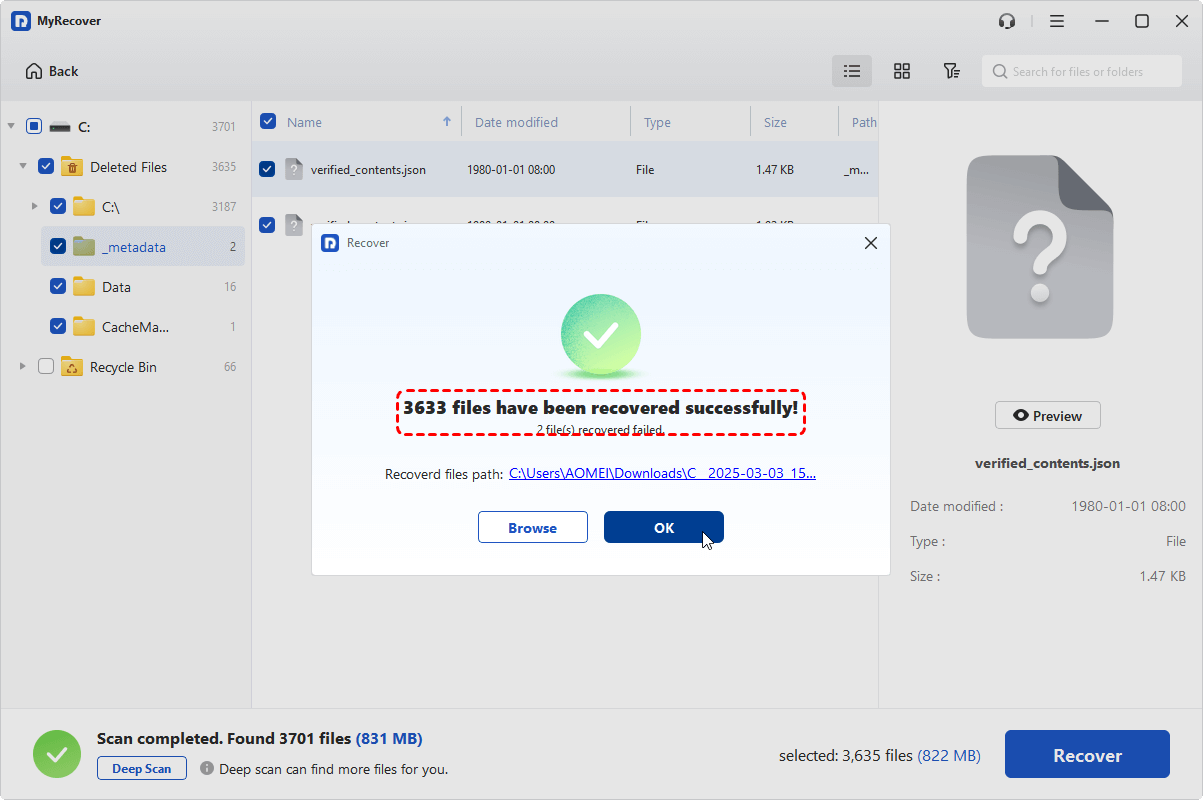
If you need more advanced feature like unlimited data recovery quota, file content preview before restoration, MyRecover Professional edition provides a reliable safety net without requiring advanced technical skills. It even allows you to retrieve data from crashed system due to Windows update.
The End
When Windows 10 gets stuck on "Checking for updates", it’s rarely a dead end, but it’s a signal that something beneath the surface needs attention. By applying structured fixes, you can restore normal update functionality without panic. And if files go missing along the way, having a trusted recovery solution like MyRecover ensures that system maintenance doesn’t turn into permanent loss.

Stay Updated With Our
Latest Tips
Add us as a preferred source on Google to never miss helpful guides.
 Add as preferred source >>