 MyRecover



Solved: System Restore Not Working in Windows 10 Computer | 7 Fixes
When you face "System Restore Not Working Windows 10," it halts critical recovery. This guide provides targeted fixes for HP laptops and general "Windows System Restore Not Working" errors, including system image recovery solutions and advanced troubleshooting to regain control.

By Delores / Updated on March 12, 2026


System Restore Not Working in Windows 10
How do I fix a problem that my system restore created
I did a system restore. The next time I booted up, I couldn't get into anything; instead, it did an auto repair or attempted to, I should say. That got stuck, and I couldn't even use my mouse or keyboard to restart it asked me to. Long story short, I used my repair disk to try to undo the nightmare. That failed. It said it couldn't because the system protection was disabled. I ran the net start vss, then typed in rstrui.exe /offline:D:\windows=active in the command prompt (all through the recovery DVD). That got me into the system restore. This time I selected undo last restore point. That ran for about an hour, then failed to restore anything. It said an unspecified error caused the failure. I've tried just about everything except a fresh install, and I hate doing that because then I lose all of my personal files. Does anybody know of a cure for this??
- Question from reddit.com
It's a tough spot when your computer gets a virus, a new driver breaks things, or the whole system just acts strangely. When your System Restore won't work, it can feel like you're stuck with no way out. But don't give up! This guide is here to help. It will explain why this happens and show you simple, step-by-step ways to fix your computer.
Common System Restore Error Messages
You might encounter similar error messages accompanied by different error codes, like this:
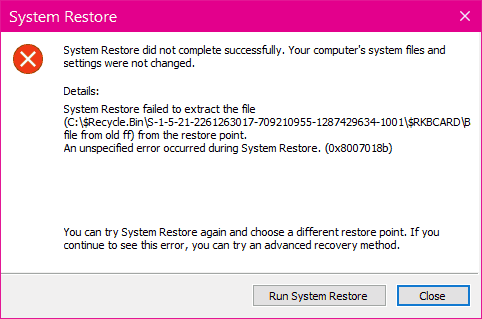
System Restore did not complete successfully. Your computer's system files and settings were not changed. Details: System Restore failed to extract the file ** from the restore point. An unspecified error occurred during System Restore. (0x8007018b)
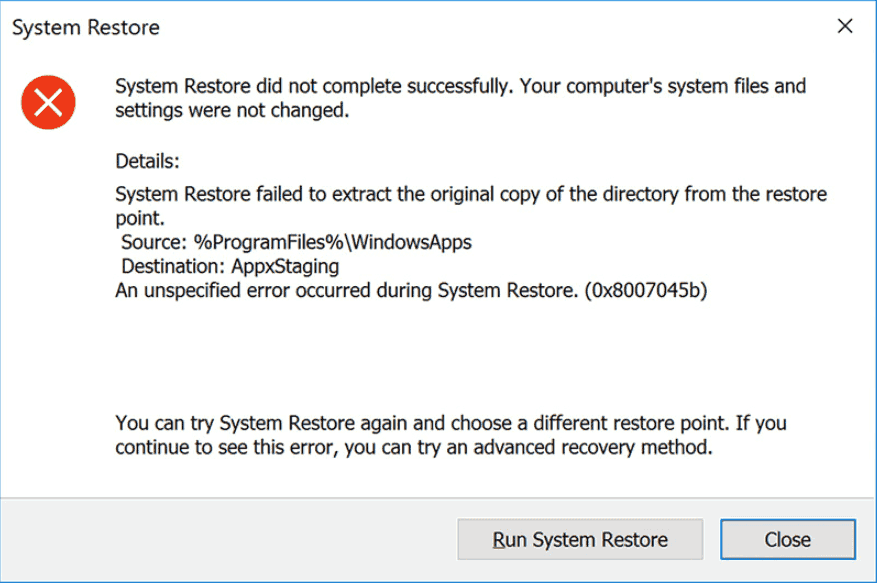
System Restore did not complete successfully. Your computer's system files and settings were not changed. Details: System Restore failed to extract the original copy of the directory from the restore point. An unspecified error occurred during System Restore. (0x8007045b)
System Restore did not complete successfully. Your computer's system files and settings were not changed. Details: System Restore failed while restoring the directory from the restore point. An unspecified error occurred during System Restore. (0x80070091)
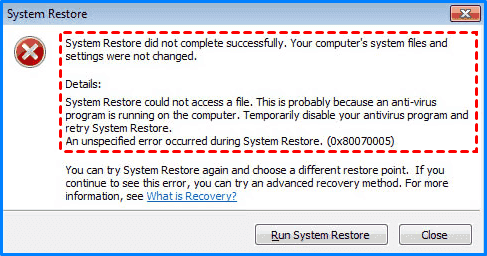
System Restore did not complete successfully. Your computer's system files and settings were not changed. Details: System Restore could not access a file. This is probably because an anti-virus program is running on the computer. Temporarily disable your antivirus program and retry System Restore. An unspecified error occurred during System Restore. (0x80070005)
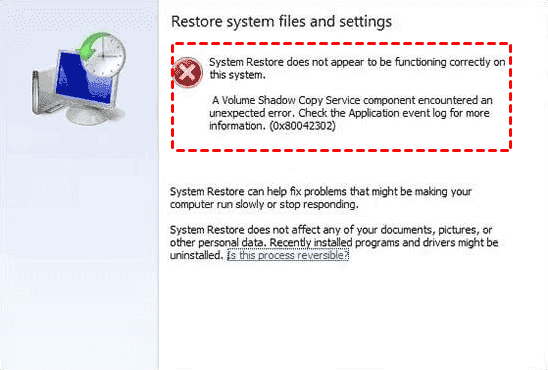
System Restore does not appear to be functioning correctly on this system. A volume Shadow Copy Service component encountered an unexpected error. Check the Application event log for more information. (0x80042302)
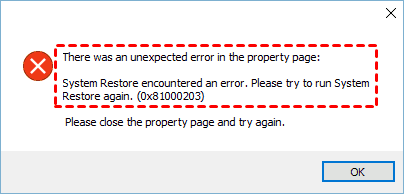
There was an unexpected error in the property page: System Restore encountered an error. Please try to run System Restore again. (0x81000203)
Why System Restore Fails on Windows 10?
Why is your system restore not working in Windows 10? It might be due to the following reasons:
⭕ Antivirus software. Antivirus programs can block the process.
⭕ Corrupted restore point files.
⭕ A sudden power loss during a previous restore attempt.
⭕ System file corruption.
⭕ Bad sectors on the hard drive where the restore point data lives.
⭕ Permission issues within the Windows registry.
After getting reasons why it’s failed while restoring your system, it’s time to troubleshoot your problem now.
7 Fixes for System Restore Not Working in Windows 10/11
There are some proven ways to resolve Windows 10 system image recovery not working issues. Check it out:
Way 1. Ensure System Restore is Enabled and Configured
The first thing to do is make sure the feature is actually turned on! Sometimes, in an effort to save disk space or due to a previous cleanup tool, protection gets disabled for your main drive (usually C:).
1. Search create a restore point in the Windows search box, and click it from the list.
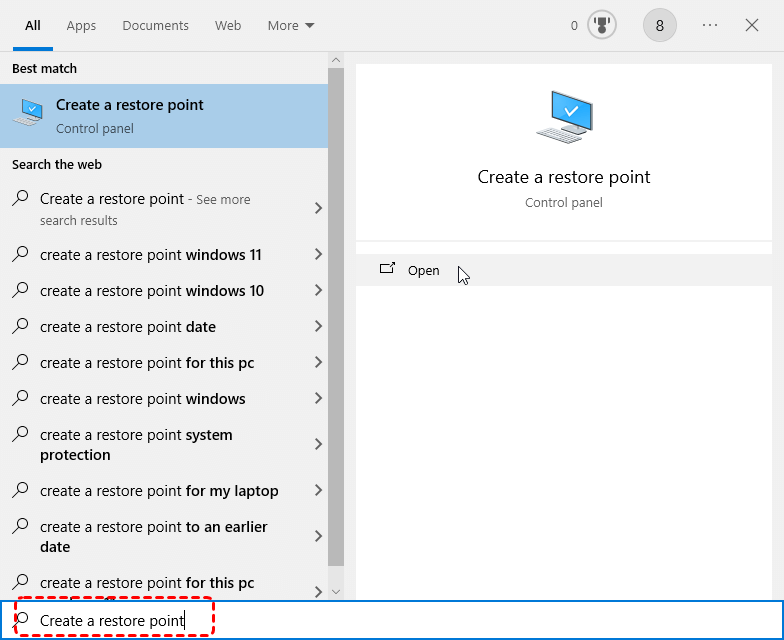
2. You will be led to theSystem Properties window, click on the System Protection tab, and verify that protection is "On" for your C drive.
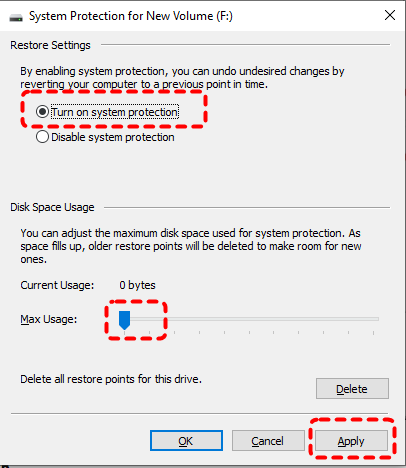
While you're there, check how much disk space is allocated for restore points; if it's set too low, older points get automatically deleted, leaving you with no options.
Way 2. Verify Sufficient Disk Space for Restore Points
Speaking of space, System Restore needs room to breathe. If your hard drive doesn'thave enough available space—say, less than 1GB of free space—the process might fail simply because it can't create the necessary temporary files to operate.
Do a quick cleanup of your Downloads folder and Recycle Bin. Sometimes, freeing up a little elbow room is all it takes to get things moving again.
Way 3. Run System Restore in Safe Mode
When System Restore does not work in your normal Windows session, it's often because of background programs causing a fuss. Booting into Safe Mode loads Windows with only essential drivers and services, preventing many software conflicts that can cause System Restore to fail. Follow these steps carefully.
Step 1: Boot into Safe Mode
From the sign-in screen: Hold Shift, click Power > Restart.
If Windows won’t start: Force shutdown during boot three times to trigger recovery.
Step 2: Access Safe Mode
On the blue Choose an option screen, select Troubleshoot > Advanced options > Startup Settings > Restart.
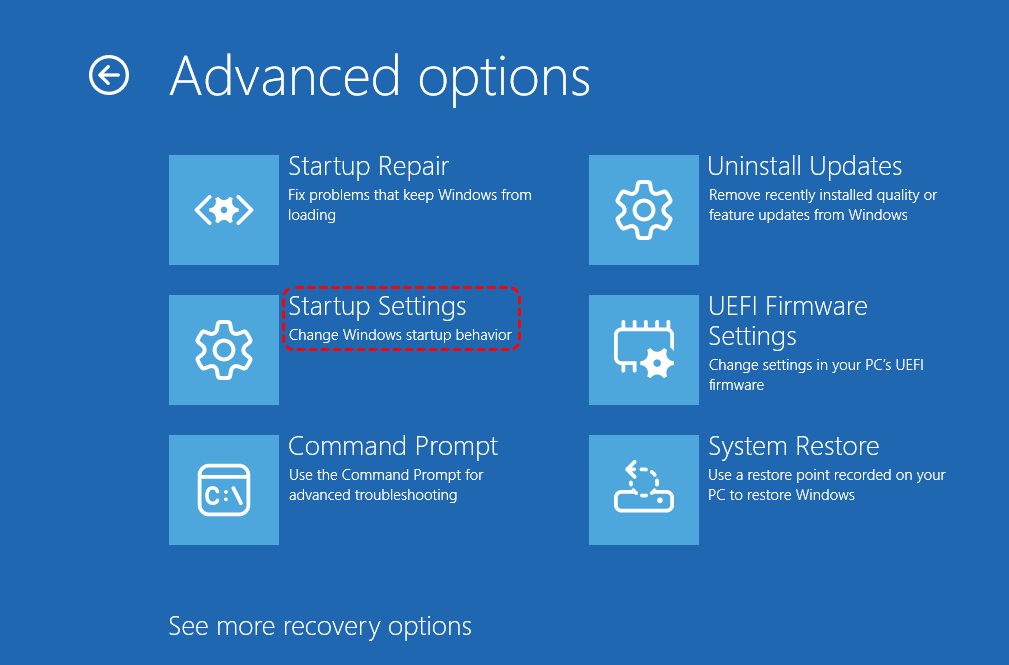
After the restart, press 4 or F4 to choose Safe Mode. Or choose 5 to choose Safe Mode with Networking.
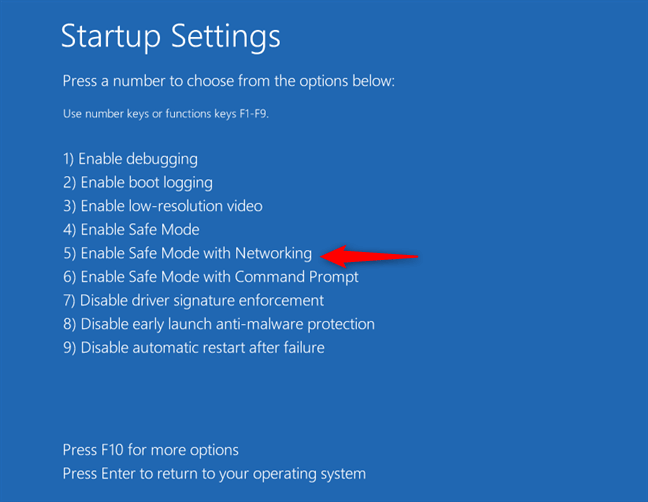
Step 3: Run System Restore
In Safe Mode, click Start, type "Create a restore point", and open it.
Click System Restore..., choose a restore point, and follow the prompts to finish.
Step 4: Restart
Your PC will restart automatically. Windows will boot normally and confirm if the restore worked.
If it’s still not working, you can try Startup Repair. However, what to do if Startup Repair is not working? Try the solutions linked.
Way 4. Run Disk Cleanup to Remove Corrupt Restore Points
To fix System Restore, you might first need to use a tool that cleans the corrupted restore points. The built-in Disk Cleanup utility has an option to delete all but the most recent restore point. If your older points have become corrupted, you can try it now. It's a bittersweet fix—you lose your restore history—but it often resolves persistent errors and allows new, functional points to be created.
1. Click Start, type "Disk Cleanup", and choose Run as administrator.
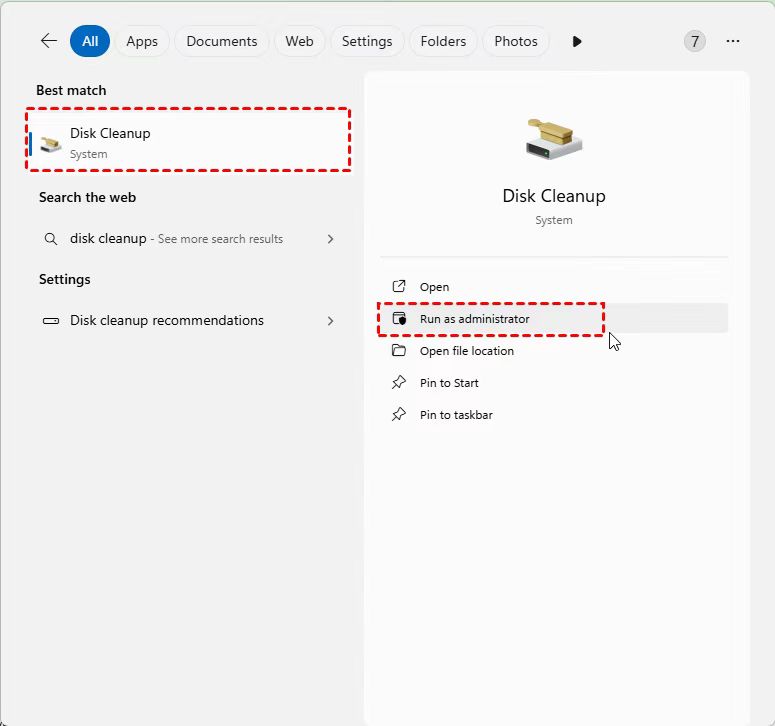
2. Select your main drive (usually C:) and click OK.
3. Go to the More Options tab, click Clean up... under System Restore and Shadow Copies.
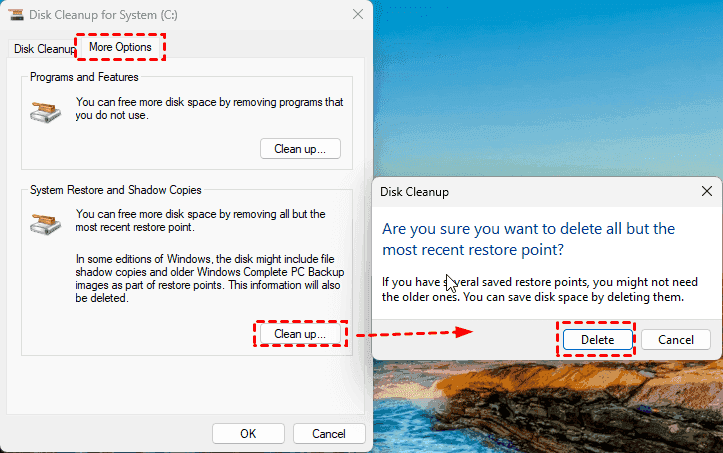
4. Confirm by clicking Delete. This removes all restore points except the most recent one.
Way 5. Temporarily Disable Any HP-specific Backup or Recovery Service
If you are using a HP laptop and System Restore is not working. You have a unique solution. Temporarily disable any HP-specific backup or recovery services in the Task Manager before attempting the restore. Because some HP models come with dedicated recovery partitions and pre-installed utilities that can sometimes conflict with Windows' native System Restore.
Also, check HP's support site for your specific model; a BIOS update has resolved this conflict for many users.
Way 6. Repair Corrupted System Files Using Command Prompt
If your system files get corrupted, you can fix the corrupted system files with Command Prompt.
Running the SFC (System File Checker) scan is your first line of defense here. This tool scours your system for corrupted or missing protected files and replaces them with a cached, clean copy. If SFC finds but cannot fix issues, the DISM (Deployment Image Servicing and Management) tool can be used to repair the Windows image that SFC draws from.
Follow these steps to repair system files that can block System Restore.
1. Press Windows key, type "cmd". Right-click Command Prompt and choose Run as administrator.
2. In the window, type: sfc /scannow, and press Enter. Wait for the scan to finish (10-30 min).

If it says files were repaired, restart your PC. If it says it could not fix some files, go to step 3.
3 (Optional). Type this command and press Enter:
DISM /Online /Cleanup-Image /RestoreHealth

4 (Optional). Restart your PC. Open Command Prompt as Admin again and run sfc /scannow one more time.
It should now report successful repairs.
Done. Try System Restore.
Way 7. Reset Your Computer And Keep Personal Files
Windows 10 is packed with fallback options. Startup Repair can automatically fix certain boot problems. The Reset this PC feature is a powerful alternative, allowing you to keep your personal files while reinstalling Windows—a much less drastic step than a full clean install.
1. Turn on your PC. As soon as the Windows logo appears, press and hold the power button for 10 seconds to force a shutdown. Repeat this process three times in total.
2. On the fourth start, Windows should automatically load the "Preparing Automatic Repair" screen and then the Recovery Environment.
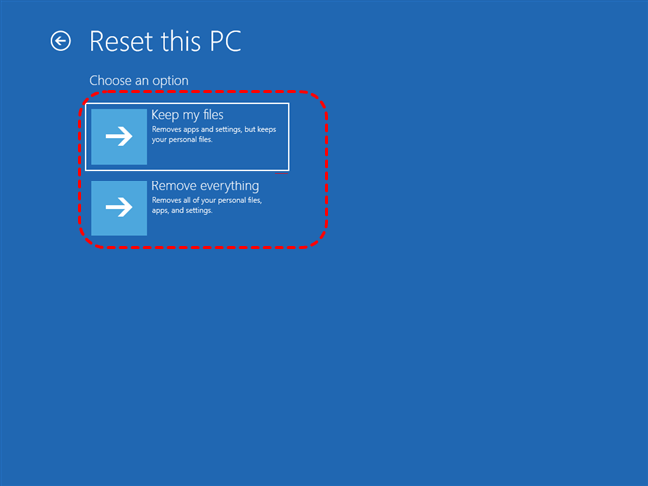
3. On the blue Choose an option screen, select Troubleshoot > Reset this PC.
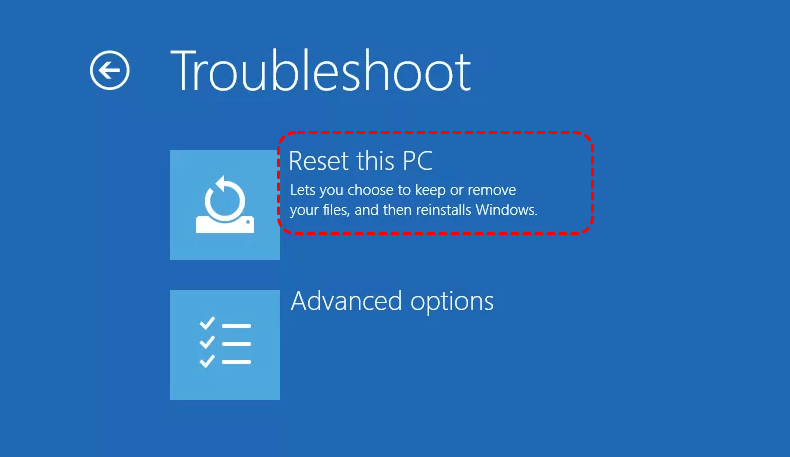
4. Select Keep my files.
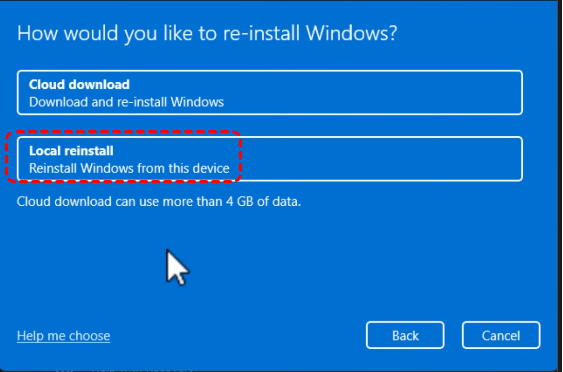
5. You will be asked how to reinstall Windows:
- Cloud Download: Downloads a fresh copy from Microsoft. Requires a stable internet connection (Wi-Fi can be selected on the next screen). Use this if you suspect local files are badly corrupted.
- Local Reinstall: Uses recovery files already on your PC's hard drive. Faster, no internet needed. Try this first.
6. The final screen will warn you about which apps will be removed (all installed programs).
7. Click Reset to begin.
8. After resetting, your PC will restart into the standard Windows setup (region, keyboard, account sign-in).
Once on the desktop, your personal files (from your old user account) will be saved in a folder on the C: drive called Windows.old.
To find your files: Open File Explorer > This PC > Local Disk (C:). Look for the Windows.old folder, then navigate to Users > [Your Old Username].
Recover Lost Files with MyRecover
Before running any major system repair—especially a reset or clean installation—you must safeguard your personal files. Or recover files if you find that you have lost important files after a system restore. What should you do? All you need is professional data recovery software.
Fortunately, you can try the powerful Windows data recovery software, MyRecover. Even when Windows is unstable, MyRecover can scan your drives and recover photos, documents, videos, and emails that might otherwise be lost in the recovery chaos.
It’s straightforward to use, even for non-techies, and can pull files back from formatted, corrupted, or inaccessible drives.
Step-by-Step Guide to Using MyRecover for File Recovery:
If you can boot up your computer, you can directly install MyRecover on your computer, then recover files. If the computer won’t boot up, you have to create a Windows bootable media, then boot your problematic computer from the media, and recover files from MyRecover.
Create A Windows Bootable Media (Optional):
1. Please connect a USB drive to another working computer, install MyRecover on that computer after downloading it, then launch it.
 100% Secure
2. Tap PC Crashed Recovery, choose the USB drive, and hit Create. Wait for the media to be created.

Recover Files Using MyRecover:
1. MyRecover will run automatically once you boot up the problematic computer from the Windows bootable media, then connect to an external hard drive for data restoration. Or you can directly run the MyRecover if your computer can boot up after installing.
2. Tap Deleted Files Recovery, choose the drive where the lost files were located, and hit Scan. Wait for the process to complete, and hit OK.

3. Preview and select the files by ticking all the boxes before the files, and hit Recover.

4. Select a destination folder in the external hard drive to save these files.

- Tips:✎...
- MyRecover will perform a quick initial scan to find the recently deleted files. You can also run a deep scan to find every recoverable file, even from deleted or lost partitions.
- Once the scan completes, you can browse the results by file type, path, or date.
- The preview function lets you see the contents of photos and documents, which is invaluable for verifying their integrity before recovery.
- You can also recover files from a crashed computer, a corrupted SD card, a formatted SSD, etc.

 MyRecover
- Recover Deleted Files Easily with Simple Clicks
- 1000+ File Formats Supported
- Support HDD, SSD, External Hard Drive, USB Drive, SD Card, etc.
- Quickly Find Files Using File Types, Name, Size, etc.
- Preview Files Before Recovering
- Recover Unlimited Data
 100% Secure
FAQs About System Restore Not Working in Windows 10
Q: Can I recover my files if System Restore fails?
A: Yes. System Restore doesn't touch your personal files. However, if you later do a full system reset, you will lose them. Recovering your files first with a tool like MyRecover is a crucial safety step.
Q: Why does System Restore fail on my HP laptop?
A: HP's own pre-installed software can sometimes clash with Windows System Restore. To fix this, check for BIOS and Windows updates from HP's official website.
Q: Can I delete all old restore points to fix it?
A: Yes. Using Disk Cleanup as an administrator, go to "Clean up system files," select your drive, and under "More Options," use the "Clean up" button in the System Restore section. This deletes all but the newest point and can clear corruption.
Q: What’s the difference between System Restore and System Image Recovery?
A: System Restore rolls back settings. A System Image Recovery restores your entire drive from a complete backup. If the image recovery fails, the problem is usually with the external drive or USB stick holding the backup file.
Q: Will System Restore uninstall my programs?
A: It can. Any program installed after the date of the restore point you select will be removed. Your personal files from those programs will remain, but may not work.
Q: How do I run System Restore if Windows won't start?
A: Boot into the Windows Recovery Environment (WinRE). Force your PC to crash during startup three times to trigger "Automatic Repair," or boot from a Windows USB and choose "Repair your computer." System Restore is under Troubleshoot > Advanced Options.
Q: Can antivirus software block System Restore?
A: Yes. Antivirus programs often protect system files from changes. Temporarily disable your antivirus before running System Restore, then turn it back on afterward.
Q: What if no restore points are shown?
A: First, make sure System Restore is turned "On" for your drive in System Properties. If it's on but the list is empty, increase the maximum disk space allocated for restore points to at least 10-15% of your drive's size.

Stay Updated With Our
Latest Tips
Add us as a preferred source on Google to never miss helpful guides.
 Add as preferred source >>