 MyRecover



Fix Xbox One Green Screen Fast - 7 Proven Solutions
If your Xbox One green screen won't go away, don't panic. This guide walks through USB offline updates, safe mode alternatives, and hardware checks. Especially when Xbox One stuck on green screen, you'll find clear, actionable steps.

By Delores / Updated on May 8, 2026


Xbox One Green Screen!
My Xbox is stuck on a green screen. Does anyone have advice?
Hello everyone! Today I booted up my console to enjoy some after-work gaming, and unfortunately was met with a pure green screen. So far, I've tried changing the HDMI cable and input, as well as unplugging the Xbox, and even attempting to bring up the troubleshooting screen(to no avail). I was wondering if anyone knows a possible fix to my situation. Thank you in advance.
- Question from reddit.com
You power up your Xbox One console, and then… nothing but a sickly green glow. No dashboard, no menus, no games.
Whether you've got an original model, an S, or the beefy X variant, you can meet this boot-loop nightmare. Most of the time, you don't need a repair shop or a new console. In this guide, we'll tackle every flavor of this headache. Just try the following solutions in this article.
Why Does Your Xbox One Green Screen Appear?
Typically, the Xbox One green screen happens right after an update, a sudden power loss, or when the internal hard drive starts throwing errors. The console tries to load the dashboard, hits a snag, and just… sits there. Most causes are software-related, which means you can fix them at home.
Here are the common triggers for the Xbox One Green screen:
⭕ Corrupted cache – Temporary files pile up and eventually break something critical during boot.
⭕ Failing internal hard drive – The original Xbox One drives are notoriously fragile after 5+ years. Bad sectors can cause xbox one stuck on a green screen indefinitely.
⭕ External drive conflict – A faulty USB drive plugged in at startup can confuse the boot sequence.
⭕ Controller sync glitch – Believe it or not, a controller stuck in pairing mode can trigger green screen controller xbox issues because the console waits for input that never comes.
⭕ Sudden power loss. If your Xbox lost power while writing system files – even for a split second – you're looking at a corrupted cache. Then cause the Xbox One green screen.
Fix Xbox One Green Screen Without Losing Games in 7 Ways
First of all, try simple solutions here. No need to format drives or lose saved games yet.
Way 1. Perform a Hard Reset on Xbox One X Green Screen Issues
A hard reset can fix it, sometimes.
1. Hold the power button on the console itself for a full 10 seconds until it shuts down completely.
2. Unplug the power cord from the back of the Xbox. Wait 30 seconds, seriously.
3. Plug it back in and turn it on. This clears the internal power capacitors and forces a fresh boot from scratch.
For green screen Xbox One X problems, this works about one in three times.
Way 2. Boot into Low-Resolution Mode for Xbox 1 Green Screen
Sometimes the green screen isn't a system failure – it's a display handshake issue. Your TV and Xbox can't agree on resolution or refresh rate, so the console gives up and shows a green screen.
Start the console in low-resolution mode to bypass this:
1. Turn off the Xbox, then press and hold the power button and the eject button (on consoles that have one) until you hear a second beep.
2. This forces 640x480 output.
3. If the dashboard appears, you can then adjust video settings normally. This trick is a lifesaver for the Xbox 1 green screen caused by HDMI handshake bugs.
Way3. Sync Controllers When Xbox One Green Screen Blocks Access
Sometimes, the green screen controller Xbox issue isn't a system problem at all. It's the console waiting for a controller that's stuck in a pairing loop.
You turn on the controller, and it flashes, but the console never responds. Meanwhile, the green screen stays frozen because the boot process is stalled waiting for user input that never arrives.
To fix this:
1. Remove all batteries from every controller you own.
2. Then use a USB cable to connect a single controller directly to the console.
3. Turn on the Xbox using the console's power button – not the controller.
The USB connection forces a hard-wired handshake and bypasses the Xbox One green screen.
If you don't have a USB cable handy, try this: hold the controller's pairing button (top edge near the charging port) for 10 seconds to clear its sync memory. Then press the console's pairing button (left side, near the disc drive) and the controller's pairing button together. Wait 30 seconds. Even if the green screen remains, you've successfully reset the wireless handshake. Then perform another hard reset.
Way 4. Run Offline System Update via USB
Microsoft lets you manually update your console using a USB flash drive. Here's the step-by-step:
1. On a Windows PC, download the "OSU1" file from Microsoft's Xbox support page (search for "Xbox offline system update").
2. Format a USB drive to NTFS (not exFAT or FAT32– that's crucial).
3. Extract the downloaded file and copy the $SystemUpdate folder to the root of the USB drive.
4. Turn off your Xbox and unplug everything except the power.
5. Plug the USB drive into the console.
6. Hold the Pair button (left side) and the Eject button (if available) while pressing the Power button. Keep holding Pair and Eject until you hear two power-up chimes (about 10-15 seconds).
7. The console boots into recovery mode and applies the update.
For the Xbox One stuck on a green screen, this method works roughly 80% of the time. Because it bypasses the corrupted system files entirely and writes fresh ones from the USB drive. You won't lose your games or saves, just the broken system data.
Way 5. Reset Console While Keeping Games on Xbox One
If the offline update fails, try a soft factory reset.
1. Hold Pair + Eject while powering on to boot into the troubleshooting menu.
2. Select "Reset this Xbox", then choose "Reset and keep my games & apps".
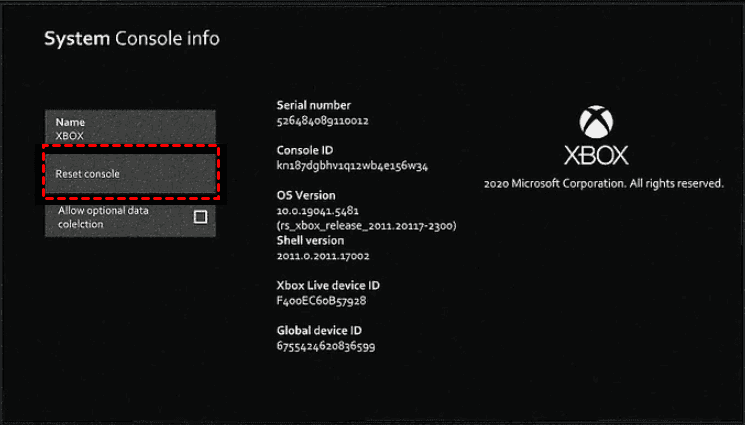
3. This reinstalls the operating system but leaves your installed games and saved data intact.
Way 6. Reset Xbox One to Factory Settings
1. Get back to the troubleshooting menu (Pair + Eject + Power until two chimes).
2. Choose "Reset this Xbox" and then "Reset and remove everything".
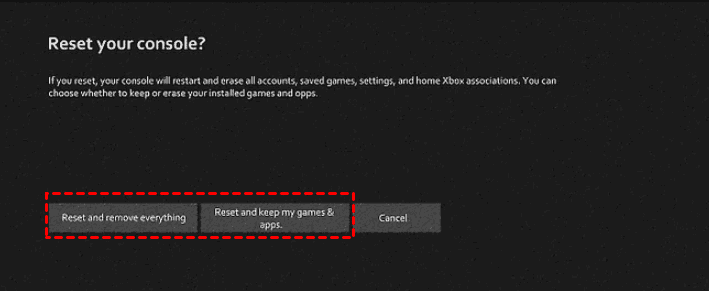
3. This deletes all games, apps, saves, and accounts – literally back to the state it left the factory.
The process takes about 10-15 minutes. After it finishes, you'll need to set up your console like new, including downloading your profile and redownloading games.
Way 7. Replace or Repair the Hard Drive in Xbox One
If nothing works, it means that the internal hard drive has failed. The console tries to write the new system files during reset, hits bad sectors, and hangs.
Replace the internal drive yourself (it's a standard 2.5-inch SATA drive) or send the console to Microsoft for repair. But before that, it's important to recover files from the Xbox One.
Recover Lost Game Data from An Xbox One
After troubleshooting the green screen, your Xbox One should be working. Sometimes, you might want to recover lost saved games from an external hard drive that contains the Xbox One games. What should you do? Fortunately, you can rely on a Windows data recovery software, MyRecover.
It's important to understand that MyRecover works best with external drives – not the internal encrypted Xbox One drive. If your lost saves were on an external USB hard drive that you used for game storage, you're in good shape.
Here's the step-by-step guide to recover your lost Xbox One data using MyRecover:
1. Remove the external hard drive from your Xbox One. And connect the drive to a Windows PC using a USB-to-SATA adapter or an external enclosure.
2. Download and install MyRecover on your Windows computer, then tap Disk Data Recovery, hover over the Xbox One external hard drive, and hit Scan. Hit OK when it's finished.
 100% Secure
3. Preview and select the Xbox One data files you need and hit Recover.

4. Choose a safe location and hit Select Folder to keep them.

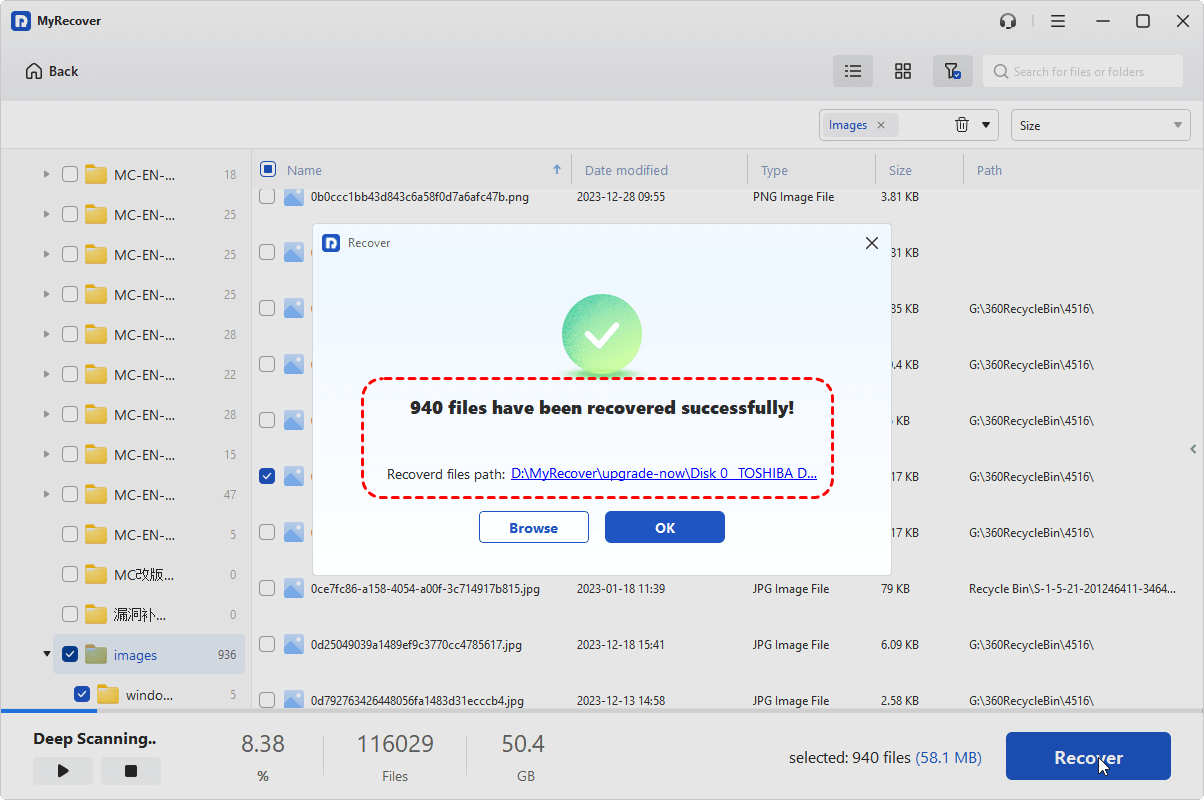
- Notes:✎...
- The scanning time depends on drive size and health. Wait patiently.
- You'll see folders like "User Content", "Game Saves", and "Captures" after scanning. Double-click to preview them.
- If there are plenty of files to recover, please upgrade to MyRecover Technician to enjoy.

 MyRecover
 - Recover Deleted Files Easily with Simple Clicks
- 1000+ File Formats Supported
- Support HDD, SSD, External Hard Drive, USB Drive, SD Card, etc.
- Quickly Find Files Using File Types, Name, Size, etc.
- Preview Files Before Recovering
- Recover Unlimited Data
 100% Secure
FAQs About Xbox One Green Screen
Why does my Xbox get stuck on the green screen?
A: Xbox One stuck on green screen usually follows a failed update, corrupted cache, bad drive sectors, or controller sync loops. Power interruptions during boot are another culprit. A hard reset or offline update usually fixes it without losing games.
Can a bad controller cause the green screen?
A: Yes. A controller stuck in pairing mode can trigger green screen controller Xbox issues. The console waits for a controller signal that never comes. Remove batteries, connect via USB cable, then hard reset. This often bypasses the freeze.
How do I fix the green screen on Xbox One X?
A: For green screen Xbox One X, hard reset first (hold power 10 sec, unplug 30 sec). Next, boot into low-res mode (power + eject until second beep). Still stuck? Run offline USB update. This works on over 80% of X models.
Does a factory reset fix the green screen?
A: Usually. "Reset and keep games" often fixes the Xbox 1 green screen without data loss. A full factory reset wipes corruption completely. But if the hard drive is physically damaged, even a reset can hang – then you need drive replacement or MyRecover.
Can I recover saves from a green-screened Xbox?
A: Yes, using MyRecover. Remove the internal drive, connect to a PC, and run a deep scan. MyRecover extracts saves and clips even when the Xbox One is stuck on a green screen, blocking normal access. Then transfer saves to a repaired or new console.
How long should I wait on the green screen?
A: Wait at least 10 minutes. If 20-30 minutes pass with a solid power light (not blinking), it's a freeze, not a slow boot. Proceed with a hard reset or an offline update. Never repeatedly pull the plug – software issues can become hardware damage.

Stay Updated With Our
Latest Tips
Add us as a preferred source on Google to never miss helpful guides.
 Add as preferred source >>