 MyRecover



[Fixed]: Your Account Has Been Disabled Please See Your System Administrator
The error message 'Your Account Has Been Disabled Please See Your System Administrator' can be frustrating, especially if you're unable to log in to your Windows 10 or Windows 11 computer. We will provide practical solutions for both local and Microsoft accounts. Whether you're dealing with an administrative lockout or a technical glitch, this article will guide you through the steps to regain access to your account and fix the issue permanently.

By Aria / Updated on May 14, 2026


What Does it Mean When Windows Says "Your Account Has Been Disabled"?
When Windows displays the error message "Your Account Has Been Disabled Please See Your System Administrator," it indicates that your user account has been locked or deactivated, preventing you from logging into your system. This error means that your account has been restricted, either manually by an administrator or due to system or security policies. In Windows, an account may be disabled for several reasons, such as violation of account policies, repeated login failures, or temporary administrative changes.
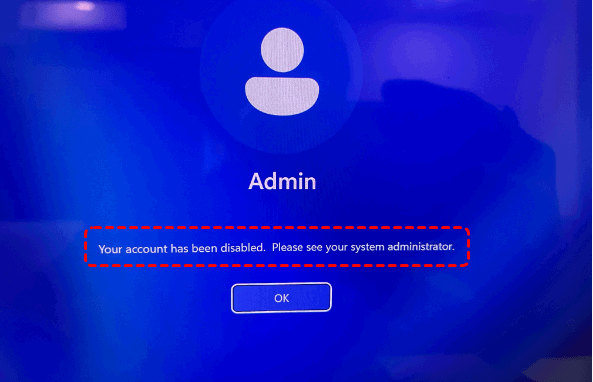
When this error occurs, you will be unable to access your files or programs tied to the disabled account. If it's your only account, this can block your entire access to the computer. If you're on a domain network, the account's restriction may also limit your access to shared resources, databases, or network services, impacting your workflow and productivity.
Why Does the "Your Account Has Been Disabled" Error Occur?
The "Your Account Has Been Disabled" error can be triggered by several factors, typically revolving around security settings or account management policies. Below are some of the most common reasons why this error occurs:
❌ Excessive Failed Login Attempts:
If you've entered the wrong password multiple times in a row, Windows may temporarily lock your account as a security measure to prevent unauthorized access. In some cases, this can lead to the account being disabled until an administrator re-enables it.
❌ Account Policy Violations:
If you are part of a network or corporate environment, strict user account policies may be in place. These policies could disable accounts automatically after a certain period of inactivity or if the account violates security settings.
❌ Manual Disabling by an Administrator:
In organizational environments, system administrators may disable accounts for various reasons, such as non-compliance with company policies, suspicious activity, or during an employee's offboarding process. This action ensures that unauthorized individuals can't access sensitive data.
❌ Corrupt or Damaged User Profile:
Sometimes, Windows may encounter errors or corruption in user profiles. This can happen during system updates, migrations, or due to disk errors. As a result, the account might get disabled automatically, causing access issues.
❌ Domain Network Issues:
For users connected to a corporate or enterprise domain, account management is typically controlled by central domain controllers. If there's a network or communication issue with the domain, or if your account hasn't been properly synchronized, Windows may show the "account disabled" message.
How to Fix "Your Account Has Been Disabled Please See Your System Administrator" on Windows 11/10
When you encounter the "Your Account Has Been Disabled. Please See Your System Administrator" error, it can be frustrating, especially if you're unable to log into your system or access your files. Fortunately, there are several methods to resolve this issue, depending on the cause. Below are step-by-step instructions on how to fix this error using different troubleshooting techniques.
1. Re-enable a Disabled Administrator Account via Computer Management (If Another Admin Account Exists)
For personal users, if another available administrator account (such as the built-in Administrator account) exists on your PC, you can directly re-enable the previously disabled account locally from Local Users and Croups settings to regain access to your computer.
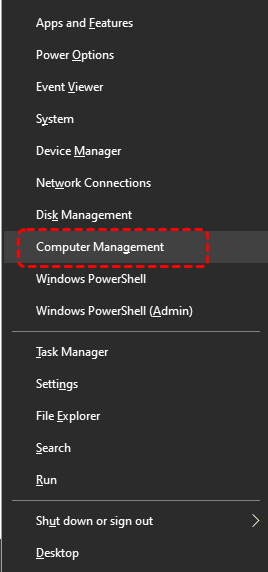
Step 1. Press "Win" + "X" and select "Computer Management" to open it.
Step 2. Navigate to "System Tools" > "Local Users and Groups" > "Users". You can also access "Local Users and Groups by pressing "Win" + "R" and entering "lusrmgr.msc".
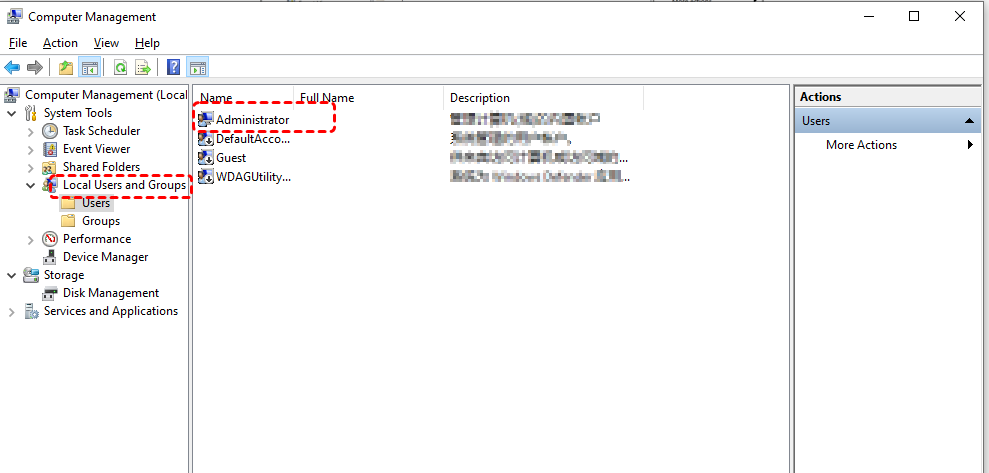
Step 3. Find the disabled account in the middle pane, double click on it to open "Properties" window.
Step 4. Under the "General" tab, uncheck the box next to "Account is disabled" and click "Apply" to save the changes.
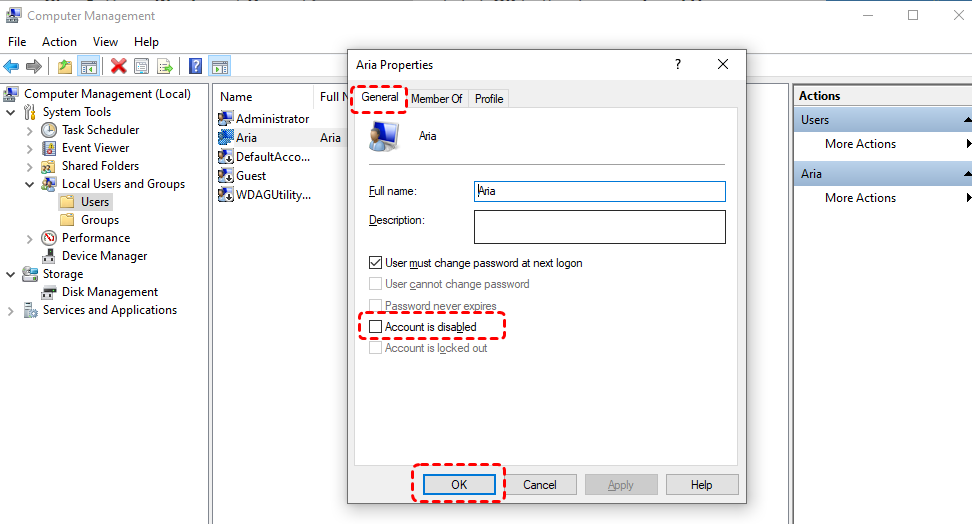
Step 5. Restart your computer, log out the current account and try logging in with the previously disabled account to check if the error disappears.
2. Activate the Disabled Account Using Command Prompt (If the Only Admin Account is Disabled)
If you only have one administrator account and it has been disabled, this method allows you to re-enable it via Command Prompt from the recovery environment. Follow these steps to enable your account and fix the "Your account has been disabled. Please see your system administrator" error:
Step 1. Power off your computer and turn it back on. As soon as you see the Windows logo, press and hold the power button to force a shutdown. Repeat this process three times to trigger "Windows Recovery Environment" (WinRE).
Step 2. In the WinRE screen, select "Troubleshoot" > "Advanced options" > "Command Prompt".

Step 3. When the Command Prompt opens, type the following command "net user [username] /active: yes" and press Enter. Replace [username] with the name of your disabled account.
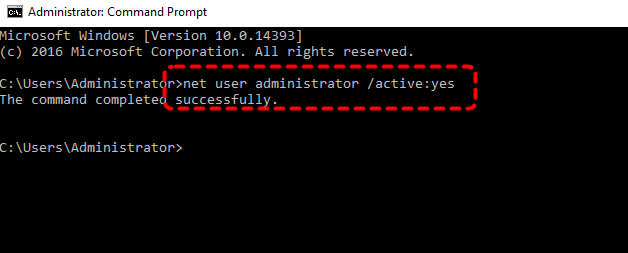
Step 4. After running this command, type "exit" to close Command Prompt and restart your computer, then check if you can log in to your account.
3. Re-enable Account Using Registry Editor
If no other user accounts are available, you can also unblock the account by editing the Registry. This is an advanced repair method that requires extreme caution during operation, as any incorrect changes may cause permanent corruption to your account data. Before you begin, it is highly recommended to create a Registry backup in advance.
Step 1. Get into WinRE as described earlier and select "Troubleshoot" > "Advanced options" > "Command Prompt".
Step 2. By default, Windows displays the built-in Administrator account even when it is disabled. Click "Administrator" and enter your password, then click "Continue".
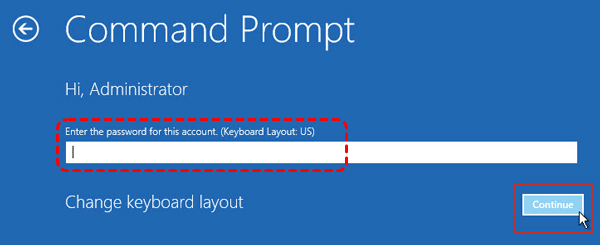
You will not be able to use this method if you have forgotten your password.
Step 3. Type "regedit" in the Command Prompt window and hit "Enter" to open Registry Editor.
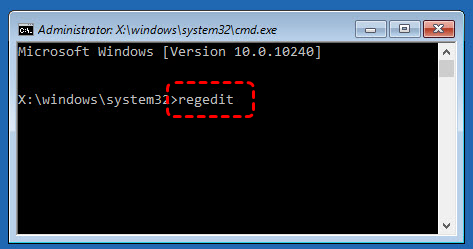
Step 4. In the Registry Editor window, select "HKEY_LOCAL_MACHINE" and click "File" tab, then choose "Load Hive".
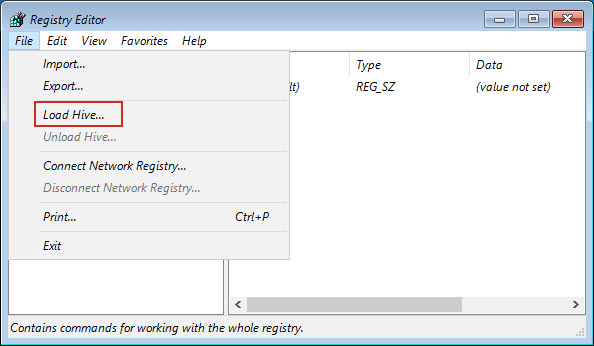
Step 5. Then, navigate to C:\Windows\System32\Config. Locate "SAM" under the "Config" folder and double click on it to create a new key.
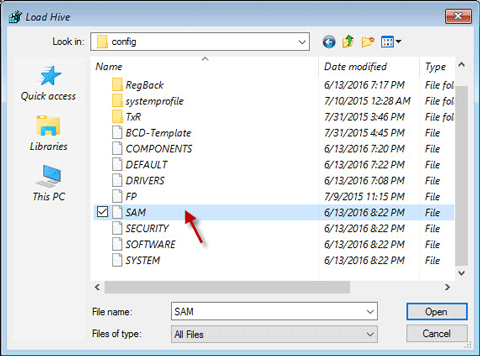
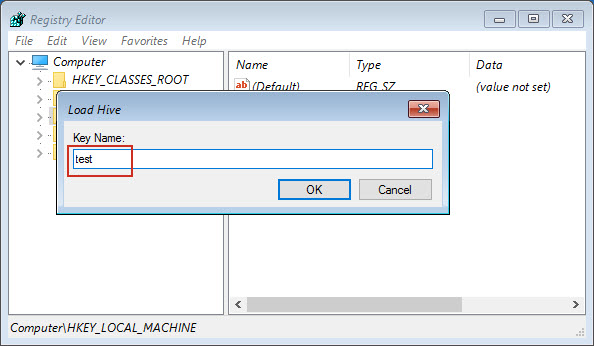
Step 6. Type a name for the new key and click "OK" to save the changes.
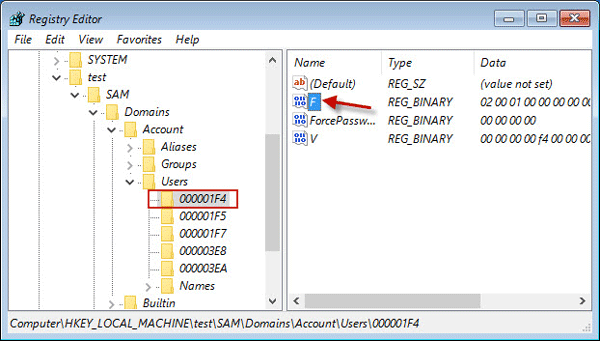
Step 7. Go to "HKEY_LOCAL_MACHINE\test\SAM\Domains\Account\Users". Select "000001F4" and double click "F" entry in the right panel.
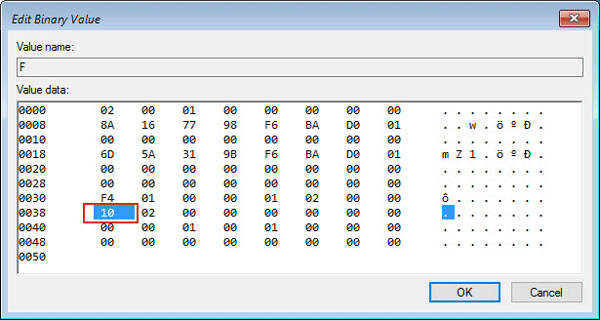
Step 8. Locate the "0038" line and change "11" to "10", then click "OK".
Close Registry Editor and Command Prompt, then click "Continue" to restart your computer. Then, you can automatically get into the built-in administrator account.
4. Create a New Administrative Account with Command Prompt
If the disabled account is preventing you from accessing your computer and you're unable to enable it using the previous methods, creating a new administrative account can help regain control and resolve the "Your Account has been Disabled Please See Your Ssystem Administrator" errror. Here is how to do:
Step 1. Open the Command Prompt in WinRE (as described in the second solution), type the following command to create a new user account with administrative privileges:
- net user [newusername] [password] /add
- net localgroup administrators [newusername] /add
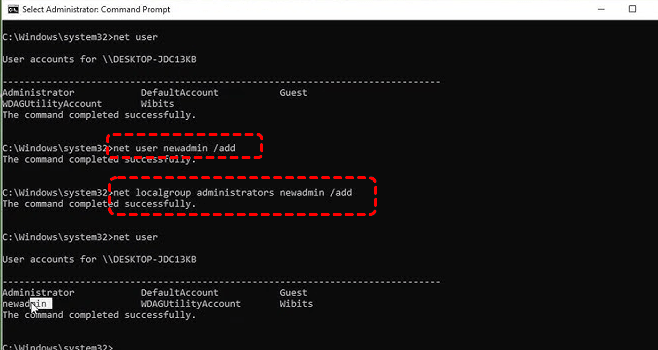
Replace [newusername] with your desired username.
Step 2. Restart your system and log in using the new administrative account.
- Notes:✎...
- The new administrator account created with this method has no password by default. You can sign in to Windows and then set a password for it.
5. Perform a System Restore
If the issue started after a system update or configuration change, performing a System Restore to a previous point (If you have created a System Restore point) may resolve the "Your account has been disabled. Please see your system administrator" issue. This method will not affect any of your personal data, but programs installed after the restore point was created will be removed.
Step 1. Boot into Windows Recovery Environment (WinRE) as outlined earlier.
Step 2. Select "Troubleshoot" > "Advanced options" > "System Restore".
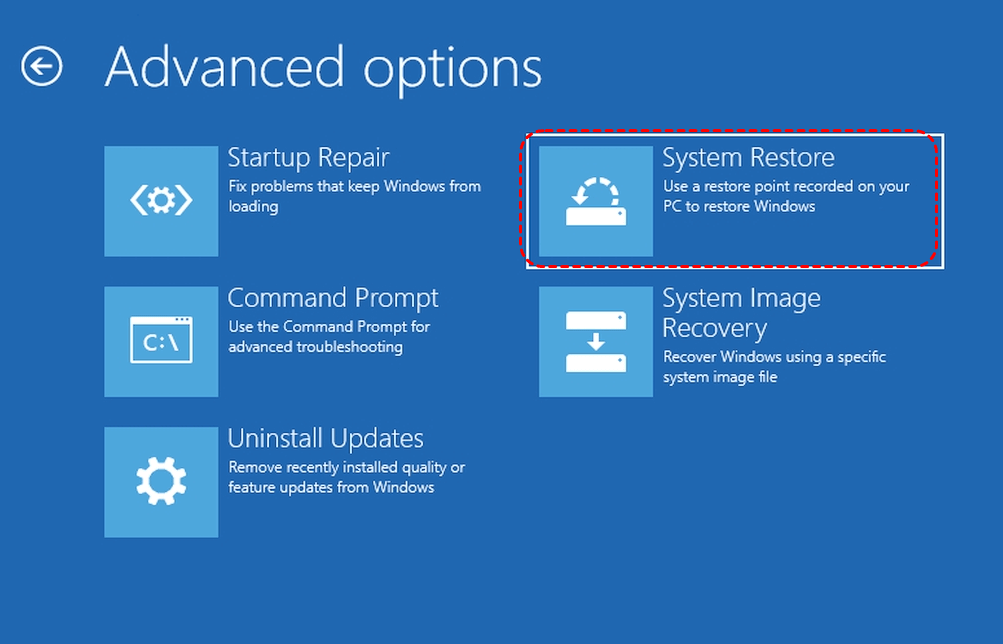
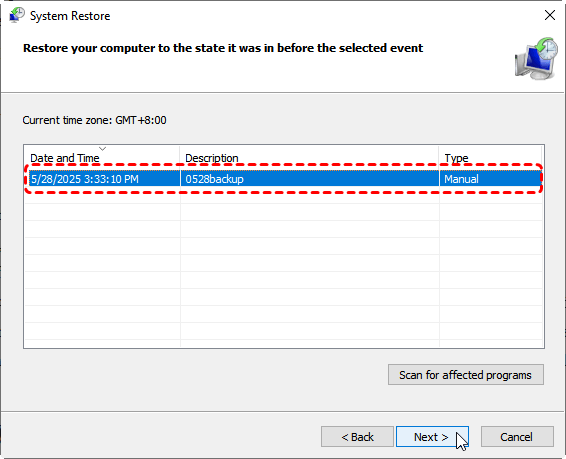
Step 3. Choose a restore point before the error started occurring and click "Next" to continue the process. You can check the affected programs by clicking on the "Scan for affected programs".
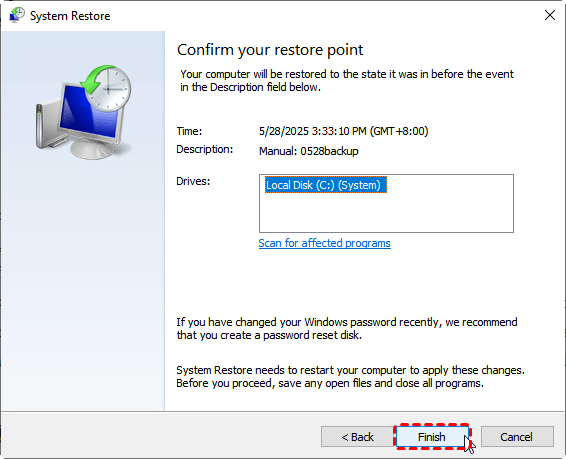
Step 4. Confirm the restore point and click "Finish" to start the restoration process. Once the system restore is complete, restart your computer and check if the account is enabled.
6. Reset Windows
If none of the above methods work and you are still unable to enable your account, you may need to reset your Windows installation. This should be a last resort, as it will restore your PC to its factory default settings and remove all errors.
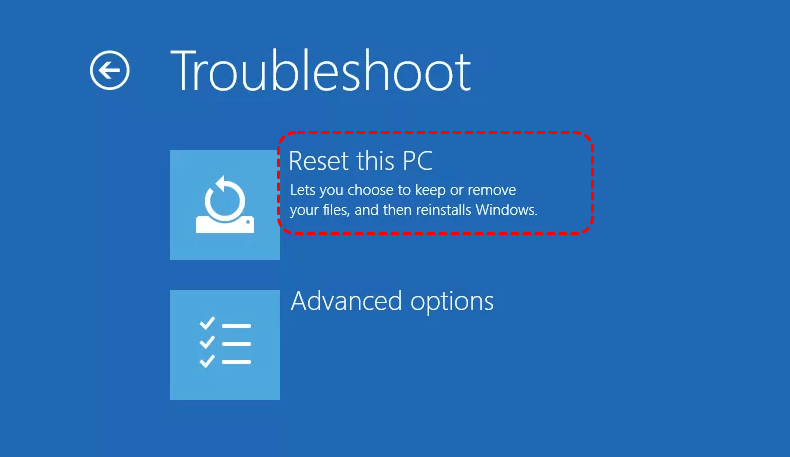
Step 1. Boot into WinRE and select "Troubleshoot" > "Reset this PC".
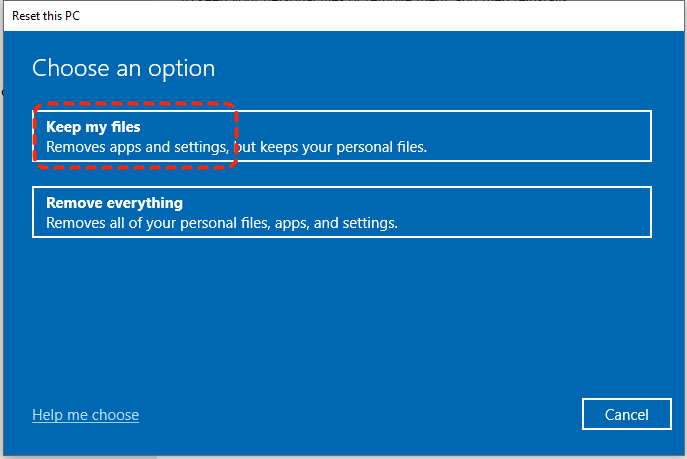
Step 2. Choose whether to keep your files or remove everything and how to download Windows (Cloud Download or Local Reinstall).
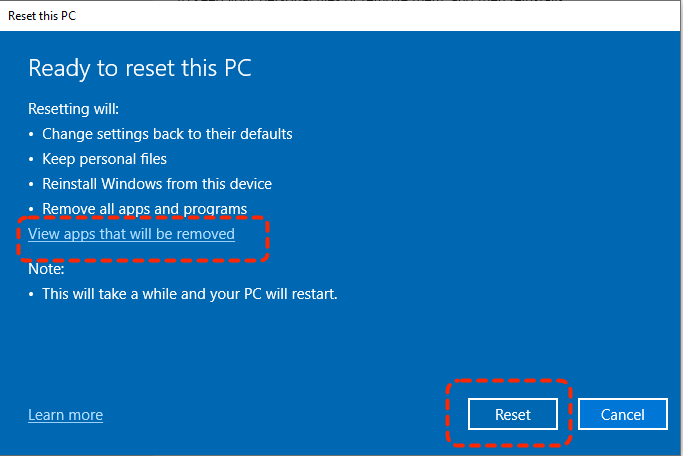
Step 3. Confirm the reset settings and click "Reset" to continue the process.
Step 4. After the reset, your system should be restored to a working state, and you can set up a new account or enable the previous one.
How to Recover Your Files When You Can't Access Your Account
If you've encountered the "Your Account Has Been Disabled Please See Your System Administrator" error and have been unable to regain access to your account, there’s a possibility that crucial files tied to the disabled account might be inaccessible. In such cases, fixing the account issues using the methods listed above can help restore access to your system, a professional data recovery tool can help you recover files in the account.
One such tool that can help in this situation is MyRecover. It is a specialized data recovery software designed to recover lost, inaccessible, or deleted files from a variety of situations, including system errors, account issues, and more. It works efficiently even when the account associated with your data is inaccessible.

 MyRecover
- Recover deleted & lost files from HDD, SSD, USB, SD card, camera as you need.
- Support 1000+ formats of photos, videos, docs, archives, emails, compressed files, etc.
- Reliable rescue for deletion, formatted disk, emptied Recycle Bin, system crashes and more.
 100% Secure
Step 1. Download and install MyRecover on your Windows supported computer from Microsoft Store or its official website.
Step 2. Run the application and select the drive where the lost files were stored, then click "Scan" to search for lost files.

Step 3. After the scanning process is finished, browse the results and locate your desired files using the "Filter" function. Choose the target files and click "Recover".

If the files you need to recover are larger than 500 MB, upgrading to the Professional edition of MyRecover allows unlimited data restoration and file content preview before restoration.
Step 4. Select a safe location to save the recovered files to avoid overwriting original data.
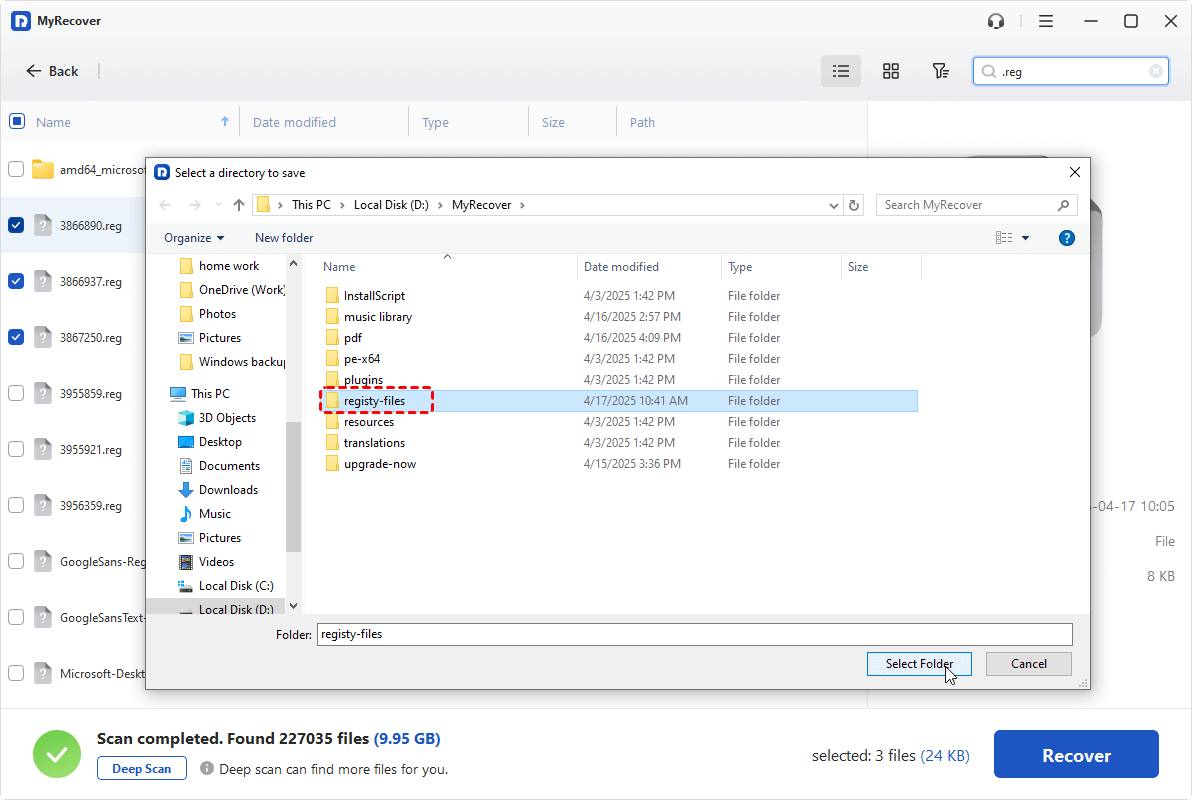
Once the process is done, the message "Files have been recovered successfully" will pop up. Then, you can check and verify the recovered files in the destination folder by clicking on "Browse" button.
Summary
Encountering the "Your Account Has Been Disabled Please See Your System Administrator" error can be a frustrating experience, especially if it prevents you from accessing important files or performing critical tasks. But with the solutions mentioned above, you can fix it effortlessly.
If any data is lost during the process, MyRecover offers a reliable solution. It can help you recover files from a disabled or corrupted account, ensuring that your important data remains safe and accessible.
FAQs
Q1: How do I fix my disabled Administrator account?
To fix a disabled Administrator account, you can use Windows recovery options like Command Prompt or Computer Management. If another admin account exists, re-enable the disabled account using "Local Users and Groups" or use the "net user" command in Command Prompt to activate it. If none of the solutions work, you may need to perform a system restore.
Q2: How do you activate your administrator account?
To activate your Administrator account, press "Win + X" and select "Command Prompt (Admin)." Type "net user administrator /active: yes" and press "Enter". This will enable the hidden Administrator account. Restart your computer to log in as Administrator.
Q3: How to fix the Administrator account is disabled on Windows 10?
If the Administrator account is disabled on Windows 10, you can enable it using the Command Prompt in recovery mode. Restart your PC, enter recovery mode, select "Troubleshoot" > "Advanced options" > "Command Prompt," then type "net user administrator /active: yes" and restart your PC to activate the account.
Q4: How do I get back my administrator account?
If your Administrator account is missing or disabled, try enabling it through the Command Prompt or by using System Restore if the account was disabled due to a system error. If the account still doesn't appear, you may need to create a new administrative account. And the dedicated data recovery tool MyRecover can help you recover lost profiles.
Q5: How to fix disabled work account without system administrator?
If your work account is disabled and you can't access it without a system administrator, you may be able to recover it through password reset tools or by creating a new local account. However, most work accounts are managed by your organization’s IT department, so contacting them is typically the best solution.
Q6: Why is my device locked by admin?
Your device may be locked by an administrator due to security policies, system restrictions, or account management settings. This is common in work or school environments where the administrator enforces restrictions to control access to resources or maintain security. You'll need the admin password to unlock it.

Stay Updated With Our
Latest Tips
Add us as a preferred source on Google to never miss helpful guides.
 Add as preferred source >>