
Lost or Deleted Partitions
An accidentally deleted partition or a drive that suddenly disappears from File Explorer leaves its files and folders out of reach.
 MyRecover
 is a Windows partition recovery solution built to bring lost, deleted, or inaccessible partitions back within reach. It restores lost or deleted partitions through a guided workflow. Fast Search, Full Search, and detailed partition information help you locate and identify the recovery target.
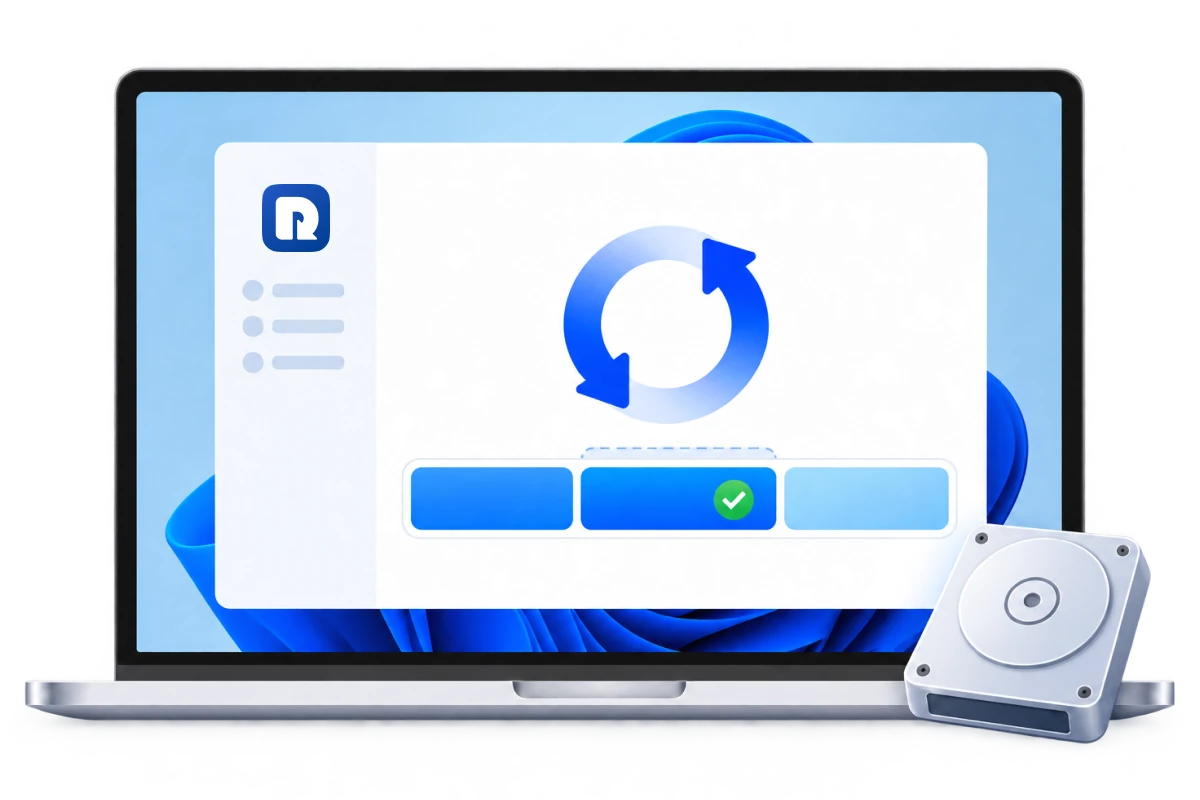
A missing partition can happen for different reasons, from accidental deletion to unexpected changes in how Windows recognizes a drive. MyRecover Partition Recovery is designed for a range of partition loss scenarios, helping you identify when partition-level recovery may be needed.
An accidentally deleted partition or a drive that suddenly disappears from File Explorer leaves its files and folders out of reach.

A failed partition resize or merge leaves a volume missing and its files inaccessible, while Windows still detects the disk.

Disk Management shows “Unallocated” where your partition used to be. The space no longer has a drive letter or an accessible volume.

Windows detects your disk, but its partition layout appears incorrect or incomplete. A previously working partition is no longer listed or accessible.
When a partition was accidentally deleted, the wrong move can make recovery more difficult. Before trying to restore the partition or recover its files, avoid these four common mistakes to protect your chances of recovery.
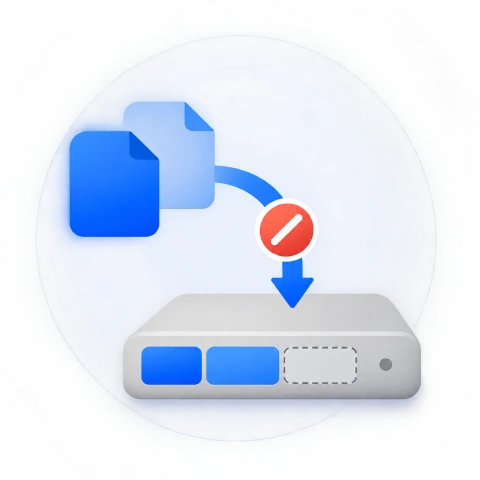
Saving new files, installing software, or copying data to the affected drive may overwrite recoverable data. Stop using the drive as soon as you notice the missing partition.
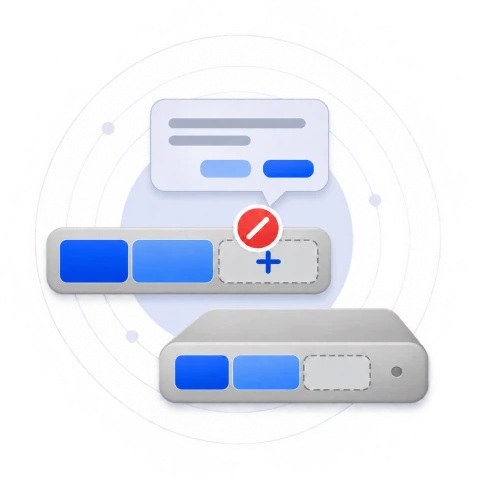
Windows may prompt you to format or initialize a disk, or create a new volume in unallocated space. Avoid these operations until you've attempted recovery, as they may overwrite recoverable data or alter partition information.
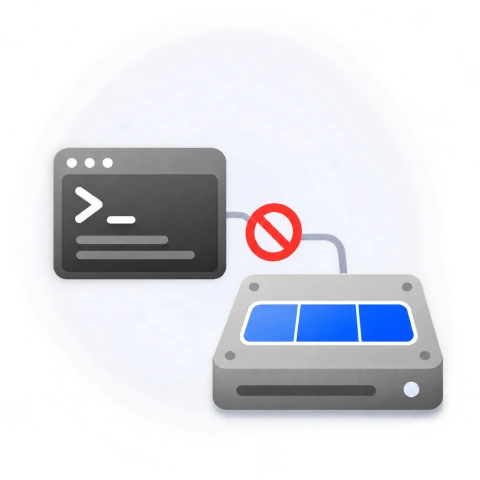
Commands such as CHKDSK or DiskPart can modify file-system or partition information, depending on the operation. Before running repair commands or changing disk settings, assess the situation and prioritize recovering your data.
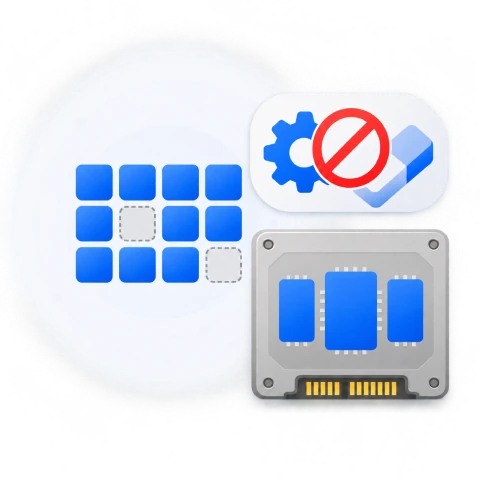
Don't defragment, optimize, or erase the affected drive. On SSDs, TRIM may permanently clear deleted data blocks, making recovery impossible. Stop using the drive immediately to protect recoverable data.
Recovering a lost or deleted partition does not have to be complicated. MyRecover guides you from selecting the affected drive to identifying the recoverable partition and restoring it with its available data and structure.
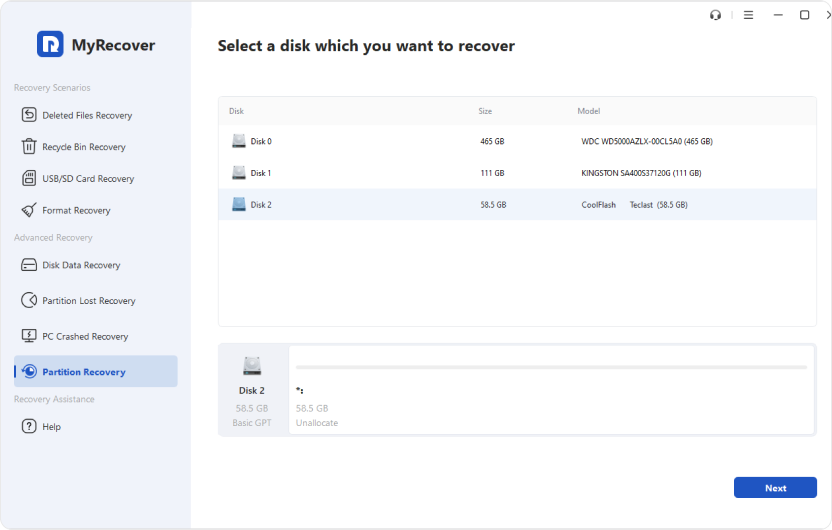
Choose “Partition Recovery” section and select the disk where the lost or deleted partition was located, then click “Next”.
Select “Fast Search” or “Full Search” based on your needs and click “Next” to search for recoverable partition information and data.
Check the detected partitions and choose the desired partition you want to recover. Click “Proceed” to restore the whole partition.
When a partition disappears, recovering a few files may not be enough. MyRecover Partition Recovery is designed to recover the entire lost or deleted partition, including the partition information and the data stored inside it.

Restores available partition table information, including the partition’s location, size, and position within the disk layout.

Brings back available boot sector information used to identify the partition and access its file system.

Helps retain the file system information that defines how files and folders are organized and accessed within the partition.

Get back the data stored on the lost partition, including documents, photos, videos, audio, archives, and other supported file types.

Preserves available metadata associated with files and folders, such as names, locations, and directory relationships.

Keeps the original hierarchy of folders when the required directory information is available, so related files remain organized after recovery.
A lost partition can be approached in two ways: recover the files stored inside it, or recover the partition itself. The right option depends on what you need to restore.
| Comparison item | File Recovery from Partition | Partition Recovery |
|---|---|---|
| What is recovered? | Individual files and folders | The entire partition including its available data and structural information |
| Recovery scope | File-level recovery | Partition-level recovery |
| Files & folders | Recover selected files and folders | Recover all files and folders in the partition |
| File names & folder structure | ||
| Partition information | - | |
| Partition table | - | |
| Boot sector | - | |
| File system information | - | |
|
In short:
File Recovery is enough when you only need the data. Choose Partition Recovery when you need the partition itself and the data within it restored together. |
||
MyRecover supports a wide range of storage devices, file systems, file types, and partition configurations, making it suitable for recovering deleted or lost drive partition from different Windows storage environments.


 60GB
Partition Capacity
 428
Original File Count
 50 Min
Scan + Recovery Time

Detected partition matched the original size, type, file system, and sector boundaries

Accessible in Windows File Explorer

Original folders, subfolders, and empty folders fully intact

All 428 original files found in the recovered partition

File contents unchanged in all checked files (SHA-256 verified)

Original drive letter F: restored

Original NTFS file system retained

100% file names and extensions preserved

Checked files retained their original modification times
From identifying a missing partition to restoring access, MyRecover combines a guided workflow, detailed scan results, and flexible search options to help you handle partition loss.

Restore the lost partition together with its file system, drive letter, and stored data, helping Windows recognize the volume and make it accessible again.

Follow a clear, step-by-step workflow to select your disk, find missing partitions, and start recovery—without complex commands or specialist knowledge.

Keep recoverable files in their original folders with their original names, making it easier to locate your documents and projects after recovery.

Start with Fast Search, then use Full Search if the missing partition is not found, giving you another search option before ruling out recovery.

Search for lost partitions without writing changes to the affected disk, allowing you to review detected partitions before deciding whether to proceed with recovery.

Compare each detected partition’s size, file system, type, and start/end sectors to help identify your original partition and reduce guesswork when choosing a recovery target.
The boot partition contains essential files required for Windows to start. If it is accidentally deleted, your PC may fail to boot, leaving your files inaccessible. MyRecover allows you to create a bootable USB, recover the lost boot partition, and retrieve its contained data.
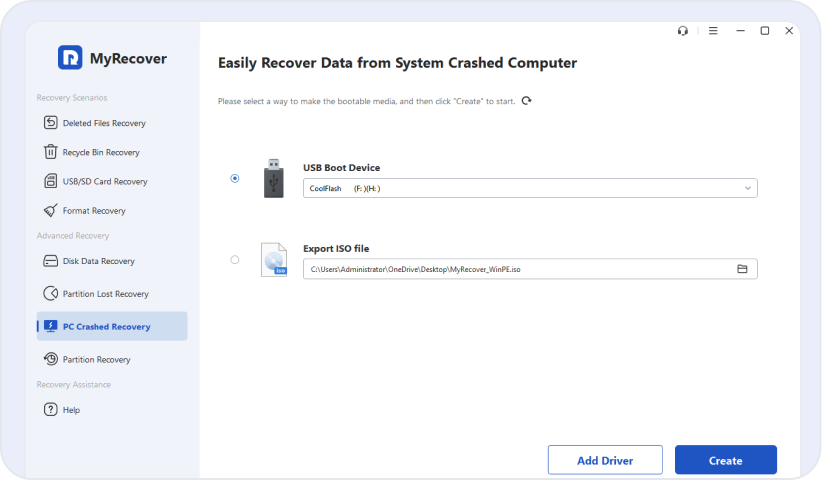
Launch the app on another computer and prepare a USB drive (at least 16GB). Insert it and select “PC Crashed Recovery” > “USB Boot Device” > “Create” to make the bootable USB.
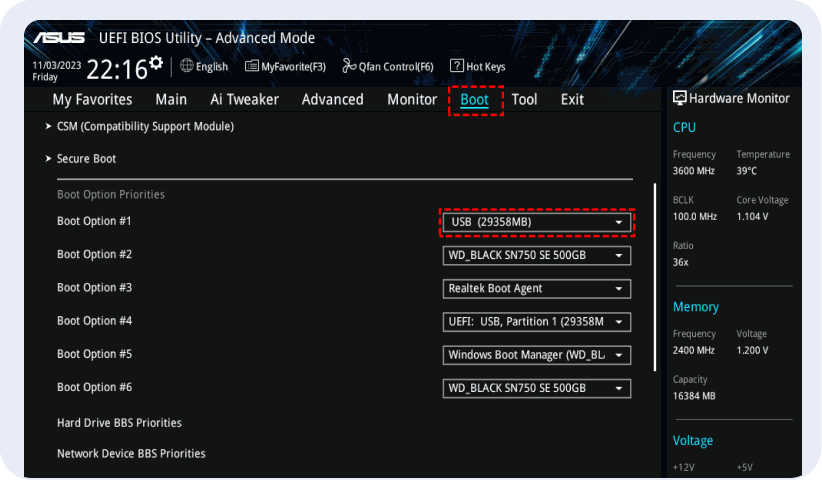
Plug the USB into the affected PC. Enter BIOS/UEFI (press Esc, Del, or F2), set the USB as the primary boot device, save, and restart.
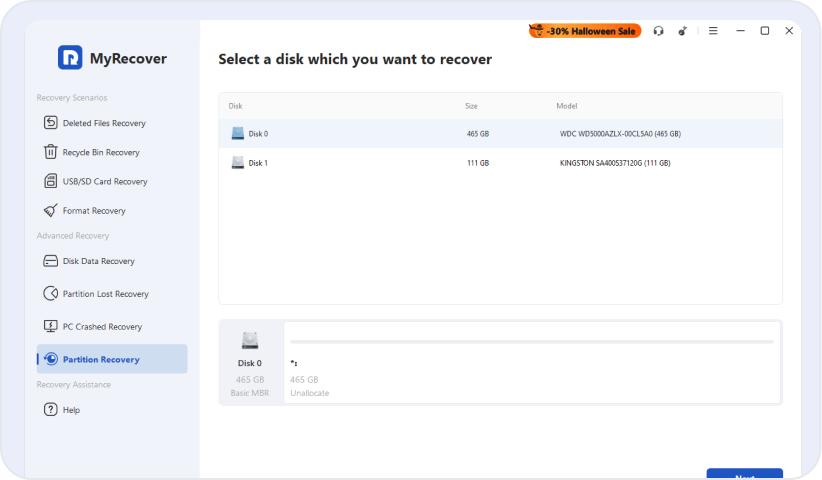
MyRecover loads automatically. Use Partition Recovery to get back the lost or deleted boot partition.
 Note:
MyRecover searches for lost or deleted partitions and restores them with their file system, drive letter, folder structure, and recoverable data through a guided graphical workflow.
Free Trial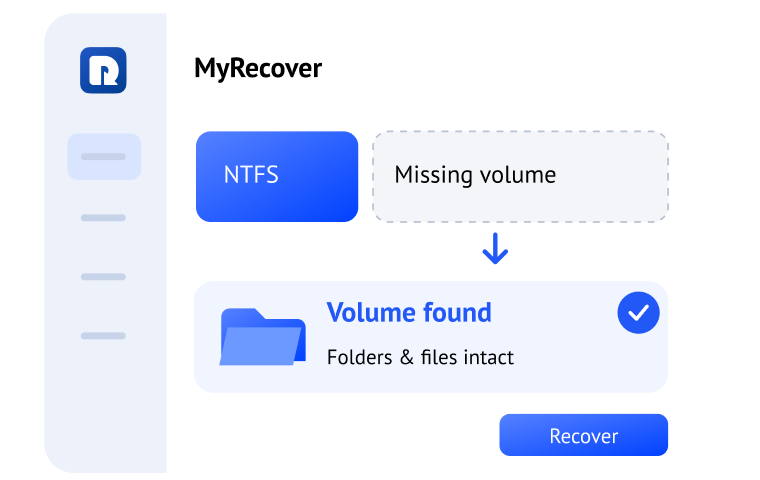

Windows users who want to restore an entire missing partition without technical commands.

Guided graphical workflow; One-click partition & data recovery; Supports bootable recovery

Paid plan required
TestDisk is a free, open-source tool that searches for lost partitions and can restore their entries in the partition table.
Step 1. Launch TestDisk, choose Create, and select the affected disk and partition table.
Step 2. Select Analyse and Quick Search. If needed, run Deeper Search.
Step 3. Confirm the correct partition, then use Write to restore it.
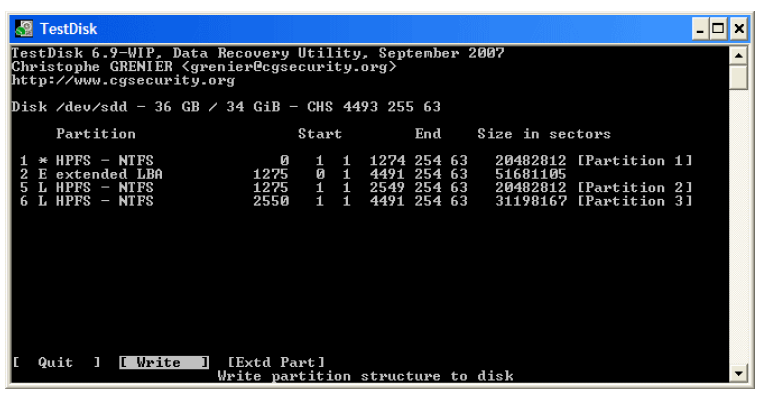
Users comfortable with a text-based interface and technical partition settings.
Free and open source; Restores partition entries; Works beyond Windows
No graphical interface; Requires technical knowledge; Incorrect writes can worsen recovery
Recover your files on the partition, then create a new partition in the unallocated space and copy the files back.
Step 1. Recover files to a different drive.
Step 2. In Disk Management, select the unallocated space and choose New Simple Volume.
Step 3. Set the volume size, drive letter, and file system.
Step 4. Copy the recovered files back to the new volume.
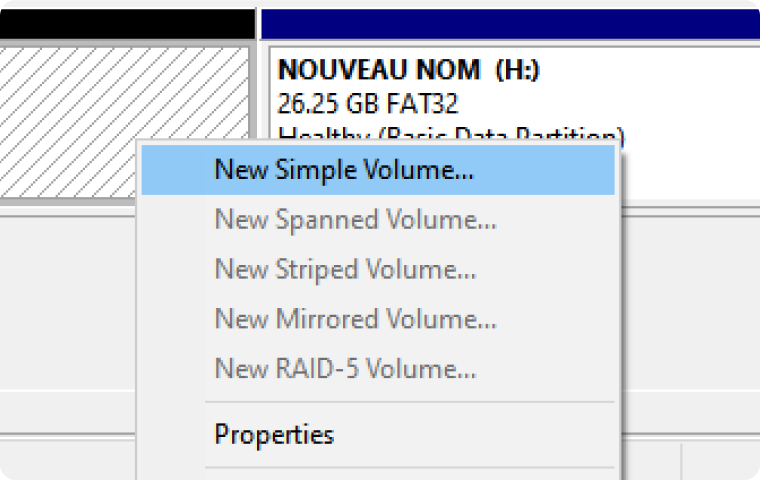
Users who want their files back and a usable drive without needing the original partition.
Reuses available disk space; Data safety first; Windows built-in tool
Original partition not restored; Risk of overwriting original data
Professional data recovery services assess the affected device and use specialized equipment and techniques to retrieve recoverable data.
Physical drive damage, unreliable disk access, or critical data that requires expert handling.
Expert diagnosis; Can address physical failures; Less hands-on work
Potentially higher cost; Longer recovery turnaround; Recovery is not guaranteed
Restore lost or deleted partitions with their original structure and recoverable data on one Windows computer.
Restore lost or deleted partitions across unlimited computers to meet enterprise recovery needs.

“I accidentally deleted the wrong partition while cleaning up my disk. I honestly thought everything on it was gone. MyRecover found a partition with the size and file system I remembered. After restoring it, I could open the drive and find my folders again. That was a huge relief.”
“My D: drive disappeared one morning, but the disk was still showing in Disk Management. I’m not particularly technical, so I appreciated having clear steps to follow. MyRecover located the missing partition, and after recovery I could access it again. I checked my important documents first, and they opened normally.”
“My biggest concern was getting my work files back without losing how they were organized. I have years of projects in nested folders. After recovering the partition, the folder names and structure were still there. I could find what I needed without sorting through hundreds of files and rebuilding everything.”
“My external hard drive suddenly showed unallocated space where my photo partition used to be. I didn’t want to format it and risk losing more. MyRecover showed the detected partition’s size and file system, which helped me recognize it. After restoring it, I opened several photo folders to check the results.”
“Fast Search didn’t find the partition I was looking for, which was disappointing at first. I tried Full Search and gave it more time. It eventually found a result matching my original partition. After recovery, I opened my documents and checked the folders. I was glad there was another search option.”
 MyRecover