 MyRecover



Kingston USB Recovery: Recover Deleted or Lost Files from Kingston Flash Drives
This article focuses on practical solutions for Kingston USB drive data recovery, and covers useful tips to avoid data loss again, ensuring users not only recover lost files but also learn to protect their Kingston USB data effectively. So, you can get your important files back fast, whether you’re a beginner or non-tech user.

By Aria / Updated on May 27, 2026


Introduction
Kingston USB flash drives are widely known for their reliability, portability, and large storage capacities. But like any storage device, they are not immune to issues such as accidental deletion, disk formatting or corruption, or system errors. When this happens, you may lose important documents, photos, or videos, which can be frustrating and stressful.
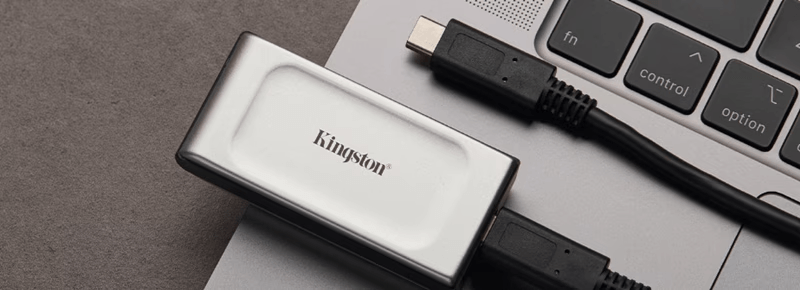
The encouraging thing is, Kingston USB recovery is possible. With the right steps and tools, you can recover data and repair your corrupted USB drive. Let’s walk through the process.
Can You Recover Deleted Files from Kingston USB?
Yes, in many cases, deleted or lost files on a Kingston USB flash drive can be recovered, especially if the data has not been overwritten by new files. Deleting files from a USB drive usually removes file references rather than erasing the actual content immediately, meaning recovery is often still possible.
However, the success rate depends largely on how the data was lost and whether the USB drive continues to be used after deletion. Common reasons for Kingston USB data loss include:
- Accidental deletion: Files are removed manually or with Shift + Delete.
- Accidental formatting: The USB drive is formatted intentionally or prompted by Windows due to corruption.
- File system corruption: The drive becomes RAW or inaccessible after improper ejection or power interruption.
- Virus or malware attacks: Files may become hidden, deleted, or damaged.
- Partition loss: USB partitions disappear because of corruption or disk management errors.
- Physical damage or aging: Excessive wear, connector damage, or hardware failure affects accessibility.
- Unexpected interruption during file transfer: Removing the drive while writing data may corrupt files.
-
Stop using the Kingston USB immediately after noticing data loss. Continuing to copy, edit, or save files may overwrite recoverable data and significantly reduce recovery success.
How to Recover Files from a Kingston USB Flash Drive
Since deleted files on a Kingston USB drive are often recoverable, particularly when the device hasn’t been overwritten or physically damaged. The next step is choosing an appropriate recovery method based on the data loss scenario. Whatever caused your files to go missing, the following methods can help retrieve them safely while minimizing further data loss. Below, we’ll walk through practical ways to recover files from a Kingston USB flash drive step by step.
1. Professional Kingston USB Recovery Tool Free Download
If the Kingston USB drive was formatted, became RAW, lost partitions, or files were deleted unexpectedly, a dedicated recovery tool like MyRecover is often more practical because it scans the device directly for recoverable data instead of relying on existing file records. MyRecover is ideal for Kingston USB data recovery. It features easy operation alongside powerful deep recovery functions, so it works well for regular users and handles even complex USB data loss issues.
🔥 Why MyRecover Works Well for Kingston USB Recovery:
✔️ Recover Files from Formatted Kingston Flash Drives: Retrieve photos, videos, documents, and other files even after accidental formatting.
✔️ Support RAW or Corrupted Kingston USB Drives: Scan inaccessible drives showing errors like RAW, unrecognized, or needs formatting.
✔️ Handle Common Kingston Data Loss Scenarios: Recover deleted files, missing partitions, virus-hidden data, and files lost after improper ejection.
✔️ Compatible with Most Kingston Storage Devices: Support Kingston DataTraveler series, encrypted USB drives (accessible partitions), memory cards, SSDs, and external storage.
✔️ Support 1,000+ File Types: Recover Office documents, images, archives, audio, videos, emails, and more.
4 Steps to Retrieve Los Files from Kingston USB Drives
Step 1. Download and install MyRecover on your computer from Microsoft Store. Connect the Kingston USB drive to your computer with a correct port.
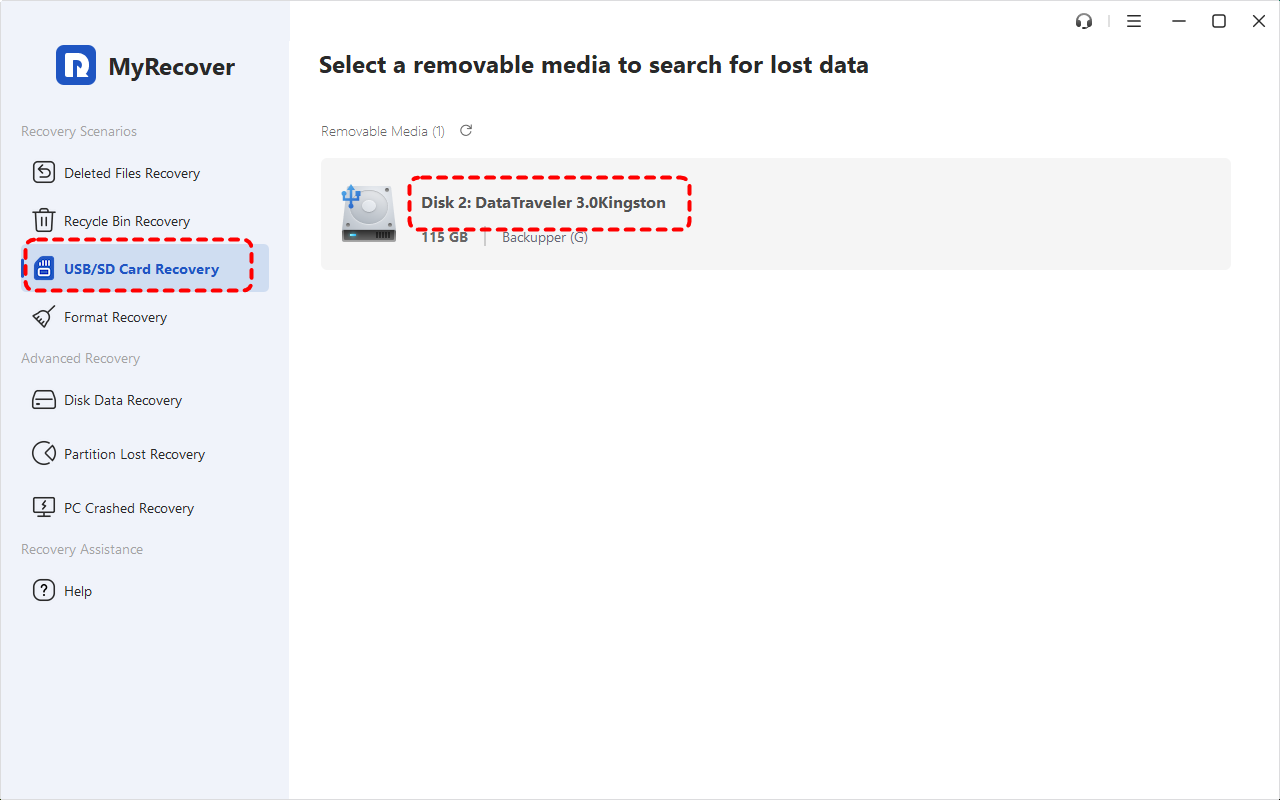
Step 2. Launch it and select "USB/SD Card Recovery" tab, choose your Kingston USB drive and click "Scan" to search for recoverable files (here we take Kingston DataTraveler 3.0 as an example). This will automatically perform a deep scan for your drive to locate more missing files.
Step 3. Browse the scan results and choose the files you wish to recover from the recoverable lists, then click "Recover".
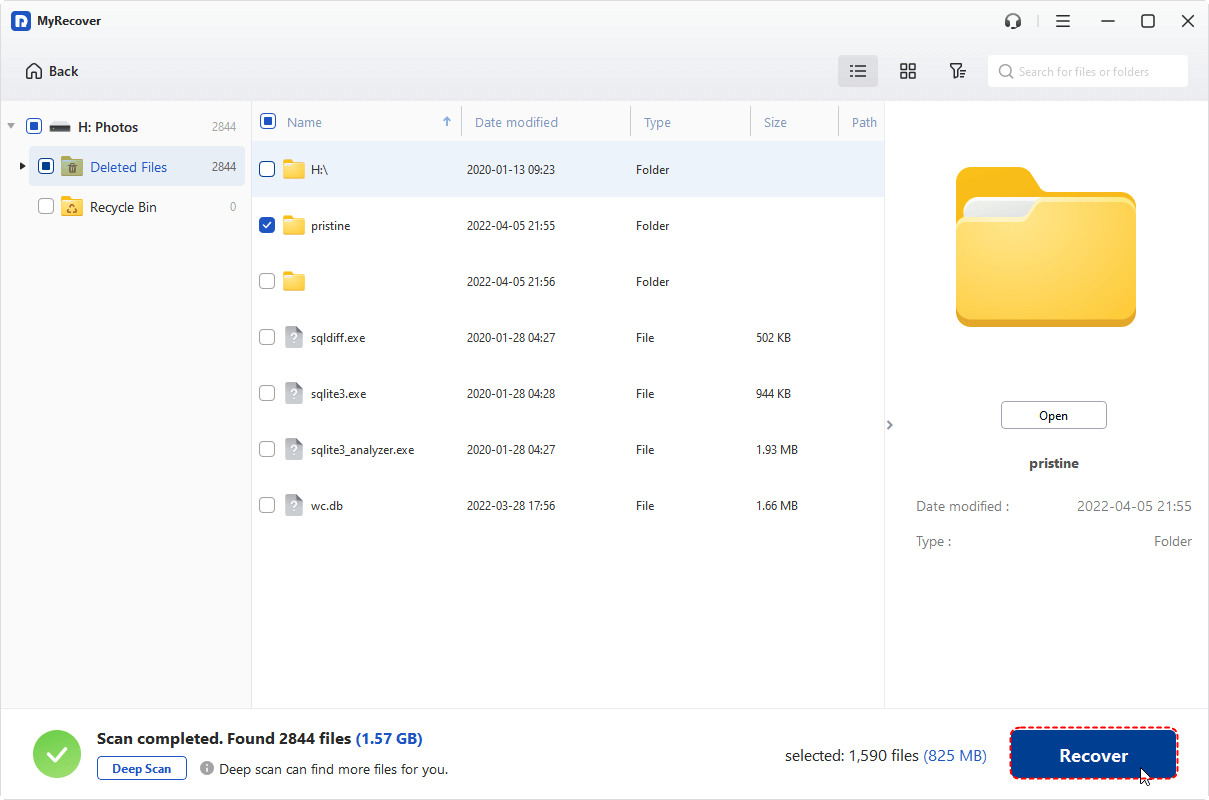
When the recovery task exceeds 500 MB, upgrading to the Professional version of MyRecover enables unlimited file recovery and file content preview. This edition also supports data recovery from unbootable Windows systems, ensuring you can access important files even if the operating system cannot start normally.
Step 4. Select a destination folder (different from the origianl Kingston USB drive) to save the recovered files.
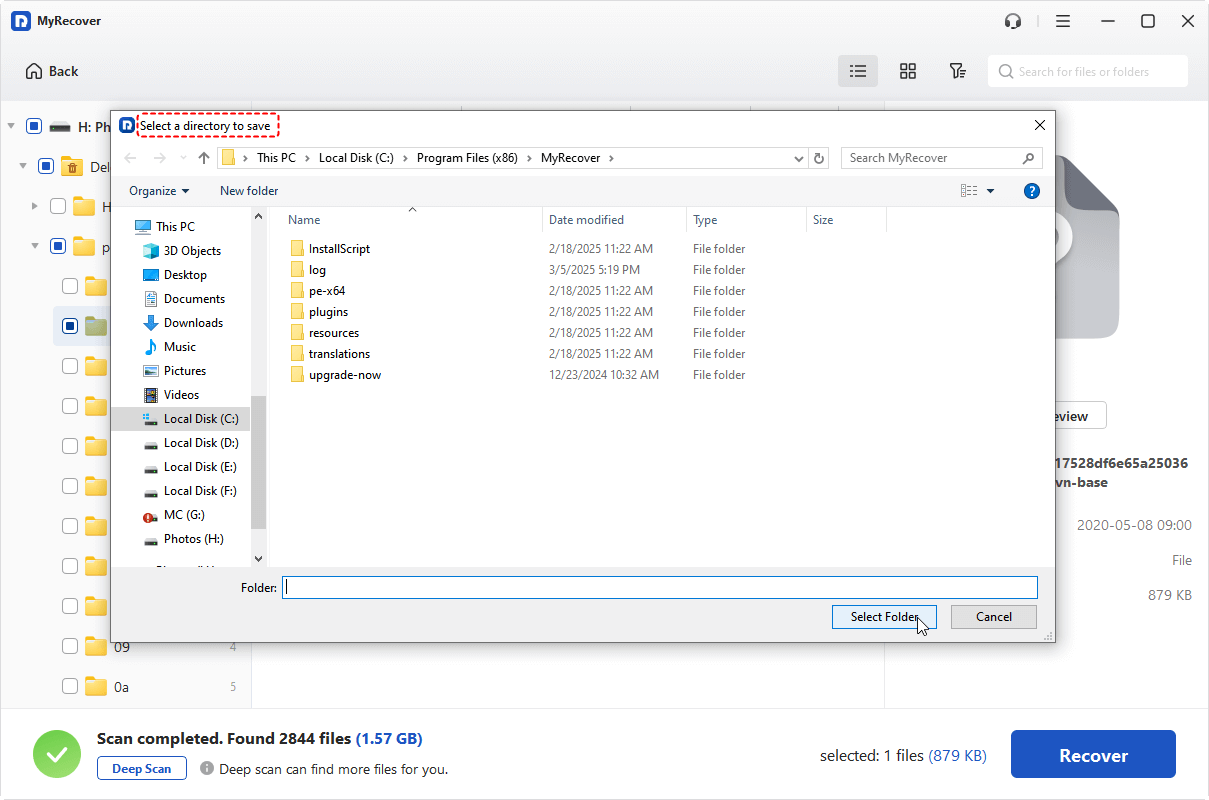
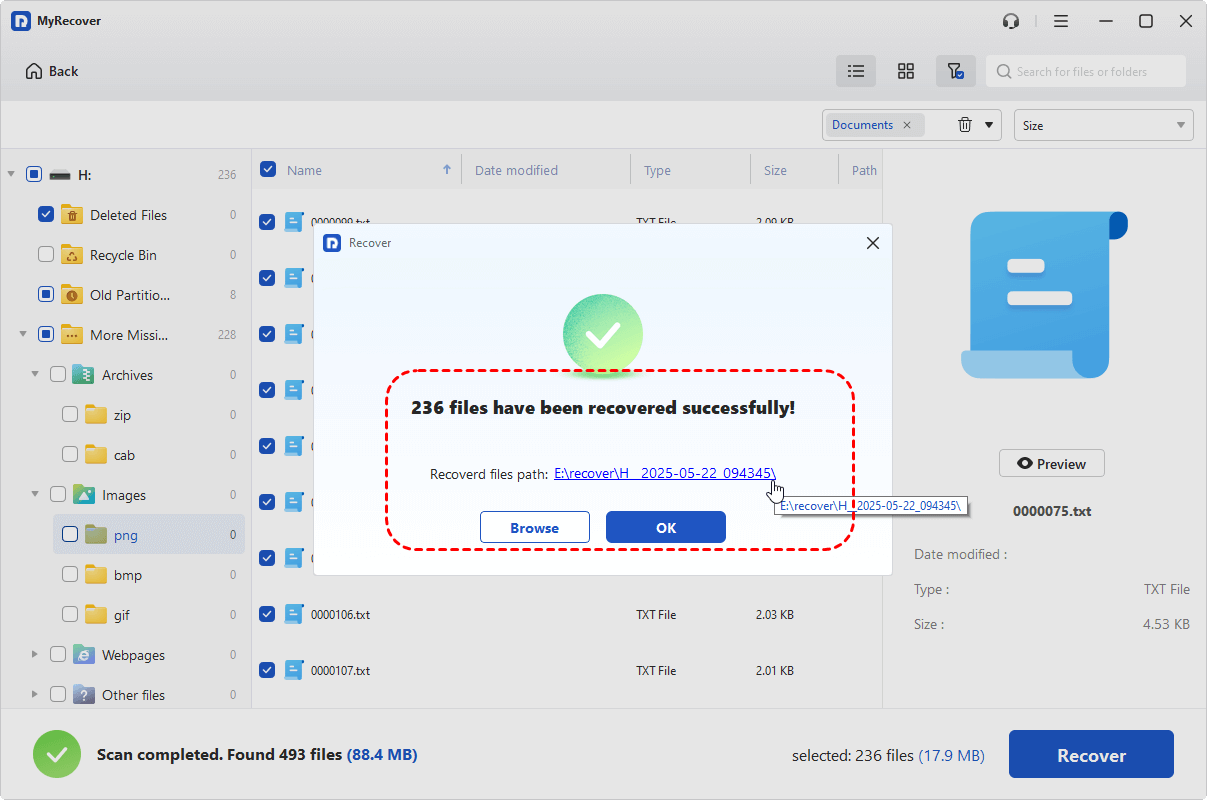
Once the process is completed, the message "Files haven been recovered successfully" will pop up. You can check the recovered files by clicking on the destination folder path or "Browse" button.
2. Restore from Previous Versions
If the lost files on your Kingston USB were backed up with Windows File History, you may be able to restore earlier versions without using recovery software. This works best when File History were enabled before data loss occurred. Follow these steps to restore your files from previous versions:
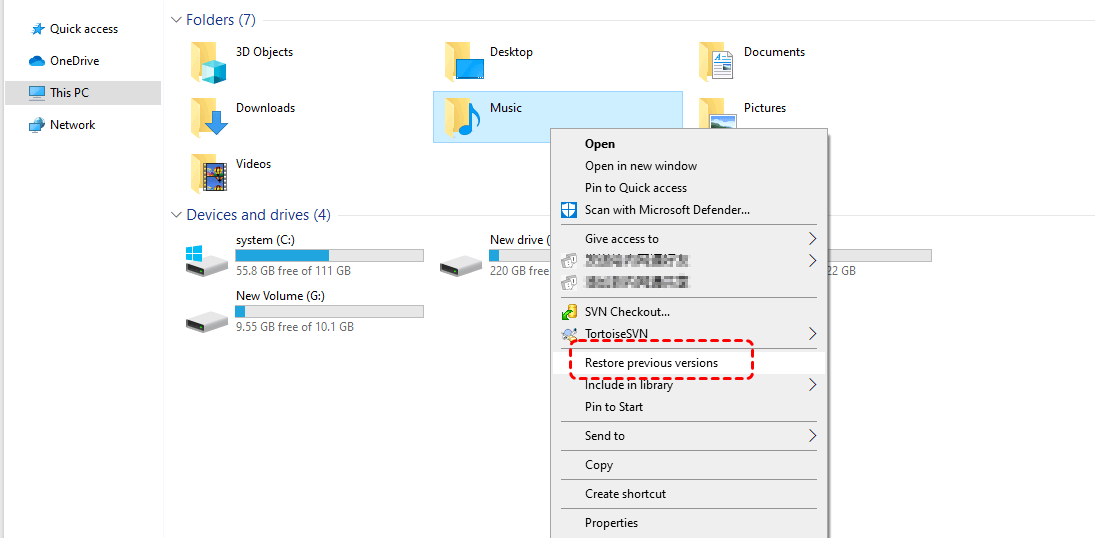
Step 1. Navigate to the folder or drive where the lost files were previously stored and right-click it, then select "Restore from Previous Versions".
Step 2. You can view available backups created by File History. Choose a version dated before the files disappeared from Kingston USB.
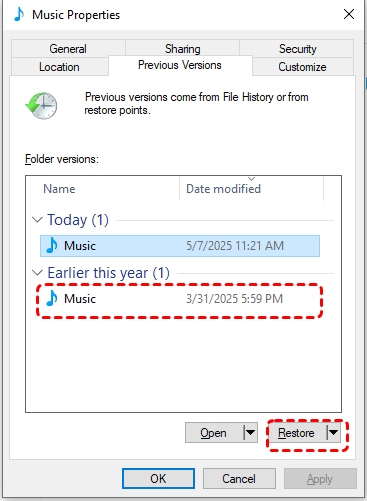
Step 3. Click "Open" to preview or "Restore" to recover the files to its original location.
3. Restore from Backup and Restore
Windows Backup and Restore can recover files if backups were created before deletion, formatting, or USB issues occurred. As long as you have created a backup, this is the safest method for Kingston flash drive data recovery.
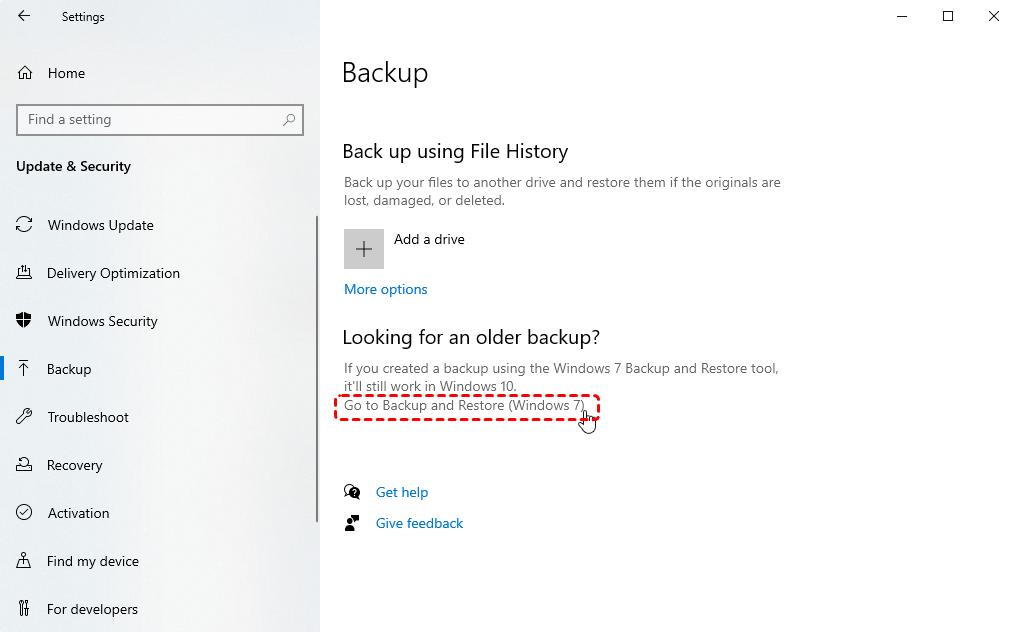
Step 1. Go to "Settings" > "Update & Security" > "Files backup", click "Go to Backup and Restore (Windows 7)".
Step 2. Click "Restore my files" to recover your lost files from the latest backup.
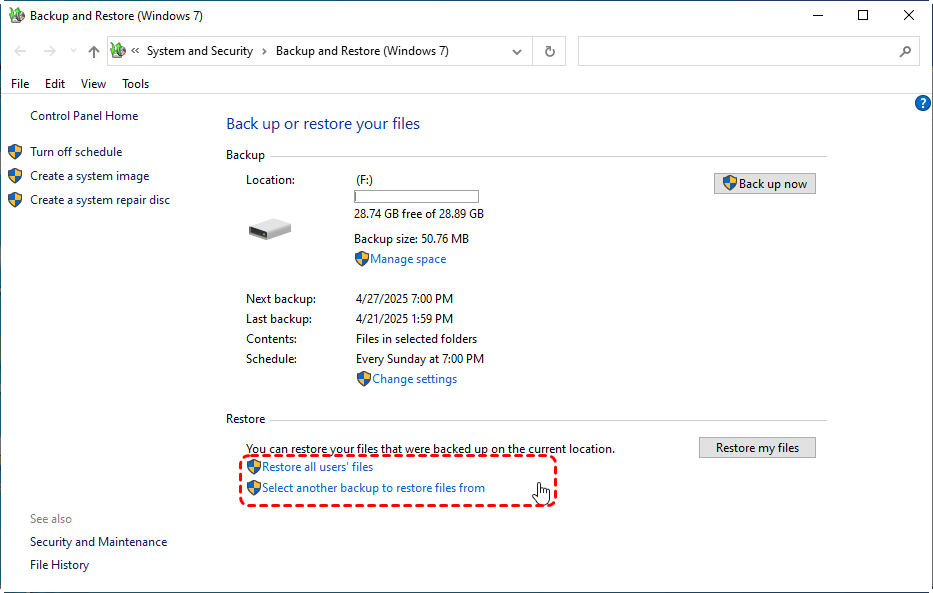
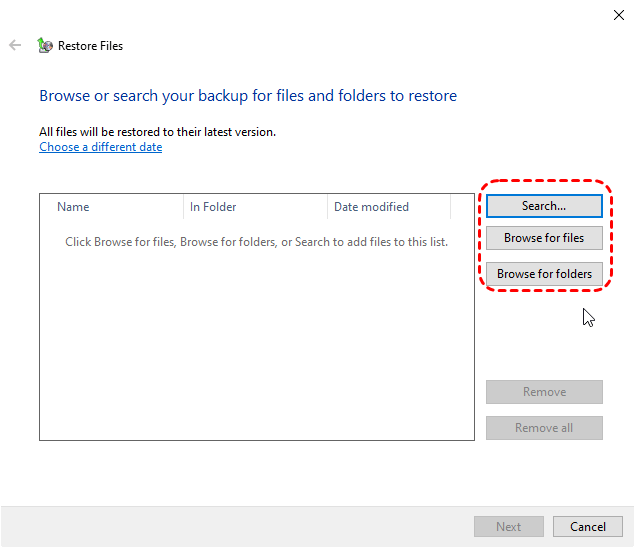
Step 3. Select "Browse for files/folders" to choose the target files or folder to restore.
Step 4. Choose a location to save the recovered files. Check the "In the original location" option and you can restore the files to its original location.
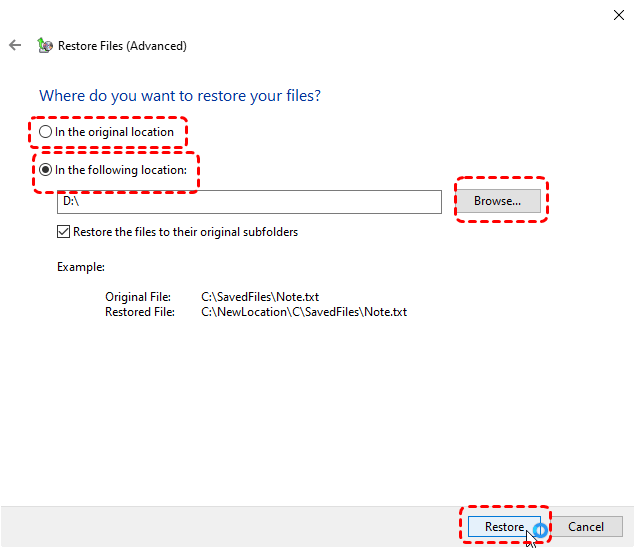
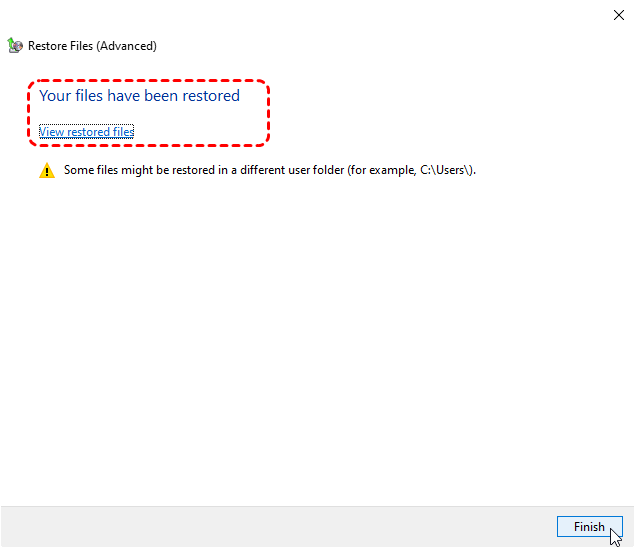
Step 5. Click "Restore" to start the process. Once the process is finished, you can check the recovered files by clicking on "View restored files".
3. Seek Professional Recovery Service
If the Kingston USB drive becomes excessively hot, shows visible connector damage, or makes unusual behavior after insertion, the issue may involve physical hardware failure rather than logical corruption. In these situations, repeated recovery attempts can worsen damage. Seeking for professional recovery service may be the only option to retrieve the valuable data from the Kingston USB drive. Professional recovery laboratories use specialized equipment to repair damaged chips or extract data directly from storage components.
How to Repair a Corrupted Kingston USB After Data Recovery
Once your data is secured, you can attempt to fix your USB drive using these Kingston USB repari tools. This section will provide several effective methods to fix a crashed Kingston drive. You can try them one by one until the drive becomes usable again.
Check Disk for Errors
The CHKDSK command is a built-in Windows tool to scan and repair a hard drive's file system errors or bad sectors which is one of the causes of corrupted USB drive. Run CHKDSK command to repair file system errors:
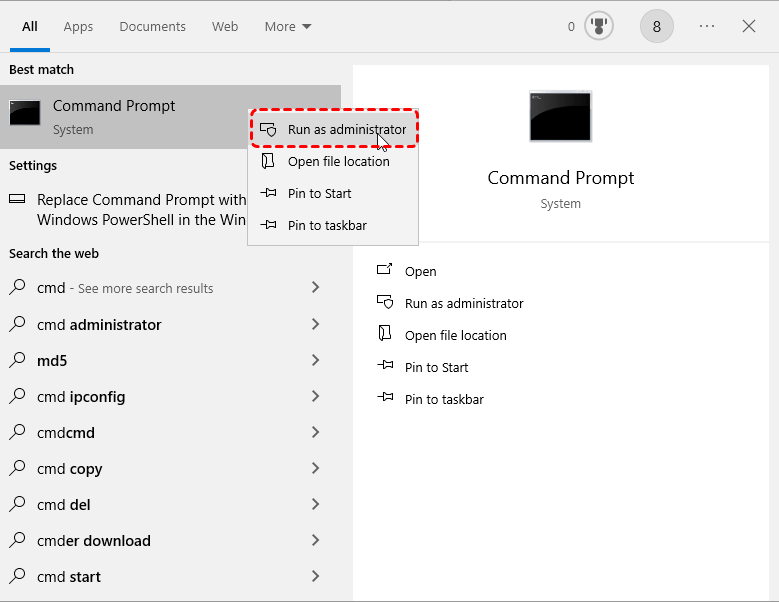
Step 1. Open "Command Prompt" and run it as administrator.
Step 2. Type the following command "chkdsk G: /f /r" and hit "Enter". Replace the drive letter "G" with your actual Kingston USB drive letter.
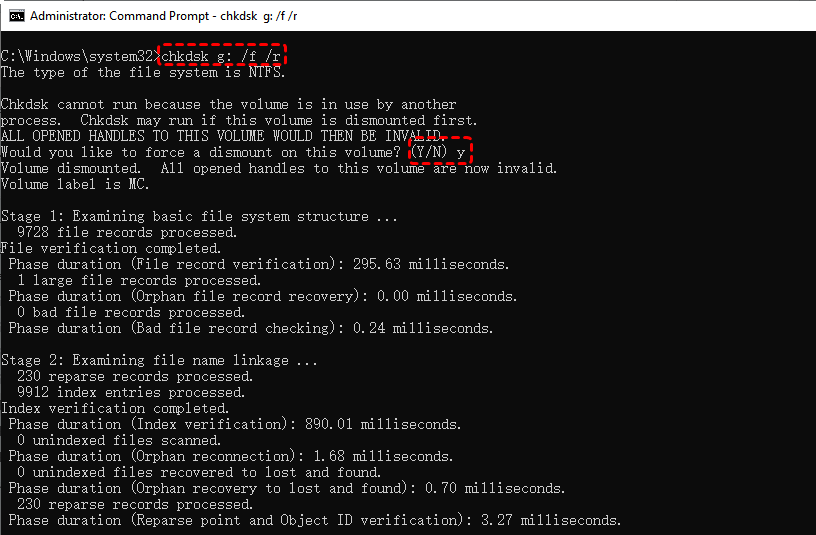
Step 3. Wait for the scan to finish and then check if the drive works normally again.
If you’re not familiar with command-line tools, Windows also provides an intuitive disk checking tool.
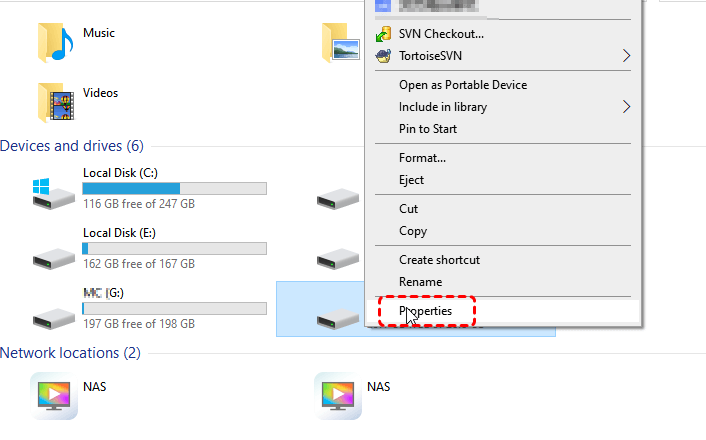
Step 1. Open File Explorer and locate the Kingston USB drive.
Step 2. Right click on it and choose the "Properties" from the context menu.
Step 3. Go to "Tools" tab and click "Check" under the "Error checking" section.
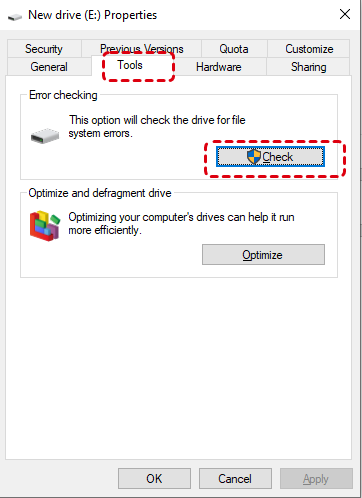
Step 4. Click "Scan drive" to detect file system errors and repair the detected errors.
Check USB Partition Error
Using professional drive repair tools like AOMEI Partition Assistant can help you fix your USB drive, including checking hard drive, surface test, rebuilding MBR, formatting, etc.
Step 1. Download and install AOMEI Partition Assistant on your computer and insert the Kingston USB drive to computer.
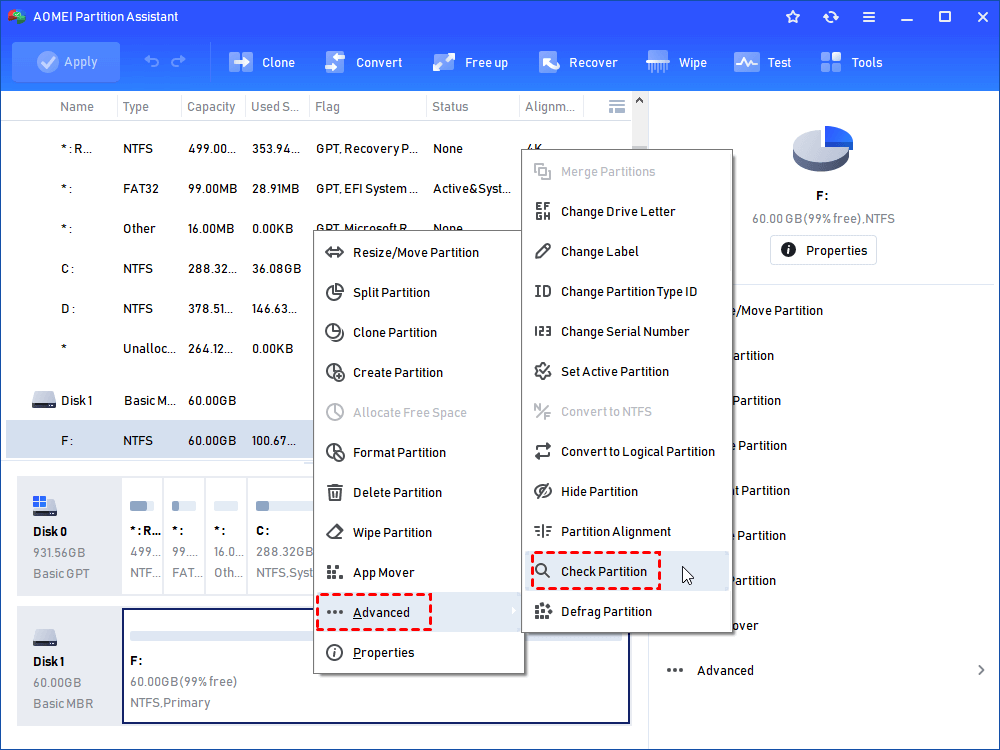
Step 2. Right click the Kingston USB drive and choose "Advanced" > "Check Partition".
Step 3. Choose a check method to check partition and fix errors.
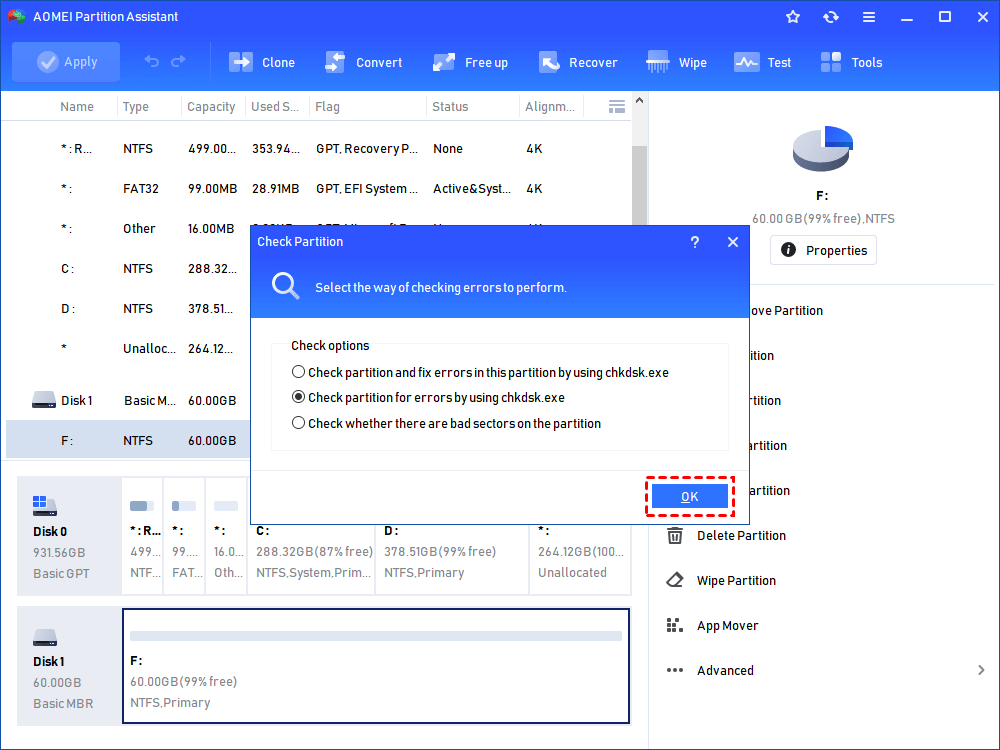
Wait for the process to finish and click "OK".
Format the Kingston USB Drive
If none of these tools can fix the USB drive errors, or if the USB drive is severely corrupted, formatting it may be the only option. However, this will erase all data on the USB drive, and that’s why you must ensure data recovery first.
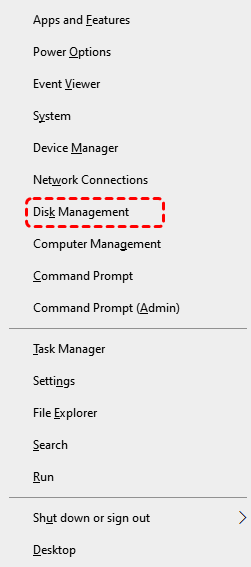
Step 1. Press "Win + X" and choose "Disk Management" to open it.
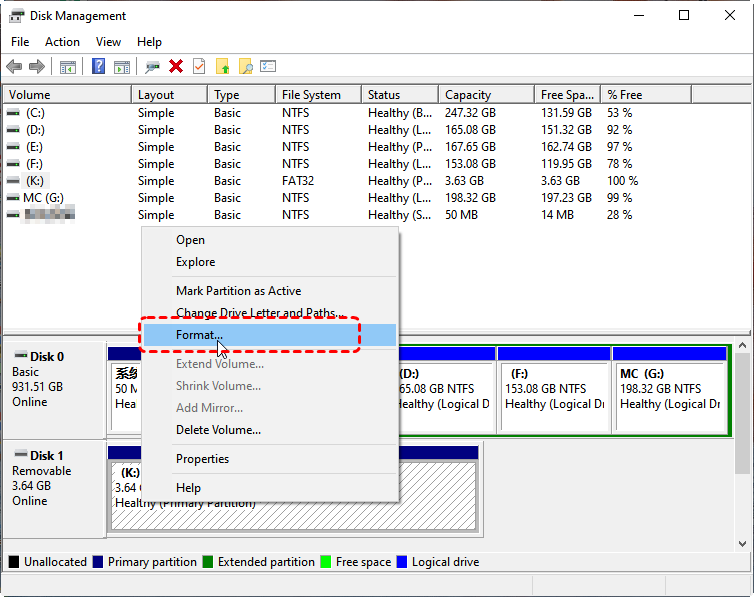
Step 2. Locate the USB drive and right click on it, then choose "Format".
Step 3. Choose a file system based on your needs and check the "Perform a quick format" option, then click "Start" to begin the process.
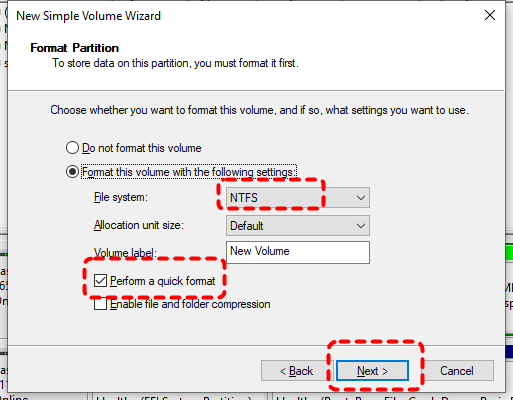
Even if you formatted the USB drive first without recovering the data in advance, there’s no need to worry too much. MyRecover can recover data from formatted USB drives.
Tips to Prevent Future Data Loss on Kingston USB
While data recovery tools can help you retrieve lost files, prevention is always the best strategy. By adopting a few simple habits, you can reduce the risk of data loss on Kingston USB flash drive in the future:
☀️Safely Remove the USB Drive
Always use the "Eject" option before unplugging your Kingston USB. This prevents file corruption caused by incomplete read/write operations.
☀️Avoid Frequent Plugging and Unplugging
Repeatedly inserting and removing the drive can cause physical wear or connection issues. Handle the device with care.
☀️Avoid Full Storage
Don’t fill the USB to 100% capacity. Leaving some free space helps maintain performance and reduces the risk of data corruption.
☀️Store in Safe Conditions
Keep your Kingston USB away from extreme heat, moisture, or magnetic fields to prevent physical damage.
The End
Losing access to a Kingston USB doesn’t have to mean losing your data forever. From quick fixes like advanced tools like CHKDSK and Partition Assistant, there are multiple ways to restore your drive. But before repairing, always ensure your files are safe with a reliable Kingston USB recovery tool such as MyRecover.
Professionals and business users can upgrade to MyRecover Technician edition. A single license supports unlimited devices, making it a comprehensive data recovery solution for businesses and MSPs.
FAQs
Q1: How to Recover Kingston USB drive?
You can recover files from a Kingston USB drive using data recovery software like MyRecover, Windows backup features, or Previous Versions. If files were deleted recently and the USB hasn’t been heavily used afterward, recovery chances are high. For formatted, RAW, or corrupted Kingston drives, specialized recovery tools like MyRecover often provide better results.
Q2: Can you recover a corrupted USB stick?
Yes. Recovery is often possible if the corruption is logical (RAW file system, inaccessible partition, file system errors). Try recovering data first with recovery software like MyRecover, then repair the USB using CHKDSK, formatting, or partition repair tools. Physical damage lowers recovery success and may require professional services.
Q3: How to reset Kingston USB?
Resetting a Kingston USB usually means formatting it. Open Disk Management, right-click the USB, choose "Format", select a file system (FAT32, exFAT, NTFS), and confirm. Formatting erases existing files, so recover important data beforehand if the drive contains valuable information.
Q4: How to restore an unreadable USB flash drive?
First, check whether the USB appears in Disk Management. If detected but inaccessible, run CHKDSK, assign a new drive letter, or repair file system errors. If the drive becomes RAW or reports corruption, recover files before formatting to avoid permanent data loss.
Q5: How to remove write protection from a Kingston USB?
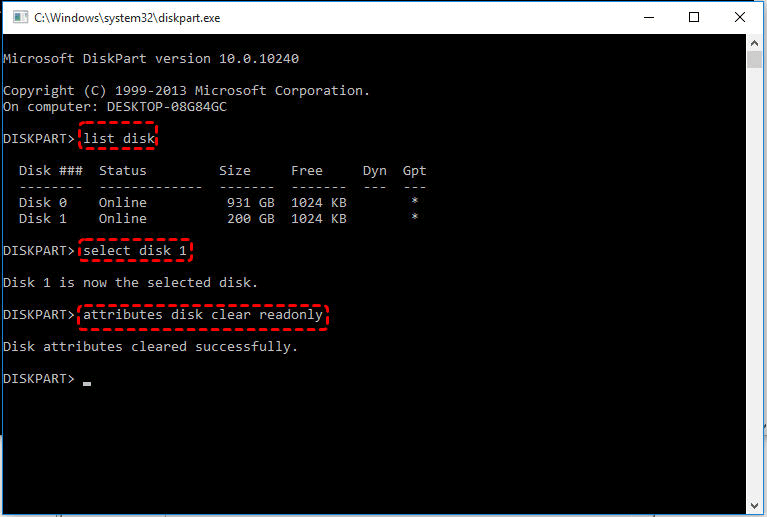
Remove write protection by checking for a physical lock switch, editing DiskPart attributes, modifying Registry settings, or repairing file system corruption. Follow these steps to remove write protection with Command Prompt, enter the commands:
- diskpart
- list disk
- select disk X
- attributes disk clear readonly
Q6: How to fix a USB that is corrupted and unreadable?
Start by recovering important files, then try CHKDSK, update USB drivers, assign a new drive letter, or format the drive. If corruption involves damaged partitions or RAW errors, partition repair tools or recovery software like MyRecover may help restore accessibility before formatting the USB.

Stay Updated With Our
Latest Tips
Add us as a preferred source on Google to never miss helpful guides.
 Add as preferred source >>