 MyRecover



How to Remove "Access to Compressed (Zipped) Folder is Denied" Easily
'Access to Compressed (Zipped) Folder is Denied' is a common error message that prevents you from opening or extracting files from zipped folders. This guide will explore the common causes behind the error and provide easy-to-follow solutions. Whether you're a beginner or a seasoned user, this guide has everything you need to resolve this frustrating problem.

By Aria / Updated on May 14, 2026


Access to Compressed Folder Denied
Brand new computer and just downloaded a zip file and I get an error message that states, "Access to the compressed folder is denied". How do I access my files on my own computer?
- Question from Drew
When you're trying to open a ZIP file and you may get the error message "Access to Compressed (Zipped) Folder is Denied," it can be frustrating. This issue usually occurs when you view or deal with important compressed files, photos, and software archives. The error will prevent you from extracting or accessing contents from the compressed folder. It may be triggered by permission issues, corrupted files, or conflicting settings in your operating system.
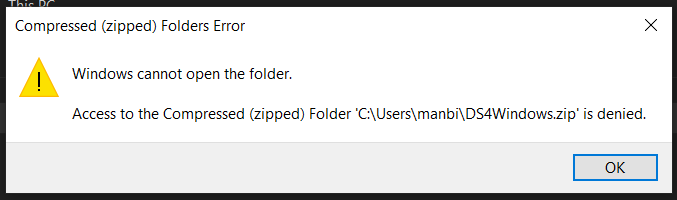
As a result, you may find yourself stuck, unable to access crucial data or complete a task, especially if the ZIP file contains time-sensitive information. In this guide, we'll walk you through simple and effective methods to resolve this issue quickly, so you can regain access to your files and continue with your work.
Why Access to a Compressed Folder is Denied?
The error "Access to Compressed (Zipped) Folder is Denied" can occur due to several common reasons. Understanding the underlying causes will help you troubleshoot and resolve the issue more effectively. Here are some of the most frequent causes:
📂 File Permissions Issues
One of the most common reasons for this error is a lack of proper permissions to access the ZIP file. This can happen if the file is located in a restricted system folder or was downloaded from an untrusted source.
📦 Corrupted ZIP File
If the ZIP file is incomplete or corrupted, Windows may not be able to open or extract its contents properly. This can happen if the file was interrupted during download or transfer.
✂️ Blocked File from the Internet
Files downloaded from the internet, especially from untrusted sources, may be automatically blocked by Windows as a security measure. This can prevent access to the folder until you unblock it manually.
📌 File Ownership Conflicts
If the ZIP file is associated with a different user account, especially in shared environments, you may not have the correct ownership rights to access the file. Windows requires you to take ownership of the file before it can be opened.
⚙️ Conflicting System Settings or Third-party Software
Sometimes, third-party applications like antivirus software or system security tools may conflict with ZIP file access. These tools may block access to prevent potential threats, even if the file is safe.
How to Remove "Access to Compressed (Zipped) Folder is Denied" on Windows 10/11
If you encounter the "Access to Compressed (Zipped) Folder is Denied" error, there are several methods you can use to troubleshoot and fix the issue. These solutions address different causes such as file permissions, corruption, and conflicts with security software. Follow the step-by-step guide to resolve the error quickly.
1. Take Ownership of the File
One of the common reasons for this error is that the current user account does not have the necessary ownership rights to access the ZIP file. Taking ownership of the file can grant you the required permissions to open and extract its contents.
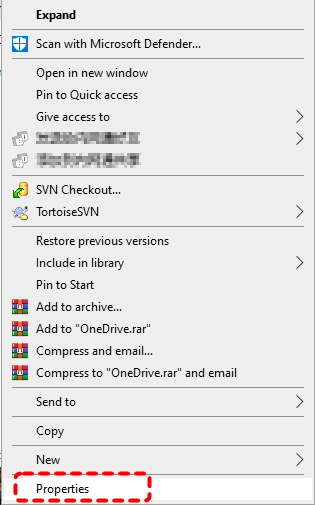
Step 1. Right-click on the ZIP file and select "Properties" from the context menu.
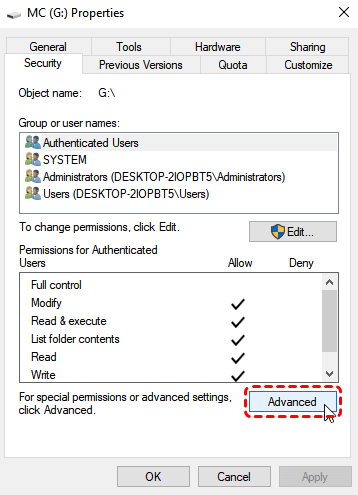
Step 2. Go to the "Security" tab and click on "Advanced".
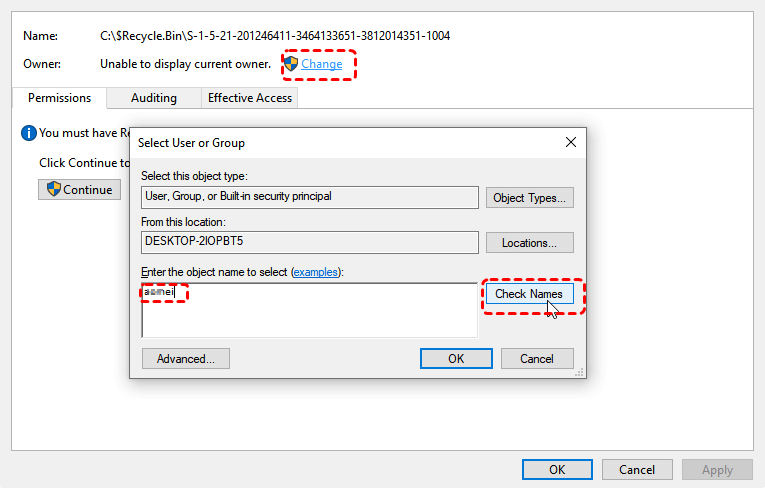
Step 3. Click "Change" next to the "Owner" label.
Step 4. Enter your username and click "Check Names", then click "OK".
Step 5. After the ownership change, click "Apply" and "OK" to save the changes.
2. Restart Windows Explorer
Sometimes, File Explorer may temporarily lock compressed files or folders, resulting in "Access is Denied" error. A simple restart of File Explorer can refresh its process and resolve the access issues caused by temporary glitches or system freezes.
Step 1. Press "Ctrl" + "Shift" + "Esc" to open Task Manager.
Step 2. In the "Processes" tab, locate "Windows Explorer" from the list. Right click on it and click "Restart".
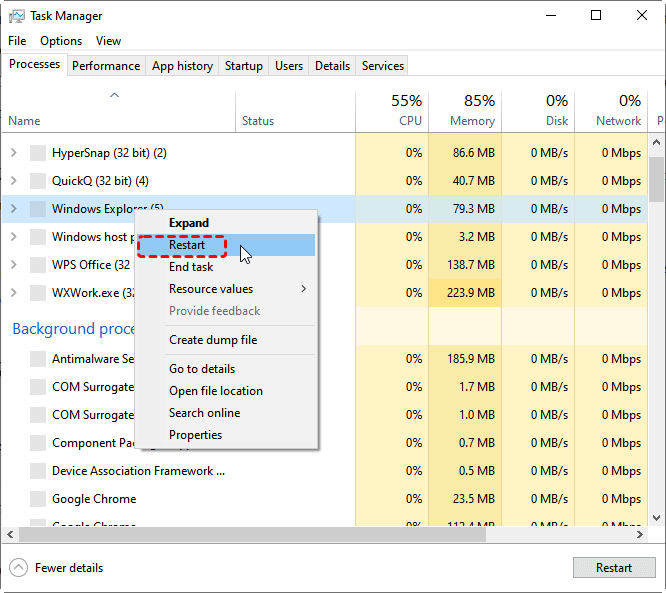
Step 3. Once Explorer restarts, try accessing the ZIP file again.
3. Run as Administrator
Running the file extraction program with administrator privileges can bypass restricted permissions blocking ZIP file access and grants full files and system operation rights directly. Here's how:
Step 1. Right-click on the decompressor and select "Run as Administrator".

Step 2. Then access or extract the compressed folder normally to check if the "Access to Compressed (Zipped) Folder is Denied" error still occurs.
4. Check Permissions & Encryption
Insufficient permissions for the current account or file encryption will also cause the access denied error. Checking file permissions and removing any encryption can help resolve the issue. Here is how to do:
Step 1. Right-click on the ZIP file and choose "Properties" from the context menu.
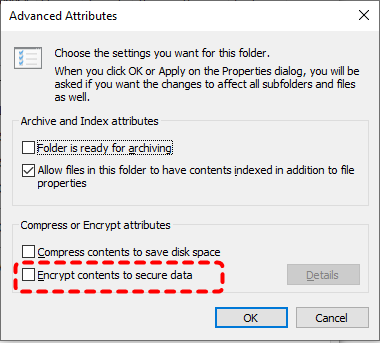
Step 2. Under the "General" tab, click on "Advanced".
Step 3. Uncheck "Encrypt contents to secure data" if selected and click "OK".
Step 4. Go to the "Security" tab and click "Edit".
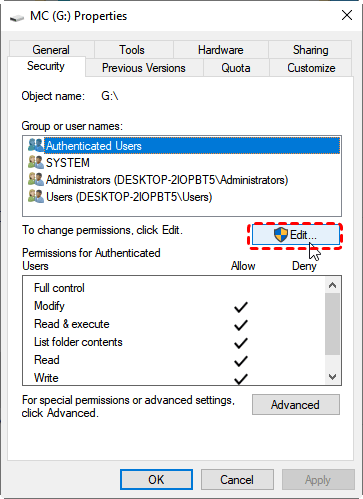
Step 5. Select your user account and make sure to give it permission to "Full control" or "Modify".

Step 6. After the permission change, click "Apply" and "OK" to save the changes.
In addition to issues with the compressed file itself, incorrect permission configuration for the Temp folder can also trigger the "Access to Compressed Folder is Denied" error. After verifying the permissions of the compressed file, make sure your account has sufficient access rights to the Temp folder with the same steps. This is because Windows does not extract ZIP files directly to the target folder; instead, it first processes files via the Temp folder.
5. Fix the Temp Environment Variable
If the temporary environment variable is misconfigured or point to an invalid path, it can prevent ZIP files from being opened. Fixing the TEMP environment variable can resolve this access denied issue. Follow these steps:
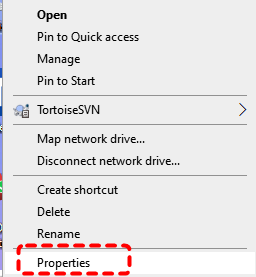
Step 1. Right click on "This PC" and choose "Properties".
Step 2. Click "Advanced system settings" to open System Properties window.
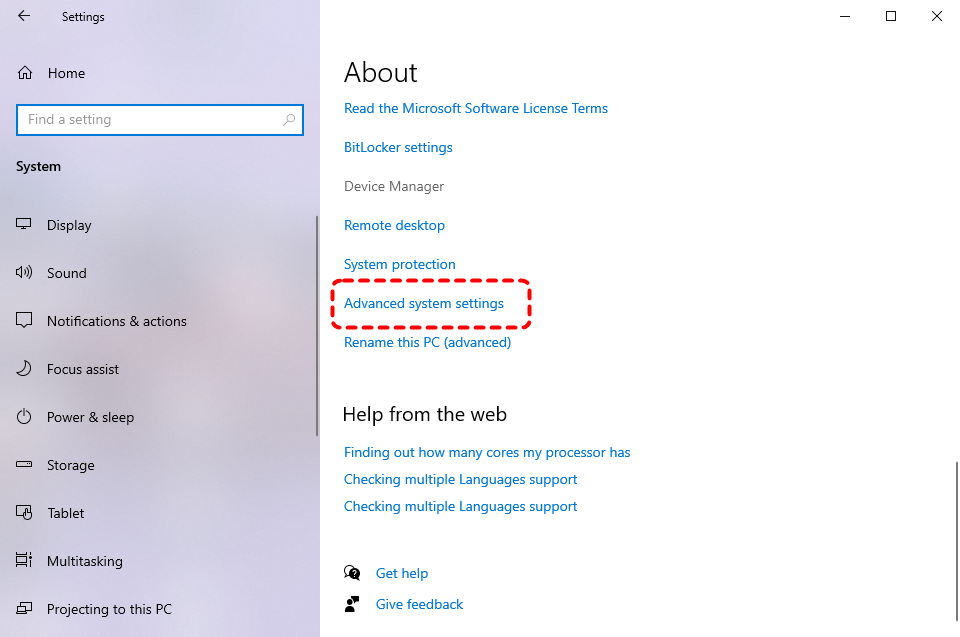
Step 3. Under the "Advanced" tab, click "Environment Variable".
.png)
Step 4. Then select "TEMP" and click "Edit".
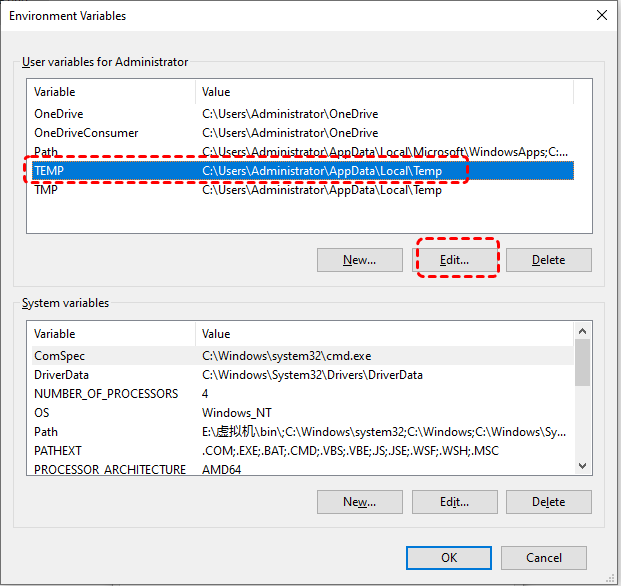
Step 5. If the Variable value is missing or incorrect, set it to the following path "%USERPROFILE%\AppData\Local\Temp" and click "OK" to save the changes.
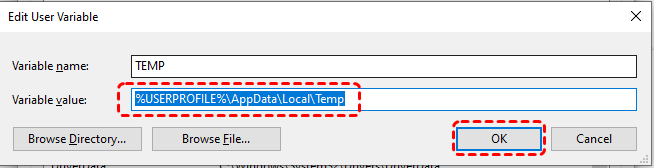
Then restart your PC or sign out and sign into your account, then try opening the compressed folder normally to check if the "Access to Compressed Folder is Denied" error continues.
6. Repair Corrupted File Using Third-Party Tools
If the compressed file is incomplete or corrupted, it will also trigger the access denied error. You can use third-party tools such as WinRAR to repair the damaged file and regain access to the data inside the file.
Step 1. Download and install a trusted file repair tool such as WinRAR.
Step 2. Open the tool, select the corrupted ZIP or RAR file, and click "Repair" in the top of the menu.
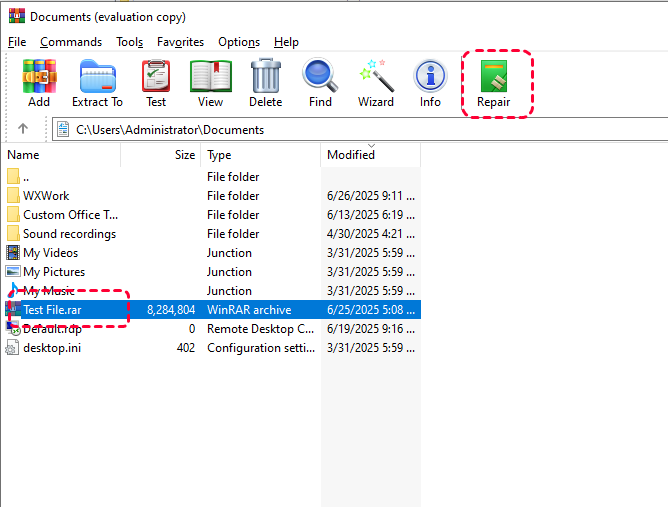
Step 3. Choose a destination to save the repaired compressed file and select "Treat the corrupt archive as RAR/ZIP".
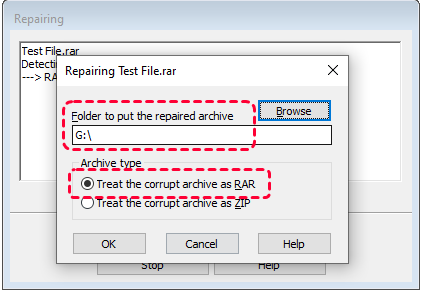
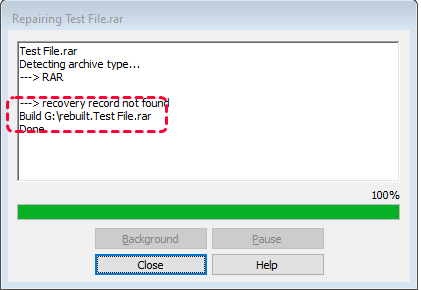
Step 4. Click "OK" to start the process. Wait the repair process to complete, you can check the intact ZIP or RAR folder and access the target data.
7. Run the File and Folder Troubleshooter
Windows 10 and 11 come with a built-in file and folder troubleshooter that can automatically detect and fix problems related to files and folders. You can try to fix the access denied error by running the troubleshooter.
Step 1. Download and install Windows File and Folder Troubleshooter from Microsoft official website.
Step 2. Double click the downloaded files to open the File and Folder Troubleshooter window.
Step 3. Click "Advanced" and check the box of "Apply repairs automatically", then click "Next".
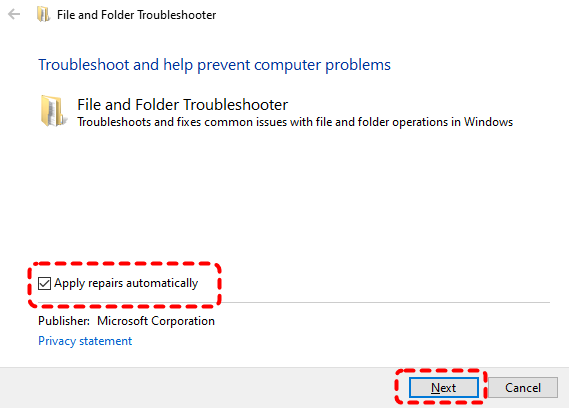
Step 4. Choose the relevant options and click "Next" to begin the process.
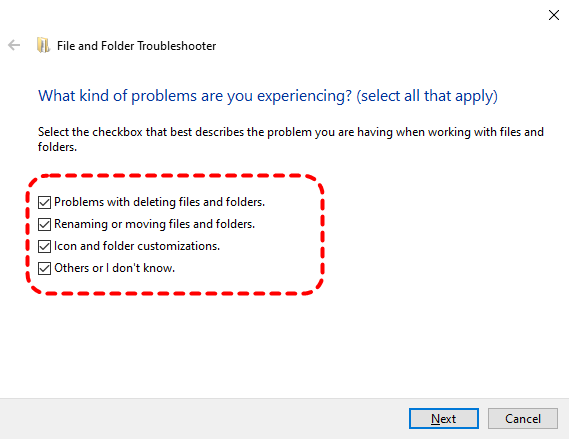
Step 5. After the process is finished, you can access the compressed folder again to check if the "Access to compressed folder is denied" error persists.
8. Scan for Virus or Malware
If none of the above methods work, virus or malware infection may be the cause. In some cases, malware or viruses can corrupt files or block access to them. Running a full system scan can help you eliminate these threats.
Step 1. Navigate to "Settings" > "Update & Security" > "Virus & threat protection".
Step 2. Click "Quick scan" to scan for virus.
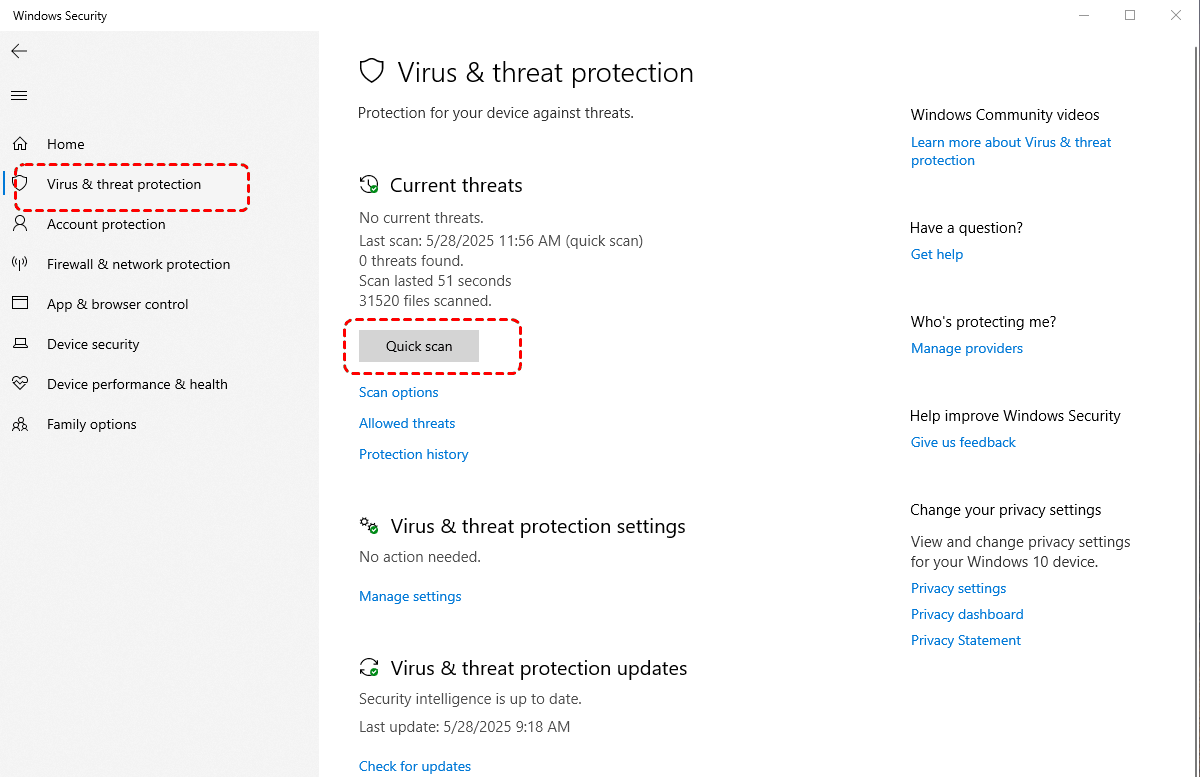
Step 3. If needed, you can click "Scan options" > "Full scan" to perform a comprehensive scan for the running programs and drives.
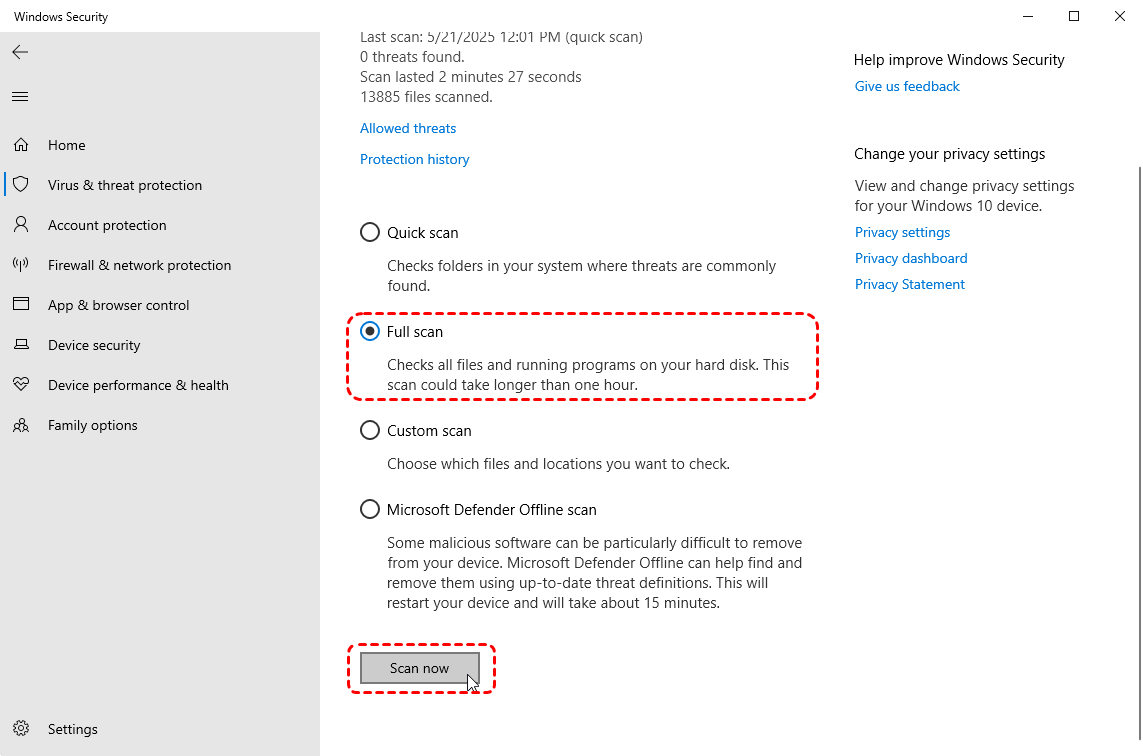
Step 4. If any malware that could be interfering with your files are detected, remove or quarantine them.
How to Recover Lost or Deleted Compressed Folder with MyRecover
With the methods above, you should be able to easily fix the "Access to Compressed Folder is Denied" error. However, if your compressed files are accidentally deleted or lost, it might be time to consider a professional data recovery solution like MyRecover. It can help you recover lost or deleted files from your external hard drive or any other storage device with ease. MyRecover is a comprehensive data recovery software that specializes in retrieving files from corrupted, formatted, or deleted storage devices.
- 👉 How MyRecover Can Help:
- It is designed for ease of use, with an intuitive interface that guides you through the recovery process step-by-step.
- Handle 500+ data loss scenarios and recover from deleted partition, formatted hard drive, emptied Recycle Bin, system crash, virus attack, etc.
- Supports over 1,000 file types, including documents, photos, videos, audio, archives (ZIP, RAR, AR, CAR, etc.), and Outlook data files.
- Smart scan modes, Quick Scan for recent deletions and Deep Scan for formatted/corrupted drives.
Step 1. Download and install MyRecover on your Windows supported computer from Microsoft Store or its official website.
Step 2. Launch the application and select the drive with lost compressed files, then click "Scan" to search for lost files.
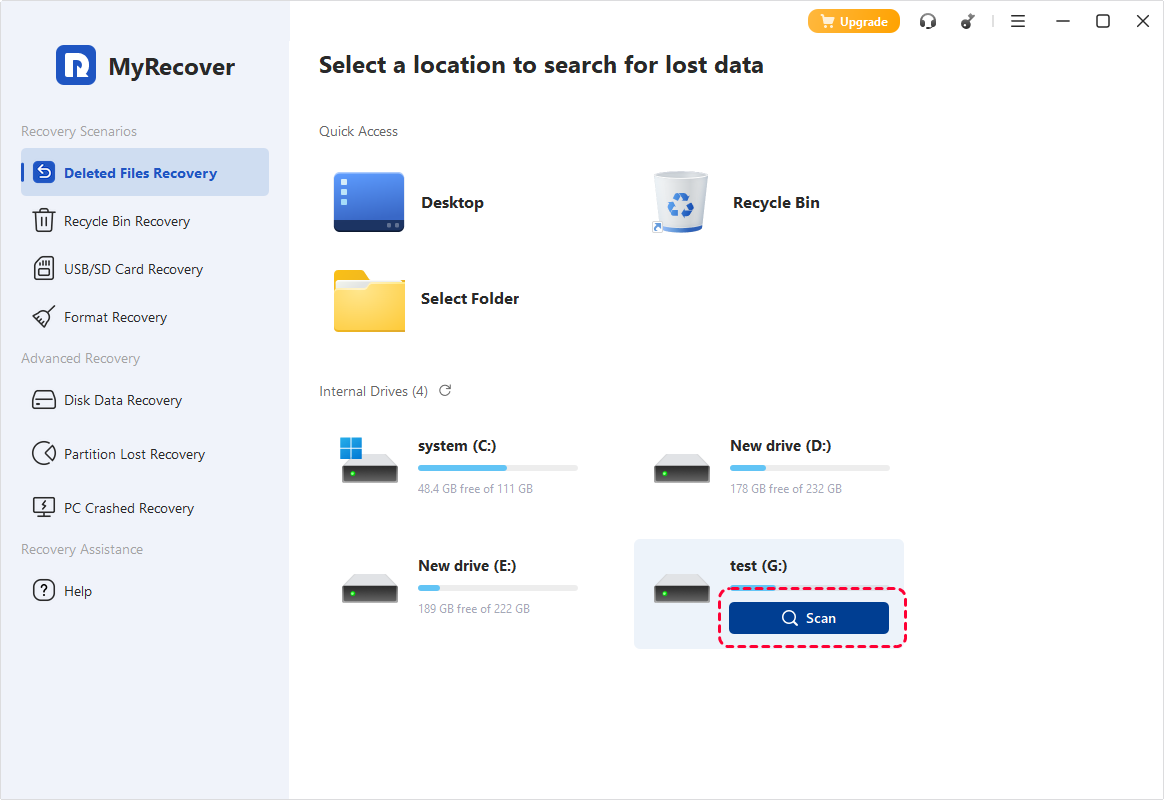
Step 3. After the scanning is completed, browse the results and locate your compressed files busing the "Filter" function. Then, choose the target files and click "Recover".
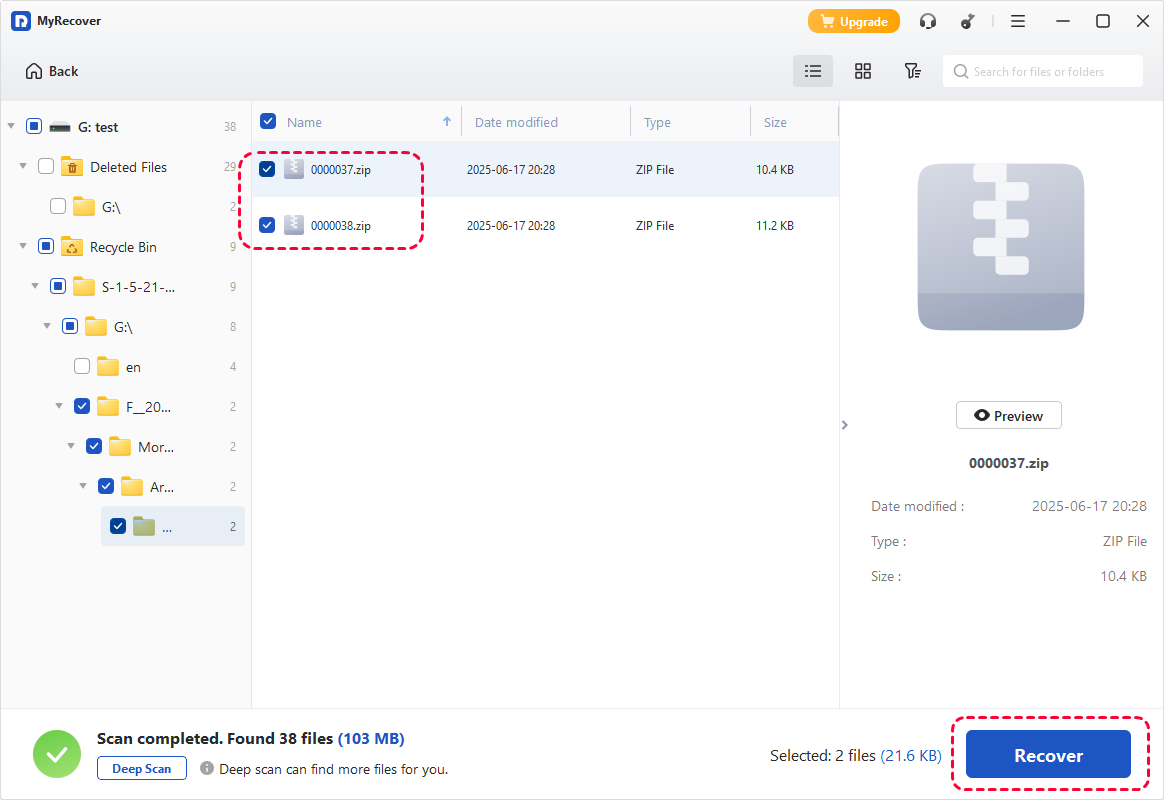
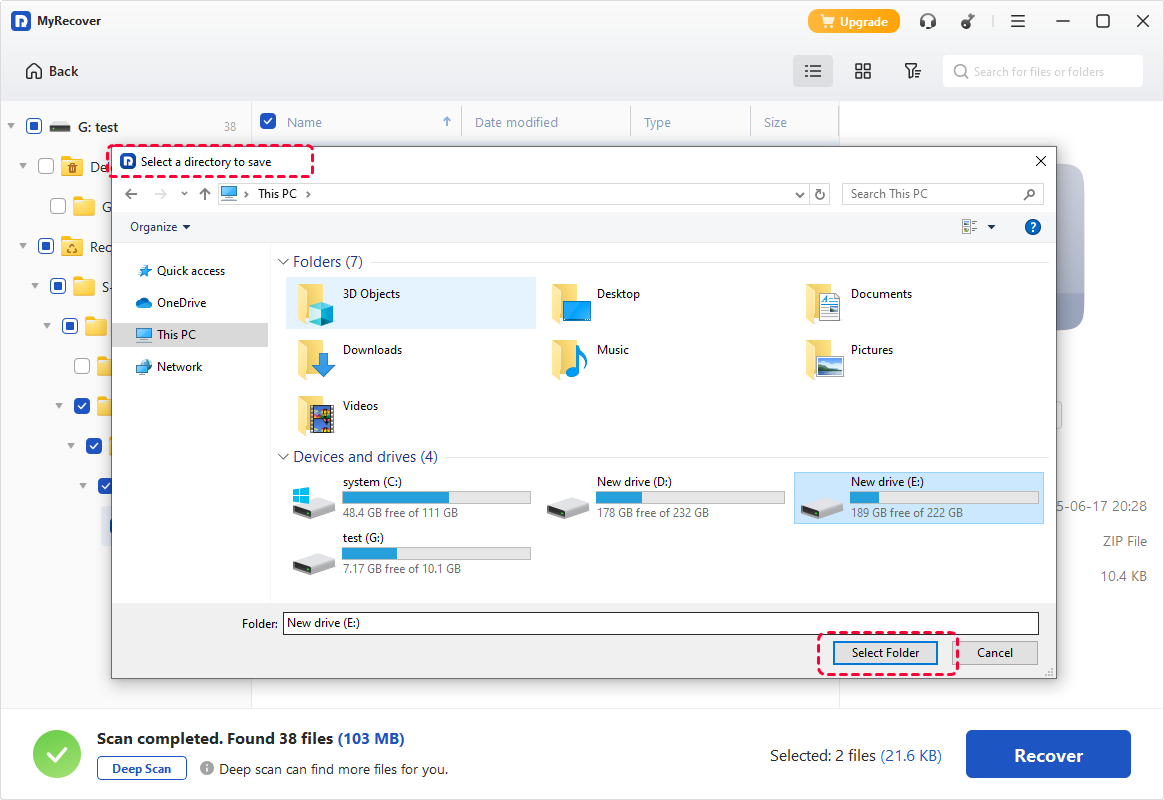
Step 4. Select a safe location to save the recovered files to avoid overwriting original data.
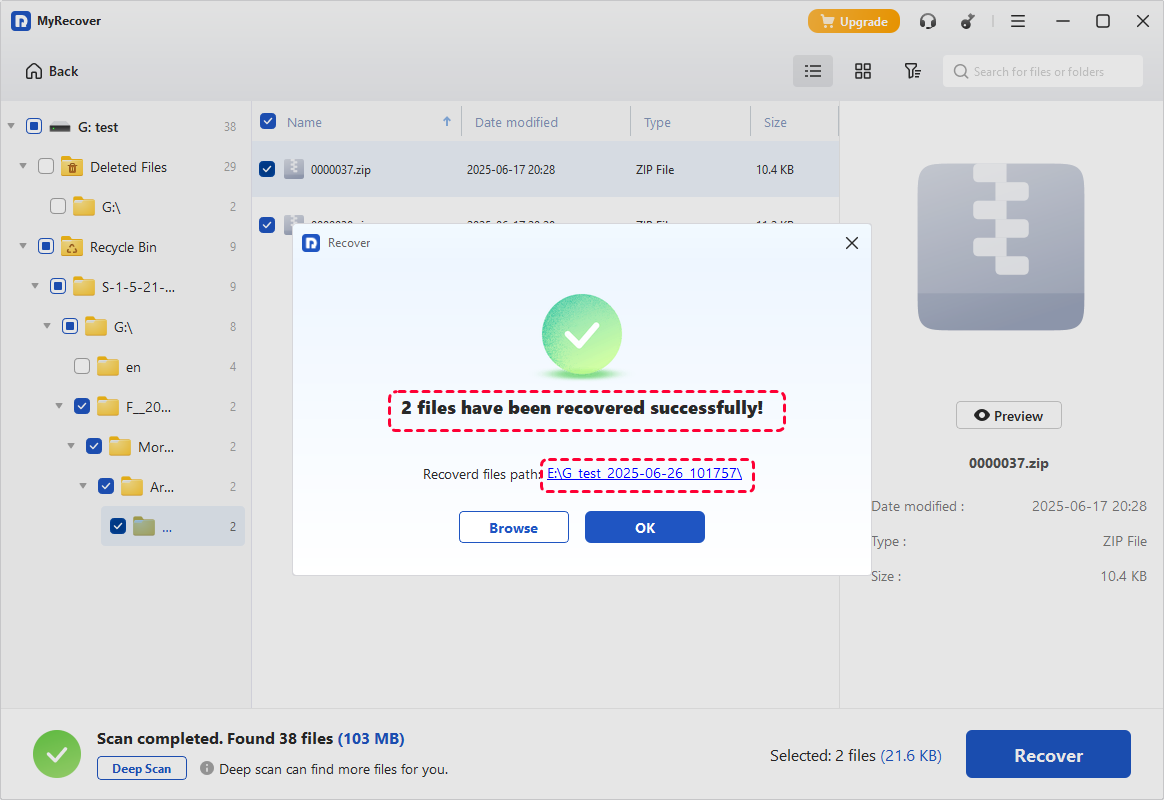
Once the process is done, you can check and verify the recovered files in the destination folder by clicking on the "Browse" button.
The End
Encountering the "Access to Compressed (Zipped) Folder is Denied" error can be a frustrating experience, especially when it prevents you from accessing important files. Fortunately, there are several effective methods to resolve this issue. By following the troubleshooting steps outlined in this guide, you can quickly restore access to your compressed folders and continue your work without further delays.
However, if you’ve accidentally lost or deleted your ZIP files, professional data recovery tools like MyRecover can help. It’s an excellent choice for users who need to recover lost or deleted data from any storage device on Windows. For users who need to recover more than 500 MB of data, the MyRecover Professional edition unlocks unlimited recovery capacity. It also offers a powerful feature that allows you to recover data from an unbootable PC, ensuring your files remain accessible even when the system fails to start.
FAQs
Q1: How to fix access to compressed folder is denied?
The "Access to Compressed Folder is Denied" error is typically caused by permission issues, file corruption, or system conflicts. To fix it, try taking ownership of the file, checking permissions, restarting Windows Explorer, or using third-party tools like WinRAR to repair the ZIP file.
Q2: How do I change the permissions for a compressed folder?
Right-click the ZIP file, select "Properties," then go to the "Security" tab. Click "Edit" to modify permissions and ensure your user account has "Full control" rights. Click "Apply" and "OK" to save the changes.
Q3: Why does Windows say access to compressed folder denied?
This issue can occur due to insufficient file permissions, corrupted ZIP files, or Windows blocking the file for security reasons. It may also happen if the file is encrypted or owned by another user account.
Q4: Why can't I open a compressed zipped folder?
You may be unable to open a ZIP file due to file corruption, missing permissions, or conflicts with your antivirus software. Ensure the file is not blocked by Windows and that you have full access to it.
Q5: How can I open a ZIP file without WinZip?
You can open ZIP files with built-in Windows File Explorer by simply right-clicking the file and selecting "Extract All". Alternatively, free software like 7-Zip or WinRAR can be used to extract ZIP files without needing WinZip.
Q6: How to recover files when compressed folder access denied?
If you can't access a ZIP file, you can try using third-party tools like WinRAR to repair corrupted files. If any file is deleted or lost, the professional data recovery tool MyRecover can help recover lost data on Windows.

Stay Updated With Our
Latest Tips
Add us as a preferred source on Google to never miss helpful guides.
 Add as preferred source >>