 MyRecover



Solved: External Hard Drive Access Denied Windows 11
Facing access denied external hard drive Windows 11 issues can block important files. This guide explains common causes, permission conflicts, and step-by-step fixes to help you safely regain access without data loss. Perfect for beginners and advanced users.

By Vera / Updated on December 18, 2025


What Does "Access Denied" Mean in Windows 11?
When Windows 11 says access denied, it’s basically telling you:
"I see the drive, but I’m not allowed to let you in".
This usually happens when your user account doesn’t have permission to read or modify the drive.
Common Error Messages You Might See
- "You don’t currently have permission to access this folder"
- "Access is denied"
- "Location is not available"
- "The disk is write-protected"
Each message points to a slightly different cause, but they all share one thing in common — permission or security conflicts.
Why External Hard Drive Access is Denied in Windows 11
Understanding the cause makes the fix much easier. Think of Windows 11 like a security guard that doesn’t recognize you.
Permission and Ownership Issues
If the drive was created on another PC, Windows account, or operating system, your current user may not be recognized as the owner.
File System Compatibility Problems
Drives formatted for macOS or Linux can trigger access errors if Windows can’t fully interpret their file system.
Corrupted External Hard Drive
Sudden power loss, unsafe removal, or malware can corrupt the drive’s file structure.
BitLocker or Encryption Conflicts
Encrypted drives require proper authentication — without it, access is blocked. If encryption metadata is damaged, Windows may deny access even with the correct password.
Quick Checks Before Fixing the Issue
Before diving into advanced fixes, try these simple sanity checks.
Try a Different USB Port or PC
Sometimes the problem isn’t the drive — it’s the USB port or driver.
Check the Drive on Another Windows Version
If it works on another PC, the issue is almost certainly permissions-related.
6 Fixes for External Hard Drive Access Denied Windows 11
If the problem persists after quick checks, you can try the following fixes.
Fix 1: Take Ownership of the External Hard Drive
Taking ownership tells Windows 11 that you are the rightful controller of the drive.
Operation Steps to Take Ownership
1. Connect the external hard drive to your Windows 11 PC.
2. Open File Explorer → right-click the external drive → select Properties.
3. Go to the Security tab and click Advanced.
4. At the top, find Owner and click Change.
5. Enter your Windows username, then click Check Names → OK.
6. Tick Replace owner on subcontainers and objects.
7. Click Apply → OK, then restart your computer.
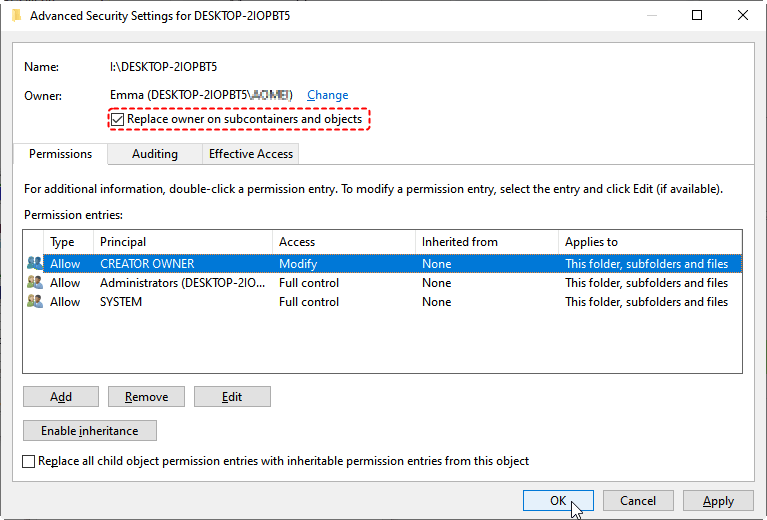
Once completed, Windows will finally recognize you as the owner — like handing you the master key to the drive.
Fix 2: Change Security Permissions Manually
Ownership alone isn’t enough if permissions are still restricted.
Operation Steps to Grant Full Control
1. Right-click the external hard drive → Properties.
2. Open the Security tab → click Edit.
3. Select your user account from the list.
4. Under Allow, check Full control.
5. Click Apply → OK.
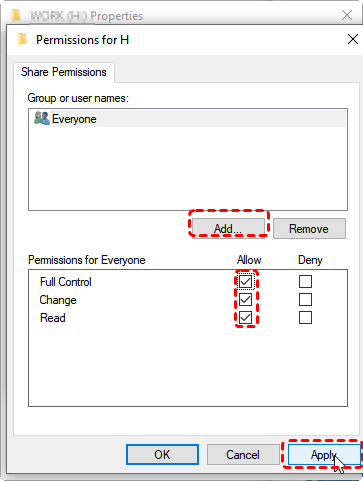
Full Control vs Read-Only Explained
- Read-only = view files only
- Full control = read, write, modify, and delete
For error-free access in Windows 11, Full Control is essential.
Fix 3: Use Command Prompt to Fix Access Denied
Command Prompt can bypass graphical glitches and fix deep file system issues.
Operation Steps Using CHKDSK
1. Press Windows + S, type cmd.
2. Right-click Command Prompt → select Run as administrator.
3. Type the command below and press Enter:
chkdsk X: /f
(Replace X with your external drive letter)
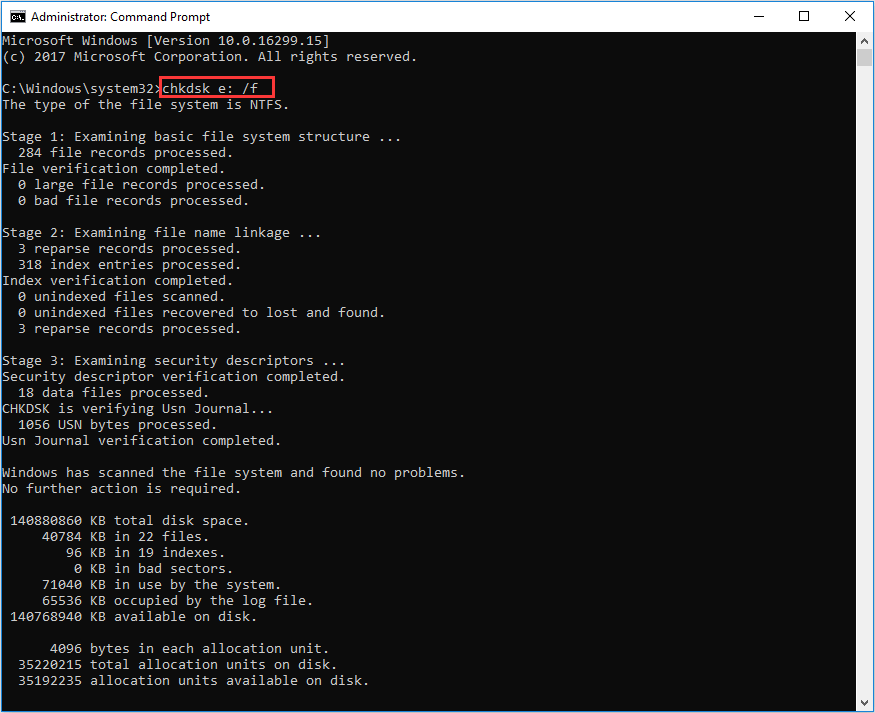
4. Wait for the scan and repair process to finish.
5. Restart your PC.
This process repairs file system errors that silently block access. Use DiskPart only if the drive shows as online but inaccessible. It’s powerful — like a chainsaw, not a scalpel.
Fix 4: Disable Read-Only or Write Protection
Write protection can instantly trigger the access denied external hard drive Windows 11 error.
Operation Steps via DiskPart
1. Open Command Prompt as administrator.
2. Type the following commands one by one:
diskpart
list disk
select disk X
attributes disk clear readonly
(Replace X with your external drive number)
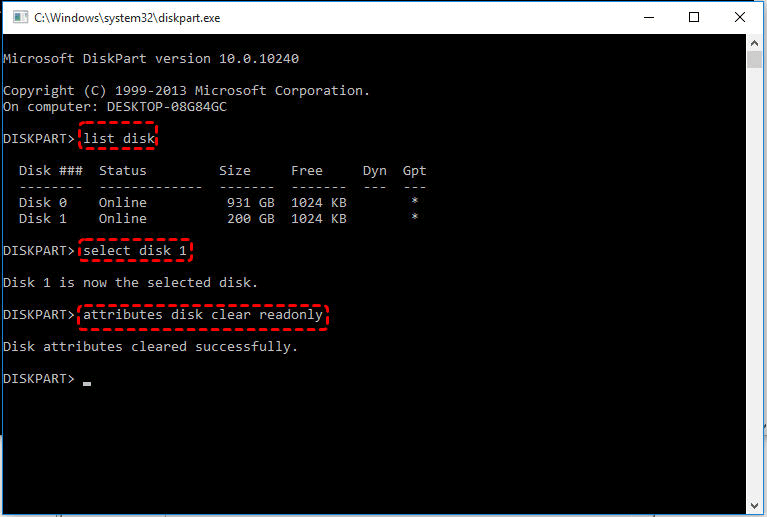
4. Type exit and press Enter.
After this, reconnect the drive and check access.
Fix 5: Check and Repair File System Errors
File system mismatches can confuse Windows 11.
Operation Steps to Check File System
1. Open File Explorer → right-click the external drive.
2. Select Properties → go to the Tools tab.
3. Under Error checking, click Check.
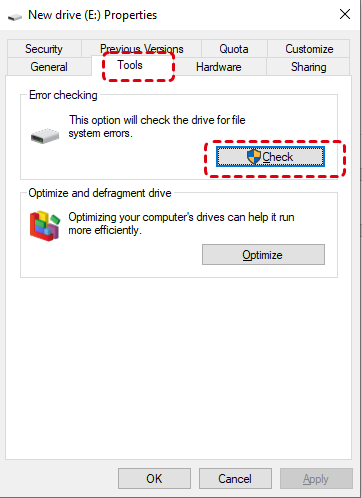
4. Follow on-screen instructions to repair errors.
NTFS vs exFAT vs FAT32
- NTFS – Best for Windows permissions
- exFAT – Good for cross-platform use
- FAT32 – Outdated and error-prone
For Windows 11, NTFS is strongly recommended.
Fix 6: Format the External Hard Drive (Last Resort)
Formatting wipes the drive clean and removes all permission issues — but it also deletes data.
Recover Data First Before Formatting – MyRecover
Before formatting, recover your files first. If Windows shows access denied, formatting without recovery means permanent data loss. MyRecover is a reliable data recovery solution that:
- Recovers data from inaccessible or access-denied external drives.
- Works even if the drive won’t open in File Explorer.
- Supports documents, photos, videos, and more.
- Requires no formatting beforehand.
 100% Secure
Recommended workflow:
1. Install MyRecover to scan the access-denied external hard drive.

2. Preview and recover your important files to a safe location.

3. Confirm recovered data is intact.
4. Only then proceed with formatting.
Think of MyRecover as a rescue boat — you save the passengers before fixing the ship.
Operation Steps to Format the Drive
1. Right-click the external hard drive → select Format.
2. Choose NTFS as the file system.
3. Uncheck Quick Format for deeper cleanup.
4. Click Start and wait for completion.
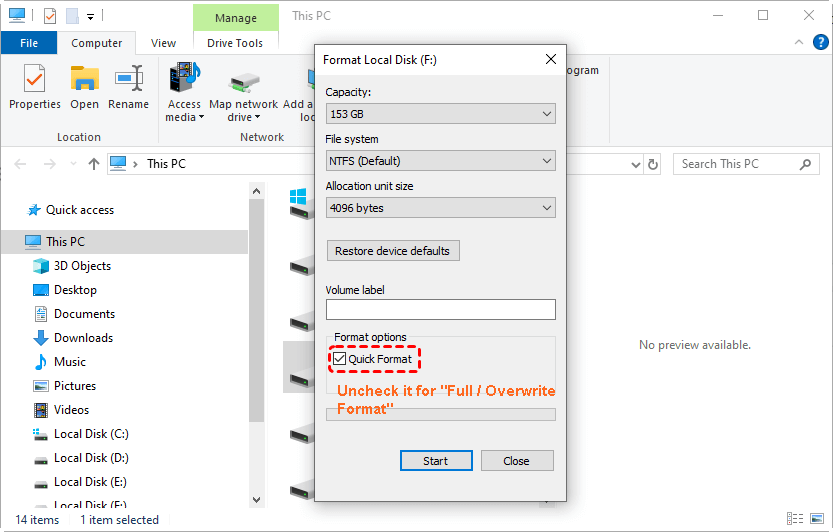
After formatting, reconnect the drive — access issues should be gone.
How to Prevent External Hard Drive Access Denied Errors
Prevention is easier than repair.
Safe Removal Best Practices
Always use "Safely Remove Hardware" — yanking cables is like unplugging a computer mid-sentence.
Backup and Permission Habits
- Back up regularly
- Avoid switching between systems without checking permissions
- Keep Windows updated
Conclusion
Dealing with external hard drive access denied Windows 11 errors can feel like hitting a locked door with no key — but now you’ve got the master key. In most cases, the issue boils down to ownership, permissions, or minor file system problems. With the fixes above, you can regain access safely, protect your data, and prevent the issue from happening again.
Windows 11 may be strict, but once you understand its rules, it’s surprisingly manageable.

Stay Updated With Our
Latest Tips
Add us as a preferred source on Google to never miss helpful guides.
 Add as preferred source >>