 MyRecover



Fix Bootrec /fixboot Element Not Found Error on Windows 11/10
If your PC fails to boot and you hit the bootrec /fixboot element not found prompt in recovery CMD, you’re facing a common boot corruption error. This full tutorial explains the root causes, addresses the error with detailed steps, and share simple workflows to restore your Windows bootloader safely for Windows 7,8, 10, 11 and Servers.

By Aria / Updated on July 20, 2026


What Does "Bootrec /fixboot Element Not Found" Mean?
When Windows fails to boot, many users try running bootrec /fixboot from Command Prompt in Windows Recovery Environment. However, instead of fixing the boot issue, they may receive the error message: Element Not Found. This usually means that Windows cannot locate or access the required boot files or EFI system partition. It prevents your system from booting properly, putting your files at risk if you attempt risky repair operations.
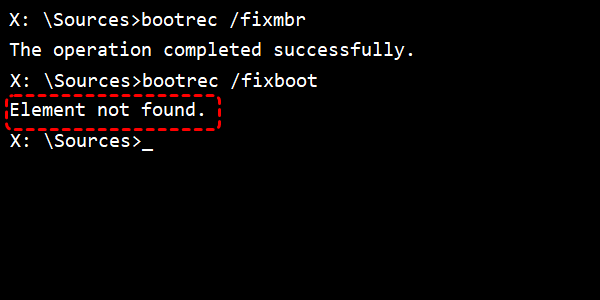
The bootrec /fixboot element not found error commonly appears after system updates, disk partition changes, corrupted boot files, or problems with UEFI/GPT-based Windows installations. Although this error prevents the boot repair command from completing, it does not necessarily mean your Windows is completely broken beyond repair.
Why Does bootrec /fixboot Say Element Not Found?
The bootrec /fixboot element not found error occurs when the Bootrec tool cannot find the correct location to write new boot code. In most cases, the issue is related to missing, inaccessible, or incorrectly configured boot partitions rather than the bootrec /fixboot command itself. Common causes include:
EFI System Partition is missing or inaccessible
On UEFI-based Windows installations, the EFI System Partition stores essential boot files. If this partition is damaged, hidden, or has no drive letter assigned, bootrec may fail to access it.
Inactive System Partition
The system partition must be marked as "active" for Windows to boot. If this partition loses its active status (often due to disk errors, partition changes, or failed updates), the bootrec /fixboot command cannot find the target element.
Corrupted Boot Configuration Data (BCD)
The BCD database contains information about installed Windows systems and startup settings. If it becomes damaged after updates, crashes, or improper shutdowns, Windows may not be able to rebuild startup files correctly.
Incorrect UEFI/GPT partition configuration
Modern Windows systems usually use UEFI firmware with GPT disks. If the disk layout has changed or the boot mode does not match the partition style, bootrec may not find the required boot elements.
Disk errors or partition changes
Bad sectors, file system corruption, or manually modified partitions can prevent Windows Recovery Environment from reading the necessary boot information.
How to Fix "Bootrec /fixboot Element Not Found" on Windows
Since the "bootrec /fixboot element not found" error can be triggered by a wide range of different causes, the repair method depends on the underlying cause. Follow the methods below to repair the Windows boot environment and resolve the error.
Method 1: Mark the System Partition as Active
For systems using the traditional BIOS + MBR boot mode, the system partition must be marked as active so that Windows can identify where the boot files are stored. If the active status was removed after partition changes or disk errors, bootrec may fail to locate the required boot element.
- Notes:✎...
- This method applies mainly to MBR-based Windows installations. Do not mark the EFI partition as active on GPT/UEFI systems.
Step 1. Boot into WinRE from Windows installation media, then select "Troubleshoot" > "Advanced options" > "Command Prompt".
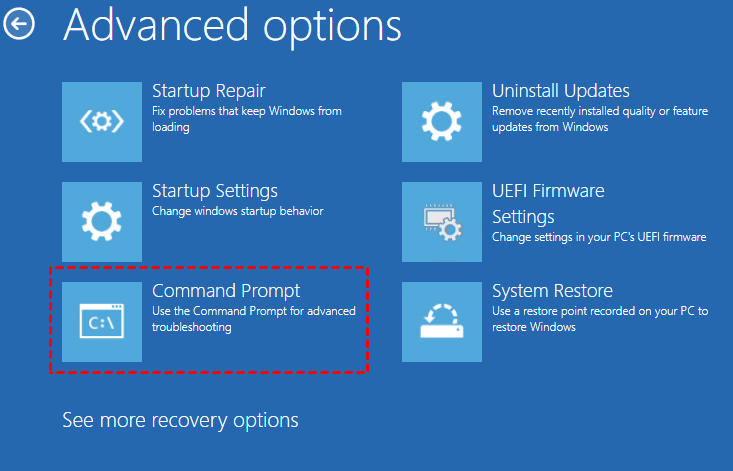
Step 2. Enter the commands to mark the system partition as active:
- diskpart
- list disk
- select disk 0
- list partition
- select partition X (The one labeled as "System" or "Recovery".)
- active
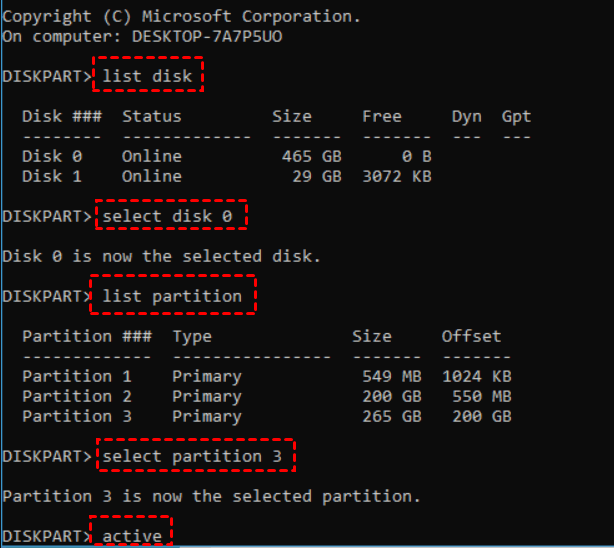
Step 3. Restart your computer and check whether Windows can boot normally. Or, running the bootrec commands again to check if the error persists.
Method 2: Assign a Drive Letter to the EFI Partition
On UEFI-based systems, Windows stores startup files in the EFI System Partition (ESP). This partition is usually hidden and does not have a drive letter. If Windows Recovery Environment cannot access it, the bootrec /fixboot command may return the "Element Not Found" error. Assigning a temporary drive letter allows Windows repair tools to locate and update the required boot files.
Step 1. Boot into Windows Recovery Environment and open Command Prompt with the same steps mentioned in method 1.
Step 2. Type the following commands and press "Enter" after each one:
- diskpart
- list disk
- select disk 0
- list partition
- select partition X (select the EFI System Partition, which usually is a small FAT32 partition around 100–300 MB.)
- assign letter=S
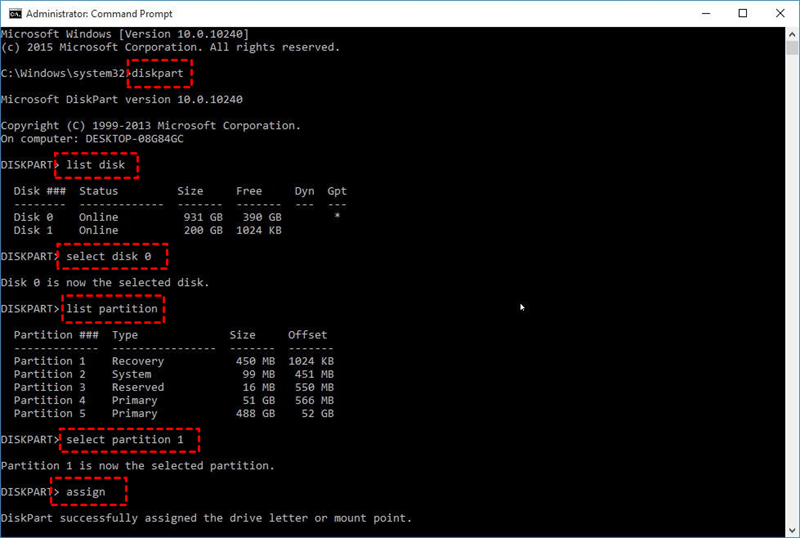
Step 3. Exit DiskPart and run the boot repair command again.
Method 3: Repair Boot Configuration Data (BCD)
The Boot Configuration Data (BCD) contains important startup information, including Windows installation paths and boot options. If the BCD store is corrupted, Windows may fail to rebuild startup files correctly, causing bootrec commands to return errors. Rebuilding the BCD allows Windows to recreate the startup configuration and reconnect the operating system with the correct boot files.
Step 1. Open Command Prompt from Windows Recovery Environment.
Step 2. Enter the following command and press "Enter":
- cd /d b:\EFI\Microsoft\ (b: the drive letter of your EFI System Partition assigned before)
- bootrec /fixboot
- ren BCD BCD.bak (Back up the corrupted BCD file)
- bcdboot c:\Windows /l en-us /s b: /f ALL (Generate a full BCD bootloader that supports UEFI and BIOS firmware)
- ★Tips:
- /l en-us: Set its language to American English.
- /f ALL: Copy core boot files from your main Windows system drive (C:\\Windows) to the EFI partition.
Step 3. Restart your computer to check if it works normally.
Method 4: Rebuild the Master Boot Record (MBR)
If the "bootrec /fixboot element not found" error is caused by damaged boot code on an MBR-based disk, rebuilding the MBR can restore the connection between the system partition and Windows startup process. This method is mainly useful for older BIOS-based installations or systems that have experienced boot sector corruption.
Step 1. Open Command Prompt in Windows Recovery Environment.
Step 2. Run the following commands one by one:
- bootrec /fixmbr
- bootrec /fixboot
- bootrec /scanos
- bootrec /rebuildbcd
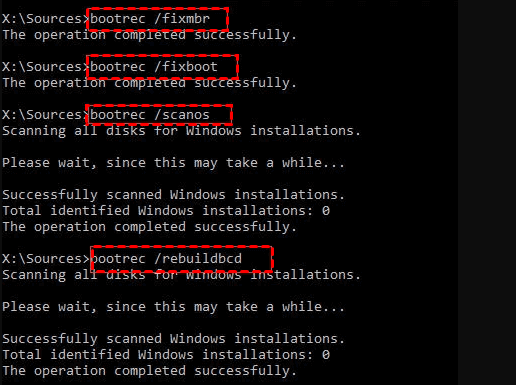
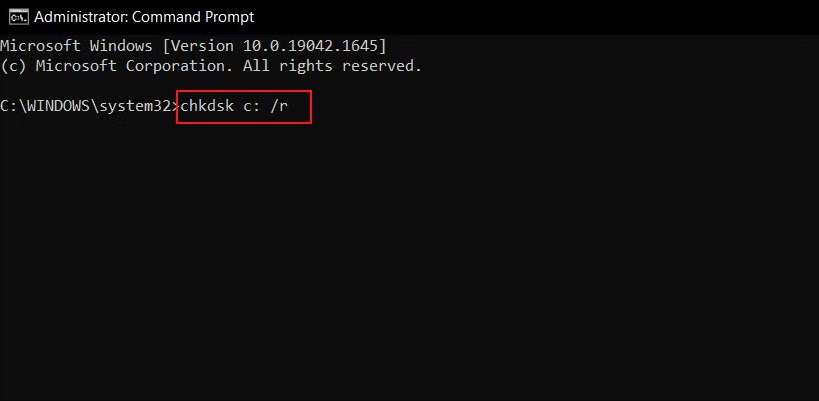
Step 3. If the above steps don't work, run CHKDSK to check for file system errors: chkdsk C: /r. This will scan and repair bad sectors on your drive.
Step 4. Restart your computer and check whether the startup issue has been resolved.
Method 5: Run Windows Startup Repair
Startup Repair is a built-in Windows recovery tool designed to automatically detect and fix common boot problems. If the bootrec /fixboot element not found error is caused by damaged startup files or incorrect boot settings, Startup Repair may resolve the issue without manual commands.
Step 1. Enter WinRE like earlier steps and go to "Troubleshoot" > "Advanced options" > "Startup Repair".
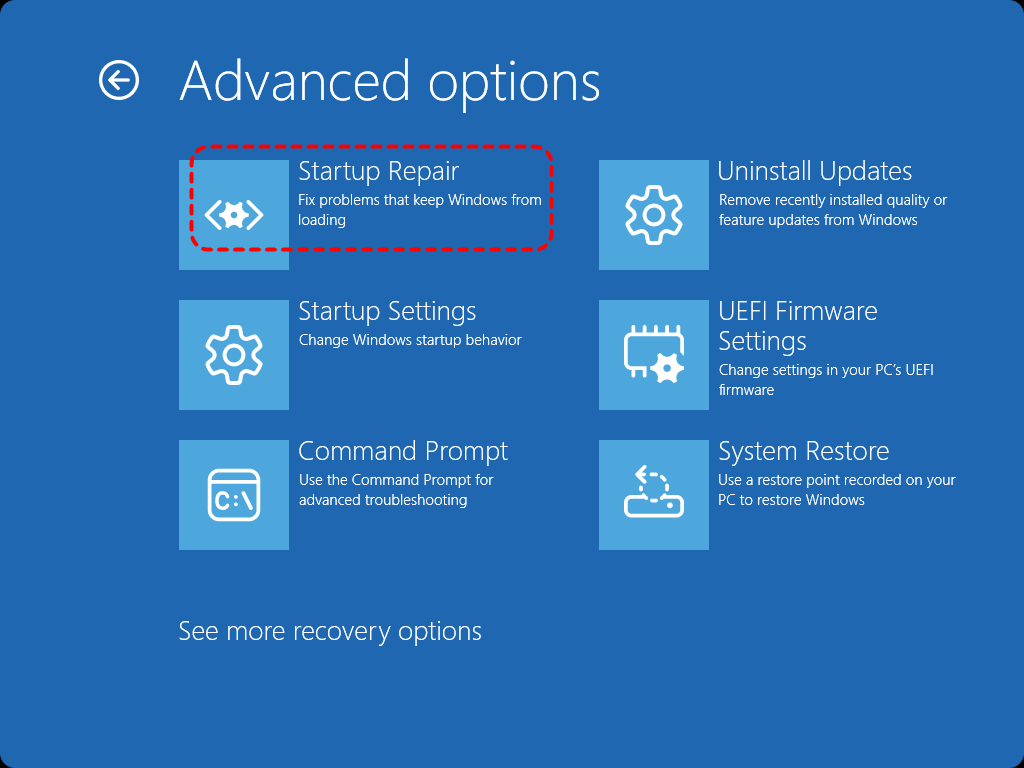
Step 2. Choose your Windows account and enter the password if required. Wait for Windows to scan and repair startup issues automatically.
Step 3. Restart your PC after the repair process finishes.
Method 6. Reset BIOS/UEFI Boot Mode
Incorrect firmware settings can prevent Windows from finding the correct boot partition. For example, a system installed in UEFI mode may fail to start if BIOS settings are switched to Legacy mode. Matching the firmware boot mode with the disk partition style can help restore normal startup.
Step 1. Restart your computer and enter BIOS/UEFI settings by pressing keys such as F2, F10, F12, or Delete during startup.
Step 2. Find the Boot Mode or UEFI/Legacy Boot option. Select the correct mode based on your disk configuration:
GPT disk → UEFI mode
MBR disk → Legacy BIOS mode
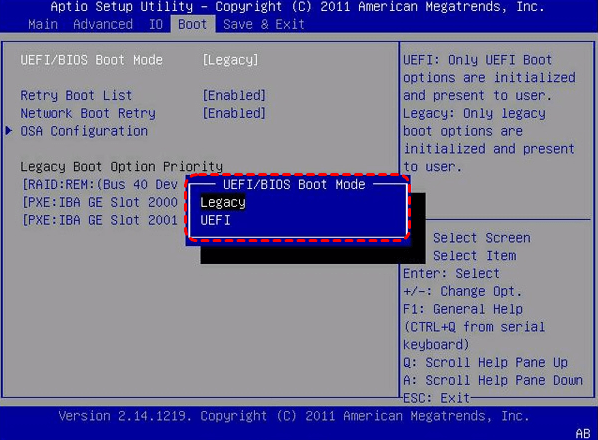
Step 3. Save changes and restart your computer.
Method 7. Perform System Restore
If the bootrec fixboot element not found error appeared after a Windows update, driver installation, or system configuration change, System Restore can return Windows to an earlier working state. This method does not affect personal files but requires a previously created restore point.
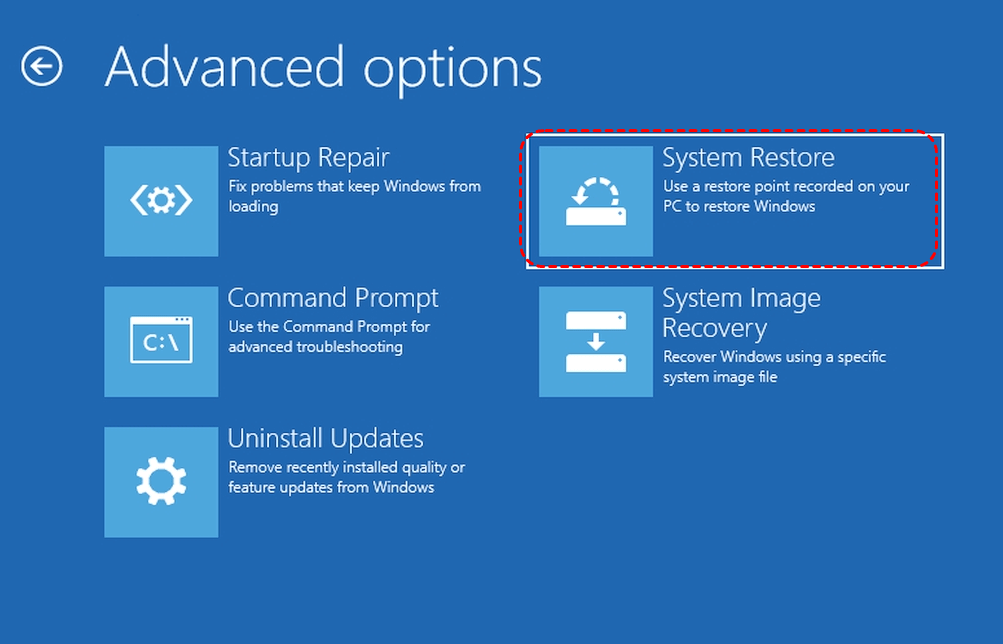
Step 1. Open Windows Recovery Environment and select "Troubleshoot" > "Advanced options" > "System Restore".
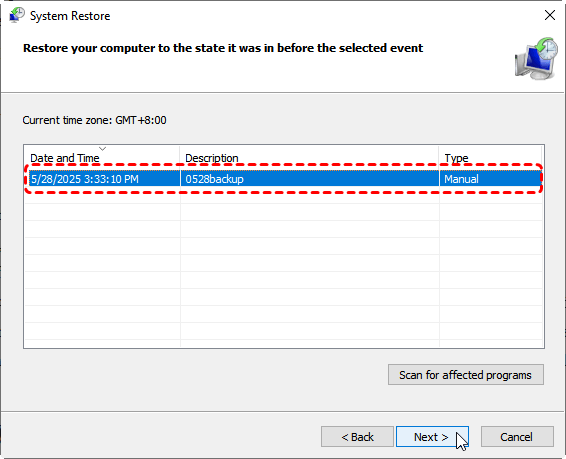
Step 2. Choose an available restore point created before the boot issue occurred. You can check the affected software by clicking on "Scan for affected programs".
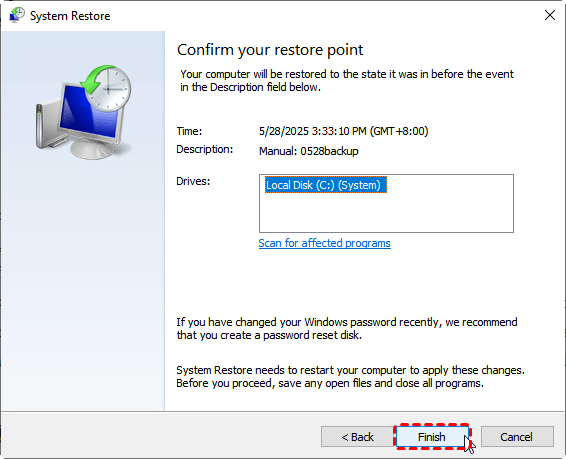
Step 3. Confirm the restore operation and click "Finish", wait for Windows to complete the process.
How to Recover Lost Data from Unbootable Windows with MyRecover
If the bootrec /fixboot element not found error still prevents Windows from starting, the priority should be protecting your important files before performing further repair operations. In such a case, accessing files becomes difficult because you may not be able to open your desktop or use File Explorer. A professional data recovery tool like MyRecover can help extract important documents, photos, videos, and other files from the unbootable system before continuing with advanced repairs.
MyRecover is a Windows-based data recovery solution designed to recover lost or inaccessible files from internal drives, external hard drives, SSDs, USB drives, and other storage devices. It supports recovery from situations such as system crashes, accidental deletion, corrupted partitions, and inaccessible drives.

 MyRecover
- Recover deleted & lost files from HDD, SSD, USB, SD card, camera as you need.
- Support 1000+ formats of photos, videos, docs, archives, emails, compressed files, etc.
- Reliable rescue for deletion, formatted disk, emptied Recycle Bin, system crashes and more.
 100% Secure
Step 1. Download and install MyRecover on another working Windows computer and prepare a blank USB (at least 8 GB).
Step 2. Run the program and select "PC Crashed Recovery" > "USB Boot Device", then click "Create" to make a bootable media.
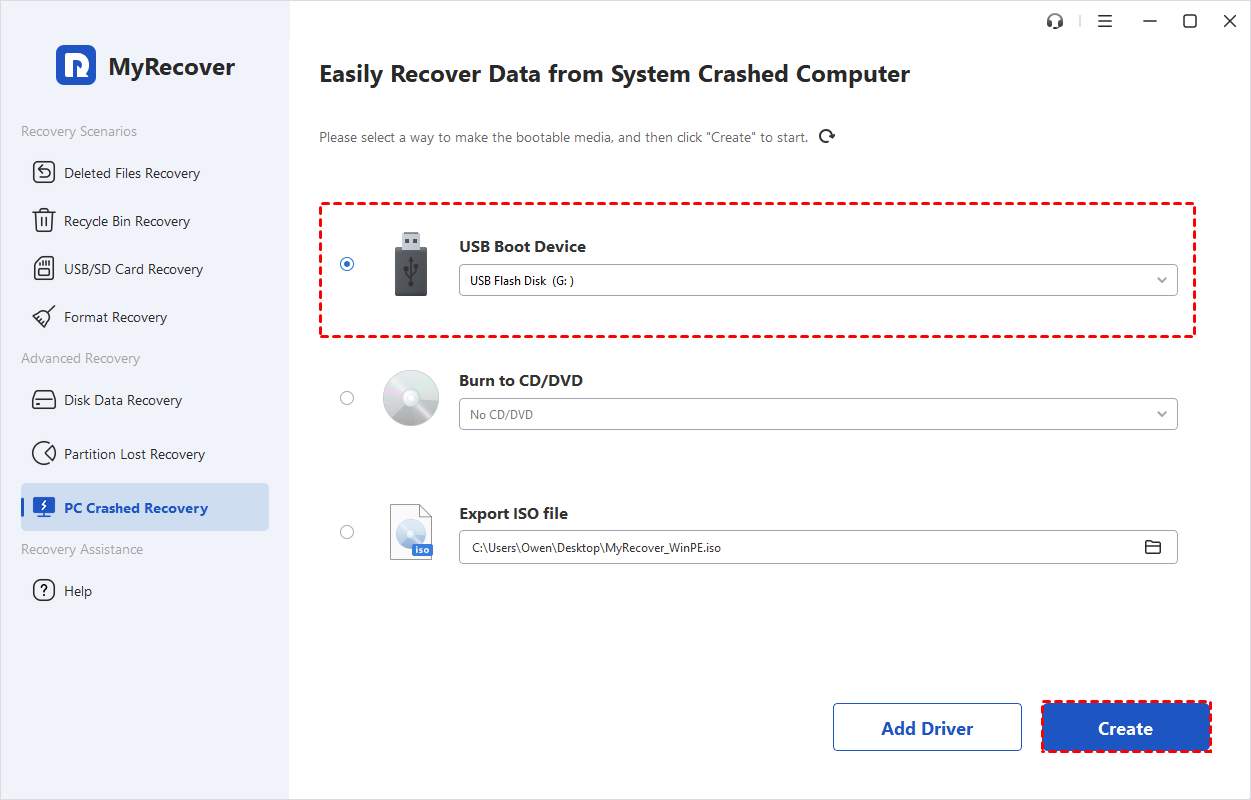
Note that this operation formats the entire USB storage device. Be sure to save any valuable data stored on it beforehand.
Apart from USB drives, CDs, DVDs and ISO files are all viable options for making a Windows bootable drive.
Step 3. Wait until the bootable USB drive is created successfully. Remove it and insert into the computer with "bootrec fixboot element not found" error.
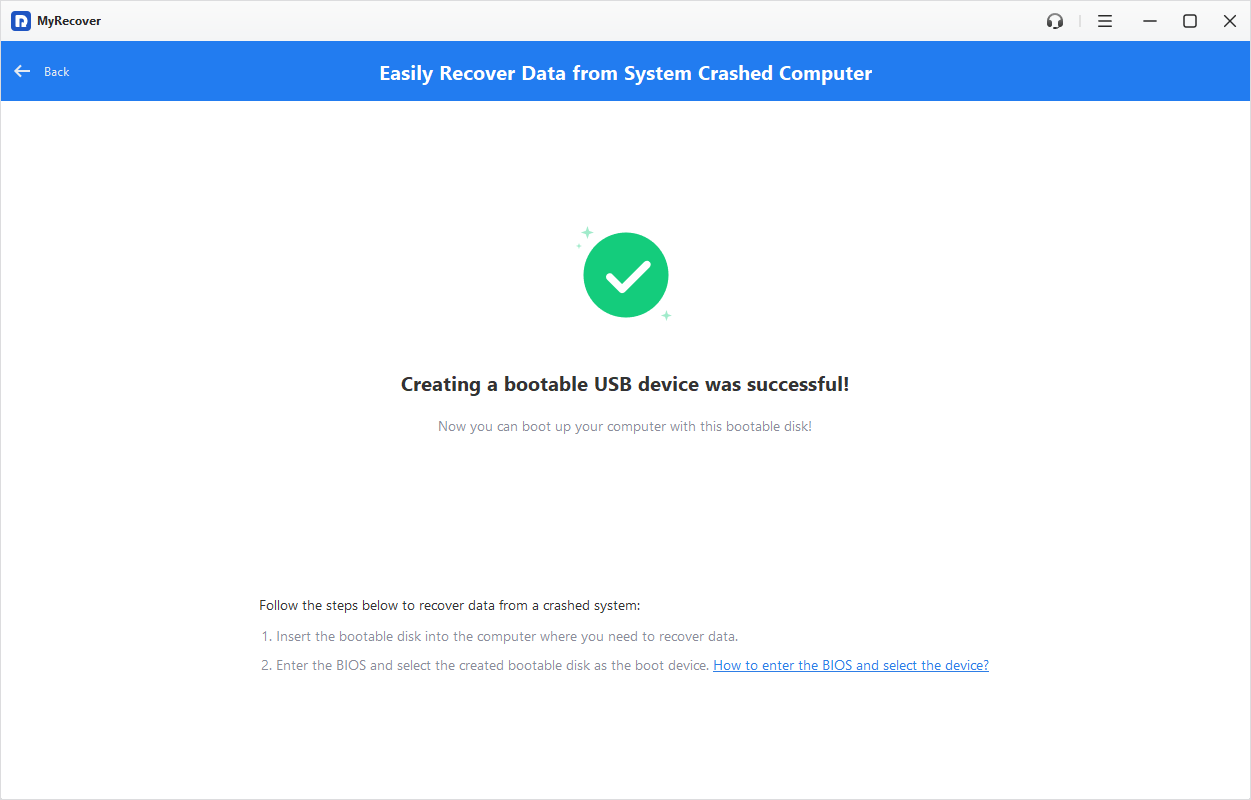
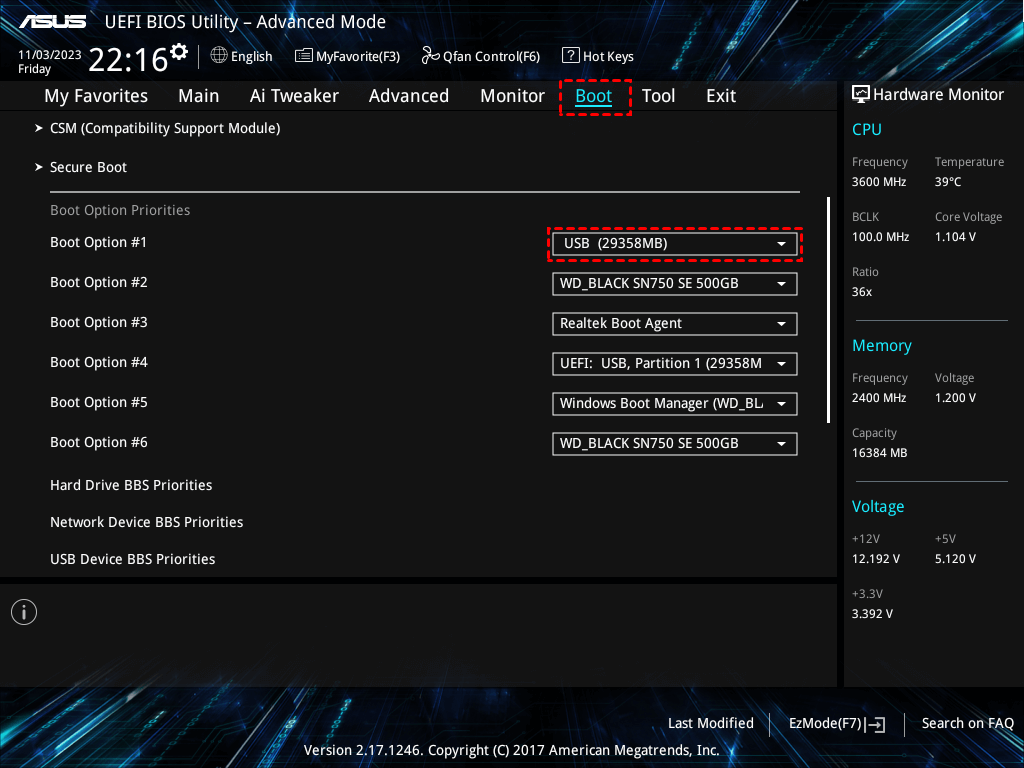
Step 4. Boot into BIOS/UEFI using the bootable media and configure boot sequence to prioritize the USB bootable media. Restart the computer and you will automatically get into the interface of MyRecover.
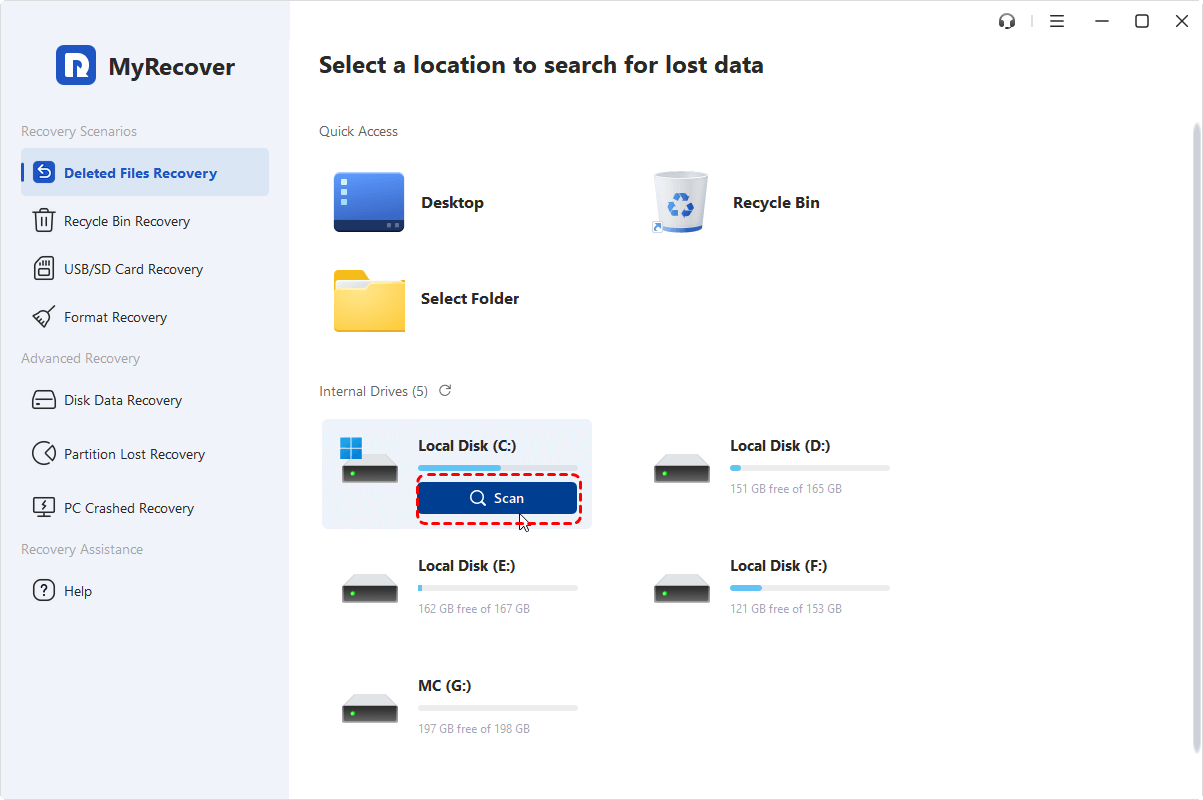
Step 5. Select the drive containing your lost files and click "Scan" to search for recoverable files.
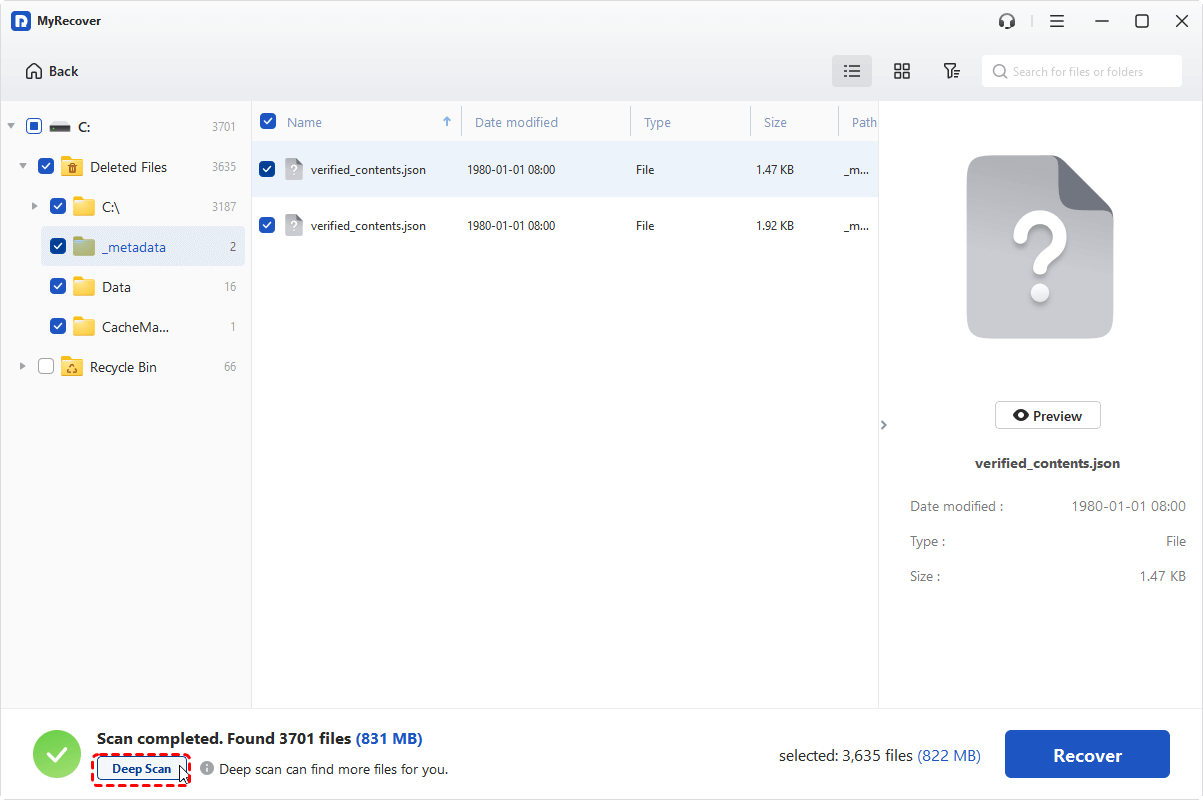
Step 6. After the scanning process, use filters such as file type, name, or path to quickly find the required data. Preview the found files to verify their integrity, select the files you need, and click "Recover".
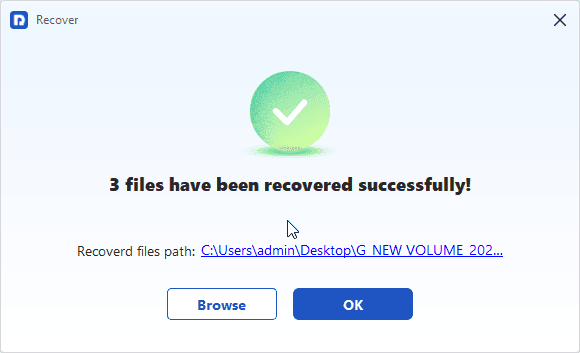
Step 7. Save the recovered files to another healthy storage device (preferably an external hard drive) instead of the original system drive to avoid overwriting existing data. Then, you can check the recovered files in the destination drive on a working computer.
Summary
The "bootrec /fixboot element not found" error is a common Windows boot issue that prevents your PC from starting properly.Try these simple solutions, and your PC should boot normally. If the boot issue persists, recovering data from the unbootable computer becomes your top priority. With its simple recovery workflow and advanced scanning technology, MyRecover can help safely extract files from unbootable Windows without risking further data loss.
Frequently Asked Questions
Q1: How to recover data after bootrec fixboot error?
If the bootrec /fixboot error prevents Windows from starting, use professional data recovery software like MyRecover to create a bootable media to start the PC and recover important files. Recover data before making major partition or boot repairs to reduce the risk of permanent data loss.
Q2: Can I reinstall bootloader after bootrec fixboot fails?
Yes. You can reinstall the Windows bootloader by rebuilding the BCD, recreating boot files with the bcdboot command, or repairing the EFI System Partition. These methods can restore startup files when bootrec /fixboot fails to complete.
Q3: How to fix missing BCD?
To fix a missing or corrupted BCD, open Command Prompt from Windows Recovery Environment and use commands such as bootrec /rebuildbcd or bcdboot C:\Windows to recreate boot configuration files. If the BCD cannot be repaired, check the EFI partition first.
Q4: How to restore BCD in Windows 11?
You can restore BCD in Windows 11 through WinRE Command Prompt. Run bootrec /scanos and bootrec /rebuildbcd, or use bcdboot to copy fresh boot files from the Windows folder to the system partition and rebuild the boot environment.
Q5: How to fix System32 missing?
If Windows reports missing System32 files, try Startup Repair, System File Checker, System Restore, or rebuild the boot configuration. If important files are inaccessible, recover your data first busing tools like MyRecover before reinstalling Windows or performing advanced repairs.
Q6: Is the blue screen of Death fixable?
Yes, most Blue Screen of Death (BSOD) errors can be fixed by identifying the cause, such as driver issues, corrupted system files, hardware problems, or boot configuration errors. Solutions include updating drivers, running repair tools, restoring the system, or reinstalling Windows.

Stay Updated With Our
Latest Tips
Add us as a preferred source on Google to never miss helpful guides.
 Add as preferred source >>