 MyRecover



AEP File Recovery: Restore Deleted and Unsaved After Effects Projects
Don't let a crash ruin your deadline. This guide covers deleted and unsaved aep file recovery techniques. Learn how to recover deleted and unsaved after effects project files quickly and implement better backup habits to protect your future renders.

By Aria / Updated on March 6, 2026


About AEP File
An AEP file is the project file format used by Adobe After Effects, storing all compositions, layers, effects, keyframes, and project settings. Unlike rendered videos, an AEP file does not contain the final video output but acts as the blueprint of your project, allowing you to edit, adjust, and render your work repeatedly without losing flexibility.

Losing an AEP file can be a major setback for motion designers and video editors, but understanding why it happens can help prevent data loss and guide recovery efforts. Common causes of AEP file loss include:
📌Accidental Deletion: Users may mistakenly delete project files from the storage drive or move them to the Recycle Bin and empty it.
🔔Software Crashes or Improper Shutdown: After Effects may crash or the system may shut down unexpectedly, leaving AEP files unsaved or corrupted.
📁File Overwriting: Saving a project with the same name as an existing file without backing up can overwrite the original AEP.
💻Storage Device Issues: Hard drive corruption, SSD failure, or sudden disconnection of external drives can make AEP files inaccessible.
🛠️Virus or Malware Attack: Malicious software can delete, encrypt, or damage project files, making them unusable.
How to Recover Deleted AEP Files on Windows
Losing or accidentally deleting an AEP file doesn’t always mean it’s gone forever. The solutions below progress from quick built-in fixes to advanced AEP file recovery approaches, helping you recover AEP file efficiently while minimizing further data risk.
Method 1. Restore AEP File from Recycle Bin
If the After Effects projects file was deleted recently (not "Shift" + "Delete"), it may still be stored in the Recycle Bin. This is the fastest and safest recovery option because it restores the original file without scanning the disk. You can restore your files from Recycle Bin to their original location.
Step 1. Double-click the Recycle Bin icon on the desktop to open it.
Step 2. Locate the deleted .aep file and right-click it, then choose "Restore".
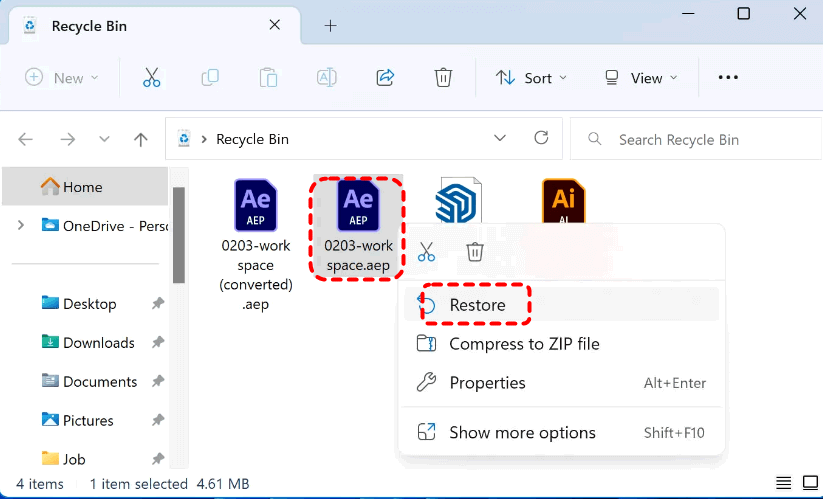
Step 3. Navigate to the original folder and open the project in After Effects to verify it works.
Method 2. Recover AEP File from Backup
If you regularly back up your After Effects projects file using Windows built-in tools like File History, Backup and Restore (Windows 7), OneDrive, etc., restoring from backup provides a clean and reliable solution. This method is convenient, fast, and will not cause any damage to file integrity. Take File History as an example:
Step 1. Type "Restore your files with File History" in the Start menu and open it.
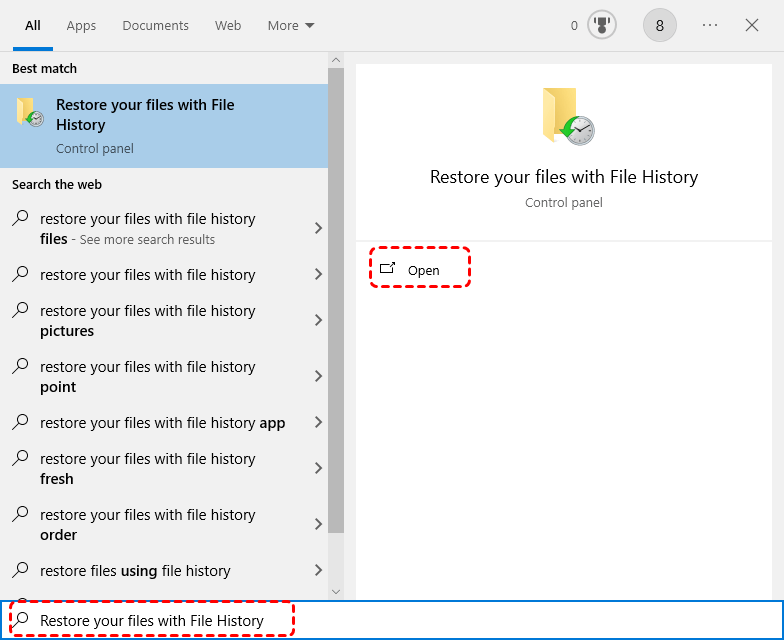
Step 2. Browse to the folder containing the earlier version of the AEP file and select a desired version based on the backup date.
Step 3. Click the green "Restore" button to recover the AEP files.
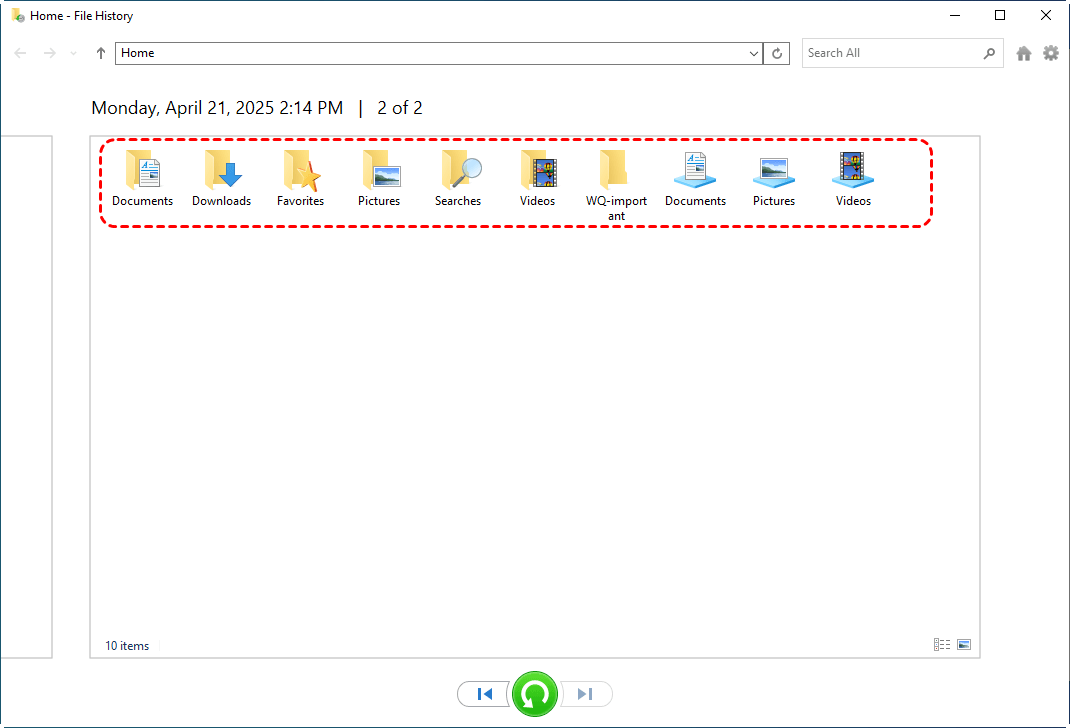
Method 3. Recover Deleted AEP File with MyRecover
When the file is permanently deleted, missing from backups, or the drive shows errors, professional data recovery tool like MyRecover becomes necessary. Its two modes, Quick Scan and Deep Scan, can quickly find your desired files without missing any important data, making it an ideal recovery tool when files bypass the Recycle Bin or storage corruption occurs. It also supports the recovery of over 1,000 file types, including photos, videos, audio, compressed files, design files, and more.

 MyRecover
- No Tech Skills Needed: User-friendly interface designed for beginners and non-tech-savvy users.
- Supports Over 1000 File Types: Recover photos, videos, documents, emails, ZIP files, and more.
- Supports Multiple Storage Devices: Works seamlessly with internal and external HDD, SSD drives, USB flash drives, SD/memory cards, digital cameras, and more.
 100% Secure
Step 1. Download and install MyRecover on a different drive than the one that stored the lost AEP file.
Step 2. Launch the tool and select the affected partition, then click "Scan" to search for lost data.
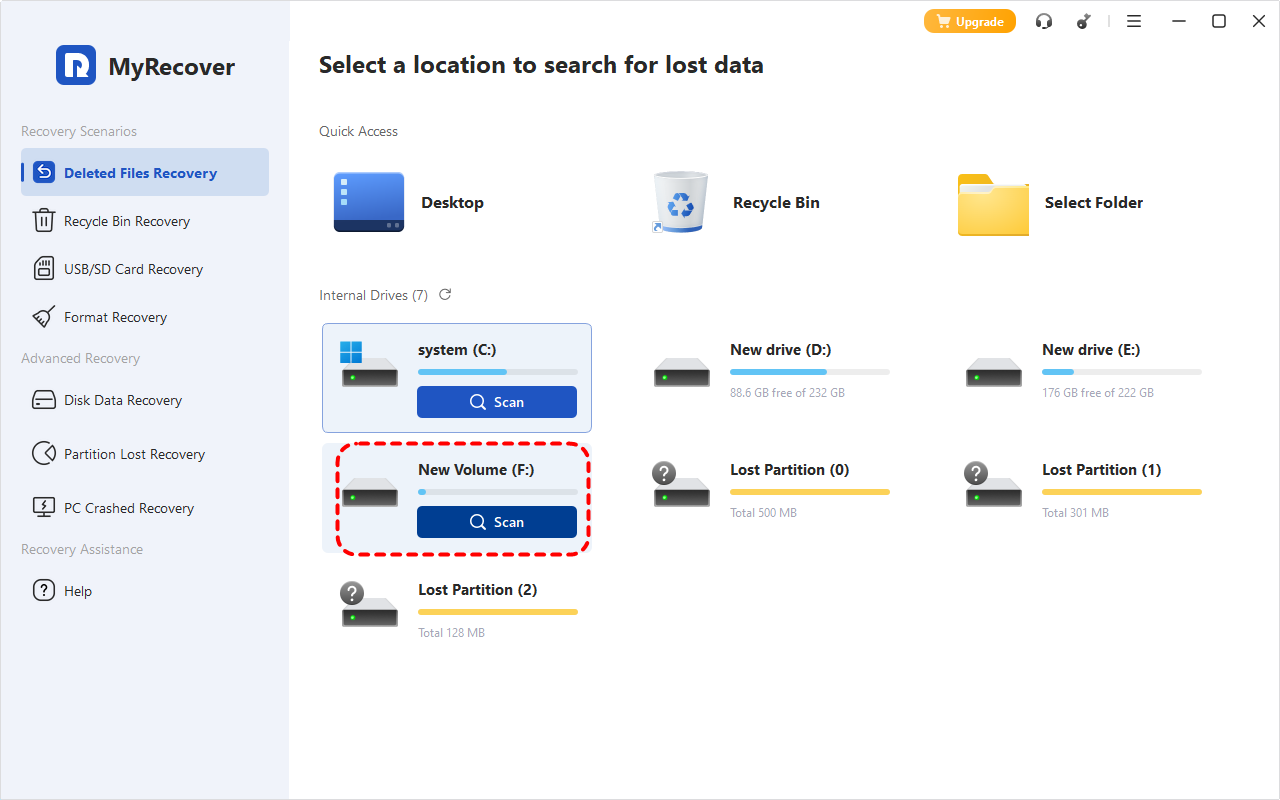
Step 3. After the scan is completed, choose the items you want to restore from the recoverable lists and click "Recover".
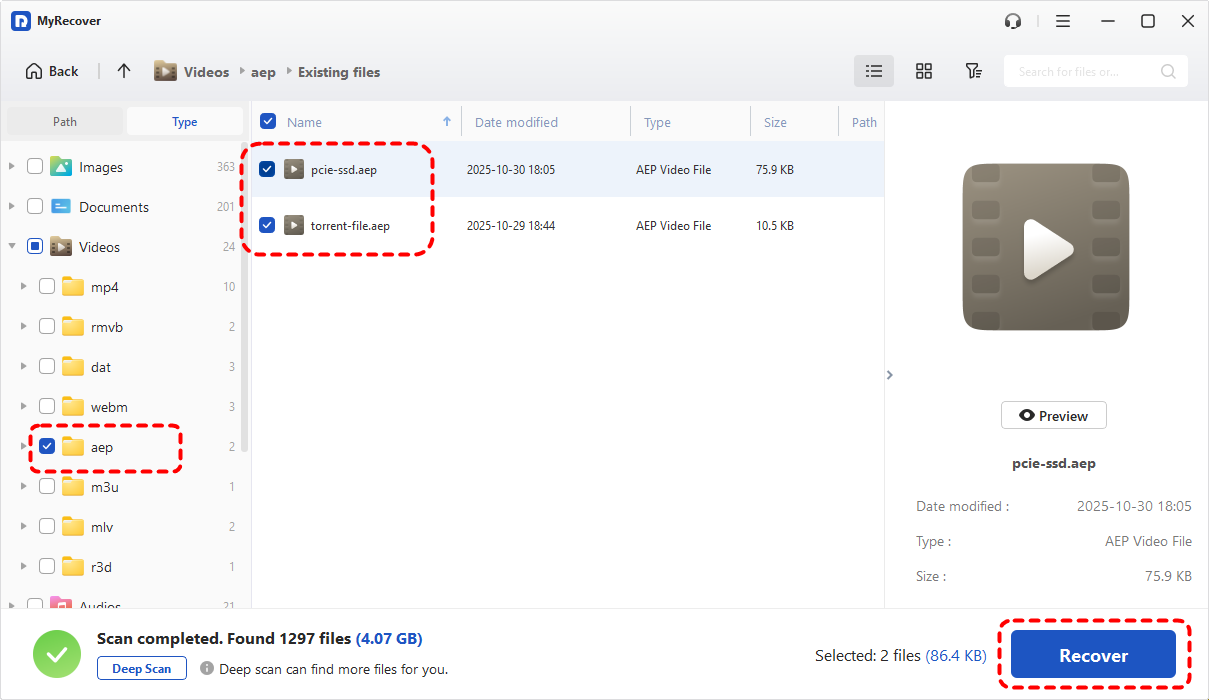
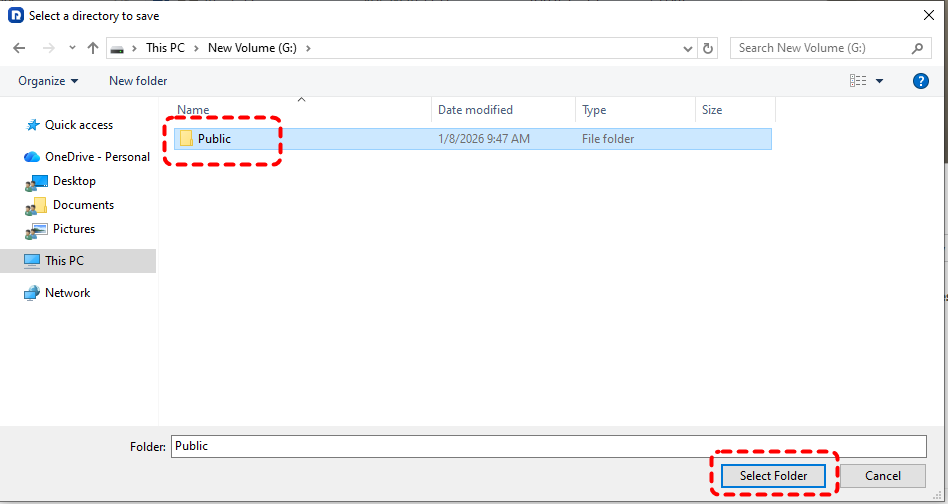
Step 4. Save the restored files to a new location to prevent overwriting.
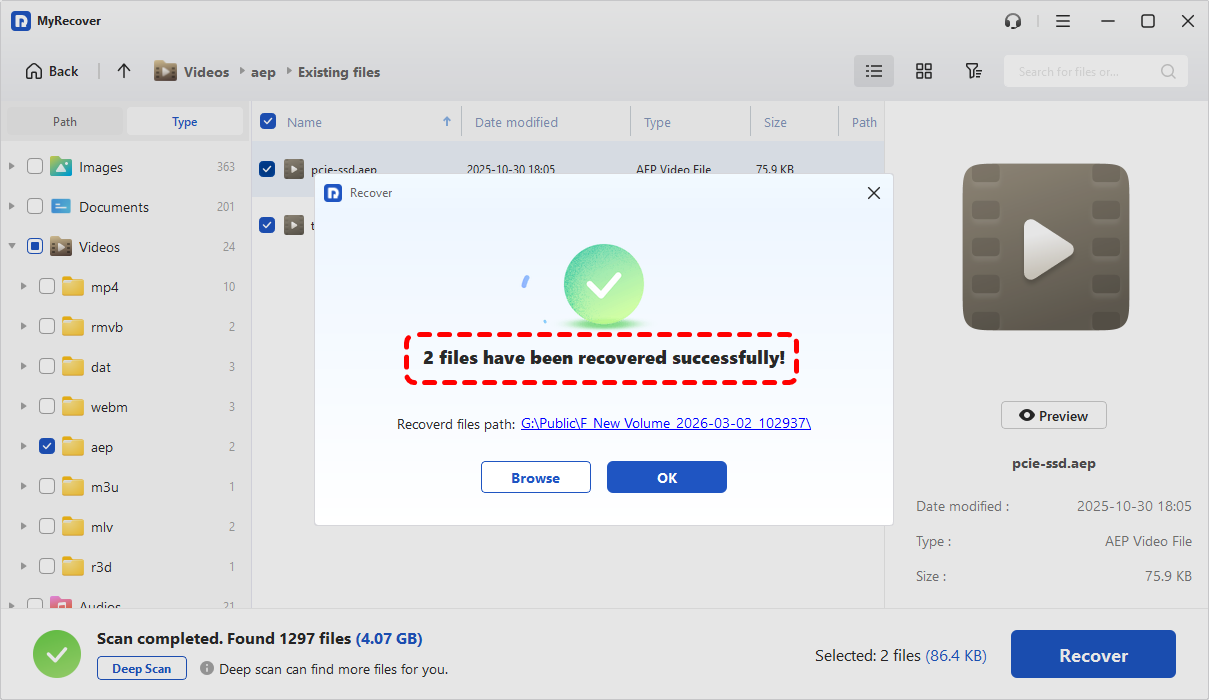
Once the process is done, you can verify the recovered files in the destination folder by clicking on the "Browse" button.
How to Recover Unsaved AEP Files on Windows
If your After Effects project was never saved or the program crashed unexpectedly, the situation will become a bit more complicated. Fortunately, After Effects and Windows often create temporary or automatic backups that can be used to recover unsaved After Effects project files. Let's explore them one by one.
Method 1. Recover from After Effects Auto-Save
After Effects includes an Auto-Save feature that periodically creates backup copies of your project. This is usually the most effective way to retrieve unsaved work because it preserves recent editing progress. If Auto-Save was enabled, you can often restore an earlier version of the After Effects projects file within minutes.
Step 1. Launch After Effects and go to "Edit" > "Preference" > "Auto-Save".
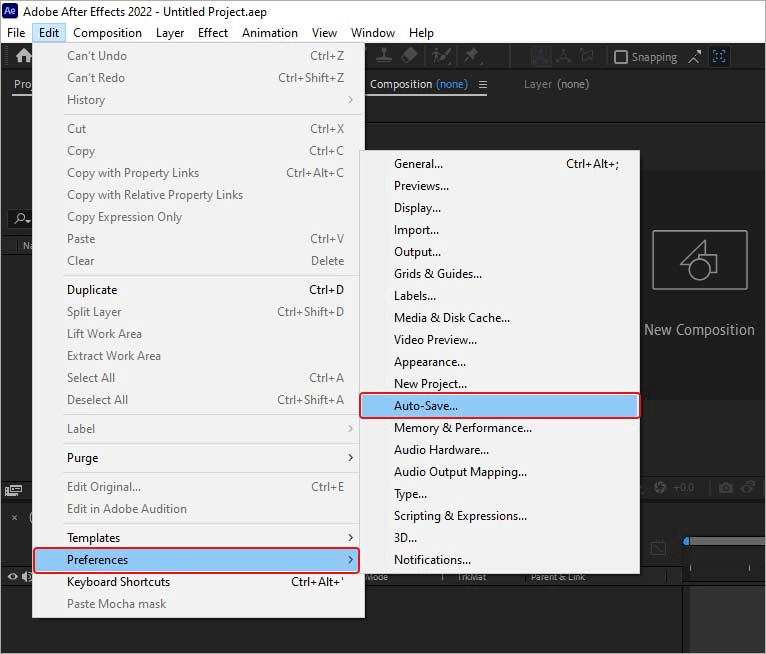
Step 2. Open File Explorer and navigate to the Auto-Save location:
C:\Users\YourName\Documents\Adobe\After Effects\\Adobe After Effects Auto-Save.
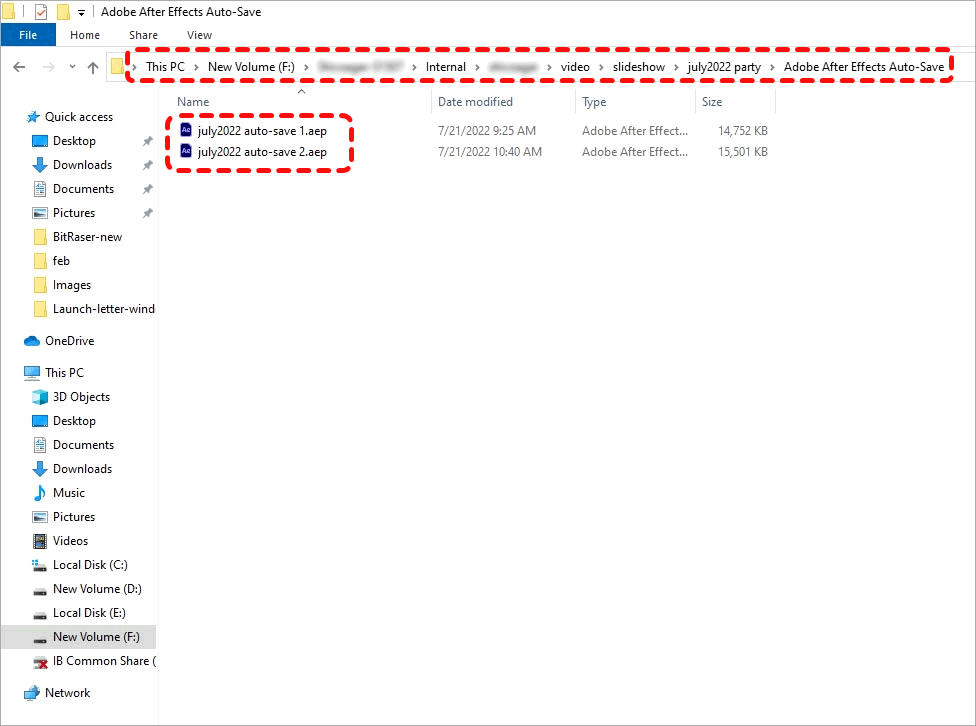
Step 3. Double-click the file to open it in After Effects and immediately save it to a safe location if it’s the one you want.
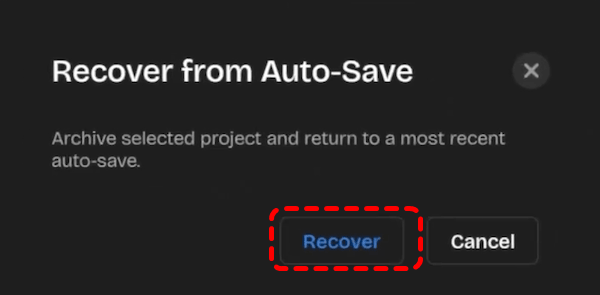
In addition, if your computer or program shuts down suddenly due to a crash or power failure, After Effects will detect unsaved files and display a prompt when you restart it. Click "Recover", and the unsaved AEP file will open in After Effects. You can then save it to a safe location.
Method 2. Restore Unsaved Project from Recent Files
If After Effects was closed unexpectedly, the Recent Projects list may still reference a recoverable temporary file. This method is quick and requires no manual file searching, making it worth checking early in the recover AEP file workflow.
Step 1. Launch Adobe After Effects and go to "File" > "Open Recent".
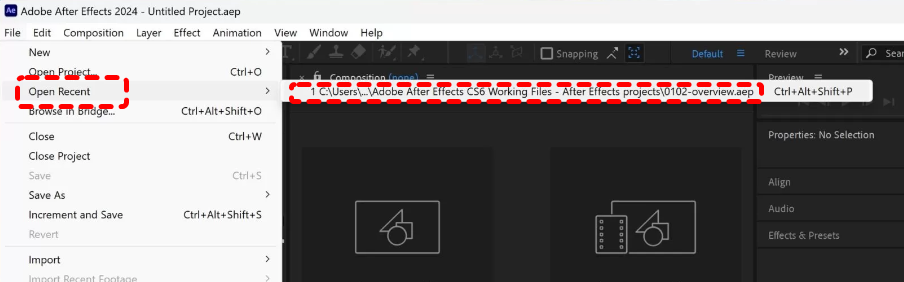
Step 2. Look for the missing project in the recent list.
Step 3. If find it, open it and immediately save to safe location.
Method 3. Check the Temporary Files
Adobe After Effects also creates temporary files during the editing process. You can check the Temp folder in the AE directory to see if any temporary AEP files are available. While these temporary files may not include the full project, often only partial or recent versions, they can still be very helpful for recovering your work.
Step 1. Press "Win" + "R" and enter "%temp%" in the Run dialog to open theTemporary Folder.
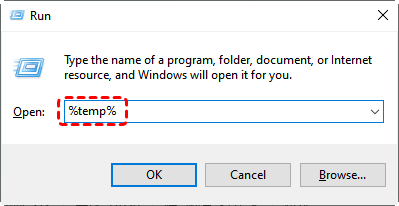
Step 2. Browse through files with the .aep extension or similar project-related names of your AEP files.
Step 3. Once find, open it in After Effects and save it.
Method 4. Restore from Adobe Creative Cloud
If your project folder was synced with Creative Cloud, an earlier cloud version may still exist. This approach is especially useful when working across multiple devices and provides an additional safety net for AEP file recovery.
Step 1. Sign in to your Adobe Creative Cloud account in a web browser.
Step 2: Navigate to the synced project folder and look for your AEP files.
Step 3. Locate the target AEP file and choose "Download" to restore it locally.
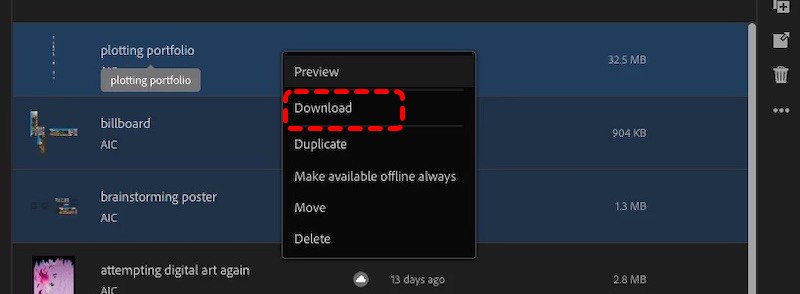
Step 4 (Optional). If you cannot find the AEP file, locate the "Deleted" folder, then check if the file is deleted. If it's, you can restore it from here.
How to Prevent After Effects Project Loss
After successfully completing AEP file recovery, the most effective strategy is prevention. Because After Effects projects often involve hours of layered work, even a single crash or mistaken deletion can cause significant setbacks. By implementing a few disciplined habits, you can greatly reduce the risk of losing any after effects projects file in the future.
🔥Enable Auto-Save and shorten intervals: Set Auto-Save to every 5–10 minutes so unsaved changes are always protected.
🔥Maintain regular backups: Use File History, cloud sync, or external drives to create versioned copies of important projects.
🔥Avoid working directly on removable drives: Edit locally and copy projects to external media only after saving.
🔥Use clear version naming: Save incremental versions (e.g., Project_v1, v2) to prevent accidental overwriting.
Conclusion
A lost After Effects project is stressful, but in many cases it is recoverable with the right approach. Acting quickly and choosing the correct method for your scenario is the key to successful AEP file recovery. To avoid repeat incidents, enable Auto-Save, maintain reliable backups, and follow safe file management practices. Taking these steps now ensures your creative work remains secure and recoverable when it matters most.

Stay Updated With Our
Latest Tips
Add us as a preferred source on Google to never miss helpful guides.
 Add as preferred source >>