 MyRecover



Does Illustrator Autosave? Recover Unsaved Files After Crash
If you've ever wondered, "Does Illustrator autosave?" you're not alone. In this article, we dive into how Illustrator manages file saving, what happens during unexpected closures, and the recovery options available to users. We also provide practical tips on optimizing your settings to reduce the risk of losing your work in the future.

By Aria / Updated on January 4, 2026


Introduction
Adobe Illustrator is a powerful design software widely used by graphic designers and artists for creating vector graphics, illustrations, and digital art. As with any complex software like Word, Excel, or Photoshop, users often face unexpected crashes or interruptions, and the fear of losing hours of work is all too common. One crucial question that arises is: does Illustrator have autosave?

The answer is yes, Illustrator does have an autosave feature, but understanding how it works and how to recover your unsaved files can save you from losing valuable work. Whether you're a beginner or an experienced Illustrator user, this guide will provide you with the knowledge to protect your projects from potential data loss.
Does Illustrator Have Autosave?
Yes, Adobe Illustrator does have autosave, but it functions a bit differently compared to other software applications like Microsoft Word or Photoshop. Illustrator automatically saves backup files at regular intervals to prevent data loss in case of unexpected crashes or power outages.
However, Illustrator's autosave doesn't save every change you make. Instead, it creates a backup only after a certain amount of time or when the program is closed unexpectedly. Additionally, Illustrator’s Auto-recovery feature is disabled by default. This is because this feature may cause slight lag when working with complex vector graphics. Follow these steps to enable Illustrator auto-recovery feature:
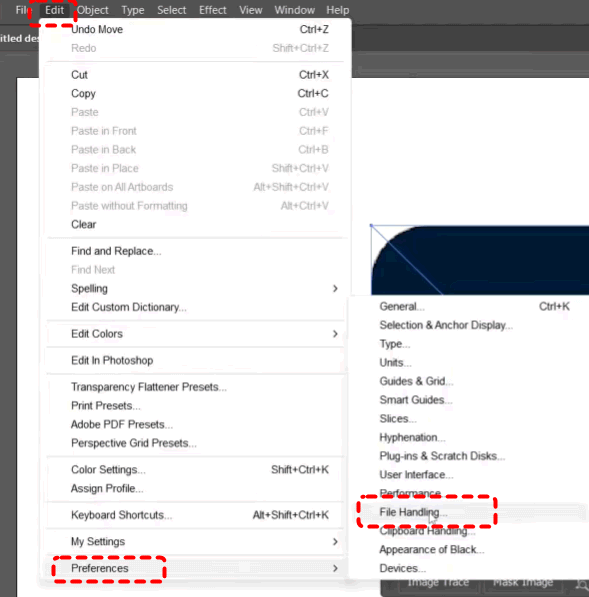
Step 1. Launch Adobe Illustrator and go to "Edit" > "Preference" > "File Handing & Clipboard".
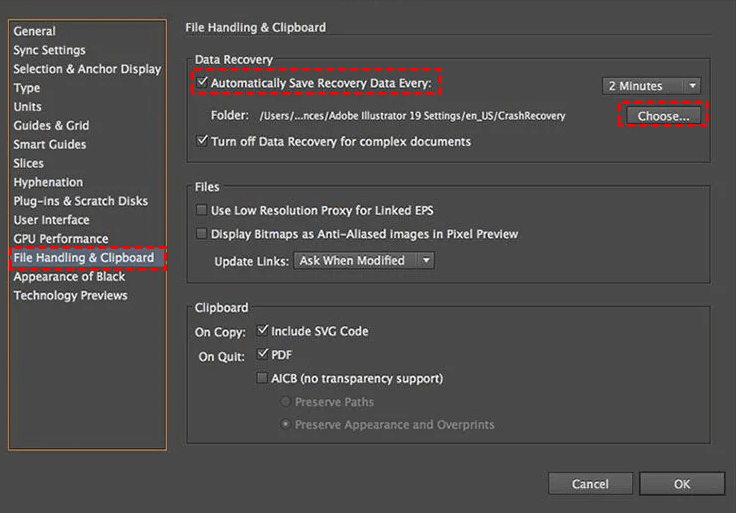
Step 2. Check "Automatically Save Recovery Data Every" under "Data Recovery" and adjust how often Illustrator autosaves your work. By default, it saves every 10 minutes, but you can change the time interval based on your preferences.
How to Recover Unsaved Illustrator Files After Crash
If Illustrator crashes before you had a chance to save your file, this does not mean that these files will be lost permanently. This section will introduce several methods to help you recover unsaved Illustrator files. Let's dive into the detailed steps.
Check Auto Recovery File
If you have enabled the Auto Recovery feature, a backup of your file will be automatically created when Illustrator crashes or is not closed properly. When you reopen Illustrator, a pop-up will prompt you that there are unsaved files. You can recover the unsaved files directly from this pop-up.
Step 1. Launch Illustrator, you will see a message "Adobe Illustrator quit unexpectedly. Any open documents that could be recovered with unsaved information are named [Recovered]."
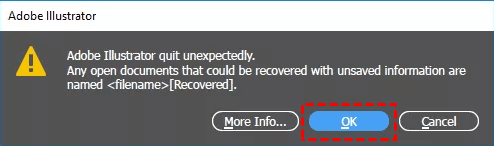
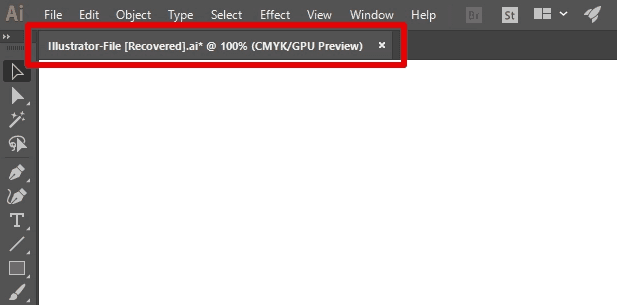
Step 2. Click "OK" to check the unsaved file. If it's the one you want, save it to a save location with a different name.
Recover from the Illustrator Data Recovery Location
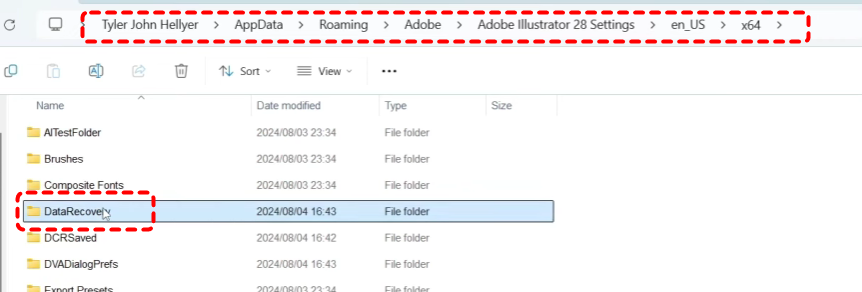
If this pop-up does not appear when you restart Illustrator, you can also access the Automatically Save Recovery folder directly where all auto-saved files were stored. Follow these steps:
Step 1. Navigate to the following path:
C:\Users\\AppData\Roaming\Adobe\Adobe Illustrator [version] Settings\en_US\x64\DataRecovery.
- ★Tips:
-
On Mac:
C:/Users//Library/Preferences/Adobe Illustrator [version] Settings/en_US/ DataRecovery.
Step 2. Look through the folder for your unsaved or crashed file, and open it to continue working from where you left off.
Check the Temp Folder for Illustrator File
Another possible location for your unsaved Illustrator file is the Temp folder on your system. If your Windows system crashes suddenly, the temporary folder may simultaneously create hidden temporary files while you are editing Illustrator files.
Step 1. Press "Win" + "R" and type "%temp%" in the Run dialog, then press "Enter".
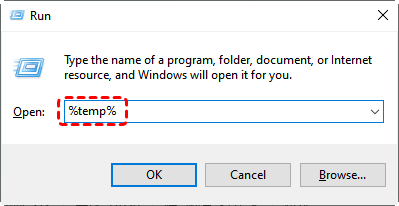
Step 2. Look for any Illustrator-related files in the temp folder, which should have a file extension such as ".ai" or ".tmp". If you find a match, try opening it in Illustrator.
How to Recover Deleted Illustrator Files on Windows
If you accidentally deleted your Illustrator files, don't panic. There are ways to recover them. MyRecover is an excellent solution for recovering deleted Illustrator files. Its intuitive interface enables users of all skill levels to recover data effortlessly. In addition, it supports over 500 complex data loss scenarios, such as recovering data from deleted partitions, formatted USB drives, inaccessible drives, and emptied recycle bins.

 MyRecover
- User-Friendly Interface: Clean, intuitive design suitable for both beginners and advanced users.
- Versatile Recovery Options: Supports recovery of photos, videos, documents, archives, and over 1000 file formats.
- Deep Scan Capability: Performs thorough scans to locate lost data even after formatting or partition loss.
- Safe and Read-Only Scanning: Ensures no data is overwritten during the recovery process.
 100% Secure
Step 1. Download and install MyRecover on your computer from Microsoft Store, avoid installing it on the drive with lost files.
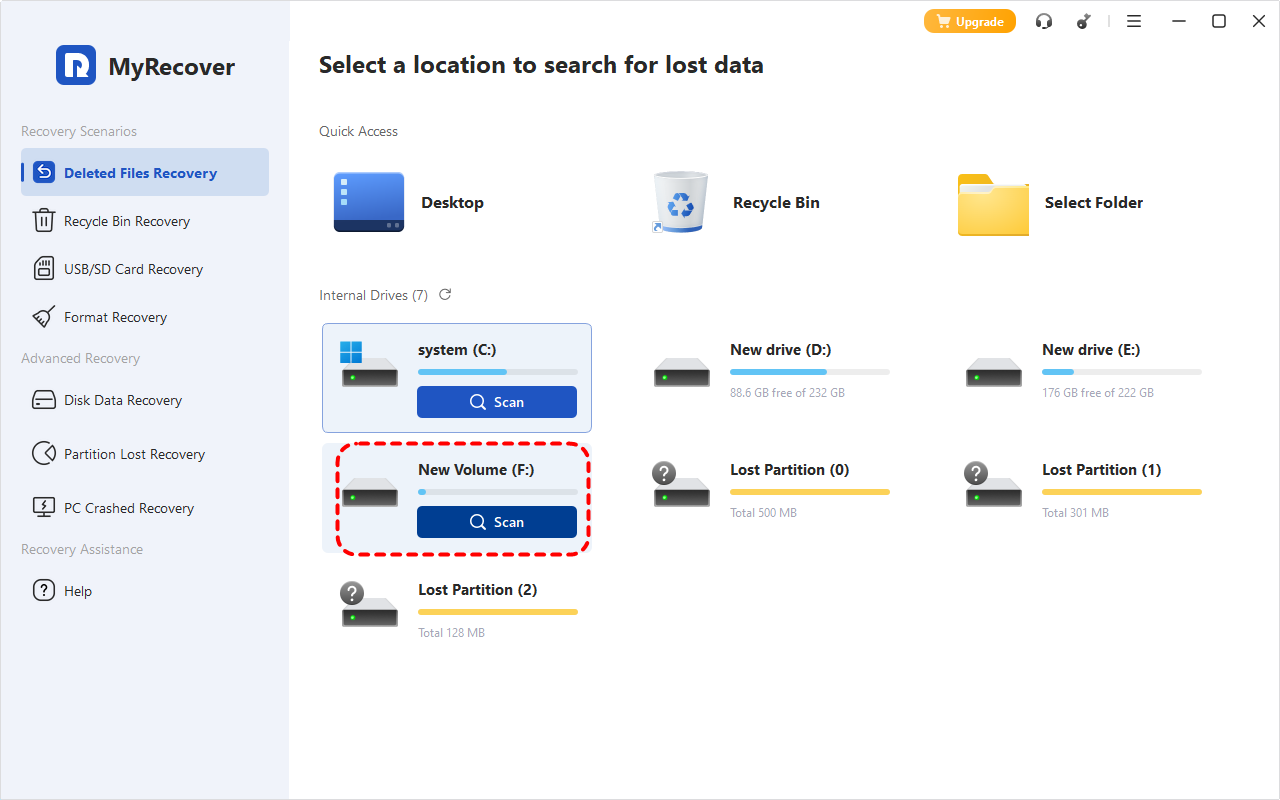
Step 2. Launch the program and select the drive where your file was stored, then click "Scan" to search for deleted files.
Step 3. Once the scan is completed, browse the list of recovered files and select the Illustrator file you want to restore from the recoverable lists, then click "Recover".
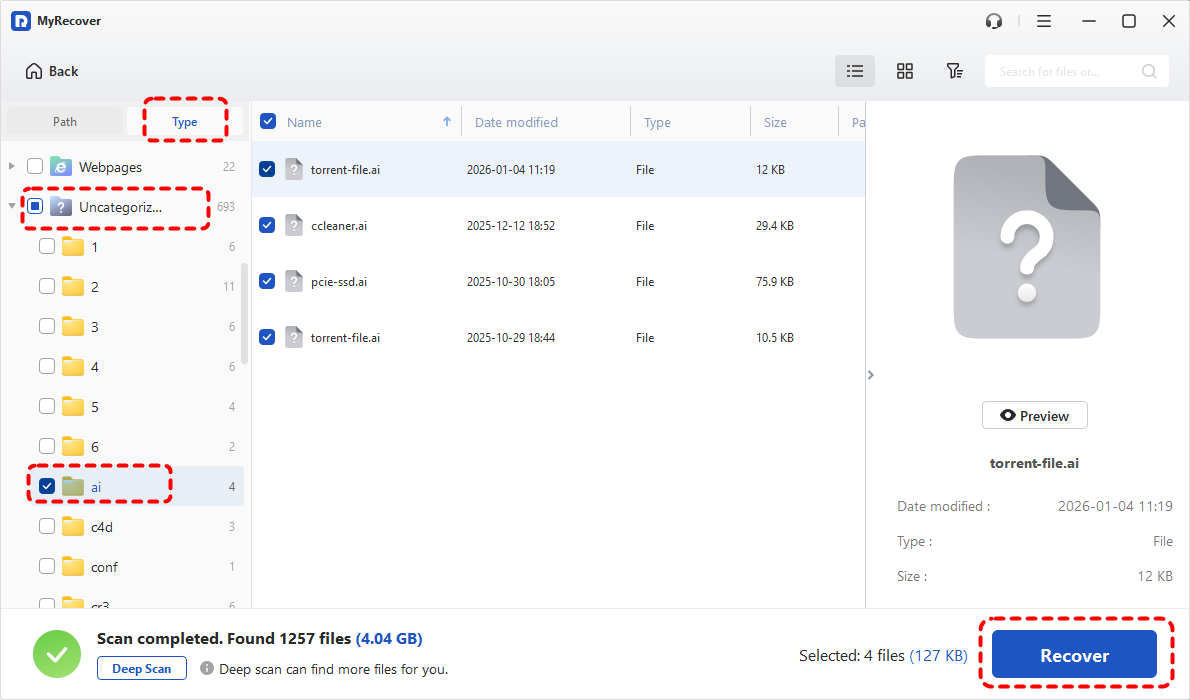
Step 4. Select a safe location to save the recovered files.
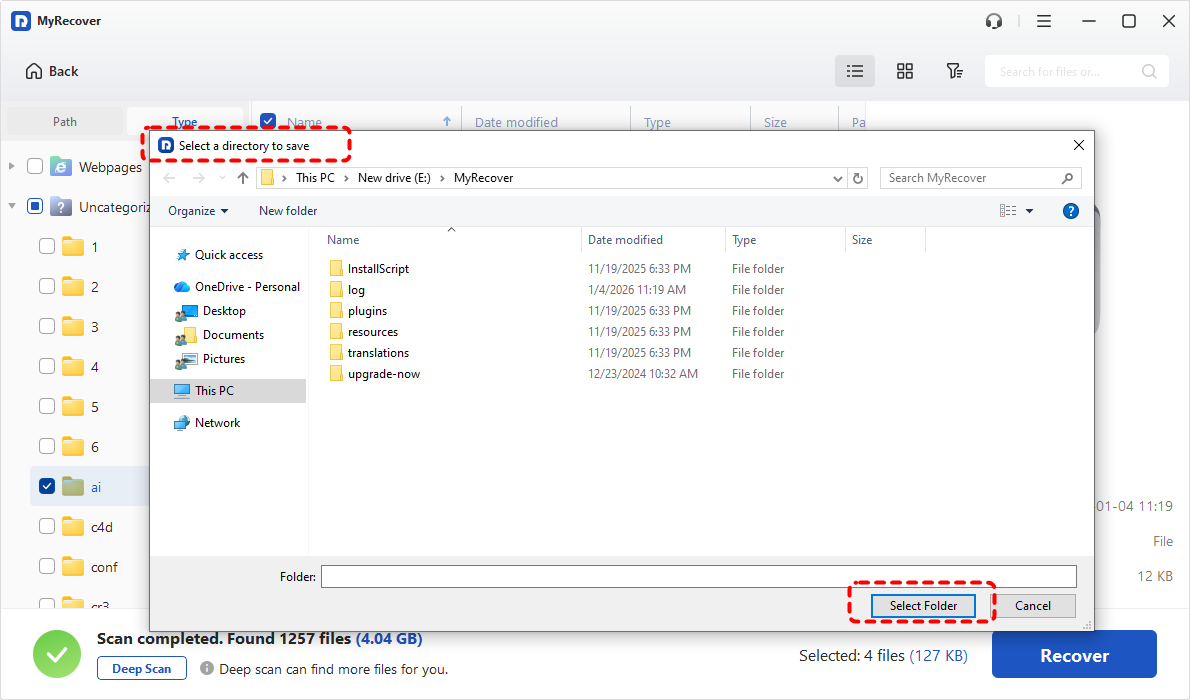
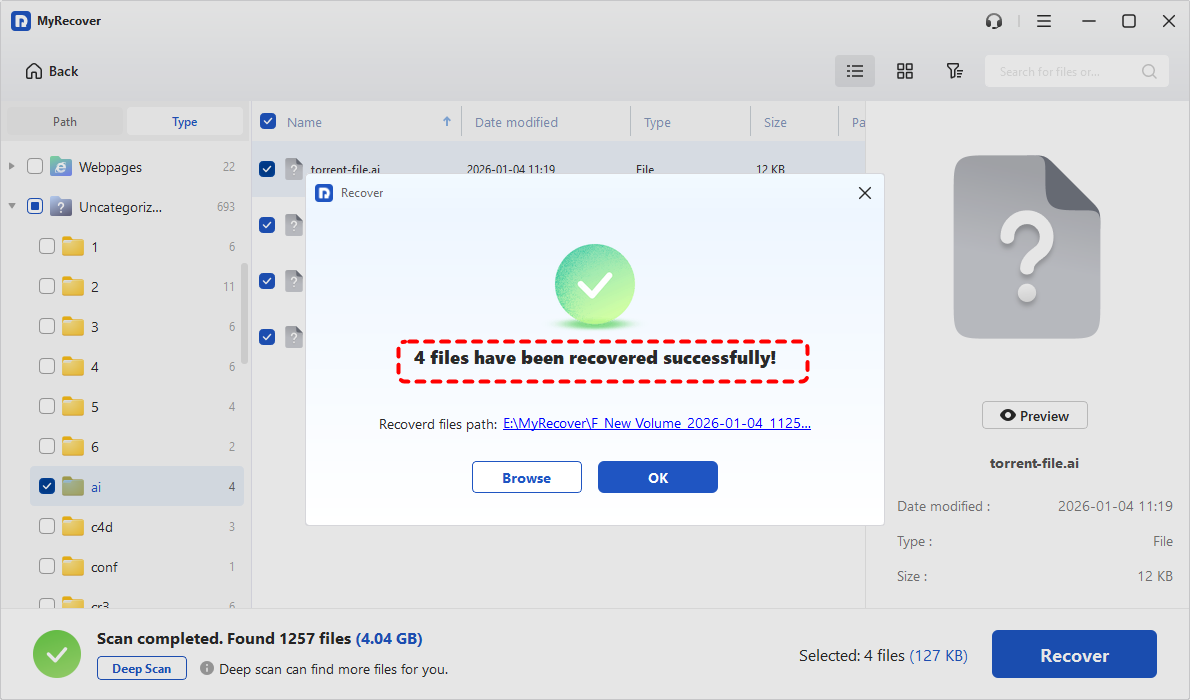
Once the process is done, the message "Files have been recovered successfully" will pop up. Then, you can access the recovered files in the destination folder by clicking on the "Browse" button.
The end
Losing your work in Adobe Illustrator can be stressful, but understanding the autosave feature and knowing how to recover unsaved or deleted files can make a huge difference. By following the steps outlined above, you should be able to recover your Illustrator files, whether they're autosaved backups or files you accidentally deleted.
For accidental deletion, MyRecover provides an intuitive, user-friendly interface to recover your lost files from any situation. MyRecover Professional edition offers advanced features to help you recover Illustrator files quickly and efficiently, which allowing you to preview files before restoration and retrieve files from crashed system, giving you peace of mind knowing your important data is safe.

Stay Updated With Our
Latest Tips
Add us as a preferred source on Google to never miss helpful guides.
 Add as preferred source >>