 MyRecover



Dell Laptop Factory Reset from Boot Menu: Complete Tutorial
Performing a Dell laptop factory reset from boot menu is one of the most effective ways to restore a malfunctioning system when Windows cannot start normally. This guide provides a complete walkthrough on how to factory reset a Dell laptop from boot menu, including how to enter the Dell boot menu and access recovery tools such as SupportAssist OS Recovery or Windows Recovery Environment.

By Aria / Updated on March 16, 2026


Introduction
When I go to factory reset my dell laptop, I push reset then local reinstall. It goes back to the main screen or doesn't do anything at all.
- Question from Trey
Resetting a Dell laptop to factory settings is a common solution when the system encounters serious problems or needs a clean restart. Users often choose this option when Windows fails to boot, the laptop is stuck in a startup loop, the system becomes extremely slow due to malware or software conflicts, or the device needs to be prepared for resale or transfer to another user.

Fortunately, Dell laptops allow you to perform a factory reset directly from the Boot Menu, which means you can restore the system without entering Windows. By using the built-in recovery environment available through the boot options, the laptop can be reset to its original factory state safely and efficiently. By following this guide, you can restore your Dell laptop even when Windows cannot load.
When Should You Reset a Dell Laptop?
Restoring the laptop to its original factory state removes installed applications, system errors, and problematic settings, helping the device return to a stable working condition. Common situations where a reset may be necessary include:
🔥Windows fails to start normally: The system may freeze on the loading screen, enter a boot loop, or repeatedly display startup errors.
🔥Severe performance issues: Long-term software conflicts, corrupted system files, or malware can cause the laptop to become unusually slow or unstable.
🔥System recovery after major errors: Failed updates, driver conflicts, or damaged system files may prevent Windows from functioning properly.
🔥Preparing the laptop for resale or transfer: A factory reset removes personal data, installed programs, and customized settings before handing the device to another user.
If Windows cannot load or the reset option inside the operating system fails to work, using the Boot Menu becomes a reliable alternative. It allows you to reset the system even when the OS is inaccessible.
Preparations Before Resetting a Dell Laptop
Before starting a factory reset from the Boot menu, it is important to complete a few basic preparations. A reset will remove installed applications and system settings, and in some cases, it may also erase personal files depending on the reset option you choose. Taking a few precautions can help prevent unnecessary data loss and ensure the process runs smoothly.
Back up important data: If your computer can boot up, back up your important files, photos, and other data before performing the reset.
Connect the laptop to a power source: A factory reset can take some time. Keeping the device plugged in prevents interruptions caused by battery depletion.
Disconnect unnecessary external devices: Remove USB drives, external hard disks, printers, or other peripherals to avoid potential interference during the reset process.
Ensure a stable environment for the reset: Avoid shutting down the laptop or forcing a restart while the reset is in progress, as this could damage the system installation.
How to Factory Reset Dell Laptop from Boot Menu
After completing the necessary preparations, you can begin the factory reset process through the Dell Boot Menu. Dell laptops provide built-in recovery tools that allow users to restore the system even when Windows cannot start. The exact method may vary depending on the laptop model and system version. Let's explore the detail steps.
Method 1. Use SupportAssist OS Recovery (For Newer Dell Laptops)
SupportAssist OS Recovery is the default recovery environment available on most modern Dell laptops. It can automatically diagnose startup issues and allows you to restore the system to factory settings directly from the boot environment. This method is particularly useful when Windows cannot load normally, as it does not require access to the operating system.
Step 1. Turn off the Dell laptop completely. Power it on and immediately press F12 repeatedly until the "One-Time Boot Menu" appears.
Step 2. In the Boot Menu, select "SupportAssist OS Recovery" and press "Enter".
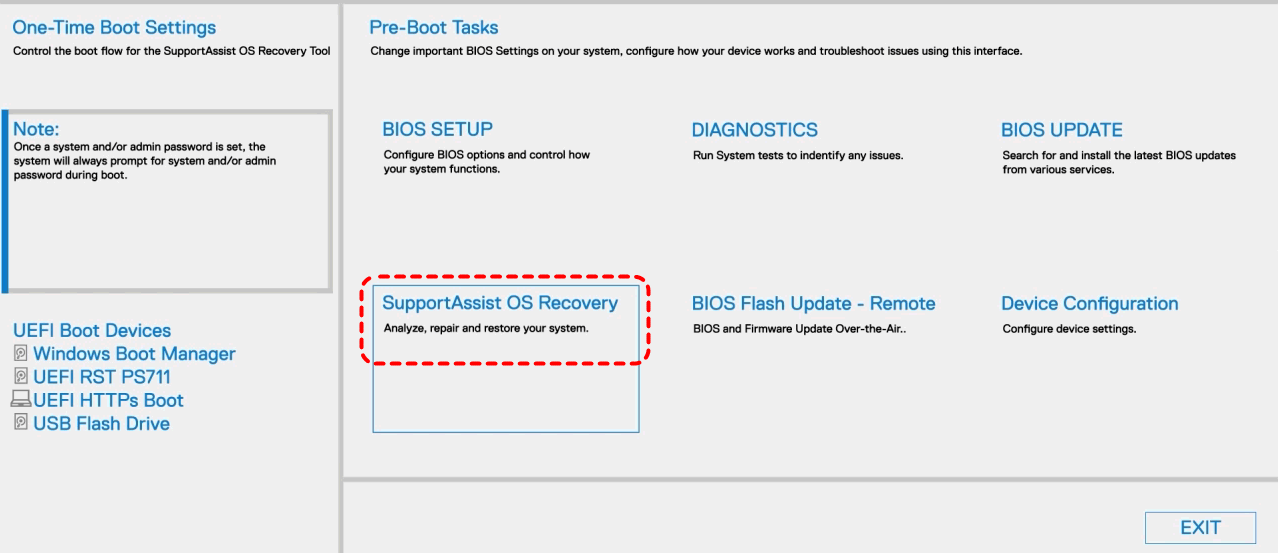
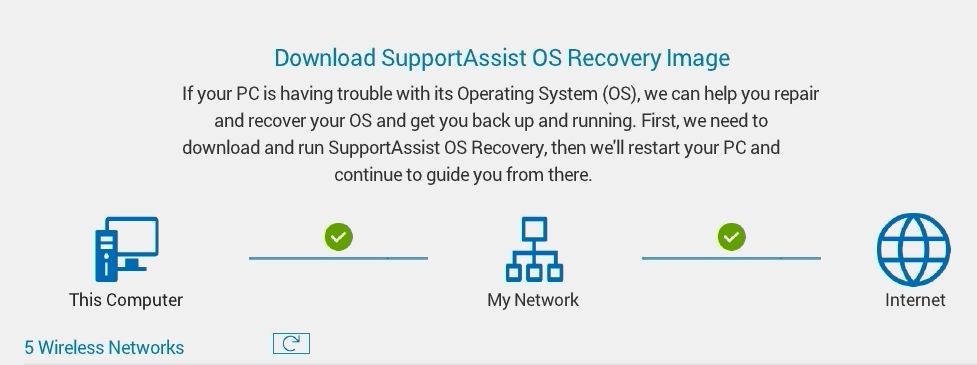
Step 3. If your laptop did not come with a preinstalled recovery image, you will be prompted to connect to the Internet to download the recovery image tool. Once the image is downloaded, the system will reboot and automatically enter the SupportAssist OS Recovery Environment.
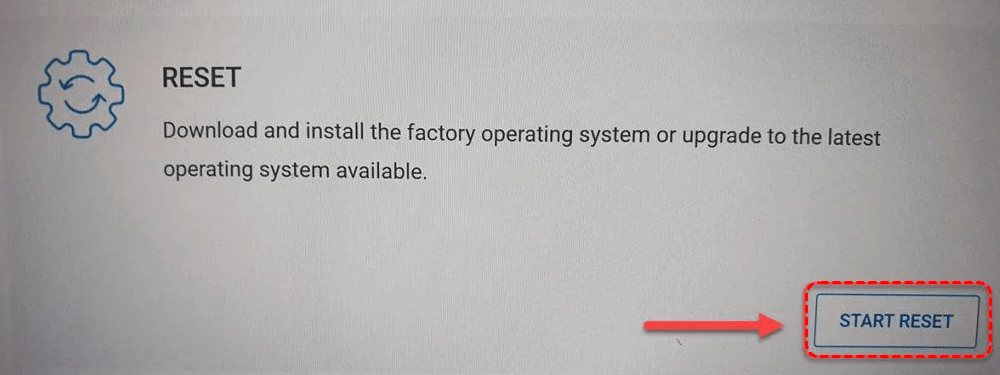
Step 4. Click "Start Reset" under the "Reset" section in the opened window.
Step 5. Select " Reset to Factory Settings" and confirm that you want to restore the laptop to its original settings.
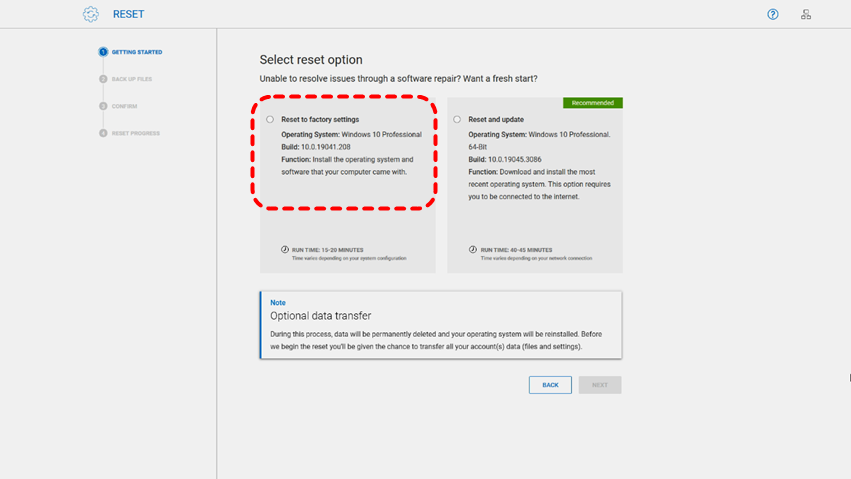
Step 6. Follow the on-screen instructions to begin the reset process and wait for the system to complete the restoration.
Method 2. Use Dell Factory Image Restore (For Older Dell Laptops)
Older Dell laptops may not include SupportAssist OS Recovery. Instead, they use Dell Factory Image Restore, a built-in recovery option that restores the system using the original factory image stored on the recovery partition. This method is commonly available on older Windows 7 or early Windows 10 systems.
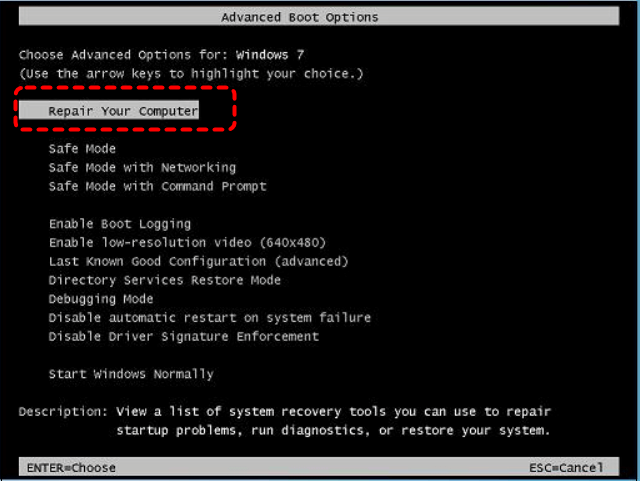
Step 1. Restart the laptop and press F8 repeatedly before the Windows logo appears until get into the "Advanced Boot Options" menu.
Step 2. From the Advanced Boot Options screen, select "Repair Your Computer" and press "Enter".
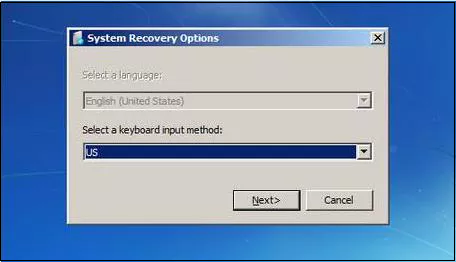
Step 3. Choose your keyboard layout and administrator account, then click "Next".
Step 4. Select "Dell Factory Image Restore" from the system recovery options.
Step 5. Follow the prompts and confirm the reset to restore the laptop to its original factory configuration.
Alternative Methods to Factory Reset Dell Laptop
If your Dell computer works normally, you can reset it using other built-in Windows tools. These methods may require access to Windows or a recovery environment, but they provide additional ways to restore the system when the standard factory reset method does not work.
Factory Reset Dell Laptop from Windows Settings
If the system can still boot into Windows, resetting the laptop through the Settings menu is the simplest method. This feature allows you to factory reset Dell laptop while choosing whether to keep personal files or remove everything.
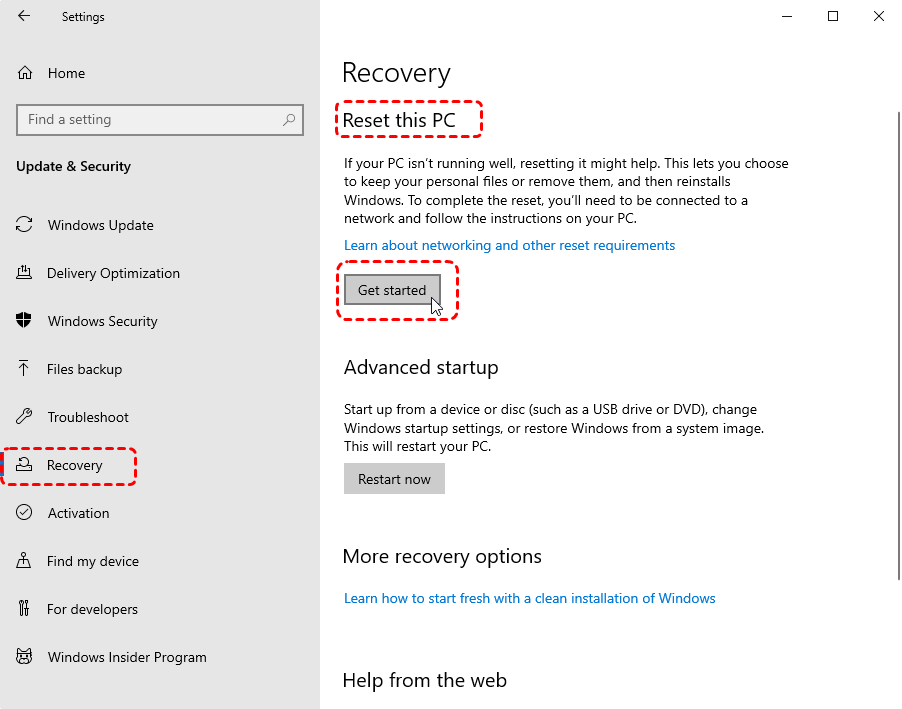
Step 1. Go to "Settings" > "Update & Security" > "Recovery".
Step 2. Under "Reset this PC" section, click "Get started".
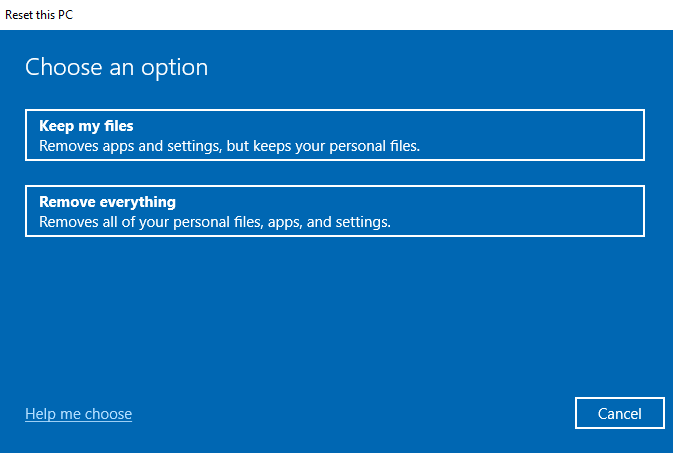
Step 3. Choose "Keep my files" or "Remove everything", depending on your reset needs.
Step 4. Follow the on-screen instructions to complete the reset process.
Factory Reset Dell Laptop Using WinRE
The Windows Recovery Environment (WinRE) provides advanced troubleshooting tools when Windows cannot start normally. From this environment, you can access the reset option and reinstall Windows without entering the operating system.
Step 1. Turn on the laptop and interrupt the startup process three times to enter WinRE.
Step 2. When the "Choose an option" screen appears, select "Troubleshoot".
Step 3. Click "Reset this PC".
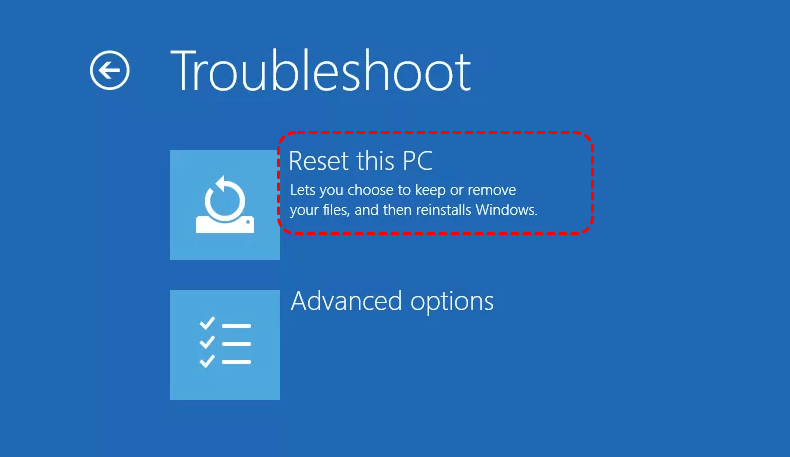
Step 4. Follow the instructions to reinstall Windows and complete the reset.
How to Recover Data from Factory Reset Dell Laptop
Although a factory reset is an effective way to restore system stability, it can also lead to unintended data loss. Many users realize after the reset that important files, such as documents, photos, videos, or work materials were not backed up in advance. This situation is especially common when the reset is performed quickly to fix a startup failure or system crash.
With the help of professional recovery software like MyRecover, it may still be possible to retrieve lost files from the factory reset Dell laptop. It can scan the storage drive and locate recoverable data, even after a system reset or Windows reinstallation. MyRecover is designed for Windows data recovery and supports retrieving files lost due to factory resets, accidental deletion, disk formatting, system errors and over 500 complex scenarios.

 MyRecover
- Recover deleted & lost files from HDD, SSD, USB, SD card, camera as you need.
- Support 1000+ formats of photos, videos, docs, archives, emails, compressed files, etc.
- Reliable rescue for deletion, formatted disk, emptied Recycle Bin, system crashes and more.
 100% Secure
Step 1. Download and install MyRecover on your laptop from Microsoft Store or its official website.
Step 2. Launch the app and select the drive where your files were stored before the factory reset (usually affected C drive), then click "Scan" to search for recoverable files. If needed, you can click "Deep Scan" to locate more file fragments.

Step 3. Browse the scan results and use the "Filter" function to locate the files you want to restore. Select the desired files and click "Recover".
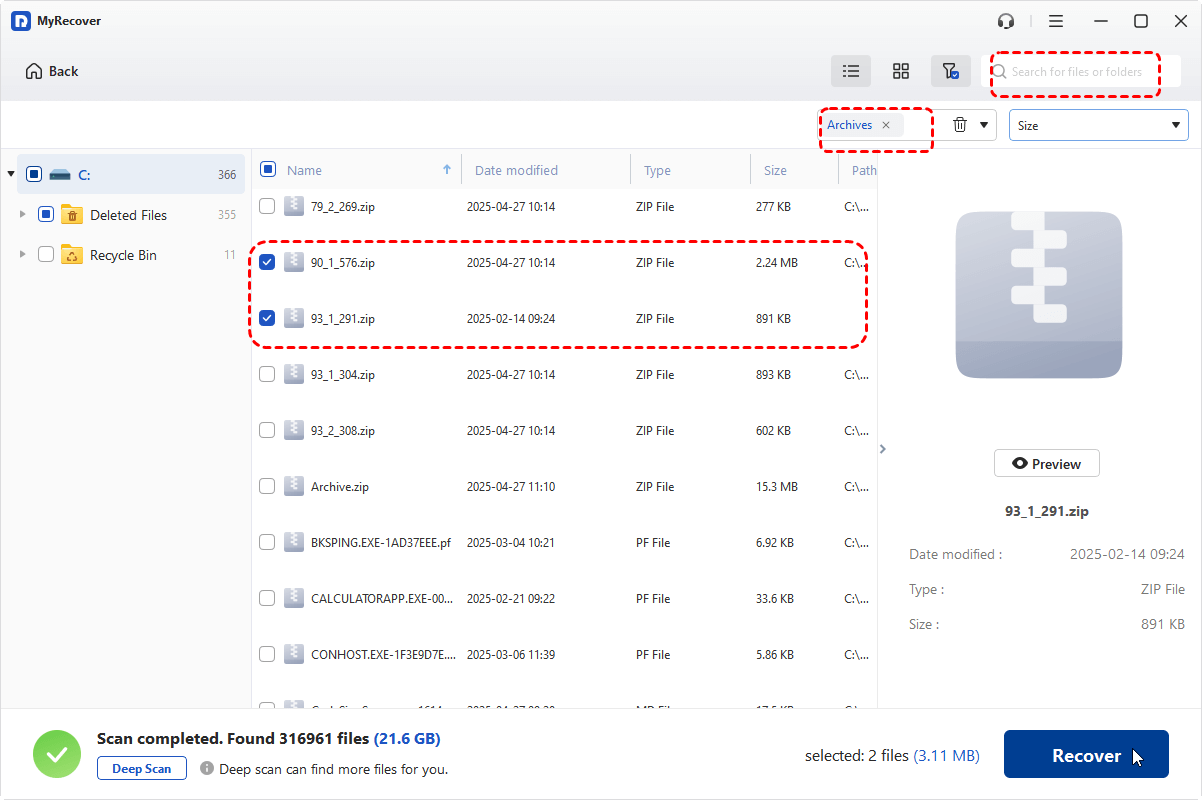
Step 4. Save them to a different storage location.
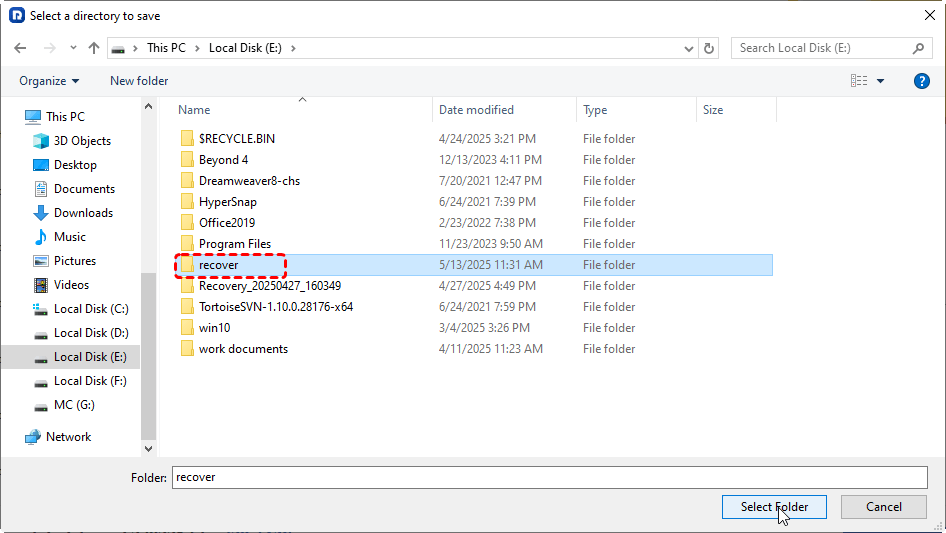
Once the recover process is done, you can verify the recovered files in the destination folder by clicking on the "Browse" button.
Final Words
Performing a Dell laptop factory reset from the Boot Menu is an effective way to restore a system that cannot start normally or is experiencing serious performance issues. By using the methods mentioned above, users can reset the laptop directly from the boot environment without entering Windows. If these options are unavailable, alternative methods can also help complete the reset.
If files are accidentally lost during the reset, a professional data recovery tool such as MyRecover can help scan the disk and retrieve recoverable data. With the methods outlined in this guide, you can reset your Dell laptop safely and restore the system to a clean, stable state.

Stay Updated With Our
Latest Tips
Add us as a preferred source on Google to never miss helpful guides.
 Add as preferred source >>