 MyRecover



Why CHKDSK Aborted? 4 Proven Fixes for Corrupted Master File Table
Encountering a "CHKSDK aborted" error can be frustrating, especially when it prevents you from fixing underlying drive problems. This guide explores why the scan stops prematurely, focusing on critical issues like a corrupt master file table, recovering files, and restore your hard drive to a healthy state.

By Delores / Updated on March 10, 2026


CHKDSK Aborted Errors!
If you meet the following CHKDSK errors while running the CHKDSK command, don’t worry:
- The type of the file system is NTFS. Volume label is my Passport. Corrupt master file table. Windows will attempt to recover master file table from disk. Windows cannot recover master file table, CHKDSK aborted.
- The type of the file system is NTFS. The first NTFS boot sector is unreadable or corrupt. Reading second NTFS boot sector instead. Unable to determine volume version and state. CHKDSK aborted.
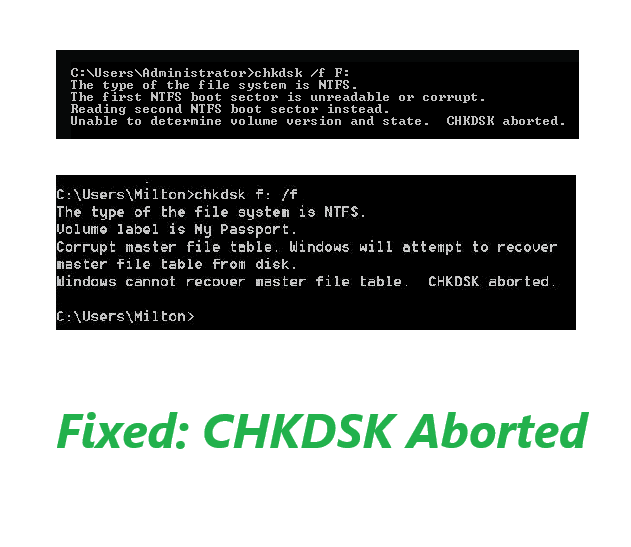
In this guide, you will learn everything about the CHKDSK aborted error and how to recover files before any fix. Then fix the CHKDSK aborted error to make things right.
What Does "CHKDSK Aborted" Mean?
A "CHKDSK aborted" error occurs when the Check Disk utility fails to complete its scan and repair process on a storage drive. This interruption is not random—it is the system's way of signaling that it has encountered a problem it cannot safely resolve.
Why Does CHKDSK Abort?
The most common triggers for CHKDSK abortion are severe file system corruption, physical drive damage, access permission conflicts, and even a gaming anti-cheat software. When CHKDSK aborts, it leaves the drive in an uncertain state, and repeating the same command without addressing the underlying cause typically produces the same failed result.
Recover Your Files After a CHKDSK Failed Scan
Your number one priority right now isn't fixing the drive—it's getting your files off of it. So, stop using the drive immediately. Every minute you keep it running, every file you try to open, every write operation Windows performs in the background risks overwriting the very data you're trying to save.
Now, if the drive is still recognized by Windows (even if it's throwing errors), your first step should be to attempt a data recovery with specialized software. This is where Windows data recovery tools like MyRecover come into play.
Why software instead of manual copying? Because when a file system is damaged, Windows Explorer might not show you all your files, or it might freeze when you try to access a folder with bad sectors. Recovery software reads the drive at a lower level, bypassing the broken file system to pull data directly from the sectors.
Step-by-Step Guide to Recover Files from a Drive That CHKDSK Aborted
If your computer is still booting but the drive is acting up, you can install MyRecover on your system or on a separate, working computer and connect the problematic drive as a secondary drive.
But what if your PC won't boot at all because of the drive errors? Don't worry, MyRecover has you covered with its "Crashed PC Recovery" feature. This lets you create a bootable USB drive on another computer, then boot your problematic machine from that USB to recover your files.
It's easier than you think to recover files from the hard drive with MyRecover:
1. Please download and install MyRecover on your computer, then run it.
 100% Secure
2. Tap Disk Data Recovery, choose the drive that the CHKDSK aborted, and hit Scan.

3. Wait for the process to complete, and all found files will be sorted by file type, and you can view them by file path. Besides, filter the files you need quickly by searching them by file name, size, modified date, and file extensions.
4. Double-click the files you need and tick them all, click Recover.

5. Choose a destination to save them now. After that, check the files in the target folder

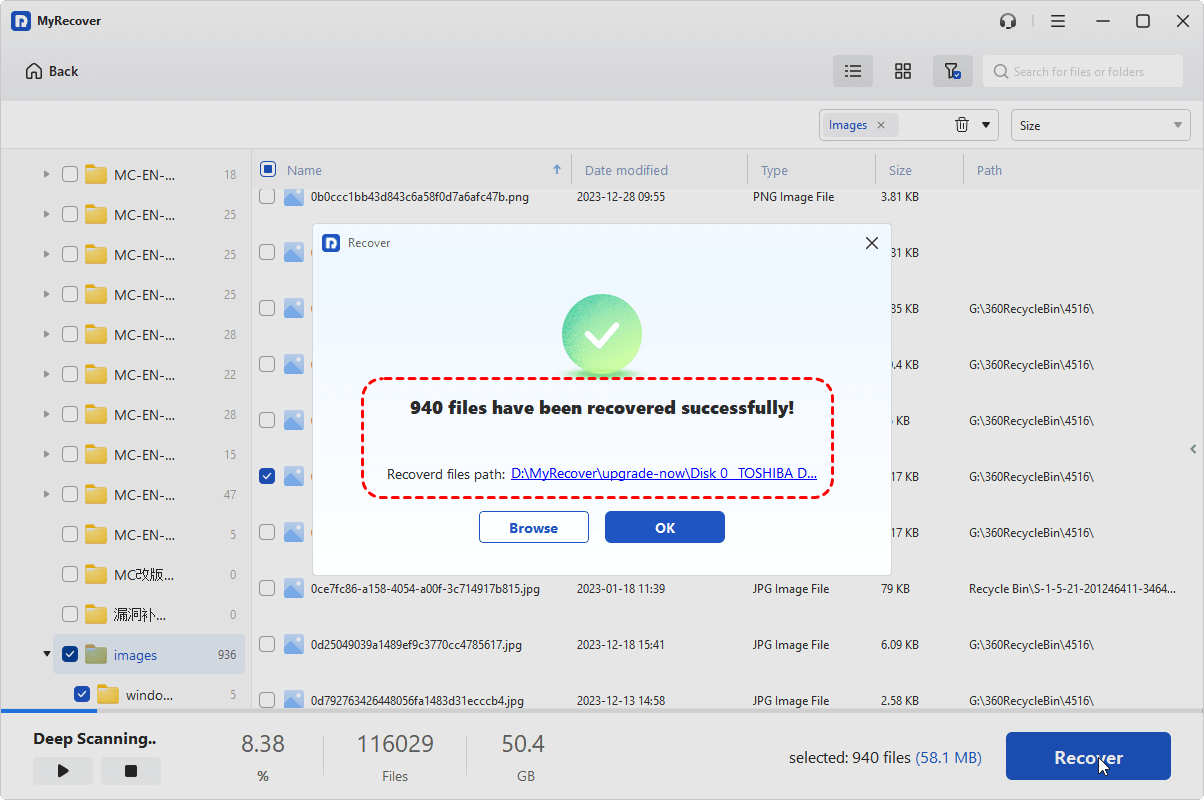
- Notes:✎...
- It offers two modes to scan for missing files: quick and deep. MyRecover performs a quick scan to find recently deleted files or a deep scan that meticulously checks every sector for recoverable data. This deep scan can take a while, depending on your drive's size, so patience is key.
- It’s highly recommended to choose a different physical drive—an external USB hard drive, a network location, or a secondary internal drive as the destination.
- Upgrading to MyRecover Technician is your best choice if you need to recover files from unlimited computers.

 MyRecover
- Recover Deleted Files Easily with Simple Clicks
- 1000+ File Formats Supported
- Support HDD, SSD, External Hard Drive, USB Drive, SD Card, etc.
- Quickly Find Files Using File Types, Name, Size, etc.
- Preview Files Before Recovering
- Recover Unlimited Data
 100% Secure
4 Fixes for "CHKDSK Aborted" Errors
Now that your data is safely located on another drive, you can breathe easy. Whether you rescued your files with MyRecover or managed to copy them manually while the drive was still limping along, you've done the hard part. What comes next is purely optional—an attempt to fix the problematic drive itself.
It's okay if you see the error: Windows cannot recover master file table, chkdsk aborted, and decide it's earned a peaceful retirement. But if you are trying to fix it to use it again, you can try the following solutions.
Method 1. Run CHKDSK from the Windows Recovery Environment
The Windows Recovery Environment, or WinRE, is a lightweight, separate operating system that loads entirely into memory. By booting into WinRE, you cut Windows out of the equation entirely. The drive you want to fix becomes an inactive volume rather than the active system drive. This gives CHKDSK the unfettered access it needs to perform deep scans, repair file structures, and deal with issues like a corrupt master file table chkdsk aborted scenario without Windows maintaining open handles to the drive or interrupting the process.
1. Insert a Windows installation USB or repair disk into your computer. If you don't have one, you can create a bootable USB on another PC using Microsoft's Media Creation Tool.
2. Restart your computer and immediately start tapping the boot menu key—usually F12, F2, Esc, or Del—until the boot device selection screen appears.
3. Select your USB drive from the list and press Enter. Your computer will now boot from the USB instead of the problematic hard drive.
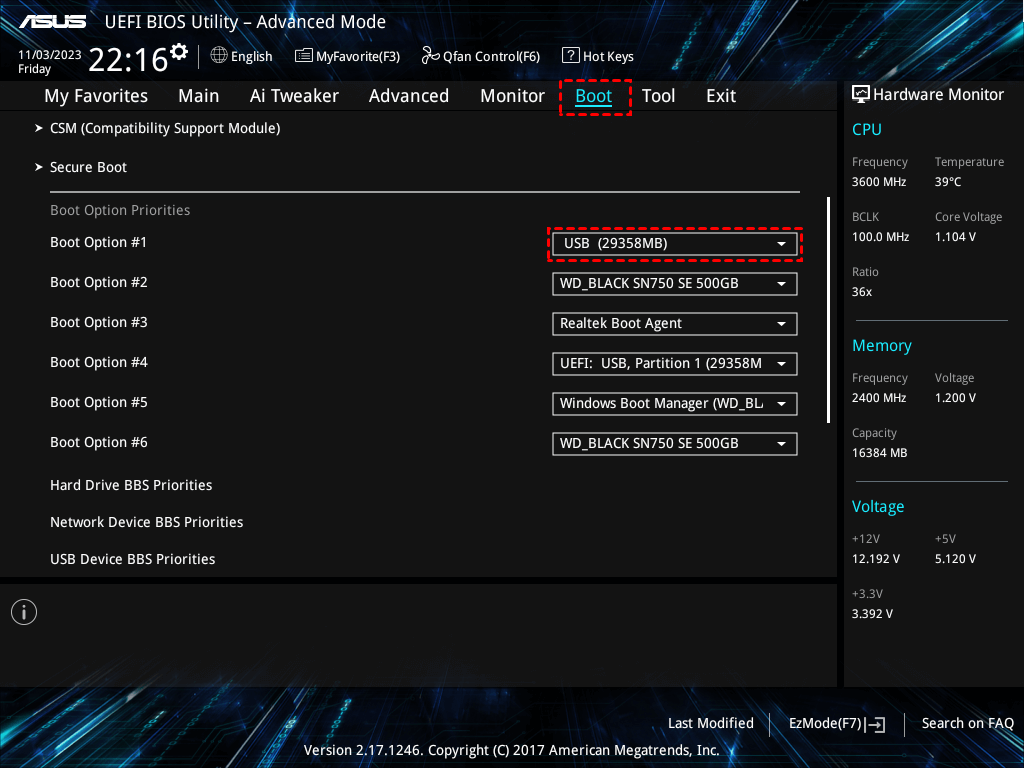
4. On the Windows Setup screen, click "Next", then select "Repair your computer" in the bottom-left corner instead of installing Windows.
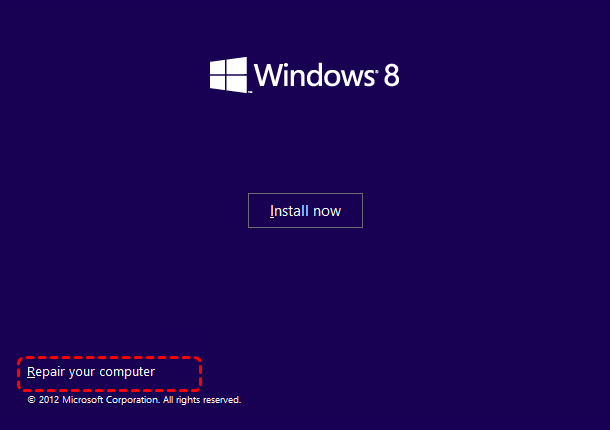
5. Navigate to "Troubleshoot" > "Advanced Options" > "Command Prompt". This opens the command-line interface within the recovery environment.

6. In the Command Prompt window, type the following commands with Enter followed by each:
diskpart
list volume(Note the correct drive letter for your problematic drive)
exit
9. Now type chkdsk g: /f /r (replace g: with your actual drive letter) and press Enter.

The /f flag tells CHKDSK to fix errors, while /r forces it to locate bad sectors and recover any readable data from them.
10. Let the scan run. It could take hours depending on the drive size and damage level.
11. When it finishes, type exit to close Command Prompt and restart your computer normally.
Method 2. Repair the Master Boot Record and Boot Sector
When you encounter errors like: Unable to determine volume version and state. CHKDSK aborted. The Master Boot Record and boot sector are often corrupted. CHKDSK cannot proceed because it cannot interpret the drive's basic layout. The bootrec utility specifically rebuilds these boot-related structures. So, here are the steps to run it:
1. Boot into WinRE using the method described in Method A—installation USB or repair disk, then "Troubleshoot" > "Advanced Options" > "Command Prompt".
2. Type bootrec /fixmbr and press Enter. This rewrites the Master Boot Record, the first sector that initiates the boot process.
3. Type bootrec /fixboot and press Enter. This writes a new boot sector compatible with your Windows version.
4. If successful, type bootrec /rebuildbcd and press Enter. This scans for Windows installations not in the Boot Configuration Data store and offers to add them back.
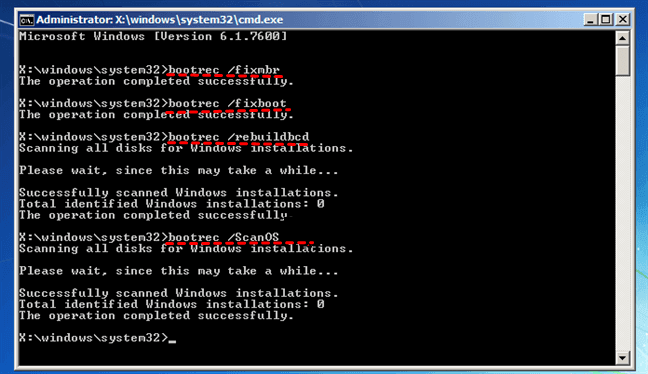
5. Type exit, remove installation media, and restart. If errors persist, proceed to Method 3.
Method 3. Force MFT Repair with Advanced CHKDSK Parameters
The standard CHKDSK commands may fail because the utility prioritizes safety over aggression. However, CHKDSK includes lesser-known parameters that enable more forceful recovery attempts. These flags instruct the utility to dig deeper, scan more thoroughly, and attempt repairs it would normally bypass. Success is not guaranteed, but it's worth trying.
1. Boot back into the WinRE Command Prompt.
2. Start with a thorough scan: chkdsk D: /f /r /x (replace D: with your drive letter). The /x parameter forces the volume to dismount first.
3. If that fails with the same MFT error, try chkdsk D: /f /r /x /sdcleanto. This cleans up Security Descriptor storage, which can interfere with MFT recovery.
4. If the scan hangs for hours, press Ctrl+C to cancel. Then try chkdsk D: /f /r /x /offlinescanandfix to run completely offline.
5. As a last resort, use chkdsk D: /f /r /x /perf. This allocates more system resources to speed the scan, potentially pushing through stalled sections.
6. After any successful scan, type exit and restart to test drive accessibility.
Method 4. Format Hard Drive Using DiskPart
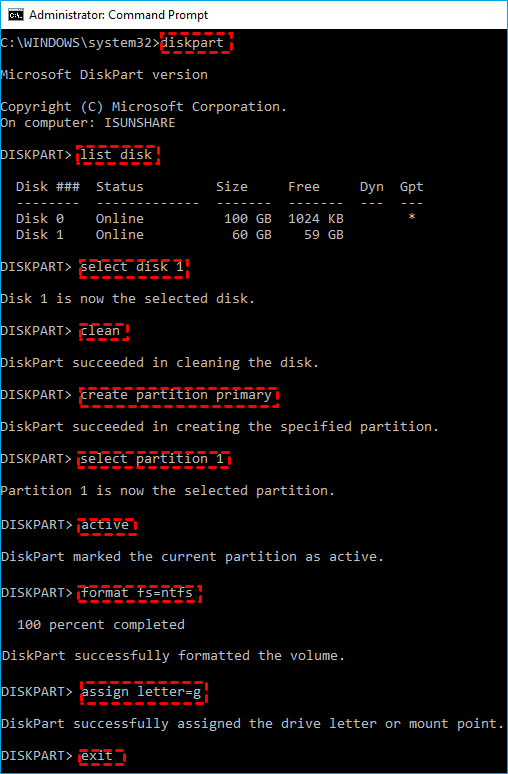
DiskPart is a low-level command-line tool that can completely wipe partition structures, eliminate lingering corruption, and create a fresh foundation. But all file system corruption will be eliminated. After cleaning, the drive functions as a brand-new storage device, assuming no physical failure exists.
1. Boot into the WinRE Command Prompt.
2. Type the following commands, followed by Enter on each command:
diskpart
list disk
select disk X (replace X with the correct disk number of the drive that CHKDSK aborted)
clean
create partition primary
select partition 1
active
format fs=ntfs quick
assign letter=D (or preferred letter)
exit
About FOUND.000 and .CHK Files
The FOUND.000 folder appears on your drive when CHKDSK detects file system corruption and attempts to salvage whatever fragments it can. During a scan, if CHKDSK encounters orphaned file segments—pieces of data that still exist on the drive but have no valid directory entries pointing to them—it gathers those fragments and stores them safely in this hidden folder.
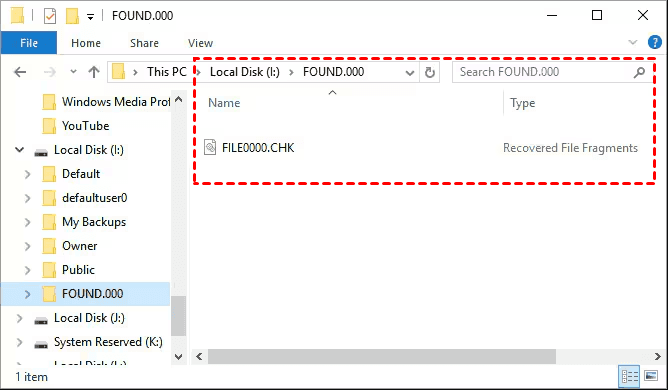
Each fragment gets renamed with a .CHK extension and labeled sequentially as FILE0000.CHK, FILE0001.CHK, and so on. This is CHKDSK's way of preserving potentially recoverable data rather than simply deleting what it cannot understand. The folder remains hidden by default to prevent accidental tampering, but you can reveal it in File Explorer by enabling "Hidden items" under the View tab.
Recovering usable files from these. CHK fragments are entirely possible but require the right approach. The simplest method involves renaming copies of the files with their original extensions if you know what format they should be—for instance, changing .CHK to .jpg for photos or .docx for Word documents. For more systematic recovery, free tools like UnCHK scan the actual content of .CHK files, identifying file signatures that reveal their true formats, and renaming them automatically.
FAQs About CHKDSK Failures
Can I stop CHKDSK once it has started?
A: Yes, but proceed with caution. If running in Command Prompt, press Ctrl+C to terminate. During boot-time CHKDSK, avoid force powering off—wait for low disk activity between stages if you must intervene. Abrupt shutdowns risk further file system corruption.
Will CHKDSK delete my files?
A: It can. Chkdsk prioritizes file system consistency over data preservation. If it encounters corrupt file records it cannot fix, it may delete those entries to maintain a "clean" structure. The data isn't necessarily gone, but the pointers to it are. Always recover data first before running repairs.
How do I fix a corrupted Master File Table?
A: Built-in fixes like chkdsk /f attempt to use the MFT mirror, but often trigger "Windows cannot recover master file table chkdsk aborted." The most reliable approach: recover all data using software like MyRecover, then reformat the drive to create a fresh, healthy MFT.
What does "Unable to determine volume version and state" mean?
A: This error means the drive's boot sector or file system information is too damaged for Windows to identify the volume type (NTFS, FAT32, etc.). The drive's "ID card" is unreadable, often from improper ejection or bad sectors in critical areas.
How long does Chkdsk take on a 1TB drive?
A: A standard scan (chkdsk /f) takes 15-30 minutes. A surface scan (chkdsk /r) reads every sector and can take 5+ hours depending on drive speed and bad sectors. If it hangs at a percentage with no activity, it may have aborted internally.
Can a bad sector cause Chkdsk to abort?
A: Absolutely. If Chkdsk hits a physically bad sector while reading critical structures like the MFT, it may be unable to proceed. Even the /r parameter fails if damage is too severe or new bad sectors develop mid-scan.
Why does my external drive say "The disk structure is corrupted and unreadable"?
A: This usually means a failing drive or corrupted partition. Common causes: removing the drive without "Safely Remove Hardware," physical damage, faulty cables, or end-of-life failure. When you see "The disk structure is corrupted and unreadable", and CHKDSK aborted, prioritize data recovery over repeated repairs.

Stay Updated With Our
Latest Tips
Add us as a preferred source on Google to never miss helpful guides.
 Add as preferred source >>