 MyRecover



How to Backup Laptop Before Factory Reset | Complete Guide & Steps
This guide details how to backup laptop before factory reset, covering all critical data types and locations. We specifically explain how to backup files before factory reset windows 10/11 using built-in tools and cloud services for complete protection.

By Delores / Updated on January 23, 2026


About Factory Reset
Why is it important to back up files before a factory reset? A factory reset deletes everything, including your user data, settings, apps, and files, and reinstalls the operating system on your computer to get it back to the state you got it in for a fresh start or to fix major issues.
Typically, the factory reset is the last resort; it can be performed when your laptop has become sluggish, unstable, or simply unreliable. This guide provides proven methods to safeguard your files when you initiate the reset process.

Choose Hard Drives or Clouds for Backup
Your data needs a safe place to keep your personal files. There are two main options: physical local storage and online cloud storage. Each has its pros and cons, and savvy users often use a combination of both for maximum security.
For sheer control and speed, nothing beats an external hard drive or a sturdy USB flash drive with ample space. This is your "physical copy", a tangible device you can hold.
If you're a Windows 11 or 10 user, you've got a powerful ally built right into your taskbar: OneDrive. You can back up important folders—Desktop, Documents, Pictures, Music, and Videos to OneDrive. You can access backups from any device and protect against physical drive failure. Just mind your storage limits!
How to Back Up Data Before Factory Reset on a Laptop?
Here we will show you how to back up laptop data to your external hard drive or OneDrive before a factory reset.
Backup Laptop Before Factory Reset on External Hard Drive
It's easy for you to use the external hard drive to keep your backups before a factory reset. The process is straightforwardeither the manual way or using the automatic tool.
Way 1. Manually Back Up Laptop Data to An External Hard Drive
You can manually move the Laptop files to your external hard drive to keep them safe.
1. First, connect your drive and ensure your computer recognizes it—you should see it pop up in File Explorer.
2. Then, simply open your user folders (Documents, Pictures, Desktop, etc.) and manually drag and drop everything you need onto the external drive.
Way 2. Backup Data Before Factory Reset on Laptop to External Hard Drive
Windows 10 users have a built-in backup tool called File History. It doesn't just make one copy; it keeps versions of your files over time, letting you go back to a previous version if needed.
1. To use it, connect your external drive, then search for the Control Panel in the Windows search box, and click it.
2. Then choose Save backup copies of your files using File History in the System and Security section.
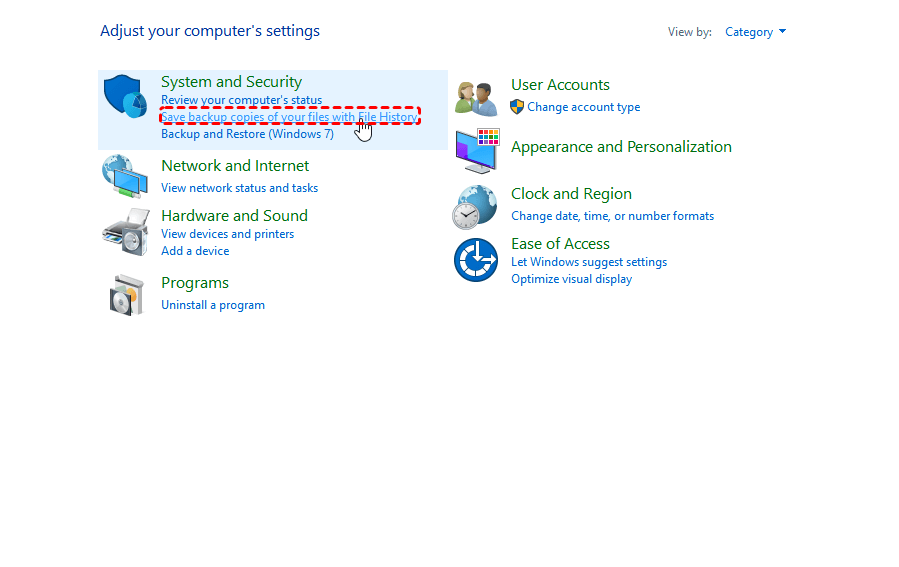
3. Tap Select drive on the left side, then choose your external hard drive and hit OK.
4. Your File History will start keeping versions of your files on the external hard drive.
Way 3. How to Back Up Files Before Factory Reset Windows 10 via Backup and Restore (Windows 7)
For the ultimate, bulletproof recovery, you want a Backup and Restore (Windows 7). This isn't just your files; it’s a complete snapshot of your entire C: drive—the OS, apps, settings, and all your data.
1. In Windows 10, search for “Control Panel” and go to Backup and Restore (Windows 7).
2. In the left pane, click “Create a system image”.
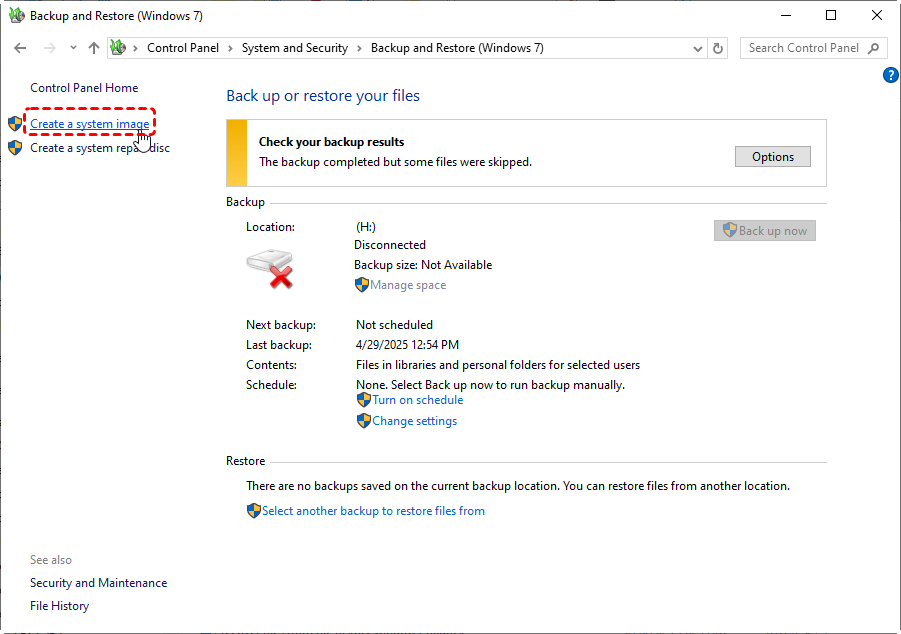
3. Choose your external drive (it needs to be quite large, often 256GB or more) and follow the wizard.
This image is your nuclear option for restoration, perfectly addressing how to back up files before a factory reset on Windows 10 when you want to return to an exact clone of your old system.
How to Back up Laptop Data to OneDrive on Windows 10/11 Computer
1. Please log in to your OneDrive account, then tap the OneDrive icon, click the gear icon > Settings.
2. Tap Sync and backup, then tap Manage backup.
3. Enable the folder you need to back up, including Documents, Music, Desktop, Videos, and Pictures.
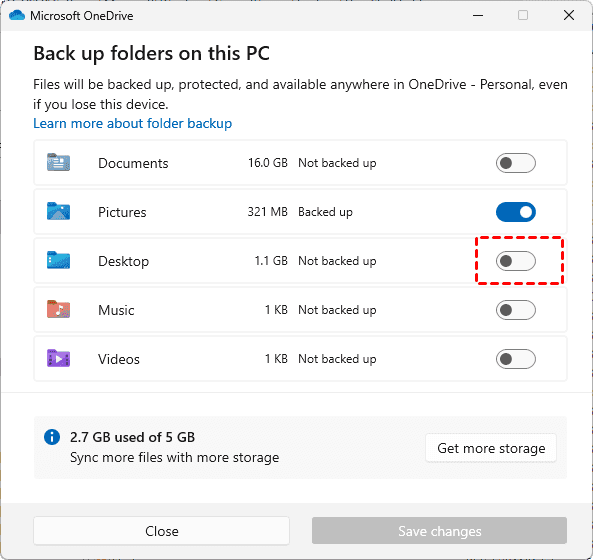
4. Follow the guide to complete.
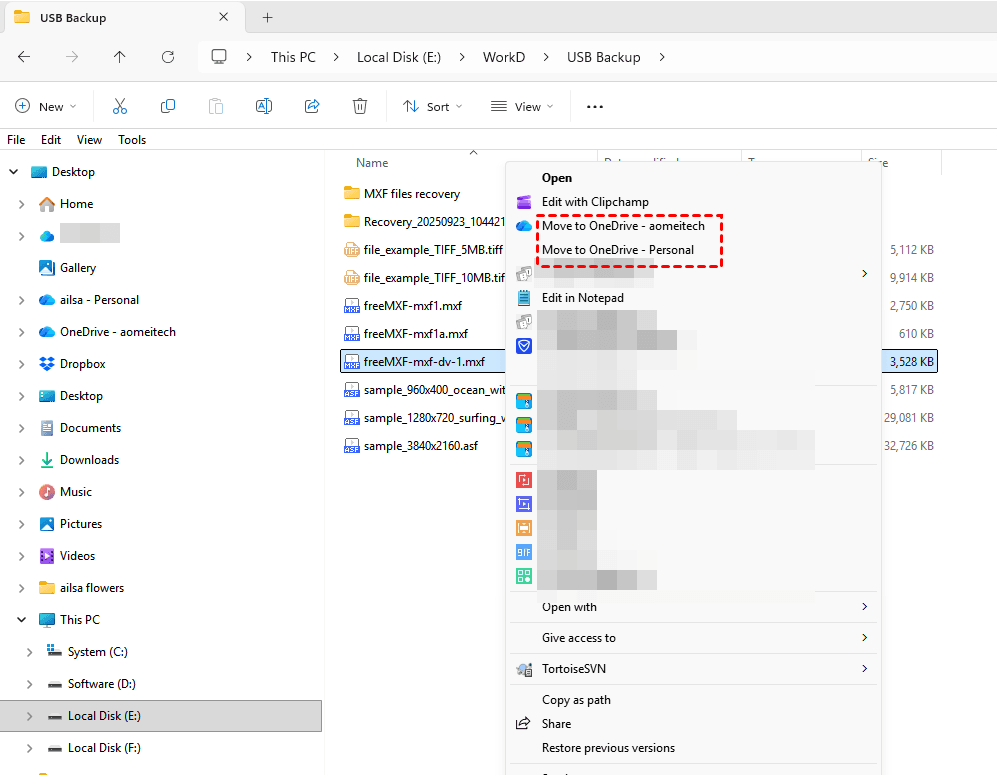
5. For other users' files, you can go to the location, right-click the file, and choose Move to OneDrive Personal or something like that to back up files to OneDrive.
Final Checklist Before A Factory Reset
Before you reset your laptop to factory settings, run down this list. Tick every box.
- All personal files are backed up to an external drive.
- Cloud sync (OneDrive, Google Drive) is confirmed complete.
- License keys for software are saved.
- Browser bookmarks and passwords are exported or synced.
- You have installation files or links for essential programs.
- The backup drives are disconnected from the laptop.
- The laptop is plugged into a power source.
Recover Deleted Files After A Factory Reset
Now, you performed the factory reset, and you have found that you forgot to back up a critical folder. Or perhaps your backup drive failed. Don't panic—this is where data recovery software like MyRecover comes into play. It's designed to scan your drive for the deleted files that the reset process has marked for deletion, but may not have completely overwritten yet.
Here is how to recover deleted files after a factory reset with MyRecover. Check the step-by-step guide:
1. Download and install MyRecover on your computer instead of the drive from which you need to recover files. Connect an external hard drive if required.
 100% Secure
2. Tap Deleted Files Recovery, choose the drive where the files were before the reset, and hit Scan. Wait for the scanning to complete and hit OK to confirm.

3. Check the deleted files; you can also preview them to ensure their integrity, and click Recover.

4. Select the external hard drive to save the recovered files.

- Tips:✎...
- Once scanned, if there are no files you need, you can try a deep scan to find all missing files, which costs much more time. By default, a quick scan finds the recently deleted files.
- You can use filters for file type (e.g., DOCX, JPG) or the search bar to locate specific items.
- Now, upgrading to MyRecover Technician helps you to recover files from unlimited computers quickly.

 MyRecover
- Recover Deleted Files Easily with Simple Clicks
- 1000+ File Formats Supported
- Support HDD, SSD, External Hard Drive, USB Drive, SD Card, etc.
- Quickly Find Files Using File Types, Name, Size, etc.
- Preview Files Before Recovering
- Recover Unlimited Data
 100% Secure
FAQs About Backup Laptop Before Factory Reset
What is the fastest way to back up my laptop before a reset?
The fastest way combines cloud sync for key folders (like OneDrive) and manually copying large files (e.g., videos) to an external drive. This uses your internet and USB speed at once. A full system image is thorough but too slow for a hurry.
Can I use Google Drive or Dropbox instead of OneDrive?
Yes. Any cloud service works if your files are in its sync folder. OneDrive has built-in Windows 11 folder integration, but Google Drive or Dropbox achieves the same core goal of getting files off your laptop.
How much storage do I need for a complete backup?
You need at least as much free space as the data you're backing up. Check your C: drive's used space in Properties. For a full system image, your external drive must match or exceed the used space. Always choose a larger drive.
Does a factory reset delete everything from all drives?
Typically, it only affects the main Windows (C:) drive. Data on other internal or external drives is usually safe. However, carefully read all reset screens, as some advanced options can wipe all drives.
What files are most commonly forgotten in a backup?
Browser bookmarks, email archives, saved games, application settings, and software installers are often missed. Also, check your Desktop and remember to export browser bookmarks.
Is data recovery software guaranteed to work after a reset?
No, it's never guaranteed. Recovery is possible only if the deleted files haven't been overwritten by new data. Using the laptop after the reset lowers the chance of success, making a proper backup beforehand essential.

Stay Updated With Our
Latest Tips
Add us as a preferred source on Google to never miss helpful guides.
 Add as preferred source >>