 MyRecover



Error Code 0x80070002 -How to Fix It in Windows 11, 10 & Outlook
Error code 0x80070002 typically appears during Windows updates or Outlook synchronization, signaling missing or corrupted files. This guide covers multiple fixes for Outlook and update failures in Windows 10 and 11, and you'll find actionable steps to restore normal functionality.

By Delores / Updated on March 24, 2026


Error Code 0x80070002!
Microsoft Store does not update (Error 0x80070002)
Processor Intel(R) Core(TM) i7-10700 CPU @ 2.90GHz 2.90 GHz
Installed RAM 16.0 GB
System type: 64-bit operating system, x64-based processor
Edition Windows 10 Home
Version 22H2
Installed on 11/7/2022
OS build 19045.5073
See title. I've tried:
- Checking Time Settings
- SFC /scannow
- Deleting Distribution Folder
- Running in safe mode (but then it asked about indexing and idk anything about that LOL)
Please advise.
- Question from reddit.com
When you install a critical Windows update or sync your Outlook email, only greeted by the error code 0x80070002, such as:
- An error has occurred in the program during installation. If this problem continues, please contact your system administrator. Error Code: 0x80070002.
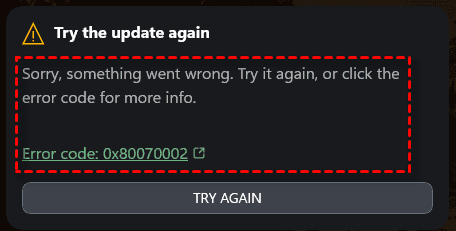
- Try the update again. Sorry, something went wrong. Try it again, or click the error code for more info. Error code: 0x80070002
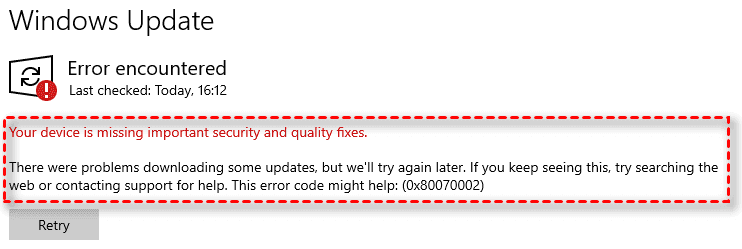
- There were problems downloading some updates, but we’ll try again later. If you keep seeing this, try searching the web or contacting support for help. This error code might help: (0x80070002)
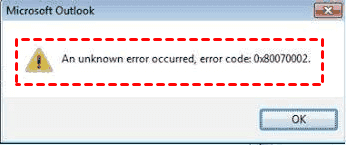
- Microsoft Outlook: An unknown error occurred, error code: 0x80070002
Don't worry, it's a common error message that can be fixed easily. We'll walk you through exactly what causes this error and how to fix it for good.
Why Does Error Code 0x80070002 Appear?
Error code 0x80070002 is Windows'notification that a required file cannot be located because it is either damaged, incomplete, or absent. This file-not-found error typically surfaces during Windows updates, system restores, or when Outlook attempts to sync.
Why does this error code happen? It might be:
- Corrupted System Files and Missing Update Components. A common culprit is a compromised Windows Update cache. When update files are interrupted—by a sudden shutdown, network glitch, or antivirus interference—Windows retains fragments that disrupt the update process, triggering error code 0x80070002.
- Windows Update Service Malfunctions. Sometimes the issue lies with the services that manage updates. When the Windows Update service fails to run properly, or when background services like BITS become stuck, the system cannot fetch or install updates correctly. This leads to the same frustrating error.
- Corrupted Outlook PST or OST Files. Outlook relies on these files to manage your emails, calendars, and contacts. When these files become corrupted, or when Outlook can’t access them due to permission issues or antivirus interference, error code 0x80070002 Outlook rears its head.
How to Fix Error Code 0x80070002 in Windows 11 and Windows 10?
Whether you’re on Windows 10 or the newer Windows 11, the fixes are largely the same.
Way 1. Run the Windows Update Troubleshooter
The built-in Windows Update Troubleshooter is surprisingly effective.
1. Right-click the Start menu, then go to Settings > System > Troubleshoot > Other troubleshooters.
2. Click “Run” next to Windows Update.
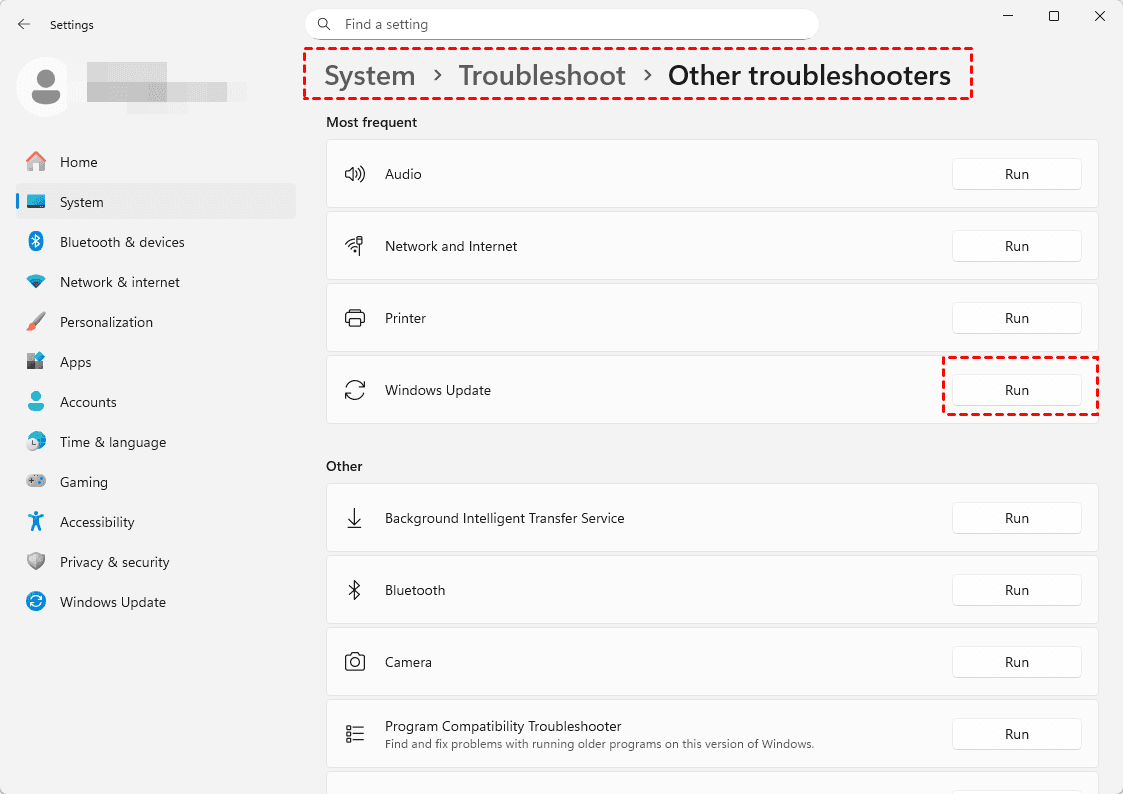
3. This tool automatically scans for issues and applies common fixes.
It’s quick, painless, and sometimes all you need to resolve error code 0x80070002 in Windows 10 or its Windows 11 counterpart.
Way 2. Clear the SoftwareDistribution Folder to Reset Update Cache
If the troubleshooter didn’t do the trick, it’s time to clear the update cache manually. The SoftwareDistribution folder holds temporary update files, and when these get corrupted, they can trigger the error. Here’s how to reset it:
1. Open Command Prompt as administrator.
2. Type net stop wuauserv and press Enter. Do the same for net stop bits.
3. Navigate to C:\Windows\SoftwareDistribution and delete everything inside.
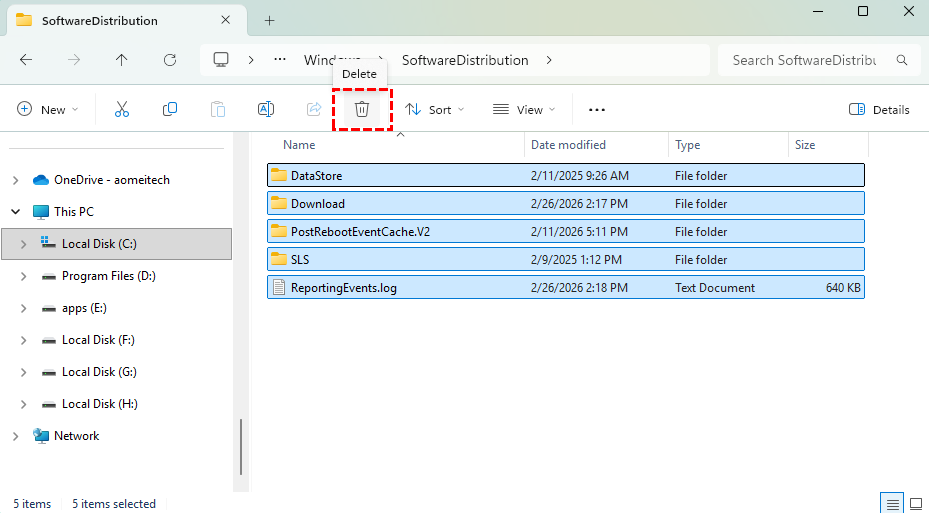
4. Restart the services with net start wuauserv and net start bits.
After clearing the cache, try running Windows Update again. This simple reset often resolves error code 0x80070002 in Windows 11 instantly.
Way 3. Use DISM and SFC Scans to Repair System Files
Sometimes the problem runs deeper than updating files. Corrupted system files can cause all sorts of chaos, including this error. Running DISM (Deployment Imaging Service and Management Tool) and SFC (System File Checker) is your next move:
1. Open Command Prompt as administrator.
2. Type DISM /Online /Cleanup-Image /RestoreHealth and let it complete. This can take a few minutes.
3. Follow up with sfc /scannow.

These tools check the integrity of your system files and replace any that are damaged or missing.
Way 4. Perform a Clean Boot to Isolate Software Conflicts
Third-party applications can clash with Windows Update or Outlook, causing this error. A clean boot starts Windows with only essential services, helping you identify the troublemaker:
1. Press Windows + R, type msconfig, and hit Enter.
2. Go to the Services tab, check “Hide all Microsoft services,” then click “Disable all”.
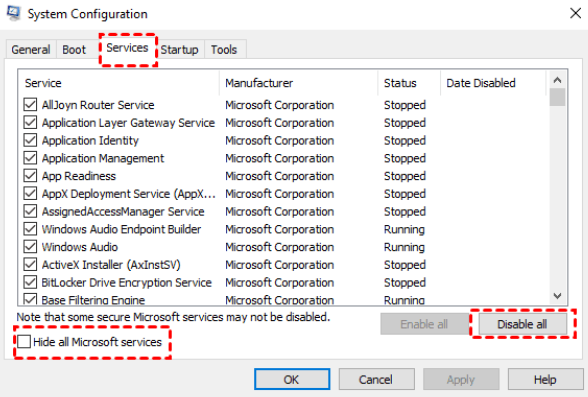
3. Go to the Startup tab and click “Open Task Manager”. Disable all startup items.
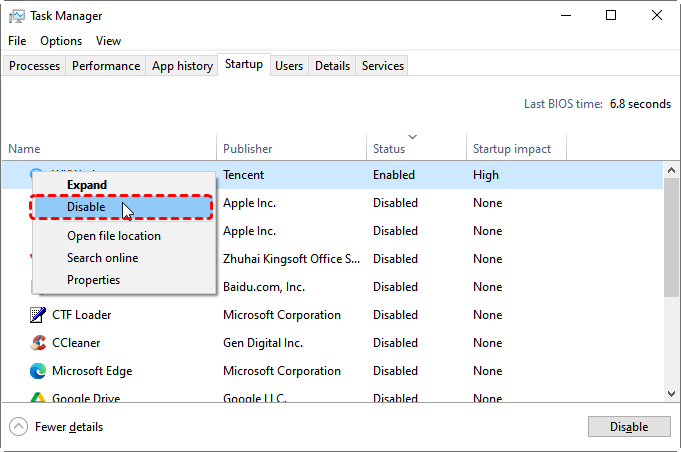
4. Restart your computer.
If the error disappears, gradually re-enable services and startup items until you find the conflicting software.
Way 5. Manually Reset Windows Update Components via Command Prompt
For more persistent cases, resetting all Windows Update components manually can do the trick.
1. Open Command Prompt as administrator.
2. Run the following commands one by one:
net stop wuauserv
net stop cryptSvc
net stop bits
net stop msiserver
ren C:\Windows\SoftwareDistribution SoftwareDistribution.old
ren C:\Windows\System32\catroot2 catroot2.old
net start wuauserv
net start cryptSvc
net start bits
net start msiserver
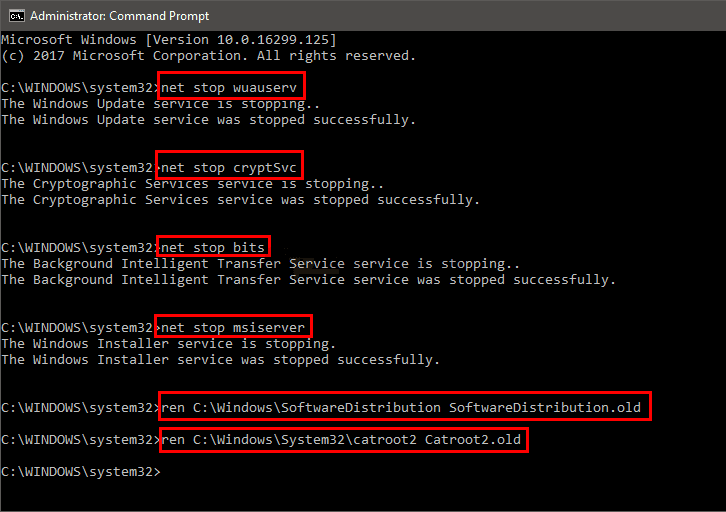
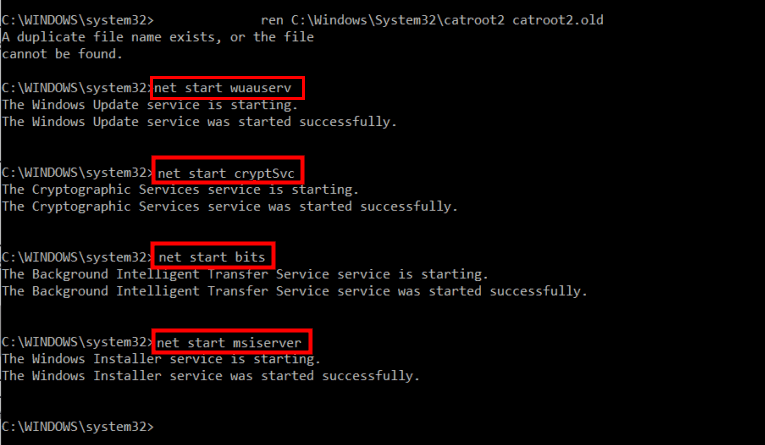
This essentially gives Windows Update a fresh start, wiping out any lingering issues.
Way 6. Check Disk for Errors Using CHKDSK
Hard drive errors can also trigger this error. Run CHKDSK to scan for and repair disk issues:
1. Open Command Prompt as administrator.
2. Type chkdsk C: /f /r and press Enter.

3. If prompted, type Y to schedule the scan at the next restart.
4. Reboot your computer and let the scan run.
This checks your drive’s health and fixes any file system corruption that might be causing the problem.
2 Fixes for Error Code 0x80070002 in Outlook
Outlook users often encounter a variation: “An unknown error occurred, error code 0x80070002.” This usually pops up when sending, receiving, or syncing Outlook emails. You can try the following solutions to fix it.
Way 1. Repair Outlook Data Files Using the Inbox Repair Tool
Microsoft provides a free tool called SCANPST.EXE specifically for fixing corrupted Outlook data files. Here’s how to use it:
1. Close Outlook completely.
2. Search your computer for SCANPST.EXE. It’s usually located in your Office installation folder.
3. Run the tool, browse to your PST or OST file, and click “Start”.
4. If corruption is found, click “Repair”.
After the repair, reopen Outlook and test your send/receive functions.
Way 2. Disable Antivirus and Firewall Temporarily for Testing
Sometimes, overzealous security software interferes with Outlook’s file access. Temporarily disable your antivirus and firewall, then test Outlook again. If the error disappears, you’ve found the culprit. Add Outlook as an exception in your security software to prevent future conflicts.
Fast Recover Missing Files with MyRecover
Even with the best fixes, things can occasionally go wrong. Sometimes fixing error code 0x80070002 involves clearing update files or running repairs that, in rare cases, might affect your personal data. If you find yourself missing important files after troubleshooting, MyRecover can help get them back.
MyRecover offers several advantages when you need to get those files back:
- High Recovery Rate – Boasts a 99% success rate across thousands of file types, including documents, photos, videos, and emails.
- Dual Scan Modes – Quick Scan for recently deleted files and Deep Scan for formatted, corrupted, or partially overwritten drives.
- Preview Before Recovery – View files before restoring them, so you only recover what you actually need.
- Broad Compatibility – Works with internal SSDs, external HDDs, USB flash drives, SD cards, and more.
- User-Friendly Interface – No technical expertise required; the process is straightforward from start to finish.
1. Please install MyRecover after downloading. Do not install it on the drive you're recovering files from.
 100% Secure
2. Tap Deleted Files Recovery, hover over the drive, and hit Scan.

3. Once completed, hit OK to confirm.
4. Preview and choose the files you need, and tap Recover.

5. Choose a safe location to keep them safe.


- Notes:✎...
- By default, MyRecover sorts files by file type and file path. Besides, you can also search for them on the top by file name, size, modified date, and extension.
- Upgrading to MyRecover Technician is the best way to recover files from unlimited computers.

 MyRecover
- Recover Deleted Files Easily with Simple Clicks
- 1000+ File Formats Supported
- Support HDD, SSD, External Hard Drive, USB Drive, SD Card, etc.
- Quickly Find Files Using File Types, Name, Size, etc.
- Preview Files Before Recovering
- Recover Unlimited Data
 100% Secure
FAQs About Error Code 0x80070002
What exactly is error code 0x80070002?
A: Error code 0x80070002 appears when Windows or an application cannot find a required file. It most commonly occurs during Windows Updates, system restores, or Outlook sync operations. The error translates to “file not found”, indicating a missing, corrupted, or inaccessible file.
Can error code 0x80070002 cause data loss?
A: The error itself does not cause data loss. However, troubleshooting steps like resetting Windows Update components or repairing system files could potentially affect user data if not done correctly. Backing up your files before major repairs is always a smart move.
How do I fix error code 0x80070002 in Windows 11?
A: Start by running the Windows Update Troubleshooter and clearing the SoftwareDistribution folder. If those don’t work, run DISM and SFC scans. For persistent issues, manually reset Windows Update components or perform a clean boot.
Why does error code 0x80070002 appear in Outlook?
A: This usually means Outlook can’t access its data files (PST or OST). Corrupted data files, permission issues, or antivirus interference are common triggers. Using SCANPST.EXE to repair Outlook data files typically resolves the issue.
Can I ignore error code 0x80070002 and continue using my computer?
A: Ignoring it means you won’t be able to install important Windows updates or, in Outlook’s case, send and receive emails properly. Since updates contain critical security patches, addressing the error sooner is best.
How long does it take to fix error code 0x80070002?
A: Fixes take anywhere from a few minutes to an hour. Simple fixes like running the troubleshooter or clearing the SoftwareDistribution folder take just a few minutes. DISM and SFC scans, along with manual service resets, may take longer but are usually worth the effort.

Stay Updated With Our
Latest Tips
Add us as a preferred source on Google to never miss helpful guides.
 Add as preferred source >>