 MyRecover



Fixed: Could Not Find This Item This Is No Longer Located
Is your file management blocked by the error: Could not find this item this is no longer located in ...Verify the item's location and try again? We explain why Windows displays this, focusing on the error when creating new folder, or copying. Discover proven fixes to delete stuck files.

By Delores / Updated on March 20, 2026


Could Not Find This Item. This is No Longer Located ...!
This is no longer located in...Verify the item's location and try again.
Results for "Hi, I just tried to install iTunes on Windows 10, but in the end, it gave me a huge problem. I can't copy the files from other folders to my music, videos, and pictures folder. It's saying the error msg of "This is no longer located in...Verify the item 's location and try again; is there anyone there to help me with this??"
- Question from learn.microsoft.com
How to delete a folder that's "no longer located" there?
I have an empty folder on a secondary drive in Windows 10. It's visible in the directory listing through File Explorer, Command Prompt, and PowerShell. However, I cannot delete it. Here are things I've tried:
Deleting it simply does nothing.
Trying to move the folder gives the error "This is no longer located in D:\. Verify the item's location and try again." Trying again doesn't help, nor does rebooting, ejecting, etc.
I've tried copying a file into the folder, but all that does is create a new folder of the same name, which can be deleted/moved, but the original one remains.
In File Explorer, I can open the folder, but no column headers appear, e.g., name, type, or size. It just says, "This folder is empty."
How can I get rid of this thing?
- Question from reddit.com
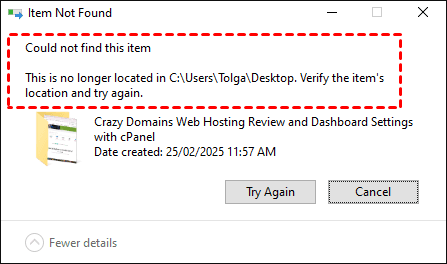
This error can stop you: Could not find this item. This is no longer located in ... Verify the item's location and try again. Whether you're trying to clean house, organize folders, or just move a few documents around. But don't you worry; we're going to provide effective solutions to fix it quickly.
Why Get"Could Not Find This Item This Is No Longer Located" Error?
This error means Windows is confused. The file system's index says a file exists in a specific spot, but when Windows checks, nothing's there—or what's there is corrupted. You see an icon, but the underlying data is broken. The system retains a visual reference to a file while the actual data structure has become invalid.
- The error usually appears after third-party apps create files with problematic names (File paths that exceed Windows' character limit)or structures (Corruption in the file or folder structure) that don't follow Microsoft's standards.
- When you see "could not find this item, this is no longer located in..." when creating a new folder, the parent directory likely contains corruption that the new folder operation inherits.
- If you're hit with "could not find this item, this is no longer located in..." when copying, the source file is probably damaged, preventing Windows from reading its data stream to create a duplicate.
2 Fixes for Could Not Find This Item. This Is No Longer Located in... When Creating A New Folder
The fix is often simpler than expected.
Way 1. Check for Hidden or System Files Interference
A hidden system file with the same name—or a corrupted one—may be present in this folder that prevents you from creating new folders. Here is how to fix:
1. Open File Explorer, click the "View" tab, then check "Hidden items".
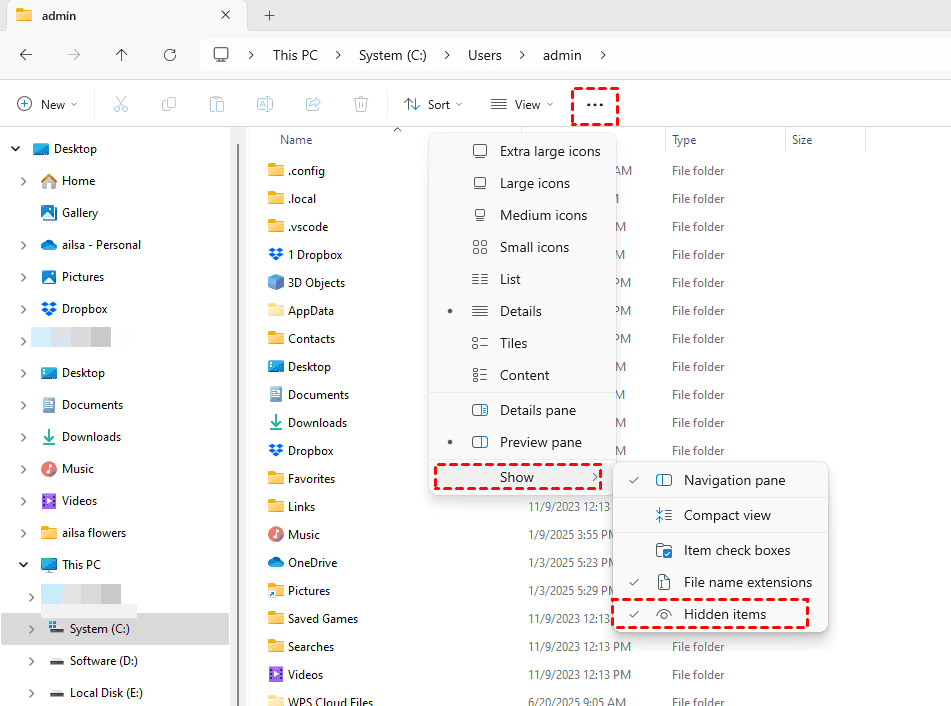
2. Tap the three-dot icon > Options > View.
3. Uncheck "Hide protected operating system files" (re-enable it later).
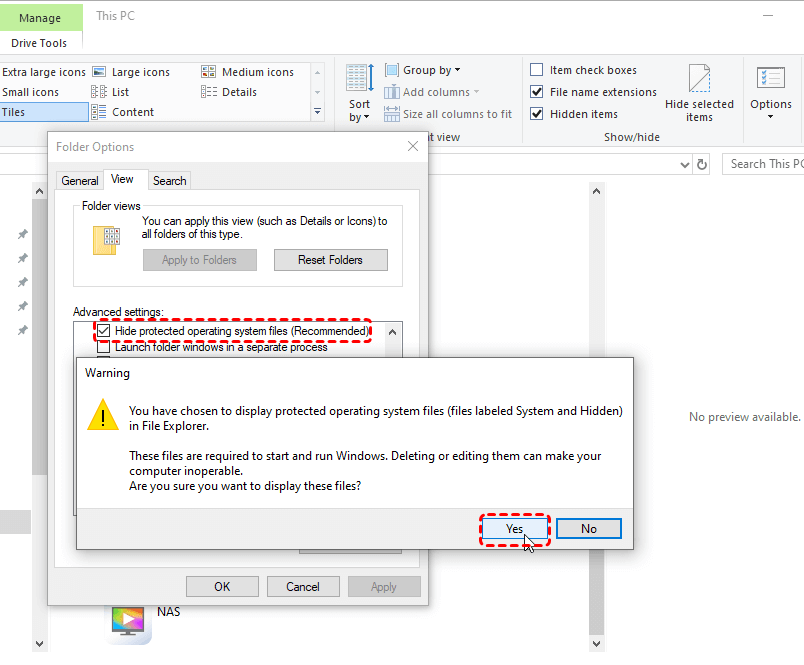
4. If a previously invisible file appears, that's your obstacle. Rename or delete it first, then try to create your folder again.
Way 2. Resolve Permission Conflicts in the Target Directory
If no hidden files exist, the folder may have restrictive permissions.
1. Right-click the folder where you're creating the new one, select "Properties", and navigate to the "Security" tab.
2. Click your username and verify "Full control" is checked. If not, you may need to take ownership of the folder. This grants you complete access, allowing you to create new folders without restriction.

How to Delete the File Shows "Could Not Find This Item. This Is No Longer Located in..."
The most reliable method uses Command Prompt, which bypasses File Explorer's interface and interacts directly with the file system.
Way 1. Force Delete by CMD
This approach consistently works. Command Prompt executes precise instructions without the visual layer that causes errors.
1. Open Command Prompt as administrator.
2. Navigate to the file's location by typing cd followed by the full path, such as cd C:\Users\YourName\Desktop\StuckFolder. Alternatively, in File Explorer, Shift-right-click the folder and select "Open PowerShell window here" or "Open in Terminal" to open directly at that location.
3. Once in the correct directory, type dir /x to display files with their short names (like STUCKE~1.TXT).
For a file, enter del STUCKE~1.TXT.
For a folder, use rmdir /s STUCKE~1 to remove it and all contents.
Way 2. Delete Files in Safe Mode
1. If Command Prompt fails, boot into Safe Mode. Hold Shift while clicking "Restart".
2. Navigate to Troubleshoot > Advanced options > Startup Settings > Restart.
Press F4 to enter Safe Mode.
3. With background processes disabled, the file won't be locked, allowing deletion directly through File Explorer.
Could Not Find This Item. This Is No Longer Located in... When Copying
How to move it while the error is blocking the transfer? This requires a slightly different approach because we're trying to read the data, not just delete.
Way 1. Copy Files via Robocopy
When the standard copy-paste fails, we have to get creative. Robocopy(Robust File Copy) is a powerful command-line tool built into Windows that’s much better at handling errors than the standard copy routine. The basic syntax is robocopy source destination filename /COPYALL /R:0.
1. Open Command Prompt as admin.
2. Type the following commands:
robocopy "X:\Source\Folder" "Y:\Destination\Folder" /MIR /R:0 /W:0
/MIR - Mirrors the entire directory structure (source to destination)
/R:0 - Sets retry attempts to zero (prevents hanging on problematic files)
/W:0 - Sets wait time between retries to zero seconds
Way 2. Compress the Folder Before Moving
1. If the file is inside a folder, right-click the folder and select "Send to" > "Compressed (zipped) folder".
2. By zipping the folder, you create a new, compressed archive that reads the file data differently.
3. Once the zip file is created, you can move, copy, or save that zip file anywhere.
After it's safe, you can extract the original file in its new location, effectively bypassing the copy error entirely.
Way 3. Fix Hard Drive Errors That Block Copying
Sometimes, the "could not find this item, this is no longer located in verify the item’s location and try again" prompt during a copy is actually a warning sign from your hard drive. The disk might have bad sectors where the file lives.
You should run a disk check.
1. Open CMD as admin and type chkdsk /f C: (replace C: with the drive letter where the file is stuck).
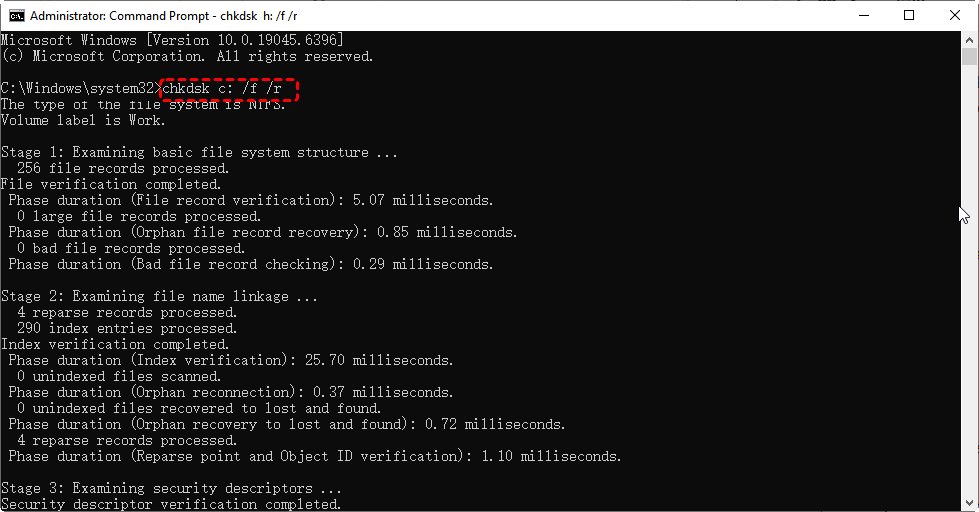
2. This will scan for and attempt to repair file system errors and bad sectors, which might just fix the file and allow you to copy it normally again.
If you found the Windows FOUND.000 folder after CHKDSK commands, click to find solutions to recover files.
How to Recover Deleted Files Safely with MyRecover
You may have accidentally deleted a folder using Command Prompt, only to realize it contained important files like tax returns. When files disappear—whether through system errors or human mistakes—you need reliable recovery tools. MyRecover will do you a big favor.
- MyRecover scans drives and recovers deleted, lost, or corrupted files.
- MyRecover deploys deep scans to locate every possible file after formatting, system crashes, etc, and a quick scan to find recently deleted files.
- It supports over 1,000 file types, including photos, videos, emails, and compressed folders.
- Preview functionality lets you verify file contents before recovery, ensuring you retrieve the correct versions of important files.
- It supports 500+ devices, including HDD, SSD, SD card, Camera, music players, audio players, Xbox One, etc.
Follow these steps to recover your deleted files in Windows 10/11 with MyRecover:
1. Please download and install MyRecover. Install on a different drive than the one you're recovering from to prevent data overwriting.
 100% Secure
2. Launch MyRecover, choose Deleted Files Recovery, point at the drive containing your lost files, and click "Scan".

3. Preview and select the files you need, and hit Recover.

4. Choose a safe location to keep them safe.


- Notes:✎...
- After scanning, use the "Filter" feature to narrow results by file name, date modified, or size. By default, MyRecover sorts files by file type and file path.
- Click promising files to preview content—view Word documents or photo thumbnails before committing to recovery.
- If you need to recover files from an unlimited number of computers in the future, it's wise to upgrade to MyRecover Technician.

 MyRecover
- Recover Deleted Files Easily with Simple Clicks
- 1000+ File Formats Supported
- Support HDD, SSD, External Hard Drive, USB Drive, SD Card, etc.
- Quickly Find Files Using File Types, Name, Size, etc.
- Preview Files Before Recovering
- Recover Unlimited Data
 100% Secure
FAQs about Could Not Find This Item
What causes the "could not find this item" error in Windows?
A: The error stems from file system mismatches. Common triggers include third-party software creating files with non-standard names, file paths exceeding Windows' character limit, corrupted metadata, and permission issues blocking access to the file's actual location.
Can I delete a file that gives the "could not find this item" error?
A: Yes. Use Command Prompt with del or rmdir /s after navigating to the correct folder. Alternatively, move the file to an empty folder and delete that folder, or use a third-party file manager like 7-Zip to browse and delete outside File Explorer.
Why does the error "could not find this item" appear when copying files?
A: The source file is likely corrupted, preventing Windows from reading its data stream. Other possibilities include destination drive permission issues or network interruptions. Try Robocopy, which handles errors gracefully, or zip the source folder before moving.
Do deleted files really go away forever when I empty the Recycle Bin?
A: Not immediately. Windows marks the space as available for overwriting, but the actual data remains until new files write over it. This is why recovery software like MyRecover can retrieve recently deleted files.
How do I find a missing file location if I can't remember where I saved it?
A: Check Recent Files in your application, search File Explorer by filename or keyword, and look in the Recycle Bin. For deeper searches, recovery tools like MyRecover can locate files even when Windows Explorer cannot display them.
Is it safe to use Command Prompt to delete these stubborn files?
A: Yes, with caution. Always verify your file path before executing commands. Navigate to the correct folder and use dir /x to confirm you're targeting the right file. Properly used, CMD is the safest deletion method.

Stay Updated With Our
Latest Tips
Add us as a preferred source on Google to never miss helpful guides.
 Add as preferred source >>