 MyRecover



How to Recover Files from SD Card After Formatting Free
Wondering if you can restore data from a formatted SD card? Learn how to use professional recovery software to recover lost files from SD cards used in cameras, phones, and computers.

By Vera / Updated on July 29, 2026


Does Formatting an SD Card Delete Everything?
Many users find themselves in a panic after clicking "Format" on their SD card, wondering if their precious photos and videos are gone forever. The short answer is: formatting typically erases the access to your data, but the actual bits and bytes often remain on the storage sectors until they are overwritten by new information.
To understand your chances of recovery, you must first understand the logic behind the two primary formatting methods used by Windows and digital cameras:
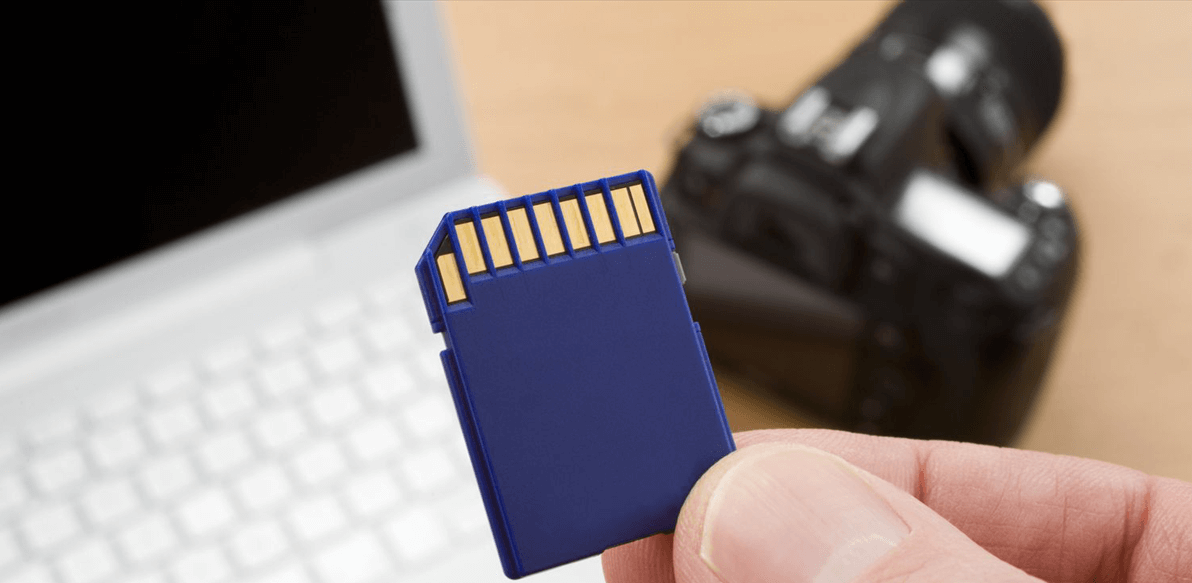
- Quick Format: This is the most common scenario. It functions like removing the "Table of Contents" from a book. The "chapters" (your data) are still there, but the operating system no longer knows where they start or end. The space is marked as "available," making it highly suitable for data recovery software to reconstruct the missing links.
- Full Format: This is a more intensive process. In modern Windows versions (from Vista onwards), a Full Format doesn't just check for bad sectors; it writes zeros over the entire drive. If you performed a Full Format, the data is physically wiped, making professional recovery nearly impossible.
Can I Recover Data After Formatting an SD Card?
Yes, provided you acted quickly. Data recovery is possible because the file system's "pointer" is the only thing removed during a Quick Format. However, the logic of SD cards (NAND flash memory) means that as soon as you save a new photo or file to that "formatted" card, the camera or computer will write over the old data.
To maximize your recovery success, follow these three "Golden Rules":
- Stop using the card immediately. Physical extraction is the only way to ensure no background processes write to the card.
- Do not attempt to "re-format" the card to fix errors, as this further complicates the file structure.
- Use a dedicated recovery tool that can read "RAW" data regardless of the corrupted or missing file system.
Method 1: Professional SD Card Recovery via MyRecover (Recommended)
When a manual search fails because the file system has been wiped, you need a tool that can perform "Signature Recovery." This method involves scanning the raw sectors of the SD card to identify files based on their unique headers (e.g., the specific code that identifies a file as a .JPG or .MP4).
Why Choose MyRecover for Formatted SD Cards?
Generic recovery tools often struggle with the fragmented nature of SD card storage, especially those used in cameras and Android devices. MyRecover is specifically optimized for these scenarios:

 MyRecover
- ⚡High-Speed Deep Scan: It uses an advanced algorithm that penetrates beyond the deleted file table to find remnants of data left behind after a Quick Format.
- ⚡Media-Centric Recovery: It excels at reconstructing high-quality media formats (HEIC, RAW, CR2, etc.) which are common on SD cards but often corrupted by lesser software.
- ⚡Preview Before Recovery: You can filter by "Type" or "Date Modified" to find specific photos without having to restore the entire 128GB card, saving you time and disk space.
 100% Secure
Preparation
Before starting, ensure your SD card is visible to your computer.
-
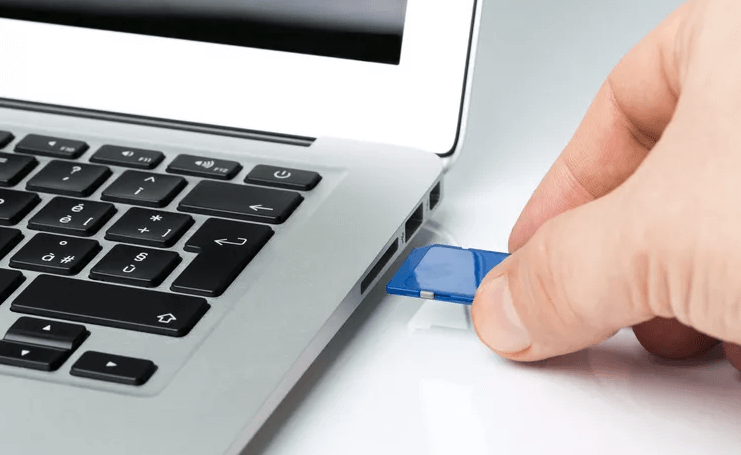
Internal Slot: If using a laptop, ensure the driver is updated so the card appears in "Disk Management."
-
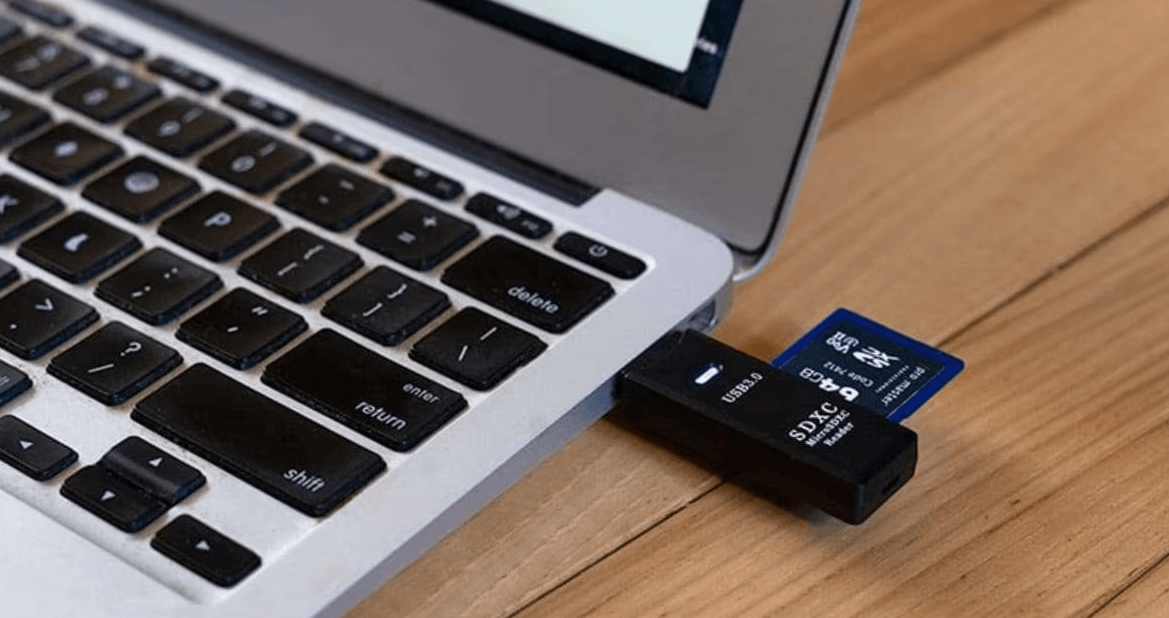
External Reader: For the most stable connection, use a USB 3.0 or higher card reader. Avoid connecting the camera directly via cable, as many cameras use MTP (Media Transfer Protocol) which hides the raw sectors from recovery software.
Step-by-Step Recovery Process
Step 1. Download and Install: Install MyRecover on your C: drive (or any drive other than the SD card) to prevent overwriting the lost data.
Step 2. Select the Source: Launch the tool, identify your SD card in the device list, and click "Scan".
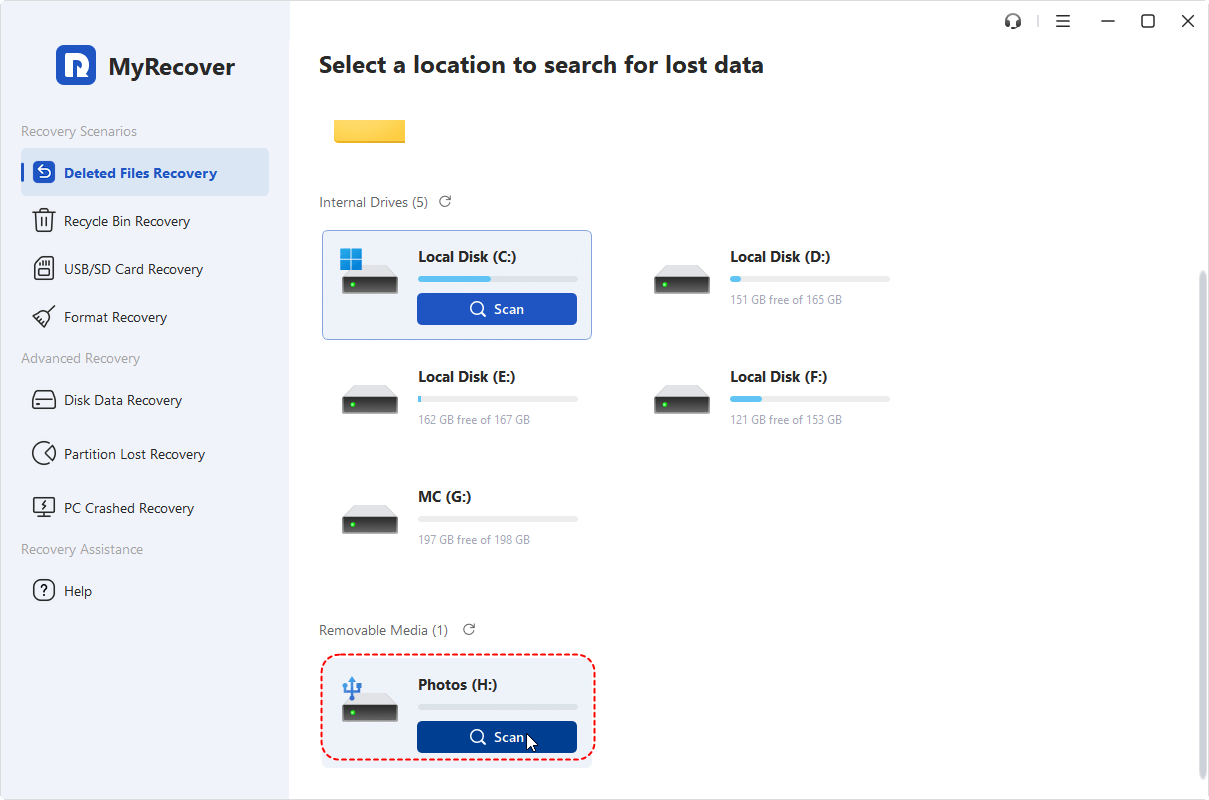
Step 3. Automatic Scanning: It will perform a quick scan to search for lost files on the SD card. If you want, you can also use the "Deep Scan". This ensures you get both the most recent files and those buried deeper in the memory sectors.
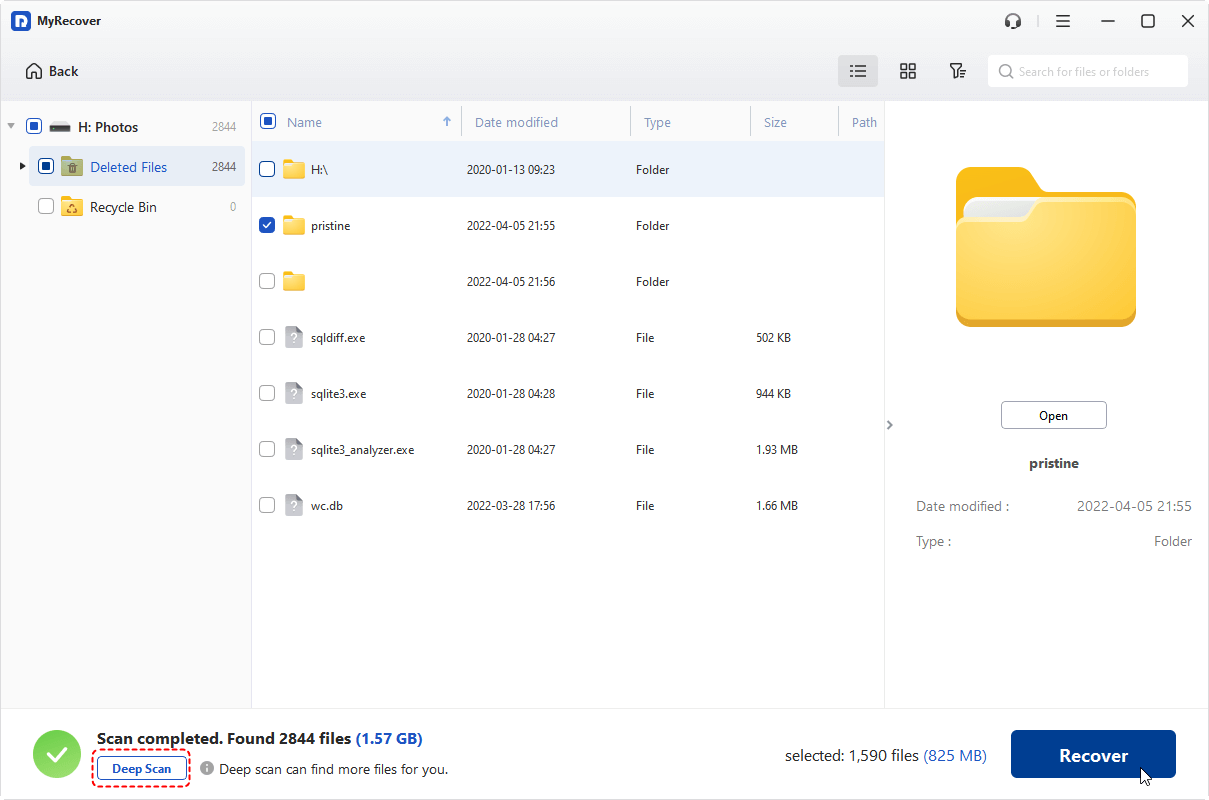
Step 4. Filter and Locate: Use the search bar or the "Type" filter on the left. For a formatted SD card, look specifically in the "Other Missing Files" folder, as the original folder names may have been lost during formatting.
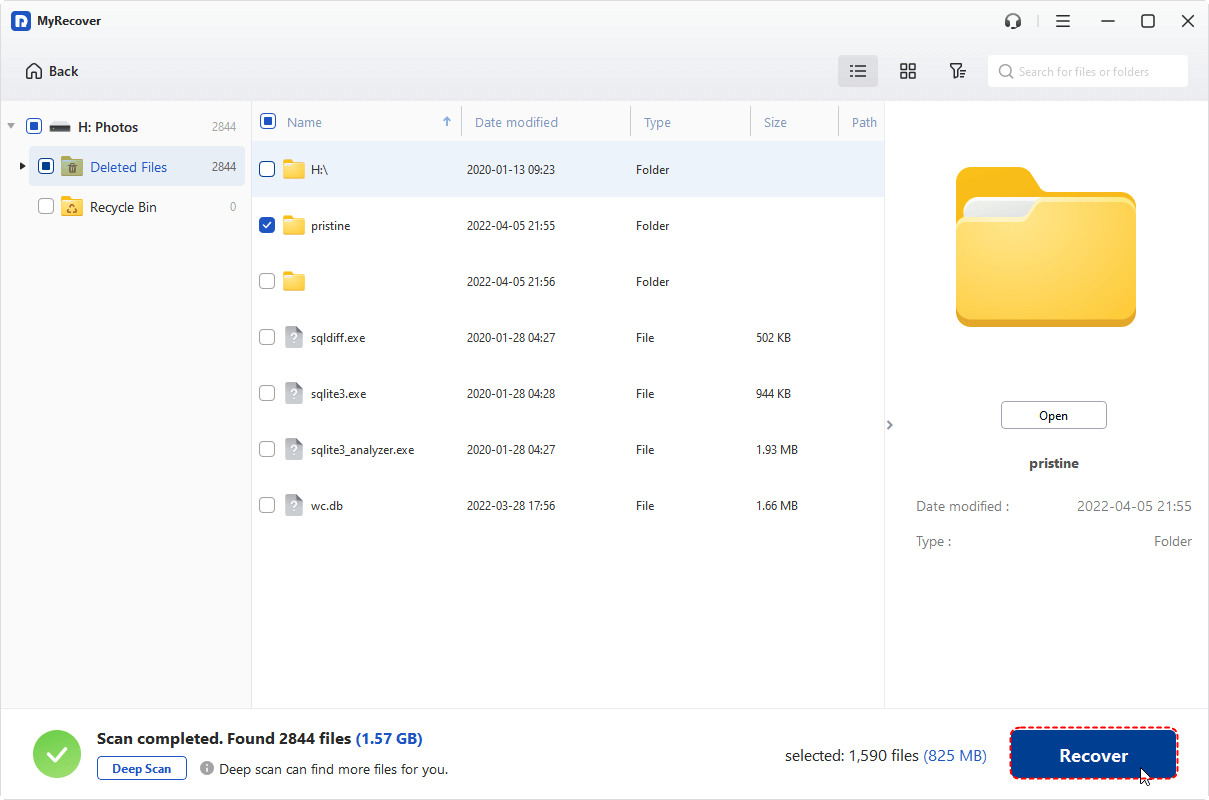
Step 5. Preview and Execute: Select the files you wish to save. Click "Recover".
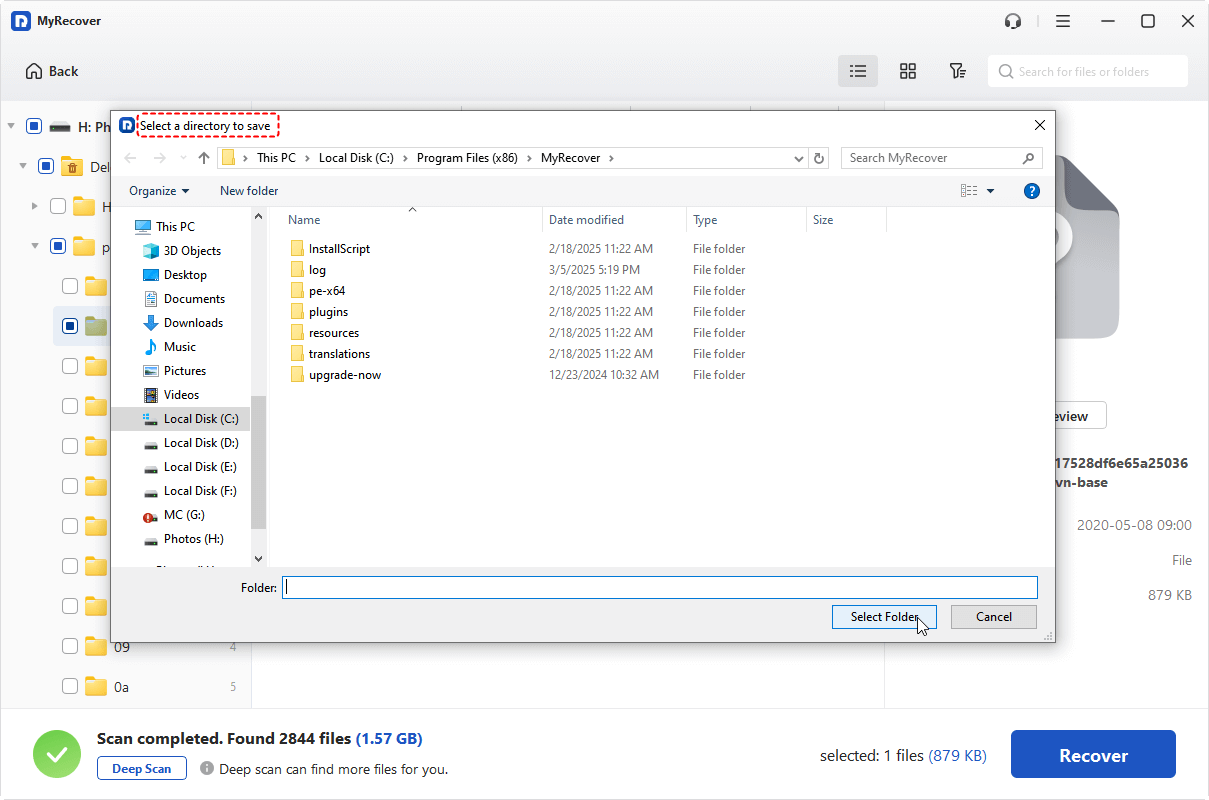
Step 6. Select a Safe Destination: Crucially, save your recovered files to your computer's hard drive or an external HDD—never back onto the same SD card you are recovering from.
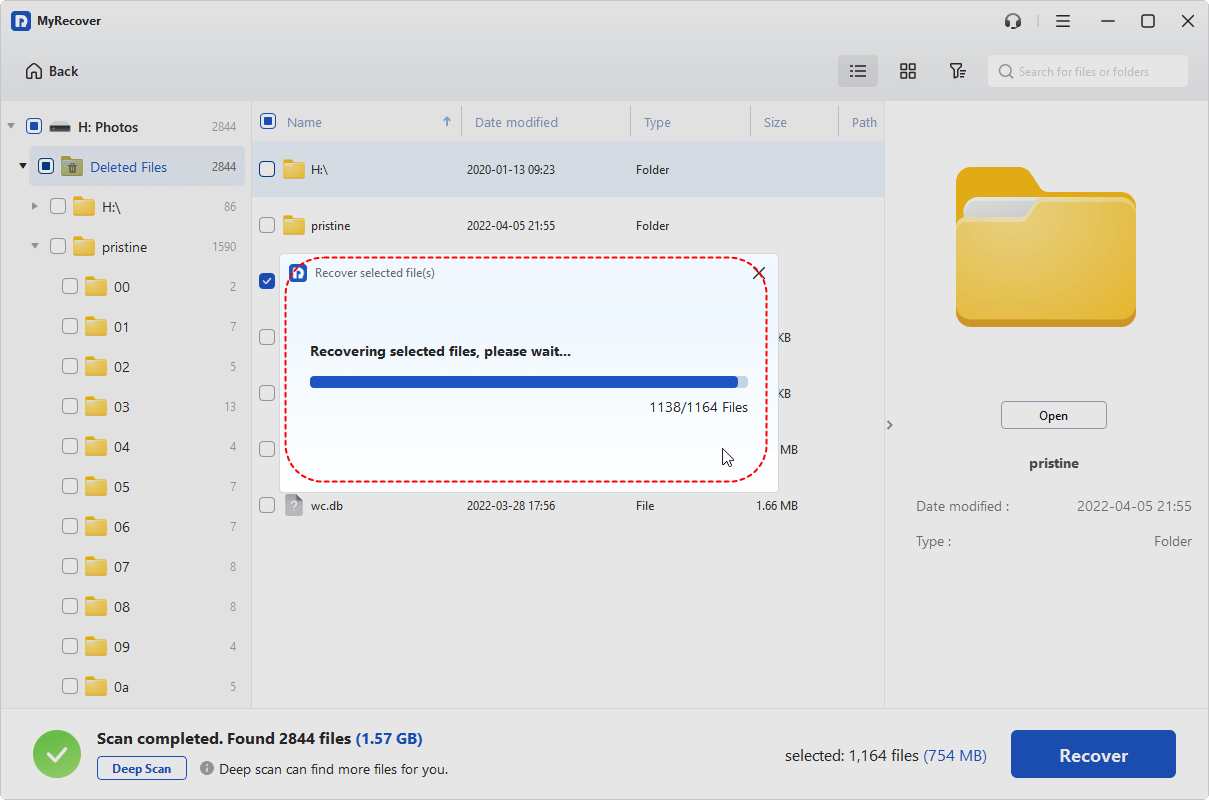
Once finished, you’ll see the message, “XXX files have been successfully recovered.”
The free edition supports recovering up to 500 MB of data from internal & external storage devices. If the data you plan to recover is over the limit, please upgrade to a higher edition like Professional or Technician. They are able to recover unlimited data and recover data from a crashed computer by creating a bootable media.
Method 2: Using Windows CMD (For Files Hidden After Formatting/Corruption)
Sometimes, a "format" isn't actually a format; it's a file system error that hides your data. In scenarios where the SD card shows "Used Space" but no files are visible, the logic is to use the Command Prompt to reset the file attributes.
1. Plug the SD card into your PC.
2. Press Win + X and select Command Prompt (Admin) or PowerShell (Admin).

3. Type the following command: attrib -h -r -s /s /d E:\*.* (Replace E with your SD card's drive letter).
4. Why this works: This command strips the "Hidden," "Read-only," and "System" attributes from files that might have been incorrectly flagged during a formatting glitch or virus attack.
To Sum up
In conclusion, while formatting an SD card typically erases all files, it’s often possible to recover data using specialized recovery software, especially if the data hasn't been overwritten. The sooner you attempt recovery, the better the chances of retrieving your files. Tools like MyRecover offer user-friendly interfaces, effective scanning options, and a high success rate in recovering lost data. No matter you lose your data on SSD, HDD, USB flash drive, SD card, Camera, PS 4/5 and other devices, it will never let you down.
Frequently Asked Questions (FAQ)
1. Is there a difference between formatting an SD card on a camera vs. a PC?
Yes. Cameras usually perform a "Quick Format" optimized for their specific file system (like DCIM folder structures). However, some cameras have a "Low-Level Format" option—this is equivalent to a Full Format on a PC and will make data recovery significantly harder.
2. Why does my SD card say it needs to be formatted before I can use it?
This usually happens when the "Partition Table" is corrupted, making the OS see the drive as "RAW." In this specific scenario, MyRecover is highly effective because it can read the data sectors directly even if Windows cannot open the drive.
3. Can I recover 4K videos from a formatted SD card?
4K videos are often stored in fragments across the card. While basic tools might recover a "broken" file, MyRecover uses advanced file carving technology to reassemble these fragments, increasing the likelihood that the video will actually play after recovery.
4. I formatted my SD card and then took two new photos. Can I still get my old ones back?
You can likely recover most of them, but the two new photos have permanently overwritten the sectors where some old data lived. This is why "stopping use" is the most critical step.
5. Does formatting an SD card remove viruses?
A Full Format is a very effective way to remove malware from a card. However, a Quick Format might leave hidden malicious files in the unallocated space. If you are formatting for security reasons, a Full Format is preferred.
6. Is it possible to recover data from a physically cracked SD card?
No. If the internal NAND flash chip is physically cracked or snapped, software cannot communicate with the data. You would need to contact a specialized hardware recovery lab, which can be very expensive.

Stay Updated With Our
Latest Tips
Add us as a preferred source on Google to never miss helpful guides.
 Add as preferred source >>