 MyRecover



How to Recover/Show Hidden Partition on Windows PC Easily
Accidentally hidden or missing partitions can prevent access to important files on your Windows PC. In this guide, you’ll learn simple techniques to show hidden partitions using Windows Disk Management, Command Prompt, or professional recovery software, and retrieve lost documents, photos, or system backups without overwriting existing data.

By Aria / Updated on September 16, 2026


How to Locate "Hidden" Partition on HDD?
About a year ago I helped my wife build a computer. We ended up using an extra 1TB HDD that was installed in her Dell Optiplex as extra storage on her new computer. Before moving it, I tried to wipe the hard drive for a fresh start and I guess I did something wrong because ever since then the HDD only shows 231GB of useable storage.
We were content with it at the time but it's getting annoying to delete stuff whenever she wants to download a new game. We were thinking of buying her a new hard drive but I would like to know if it is at all possible to recover that extra space because we are tight on cash.
- Question from Tomori
Hidden partitions are areas of a storage device that are intentionally concealed by Windows or by disk manufacturers, such as recovery partitions, EFI system partitions, or system-reserved partitions. These partitions are usually invisible in File Explorer and serve important purposes, like system recovery or boot management. Besides, user errors, disk formatting error or third-party software can hide originally visible disk partitions, leaving valuable data or recovery options temporarily unavailable.
This article provides a practical guide on how to recover or show hidden partitions on Windows PCs. You’ll learn step-by-step methods to locate, unhide, or restore these partitions safely, using built-in tools like Disk Management and Command Prompt, as well as specialized recovery software for more complex cases.
Why Does a Partition Become Hidden or Disappear?
Windows won't hide any disk partitions except critical system partitions. Here are possible reasons if you find hidden partitions on hard disk.
- Accidental User Actions: Deleting, shrinking, or modifying partitions incorrectly in Disk Management or third-party tools can hide partitions without fully removing them.
- Disk Formatting or Conversion Errors: Converting a disk between MBR and GPT, or formatting it improperly, may render some partitions inaccessible.
- System or Recovery Partitions: Windows automatically hides EFI, recovery, and system-reserved partitions to prevent accidental modification.
- Third-Party Software Interference: Certain partition managers, backup tools, or system utilities may mark partitions as hidden during operations.
- Corrupted Partition Table: File system errors or corrupted partition entries can make a partition appear missing even though the data remains intact.
- Virus or Malware Activity: Some malware hides partitions to prevent detection, making space or data inaccessible until resolved.
What to Do Before Recovering a Hidden or Lost Partition
If a partition has disappeared, appears as unallocated, or becomes inaccessible, avoid making changes to the affected disk before checking whether the original partition or its data can be recovered. Some actions may overwrite the existing partition metadata or data and make recovery more difficult.
👉 Don't Format the Partition. Formatting can overwrite file system information and make the original partition and its data harder to recover.
👉 Don't Initialize the Disk. Initializing a disk may overwrite existing partition information and affect the chances of recovering the original partition.
👉 Don't Create a New Simple Volume Immediately. If the space is unallocated, recover the original partition and data first. Creating a new volume too early may overwrite existing partition metadata and data.
👉 Don't Write New Data. New files or installations may overwrite recoverable data and partition information on the affected disk.
How to Recover Hidden or Lost Partition on Windows 10/11
When a hard drive shows less usable space than expected, it’s often due to hidden partitions created by Windows, disk errors, or user mistakes. Recovering these partitions can restore valuable storage without buying a new drive. Each method below can help you recover hidden partition, you choose a desired on based on your needs.
Method 1: Recover the Entire Hidden or Lost Partition with MyRecover
🎯Best for: The disappeared, deleted, or unallocated partitions that needs to be restored with its data.
If the partition is no longer visible in Disk Management, appears as unallocated space, or has been deleted, MyRecover's Partition Recovery feature can help you. MyRecover is a professional data recovery software which design for 500+ data loss scenarios. It can scan the affected disk for the lost partitions and restore the partition structure and the data stored on it, rather than recovering files alone. With it, you can restore your hard drive to the state it was in before the partition became hidden.

 MyRecover
- Recover deleted & lost files from HDD, SSD, USB, SD card, camera as you need.
- Support 1000+ formats of photos, videos, docs, archives, emails, compressed files, etc.
- Reliable rescue for deletion, formatted disk, emptied Recycle Bin, system crashes and more.
- Restore the lost partition structure and the data it contains in one recovery process.
 100% Secure
Step 1. Download and install MyRecover on your Windows supported computer. If you're using an external hard drive, you may need to connect the hard drive to computer firstly.
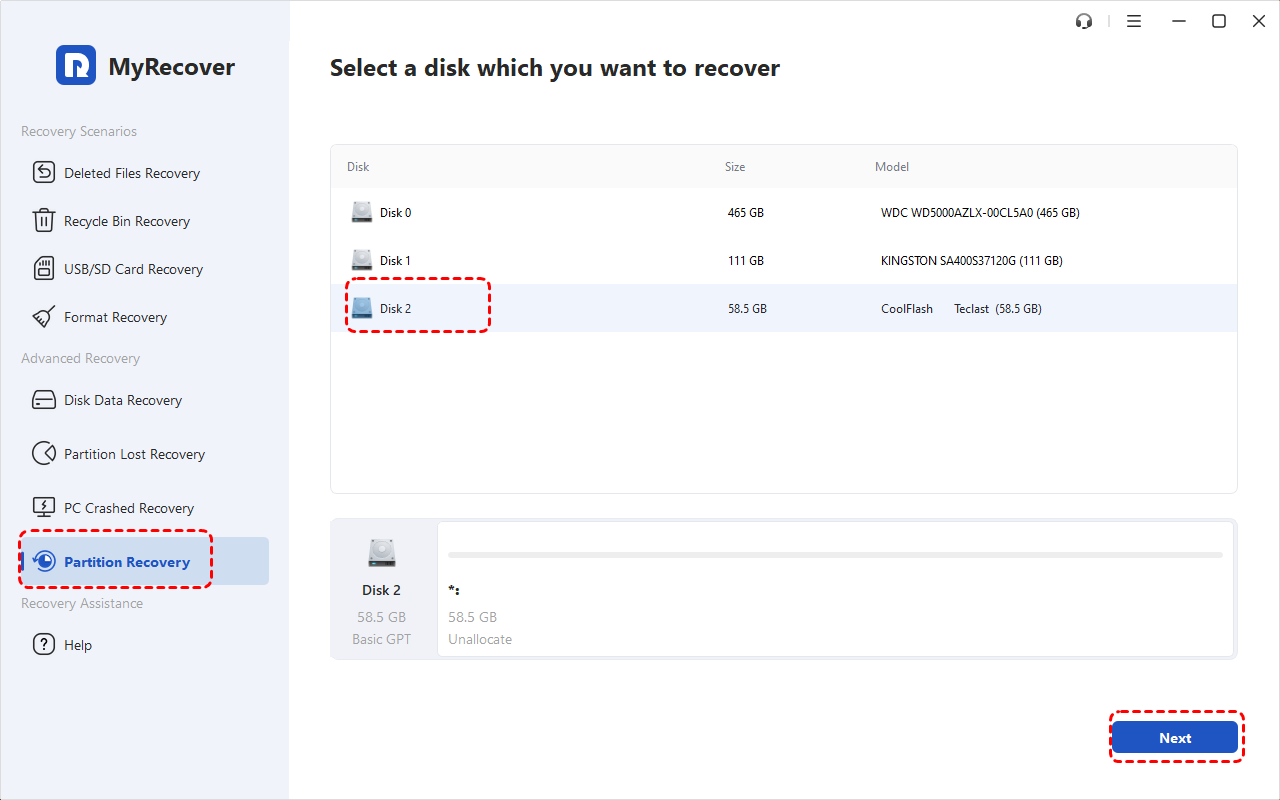
Step 2. Launch the application and select "Partition Recovery", select the disk with hidden or missing partition, then click "Next".
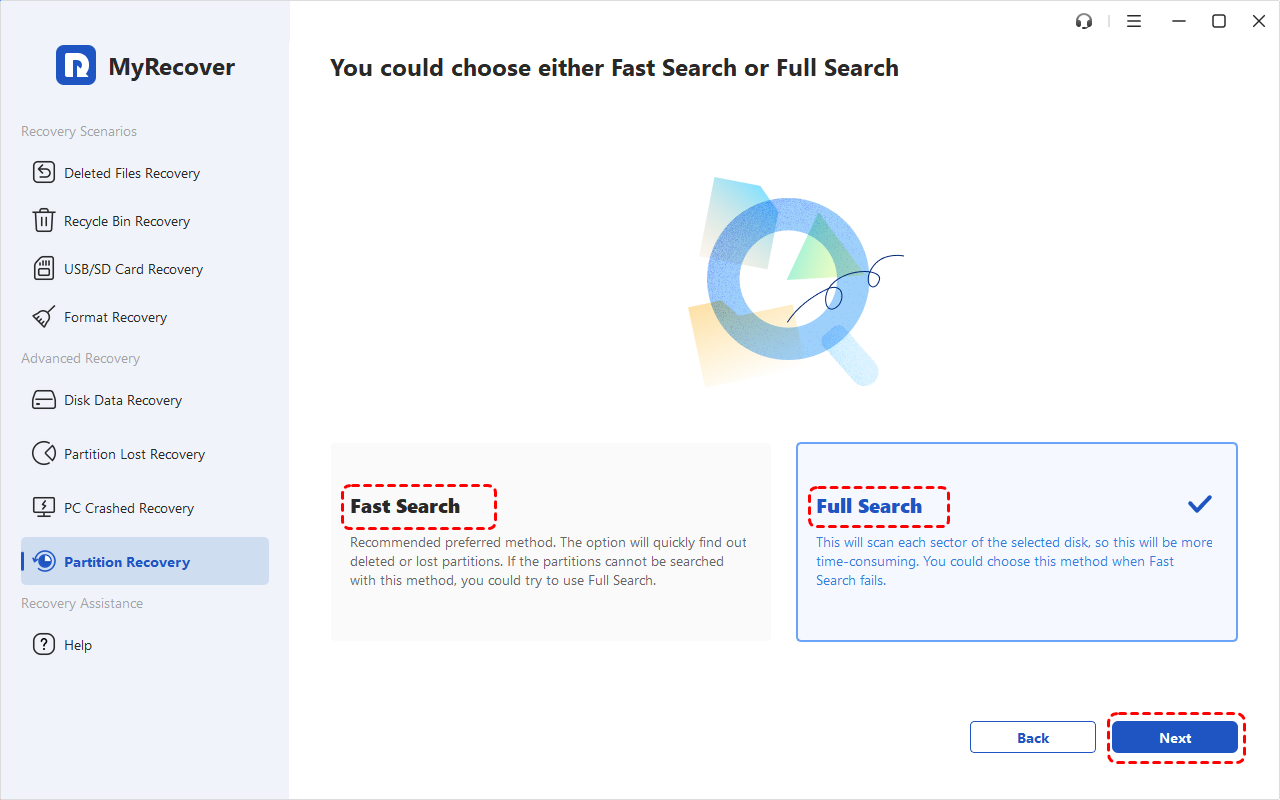
Step 3. Choose "Fast Search" or "Quick Search" based on your need and click "Next" to continue. MyRecover will start scanning your disk for lost partitions. This may take some time, especially when using "Full Search", depending on the capacity of your disk.
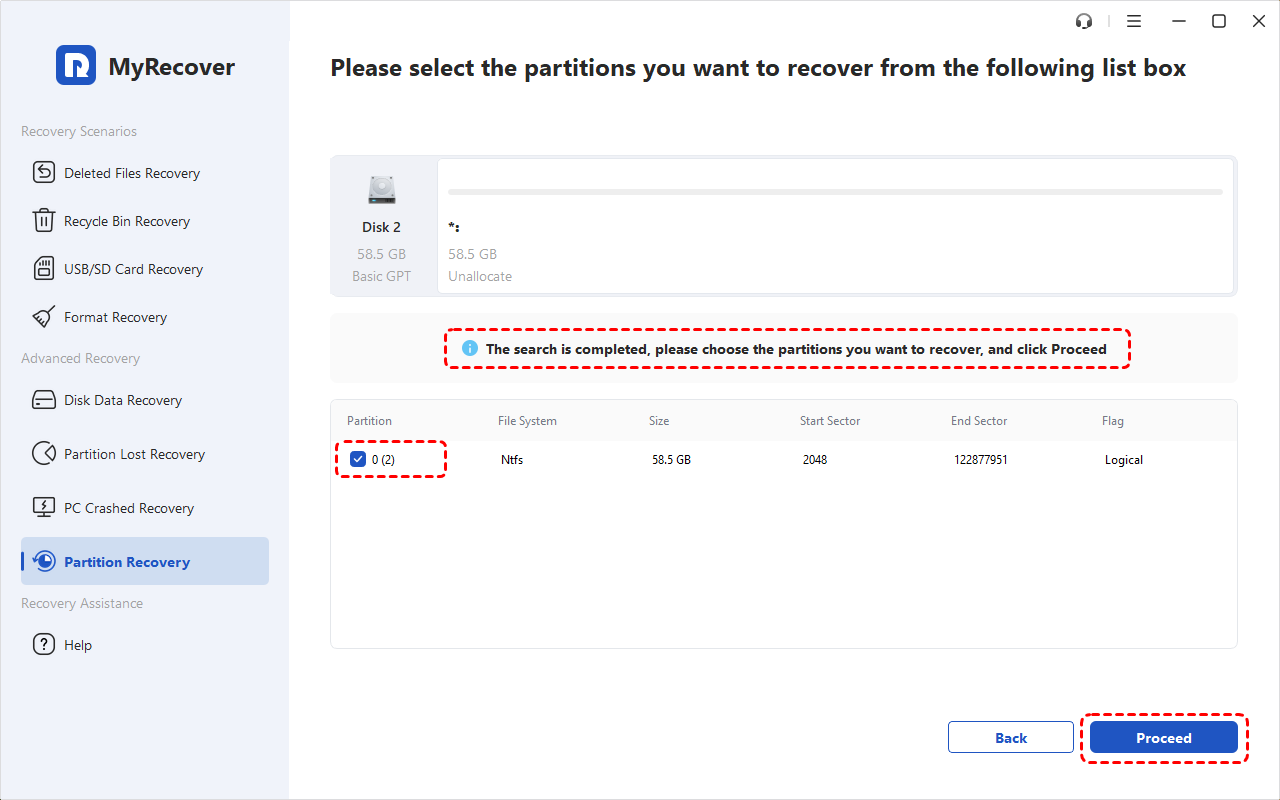
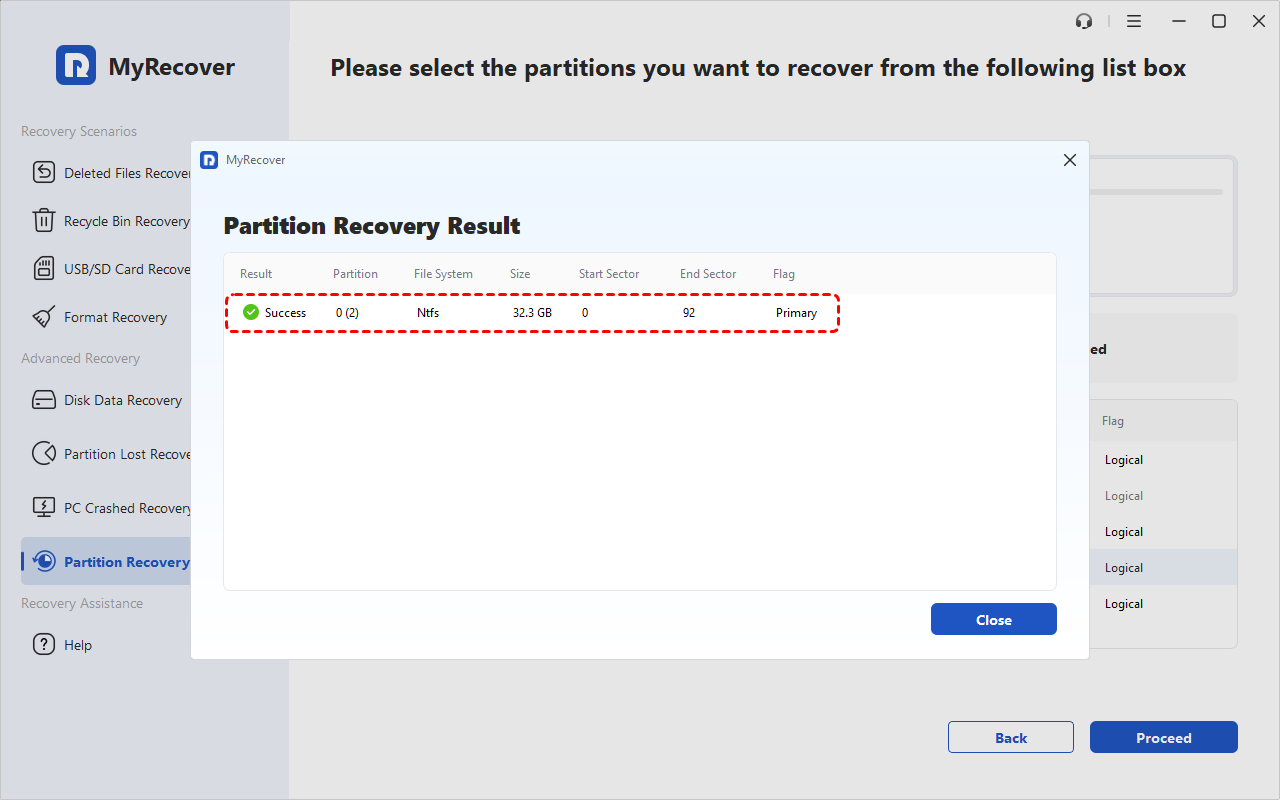
Step 4. Once you get the message "The search is completed, please choose the partitions you want to recover, and click Proceed“, select the desired partition and click "Proceed".
After the partition is successfully recovered, you can open Disk Management or File Explorer to check whether the partition structure and files have been restored to their previous state.
Method 2: Unhide a Partition with AOMEI Partition Assistant
If the partition has not been deleted or lost but is simply hidden by the system and therefore not visible, the specialized software such as AOMEI Partition Assistant can scan the disk for hidden partitions and restore them without data loss. It can detect partitions with corrupted table entries and make them visiable again.
🎯Best for: Hidden or lost partition that needs to be made visible again.
Step 1. Download and install AOMEI Partition Assistant on your computer.
Step 2. Run the software and locate the affected disk.
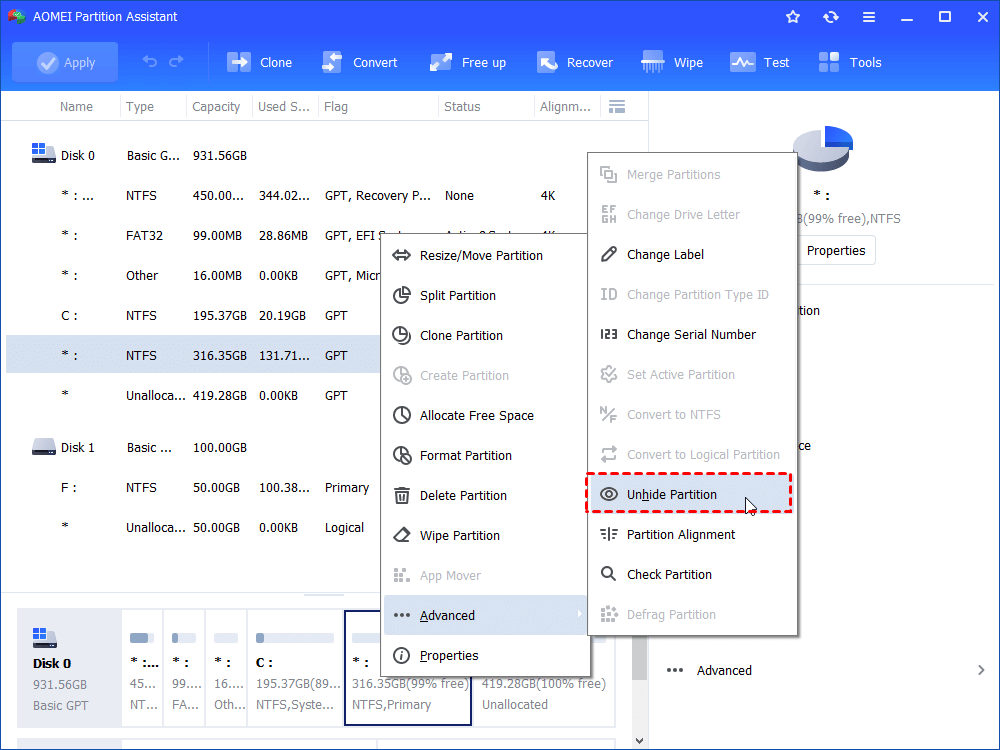
Step 3. Select the partition that is not showing up in File Explorer and right click on it, then choose "Advanced" > "Unhide Partition".
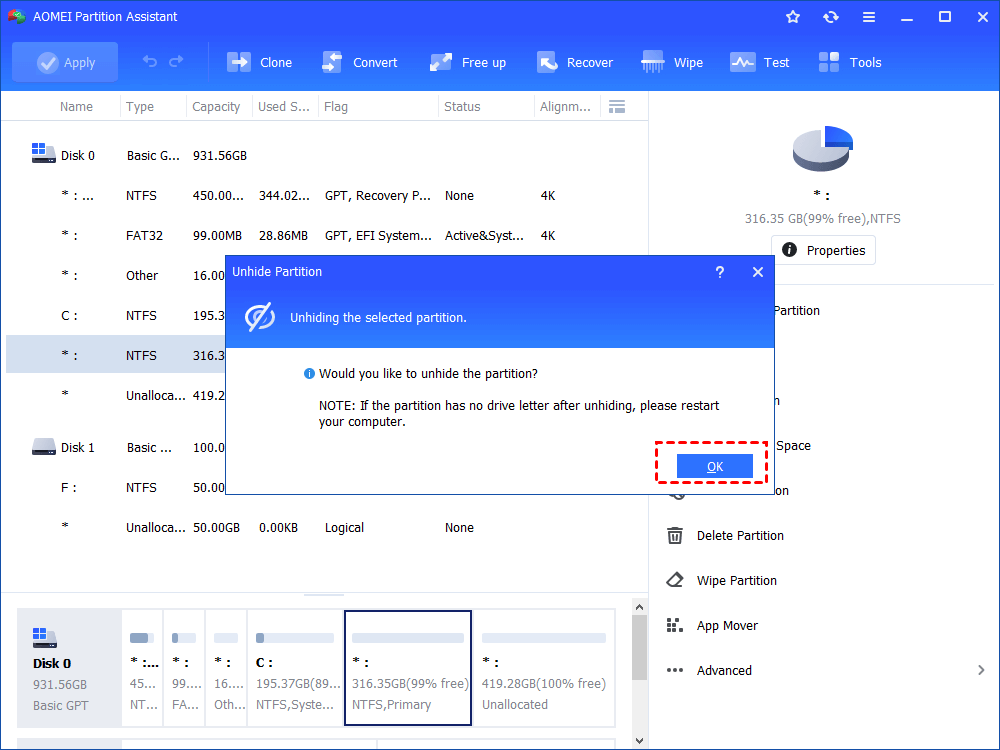
Step 4. Click "OK" to confirm the change. Preview the found partitions, and click "Apply" to show the hidden partition.
Step 5. Verify that the recovered partitions appear in Windows Explorer.
Method 3: Assign a Drive Letter in Disk Management
Disk Management is a built-in Windows tool that can reveal partitions that are hidden but still recognized by the system. This method is safe and requires no additional software, making it a first choice for locating hidden partitions. Press "Win" + "X" and select Disk Management to open it.
🎯Best for: A healthy and visible partition in Disk Management but missing from File Explorer because it has no drive letter.
Step 1. Look for partitions without a drive letter or marked as "Healthy (Hidden)".
Step 2. Right-click the hidden partition and choose "Change Drive Letter and Paths".
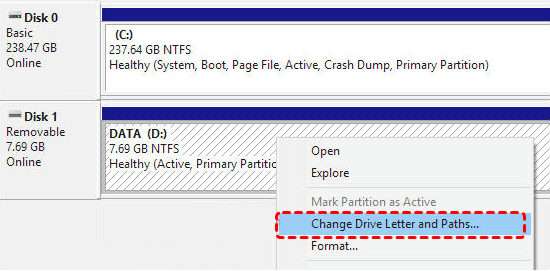
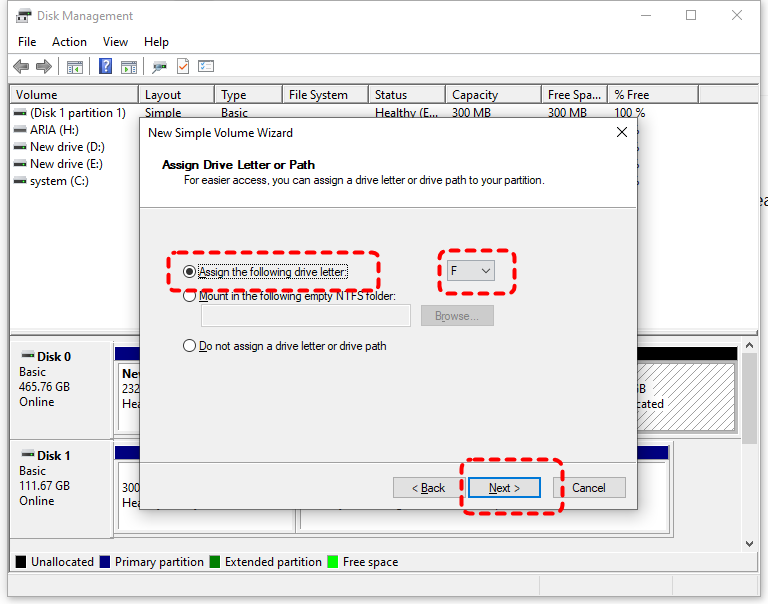
Step 3. Click "Add" to assign a new drive letter and click "OK" to save the changes. The partition should now be visible in File Explorer.
Method 4: Unhide a Partition with DiskPart Command
If you're comfortable with command-line tool, Windows offers a buit-in tool — DiskPart — to recover the hidden partition on Windows 10/11. DiskPart can show partitions even when they are not visible in Disk Management. It allows you to unhide or reactivate hidden partitions safely.
🎯Best for: Making an existing hidden partition visible again through Windows command-line tools.
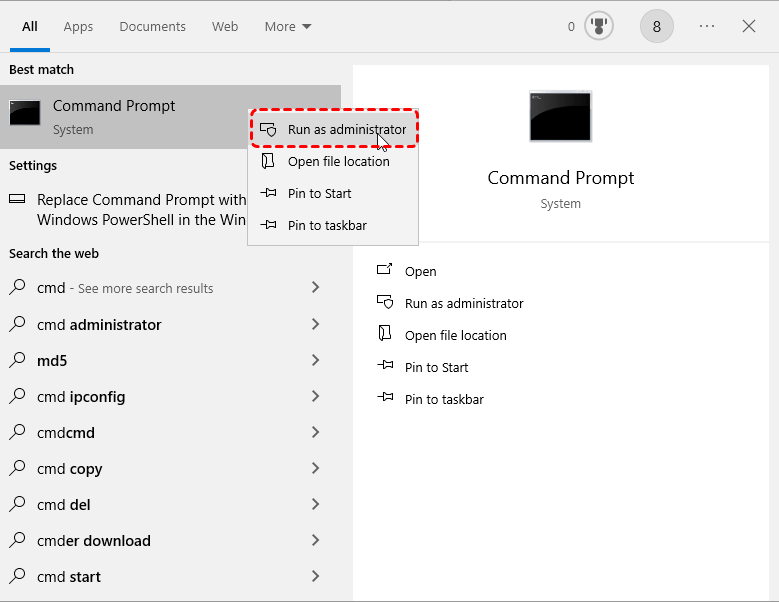
Step 1. Locate Command Prompt in the Start menu and right click on it, then choose "Run as administrator".
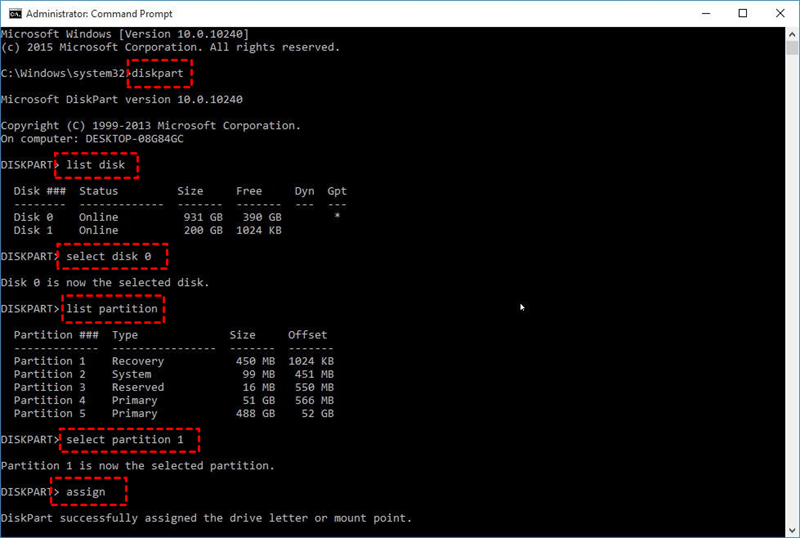
Step 2. Enter the following command and press "Enter" after each one:
diskpart
select disk 1 (list all disks)
list partition
select partition 2 (select the hidden partition)
assign letter=E (replace E with any free letter).
exit (close DiskPart)
Then, check if the partition appears in File Explorer.
Method 5: Use Local Group Policy Editor (For Advanced System Partitions)
Some partitions may be hidden due to system policies that prevent changes to critical drives. The Local Group Policy Editor can temporarily allow viewing these partitions for administrative tasks. Here's how to do:
🎯Best for: Making an existing hidden partition visible again through Windows command-line tools.
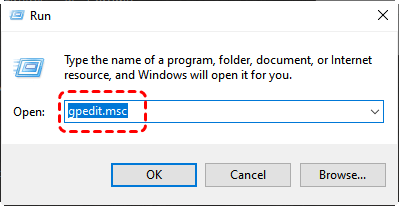
Step 1. Press "Win" + "R" and type "gpedit.msc" in the Run dialog, then press "Enter".
Step 2. Navigate to "Computer Configuration" > "Administrative Templates" > "Windows Components" > "File Explorer".
Step 3. In the right panel, click "Standard" and locate "Hide these specified drives in My Computer".
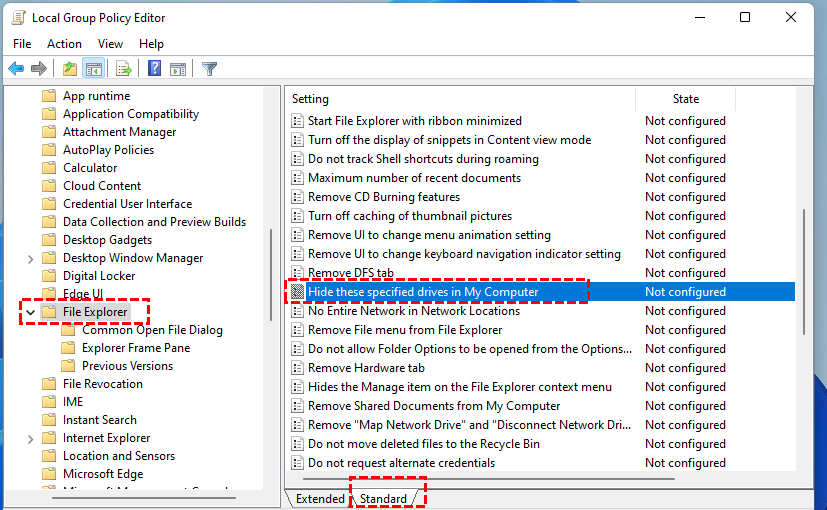
Step 4. Double click on it and set it to "Disabled" if it's enabled. Under "Options" tab, select "Do not restrict drives" to show all hidden partitions.
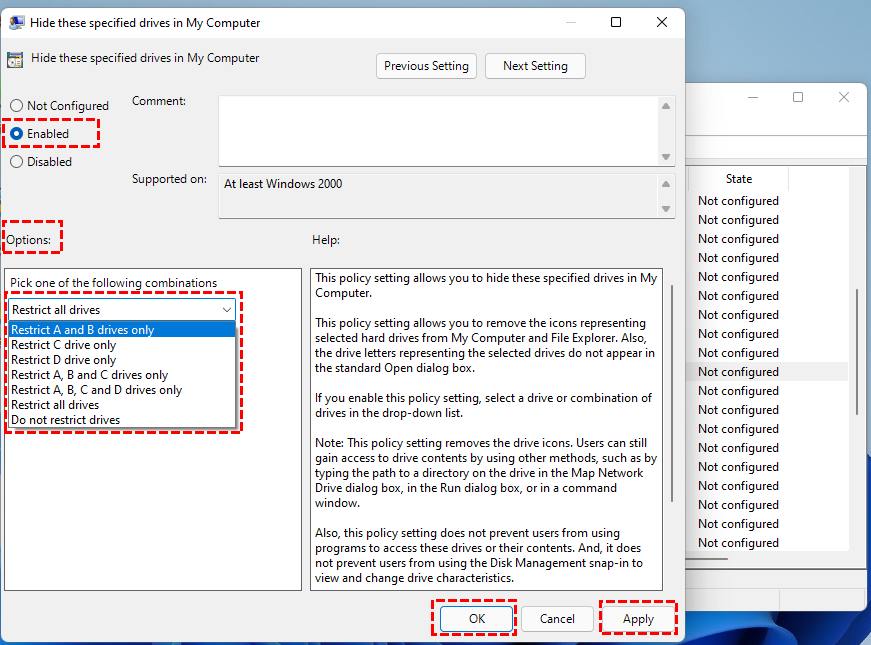
Step 5. Click "Apply" and "OK" to save changes and restart File Explorer to see the previously hidden partitions.
What If the Entire Partition Cannot Be Restored?
If the entire partition cannot be restored, you may still be able to recover the files stored on it. In this case, focus on recovering your important data first, then recreate the partition after the recoverable files have been safely saved.
Recover Lost Data from Hidden Partition
If the original partition structure and data cannot be restored in one process, you can still scan the affected disk and recover individual files from the hidden or lost partition with the data recovery tool — MyRecover. It can locate the lost or hidden partition and recover files from these partitions with easy workflow.
Step 1. Download and install MyRecover on a separate drive to avoid overwriting the affected disk.
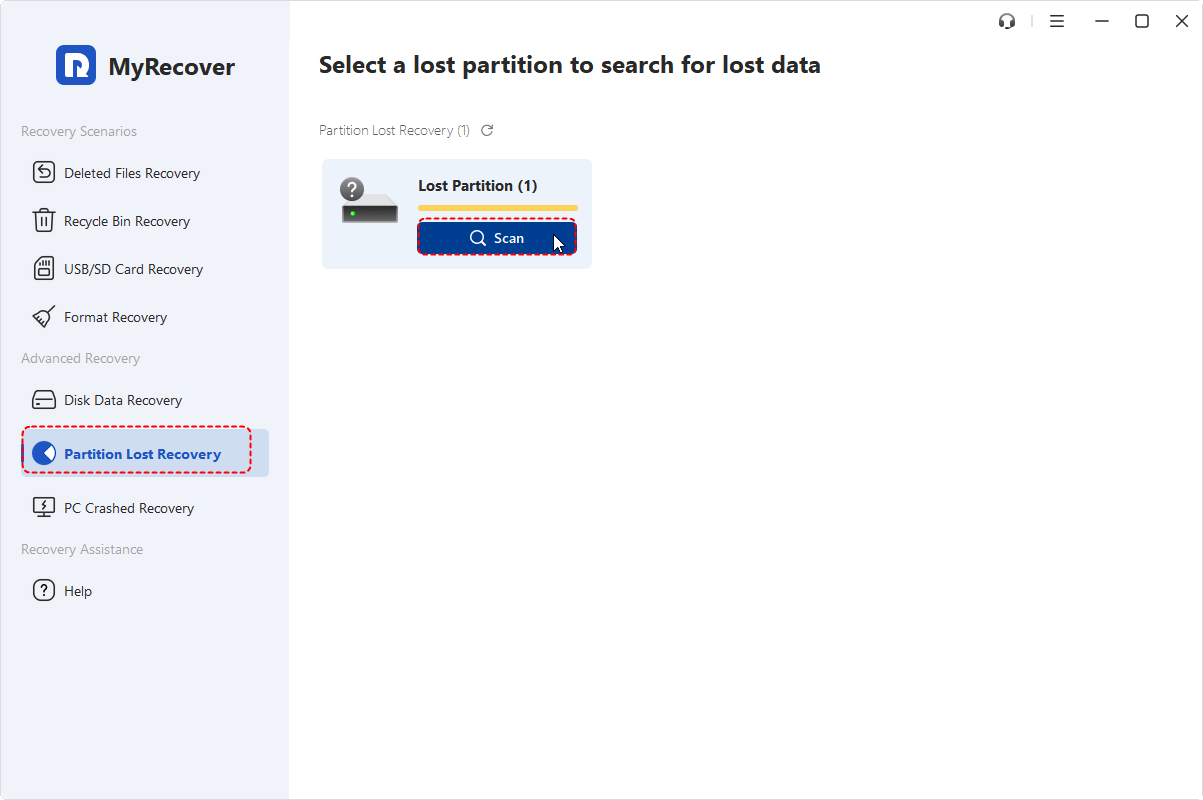
Step 2. Run the application and select "Partition Lost Recovery" tab, choose a partition and click "Scan" to search for recoverable files. This will automatically perform a deep scan for the partition.
Step 3. Browse the scan results and choose the files you wish to recover, then click "Recover".
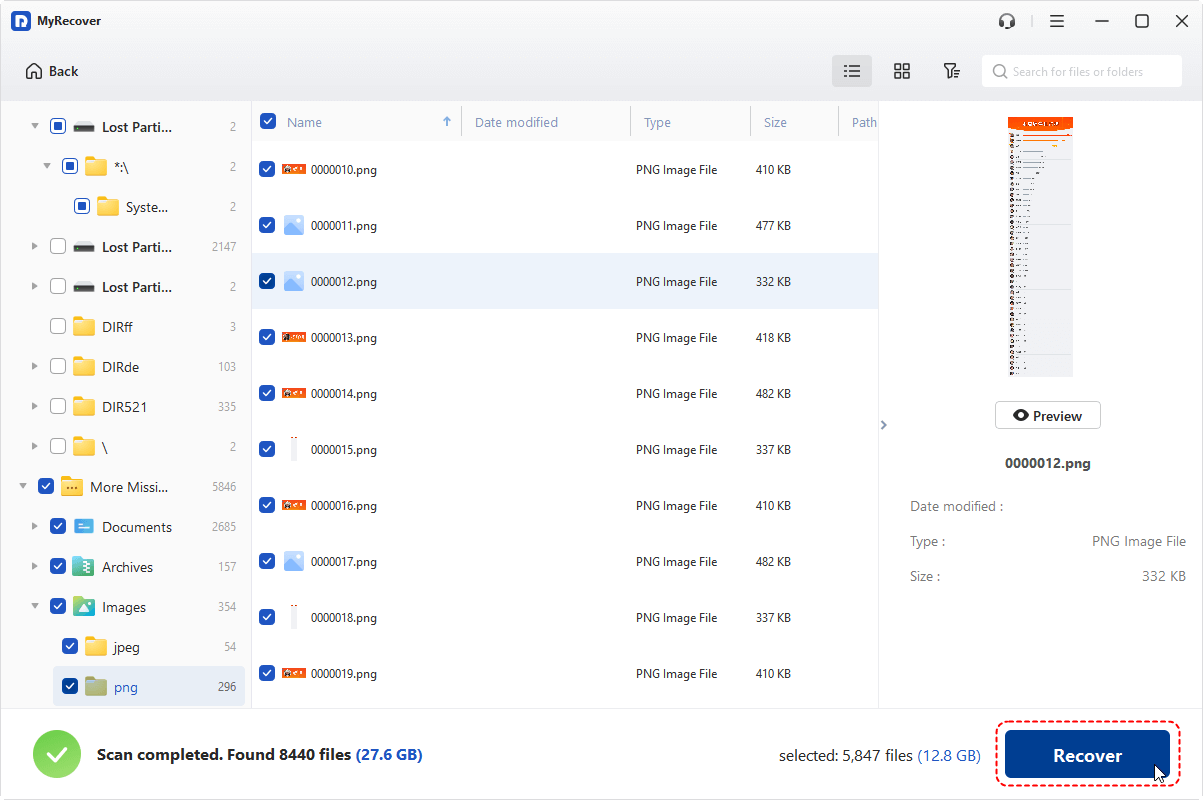
When the files you need to restore are larger than 500 MB, consider upgrading to the Professional version of MyRecover. This version offers unlimited data recovery and can restore entire hidden or lost partition.
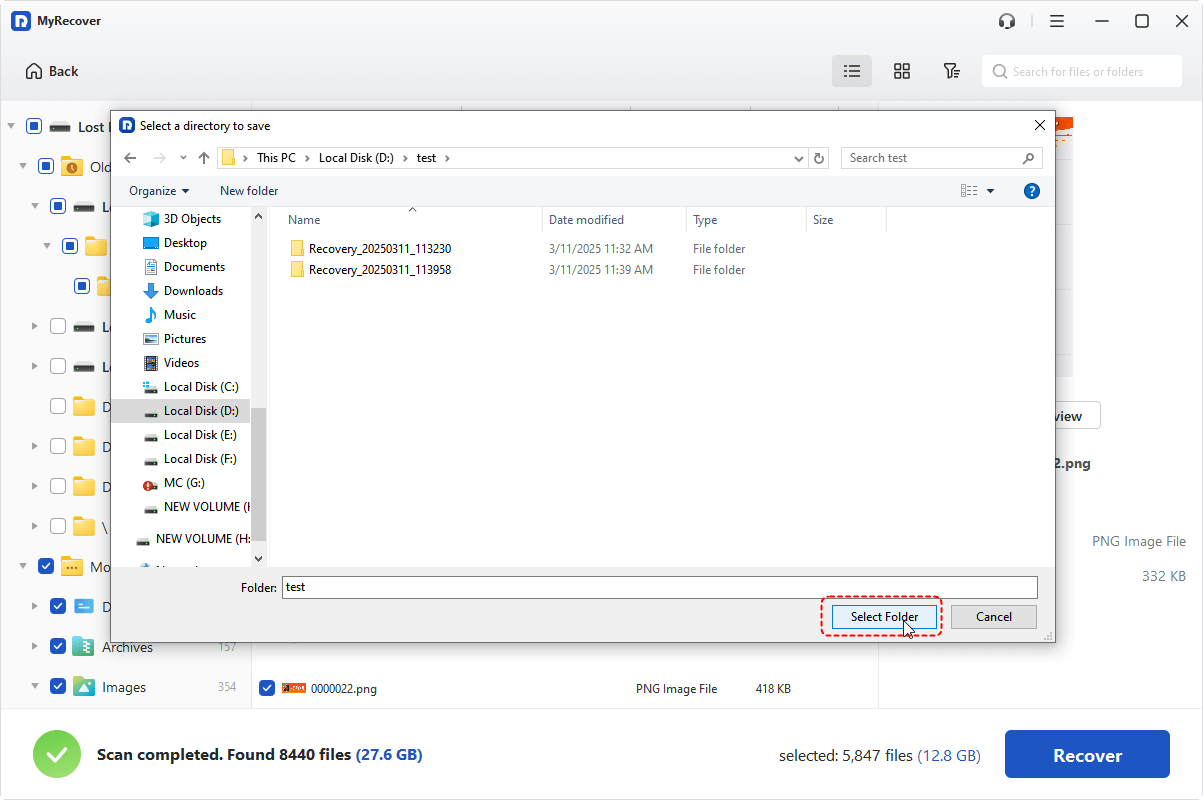
Step 4. Select a destination folder to save the files you want to restore.
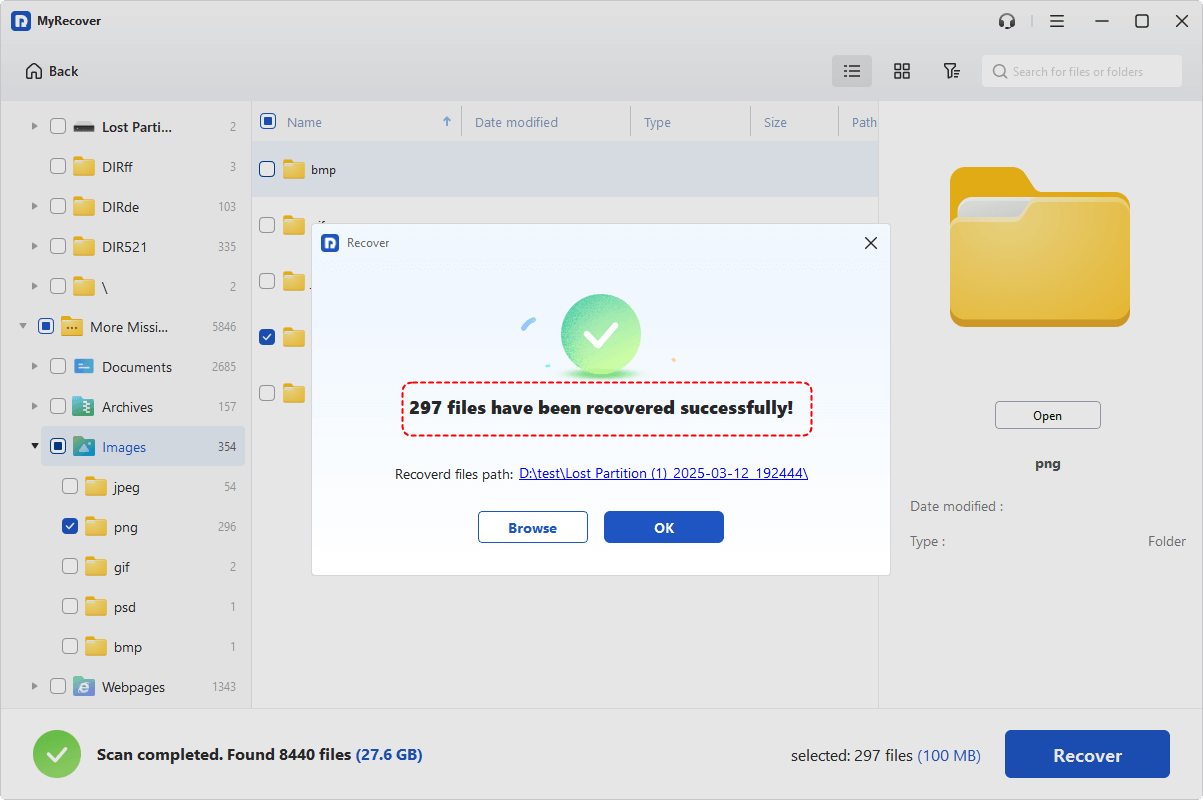
When the process is done, the message "Files have been recovered successfully" will pop up. Then, you can check and access the recovered files in the destination folder.
Create New Simple Volume on the Partition
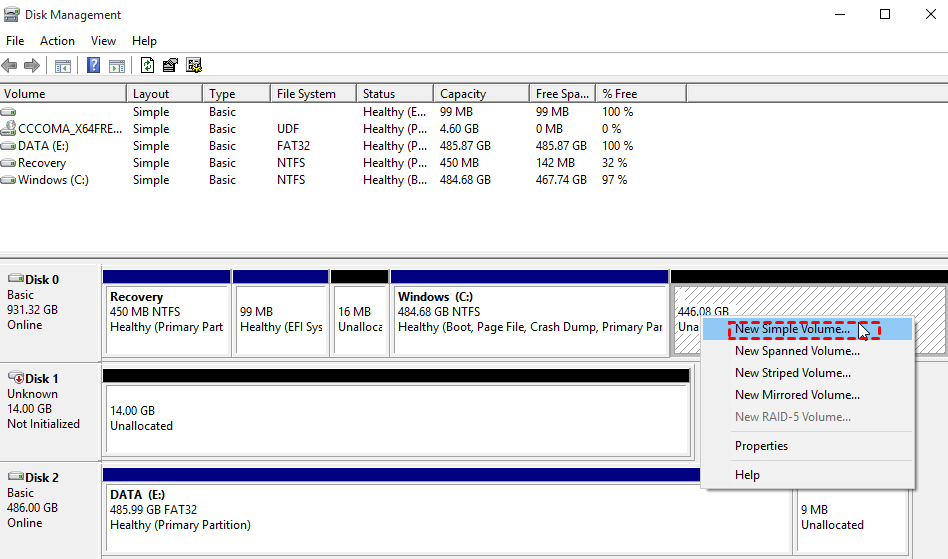
Once you have recovered all available data, you can create a new simple volume from hidden partition and make it usable again. This creates a new partition structure, so it should only be done after you no longer need to recover the original partition.
Step 1. Right click on the unallocated drive and choose "New Simple Volume".
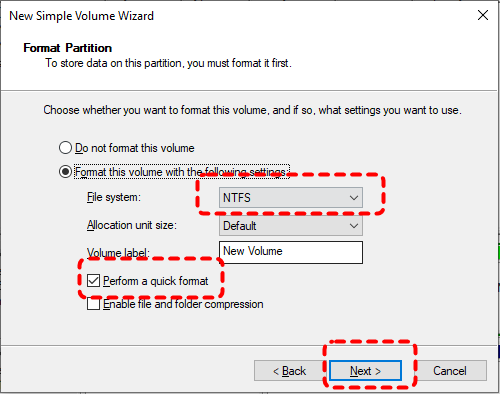
Step 2. Assign a drive letter for the drive and choose whether you want to format it now. If you need to format the drive, it is recommended that you first recover data from it using MyRecover.
Further Reading: How to Hide a Partition on Windows
After recovering or revealing a hidden partition, some users may prefer to hide specific partitions again, especially recovery partitions, EFI partitions, to prevent accidental deletion or modification or to keep sensitive data from being displayed in File Explorer. The following section explains a safe way to hide a partition on Windows without affecting stored data or system stability.
Step 1. Press "Win" + "X" and select Disk Management to open it.
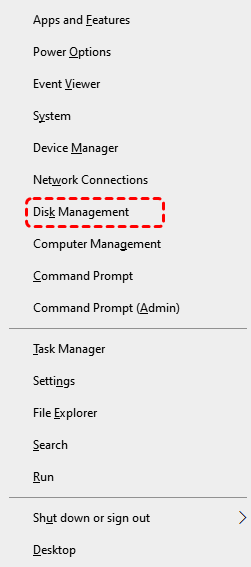
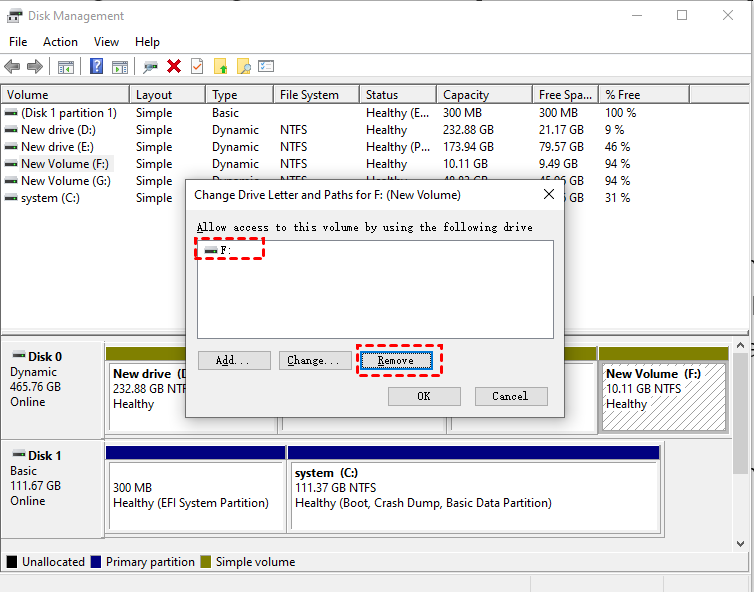
Step 2. Locate the partition you want to hide in the list. Right-click the partition and choose "Change Drive Letter and Paths".
Step 4. Select the assigned drive letter and click "Remove". Once the drive letter is removed, the partition will no longer appear in File Explorer, but the data remains fully intact.
Summary
Recovering hidden partitions on an HDD is often possible without replacing the drive, especially when the issue is caused by missing drive letter, formatting errors, or system-level hiding by Windows. As shown in this guide, you can restore access to lost or hidden storage space effortlessly.
Hidden partitions do not always mean lost data. However, if a partition gets deleted, MyRecover can usually recover your lost files and save you from unnecessary hardware replacement, making it an excellent choice for partition data recovery.
FAQs
Q1: Can raw drive be recovered?
Yes, a RAW drive can often be recovered using data recovery software like MyRecover. The RAW state usually means the file system is corrupted, not that data is gone. Avoid formatting the drive and run a deep scan using MyRecover to extract files before attempting repairs.
Q2: How do I recover photos from my SD card?
Remove the SD card immediately and avoid writing new data. Use a recovery tool like MyRecover to perform a deep scan and locate deleted or lost image files. Photos are often recoverable unless overwritten. Save recovered files to a different storage device to prevent further data loss.
Q3: How to recover a RAW drive without formatting?
Connect the drive and use data recovery software like MyRecover to scan it directly without formatting. Many tools can rebuild file structures or extract files from RAW partitions. Do not initialize or format the drive, as this reduces recovery chances by overwriting metadata needed for restoration.
Q4: Can you fix a corrupted SSD raw disk without losing data?
Yes, in many cases. First, avoid formatting. Use recovery software such as MyRecover to extract data. Once files are secured, you can rebuild or reformat the SSD. Direct repairs may work if corruption is logical rather than physical.
Q5: Why did my pictures disappear from my SD card?
Photos may disappear due to accidental deletion, file system corruption, virus infection, or improper ejection of the SD card. In some cases, they are hidden rather than deleted. Using recovery software like MyRecover or checking hidden folders can often restore missing images.
Q6: How to recover permanently deleted data from SD card?
Stop using the SD card immediately to avoid overwriting data. Use professional recovery software like MyRecover to perform a deep scan and recover deleted files. Even "permanently deleted" data often remains until overwritten, so quick action significantly increases recovery success rates.
Q7: How can I unhide a hidden partition in Windows 10?
If the partition still exists but is hidden, you can usually unhide it by assigning a drive letter in Disk Management or using DiskPart. If the partition is missing from Disk Management or appears as unallocated, it may be lost rather than simply hidden, so partition recovery tool like MyRecover may be required.
Q8: Why is my disk partition not showing?
A partition may not appear in File Explorer because it has no drive letter, has been hidden by Windows settings, or has become lost, deleted, or inaccessible. Check Disk Management first to determine whether the partition is still present. If it appears as unallocated or is missing entirely, avoid formatting or creating a new volume before attempting recovery.
Q9: Can I recover a deleted partition without losing data?
Yes, a deleted partition can often be recovered without losing its existing data if the original partition information and data have not been overwritten. Use a partition recovery tool like MyRecover to scan the disk and restore the original partition structure. Avoid formatting, creating a new volume, or saving new data to the affected disk before recovery.

Stay Updated With Our
Latest Tips
Add us as a preferred source on Google to never miss helpful guides.
 Add as preferred source >>