 MyRecover



Fixed: Installer Encountered an Error 0x800f0838 in Windows 11
Resolve the frustrating installer encountered an error 0x800f0838 windows 11 message for good. Our article details troubleshooting for Windows 11/10/7, advanced repair steps, and how to address specific updates causing the kb5062553 error 0x800f0838.

By Delores / Updated on February 2, 2026


Installer Encountered An Error 0x800f0838 in Windows 11
Error 0x800f0838 when trying to install the February Patch Tuesday using the .MSU file
As the title says, I've downloaded the February 11, 2025, Patch Tuesday update (KB5051987) from the Microsoft Update Catalog, and when I run it, it asks me if I want to install it. I click Yes, it says "copying files to cache" or something like that, and then it suddenly throws error 0x800f0838, period.
The file isn't corrupted, its digital signature is valid,
I've restarted the PC,
I've run sfc /scannow,
I've tried using DISM,
and nothing. Is anyone else having the same issue, or is it just me?
- Question from learn.microsoft.com
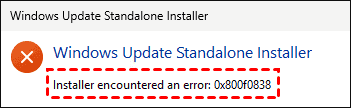
What happens if you encounter the error message: Installer encountered an error 0x800f0838 in Windows 11 computer. This error stops a critical security patch or a major feature update like Windows 11 24H2 dead in its tracks. So, it's an emergency to fix the error.
This guide will walk you through everything, from the reasons and solutions, turning that update failure into a success status.
Why Do You Get "Installer Encounter an Error 0x800f0838"?
In fact, the "installer encountered an error 0x800f0838" message in Windows 11 is Windows Update’s way of saying it hit a snag while trying to install or verify system files. The update process relies on a specific, orderly set of core files to proceed. When these required files are corrupted, improperly configured, or missing, the installer cannot continue and presents this error code.
The root cause is frequently tied to the Component Store—a protected, behind-the-scenes part of Windows that holds all the essential files for updates and repairs. If files in this store become damaged or missing, specific updates, such as the problematic KB5062553 error 0x800f0838, will fail. You might also encounter the Installer encountered an error 0x800f0838 on Windows 7.
Common Reasons for KB5062553 Error 0x800f0838
If you meet the Windows update error 0x800f0838, the following common factors should be responsible for that error:
⭕ A problematic or corrupted Windows Update component cache. This cache stores downloaded update files; if it becomes corrupted, the process cannot continue.
⭕ The third-party software. Conflicting third-party applications, particularly intrusive antivirus programs or outdated drivers, can disrupt the update process by blocking necessary files.
⭕ Disk errors. A bad sector on a hard drive or SSD containing system files can trigger the "installer encountered an error 0x800f0838" during a major upgrade, such as to Windows 11 24H2.
⭕Attempting to install a specific, problematic update—as seen with the error associated with KB5062553—can directly trigger this error when the update package has issues with certain system configurations.
How to Fix Windows Update Error 0x800f0838 in 6 Ways
Here we listed the proven solutions to fix it quickly. Check them one by one.
Way 1. Run the Windows Update Troubleshooter
The Windows Update Troubleshooter is a built-in tool, so try it first. It automatically scans for common issues like service hiccups, corrupted cache data, and incorrect settings.
To run it:
1. Go to Start > Settings > System > Troubleshoot > Other troubleshooters.
2. Find “Windows Update” and click “Run”.
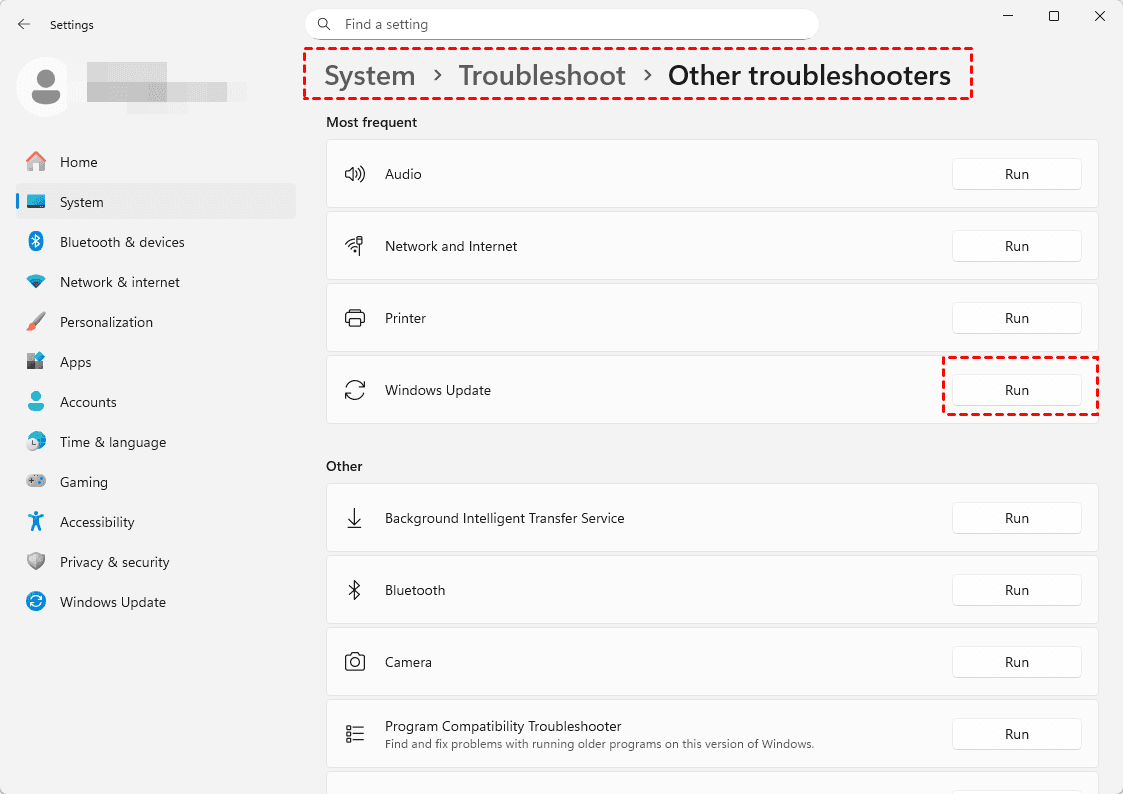
Let it do its thing—it will attempt to identify and automatically fix any glitches it finds. It’s a quick first attempt that resolves a surprising number of Windows update errors, like 0x800f0838.
Way 2. Try DISM and SFC Scan Commands
If the troubleshooter is not working, it’s time to repair the system files. You can run SFC and DISM commands; both of them are command-line tools; it's easy to operate by following the steps carefully.
1. Search for “cmd” in the Windows search box, right-click it, and select “Run as administrator”.
2. Type sfc /scannow and hit Enter. This tool scans all protected system files and replaces corrupted versions with a cached copy. If it finds and fixes issues, great! Reboot and try the update again.

If the "installer encountered an error 0x800f0838" error persists in Windows 11, the Deployment Image Servicing and Management (DISM) tool is your next tool. DISM fixes the source files SFC uses.
1. Run Command Prompt as administrator, type DISM.exe /Online /Cleanup-Image /RestoreHealth and press Enter.
- Tips:✎...
- This process fetches healthy files from Windows Update to repair the local component store.
- It takes a while and needs an internet connection, so be patient.
2. After it completes, run sfc /scannow again, then restart.

Way 3. Manually Install The Windows Update Package
There is a proven solution you can try: manually install the Windows update. Here is how:
1. Download the update package mentioned in the KB (likeJuly 8, 2025—KB5062553) and the update you want to install.
2. Place only these two updates in the same folder.
3. Open a command prompt or PowerShell session as Administrator.
4. Run the following command to install the update:
Add-WindowsPackage -Online -PackagePath "C:\Packages\windows11.0-kb5050009-x64_97aac2ab4f607b11d50ad2fd88a5841ee0b18dd5.msu"
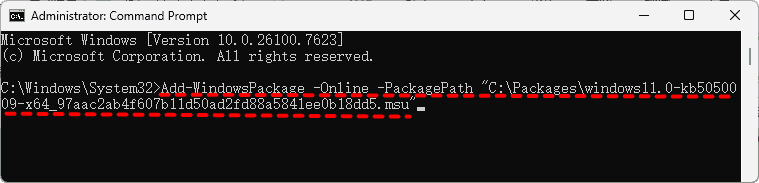
Way 4. Reset the Windows Update Components Manually
If the problem persists, the Windows Update components themselves might need a hard reset. This involves stopping services, clearing out cached files, and restarting everything fresh. It’s highly effective.
Here are the steps:
1. Open Admin Command Prompt again.
2. Stop the update and related services by pasting these commands one by one:
net stop wuauserv
net stop cryptSvc
net stop bits
net stop msiserver
3. Rename the SoftwareDistribution and Catroot2 folders, which hold the update cache, with the following commands:
ren C:\Windows\SoftwareDistribution SoftwareDistribution.old
ren C:\Windows\System32\catroot2 Catroot2.old
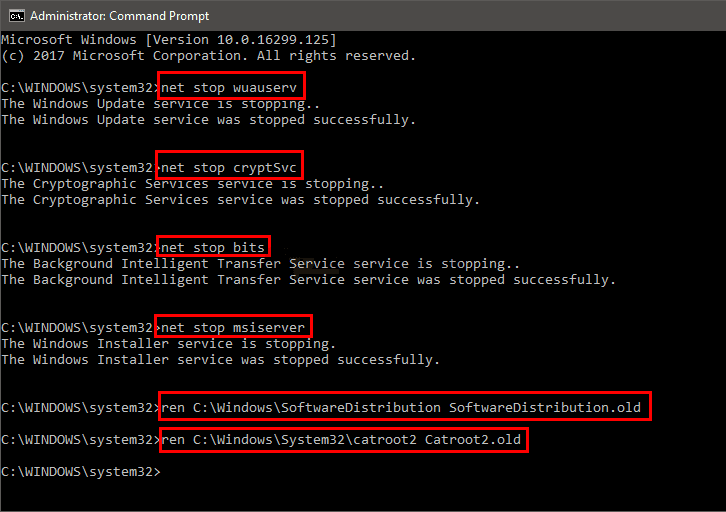
4. Restart the services you stopped:
net start wuauserv
net start cryptSvc
net start bits
net start msiserver
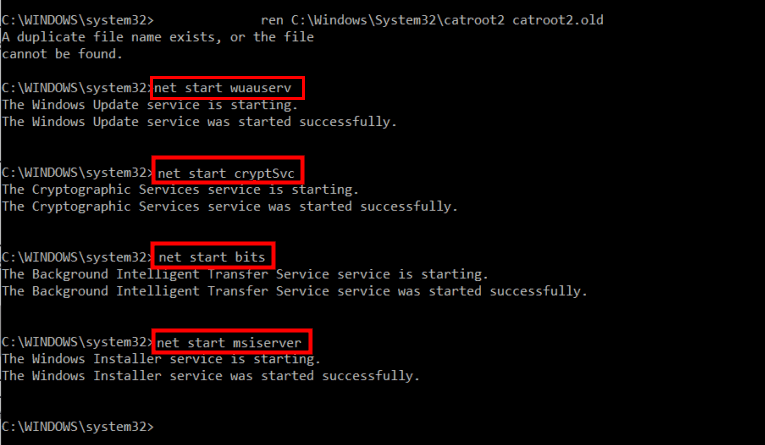
5. Close the prompt and reboot. Try Windows Update again.
Way 5. Update Critical Drivers
Sometimes, the issue is due to compatibility. Before the Windows 11 update, please ensure you have enough free disk space (over 64GB is recommended) and that all critical drivers, especially for your storage and chipset, are updated directly from your manufacturer’s website.
Check Windows Update for any messages or use the PC Health Check app to see if your hardware or software is known to block the 24H2 upgrade.
Way 6. Perform a Clean Boot
This is a brilliant way to check out third-party software conflicts. A clean boot starts Windows with a minimal set of drivers and startup programs. If the update installs successfully in a clean boot environment, you know a background program is the culprit. You can then systematically re-enable services and startup items to find the problem.
To do this:
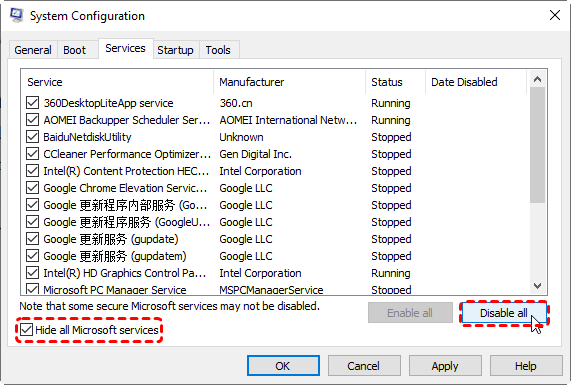
1. Press Win + R to open Run, then type msconfig and hit Enter.
2. Go to the Services tab, check “Hide all Microsoft services”, then click “Disable all”.
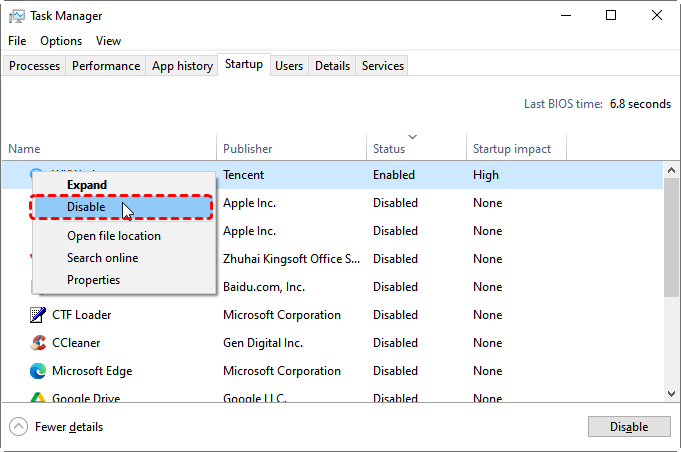
3. Next, go to the Startup tab and open Task Manager to disable all startup items.
4. Reboot, and try the update. It’s a process of elimination that delivers answers.
FAQ About Windows Update Error 0x800f0838
What does error code 0x800f0838 mean in Windows Update?
This error indicates a failure in Windows' core update system. It means the installer found corrupted or inconsistent system files and could not proceed. It is a system health issue, not a network or download problem.
Can I ignore the Windows Update error 0x800f0838?
No. This error blocks critical security and feature updates, leaving your system vulnerable. Over time, this can cause software incompatibility and complicate future upgrades. The error will not resolve itself.
How do I run DISM and SFC to fix this error?
Run these commands in an Administrator Command Prompt:
- DISM /Online /Cleanup-Image /RestoreHealth
- sfc /scannow
Restart your computer afterward, then try the update again. Run DISM first, as it repairs the source files that SFC uses.
Does error 0x800f0838 mean I have a virus?
Not usually. While malware can cause it, this error is more often due to incomplete updates, power loss, disk errors, or software conflicts. Run a virus scan as a precaution, but focus on the DISM and SFC repair steps.
Why does KB5062553 keep failing with error 0x800f0838?
A failing specific update (e.g., KB5062553) signals pre-existing corruption that blocks that update. Do not retry it. Instead, repair the underlying system using the DISM tool. Once fixed, you can often install the update successfully from the Microsoft Update Catalog.
Recover Deleted Files After A Windows Update
Sometimes, Windows updates delete your files by accident. If your files get deleted and you can’t find a backup. It’s time to recover your deleted files now! Fortunately, here comes the powerful Windows data recovery software, MyRecover. You can benefit from MyRecover:
- User-Friendly Interface: Its clean, intuitive design makes the complex process of data recovery straightforward for non-technical users.
- Broad File Format & Scenario Support: It can recover a vast array of file types (1,000+) lost due to updates, accidental deletion, formatting, or system crashes. And it supports 500+ devices, including HDD, SSD, SD card, USB flash drive, camera devices, PS4/5, etc.
- Efficient Filtering & Search: Powerful filters for file type, name, date, size, path, and a keyword search function make it easy to locate the specific files you need.
- Free Preview Before Recovery: The ability to preview files ensures you only recover what you need and verifies the file is not corrupted.
Here is how to recover deleted files after a Windows update with MyRecover:
1. Download MyRecover and install it on a drive different from the one where you lost files (to prevent overwriting).
 100% Secure
2. Launch MyRecover, tap Deleted Files Recovery, choose the drive where your files were located before the Windows update, and hit Scan. MyRecover will automatically run a Quick Scan, wait for it to complete, and hit OK.

3. Click Preview or double-click the file you need to check its integrity. Select all the files you need, and hit Recover.

4. Select a safe location and hit Select Folder to keep them.


- Tips:✎...
- Once scanned, you can use the filter and search functions (by filename, type, or path) to locate specific documents, photos, or folders.
- By default, MyRecover sorts these found files by file type, which helps you to find the files quickly.
- You can also upgrade to MyRecover Technician to recover files from unlimited computers, etc.

 MyRecover
- Recover Deleted Files Easily with Simple Clicks
- 1000+ File Formats Supported
- Support HDD, SSD, External Hard Drive, USB Drive, SD Card, etc.
- Quickly Find Files Using File Types, Name, Size, etc.
- Preview Files Before Recovering
- Recover Unlimited Data
 100% Secure

Stay Updated With Our
Latest Tips
Add us as a preferred source on Google to never miss helpful guides.
 Add as preferred source >>