 MyRecover



Nintendo Switch SD Card Error: Causes, Fixes, and Prevention
Struggling with your Nintendo console? This guide shows how to fix Nintendo Switch SD card error with clear, step-by-step instructions, tips for preventing future issues, and ways to recover lost data safely. Keep your games running smoothly without hassle.

By Vera / Updated on December 29, 2025


What is an SD Card Error on Nintendo Switch?
An SD card error occurs when your Nintendo Switch cannot properly read or access the microSD card inserted in it. This can interrupt gameplay, prevent downloads, or even lead to lost data. Essentially, your Switch is trying to access information, but the card isn’t cooperating.
Common Symptoms of SD Card Errors

You might notice SD card errors showing up as:
- ”Unable to access microSD card” messages
- Game freezing during load
- Downloaded games disappearing
- Save files not loading
Notice any of these? That’s a red flag that your SD card may be having issues.
Why SD Cards Fail on Nintendo Switch
SD cards aren’t invincible. They can fail due to physical wear, corruption, or incompatibility. Even a tiny glitch in data can cause your Switch to throw an error. Think of it like a library where some books are torn or misplaced—the librarian (your Switch) can’t find them.
Common Causes of Nintendo Switch SD Card Errors
Errors usually stem from simple but critical issues. Here’s what most commonly causes them:
Faulty or Incompatible SD Cards
Not all SD cards are Switch-friendly. Some cheap or low-speed cards may fail to read properly. Nintendo recommends microSD cards up to UHS-I standard from trusted brands.
Improper Insertion or Removal
Pulling the SD card out while the Switch is on or not inserting it fully can lead to read errors. Always ensure it clicks into place and avoid removing it mid-game.
Corrupted Data or File System Issues
Just like your computer, your SD card can get corrupted. This may happen if power is lost while writing data, or if you improperly eject the card. Corruption can prevent the Switch from reading your files correctly.
Physical Damage or Wear and Tear
SD cards are small and delicate. Bending, scratching, or even long-term wear can cause them to fail. Always handle your cards carefully and store them safely.
How to Fix Nintendo Switch SD Card Errors
Most SD card issues are fixable. Here are some detailed methods:
1. Restart Your Nintendo Switch
Sometimes, a simple reboot can fix minor glitches.
Step-by-step:
1. Hold down the power button for at least 3 seconds.
2. Select Power Options → Turn Off.

3. Wait 30 seconds to a minute.
4. Turn your console back on and check if the SD card works.
This method is simple, but surprisingly effective, as it allows the system to refresh its connection to the SD card.
2. Reinsert the SD Card Properly
Sometimes the card isn’t seated correctly.
Step-by-step:
1. Power off your Switch completely.
2. Remove the SD card carefully.
3. Inspect the card for dust or damage.
4. Reinsert it fully until it clicks.
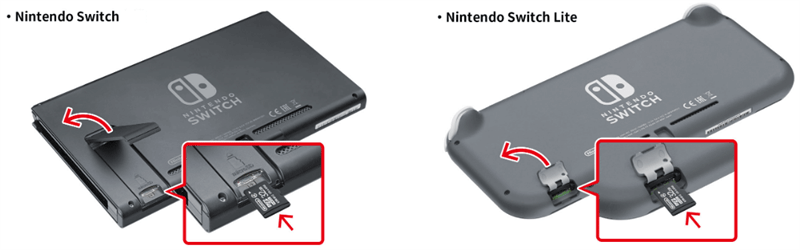
5. Turn on the Switch and check if the error persists.
You can also lightly blow air into the slot to remove dust—just don’t use liquids.
3. Format the SD Card (Backup First!)
If corruption is the problem, formatting can fix it—but it erases all data.
Step-by-step:
1. Backup your saved games using Nintendo cloud saves or a PC.
2. Insert the SD card into your PC.
3. Right-click → Format.
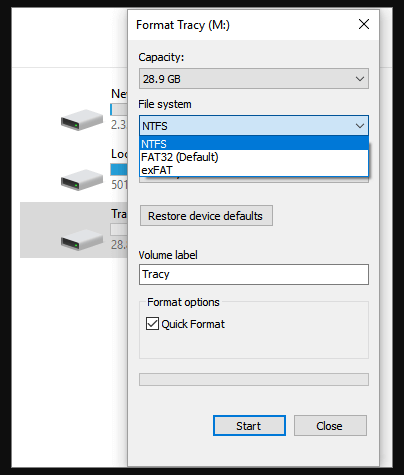
4. Choose FAT32 (for <32GB) or exFAT (for >32GB).
5. Click Start and wait for the process to finish.
6. Reinsert into your Switch and check if it’s recognized.
Formatting is a powerful fix, but backup is essential.
4. Use a Different SD Card
If the above steps fail, your SD card might be faulty.
Step-by-step:
1. Borrow or purchase a high-quality SD card.
2. Insert it into your Switch.
3. Download a small game or test file.
4. If it works, your old SD card likely needs replacement.
This is a quick way to isolate whether the card itself is the problem.
5. Update Your Nintendo Switch Firmware
Sometimes, the console itself needs a firmware update to handle SD cards correctly.
Step-by-step:
1. Go to System Settings → System → System Update.
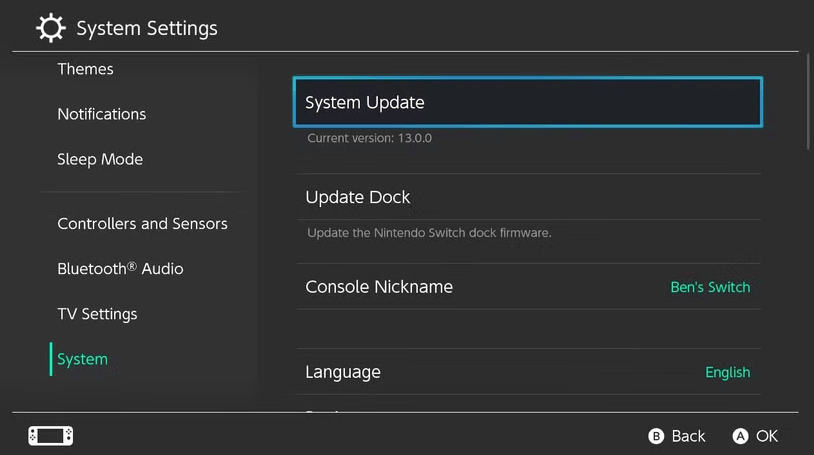
2. If an update is available, download and install it.
3. Restart your Switch.
4. Test the SD card again.
Firmware updates often fix compatibility issues and improve card recognition.
6. Clean the SD Card Slot Carefully
Dust and debris can block connections.
Step-by-step:
1. Power off the console.
2. Use a soft brush or compressed air to gently clean the slot.
3. Avoid liquids.
4. Reinsert the SD card and test.
A tiny speck of dust can prevent proper contact, so cleaning can solve errors without replacing anything.
Advanced Fixes for Persistent SD Card Issues
For stubborn SD card errors, try these advanced solutions:
1. Use SD Card Recovery Software
If data is corrupted, software like MyRecover can help.
Step-by-step:
1. Insert the SD card into a PC using a reader.
2. Open the recovery software and scan the SD card.

3. Preview and recover files to a safe location.

4. Format the SD card and reinsert into Switch.
This method often recovers lost game saves or personal files before repairing the card.
2. Repair Corrupted Files on PC
Windows has built-in tools like CHKDSK that can repair file system errors.
Step-by-step:
1. Insert the SD card into a PC.
2. Open Command Prompt as administrator.
3. Type chkdsk [drive letter]: /f /r and press Enter.

4. Wait for the scan and repair process to finish.
5. Reinsert into your Switch and check functionality.
This can restore readability without losing files, depending on the level of corruption.
3. Contact Nintendo Support
When all else fails, Nintendo Support can provide professional help.
- They can diagnose the console for hardware issues.
- Sometimes, replacement of the SD card slot or firmware fixes are needed.
- Contact them via official Nintendo website or hotline.
Professional support is your last safety net if nothing else works.
Preventing SD Card Errors in the Future
Prevention is better than cure. These habits reduce your risk of future headaches:
Choose High-Quality SD Cards
Always stick to Nintendo-recommended brands with UHS-I speed ratings. Cheap cards may save money, but they often lead to errors and slow game performance
Avoid Removing SD Card While the Switch is On
Never pull out the SD card mid-game. Always power down first or close the system properly to prevent corruption.
Regular Backups of Game Data
Use cloud saves via Nintendo Switch Online or backup manually to a PC. This ensures your progress is safe even if the card fails.
Keep Your Console and SD Card Clean
Dust, moisture, and dirt can damage both the Switch and SD card. Store your console in a clean, dry environment and use protective cases for cards.
Conclusion
SD card errors on Nintendo Switch are common, but most are fixable. By understanding the causes, following proper handling practices, and backing up data regularly, you can keep your gaming smooth and worry-free. Don’t let a tiny card ruin your big adventures! With these detailed fixes, you’ll be back to gaming in no time.

Stay Updated With Our
Latest Tips
Add us as a preferred source on Google to never miss helpful guides.
 Add as preferred source >>