 MyRecover



A Guide to Recover Dropbox Files After 30 Days Successfully
This article explores whether you can recover Dropbox files after 30 days when they exceed the standard retention period. We cover official methods like extended version history for teams, contacting support, and checking backups, providing a clear path to potentially restore your permanently deleted data.

By Delores / Updated on February 28, 2026


Can You Recover Deleted Dropbox Files After 30 Days?
We've all been there. You're cleaning your files on your computer, or maybe you're just trying to free up some space, and you accidentally delete a folder in Dropbox that you actually needed. When you realize the files have been deleted, it's over 30 days. You go to the Dropbox "Deleted Files" folder, only to find it empty.
While Dropbox's standard 30-day retention policy is a well-known safety net, figuring out how to recover Dropbox files after 30 days presents unique challenges, you can also recover the deleted Dropbox files after 30 days with the right approach.
The process requires more expertise, genuine persistence, and precise knowledge of where to search. We'll explore the official channels, the effective workarounds, and finally, the specialized tools designed to retrieve your data from permanent storage. So, let's get to work to recover Dropbox files easily.
About the Dropbox Deletion Period
Dropbox provides a 30-day mark to balance storage efficiency with user recoverability. For the vast majority of users on Basic, Plus, and Family plans, it is 30 days. This means that from the moment you delete a file, a 30-day countdown begins. During this period, that file is resting comfortably in your "Deleted Files" folder, ready to be restored. After those 30 days are up, Dropbox's system flags the file for permanent deletion from its servers. You can't find the deleted file in the "Deleted Files" view.
For users on Professional or Business plans, this grace period is significantly longer—typically 180 days—or can be extended even further with add-ons.
Step-by-Step Guide to Recover Dropbox Files After 30 Days
So, how do we actually recover Dropbox files after 30 days? The process requires a systematic approach, starting with official channels and progressing toward more comprehensive solutions. You must examine every possible avenue thoroughly.
Way 1. Recover from the Deleted Files Folder
Before you do anything else, log into your Dropbox account and verify your plan details. You might discover you have a Professional account through work or an old promotion they had forgotten about. If you possess a Professional or Business account, you might have up to 180 days available, meaning those deleted files could still be recoverable through the standard interface. Here is how:
1. Log in to your Dropbox folder on the website.
2. Click the "Deleted Files" folder on the left sidebar.
3. If you find your deleted files, tick them and tap Restore from the top menu.
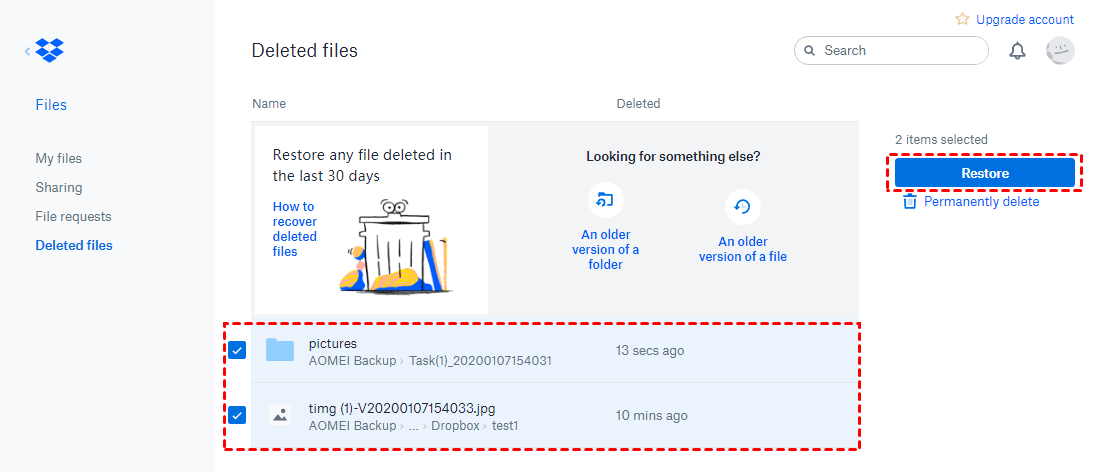
4. Wait for it to complete and check the files.
Way 2. Search Local Backups
If you have any kind of backup routine—a weekly backup to an external hard drive, a Time Machine backup on Mac, or even an old USB stick you used to transfer the file—this is your golden ticket. Restore your computer's files from a date before the deletion occurred, and you might just find your missing data waiting for you in the local Dropbox folder of that restored snapshot.
Way 3. Check in Synced Devices
When you delete a file in the cloud, your Dropbox desktop app, if it's running, dutifully deletes the local copy, too. However, there might be a lingering copy on a device you forgot about if you haven't opened it in a while.
- Check Other Computers: An old laptop or a work computer that you used to sync with this Dropbox account but haven't opened in a while? Fire it up, but immediately disconnect it from the internet (turn off Wi-Fi). Open the local Dropbox folder and check that the old files are still sitting.
- Mobilize Your Mobile: If you had the file saved for offline access on the Dropbox mobile app on your phone or tablet, a copy might still reside in the app's local storage, even if it's gone from the cloud. You can often share or export the file from there.
Way 4. Contact the Dropbox Support
First of all, you can use the Events page to find the deleted date and time, filename, and file location for the deleted files. Then contact Dropbox support and provide the details to recover your deleted Dropbox files after 30 days.
You can examine the "Events" page:
1. You can right-click the folder and tap the three-dot icon.
2. Choose More > Folder activities.
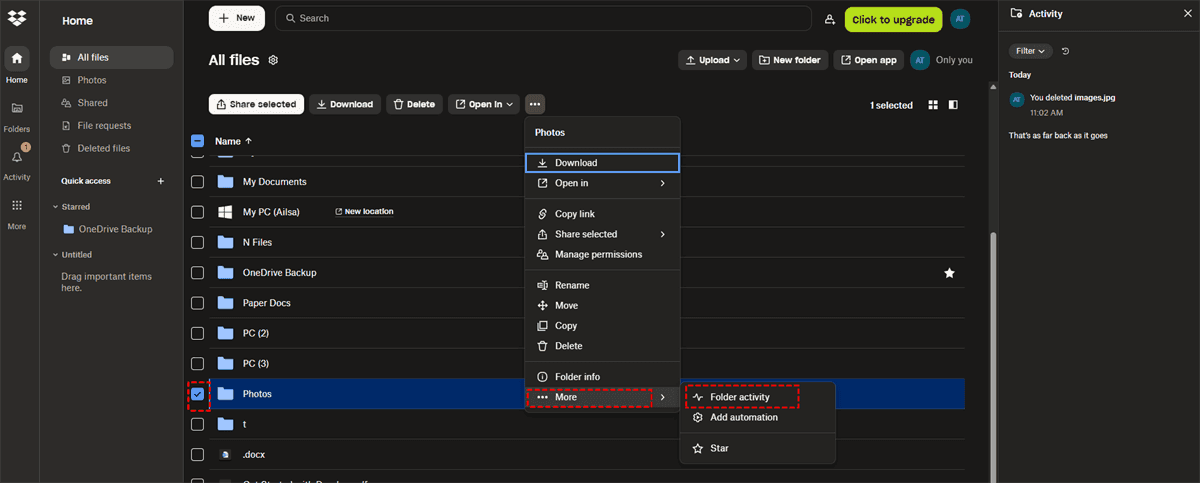
3. It shows the activity log, maintaining a detailed record of every action taken within your account, including deletions.
4. From there, you can scroll through your history to identify the date and time when the file was deleted. For team plan users, the administrator might possess access to an extended log.
Then, submit a ticket to Dropbox customer service with the deleted file name, date, time, and the location. Dropbox support occasionally possesses the capability to restore data from their backend backups, even when the files exceed your personal retention window. This outcome is never guaranteed, and representatives typically emphasize policy limitations first, but attempting contact remains worthwhile.
How to Restore Dropbox Folder to Previous Version (For Eligible Accounts)
What if you didn't delete the file, but it was overwritten or corrupted, and you need to restore the Dropbox folder to the previous version? The previous version feature is designed to roll back unwanted changes.
If your file was overwritten more than 30 days ago (or 180, depending on your plan), the standard version history might have purged the older copy. However, if you're within that window, here’s how to do it:
1. Go to the Dropbox website and find the specific files you need.
2. Click on the "..." (three dots) from the top menu. In the dropdown menu, hover over "More" and then select "Version history".
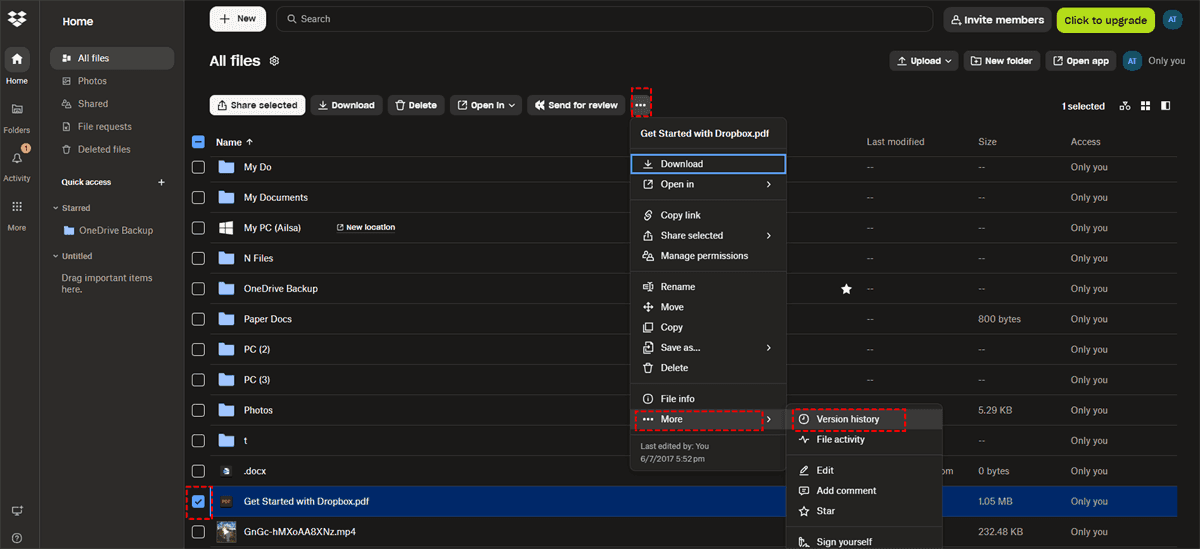
3. You'll be presented with a timeline of changes to that folder. Find the date from before the disaster struck. You can then choose to restore that specific version of the folder.
Recover Permanently Deleted Dropbox Files with MyRecover
If you've exhausted all other options above, there's still a chance to recover your deleted Dropbox files. The powerful Windows data recovery software - MyRecover offers several significant advantages for recovering deleted Dropbox files after 30 days, primarily by working directly with your computer's hard drive, where synced files once resided.
- High Recovery Success Rate (99%): MyRecover employs an advanced scanning algorithm that combines "quick scan and deep scan" modes to efficiently locate recently deleted files and thoroughly search for data that has been lost for a longer period, leading to a high recovery rate.
- User-Friendly Interface: The software is designed for users of all skill levels, offering a simple, intuitive interface that makes the recovery process straightforward.
- Powerful Filter and Preview Functions: Before committing to recovery, MyRecover allows you to preview files to verify their integrity and ensure they are the correct versions. You can narrow down results by file type, modification date (e.g., "Last 30 days"), or size, and use a search box to quickly find specific files.
- Extensive File Type and Device Support: MyRecover supports over 1,000 file types and a wide variety of storage devices (500+), such as internal and external hard drives, SSDs, USB drives, and SD cards.
- Handles Various Data Loss Scenarios: Beyond simple accidental deletion, MyRecover is equipped to handle data loss from formatted disks, lost partitions, system crashes, and virus attacks. If your computer won't boot, it can even create bootable media (like a USB drive) to help you recover data from the crashed system.
Here is a step-by-step guide to using MyRecover to rescue your Dropbox files after 30 days:
1. Download and install MyRecover on your computer instead of the drive where your lost files were located. Once installed, launch the program.
 100% Secure
2. Tap Deleted Files Recovery, choose the drive where your Dropbox files were located, and hit Scan. Wait for it to complete.

3. Choose the Dropbox files you need, and hit Recover. You can preview them first to ensure their integrity.

4. Opt for a location to keep them safe.


- Tips:✎...
- By default, MyRecover lists the files by file type (images, documents, videos, audios, etc), you can find them by the original path. Besides, you can search the deleted Dropbox files by name, size, modified date, etc.
- To recover files from unlimited computers, upgrading to MyRecover Technicianis another way to go.

 MyRecover
- Recover Deleted Files Easily with Simple Clicks
- 1000+ File Formats Supported
- Support HDD, SSD, External Hard Drive, USB Drive, SD Card, etc.
- Quickly Find Files Using File Types, Name, Size, etc.
- Preview Files Before Recovering
- Recover Unlimited Data
 100% Secure
By using MyRecover, you're effectively ignoring the 30-day cloud limit and reaching directly into your computer's physical storage to retrieve what is rightfully yours. It's a powerful, final line of defense against permanent data loss.
FAQs About Deleted Dropbox Files Recovery
Can I recover permanently deleted files from Dropbox?
A: It depends on your definition. Files deleted within 30 days (or your plan's retention period) can be restored from the "Deleted files" page. Beyond that timeframe, files are gone from Dropbox's servers. However, you may still recover deleted Dropbox files after 30 days by contacting support or using data recovery software like MyRecover to scan your local drive for remnants.
How long does Dropbox keep deleted files?
A: Retention varies by plan. Basic, Plus, and Family users have 30 days to restore deleted files and previous versions. Professional and Business users get 180 days. Team admins can adjust settings or purchase extended version history add-ons.
Does Dropbox keep versions of files after 30 days?
A: For Basic, Plus, and Family plans, no. Version history matches the 30-day deletion policy. After 30 days, older versions are permanently removed. Professional and Business users maintain version history for 180 days.
Can I recover a file replaced in Dropbox?
A: Yes. Use the "Version history" feature. Find the file on dropbox.com, click the "..." next to its name, and select "Version history" to view and restore previous versions. This follows the same time limits as deleted file recovery (30 or 180 days).
How do I recover deleted files from Dropbox after 30 days for free?
A: Check your "Deleted files" folder, review the "Events" page, and contact Dropbox support. Then examine your devices and backups—old computers, mobile offline files, external drives, and backup services. These methods cost only your time.
What is the Dropbox Rewind feature?
A: Dropbox Rewind, available on Professional and Business plans, lets you roll back your entire account or a specific folder to a previous state. It's useful for recovering from ransomware attacks, mass deletions, or widespread unwanted changes.
If I delete a file from my computer, is it deleted from Dropbox?
A: Yes, when using the Dropbox desktop app with synced folders. Deletion from your computer signals the cloud to delete the file there, too. This synchronization happens instantly across all devices.

Stay Updated With Our
Latest Tips
Add us as a preferred source on Google to never miss helpful guides.
 Add as preferred source >>