 MyRecover



How to Recover Files Deleted by McAfee: A Complete Guide to Data Restoration
If you're searching how to recover files deleted by McAfee, this guide walks you through effective recovery methods. Learn how to restore quarantined items, check antivirus logs, and use professional recovery tools to retrieve lost files quickly and safely.

By Vera / Updated on May 7, 2026


Introduce
I downloaded a McAfee to do space and it deleted stuff I wanted to keep
Is there a way to recover them? I tried to recover with free software, but I didn't succeed, plus its been a long time now, maybe it's too late.
- Question from Reddit
Losing important documents, project files, or personal photos to an overzealous antivirus can be incredibly frustrating. One moment you’re organizing your system, and the next, your antivirus has "cleaned" files you actually needed. If you’ve discovered that McAfee removed a file it mistakenly flagged as a threat, you are not alone.
The good news is that "deleted" rarely means "gone forever." Whether the file was moved to a hidden quarantine folder or purged from your hard drive, there are specific protocols to get it back. In this guide, we will explore why McAfee targets certain files and provide a step-by-step roadmap on how to restore quarantined files in McAfee and how to get your data back even if it was permanently removed.
Why Does McAfee Delete My Files? (The Logic Behind the Action)
Before jumping into recovery, it is vital to understand why this happens. Antivirus software like McAfee uses Heuristic Analysis. This means it doesn't just look for known viruses; it looks for behavior that "looks like" a virus.
⭕False Positives in Antivirus Detection: A false positive occurs when antivirus software incorrectly identifies a legitimate file as malicious. This can happen for several reasons:
- The file uses code patterns similar to malware.
- The program is newly developed and not yet recognized by security databases.
- The file performs system-level operations that appear suspicious.
In these situations, McAfee may remove or isolate the file to protect your system.
⭕Automatic Threat Removal: Depending on your security settings, McAfee may automatically remove detected threats without asking for confirmation. When this happens, files may be:
- Moved to quarantine
- Blocked from running
- Permanently deleted
⭕System Cleanup Scans: If you use McAfee’s optimization tools (like QuickClean), it may delete "temp" files or "large files" to save space, sometimes including items in your Downloads or Temp folders that you intended to keep.
Where Do Files Deleted by McAfee Go?
When McAfee detects a suspicious file, it typically does not delete it immediately. Instead, the software places it in a secure location known as quarantine.
McAfee Quarantine
The quarantine feature isolates potentially harmful files from the rest of your system. Files stored here cannot run or interact with other system components, but they remain accessible for review and recovery. This means that many files removed during antivirus scans can still be restored.
Security Logs and Detection History
McAfee maintains detailed logs of security actions. These records show:
- The name of the detected file
- The location where it was found
- The action taken by the antivirus
Checking these logs helps confirm whether your file was quarantined or permanently removed.
How to Recover Files Deleted by McAfee
If your files disappeared after a McAfee scan, several recovery methods may help restore them. The appropriate method depends on whether the file was quarantined or permanently deleted.
Method 1: How to Restore Quarantined Files in McAfee
This is the most effective first step. When McAfee identifies a threat, it doesn't usually destroy the file immediately; it "Quarantines" it. Think of this as a digital jail where the file is encrypted and moved to a hidden folder so it cannot execute.
By using the built-in "Restore" function, you are telling McAfee that you trust this specific file. The software will then decrypt the file and move it back to its original directory.
1. Open the McAfee antivirus application.
2. Navigate to the My Protection(Windows) orMac Security(Mac) section.
3. Click Quarantined Items.
4. Select the files or apps you want to restore.
5. Click Restore to return them to their original location.
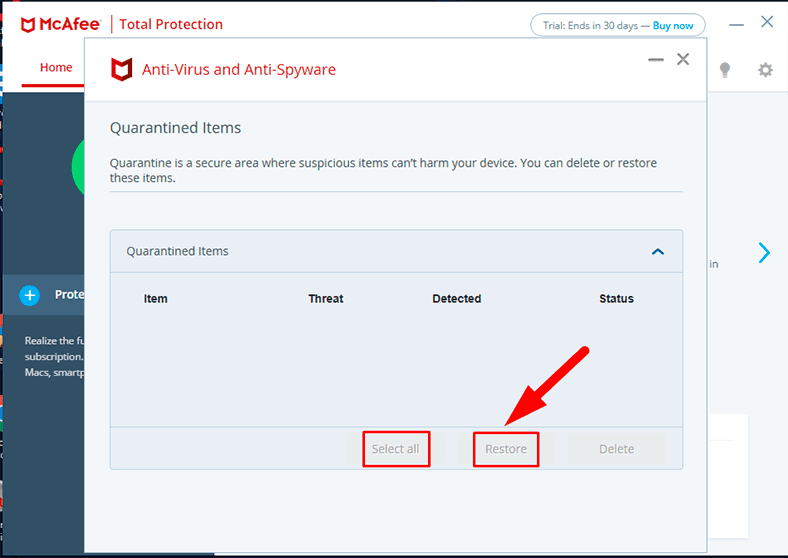
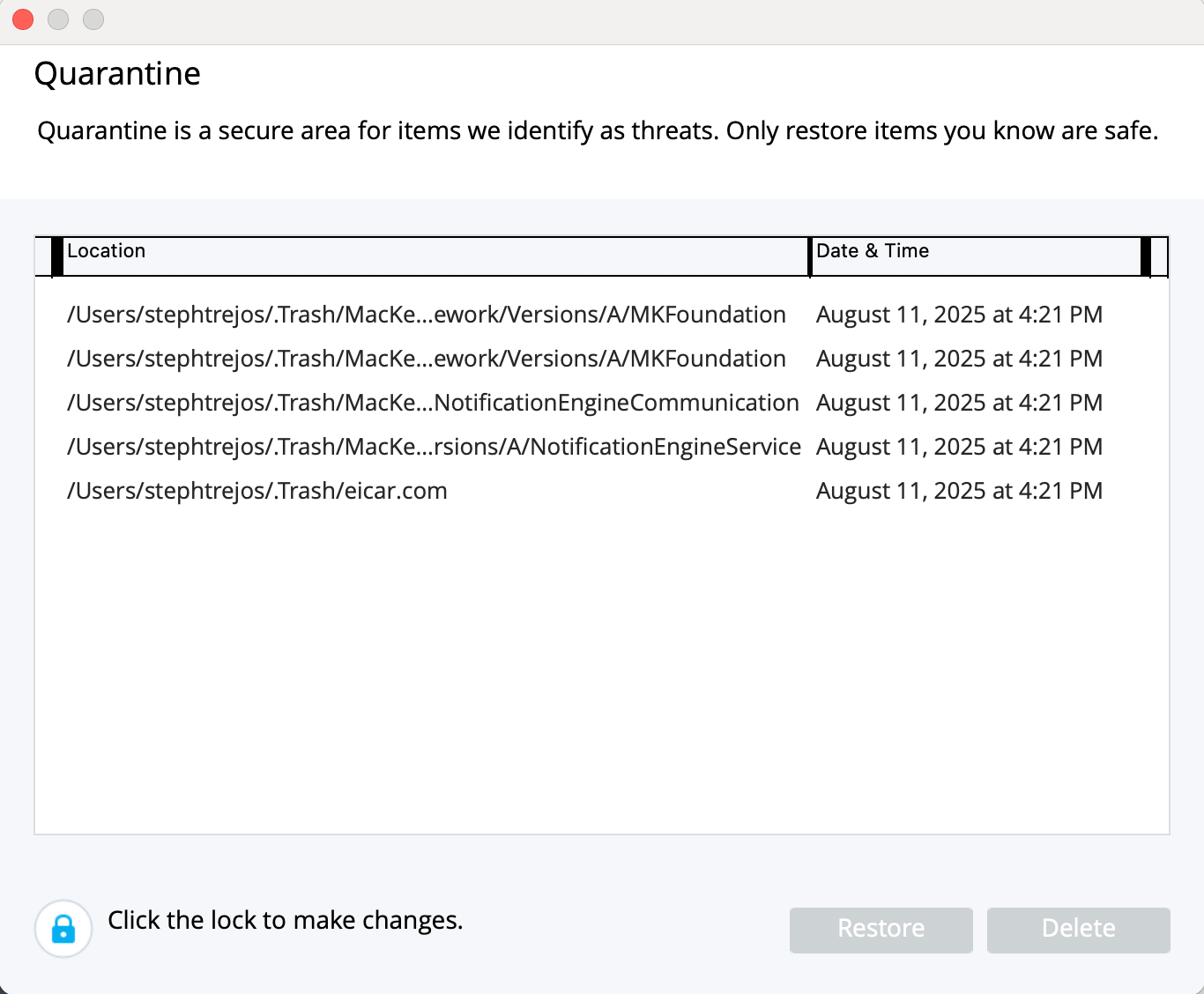
Once restored, the file will return to its original location on your system.
Method 2: Checking the Windows Recycle Bin (For "Cleaned" Files)
If you searched the quarantine and found nothing, it’s possible McAfee treated the file as "junk" rather than a "threat." This often happens during system optimization scans.
1. Double-click the Recycle Bin icon on your desktop.
2. Use the search bar in the top right to type the name of your missing file.
3. Right-click the file and select Restore. This will put the file back in its original folder automatically.
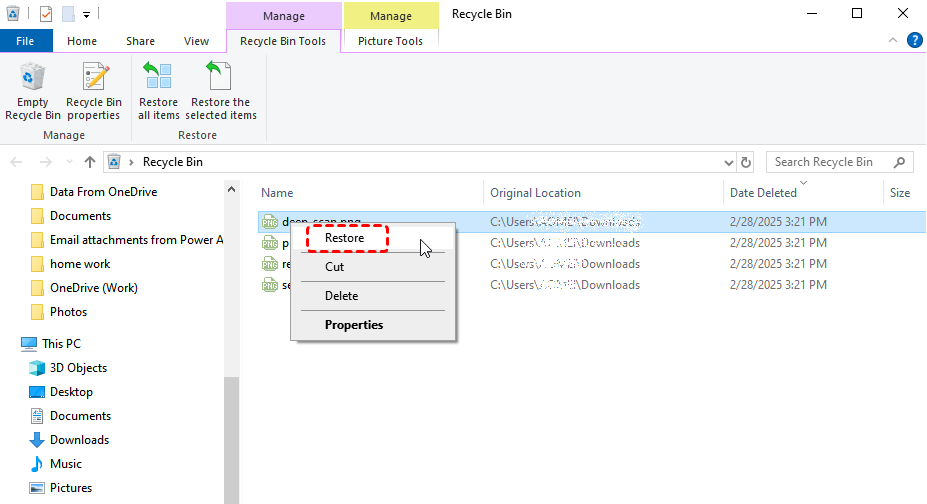
The system will return the file to its original directory. Although this method does not always work for antivirus deletions, it is quick and worth checking.
Method 3: Utilizing Windows "Previous Versions" (Shadow Copies)
When the file is neither in quarantine nor the bin, it suggests the file has been purged from the active file system. However, Windows may have a hidden "snapshot" of that file saved from an earlier time.
Windows File History and System Protection create "Shadow Copies" of your folders. This allows you to revert a folder to a state before the McAfee scan occurred.
1. Navigate to the folder that used to contain the deleted file.
2. Right-click the folder and select Properties.
3. Click the Previous Versions tab.
4. Choose a version dated before the McAfee scan occurred.
5. Click Restore (or click the arrow next to Open to view the contents first and drag only the specific file you need).

Method 4: Recovering Permanently Deleted Files with MyRecover
If the methods above fail, it means the file record has been deleted from the file system. In these cases, you need a specialized tool to learn how to restore files deleted by antivirus software by scanning the raw sectors of your hard drive.
When an antivirus deletes a file, it often bypasses the Recycle Bin entirely. MyRecover is designed to handle these specific scenarios. While other tools might find the data but lose the file name or folder structure, MyRecover is optimized to reconstruct the original paths, ensuring you can restore files deleted by antivirus software without searching through thousands of randomly named folders.

 MyRecover
- 🍀Deep Scan Technology: Finds fragments of files that McAfee has "purged."
- 🍀Path Preservation: It maintains the original file names and directory structures.
- 🍀Format Support: Recovers 1000+ file types, including the .exe or .dll files McAfee frequently targets.
 100% Secure
The sooner the recovery scan is performed, the higher the chances of success.
Recover Files Deleted by McAfee Using MyRecover
1. Install and launch MyRecover on your computer.
2. Select the drive where the deleted file was originally stored.
3. Initiate a quick scan of the selected storage location.

4. Wait for the scan to complete while the program searches for deleted files.
5. Preview the recoverable items detected by the scan.
6. Select the files you wish to restore. Choose a secure location to save the recovered files. Confirm the recovery operation.

This process can often retrieve files that were permanently removed by antivirus software.
How to Prevent McAfee from Deleting Important Files
While recovering files is possible, preventing accidental deletions is always the better strategy.
1. Add Files to the McAfee Exclusion List
The exclusion list allows you to tell McAfee which files or programs should not be scanned or removed.
1. Open the McAfee security console.
2. Navigate to Real-Time Scanning Settings.
3. Locate the Excluded Files option.
4. Select Add File. Choose the file you want McAfee to ignore.
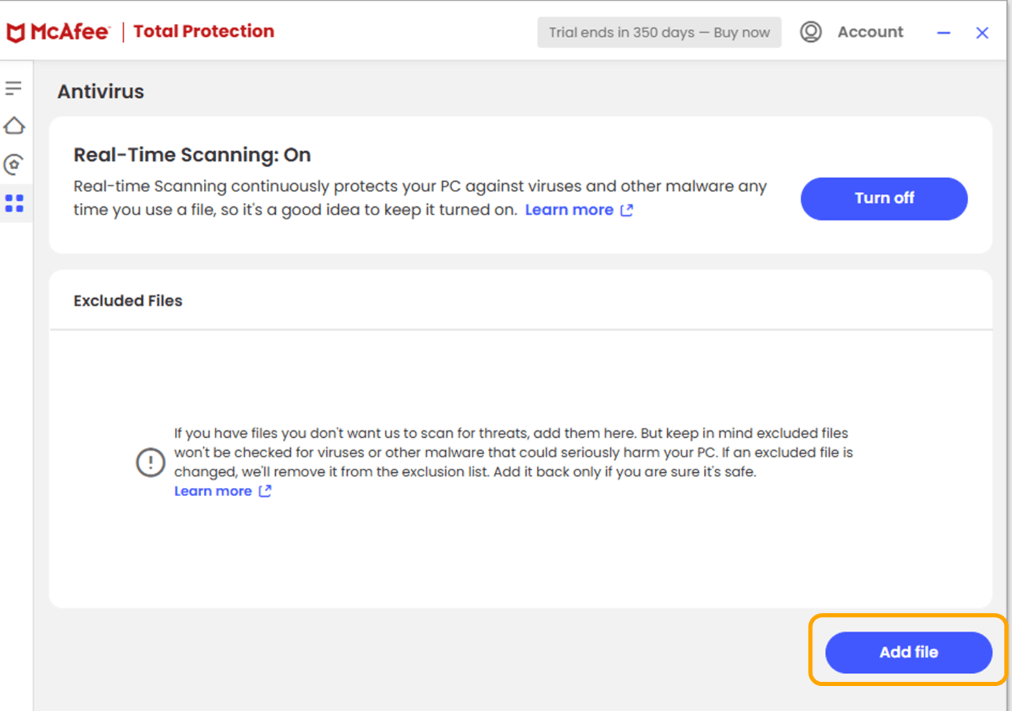
5. Save the configuration.
This prevents legitimate software from being flagged again.
2. Adjust Security Settings
McAfee allows users to customize its detection behavior. Reducing overly aggressive settings can minimize false positives. Possible adjustments include:
- Enabling detection notifications.
- Disabling automatic threat removal.
- Reviewing detected files before deletion.
These changes provide greater control over how antivirus scans handle suspicious files.
Conclusion
Losing files due to antivirus software can be alarming, but in most cases there are effective solutions available. Whether the files were quarantined, deleted, or overwritten, there are multiple ways to recover files deleted by McAfee.
Start by checking the McAfee quarantine and security history. If the file is not there, explore system backups or the Recycle Bin. For permanently deleted data, specialized data recovery tools like MyRecover can often restore the lost files. Finally, taking preventive steps ensures that important files remain protected in the future.
Frequently Asked Questions (FAQ)
1. Does McAfee delete files permanently right away?
No. By default, McAfee moves suspected malware to a secure Quarantine folder. Files are usually kept there for 30 days before being automatically purged. However, if you use the "File Shredder" feature, the file is destroyed immediately.
2. Why does McAfee keep deleting my game's .exe file?
This is a common "False Positive." Game files often use encryption to prevent piracy, which looks suspicious to antivirus software. To stop this, restore the file from Quarantine and immediately add the game’s installation folder to McAfee's Exclusions list under "Real-Time Scanning."
3. I emptied my Quarantine by mistake. Can I still get the files back?
Yes. Once the Quarantine is emptied, the files are considered "permanently deleted." At this stage, you should immediately use MyRecover. The software can scan the disk for the raw data of those quarantined files before they are overwritten by new system activity.
4. How to restore quarantined files in McAfee if the "Restore" button is greyed out?
This usually happens if you don't have Administrative privileges or if the original destination path no longer exists (e.g., a disconnected USB drive). Ensure you are logged in as an Admin and that the drive where the file lived is connected.
5. Is it safe to restore a file that McAfee flagged?
Only if you trust the source. If the file is a project you created or a well-known application, it is likely safe. If you are unsure, you can upload the file to a site like VirusTotal after restoring it to get a second opinion from other antivirus engines.
6. Does uninstalling McAfee delete the quarantined files?
Yes, typically. When you uninstall the software, its internal Quarantine folders are often wiped. If you realized you needed a file after uninstalling McAfee, your best bet is to run a Deep Scan with MyRecover to find the remnants of the deleted quarantine directory.

Stay Updated With Our
Latest Tips
Add us as a preferred source on Google to never miss helpful guides.
 Add as preferred source >>