 MyRecover



How to Recover Lost, Deleted, Unsaved Blender Files Fast
This article shows how to recover lost Blender files using autosave backups and temporary folders. It also explains where are blender files saved on Windows, Mac, and Linux for easy restoration.

By Delores / Updated on August 13, 2026


Can I Recover Lost Blender Files?
Recovering Lost Blender Files!
I have a file that i lost in blender maybe because blender deleted it, i have no autosave but im pretty sure it did not get overwritten, im pretty close from recovering it but when i do the missing dna block appears, mostly because of my recovery thing dmde, if anyone has a proper file recovery that does it good and doesnt cost or can make dmde recover files in other way, or that you have a tool to fix dna block issue, then i would be thankful of it, in the image is a recovered file with some file size less, which means it did not recover correctly.
- Question from blender.stackexchange.com
Blender is a free, open-source 3D creation powerhouse. From modeling and animation to sculpting and rendering, millions of artists rely on it daily.
However, if your Blender files get lost due to Blender crashes, your laptop dies, or you accidentally click "Don't Save"? How to recover lost Blender files? You can usually recover lost Blender files with a few simple tricks. This guide walks you through every possible way to recover lost, deleted, or unsaved Blender files.

Why Did Your Blender File Disappear?
Why are your Blender files missing? There are multiple reasons:
- Blender freezes mid-render.
- Power outages, or your laptop battery dies.
- Windows forces a restart for updates.
- Low memory on your computer.
- Accidental deletion or overwriting.
- ...
Fortunately, you have effective ways to recover lost Blender files. First of all, learn where Blender files are saved, then check the solutions below to recover quickly.
Where Are Blender Files Saved?
Blender saves files where you choose during "Save As", but it defaults to your Documents folder or temp directory.
Default location: Documents folder or the last save location.
The Blender files will be saved as .blend. You can check File > Open Recent for quick access. For missing texture images, select the image in the UV editor and press N to see its file path.
Temporary Folder:
- Windows: %USERPROFILE%\AppData\Local\Temp
- Mac: /tmp
- Linux: /tmp
If your computer crashed or you closed without saving, Blender creates temporary backup files in the Temporary folder. To access auto-saved Blender files, go to File > Recover > Last Session to load a quit.blend file. Or use File > Recover > Auto Save to browse automatic backups.
Besides, Blender has built-in autosave and backup systems. By default, it saves temporary recovery files every few minutes. It also keeps a .blend1 file (the previous save) right next to your main file.
Way 1. Recover Lost Blender Files Using Autosave
Blender’s autosave helps you recover lost Blender files when the program crashes or closes unexpectedly.
Here’s the simplest way to find the auto-saved Blender files:
1. Open Blender and go to File > Recover > Auto Save.
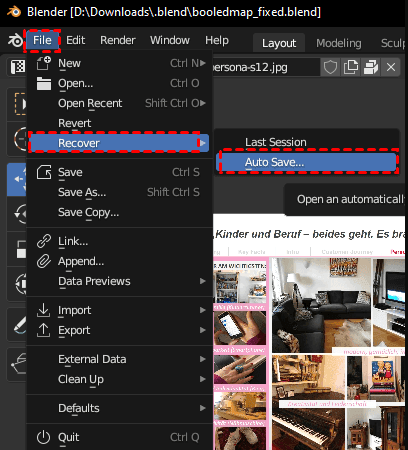
2. A window pops up showing all the autosaved .blend files Blender has created recently.
3. Look for the one with the most recent timestamp that matches your lost project.
4. Click it, then save immediately under a new name.
That’s it. But what if that menu option doesn’t work, or Blender won’t even open? Then you need to dig into the autosave folder manually. Here is how.
1. Type `%TEMP%` into the File Explorer address bar and hit Enter.
2. Look for a folder named something like “blender_autosave” or files with the .blend extension that have weird, random names.
3. Sort by Date Modified to find the most recent one.
4. Copy it to your desktop, rename it with a .blend ending, and open it in Blender.
Way 2. Recover Lost Blender Files from the Temporary Directory
Sometimes Blender’s own recovery menu fails, but the temporary directory still holds your data.
If Blender crashes on launch, you can’t use the Recover menu. Try this:
1. Navigate directly to your OS temp folder using the paths above.
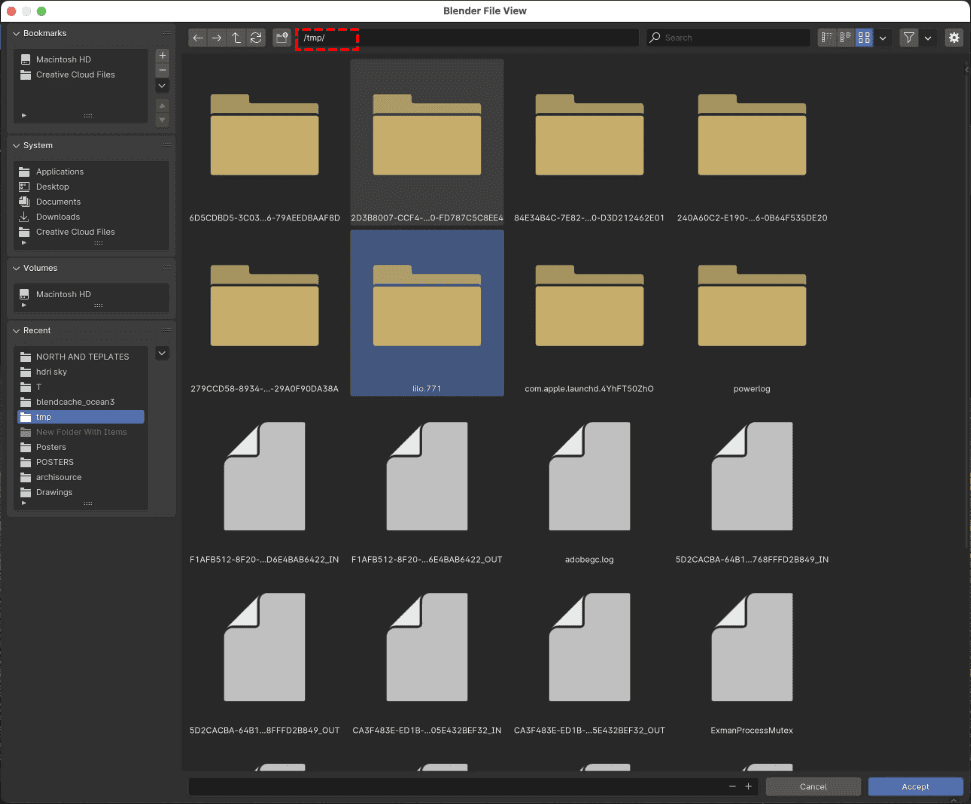
2. Sort files by size and date. Large .blend files (over 1MB) are your main targets.
3. Copy every recent .blend and .blend1 file to a safe folder.
4. Then try opening each one in Blender until you find the right project.
Or you can rename the Blender backup files, such as renaming `my_lost_file.blend1` to `my_lost_file.blend` and double-clicking to open. These .blend1, .blend2, etc., as backup versions. These are not temporary files; they’re actual Blender files with a different extension.
For random temp files with no extension, add .blend to the end and try opening.
One of them will work.
Way 3. Recover Unsaved Blender File After a Crash
You opened Blender, started working, and then everything froze. Can you still recover an unsaved Blender file? Yes, surprisingly. Blender’s autosave runs regardless of whether you’ve saved the project manually.
If you accidentally clicked Don’t Save when closing Blender:
1. Reopen the program. Blender often shows a “Recover Last Session” button on the splash screen.
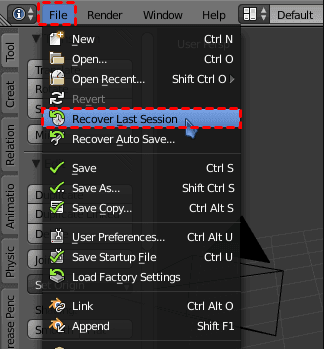
2. Click it. That restores the unsaved state from before you closed.
If that button isn’t there, go to File > Recover > Last Session.
If nothing works, you can get into the temporary folder to recover unsaved Blender files by opening files like “quit.blend”, “recover.blend”, or .blender1, .blender2, etc.
Way 4. Recover Lost Blender Files from Damaged Projects
You found your .blend file, but it won't open. It's damaged, not lost. Don't give up.
Way 1. Open Corrupt .blend Files with Data Recovery Mode
Go to File > Open, select your file, then click "Data Recovery" in the bottom right corner. Blender extracts what it can—meshes, materials, animation data—even from corrupted files.
Way 2. Use Console Commands to Salvage Scenes
For stubborn files, launch Blender from the command line: blender --factory-startup --debug C:\path\to\broken.blend. Blender shows errors, but often opens enough to copy your work to a new scene.

Way 5. Recover Deleted Blender Files via MyRecover
If you have deleted the Blender files by accident and emptied the Recycle Bin, how to recover the lost Blender files easily? It's time to use a professional Windows data recovery software, MyRecover, to recover them all at once.
Benefits of Recovering Deleted Blender Files using MyRecover:
- Recovers .blend Files with Ease. MyRecover supports over 1000 file formats, including Blender's .blend files, documents, images, videos, and audio.
- Fast Scanning Speed. MyRecover scans missing files using an advanced AI Algorithm, getting you back to work quickly.
- High Recovery Success Rate. The software combines Quick Scan for recently deleted files with Deep Scan for older, buried data, and then gets up to a 99% recovery rate.
- Easy Search and Filter. You can filter by file type, date modified, or file size to locate your lost Blender project in seconds.
- Preview Before Recovery. MyRecover lets you preview recoverable files before restoring them, so you can confirm you've found the right Blender scene.
1. Download and install MyRecover on a different drive than the one on which you lost your Blender files in case of overwriting.
 100% Secure
2. Launch it and tap Deleted Files Recovery, hover over the drive where your lost Blender files were located, and hit Scan.
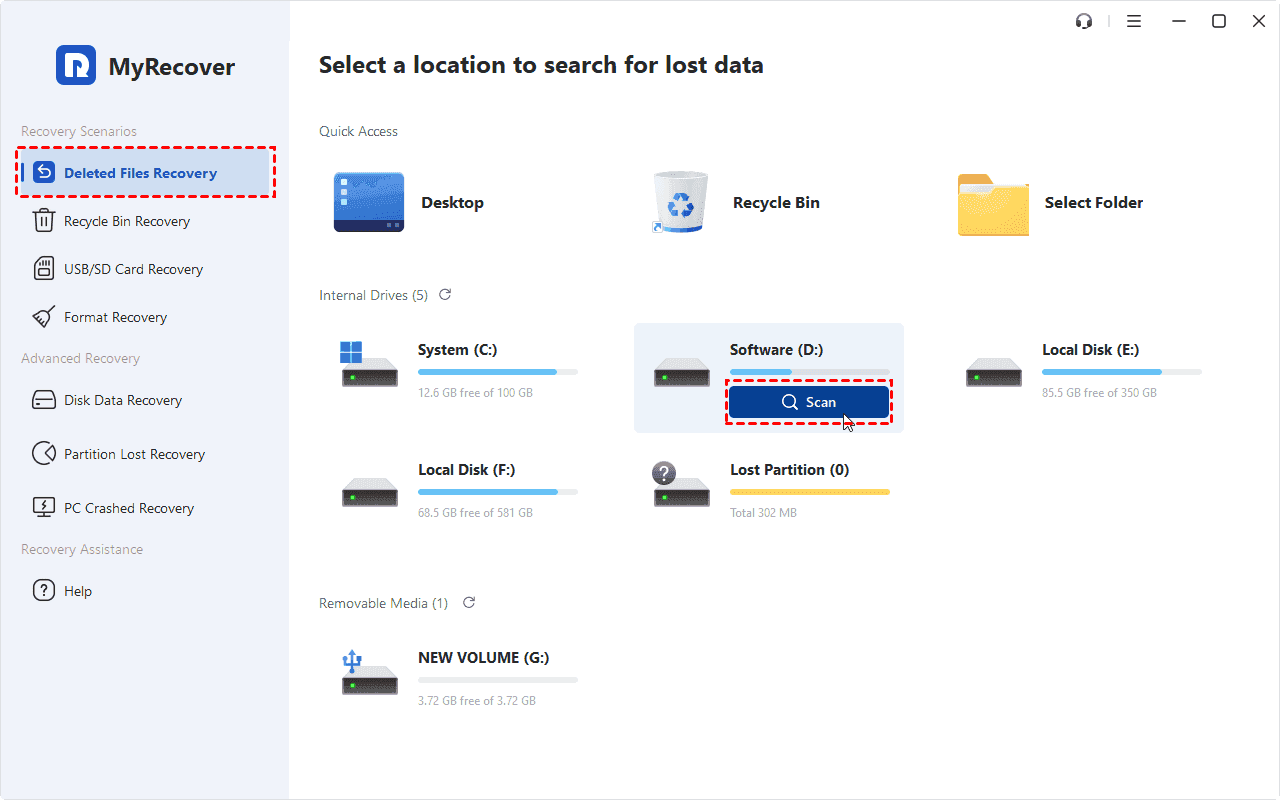
3. Once the scan finishes, hit OK, and thousands of recoverable files are listed. Use the filter bar at the top. Type .blend into the file extension filter. Sort by Date Modified to find the one you lost.
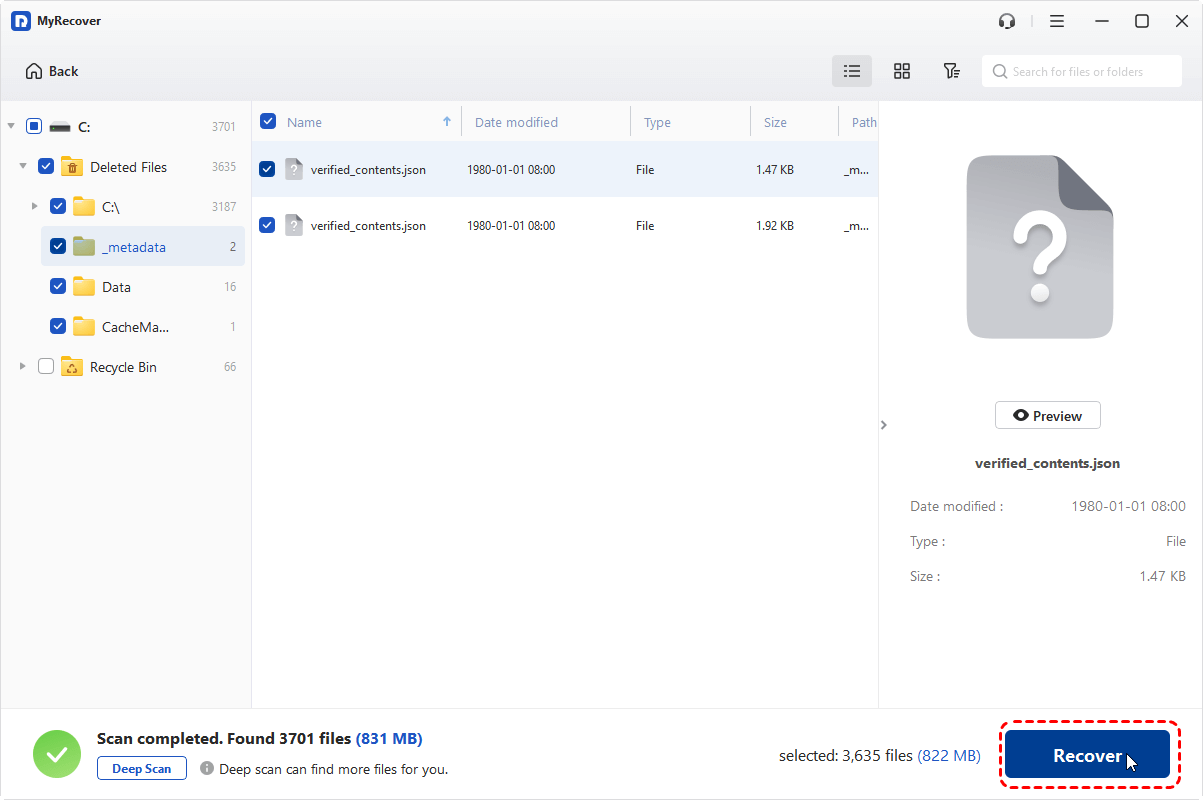
4. Preview and select the Blender files you need, and hit Recover.
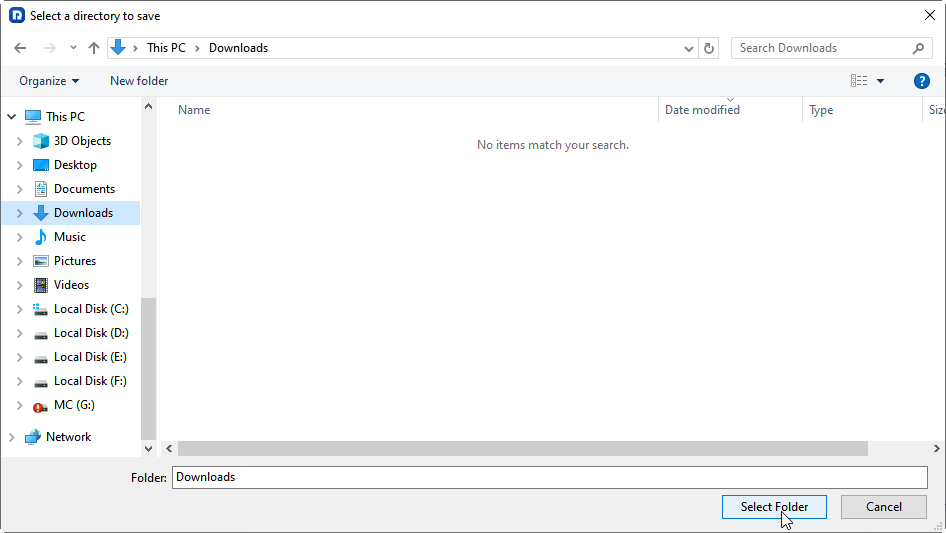
5. Choose a destination folder on a completely different drive to keep them safe.
- Notes: ✎
- By default, MyRecover runs a quick scan for recently deleted files. Or you can try a deep scan for older or overwritten data, and the time would be much longer.
- For more file recovery, please upgrade to MyRecover Technician to enjoy. Besides, you can also get benefits from other premium features.
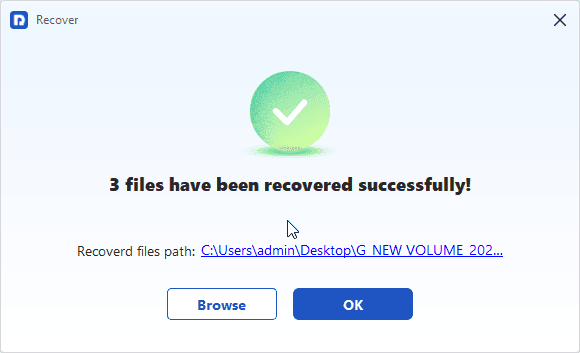
- After recovery, navigate to the destination folder and open each .blend in Blender. Save them properly under new names.

 MyRecover
- Recover Deleted Files Easily with Simple Clicks
- 1000+ File Formats Supported
- Support HDD, SSD, External Hard Drive, USB Drive, SD Card, etc.
- Quickly Find Files Using File Types, Name, Size, etc.
- Preview Files Before Recovering
- Recover Unlimited Data
 100% Secure
FAQs About Recovering Blender Files
Q: Why won't Blender show autosave files in the Recover menu?
A: Blender can't find the autosave directory after an update or temp folder cleanup. Don't rely on the menu. Manually check your OS temp folder using the paths above.
Q: How to recover lost Blender files if I never enabled autosave?
A: Blender still creates a .blend1 file every time you manually save. Check your last save folder, rename the .blend1 file to .blend, and open it. For completely unsaved work, try to recover the last session.
Q: Where are Blender files saved when using "External Data" packing?
A: Packed files save everything inside the single .blend file at your chosen location. Blender also creates temporary unpacked copies in your system temp folder while working, leaving traces even if you never saved.
Q: How to recover an unsaved Blender file after a blue screen crash on Windows?
A: Reboot, open Blender, and check File > Recover > Auto Save. If nothing appears, go to `%TEMP%` and look for large files modified near the crash time. Copy them, add .blend, and try opening. You rarely lose more than a few minutes of work.
Q: Can I recover lost Blender files from a formatted hard drive?
A: Yes, but it's difficult. Stop using the drive immediately. Use MyRecover to scan and filter for .blend files. Recover to a different drive. Quick formats give better odds than full formats.

Stay Updated With Our
Latest Tips
Add us as a preferred source on Google to never miss helpful guides.
 Add as preferred source >>