 MyRecover



SD Card Won’t Mount on PC and Mobile: How to Fix It Permanently
Dealing with an SD card won’t mount error can be frustrating, especially when you need access to important photos, videos, or documents. You’ll learn how to troubleshoot the issues on Windows PCs, on Mac, and Android phone safely in this guide. Additionally, steps to repair corrupted SD cards and recover lost data are included, ensuring minimal risk of data loss.

By Aria / Updated on June 5, 2026


Overview
When your SD card won’t mount on a PC or mobile device, it can be extremely frustrating. You insert the card, but the system fails to recognize it, the drive doesn’t appear in File Explorer or your phone’s storage settings, and your files become inaccessible.
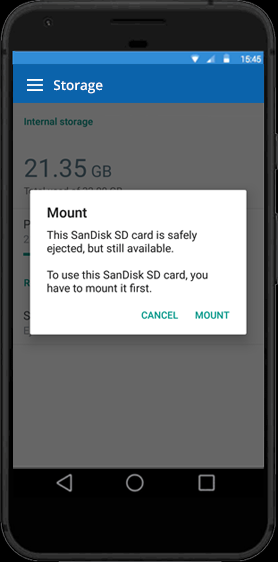
Beyond mere inconvenience, an unmountable SD card can lead to serious problems. You may risk losing important photos, videos, or documents, and in some cases, your device may fail to read other storage cards until the issue is resolved. For mobile users, this can prevent apps from saving data, while on PCs it can disrupt work or backups.
Why Won't My SD Card Mount
There are several common reasons why an SD card may fail to mount on a PC or mobile device. Understanding these causes can help you apply the correct fix efficiently:
📂 File System Errors: If the SD card’s file system is corrupted or incompatible with your device, it may not be recognized. This often happens after improper ejection, sudden power loss, or formatting issues.
🔌 Faulty Card Reader or USB Port: Hardware problems such as a damaged card reader, loose connection, or faulty USB port can prevent the system from detecting the SD card.
💾 Driver or OS Issues: Outdated, missing, or incompatible drivers on PCs, or system glitches on mobile devices, may block the SD card from mounting.
🛠️ Physical Damage: Cracks, bent connectors, or water exposure can render an SD card unreadable.
🔒 Encryption or Security Settings: Some cards with encryption or write-protection settings may not mount automatically on all devices.
How to Recover Data from an SD Card That Won't Mount on Windows
Before taking any repair actions, you’d better ensure the safety of the data on your SD card first, as some solutions like formatting will erase all data stored on it. Once new data keeps being written, it may completely overwrite the original files on the SD card. This is where MyRecover comes in handy.
Designed specifically for Windows users, MyRecover can scan unmountable or corrupted SD cards deeply, detect lost or deleted files, and recover them safely without altering existing data. This is particularly useful for important documents, photos, or videos that cannot be accessed through file explorers.

 MyRecover
- Recover deleted & lost files from HDD, SSD, USB, SD card, camera as you need.
- Deep scan technology ensures higher recovery success rates.
- Reliable rescue for deletion, formatted disk, emptied Recycle Bin, system crashes and more.
- Local-only scan and recovery process guarantee complete privacy protection.
 100% Secure
Step 1. Download and install MyRecover on your Windows supported computer from Microsoft Store or its official website. Connect the SD Card to the computer with a card reader or slot.
Step 2. Launch the program and select the SD card with lost or inaccessible files, then click "Scan" to search for recoverable files. If the SD card fails to appear in the drive list, it may exist as a "Lost partition", and you can locate it by checking its partition size.

Step 3. Browse the scan results and filter the files you wish to recover using "Filter" function or "Type" tab. Choose the target files and click "Recover".
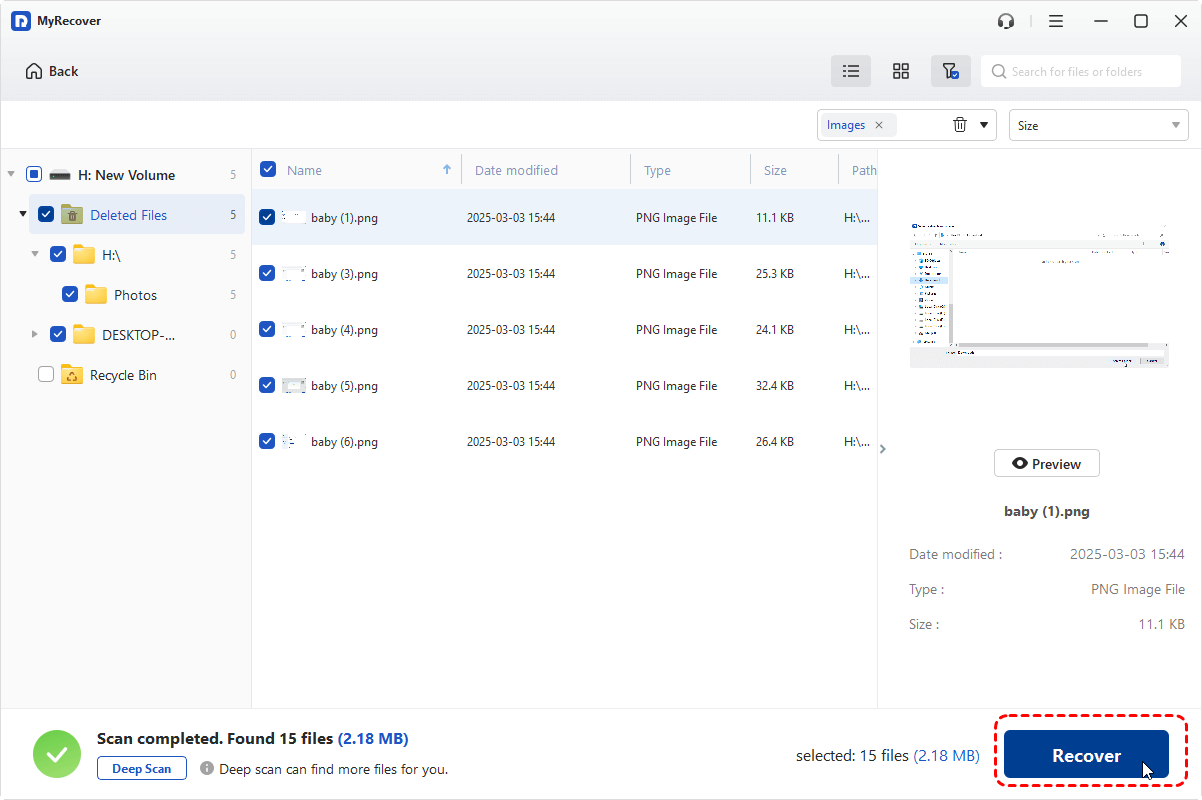
When the amount of recoverable data exceeds 500 MB, upgrading to the Professional edition of MyRecover enables unlimited file recovery and file content preview. It also supports data recovery from crashed Windows systems, ensuring you can access important files even if the operating system cannot start normally.
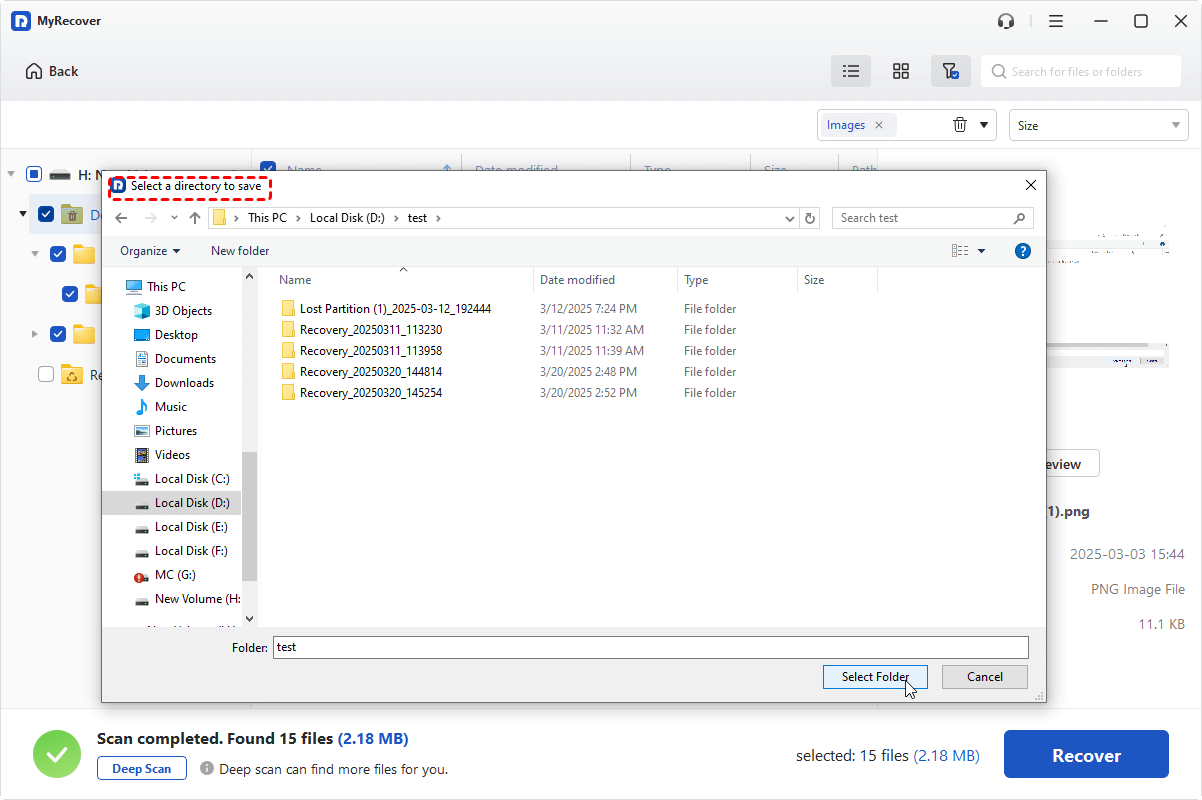
Step 4. Select a different drive to save the recovered files to avoid overwriting original data.
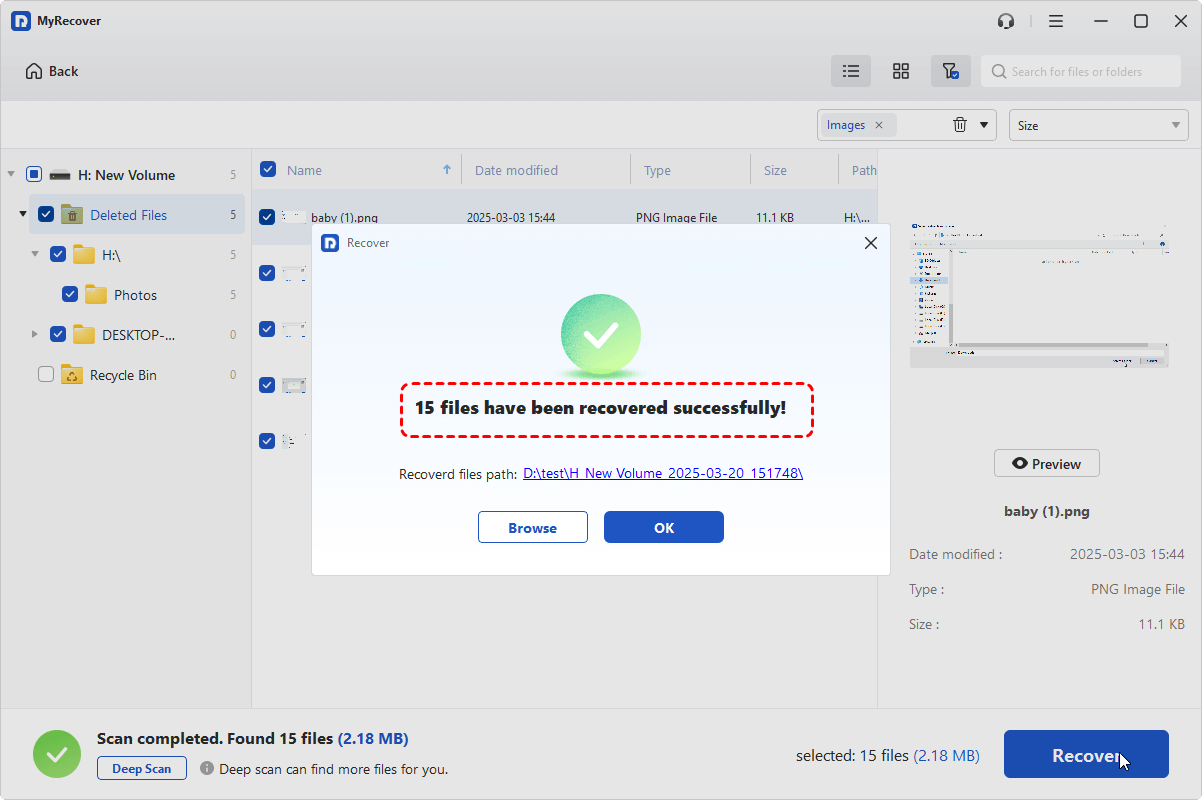
When the process is done, you can access and check the recovered files by clicking on the destination folder path or the "Browse" button.
How to Fix SD Card Won't Mount on Windows PCs
After securing your data with MyRecover, you can now proceed to fix the SD card mounting issue on Windows, Mac and Mobile. The following solutions are arranged from the simplest to more advanced repair methods, allowing you to systematically troubleshoot and restore the SD card without risking data loss.
1. Assign a Drive Letter
Sometimes an SD card won’t mount simply because Windows has not assigned a drive letter to it or there may be a drive letter conflict, making the card invisible in File Explorer. Assigning a correct letter ensures the system recognizes the card and allows access without altering its content.
Step 1. Press "Win" + "X" and select "Disk Management" to open it.

Step 2. Locate your SD card in the lower panel (it may show as "Removable" or "No Media").
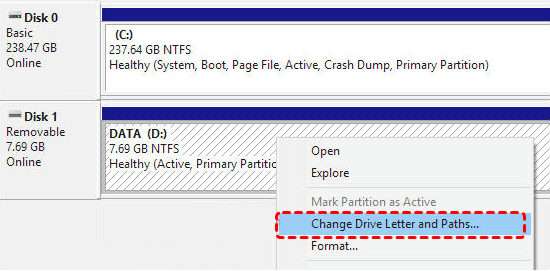
Step 3. Right-click the SD card and choose "Change Drive Letter and Paths".
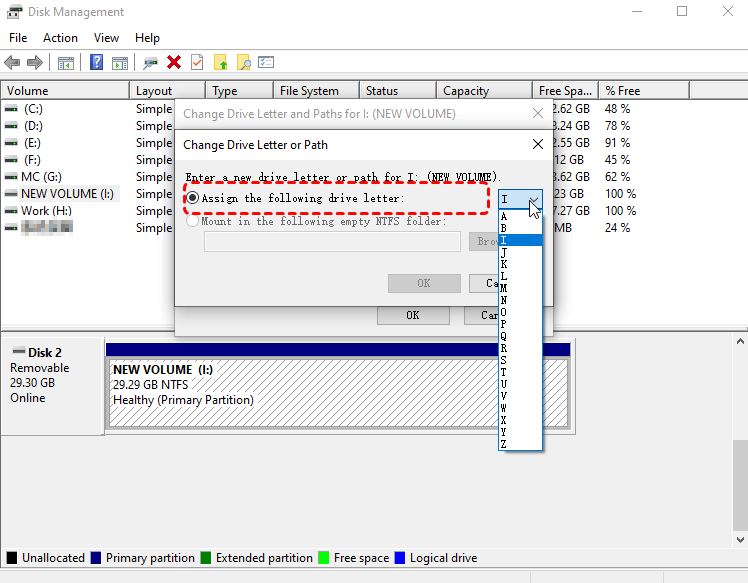
Step 4. Click "Add" or "Change" to assign a correct drive letter and click "OK" to save the changes.
2. Use CHKDSK Command
File system corruption can also prevent an SD card from mounting. The CHKDSK tool can scan the card for errors and repair logical issues without deleting existing data. Follow these steps:
Step 1. Type "Command Prompt" in the Start menu and right click on it, then select "Run as administrator".

Step 2. Enter the following command "chkdsk X: /f /r" (replace "X" with your SD card’s drive letter) and press "Enter".

Step 3. Wait for the scan and repair process to complete, then safely eject and reconnect the SD card to check if it shows in File Explorer.
3. Update or Reinstall SD Card Drivers
Outdated or missing drivers can prevent Windows from recognizing the SD card. Updating or reinstalling the driver ensures the system communicates correctly with the hardware. Here's how to do:
Step 1. Press "Win" + "X" and select "Device Manager" to open it.

Step 2. Expand "Disk drives" or "Universal Serial Bus controllers", locate your SD card or card reader.
Step 3. Right-click the device and select "Update driver".

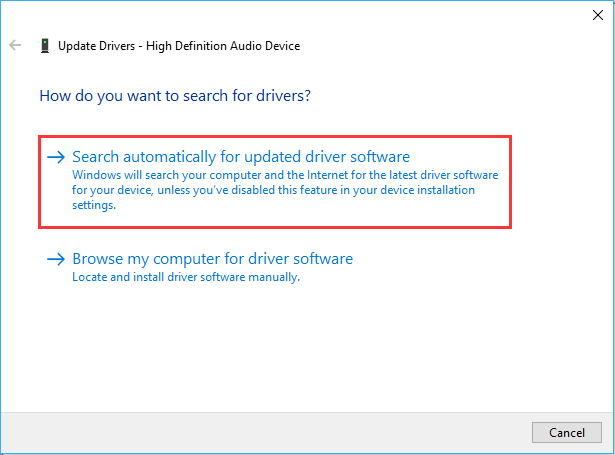
Step 4. Click "Search automatically for updated driver software" to continue the process.
Step 5. If there is no update or the update fails to resolve the issue, right-click and choose "Uninstall device", then reconnect the SD card to reinstall the driver automatically.

4. Format the SD Card
If the SD card is still not mounting, it may have severe file system corruption. Formatting the SD card might be the last resort, which create a new file system, restoring usability. But note that only perform this after recovering all data using MyRecover, as formatting erases all files.
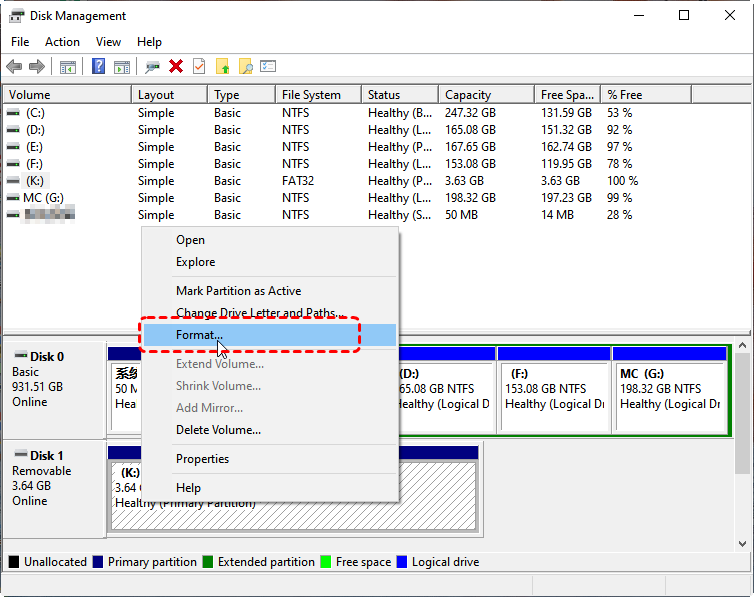
Step 1. Open Disk Management, right-click the SD card, and select "Format".
Step 2. Choose a compatible file system (ex: FAT32 for universal compatibility) and enable "Perform a quick format".
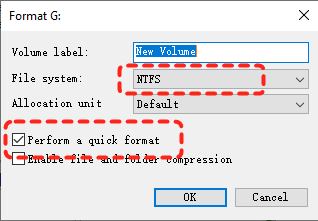
Step 3. Click "OK" to start formatting. After completion, the SD card should mount automatically.
How to Fix SD Card Won't Mount on Mac PCs
If your SD card isn’t mounting on a Mac, the issue can stem from Finder settings, disk corruption, outdated macOS, or incompatible file systems. Unlike Windows, macOS may hide unrecognized drives or prevent access to damaged volumes. You can follow these approaches to restore your SD card safely.
1. Check the Finder Settings
Sometimes macOS does not show external drives in Finder due to display settings. Ensuring that external disks are set to appear allows you to access your SD card without performing repairs or formatting.
Step 1. Open Finder and go to "Finder" > "Preferences" from the top menu.
Step 2. Click the "General" tab and ensure "External disks" is checked under "Show these items on the desktop".
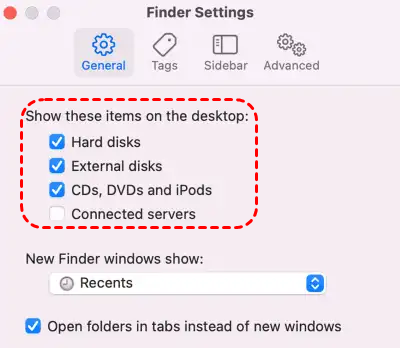
Step 3. Close "Preferences" and check if your SD card appears.
2. Run First Aid in Disk Utility
Disk corruption or minor file system errors may prevent the SD card from mounting on Mac. First Aid in Disk Utility can repair these issues without deleting data, making it the first line of defense for unreadable drives.
Step 1. Open Disk Utility from "Applications" > "Utilities".
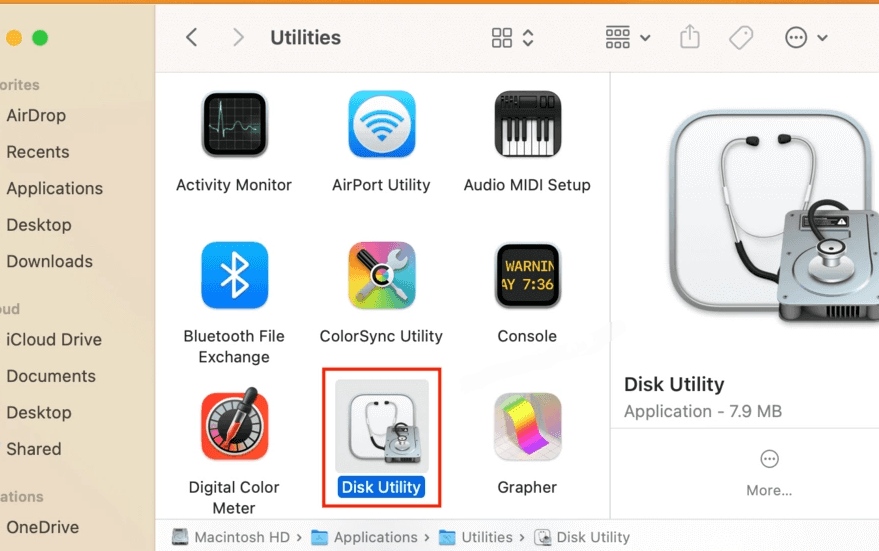
Step 2. Locate your SD card in the left-hand sidebar.
Step 3. Select the SD card and click "First Aid", then click "Run" to start the repair process.
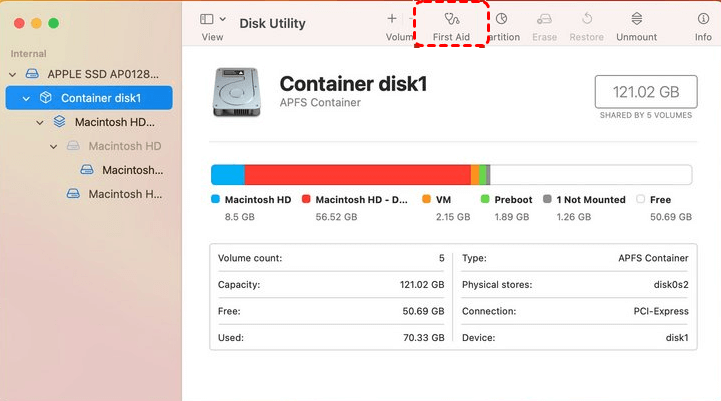
Step 4. Wait for the process to finish and check if the SD card mounts automatically.
3. Update macOS
Outdated macOS can cause compatibility issues with SD cards, particularly newer formats or cards larger than 32GB. Updating ensures that system drivers and file system support are current, potentially resolving the "SD card won't mount" error.
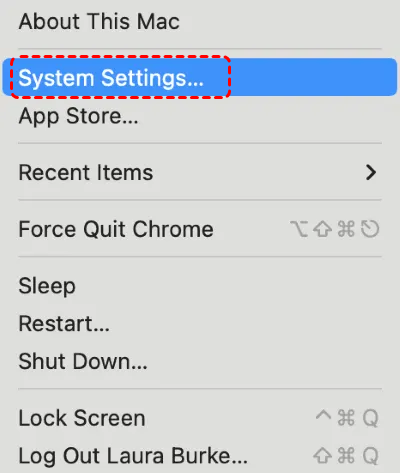
Step 1. Click the Apple menu and select "System Settings" (or System Preferences).
Step 2. Go to "Software Update" and check for available updates.
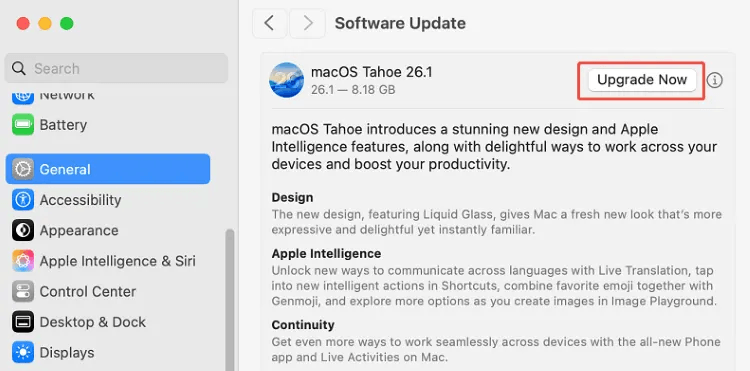
Step 3. Install any updates and restart your Mac to apply changes.
Step 4. Reinsert the SD card to see if it now mounts correctly.
4. Format the SD Card
If the SD card remains unmountable despite repairs and updates, it may have severe corruption. Formatting creates a new file system compatible with macOS. Only perform this after recovering all files with tools like MyRecover to avoid permanent data loss.
Step 1. Open "Disk Utility" and select the SD card.
Step 2. Click "Erase", choose a compatible format such as ExFAT for cross-platform use, and provide a name.
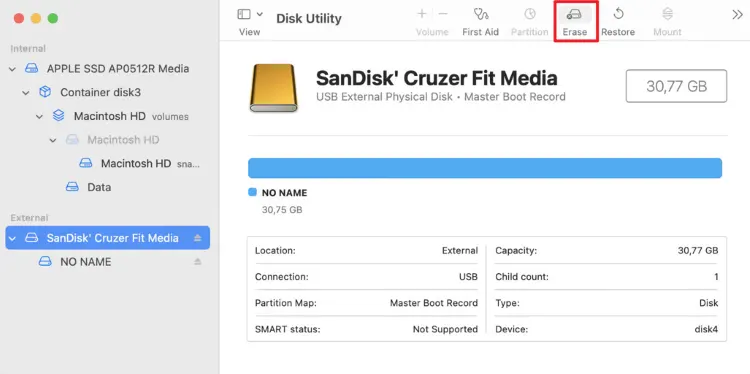
Step 3. Click "Erase" to format the card. After completion, the SD card should mount and be usable again.
How to Fix SD Card Won't Mount on Android Phone
When an SD card fails to mount on an Android phone, it can prevent the device from storing photos, videos, or app data, effectively disrupting daily use. Unlike PCs, Android devices may fail to recognize SD cards due to software glitches, cache conflicts, or improper card insertion. These solutions will walk you through how to mount SD card on Android phone.
1. Mount the SD Card Manually
Sometimes the SD card is detected by the system but is not automatically mounted, preventing access through apps or the file manager. Manually mounting ensures the Android OS registers the card and makes its contents available without affecting existing files.
Step 1. Open "Settings" and go to "Storage".
Step 2. Scroll down to locate the SD card section and tap it.
Step 3. Select "Mount SD card" (if the option is available).
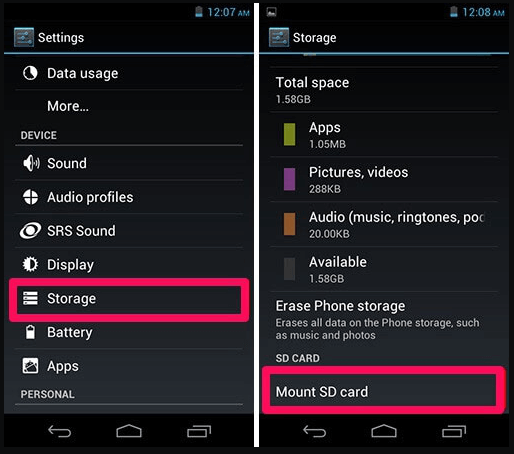
Step 4. Wait a few seconds and check if the SD card appears in your file manager or gallery.
2. Clear Cache of Storage or Related Apps
Corrupted system cache or data stored by file management apps can prevent the SD card from mounting properly. Clearing the cache ensures the Android OS refreshes its storage mapping and can recognize the SD card.
Step 1. Open "Settings" and go to "Apps" (or "Apps & notifications").
Step 2. Locate Files, Storage, or Gallery app, then tap "Storage & cache".
Step 3. Tap "Clear data" to remove temporary system data.
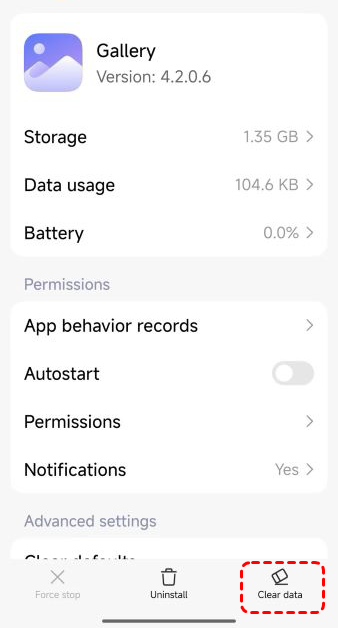
Step 4. Restart your phone and reinsert the SD card to check if it mounts successfully.
3. Format the SD Card
If the SD card remains unmountable after trying the above methods, severe corruption or incompatible file systems may be the cause. Formatting recreates a compatible file system for Android, but make sure you have recovered the data on your SD card before using this method.
Step 1. Open "Settings" > "Storage" and locate the SD card.
Step 2. Tap "Format" or "Erase SD card" and confirm the action.
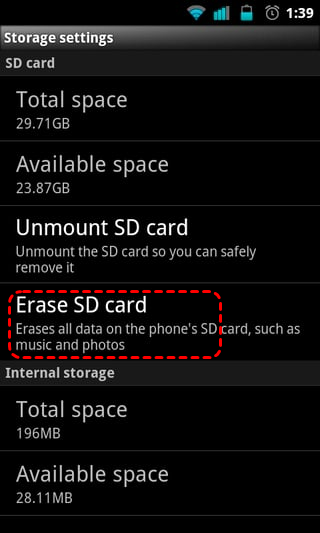
Step 3. Wait for the process to complete, then check if the SD card mounts automatically and is accessible by apps.
Summary
Whether you’re dealing with a micro SD card that won’t mount on Windows, Mac or Android, with these step-by-step solutions in this guide, you can systematically troubleshoot and restore access to your SD card.
Before performing advanced fixes like formatting, using a professional recovery tool like MyRecover ensures your photos, videos, and documents remain safe even when the SD card is unreadable.
FAQs
Q1: How to fix SD card not mounting?
To fix an SD card not mounting, first check the card in another device or card reader. Update or reinstall drivers on PC, assign a drive letter in Disk Management, or run CHKDSK to repair file system errors. If these fail, consider recovering data with recovery software like MyRecover before formatting the card.
Q2: How to mount an unmounted SD card?
To mount an unmounted SD card, connect it to your device, open Disk Management (Windows) or Disk Utility (Mac), and assign a drive letter or mount it manually. Ensure the card is readable and not write-protected, then refresh the system to access files.
Q3: Why is my SD card not mounting on Android?
An SD card may not mount on Android due to file system incompatibility, physical damage, or corrupted data. Clear the cache of storage apps, restart your phone, or use "Settings" > "Storage" > "Mount SD card". Severe issues may require data recovery and reformatting.
Q4: How to fix SD card that will not mount?
Fix an SD card that will not mount by first checking hardware connections. Update drivers, repair file system errors with CHKDSK (Windows) or First Aid (Mac), and assign a drive letter if missing. Backup important files and format the card if corruption persists.
Q5: How to recover photos from SD card not mounting?
Use reliable recovery software like MyRecover to scan the SD card for lost or deleted files. Install the program on your PC, select the SD card, scan for recoverable photos, and save them to a safe location before attempting any repairs or formatting.
Q6: How to safely format SD card that will not mount?
To safely format an unmountable SD card, first recover all important data. On Windows, use Disk Management; on Mac, use Disk Utility. Choose a compatible file system (FAT32, exFAT), enable quick format if needed, and confirm to restore the card’s usability.

Stay Updated With Our
Latest Tips
Add us as a preferred source on Google to never miss helpful guides.
 Add as preferred source >>