 MyRecover



Why Did My Steam Game Uninstall Itself? Causes & Solutions
If your steam game uninstalled itself or you noticed steam games uninstalled randomly, this guide explains the causes and proven solutions. Discover why Steam uninstalled your game and how to restore it without losing progress or reinstalling unnecessarily.

By Aria / Updated on February 27, 2026


Multiple Steam Games Uninstalling Themselves. Help!
"2 days ago, I opened up Steam to see that my Killing Floor has somehow uninstalled itself. I wouldn't have uninstalled it because I play it regularly and there is no-one else in my house so there is no chance of someone getting onto my PC that knows my steam. I assumed it was just a bug or just a one-time thing and reinstalled it and went along my day as if it never happened.
Until today. I opened up steam and 14 games in total had just somehow been uninstalled ALL BY THEMSELVES. The games seem to have uninstalled at random with no real pattern as a bunch of games are still installed. If anyone could help me out with this problem, I would very much appreciate it.
- Question from Skidd17
Recently, many users have reported that multiple Steam titles suddenly disappear from library, it can look like Steam game uninstalled itself without warning. If multiple Steam games uninstalled themselves at the same time, the issue is usually not random. In most cases, Steam did not actually delete the game files, rather, it lost access to the installation directory or failed to recognize the game library.

This situation commonly occurs after system updates, drive letter changes, external storage disconnection, corrupted library configuration files, or disk read errors. When Steam cannot properly locate its designated library folder, it treats installed games as missing, even though the data may still be present on the drive.
Why Steam Game Uninstall Itself?
When it appears that a Steam game uninstalled itself, the root cause is rarely an intentional removal by the Steam client. Instead, the issue typically stems from how Steam verifies and maps installed game directories. If the client cannot validate the installation path during startup, it marks the game as "not installed". Several technical factors commonly trigger this behavior:
❌Steam Library Path Mismatch: If the custom library folder is missing, renamed, or no longer registered in Steam settings, the client will not detect previously installed titles.
❌Drive Letter Reassignment: Windows updates or hardware reconnections may change drive letters, breaking Steam’s stored directory references.
❌External or Secondary Drive Issues: Games stored on HDDs or SSDs that fail to mount properly during boot can appear uninstalled.
❌Corrupted App Manifest Files (.acf): These small configuration files tell Steam a game is installed. If they are deleted or corrupted, Steam assumes the game is absent.
❌File System or Disk Errors: Bad sectors or NTFS corruption may prevent Steam from reading the installation folder correctly.
❌Client Update or Crash During Verification: Incomplete updates can interrupt Steam’s internal library indexing process.
How to Fix the "Steam Game Uninstall Itself" on Windows
If multiple titles appear missing, the goal is to help Steam correctly recognize existing game data before resorting to full reinstallation. The following methods progress from non-destructive checks to more advanced repairs. Work through them in order to minimize download time and avoid unnecessary data loss.
Solution 1. Begin the Installation to Trigger the File Detection
When Steam cannot verify an installation path, manually starting the installation often forces the client to rescan the target folder. If the original game files still exist, Steam will detect them and switch from downloading to “discovering existing files.” This is the quickest method and should always be attempted first.
Step 1. Navigate to the folder where the uninstalled game was originally downloaded (like C:\Program Files (x86)\Steam\steamapps\common).
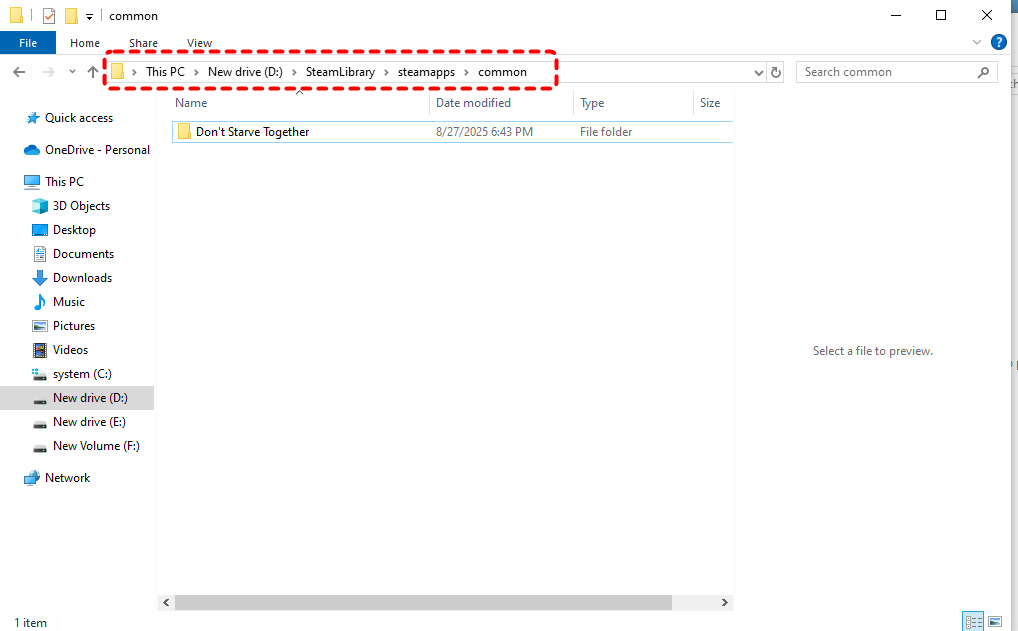
Step 2. Locate the main .exe file and double click it to launch the game.
Reopen Steam and check if the game status updates. If the game doesn't appear in this path, the library path itself may be missing. You can proceed to the following solutions.
Solution 2. Add Previously Existing Library Folders Back to Steam
If Steam loses track of a custom library location, all games in that folder will appear uninstalled simultaneously. Re-adding the correct library path restores Steam’s index without touching the actual game data. This is especially effective after drive letter changes or external drive reconnections.
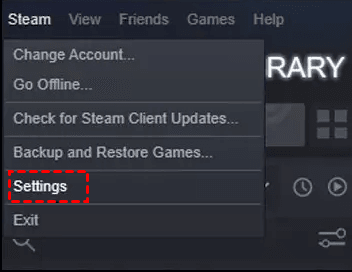
Step 1. Launch Steam and click "Steam" on the top of menu, then choose "Settings".
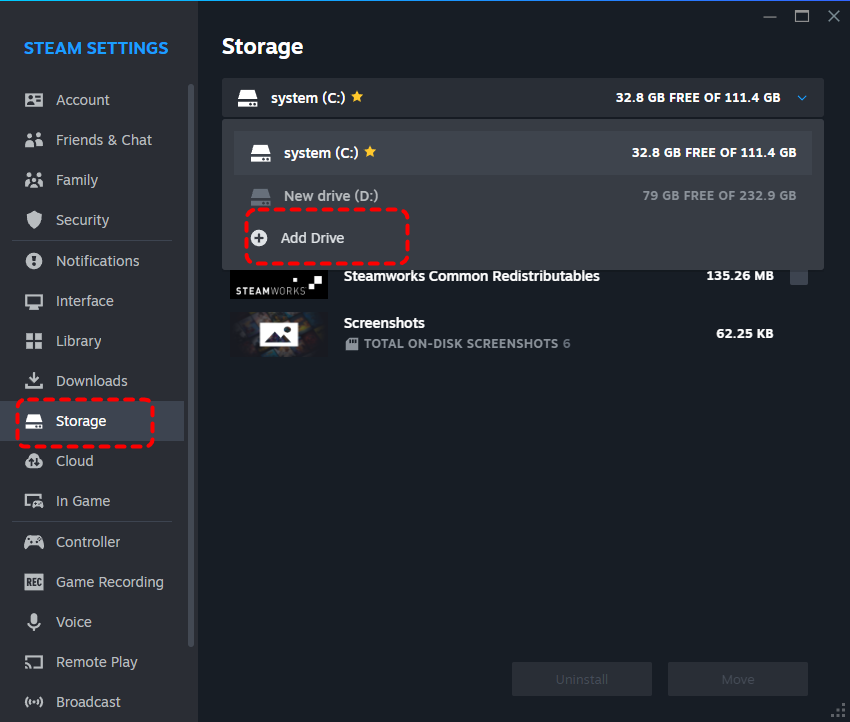
Step 2. Select "Storage" and click "Add Drive". Then, browse to the folder that contains your Steam games and select it.
Step 4. Confirm and restart Steam to refresh the library.
Alternatively, if you had previously installed the games to an alternate location outside of your main Steam folder, you can also add the folder to Steam with the same steps.
Solution 3. Verify the Integrity of Game Files
Verification forces Steam to compare local files against official manifests and repair inconsistencies. This helps when partial corruption or interrupted updates cause Steam to misread the installation status. It does not remove saved data and is safe to run repeatedly.
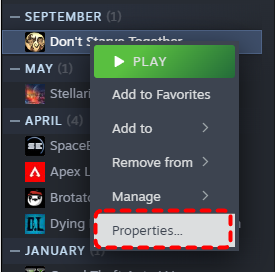
Step 1. Open Steam and right-click the affected game in "Library", then choose "Properties".
Step 2. Select "Installed Files" and click "Verify integrity of game files".
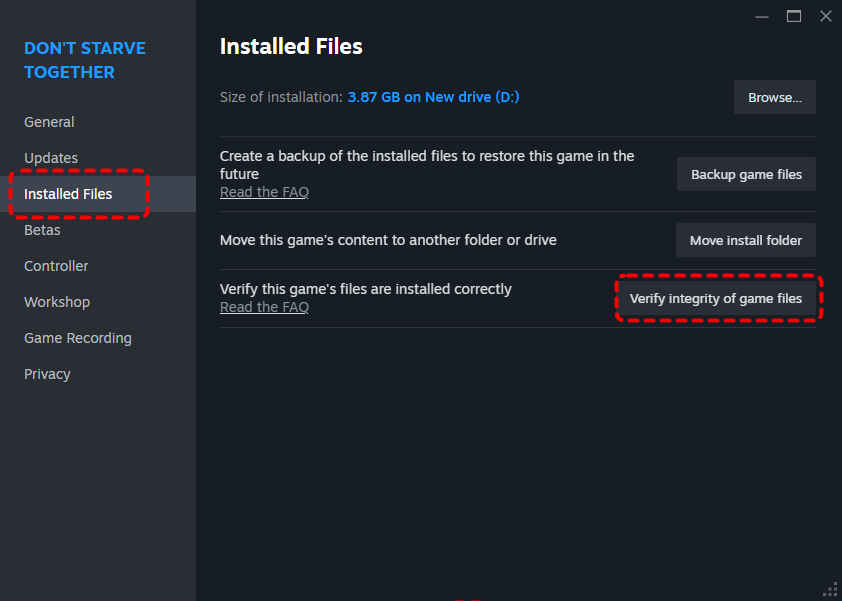
Step 3. Wait for the scan to complete and review the result.
Solution 4. Repair or Restore the Appmanifest (.acf) File
Each installed Steam game has an appmanifest_XXXX.acf file that tells Steam the game exists. If this file is deleted or corrupted, Steam treats the title as uninstalled even when files remain intact. Restoring or correcting the manifest often immediately fixes the issue.
Step 1. Navigate to C:\Program Files (x86)\Steam\steamapps.
Step 2. Look for the relevant appmanifest_XXXX.acf file. The number represents game ID, which varies from game to game.
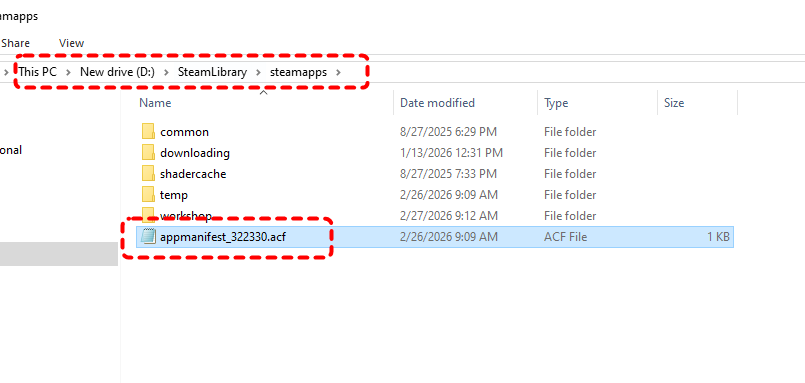
Step 3. Right click on the .acf file to open it with Notepad.
Step 4. Find "Installdir" and replace the text with the game folder.
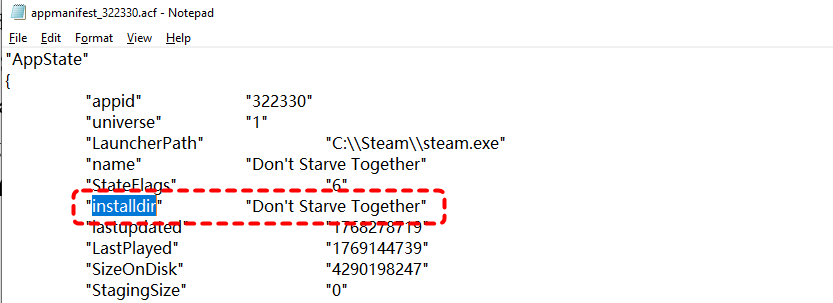
Step 5. Save the changes and relaunch Steam to check if your games are back.
Solution 5. Reinstalling the Games (Last Resort)
If Steam truly removed the files or the drive suffered corruption, reinstalling ensures a clean game environment. Before proceeding, verify that the original game folders are genuinely missing to avoid unnecessary downloads. Reinstallation should be the final step after all detection fixes fail.
Step 1. Open Steam and select the target game from your recent list, then click "Install" in Steam Library.

Step 2. Choose the correct drive and begin download.
Step 3. After installation, launch the game and verify saved progress.
How to Recover Lost Steam Game Programs
If your Steam games are truly missing from the drive, rather than simply undetected, you may be dealing with accidental Steam game deletion, disk corruption, or file system damage. In such a case, a dedicated data recovery tool like MyRecover becomes necessary to scan the storage device and retrieve lost game folders before they are overwritten. It is designed for deep file recovery on Windows systems and is particularly effective for recovering large program folders such as Steam games and game data.
Step 1. Download and install MyRecover on your computer from Microsoft Store or its official website, avoid installing it on the drive with lost games.

 MyRecover
- Wide file system support including NTFS, FAT32, exFAT, and ReFS.
- User-friendly interface suitable for both beginners and advanced users.
- High recovery success rate for documents, photos, videos, and program files.
- Safe recovery workflow that avoids further damage to the source drive.
 100% Secure
Step 2. Run the app and locate the drive where the Steam library was stored, and click "Scan" to begin.
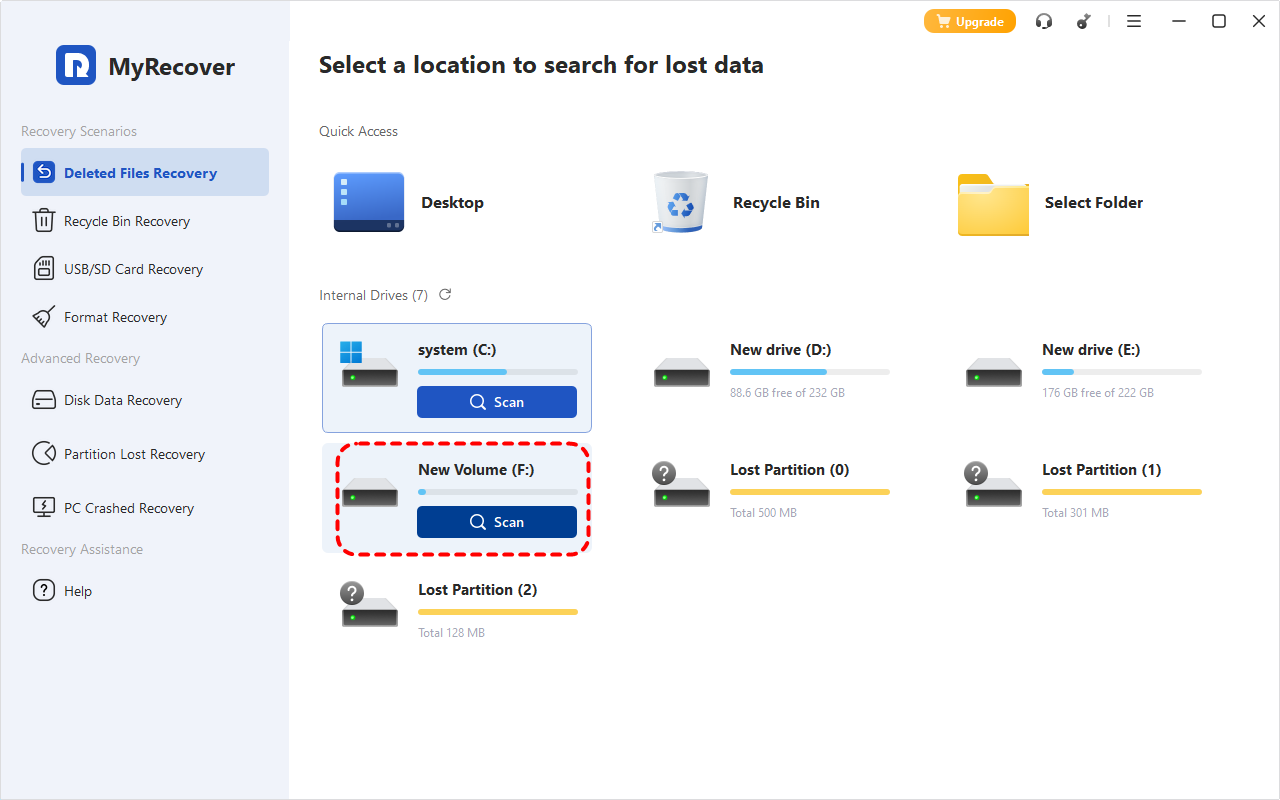
Step 3. Use the "Filter" feature or search box to find the files you wish to retrieve such as steamapps folder or specific game names, then click "Recover".
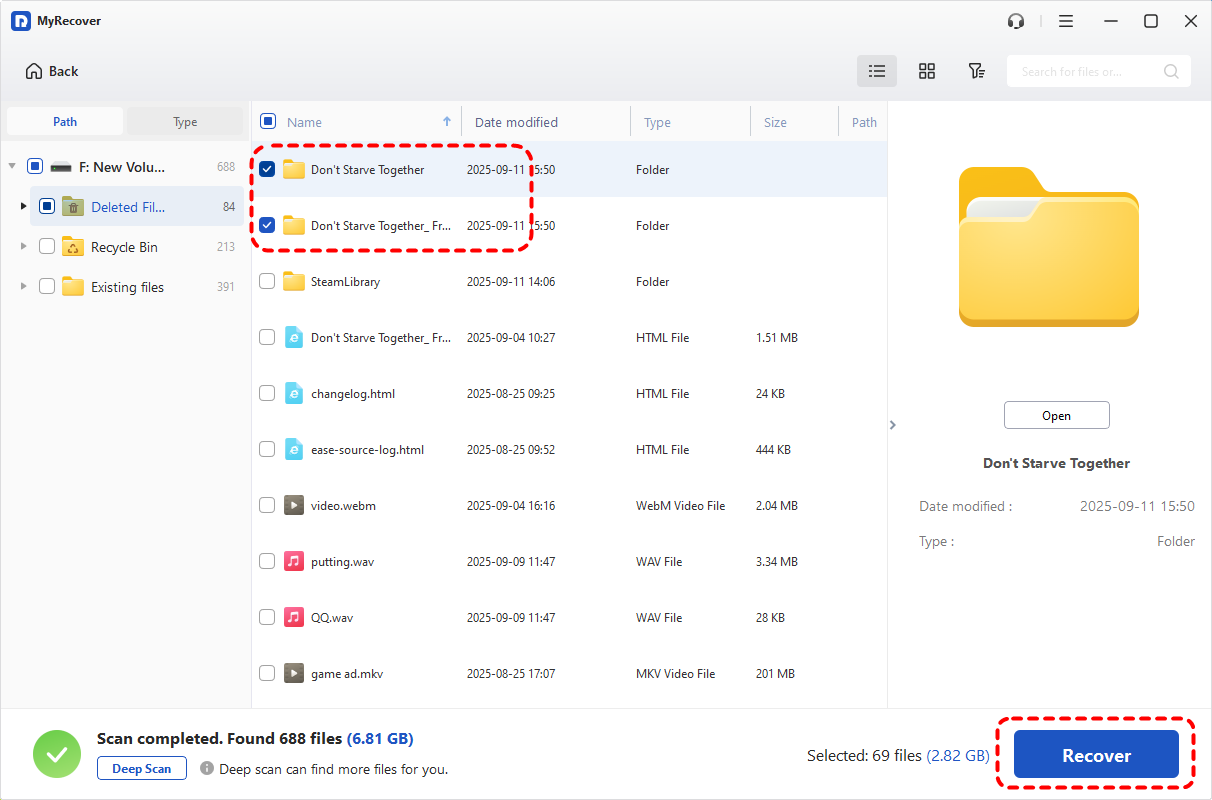
If the data you want to recover exceeds 500 MB, upgrade to the Professional edition of MyRecover to unlock unlimited data recovery, which even allows get files back from crashed Windows.
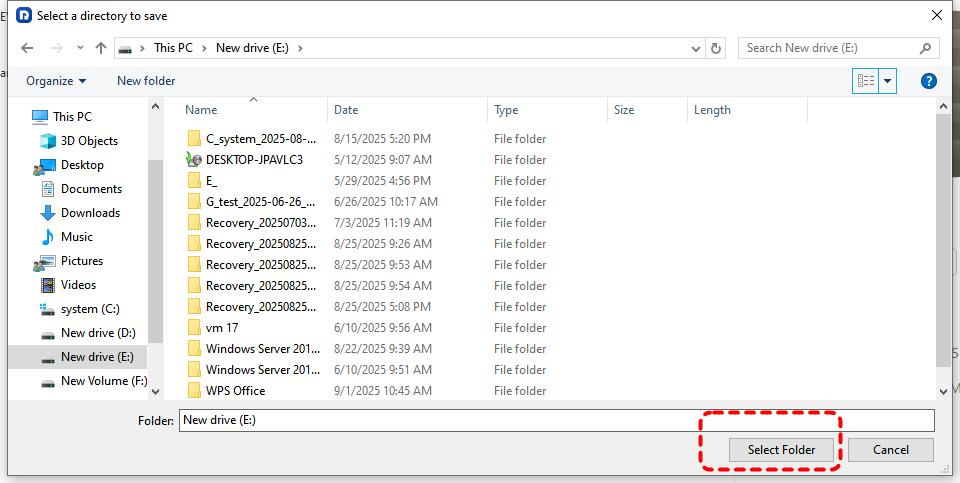
Step 4. Choose a different drive as the save location to avoid overwriting.
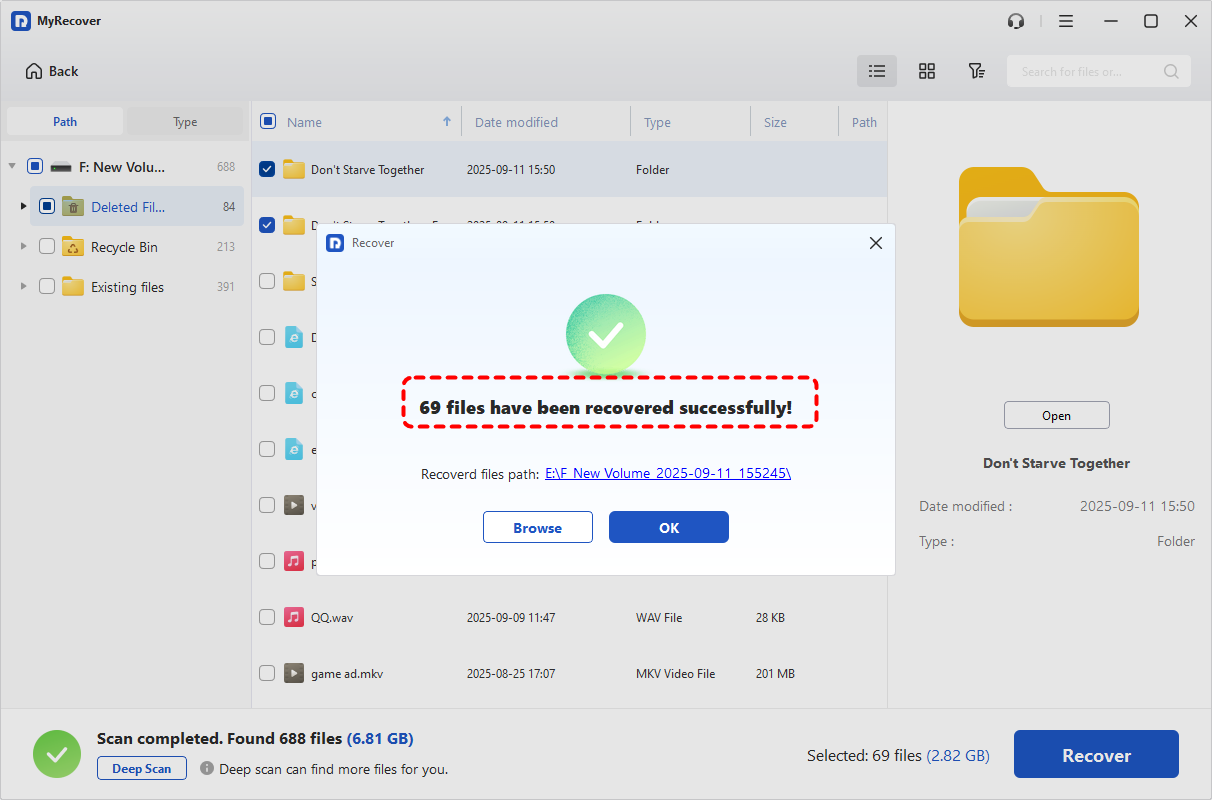
After the recovery process finished, you can check the recovered files in the destination folder by clicking on the "Browse" button.
The End
In most cases, Steam games that appear to uninstall themselves have not actually been deleted. The issue typically stems from Steam losing access to the game library due to path mismatches, drive letter changes, corrupted appmanifest files, or disk read problems. Before reinstalling, you should prioritize non-destructive fixes mentioned above. Only when the game data is genuinely missing should reinstallation or professional recovery tools like MyRecover be considered.

Stay Updated With Our
Latest Tips
Add us as a preferred source on Google to never miss helpful guides.
 Add as preferred source >>