 MyRecover



There Is Not Enough Space on the Disk? Here are 16 Fixes
The "there is not enough space on the disk" error can appear even when you have free space, leaving you confused and frustrated. This guide explains why Windows throws this misleading warning and provide practical fixes for "there is not enough space on the disk" in Windows 10.

By Delores / Updated on March 10, 2026


There Is Not Enough Space on the Disk!
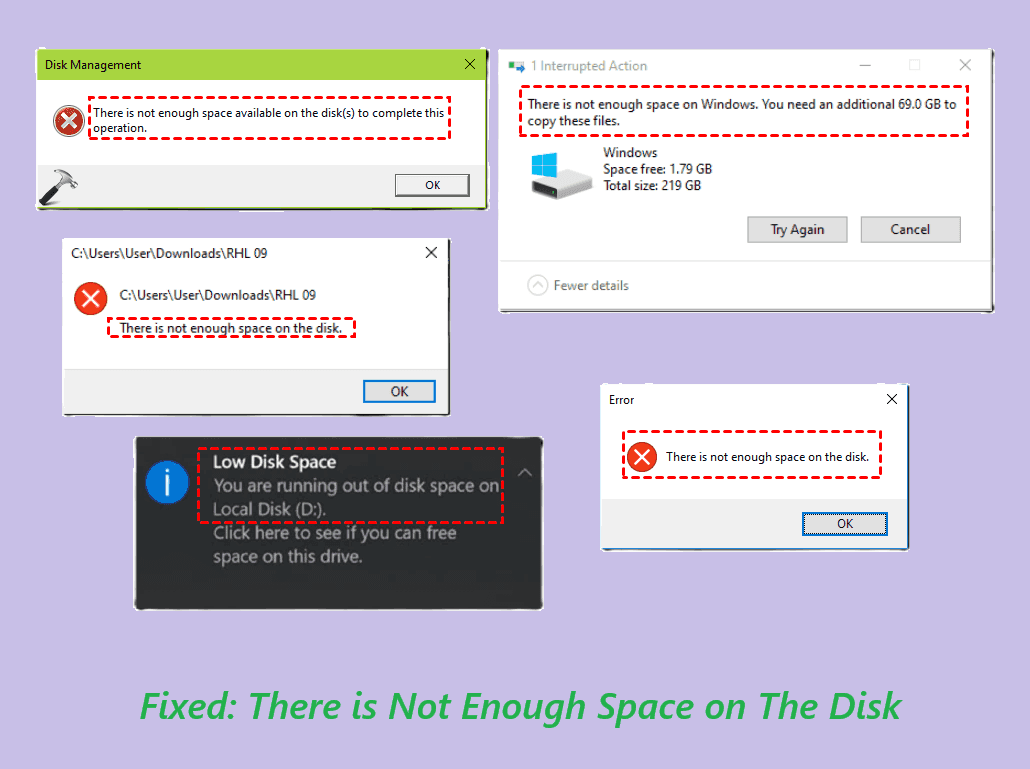
When you are downloading a file, installing a program, or just saving your work, an error "There is not enough space on the disk" might occur. You check your drive, and sure enough, there's plenty of room. Why does this happen?
Don't worry, you will learn the truth and fixes to solve this problem. This guide will walk you through everything you need to know about the there is not enough space on the disk error. We'll cover why it happens, how to fix it, and most importantly, how to recover your data if things go sideways.
About the "There Is Not Enough Space on the Disk" Error
What exactly is happening when Windows throws this frustrating message at you? Put simply, the there is not enough space on the disk error means your operating system attempted to write data to a drive but couldn't complete the operation. The twist? Your drive might not actually be full. The failure often stems from Windows being unable to access the space it needs, or a disconnect between what the file system reports and what's genuinely available for use.
This error tends to rear its head in several predictable situations:
- During file transfers: You're happily copying files from one location to another when Windows slams on the brakes halfway through, claiming insufficient space.
- When installing programs: The installer checks your available storage, finds plenty of room, yet still refuses to proceed with this error.
- In Disk Management: While trying to shrink, extend, or create partitions, the error appears even when unallocated space clearly exists on the drive.
- During Windows updates: The update process demands specific chunks of contiguous space, and if it can't find them, this message is what you'll see.
Why Your Computer Says No Disk Space But There Is
Let's dig into the specific reasons why this disconnect happens. Understanding the cause is half the battle.
- Hidden and system files are eating your space, like the hibernation file (hiberfil.sys, the page file (pagefile.sys), system restore points, etc.
- File system errors and corruption.
- Partition limitations and disk management quirks. Windows' built-in Disk Management tool has limitations that can trigger the there is not enough space on the disk error, especially when you're trying to extend or shrink partitions, which requires unallocated space that's directly adjacent to the partition you're extending.
- File system format limitations. For example, try to copy a 5GB movie file to a FAT32 drive (up to 4GB per file size).
- Reserved storage and shadow copies.
- Virtual memory and paging files. If your system is configured to manage paging files automatically, it might reserve space that appears free but isn't actually usable for other operations.
First, Recover Data from The Disk That Shows Not Enough Space
Before you go too deep into fixes and repairs, let's talk about data protection. The smart play is to recover your important data first, then worry about fixing the drive. And that's where MyRecover comes in.
MyRecover is professional data recovery software designed to pull files from drives that are having problems—including drives throwing the there is not enough space on the disk error. It works by reading drives at a deep level, bypassing file system issues and recovering data directly.
What makes MyRecover particularly useful:
- User-friendly interface: You don't need to be a tech wizard. The software guides you through each step.
- Two scanning methods: Quick Scan for recently deleted files, Deep Scan for more missing files at a sector-by-sector scan.
- Over 1,000 file types and 500 devices supported: Documents, photos, videos, audio; SSD, HDD, SD card, USB flash drive, camera, PS4/5, etc.—MyRecover handles them all.
- Preview before recovery: You can check files to make sure they're intact before committing.
- High success rate: Independent tests show recovery rates around 99% for most file types.
Let's walk through the process of using MyRecover to rescue your data from a drive that's giving you the there is not enough space on the disk error.
1. Please download and install MyRecover on your computer. And connect your troubled drive as a secondary drive later.
 100% Secure
2. Open MyRecover, choose Disk Data Recovery, choose the drive that shows the low disk space error, hover over it, and click Scan.

3. MyRecover scans files using the quick scan mode. If there are no files you need, try a deep scan. Hit OK when it’s done.
4. Preview and select the files you need, and hit Recover.

5. Opt for a safe location, and hit Select Folder to keep them.

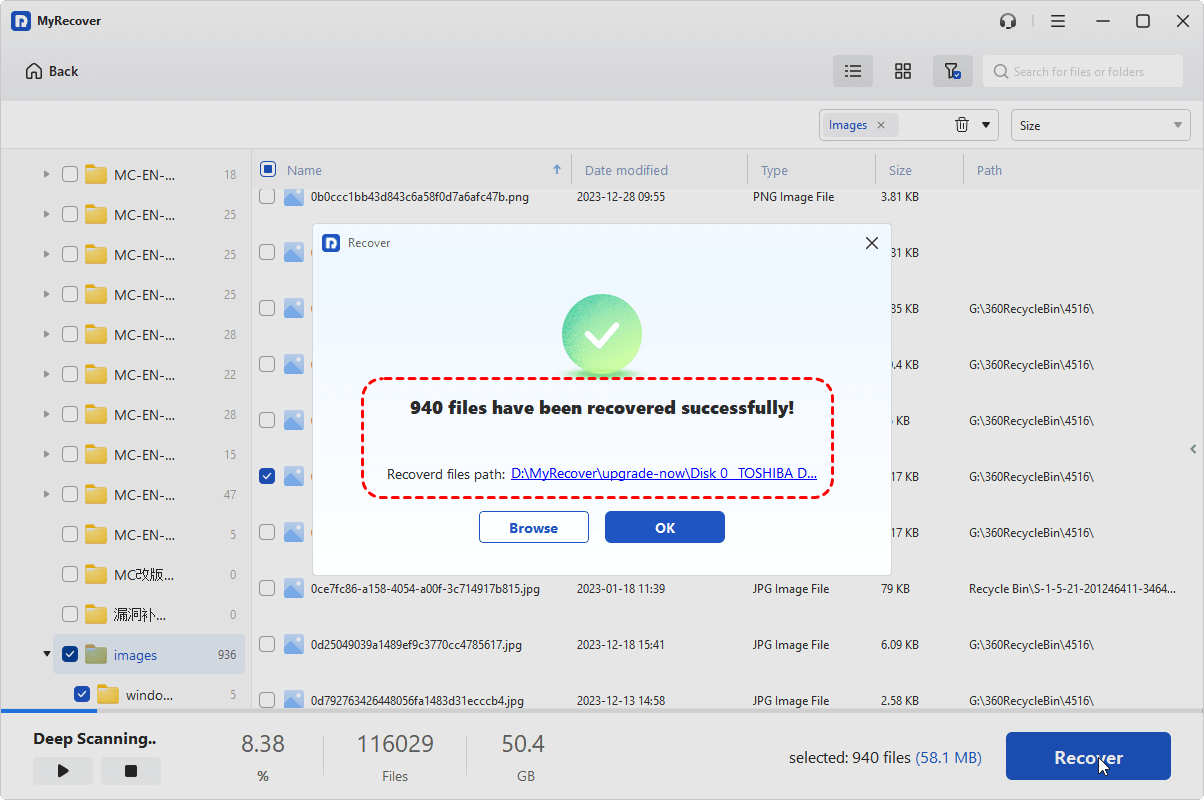
- Notes:✎...
- Depending on the size of your drive and how damaged it is, this could take anywhere from a few minutes to an hour or more. Testing shows MyRecover typically completes scans within about 5 minutes for average scenarios.
- Once scanned, you can browse through folders or use the search and filter functions to zero in on specific files. MyRecover lets you filter by file type, by file name, by date modified, and by size.
- You can recover unlimited files at a time after upgrading.
- MyRecover Technician is your best choice if you need to recover more files from unlimited computers.

 MyRecover
- Recover Deleted Files Easily with Simple Clicks
- 1000+ File Formats Supported
- Support HDD, SSD, External Hard Drive, USB Drive, SD Card, etc.
- Quickly Find Files Using File Types, Name, Size, etc.
- Preview Files Before Recovering
- Recover Unlimited Data
 100% Secure
How to Fix "There Is Not Enough Space on the Disk" on Windows 10/11
Try these solutions to fix it easily.
Way 1. Check Both Source and Destination Drives
When you get the there is not enough space on the disk error during file transfers, check both drives involved. Windows sometimes needs temporary space on the source drive to cache files before transferring them. If that source drive is low on space, the transfer fails even if the destination has plenty.
Make sure you have free space on both drives, not just the destination.
Way 2. Move Files in Batches
This trick addresses the caching issue. Instead of trying to move a massive folder all at once, break it into smaller chunks. Copy a few files at a time. This reduces the temporary cache requirements and can bypass the error.
Way 3. Try a Different USB Port or Cable
If you're using an external drive, connection issues can cause false "not enough space" errors. Try a different USB port, especially a direct port on your computer rather than a hub. Swap out the cable if you have a spare. Sometimes a flaky connection corrupts the communication between Windows and the drive, leading to weird errors.
Way 4. Restart Your Computer
A fresh boot clears temporary files, resets drive connections, and gives Windows a clean slate. After restarting, try your operation again and see if the error persists.
Way 5. Run Disk Cleanup to Remove Junk Files
Windows includes a built-in tool specifically for clearing out the kind of files that cause space confusion. Disk Cleanup can delete temporary files, system cache, Recycle Bin contents, and more.
1. Press the Windows key, type "Disk Cleanup", and click the result.
2. Select the drive that's giving you the there is not enough space on the disk error (usually C:) and click OK.
3. The tool will scan and show you file categories you can delete. Check boxes for everything you're comfortable removing—temporary files, Recycle Bin, thumbnails, etc.
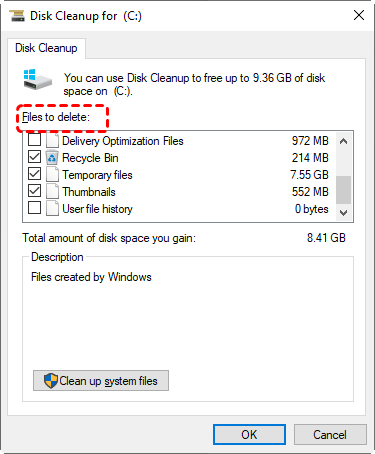
4. Click "Clean up system files" for even more options. This lets you delete Windows update cleanup files, delivery optimization files, and more.
5. Click OK and confirm deletion.
After running Disk Cleanup, check if the error still appears. This single step resolves many disk space not enough issues by clearing out hidden caches and temporary files that confuse Windows.
Way 6. Empty the Recycle Bin Properly
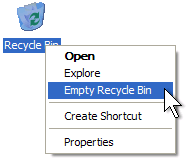
Deleted files sit in the Recycle Bin until you empty it, and they still count against your available space. Right-click the Recycle Bin icon on your desktop and select "Empty Recycle Bin".
Way 7. Show Hidden Files and Check for Space Hogs
Remember those hidden system files we talked about? Let's expose them and see what's really taking up space.
1. Open File Explorer and click the "View" tab at the top.
2. Check the box that says "Hidden items". This reveals files Windows normally hides.
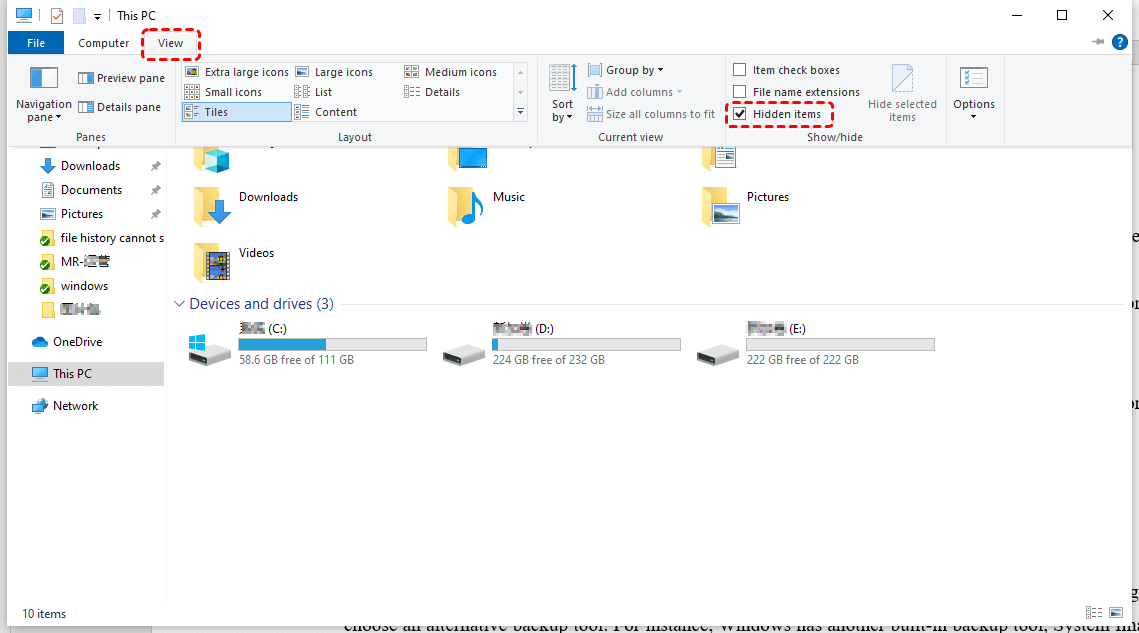
3. Navigate to your main drive and look for large files you might have missed. Pay special attention to folders like C:\Windows\Temp and C:\Users\YourUsername\AppData\Local\Temp.
4. You can also use the search bar in File Explorer to find large files. Search for "size:gigantic" or sort folders by size in Details view to spot the biggest space consumers.
Be careful when deleting files manually—don't remove anything you're unsure about. System files are hidden for a reason, and deleting the wrong thing can cause problems.
Way 8. Disable Hibernation to Free Up Space
The hibernation file (hiberfil.sys) can be massive—often equal to your installed RAM. If you don't use hibernation, you can safely disable it and reclaim that space.
1. Press Windows key + X and select "Windows Terminal (Admin)" or "Command Prompt (Admin)."
2. Type powercfg /h off and press Enter.
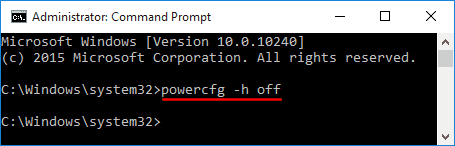
3. Close Command Prompt and restart your computer.
The hibernation file will be deleted, and you'll get that space back. This alone can free up several gigabytes on many systems.
Way 9. Adjust Virtual Memory Settings
Virtual memory (the page file) can also be adjusted if it's consuming too much space.
1. Press Windows key + X and select "System."
2. Click "Advanced system settings" on the right.
3. Under Performance, click "Settings", then go to the "Advanced" tab.
4. Under Virtual memory, click "Change".
5. Uncheck "Automatically manage paging file size for all drives".
6. Select your drive, choose "Custom size," and set initial and maximum sizes. A common recommendation is 1.5 times your RAM for initial and 3 times for maximum, but you can also set smaller values if you're tight on space.
7. Click Set > OK, then restart your computer.
Way 10. Check and Repair File System Errors
If file system corruption is causing the there is not enough space on the disk error, CHKDSK can help.
1. Open Command Prompt as Administrator.
2. Type chkdsk C: /f /r (replace C: with your affected drive) and press Enter.
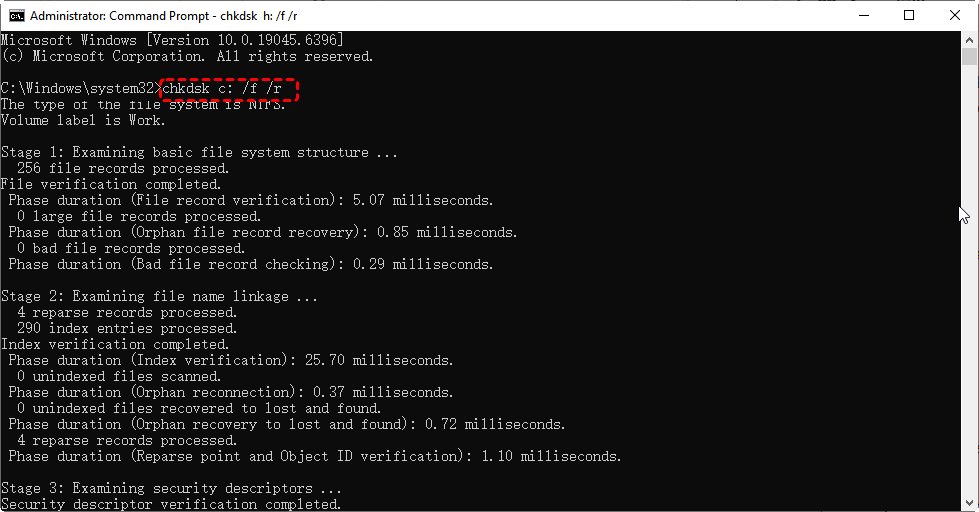
3. If it's your system drive, Windows will ask to schedule the scan for next reboot. Type Y and restart.
4. Let CHKDSK run. This can take a while, especially on large drives. When it finishes, check if the error is resolved.
Way 11. Convert FAT32 to NTFS
If your drive is formatted as FAT32 and you're trying to copy files larger than 4GB, you need to convert to NTFS.
1. Back up any important data on the drive first. While conversion can be done without data loss, it's better to be safe.
2. Open Command Prompt as Administrator.
3. Type convert X: /fs:ntfs (replace X with your drive letter) and press Enter.
4. Follow any prompts. The conversion will run, and your drive will be NTFS afterward, allowing larger files.
Way 12. Use Storage Sense for Automatic Cleanup
Windows 10 includes a feature called Storage Sense that automatically frees up space by deleting unnecessary files.
1. Press Windows + I to open Settings, and go to System > Storage.
2. Turn on Storage Sense by toggling the switch.
3. Click "Configure Storage Sense or run it now" to set it up.
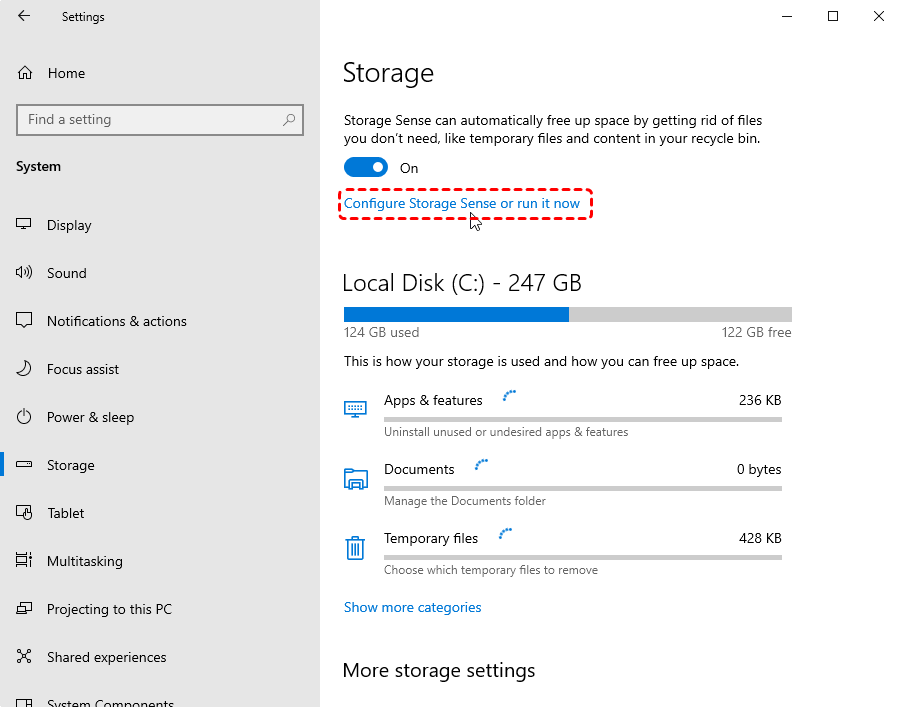
4. Choose how often you want it to run—during low free space, every day, every week, or every month.
5. Configure settings for deleting temporary files and emptying the Recycle Bin.
6. You can also click "Clean now" to run it immediately.
Way 13. Extend Your Partition
If the issue is that your partition is genuinely too small, you can extend it using unallocated space on the same drive.
Using Disk Management (if you have adjacent unallocated space):
Step 1: Press Windows key + X and select "Disk Management."
Step 2: Right-click the partition you want to extend (usually C:) and select "Extend Volume".
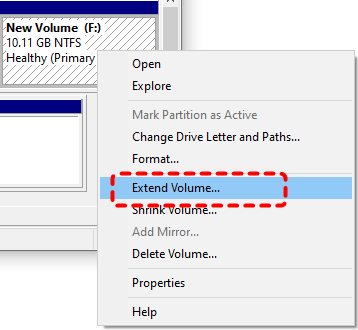
Step 3: Follow the wizard to add unallocated space to the partition.
Way 14. Delete Windows Update Files
Windows updates can leave behind massive amounts of temporary files, especially the Windows.old folder after a major update.
1. Run Disk Cleanup as described earlier.
2. Click "Clean up system files."
3. Check "Windows Update Cleanup", "Delivery Optimization Files", and "Previous Windows Installation(s)" if present.

4. Click OK and confirm deletion.
This can free up tens of gigabytes on systems that have been through multiple updates.
Way 15. Use DiskPart to Clean and Rebuild Partitions
This is the nuclear option. DiskPart completely wipes partition structures and lets you start fresh.
1. Open Command Prompt as Administrator.
2. Type the following commands and hit Enter after each.
diskpart
list disk
select disk X (replace X with your disk number).
clean
create partition primary
format fs=ntfs quick
assign letter=F(or whatever letter you want).
exit
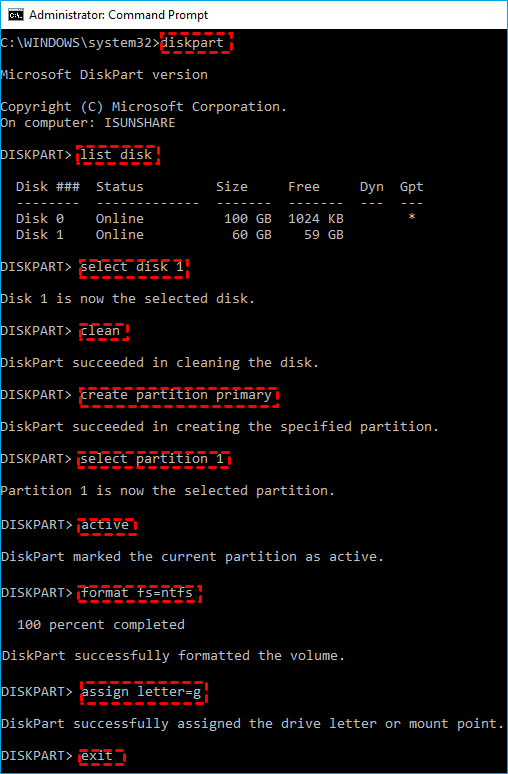
This wipes everything, so only do it after data recovery.
Way 16. Check for Malware
Some malware fills drives with junk files or corrupts file system structures, leading to false "not enough space" errors.
Run a full system scan with Windows Defender or your preferred antivirus. Windows Defender Offline Scan is particularly effective because it runs before Windows boots, catching deeply embedded threats.
FAQs about There is Not Enough Space on the Disk
Will formatting fix the "there is not enough space on the disk" error?
A: Formatting creates a fresh file system and eliminates logical corruption, often resolving the error. However, it erases all data—only format after recovering files with MyRecover. If caused by physical bad sectors, formatting just marks them unusable without fixing the hardware. For FAT32 file size limits, converting to NTFS preserves data and solves the problem without full formatting.
How much free space should I keep on my Windows 10 drive?
A: Keep at least 15% of total capacity free. SSDs especially need this for wear leveling and garbage collection. For a 256GB drive, that's roughly 38GB. Microsoft recommends at least 20GB of free space on 64-bit Windows 10 system drives to ensure updates can download, extract, and install properly.
Can I delete files from the WinSxS folder to free up space?
A: Never manually delete WinSxS files—it stores critical components for Windows updates and system functionality. Safely reduce its size using built-in tools instead. Run Disk Cleanup as administrator, select "Clean up system files," and check "Windows Update Cleanup" to remove outdated component versions without breaking anything.
Why does my external drive show "not enough space" when it has plenty of room?
A: Check the file system format—many externals ship as FAT32 with the 4GB file size limit. Improper ejection can corrupt the file system, causing incorrect space reporting. Faulty cables or underpowered ports trigger communication errors that fake out Windows. Try different cables, direct ports, and run CHKDSK to check for file system errors.
How do I fix "there is not enough space on the disk" during Windows Update?
A: Run Disk Cleanup and select "Clean up system files" to remove previous update files. Temporarily disable hibernation to reclaim that space. Move personal files like documents and videos to another drive. Use an external drive for updates via Settings > Update & Security > Windows Update. As a last resort, use the Media Creation Tool—it handles space better than Windows Update.
Can I extend my C: drive without losing data?
A: Yes, two safe options exist. With adjacent unallocated space, use Windows' built-in Disk Management to extend the volume without data loss. If space isn't adjacent, third-party tools like AOMEI Partition Assistant can move space from other partitions to C: while preserving files. Always back up critical data first, but these methods are designed to be safe.

Stay Updated With Our
Latest Tips
Add us as a preferred source on Google to never miss helpful guides.
 Add as preferred source >>