 MyRecover



How to Recover EXE Virus Infected Files on Windows 10/11
This guide explains how to recover exe virus infected files and safely restore damaged data. Discover practical fixes, removal steps, and expert tips on how to remove exe virus from your computer without risking further file loss.

By Aria / Updated on February 28, 2026


What Is an EXE Virus and How Does It Affect Your Files?
An EXE virus is a type of malicious program that infects executable files (.exe) and uses them as a carrier to spread or execute harmful actions on a Windows system. Unlike standalone malware, it often attaches itself to legitimate program files or disguises itself as a normal application, making it easy for users to launch it unintentionally.

Once an EXE virus infects your system, it can affect files and system behavior in several concrete ways:
🧿File corruption or replacement: The virus may modify the original executable, making the program fail to run or behave abnormally.
🔔File hiding or shortcut conversion: Some variants (commonly seen on USB drives) hide real folders and replace them with malicious .exe shortcuts.
🔉Unauthorized file encryption or deletion: Advanced malware may encrypt, damage, or remove user files, leading to data loss.
💻System performance issues: Because the infected executable runs malicious code in the background, you may notice high CPU usage, slow startup, or frequent crashes.
📌Rapid malware spread: When the infected .exe is copied to another drive or device, the virus can propagate automatically.
In short, an EXE virus compromises both program integrity and data safety. The longer it remains on the system, the higher the risk of file damage or loss, which is why prompt removal and file recovery are critical.
Immediate Actions to Take After EXE Virus Infection
Once you identify that an EXE virus has infected your system, acting quickly is essential to minimize damage and prevent further spread. The first priority is to isolate the threat, protect your files, and begin recovery efforts. Follow these practical steps:
👉Disconnect from the Internet and external devices: Unplug USB drives, external hard drives, and disable Wi-Fi to prevent the virus from spreading to other systems or cloud storage.
👉Stop suspicious processes: Open Task Manager and identify unusual processes consuming high CPU or memory. End tasks that appear linked to unknown or recently executed .exe files.
👉Run a full antivirus scan: Use a reputable antivirus or Microsoft Defender to detect and quarantine the infected files. Ensure your virus definitions are up-to-date before scanning.
👉Backup unaffected data: Copy essential files to a safe location on an external drive or cloud storage that is not currently connected to the infected system. Avoid backing up files that may already be compromised.
👉Avoid executing unknown .exe files: Do not run any program downloaded from unverified sources or attached to email messages until the system is fully cleaned.
How to Recover Exe Virus Infected Files on Windows 10 and 11
After containing the infection, the next objective is to restore files that were hidden, corrupted, or deleted by the EXE virus. With the following methods, you can maximize recovery success while minimizing unnecessary risk. Let's explore them one by one.
Method 1. Use Attrib Command to Unhide Files
Many EXE viruses, especially USB shortcut viruses, do not delete files but hide them by changing file attributes. The Attrib command restores visibility by removing the hidden and system flags. This method is fast, non-destructive, and should be your first attempt when folders appear replaced by .exe shortcuts or suddenly disappear.
Step 1. Enter Command Prompt in Windows search, then right click on it and choose "Run as administrator".

Step 2. Enter the command:
attrib -h -r -s /s /d X:\*.* (replace X with your actual drive letter).
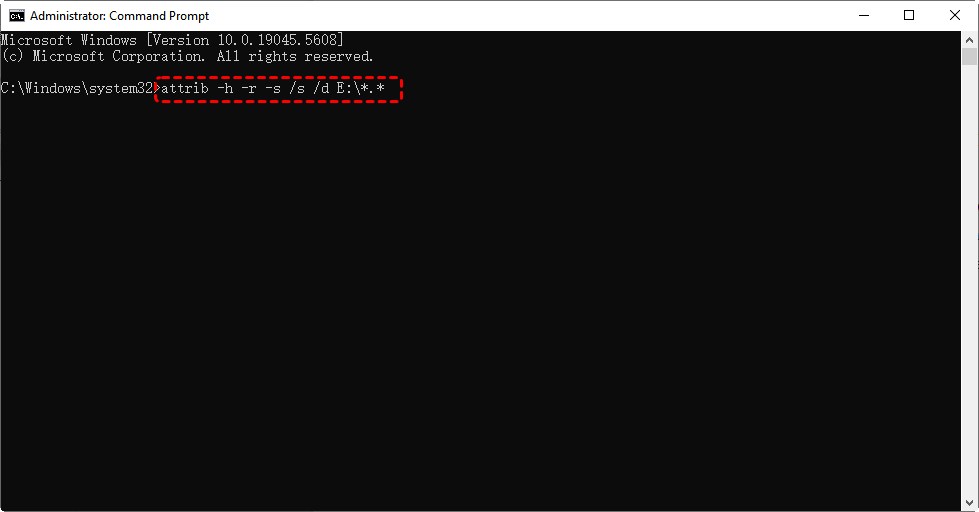
Step 3. Press Enter and wait for the process to complete.
Open the drive in File Explorer and check whether your original folders reappear.
Method 2. Restore Files Using File History
If the virus damaged or replaced files and you previously enabled File History on Windows 10 and 11, you can restore clean versions from backup. This Windows feature retrieves earlier file copies without affecting the rest of the system. It works best when backups were configured before the infection occurred.
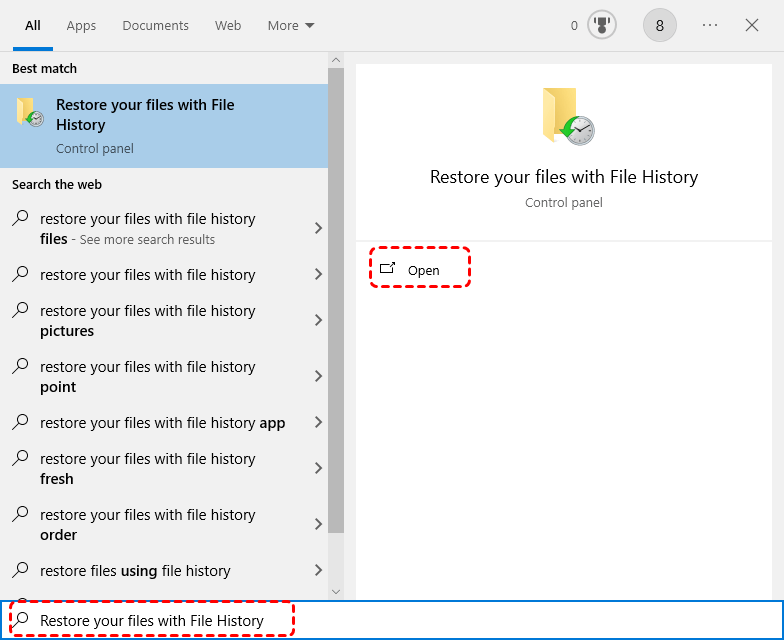
Step 1. Type "Restore your files with File History" in the Start menu and open it.
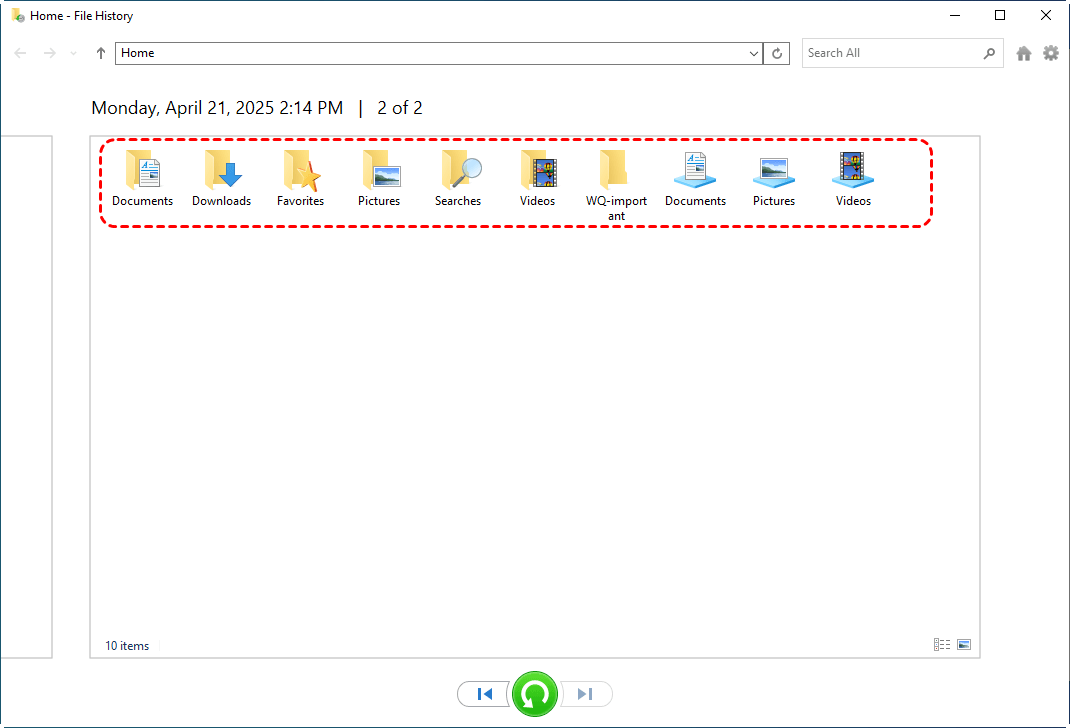
Step 2. Browse through the folder that contained the infected files and select the needed files, then choose a desired version based on the backup date.
Step 4. Click the green "Restore" button to recover them.
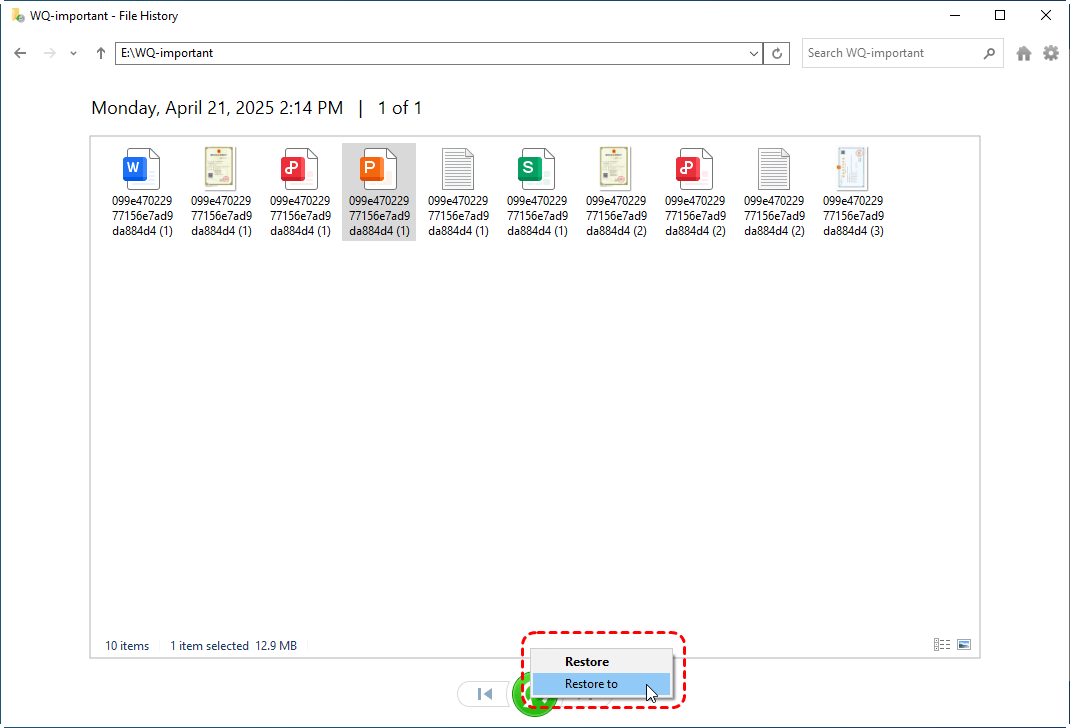
If you have used other Windows backup tools such as Backup and Restore (Windows 7), OneDrive, etc., you can also directly restore uninfected files from these created backups.
Method 3. Recover Deleted Files with Windows File Recovery
If the EXE virus permanently deleted files and no backup exists, Microsoft’s Windows File Recovery can scan the disk for permanently deleted files. It uses command-line recovery modes to rebuild lost files from NTFS, FAT, or exFAT drives. But it is only compatible with Windows 10 and 11.
Step 1. Download and install Windows File Recovery from Microsoft Store.

Step 2. Locate Windows File Recovery in the Start menu and right click on it, then choose "Run as administrator".
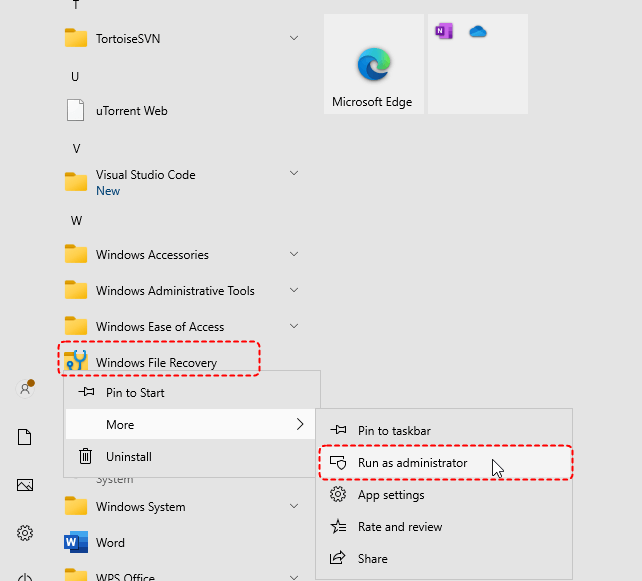
Step 3. Enter the following command to retrieve all deleted files: winfr H: D: \test /regular and hit the "Enter" key. Replace the drive letter "H" and "D" with your actual drive letter.

- Notes:✎...
- H: The drive where files were lost/deleted (scanning location).
- D: Where recovered files will be saved (must be different from source).
- \test: Creates a "test" folder on D: drive to store recovered files.
- /regular: Uses Regular scan mode (recommended for recently deleted files on NTFS drives).
Step 4. Wait for the scan to finish and review recovered files in the destination drive.
Method 4. Recover EXE Virus Infected Files with MyRecover (Recommended)
When files are severely damaged, missing, or the above methods fail, a professional tool like MyRecover provides the highest recovery success rate. It combines quick scan and deep scan technology, supports recovery of large program folders and personal files, and offers a user-friendly interface suitable for both beginners and advanced users. Follow these steps to recover lost files with MyRecover:

 MyRecover
- 500+ Devices Supported | SSD, HDD, USB Flash Drive, SD Sard, etc.
- 1000+ File Formats Supported | PNG, MP4, MP3, TXT, ZIP, MSG, etc.
- 500+ Data Loss Scenarios | Deletion, Format, System Crash, Virus Attack, etc.
 100% Secure
Step 1. Download and install MyRecover on a different drive from the one containing lost data.
Step 2. Launch the program, select the affected partition, and click "Scan" to search for recoverable files.
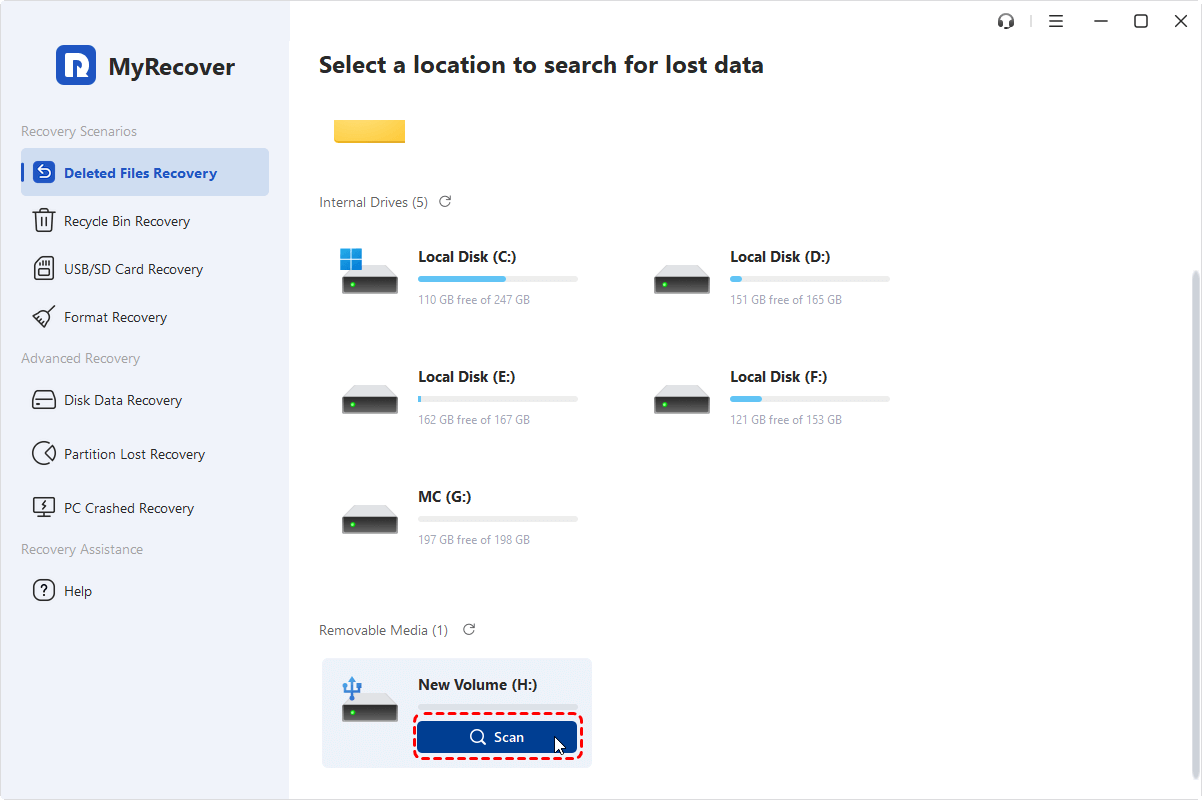
Step 3. After the scan is completed, choose the files you wish to recover from the recoverable lists and click "Recover".
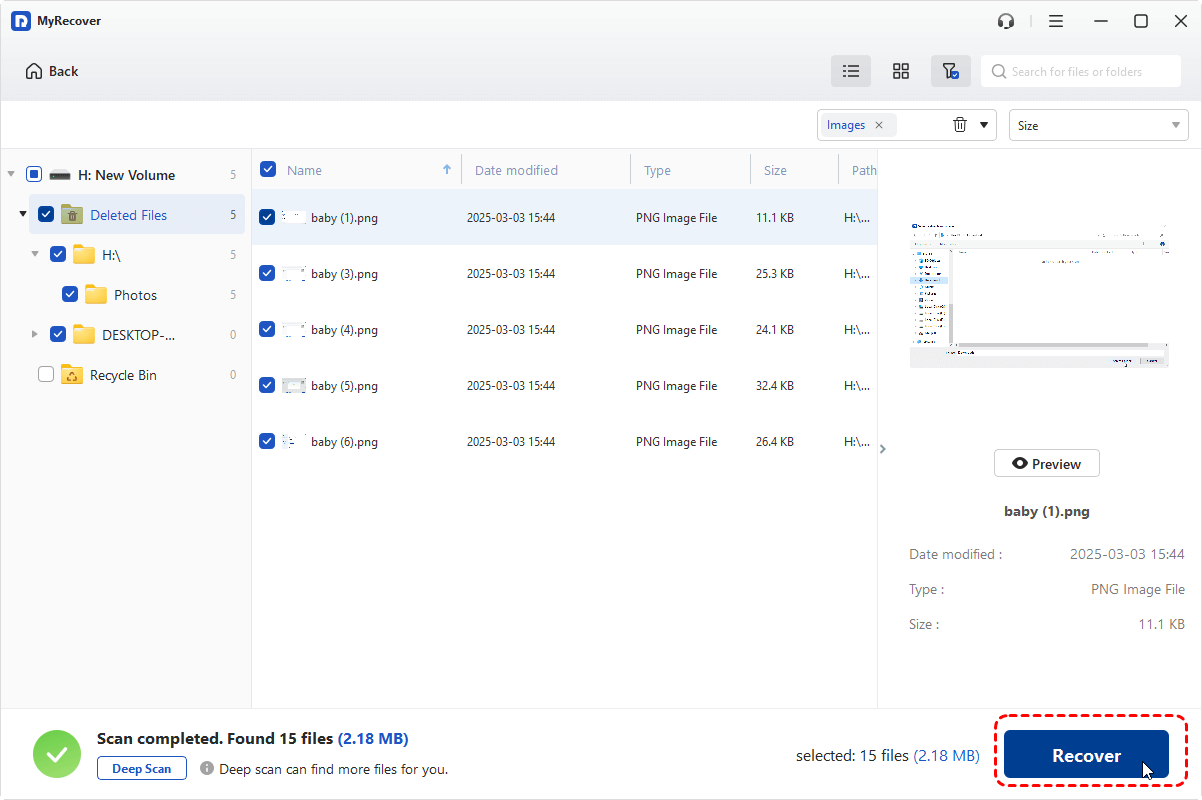
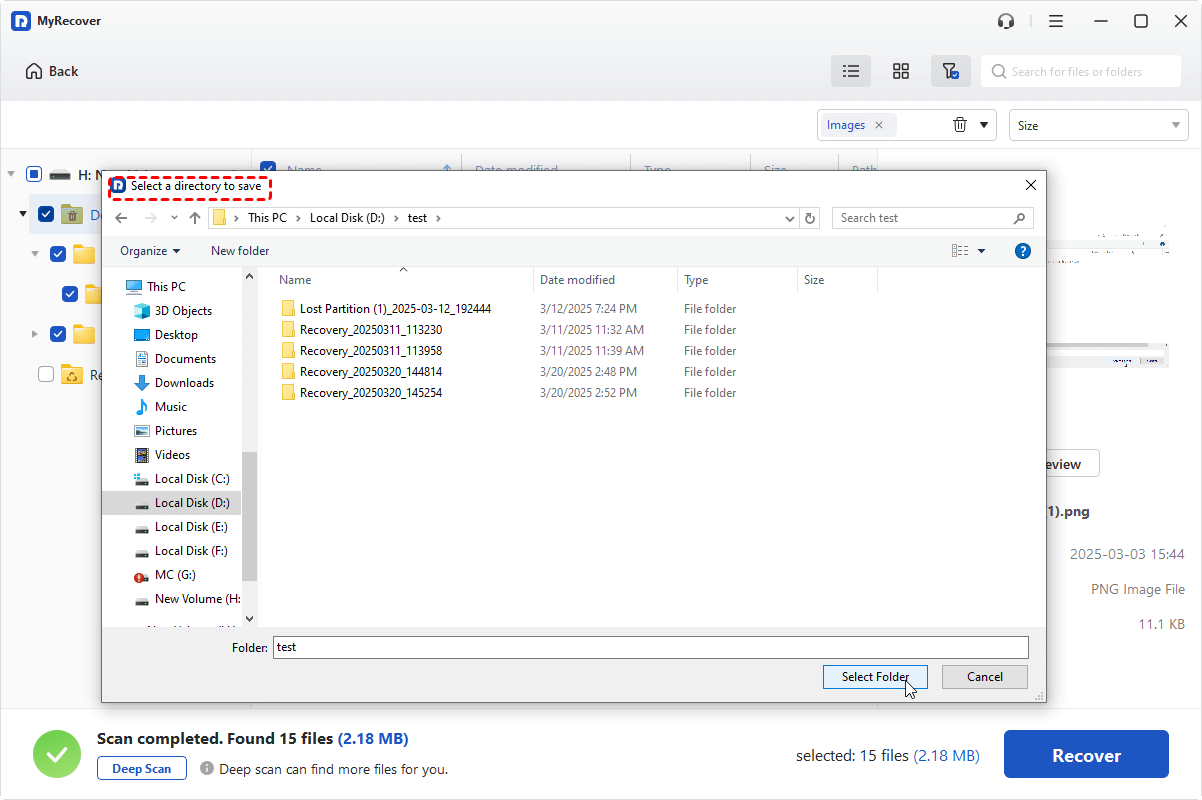
Step 4. Choose a new location to save the recovered data and confirm the recovery.
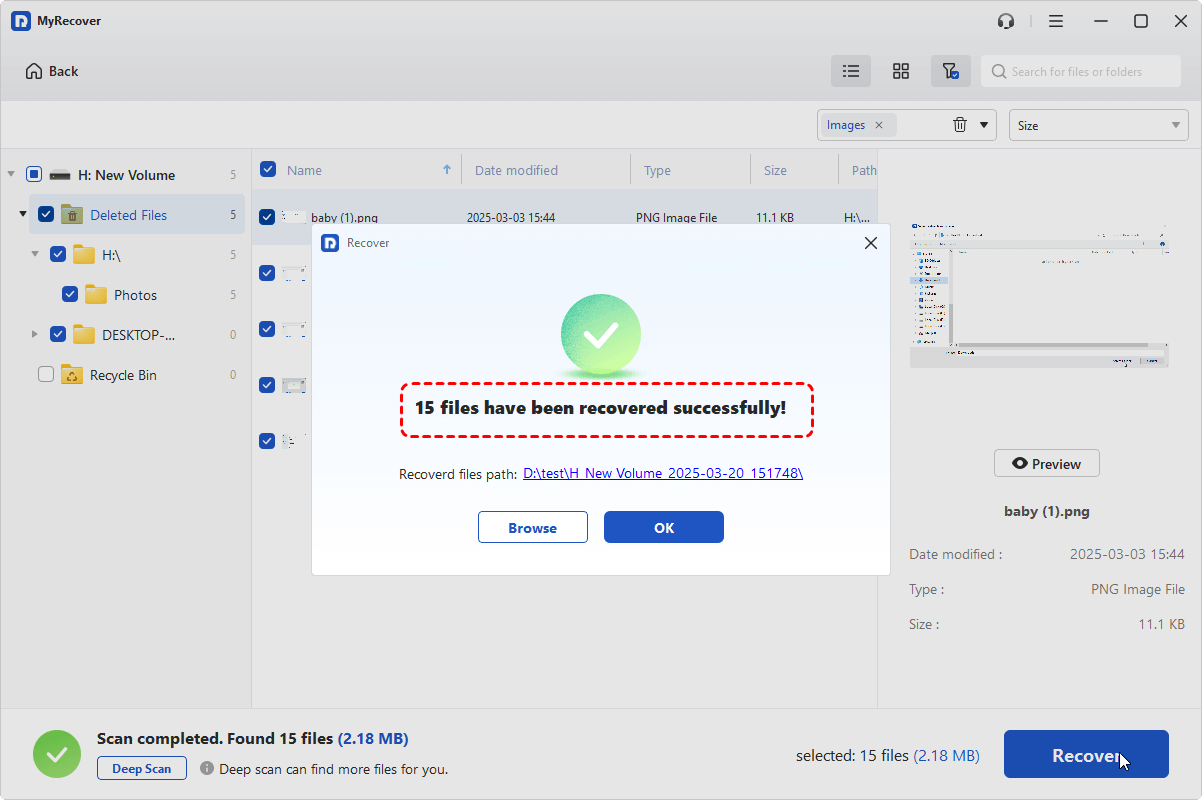
Once the process is done, the message "Files have been recovered successfully" will pop up. Then, you can check the recovered files in the destination folder by clicking on the "Browse" button.
Summary
In a short, an EXE virus primarily compromises executable files and may hide, corrupt, or delete user data, making timely response essential. By following these structured approaches, you can effectively remove the threat and restore important files while minimizing further data loss.
When built-in tools cannot locate missing data, a dedicated solution like MyRecover offers deeper scanning and higher recovery success. Upgrading to the Professional edition of MyRecover, you can enjoy unlimited data recovery quota and file content preview before restoration.
FAQs
Q1: Can I recover virus-infected files?
Yes, many virus-infected files can be recovered, depending on the damage level. If files were only hidden or slightly modified, antivirus tool and Attrib command may restore them. If files were deleted or corrupted, backups or data recovery tools like MyRecover can help. Act quickly and avoid writing new data to the affected drive to maximize recovery success.
Q2: How to get rid of exe virus?
To remove an EXE virus, first disconnect external devices and the internet to stop its spread. Then run a full system scan using updated antivirus software or Microsoft Defender. Quarantine or delete detected threats and reboot the system. Take Microsoft Defender as an example:
Step 1. Go to "Settings" > "Update & Security" > "Windows Security" > "Virus & threat protection".
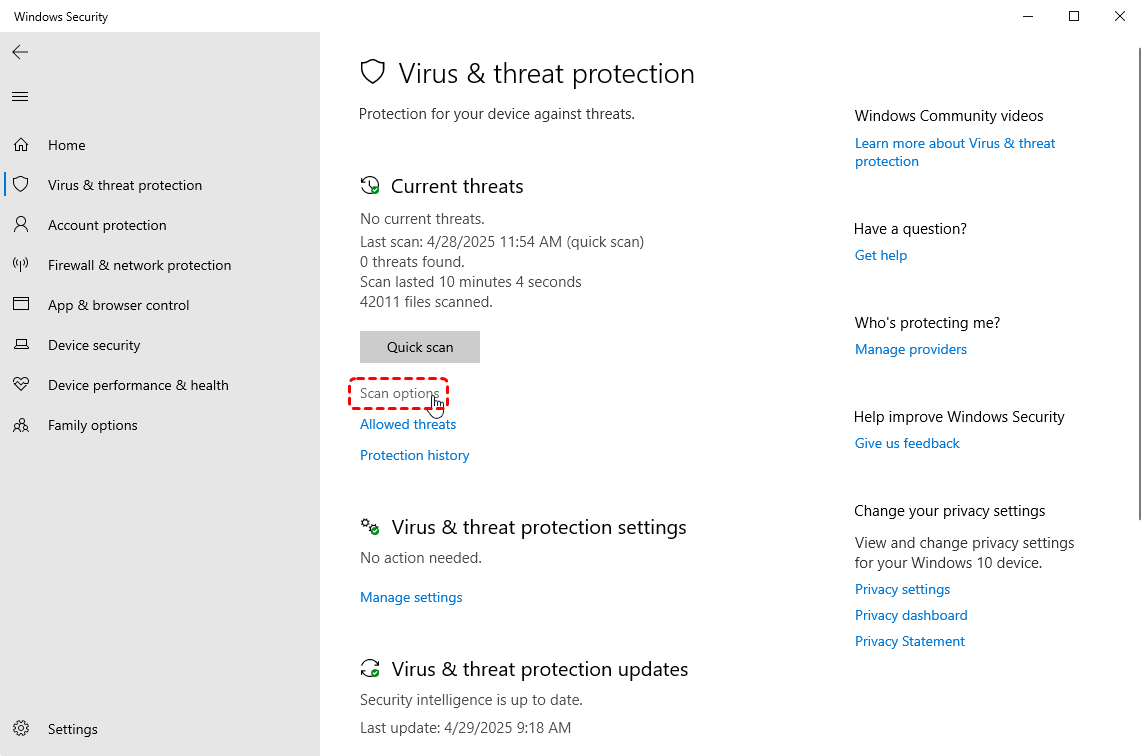
Step 2. Choose "Full Scan" under "Scan options" to perform a comprehensive scan for the whole system.
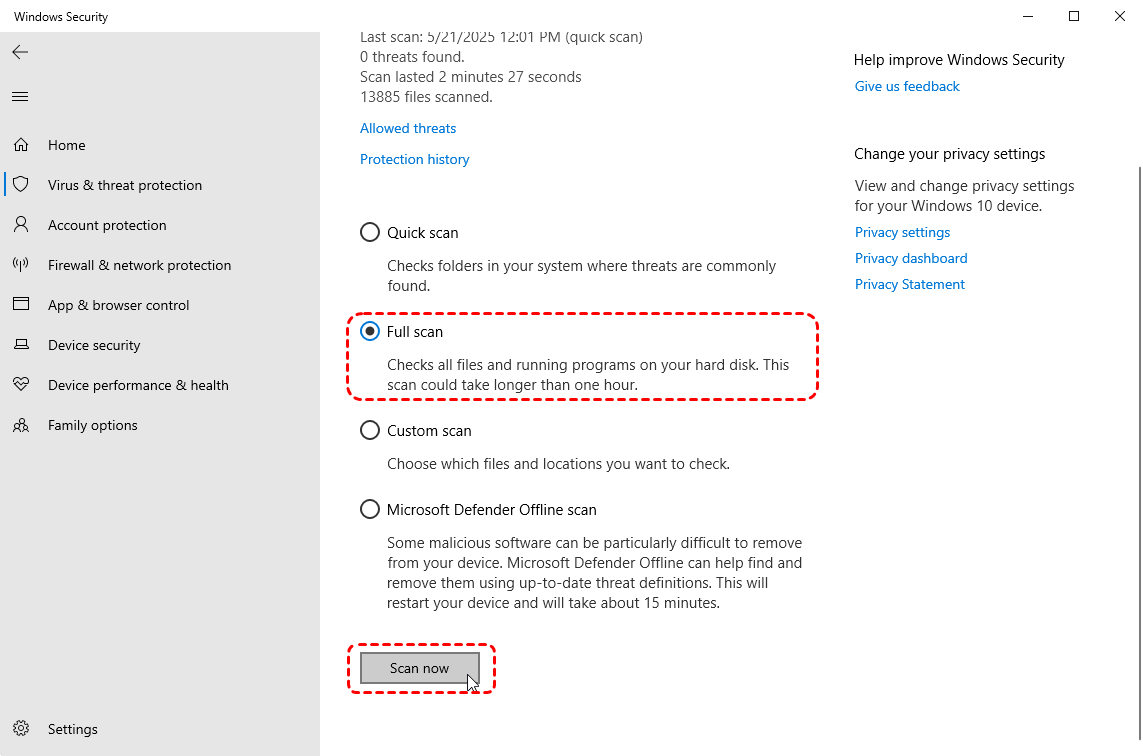
Step 3. Click "Scan now" to start the process.
Q3: Do viruses permanently damage your computer?
Not always. Many viruses cause temporary issues that can be fixed through removal and system repair. However, severe malware may corrupt system files, encrypt data, or damage the file system, which can lead to permanent data loss.
Q4: Does deleting an infected file remove the virus?
Sometimes, but not reliably. Deleting one infected file may remove that specific threat, but many viruses create hidden components, registry entries, or additional malicious files. Without a full antivirus scan, remnants may remain active. Always perform a complete system scan after deletion to ensure the virus is fully eradicated.

Stay Updated With Our
Latest Tips
Add us as a preferred source on Google to never miss helpful guides.
 Add as preferred source >>