 MyRecover



Volume Information for This Disk Cannot Be Found – Causes, Fixes, and Prevention
This guide explains the volume information for this disk cannot be found solution, covering common causes, step-by-step fixes, recovery tips, and prevention advice so users can quickly resolve the error and regain full access to their drives without risking important data.

By Vera / Updated on December 18, 2025


What Does "Volume Information for This Disk Cannot Be Found" Mean?
Ever plugged in a hard drive or tried installing Windows, only to be greeted by the cryptic message “Volume information for this disk cannot be found”? Yeah, it’s confusing—and frustrating.
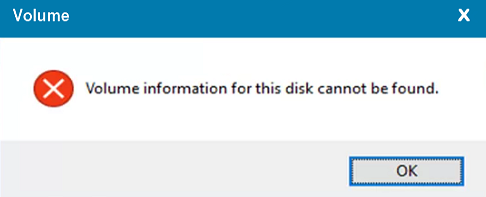
In simple terms, this error means Windows can’t read essential metadata on the disk. That metadata (volume information) tells the system how the drive is structured, what file system it uses, and how data is organized. Without it, Windows is basically staring at a book with no table of contents.
Common Situations Where This Error Appears
This error doesn’t pop up randomly. It usually appears during specific operations.
During Windows Installation
This is one of the most common scenarios. You select a drive to install Windows, and boom—the error pops up, blocking the process entirely.
When Using Disk Management
You might notice the disk shows as Unknown, Not Initialized, or Unallocated.
While Accessing External Drives
USB drives, external HDDs, or SSDs may suddenly become unreadable even though they worked fine yesterday.
Main Causes of the Error
Understanding the root cause makes fixing the problem much easier.
Corrupted File System
An improper shutdown, malware infection, or interrupted file transfer can corrupt the file system, making volume data unreadable.
Missing or Damaged Volume Information
The volume label or partition table itself may be damaged, especially on older or frequently used drives.
Drive Letter Conflicts
When Windows assigns the same drive letter to multiple devices, chaos ensues. Without a unique identifier, Windows can’t correctly map volume data—resulting in the "volume information for this disk cannot be found" message.
Physical Issues with the Disk
Bad sectors, aging hardware, or manufacturing defects can physically prevent the system from reading volume information.
How to Fix: Volume Information for This Disk Cannot Be Found
You should check first if the disk is detectable.
- Using BIOS/UEFI: Restart your PC and enter BIOS/UEFI settings. If the disk isn’t listed here, the problem may be hardware-related.
- Using Disk Management: Press Win + X → Disk Management. If the disk appears but has no volume info, it’s likely a logical issue (good news—fixable!).
Now, let’s start to fix this problem according to the situation.
Fix 1: Restart Your Computer (Quick Win)
Sounds too simple? Sometimes Windows just needs a reset to reload disk drivers properly. Always try this first.
Fix 2: Reconnect or Change the Disk Connection
For External Hard Drives
- Try a different USB port.
- Replace the USB cable.
- Plug the drive into another computer.
For Internal Drives
- Power off your PC.
- Reseat SATA and power cables.
- Try another SATA port.
Loose connections cause more problems than you’d think.
Fix 3: Assign or Change Drive Letter
1. Open Disk Management.
2. Right-click the affected partition.
3. Choose Change Drive Letter and Paths.
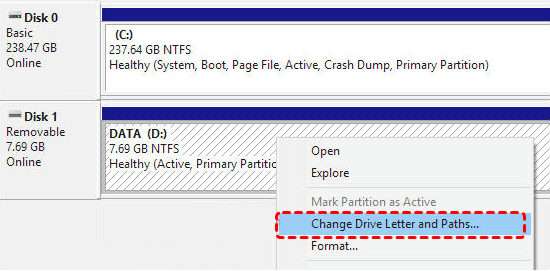
4. Assign a new letter.
Sometimes the disk is perfectly fine—it just doesn’t have an identity.
Fix 4: Run CHKDSK to Repair File System Errors
1. Open Command Prompt as Administrator
2. Type: chkdsk X: /f /r
(Replace X with your drive letter)
- /f fixes logical errors
- /r locates bad sectors

Think of CHKDSK as a mechanic scanning your drive engine for hidden damage.
Fix 5: Update or Reinstall Disk Drivers
Outdated or corrupted drivers can block Windows from reading volume information.
Steps:
1. Open Device Manager.
2. Expand Disk drives.
3. Right-click your disk → Update driver.

4. Or uninstall and restart to reinstall automatically.
Fix 6: Recover Data Before Formatting (Highly Recommended)
Formatting erases volume information—but also destroys existing data. If the disk contains important files, recovery should always be your first move.
Using MyRecover for Safe Recovery
Tools like MyRecover can scan disks even when volume information is missing. It reads raw sectors directly, allowing you to:
- Recover documents, photos, videos.
- Preview files before recovery.
- Avoid permanent data loss.
 100% Secure
This step can save you from a world of regret later.
1. Install MyRecover on your computer (don’t format the drive yet).
2. Open MyRecover and select the drive you plan to format.
3. Click Scan to search for lost files.

4. Preview and choose the files you want to recover.
5. Click Recover and save the files to another drive.

6. Check your recovered files, then safely format the drive if needed.
Fix 7: Format the Disk (Last Resort)
If nothing else works:
1. Open Disk Management.
2. Right-click the disk → Format.
3. Choose NTFS or exFAT.
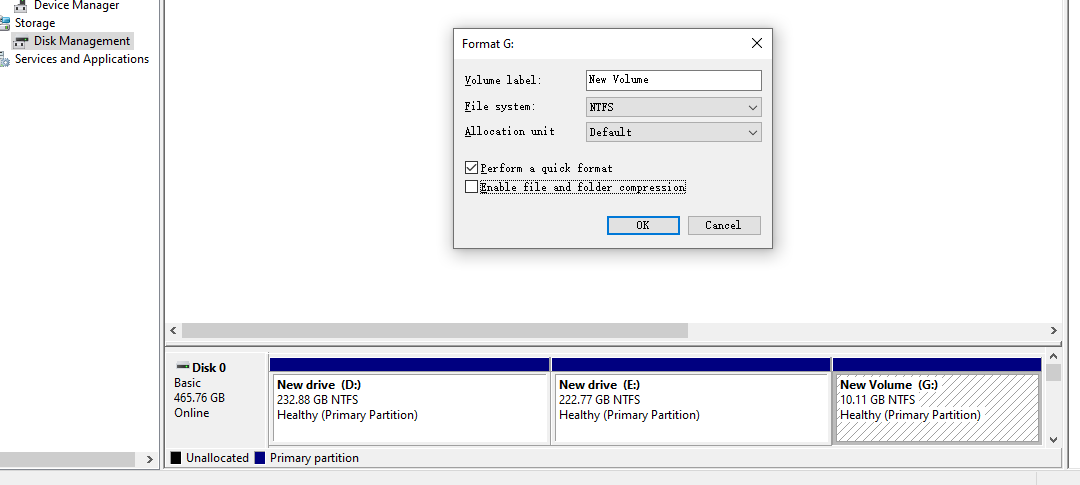
4. Complete the process.
Final Thoughts
The “volume information for this disk cannot be found” error looks scary, but in most cases, it’s fixable without replacing your drive. From simple restarts to advanced tools like CHKDSK and MyRecover, you’ve got options.
Treat your disks well, back up often, and you’ll avoid most of these headaches altogether.
❓ FAQs
1. How to prevent this error in the future?
- Always eject external drives safely.
- Avoid sudden power outages.
- Run disk checks regularly.
- Keep backups (seriously—future you will thank you).
2. Does this error mean my hard drive is dead?
Not necessarily. Most of the time, it’s a logical issue, not physical damage.
3. What should I do if the error appears during windows installation?
You can use the DiskPart method.
1. Press Shift + F10 on the setup screen
2. Type:
diskpart
list disk
select disk 0
clean
convert gpt
exit
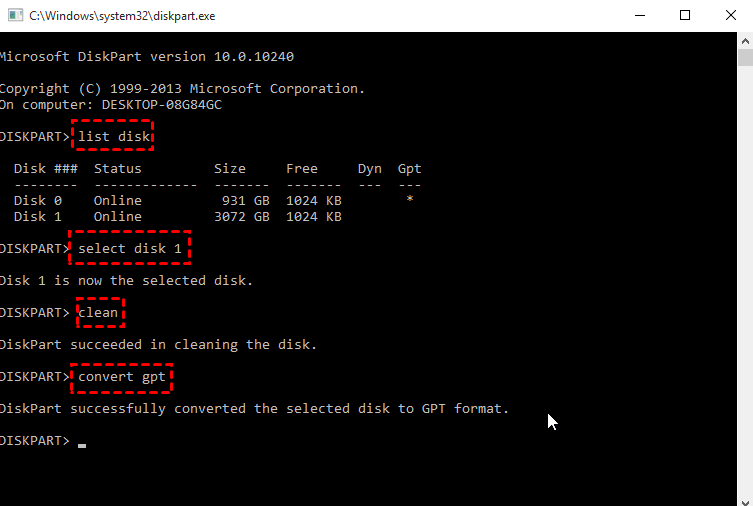
3. Restart installation
This rebuilds disk structure from scratch—like resetting a puzzle before reassembling it.
4. Is MyRecover safe to use?
Yes, it performs read-only scans and doesn’t overwrite existing data.
5. How long does CHKDSK take?
It depends on disk size and damage level—anywhere from minutes to several hours.

Stay Updated With Our
Latest Tips
Add us as a preferred source on Google to never miss helpful guides.
 Add as preferred source >>