 MyRecover



WD Passport Light On But Not Working: Complete Troubleshooting Guide
Is your WD My Passport light on but not working? Our guide walks you through effective solutions, from hardware checks to data recovery methods, helping you fix your WD drive safely and regain access to your important files quickly.

By Vera / Updated on January 8, 2026


Introduction
WD My Passport External Hard Drive led is blinking rapidly but not recognized?
Hi everyone. So the problem of me is one day my WD external hard drive can not be recognized by the PC or any device anymore. When I plugged in the cable the led start blinking rapidly (than normal) but the drive is not recognized. I have tried many way like change the USB cord but the same thing keep appearing. I have search around the internet most of problem came with no light on, in my case the light blinking rapidly.
Is there anyway I can diagnose this problem? Thank you very much.
- Question from Reddit
Have you ever plugged in your WD Passport drive, seen the light turn on, and thought, "Perfect, it’s working"—only to find your computer doesn’t recognize it? Frustrating, right? Don’t panic! This is a common issue, and the good news is that most of the time, it’s fixable. In this guide, we’ll explore why your WD Passport light is on but not working and walk you through step-by-step troubleshooting methods, plus tips to recover lost data and prevent future problems.
Understanding the WD Passport Drive
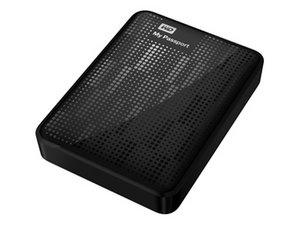
What Makes WD Passport Popular?
WD Passport drives are small, sleek, and extremely portable. They’re known for being plug-and-play, compatible with both Windows and Mac, and reliable for storing everything from family photos to business documents. Their portability makes them a go-to choice for people who need external storage on the move.
Common Issues Users Face
Despite their reliability, WD Passport drives can occasionally run into trouble. Users often report problems such as:
- Drives not appearing in Windows Explorer or Mac Finder
- Slow or stalled file transfers
- Drives showing a light but remaining inaccessible
This last issue—light on but not working—is surprisingly common and usually has a straightforward solution if you know where to look.
Why Your WD Passport Light Is On But Not Working
1. Hardware Issues
- Faulty USB Cable or Port: Sometimes the simplest thing—a damaged USB cable or malfunctioning port—can prevent the drive from functioning. Even if the drive’s light comes on, a faulty cable may not transmit data properly.
- Internal Drive Damage: Physical damage inside the WD Passport, such as a worn-out hard disk or SSD, can also cause the light to stay on while the drive remains unresponsive. Drops, bumps, or overheating are common culprits.
2. Software and Driver Problems
- Outdated or Corrupted Drivers: If your computer doesn’t have the correct drivers or if the existing drivers are outdated, the WD Passport may show a light but won’t be recognized. This often happens after system updates.
- File System Errors: A corrupted file system can prevent the drive from being accessed. Think of it like having a car full of fuel but with a broken engine—it has power but can’t function properly.
3. Power Supply and Connection Issues
- Insufficient Power from USB Port: Some USB ports, especially on older laptops or unpowered hubs, can’t provide enough electricity for external drives. The light may glow, but the drive may not function.
- Problems With Hubs or Extension Cables: Using hubs or long extension cables can reduce the power and stability of the data connection. Directly plugging the drive into your computer is always the safest bet.
How to Troubleshoot "WD Passport Light On But Not Working"
Here’s a detailed, step-by-step guide to troubleshoot your WD Passport and bring it back to life:
Step 1: Check the USB Connection
Unplug your WD Passport and reconnect it directly to your computer. Avoid USB hubs or extension cables at first. If it starts working, the issue may have been a weak connection.
Step 2: Test on Another Computer
Plug the drive into a different PC or laptop. If it works, then your original system likely has a software, driver, or power issue. If it doesn’t, the drive may be damaged or corrupted.
Step 3: Update or Reinstall Drivers
Drivers allow your computer to communicate with external hardware.
👉 On Windows:
1. Press Win + X → select Device Manager.

2. Expand Disk Drives → right-click your WD Passport → choose Update driver.

3. If updating doesn’t work, choose Uninstall device → disconnect the drive → reconnect it to reinstall drivers automatically.

👉 On Mac:
Macs generally don’t require extra drivers, but make sure your OS is updated. Outdated macOS versions can sometimes cause recognition issues.
Step 4: Use Disk Management to Check the Drive
👉 On Windows:
1. Press Win + X → select Disk Management.
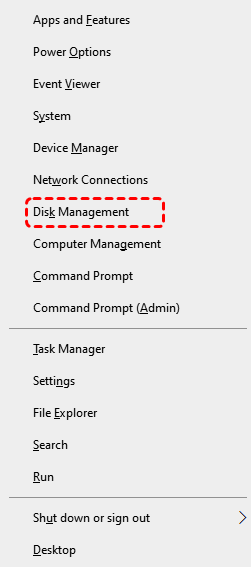
2. Check if your WD Passport appears.
- If it shows as Unallocated or RAW, the file system may be corrupted.
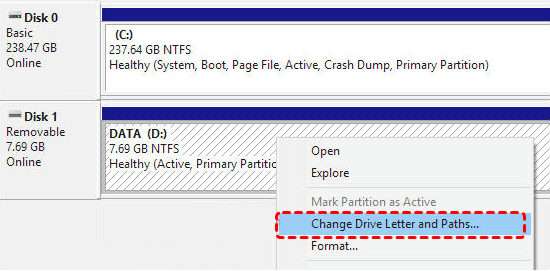
- Right-click → Change Drive Letter and Paths → assign a letter if missing.
👉 On Mac:
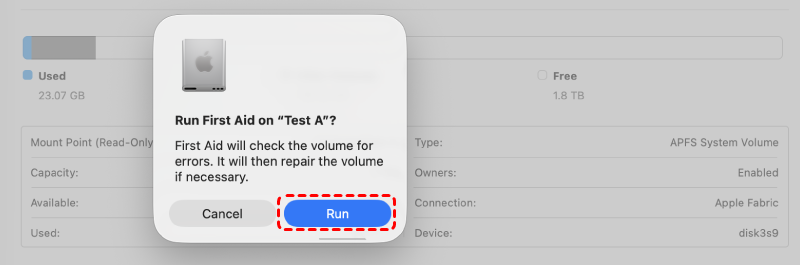
Use Disk Utility → see if the drive appears → try First Aid to repair the file system.
Step 5: Run CHKDSK or Repair Utilities
If the file system is corrupted, you can fix it with Windows’ built-in CHKDSK tool:
1. Open Command Prompt as Administrator.
2. Type chkdsk X: /f (replace X with your WD Passport drive letter) → press Enter.
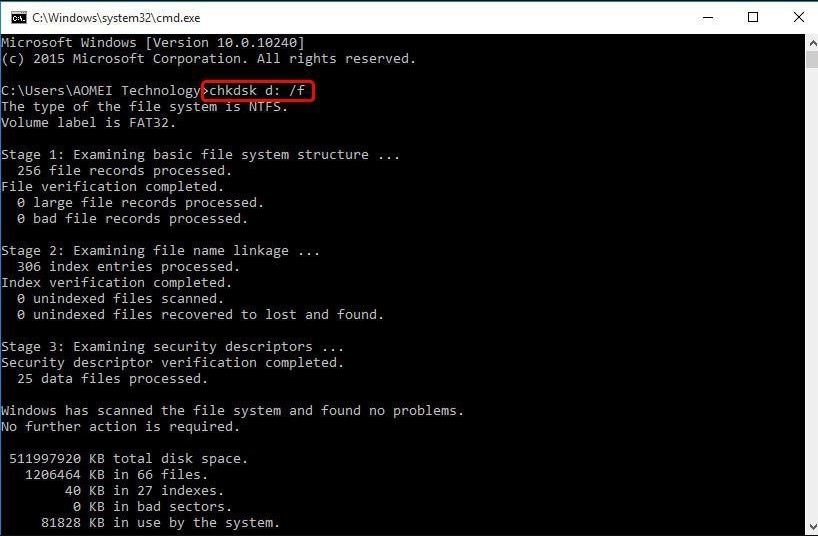
3. Wait for the process to finish and check if the drive is now accessible.
For Mac users, Disk Utility → First Aid performs a similar repair.
Step 6: Try a Different USB Cable or Port
Faulty cables are one of the most overlooked causes. Swap your cable for a new, high-quality one, and try different USB ports. Avoid unpowered hubs. Often, a simple cable change resolves the issue.
Step 7: Check for Power Issues
If you’re using a laptop, try connecting the drive while the laptop is plugged in. Some laptops limit USB power when running on battery. If the light is on but the drive still doesn’t respond, insufficient power might be the cause.
How to Recover Lost Data if WD Passport Fails
If your WD Passport remains inaccessible despite troubleshooting, MyRecover is an excellent solution to retrieve lost files safely.
Steps to Recover Data with MyRecover:
1. Download and install MyRecover on your computer.
2. Launch the software and select your WD Passport drive from the list of available drives.
3. Click Scan. MyRecover will perform a deep scan to detect deleted, corrupted, or inaccessible files.

4. Preview the recoverable files, select what you need, and click Recover to save them to a safe location (not the WD Passport itself).

Using MyRecover is simple and effective, allowing even non-technical users to recover important data quickly.
Preventive Measures to Avoid WD Passport Issues
Regular Backups
Always keep a backup of your data, either on another drive or in the cloud. This is the easiest way to avoid data loss.
Safely Removing the Drive
Never pull out the drive while files are transferring. Always eject it properly to prevent corruption.
Avoid Physical Damage
Keep the drive in a safe place, away from drops, heat, or pressure. Portable drives are compact, but that also makes them vulnerable.
Conclusion
A WD Passport light turning on but the drive not working is frustrating—but most of the time, it’s fixable. By checking hardware, updating drivers, repairing file systems, and using MyRecover for data retrieval, you can often restore access quickly. Prevention through careful handling and regular backups is the key to avoiding future problems.

Stay Updated With Our
Latest Tips
Add us as a preferred source on Google to never miss helpful guides.
 Add as preferred source >>