 MyRecover



Windows 10 Undoing Changes Made to Your Computer & How to Fix
This guide explains the "Windows 10 undoing changes made to your computer" error and provides specific troubleshooting steps. We cover solutions for all PCs, including a dedicated section on resolving the "undoing changes made to your computer Lenovo laptop" loop to restore normal function.

By Delores / Updated on March 12, 2026


Windows 10 Undoing Changes Made to Your Computer!
My PC has been 19 hours on the screen "undoing changes made to your computer". Any help?
I shut my PCdown after 7 hours of nothing happening after I chose to update. Any help? I have searched online, but nothing seems to work. They say to wait, but it's too much, and I have to get projects done. PC not too old, it's like 3 years old. HP
- Question from learn.microsoft.com
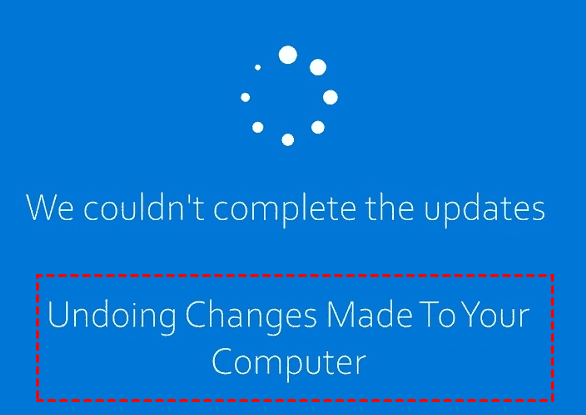
If you're stuck with the "We couldn't complete the updates. Undoing changes made to your computer" error, don’t panic. This message means a major update failure has forced Windows to roll back completely—interrupting your work, your access, and your peace of mind. It’s more than a minor glitch; it’s a total system halt. But your files are likely safe, and there are clear steps you can take to resolve it.
About the "Undoing Changes" Message on Your Computer
So, what’s actually happening when you see this error? It went seriously wrong during a Windows update installation—almost always a major feature update or a problematic driver installation. The operating system, sensing a failure that could prevent a successful boot, triggers an automatic rollback mechanism.
Before any major change, Windows creates a complete backup of your critical system files, drivers, and settings. This backup is stored in a hidden system folder. When you meet this error, the system reverses every change the failed update attempted and restores your previous version of Windows from a backup created just before the update began.
Why Your Windows Update Failed?
Multiple factors can trigger the Undoing changes made to your computer error:
- A poor internet connection can corrupt update files during download.
- Antivirus software can sometimes interfere with the system changes an update requires.
- Outdated chipset or storage drivers may create fatal conflicts.
- A frequent cause is simply not having enough free space on your system drive—often 20 GB or more for a major update—which can cause the installation to fail partway through.
Windows 10 Undoing Changes Made to your Computer, How Long to Take?
Honestly, it can vary wildly. A simple driver rollback might take 20-30 minutes. A full-blown feature update reversal, like trying and failing to install a new Windows version, can easily take over an hour, sometimes two.
The general rule of thumb is to give it at least 90 minutes if you have the time. Watch the percentage indicator if there is one, and note if the screen flickers or the hard drive light is actively blinking—these are signs of progress.
5 Fixes for Windows 10 Undoing Changes Made to Your Computer
There are multiple proven ways for you to fix the error. Let’s find out more details.
Way 1. Wait Patiently
Wait for some time, and your Windows update reverting needs time. Generally speaking, it takes 1-2 hours to complete. Do not, under any circumstances, forcefully shut down the PC by holding the power button unless it’s completely frozen as described above. You risk corrupting the rollback itself, which could lead to far worse problems.
Absolutely do not unplug the machine. Do not press the reset button. Avoid touching the keyboard or mouse excessively, as some screens might be waiting for input on a hidden error dialog.
Once the "undoing changes made to your computer" operation has completed, your computer should restart normally.
Way 2. Run Automatic Repair
If the rollback finishes but then fails again on the next boot, you'll often be automatically taken to the Windows Recovery Environment (WinRE)—a blue screen with troubleshooting options.
If not, you can force it: interrupt the startup three times in a row by holding the power button as Windows tries to boot. On the fourth try, you should land in WinRE. Then you can run the automatic repair for your computer.
1. From the WinRE screen, click "Troubleshoot" > "Advanced options" > "Startup Repair".
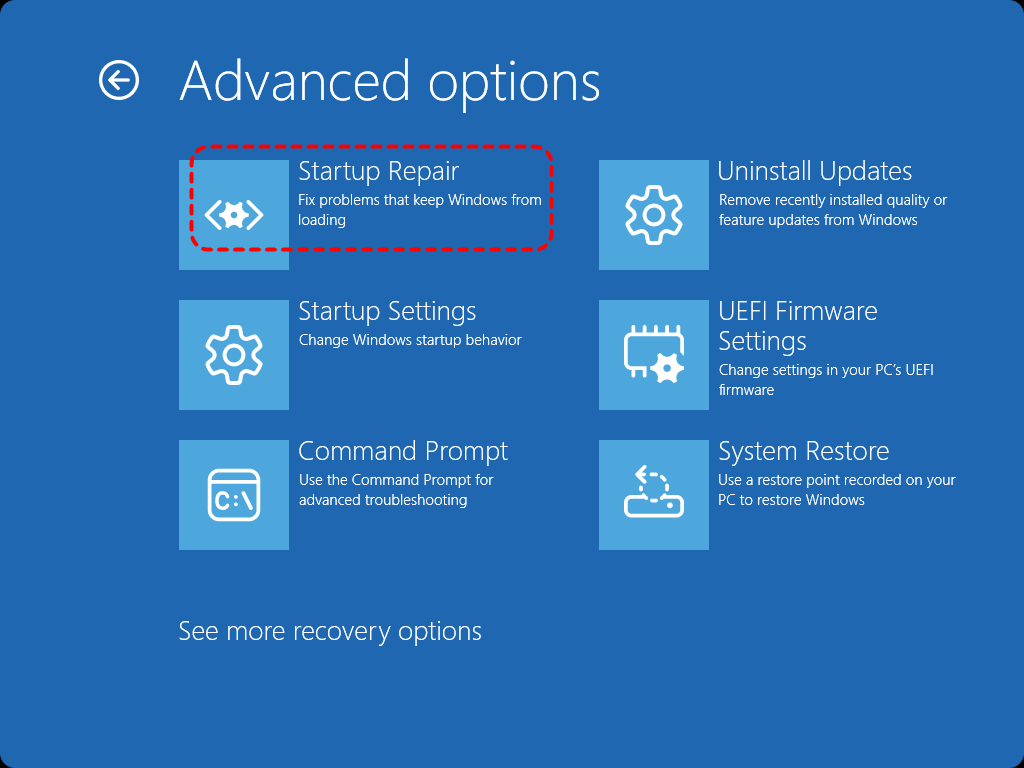
2. Let the tool scan for and attempt to fix any boot-related corruption.
It's a long shot for this specific issue, but it's a safe and easy step to rule out simple boot file problems.
Way 3. Perform A System Restore
If the startup repair does not work, you can perform a system restore in Safe mode.
1. From WinRE, go to Troubleshoot > Advanced Options > Startup Settings > Restart.
2. After the reboot, press 4 or 5 to boot into Safe Mode or Safe Mode with Networking.
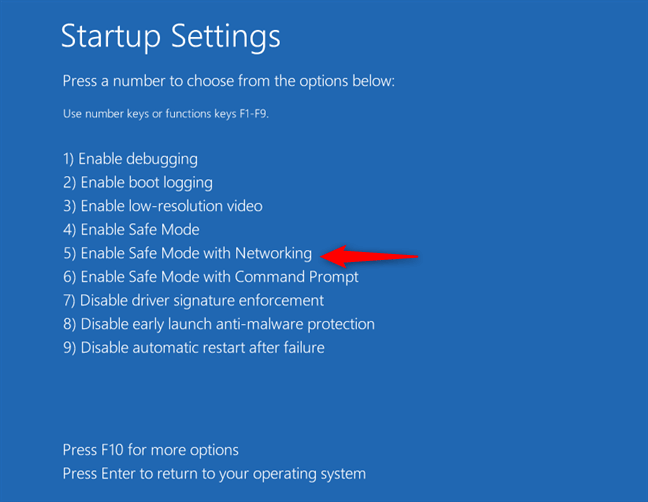
3. Once in Safe Mode, search for "Create a restore point", click the System Restore button, and choose a restore point from before the problematic update was installed.
This manually does what the auto-rollback failed to do, using a different backup mechanism.
Way 4. Run DISM and SFC Commands
Besides, you can also use Command Prompt in WinRE to troubleshoot your system files.
1. From the WinRE Advanced Options, select "Command Prompt".

2. Now, check your system image’s health. Type DISM /Image:C:\ /Cleanup-Image /RestoreHealth and press Enter. This uses Windows Update to fetch healthy files to repair the local image.
Note: If your Windows drive is not C:, replace the letter.
3. Once it completes, run the System File Checker: sfc /scannow /offbootdir=C:\ /offwindir=C:\Windows. This scans and repairs protected system files.
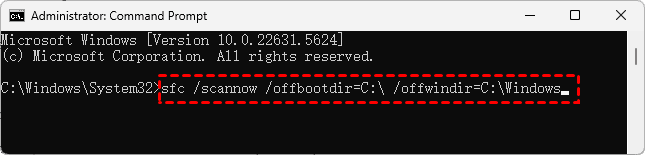
These two commands can fix the corrupted system files causing the rollback loop.
Way 5. Clear the SoftwareDistribution Folder to Reset Updates
A corrupted update cache is a prime suspect. In the Command Prompt window, type the following commands, pressing Enter after each:
- net stop wuauserv
- net stop cryptSvc
- net stop bits
- ren C:\Windows\SoftwareDistribution SoftwareDistribution.old
- net start wuauserv
- net start cryptSvc
- net start bits
This stops the update services, renames the cache folder (forcing Windows to create a new one), and restarts the services. It’s a clean slate for Windows Update.
If the rename command fails, you can try to delete the contents. Use del /f /s /q C:\Windows\SoftwareDistribution\*.*
How to Fix Dell Undoing Changes Made to Your Computer Errors
For a “Dell undoing changes made to your computer” loop, start with Dell’s own diagnostics.
Way 1. Check Hard Drive Status
Tap F12 repeatedly at startup to access the Dell boot menu. Select “Diagnostics” and run a full hardware check, paying special attention to the hard drive.
Way 2. Update BIOS and Chipset Drivers
Now, visit the Dell Support website, enter your service tag, and download the latest BIOS update and chipset drivers. Installing these from within Safe Mode can resolve deep-seated compatibility issues that generic Windows updates stumble over.
Way 3. Temporarily Disable Dell’s SupportAssist Application
Dell’s SupportAssist application (often pre-installed) can be your problem. In Safe Mode, consider temporarily disabling it, as it can sometimes conflict with Windows Update.
Fix Undoing Changes Made to Your Computer on Asus PCs
Asus users facing an “undoing changes made to your computer” screen should suspect a few brand-specific culprits.
Uninstall Armoury Crate or Ai Suite
Asus utilities like Armoury Crate or Ai Suite can be overly aggressive. Boot into Safe Mode. Uninstall these third-party control centers.
Fix Undoing Changes Made to Your Computer on a Lenovo Laptop
The "Undoing changes made to your computer" in a Lenovo laptop has its own flavor. Many Lenovo laptops have a dedicated “Novo Button” or a pinhole reset button.
With the laptop off, press this to boot into a recovery menu. Here, you can often access “OneKey Recovery” to restore the system to its factory state (a last resort that will erase your data) or access a simpler recovery environment that might bypass the Windows loop entirely.
Recover Your Important Files After A Failed Update
Before attempting more drastic measures like a factory reset, it’s absolutely crucial to secure your personal files. If you can’t boot normally, but can get into Safe Mode or WinRE, your data is likely still on the drive. This is where a dedicated recovery tool like MyRecover becomes indispensable. It’s designed to work when Windows is unstable, allowing you to salvage documents, photos, and other critical data before you perform a nuclear option like a clean install.
Here’s a step-by-step guide to recover your files from a PC stuck in the “Windows 10 undoing changes made to your computer” loop.
1. Download and install MyRecover on a working computer, and connect a blank USB drive of at least 32GB. Tap PC Crashed Recovery in MyRecover, tick the USB drive, and hit Create to create a bootable USB that helps you boot up the computer stuck in the Undoing changes problem.
 100% Secure
2. Take this USB drive and plug it into your bricked laptop or desktop, then connect an external hard drive. Restart the computer and immediately press the F12, F10, ESC, or DEL (depending on your manufacturer) to enter the boot menu. In the boot menu, select the USB drive as the boot device. This will load the MyRecover environment instead of your broken Windows installation.
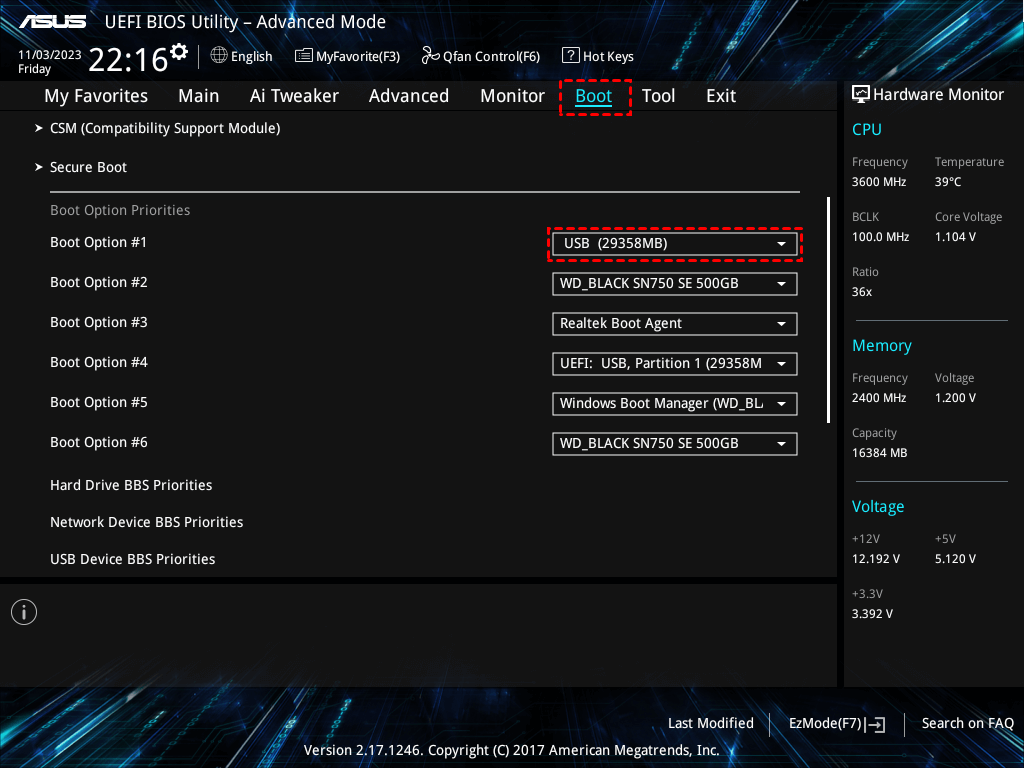
3. Tap Disk Data Recovery, choose the drive you need, and hit Scan. The software will scan for all recoverable files, including those hidden by the corrupted update process. Wait for the process to finish.

4. After the scan completes, you can browse the files by file path or type. Preview and choose the files you need, and click Recover.

5. Choose the external hard drive to save these files and hit Select Folder.

- Tips:✎...
- Once scanned, you can also filter these files quickly by file name, file size, modified date, etc.
- You can selectively check the boxes next to the files and folders you need to recover instead of recovering everything, saving time and effort.
- To safeguard your files, you can upgrade to MyRecover Technician to recover files from unlimited computers within your company.
With your personal files safely backed up on an external drive, you can now proceed to fix your PC with confidence. You can attempt more aggressive repairs within WinRE, use the “Reset this PC” option (choosing to keep or remove your files, though we already saved them), or even perform a clean Windows installation without fear of data loss. The “undoing changes made to your computer” error in Windows 10 no longer holds your files hostage.

 MyRecover
- Recover Deleted Files Easily with Simple Clicks
- 1000+ File Formats Supported
- Support HDD, SSD, External Hard Drive, USB Drive, SD Card, etc.
- Quickly Find Files Using File Types, Name, Size, etc.
- Preview Files Before Recovering
- Recover Unlimited Data
 100% Secure
FAQs About Windows 10 Update Undoing Changes
Why does Windows 10 say "Undoing changes made to your computer"?
Windows is stuck in a failed update cycle, repeatedly trying and rolling back a corrupted update.
How long does it take?
20–40 minutes for minor updates; 90 minutes to 3+ hours for major ones. If frozen for over 2 hours, it likely needs manual intervention.
Can I force a shutdown during this?
Only if it’s confirmed frozen. Cutting power can corrupt Windows, possibly requiring a full reinstall.
How can I stop automatic updates to prevent this?
Pause updates in Settings for up to 35 days, temporarily disable the Windows Update service, or set your connection as metered.
Will I lose my files?
Usually, personal files are safe, but programs installed after the update will be removed. Always back up important data first.
How can I fix it without losing data?
Try booting into Safe Mode and running System Restore, or use Command Prompt in Windows Recovery to clear the update cache and run repair commands.

Stay Updated With Our
Latest Tips
Add us as a preferred source on Google to never miss helpful guides.
 Add as preferred source >>