 MyRecover



Adobe Premiere AutoSave Recovery - Get Lost Projects in 3 Ways
This guide covers full Adobe Premiere AutoSave recovery for crashed or unsaved projects. You will also learn Adobe Premiere recover AutoSave using hidden folders, plus Premiere Pro AutoSave location on both Windows and Mac systems.

By Delores / Updated on June 2, 2026


How to Recover Deleted Adobe Premiere AutoSave Files?
Is there a way to recover automatically deleted Auto-Save files?
There is a portion of my video clips missing from my project that was once there before, which I only noticed after working on the project some more. My maximum project versions for auto-save is set to 20, before Premiere automatically starts deleting the oldest auto-save. Is there any way to recover these automatically deleted auto-save files? Or is there a way to go back to a previously manually saved version of a Premiere project?
- Question from reddit.com

Video editing is resource-heavy in Adobe Premiere Pro, and crashes happen more often than we’d like. Power outages, software glitches, or even a stray system update can kill your session. Without autosave, it’s difficult to recover your project files.
If you are stuck in the same situation and don’t know how to recover Adobe Premiere AutoSave files, don’t worry; we will walk you through how Adobe Premiere AutoSave recovery works, where those files hide, and how to tweak the settings so you never lose progress again.
About Adobe Premiere Pro AutoSave
Adobe Premiere Pro Autosave is an automatic backup feature that saves copies of your project file at regular intervals while you work, which protects you from losing work due to crashes, power outages, software freezes, or accidental mistakes (like deleting important sequences). It’s turned on by default, so it’s not necessary to learn how to turn on AutoSave in Premiere Pro.
Where Are Premiere AutoSaves Stored By Default?
By default, Premiere saves a backup copy of your project every 5 minutes (you can adjust this interval in settings). It keeps the last 20 autosaves by default.
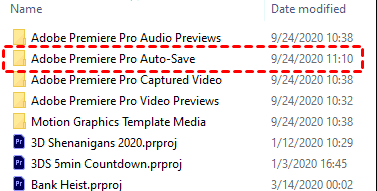
Where are Premiere AutoSave stored? In the same folder as your original project, inside a subfolder named Adobe Premiere Pro Auto-Save.
Autosave does not overwrite your original project. It creates separately named files (e.g., MyProject-autosave-01.prproj, MyProject-autosave-02.prproj). You must manually save (Ctrl/Cmd+S) to update your main project file. When you need to perform Adobe Premiere recover AutoSave, you simply open one of those numbered files.
Premiere Pro AutoSave location:
- Windows: C:\Users\[YourUsername]\Documents\Adobe\Premiere Pro\[Version]\Adobe Premiere Pro Auto-Save
- Mac: /Users/[YourUsername]/Documents/Adobe/Premiere Pro/[Version]/Adobe Premiere Pro Auto-Save
- Notes:✎...
- The [Version] folder changes depending on your Premiere build (e.g., 22.0, 23.0, 24.0). If you've recently upgraded, check the latest version number.
- Autosave files follow a simple naming pattern: [Original Project Name]_Autosave_[Number].prproj. The lower the number, the older the backup. Number 01 is the oldest; number 20 (or your max) is the newest.
- Sometimes the autosave folder seems empty. First, make sure you’re looking at the correct version folder. Second, check that “Show hidden files” is enabled (on Windows, click View > Hidden items; on Mac, press Cmd+Shift+Dot).
Adobe Premiere AutoSave Recovery in 3 Ways
Whether you’re inside Premiere, digging through folders, or trying a powerful data recovery software, these steps work.
Way 1. Recover an Autosave File Inside Premiere Pro
This is the easiest route if Premiere still opens:
1. Launch Premiere Pro.
2. Go to File > Open Recent. Look for any file labeled “Autosave”.
3. If you don’t see it, go to File > Open Project.
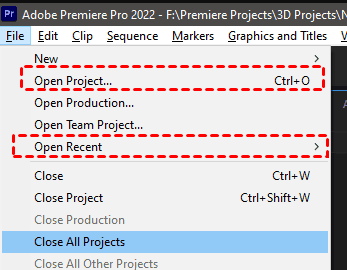
4. Navigate to the Premiere Pro AutoSave location we just found.
5. Double-click the most recent autosave file (highest number).
6 Premiere will open the autosave just like a normal project. Then immediately hit File > Save As to save it as your new main project.
Don’t keep working in the autosave file directly—that’s asking for confusion later.
Way 2. Manually Locate and Rename Autosave Files
What if Premiere won’t even launch? No problem.
1. Open File Explorer (Windows) or Finder (Mac).
2. Go to the autosave folder.
3. Sort by “Date Modified” so the newest file sits on top.
4. Copy that file to your desktop.
5. Rename it by removing the “_Autosave_XX” part.
6. Now double-click it.
7. Premiere will open it as a normal project.
This manual method works every time for Adobe Premiere AutoSave recovery.
Way 3. Recover Lost Autosave Files with MyRecover
Sometimes, Premiere Pro AutoSave files get deleted, overwritten, or lost due to disk corruption. Maybe you accidentally emptied the Recycle Bin. Maybe your SSD had a hiccup. Whatever the reason, if the autosave folder is missing or deleted, you need a powerful Windows data recovery tool, MyRecover.
Key advantages of using MyRecover to retrieve deleted Premiere Pro AutoSave files:
- High Success Rate: Boasts up to a 99% data recovery success rate, giving you a strong chance of getting your .prproj files back.
- Covers Multiple Data Loss Scenarios: Effectively handles Autosave folders lost due to system crashes, accidental deletion, emptied Recycle Bin, or even formatting the drive.
- Broad File & Device Support: Scans for 1000+ file formats (including Premiere project files) and works on 500+ devices, including HDDs, SSDs, and external drives where your Auto-Save folder may have been stored.
- Prescans Files for Selection: Supports file previews, enabling you to verify the specific Autosave file is intact before committing to the recovery process.
Simple guide to recover deleted Adobe Premiere Pro AutoSave files with MyRecover:
1. Download and install MyRecover on a different drive than the one you're scanning.
 100% Secure
2. Launch MyRecover, click Deleted Files Recovery, hover over the drive where the Premiere AutoSave files were located, and hit Scan.

3. By default, MyRecover runs a quick scan. Or you can perform a deep scan after that to find more missing files.
4. Preview and tick all the Premiere AutoSave files, and hit Recover.

5. Select a safe location and hit Select Folder to keep them safe.


6. Open the recovered autosave file in Premiere Pro. If it opens normally, immediately use File > Save As to create a fresh master copy.
- Notes:✎...
- You can find the Premiere project files fast using the search bar; type .prprojor _Autosave_. You can also filter by date modified if you remember roughly when you last worked on the project. Or search them by file name, size, etc.
- For more file recovery, upgrading to MyRecover Technician is your best choice.

 MyRecover
- Recover Deleted Files Easily with Simple Clicks
- 1000+ File Formats Supported
- Support HDD, SSD, External Hard Drive, USB Drive, SD Card, etc.
- Quickly Find Files Using File Types, Name, Size, etc.
- Preview Files Before Recovering
- Recover Unlimited Data
 100% Secure
Premiere Pro Change AutoSave Location
By default, autosaves live on your C: drive. But what if that drive is slow or almost full? You can move the whole autosave folder elsewhere.
Move Autosave Folder to Another Drive or SSD
Here’s how to change the AutoSave location in Premiere Pro:
1. Close Premiere Pro completely.
2. Create a new folder on your target drive (e.g., D:\Premiere Autosaves).
3. Go to the default autosave location and cut (Ctrl+X) the entire “Adobe Premiere Pro Auto-Save” folder.
4. Paste it into your new location.
5. Open Premiere Pro. Simply change the autosave path inside Preferences:
- Windows: Edit > Preferences > Auto Save
- Mac: Premiere Pro > Preferences > Auto Save
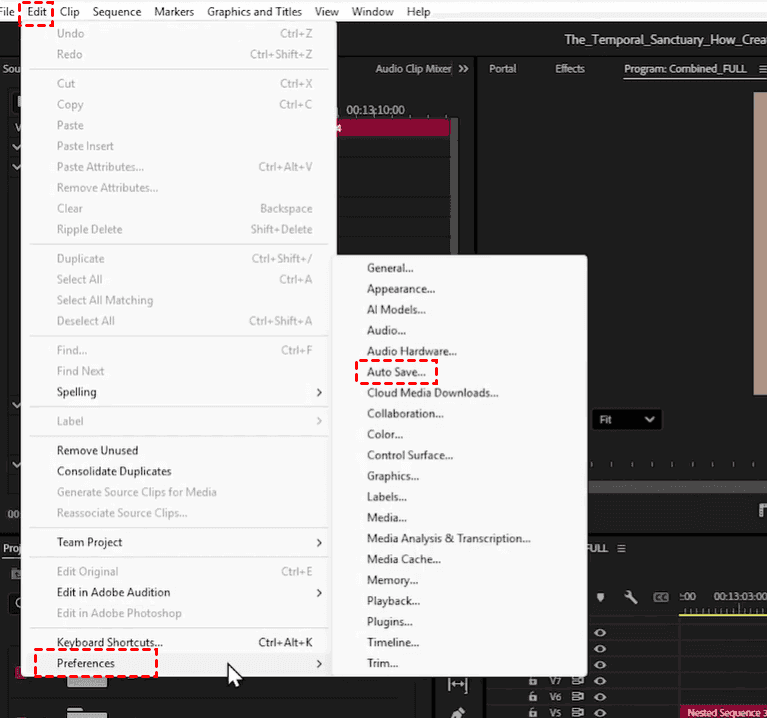
6. Then click “Browse” and select your new folder.
Move autosaves to a secondary SSD for faster save times. Don’t use an external USB drive—if it disconnects, Premiere won’t autosave at all.
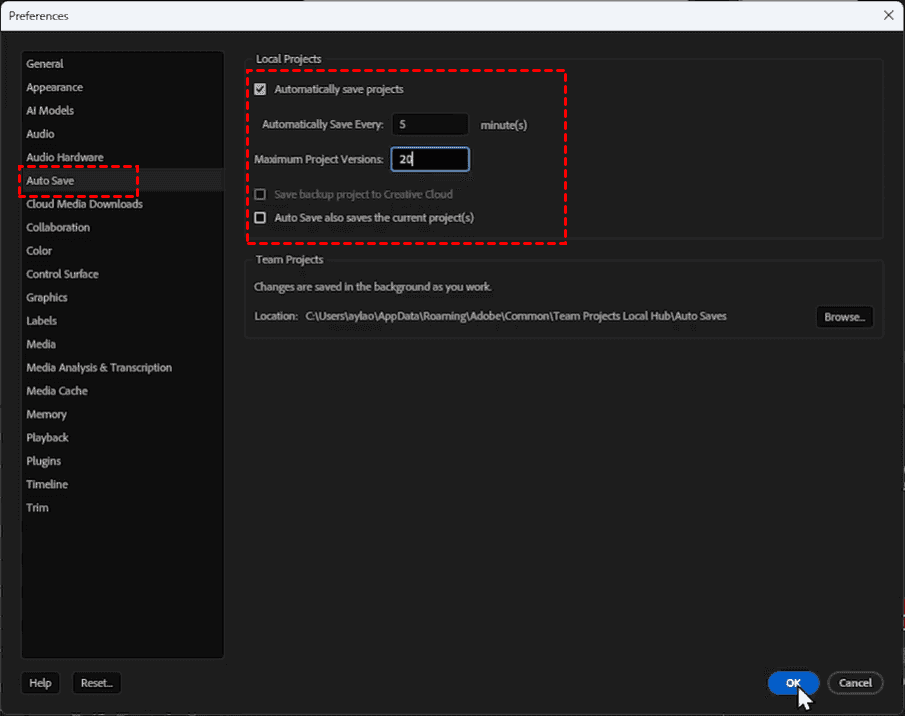
Besides, you can change the autosave interval (5 minutes) and the maximum versions (20 or more).
Troubleshoot Missing or Corrupted Autosave Files
Sometimes the AutoSave folder is empty, or the files won’t open. Let’s fix that.
Autosave Folder Empty After a Crash
You open the Premiere Pro AutoSave folder, and it’s blank. Why?
Two possibilities:
- First, Premiere saves autosaves only when the project is open and idle. If you crashed two minutes after opening a project, no autosave was created yet.
- Second, Premiere might be saving to a different version folder. Check for folders named “22.0,” “23.0,” etc. Also, run a search for *.prproj on your entire C: drive. One might be hiding elsewhere.
Recover Older Autosave Versions Beyond the Limit
You set “Maximum project versions” to 20, but you need version 35. It’s gone—Premiere deletes old ones automatically.
However, Windows or Mac might have a backup, so you can restore to the previous version of the Premiere Pro project like this.
- On Windows, right-click the autosave folder > Properties > Previous Versions.
- On Mac, check Time Machine.
FAQs About Adobe Premiere Autosave Recovery
How do I recover an unsaved Premiere Pro project after a crash?
A: Go to File > Open Recent and look for an "Autosave" file. If not found, navigate to Documents > Adobe > Premiere Pro > [Version] > Adobe Premiere Pro Auto-Save and open the newest file.
Where are Premiere Pro autosave files stored on Mac?
A: The default Premiere Pro autosave location on Mac is /Users/[YourUsername]/Documents/Adobe/Premiere Pro/[Version]/Adobe Premiere Pro Auto-Save. If you don’t see it, press Cmd+Shift+Dot to show hidden folders.
Can I change how often Premiere Pro autosaves?
A: Yes. Go to Edit > Preferences > Auto Save (Windows) or Premiere Pro > Preferences > Auto Save (Mac). Change the interval (e.g., to 5 min) and max versions (e.g., 50-100).
Why is my Premiere Pro autosave folder empty?
A: Three reasons: 1) Project ran less than the autosave interval. 2) Wrong version folder. 3) Autosave disabled. Check Preferences > Auto Save and ensure "Automatically save projects" is checked.
How to recover the Adobe Premiere autosave from a deleted folder?
A: Use recovery software like MyRecover immediately. Stop using the drive, scan for .prproj files, and recover to a different drive.
What’s the difference between autosave and project archive in Premiere Pro?
A: Autosave saves incremental copies of your current project every few minutes for quick crash recovery. Project Archive (File > Project Manager) bundles your entire project with all media files into a single folder for moving computers or long-term storage.

Stay Updated With Our
Latest Tips
Add us as a preferred source on Google to never miss helpful guides.
 Add as preferred source >>