 MyRecover



Fix BitLocker Encryption Stuck in 7 Quick Solutions
This article explains why BitLocker encryption gets stuck or not responding, covering common causes like large drives, pending updates, or corrupt system files. It includes troubleshooting steps, safe interruption methods, and recovery options.

By Delores / Updated on May 8, 2026


BitLocker Encryption Stuck at 100%
BitLocker is stuck encrypting
I just wanted to see if anyone else noticed this. We primarily deploy Surface laptops and apply BitLocker through a configuration profile (not the endpoint security method).
Recently, we've seen autopilot devices where BitLocker is not encrypted after several days. Further investigation shows the drive is stuck encrypting around 98-99%. Usually, starting and stopping the encryption process kicks it off, but we can't have zero-touch devices going out unencrypted.
I was just wondering if this happened to anyone else and where we might look to see what's hindering the encryption process from completing.
- Question from reddit.com
Sometimes, you need to encrypt your hard drive or external hard drive for data security. However, you might encounter the situation: BitLocker encryption gets stuck while in use. What should you do to solve this problem and keep your files safe?
Don't panic, you will always have a way out. In this guide, we'll walk through possible situations and solutions to help you out of this trouble. Let's get started.
How Long Does BitLocker Encryption Take?
How long does BitLocker encryption take? BitLocker encryption typically takes from 20 minutes to several hours. BitLocker encryption time varies based on drive size, drive type, and whether you choose "Used Space Only" or "Full Drive" encryption.
"Used space only" encryption is significantly faster (often 1/3 the time) than "full drive" encryption. Newer CPUs with AES hardware acceleration also cut time dramatically.
|
Drive Type |
Used Space Only |
Full Drive Encryption |
|---|---|---|
|
Modern SSD |
10–30 minutes |
20–60 minutes |
|
7200 RPM HDD |
1–3 hours |
3–6 hours |
|
5400 RPM HDD |
3–6 hours |
6–10 hours |
|
USB 3.0 external |
2–5 hours |
4–10 hours |
|
USB 2.0 external |
8–15 hours |
15–30 hours |
Why Does BitLocker Take So Long to Encrypt?
In fact, BitLocker runs at low priority by design. That means if your PC is busy indexing files, running a virus scan, or even syncing OneDrive, encryption takes a back seat. In some cases, it slows to a crawl. You might see BitLocker encryption stuck at 0, 96, 99, 100 percent progress, moving 0.1% per hour.
But slow isn't the same as stuck. To tell the difference, open Task Manager (Ctrl + Shift + Esc) and check disk activity. If you see reads or writes on the drive, BitLocker is still working—just slowly. If disk usage is flat zero, you're facing a real freeze.
Why Does BitLocker Encryption Get Stuck in Windows 11/10?
Let's break down the usual suspects for BitLocker encryption stuck.
⭕ Pending Windows updates. If a Windows update is waiting for a reboot, BitLocker can get confused and stop responding.
⭕ Drive errors or bad sectors. Your hard drive or SSD might have physical issues. When BitLocker hits a bad sector, it can get stuck retrying the same chunk of data.
⭕ Third-party antivirus or disk tools. Some security software interferes with BitLocker's low-level disk access, leading to BitLocker encryption being very slow or outright hanging.
⭕ TPM malfunction. The Trusted Platform Module (TPM) chip stores your encryption keys. If it glitches, BitLocker stuck on unlocking becomes a real pain when you try to start the system.
After getting the culprits for BitLocker encryption stuck, find effective solutions now.
7 Solutions to BitLocker Encryption Stuck
Let's be real: encryption is never lightning-fast. But when BitLocker encryption is very slow, meaning less than 0.5% per hour on a modern SSD, something's wrong. If your BitLocker drive encryption is stuck at 0, 96, 99, 99.7, 99.8, 99.9, or 100, you can try the following solutions to fix.
Way 1. Pause and Resume BitLocker Encryption
If the percentage hasn't moved for hours, try pausing the encryption through the BitLocker Control Panel, then resuming it.
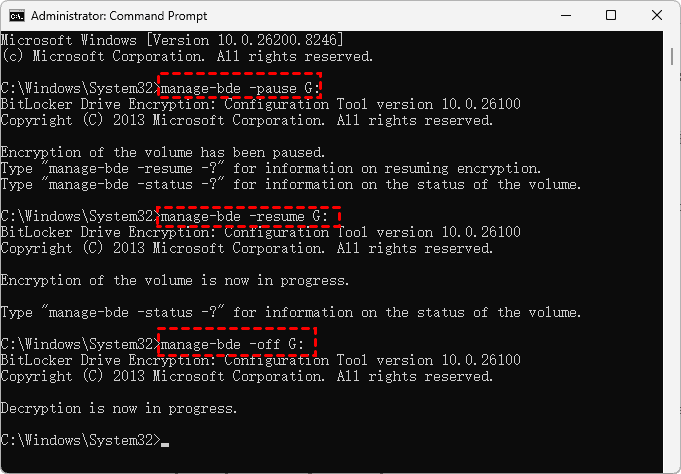
Or you can pause and resume in Command Prompt:
1. Press Windows + R key combination, type cmd, and choose Run as Administrator.
2. To pause BitLocker encryption, input the command:
manage-bde -pause G: (replace G: with your drive letter).
3. To resume the BitLocker encryption, input:
manage-bde -resume G: (replace G: with your drive letter).
4. If it remains stuck, try manage-bde -off G: (replace G: with your drive letter).
Way 2. Temporarily Disable Windows Defender
Windows Defender or third-party antivirus scanning the same drive BitLocker is encrypting is a recipe for disaster. They fight over disk access, and everyone loses.
Temporarily disable Windows Defender or the third-party antivirus software for the drive you're encrypting.
On Windows Defender, go to Virus & threat protection > Windows Defender Antivirus Options > turn off Periodic scanning.
Don't forget to re-enable it after encryption finishes.
Way 3. Decrypt and Re-encrypt BitLocker
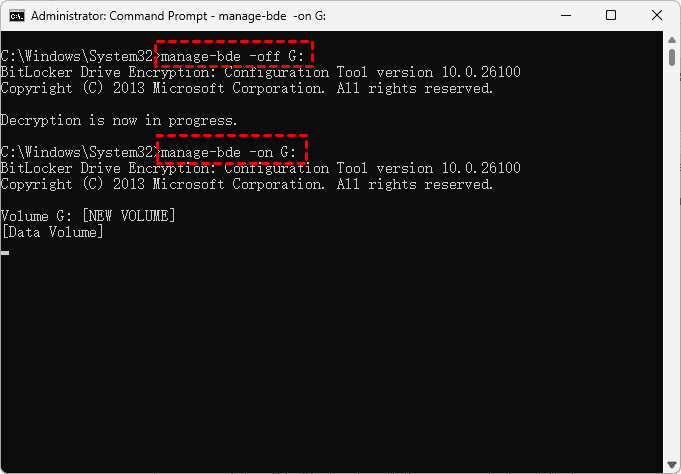
If decryption is stuck, you can also decrypt and re-encrypt your drive like this:
1. Please open Command Prompt as administrator.
2. To decrypt your BitLocker encryption, input:
manage-bde -off G: (Replace G: with the appropriate drive letter)
3. Then try re-encrypt your drive using this command:
manage-bde -on G: (Replace G: with the appropriate drive letter)
Way 4. Adjust Power Settings to Prevent Throttling
Laptops are the worst offenders. By default, Windows throttles background tasks on battery to save power.
1. Plug in your laptop, then go to Power Options > Change plan settings > Change advanced power settings.
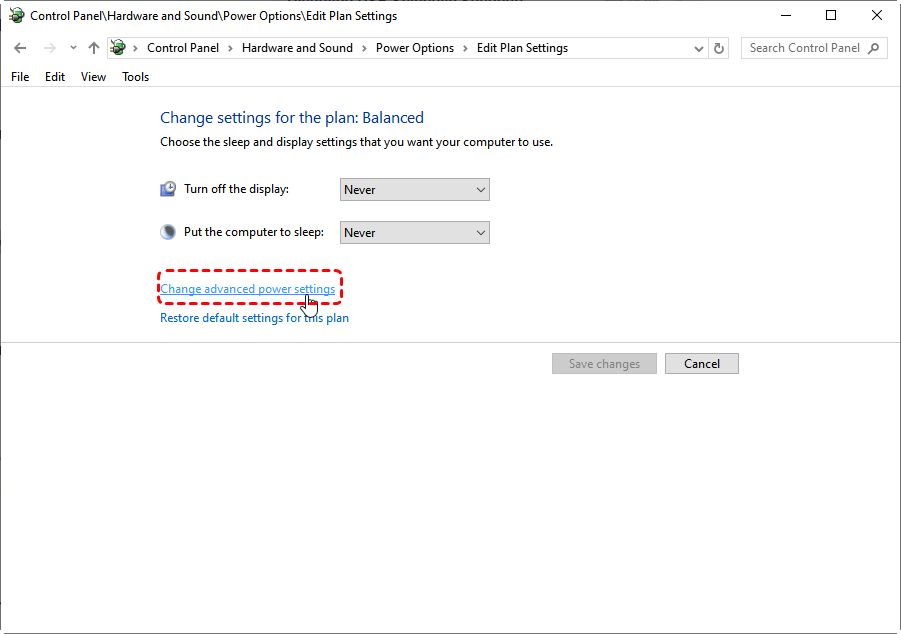
2. Set "Processor power management" to 100% for both minimum and maximum.
3. Also, disable USB selective suspend.
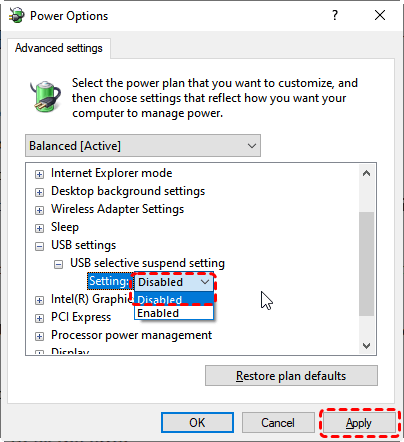
This prevents the system from slowing down BitLocker stuck encrypting due to power-saving paranoia.
Way 5. Check Your Encryption Status
If your BitLocker drive encryption is stuck at 100, you can try this method. It means that the progress bar is full, the system says 100% complete, but Windows refuses to finalize.
Why does this happen? Often, it's a status reporting bug. The encryption finished hours ago, but Windows hasn't updated the UI. Other times, the final verification step fails because of a corrupted volume bitmap.
1. Input cmd in the Windows search box, it will show Command Prompt, and choose Run as administrator.
2. Type the following command to check encryption completion:
manage-bde -status G:
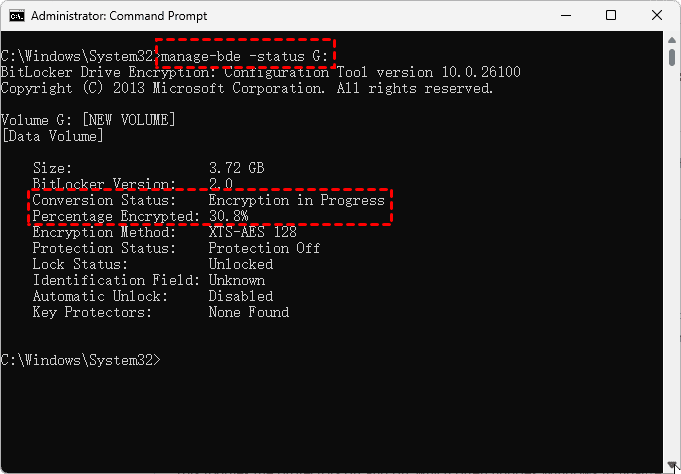
3. Look for "Percentage Encrypted". If it says 100% and "Conversion Status" says "Fully Encrypted" or "Used Space Only Encrypted". Congrats—you're done. The graphical interface just lied to you. A reboot can fix the problem.
4. If the status shows 100% but "Conversion Status" is stuck on "In Progress", try:
manage-bde -protectors -disable G:
manage-bde -protectors -enable G:
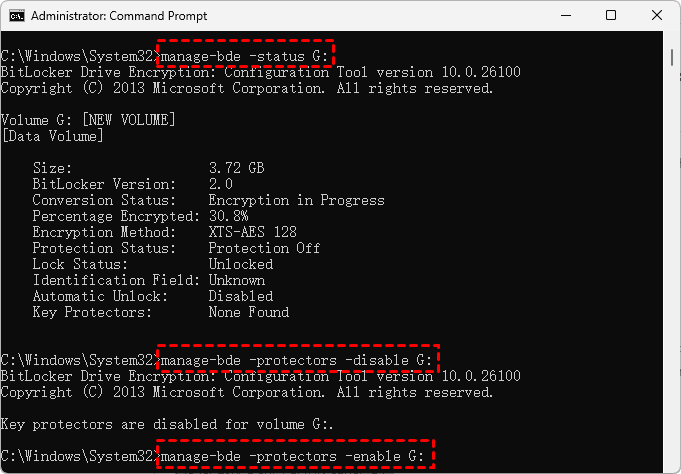
This toggles the protectors off and on, which often nudges Windows to finalize.
Way 6. Force Restart Your Computer
If the computer is completely unresponsive, perform a hard restart (hold the power button for ~10 seconds). BitLocker is designed to resume where it left off upon rebooting.
Way 7. Check Disk Errors
Bad sectors in your hard drive can make BitLocker encryption stuck. So, you can try to fix file system errors using CHKDSK.
1. Please open Command Prompt as administrator.
2. Input the chkdsk command to fix file system errors:
chkdsk C: /f /r
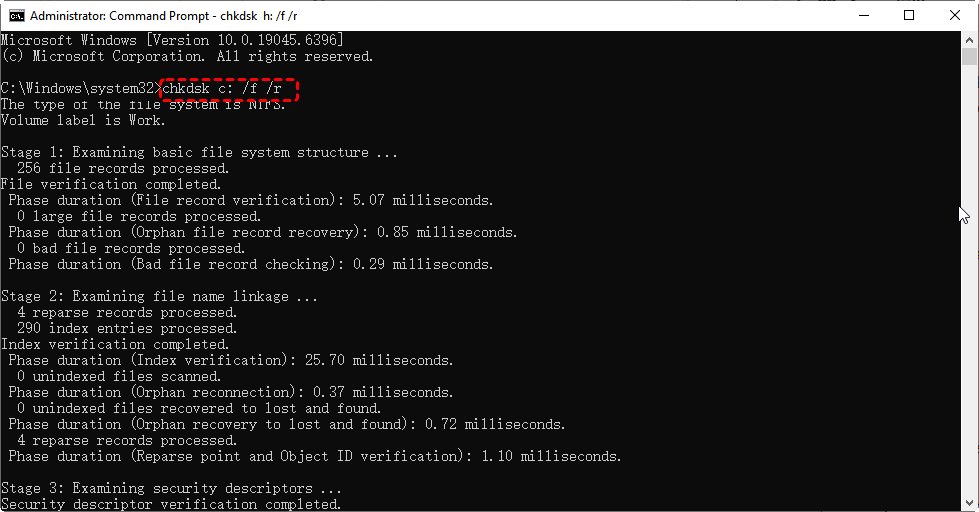
3. Then input the command to resume BitLocker encryption.
manage-bde -resume G:
Prevent Future BitLocker Stuck Encrypting Situations
- Run chkdsk /f /r on the drive before turning on BitLocker. Fix bad sectors, file system errors, and disk corruption first.
- Keep your BIOS, TPM firmware, and storage drivers up to date.
- Also, pause Windows updates before starting long encryption.
- And never, ever put the computer to sleep or let it hibernate while encrypting.
- Change your power plan to "High performance" and disable sleep until the process finishes.
Recover Missing Files from a BitLocker-encrypted Hard Drive
Sometimes, you might need to recover missing files from a BitLocker-encrypted hard drive if there is no backup. Fortunately, here comes the powerful Windows data recovery software MyRecover to help you.
- Fast recovery. You can enjoy the highest recovery rate (99%) using the AI search algorithm in the market.
- 1000+ file formats. You can recover videos, photos, audios, documents, archives, and many more.
- 500+ devices. It supports HDDs, SSDs, SD cards, cameras, PS4/5, Xbox One, music players, video players, etc.
- Preview before recovery. You can double-click the file to preview it to ensure it's the right file and intact.
Here is how to recover missing files from a BitLocker-encrypted hard drive with MyRecover:
1. Please download and install MyRecover on your computer, then launch it. It's wise to install MyRecover on a different drive instead of the drive you're recovering files from.
 100% Secure
2. Tap Disk Data Recovery, hover over the drive, and hit Scan. It will prompt you to input the recovery key to unlock it. Do it. And it will start scanning, hit OK when it's done.

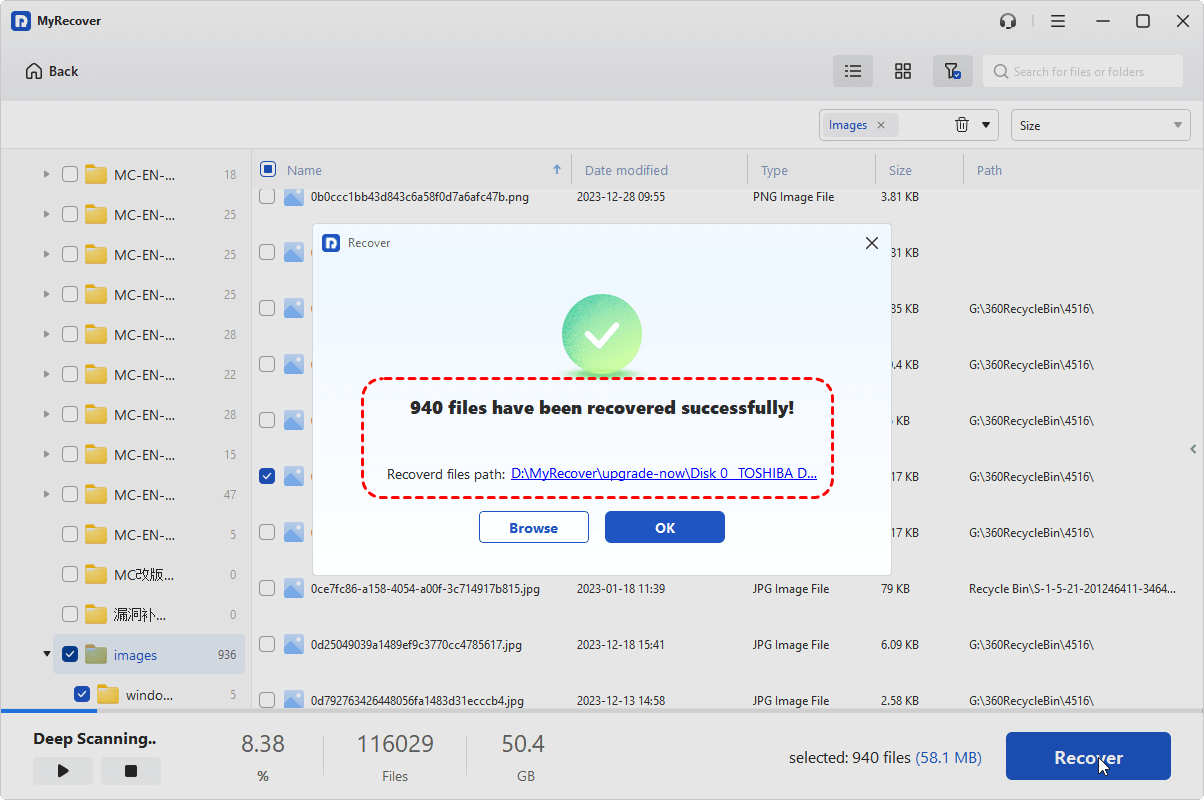
3. Preview and select the files you need, and hit Recover.

4. Select a safe location and hit Select Folder to keep them.

- Notes:✎...
- You can search files quickly using file type, path, name, size, and modified date. Try searching in the top right corner.
- Upgrading to MyRecover Technician to enjoy more powerful features, like recovering unlimited files and from unlimited computers, etc.

 MyRecover
- Recover Deleted Files Easily with Simple Clicks
- 1000+ File Formats Supported
- Support HDD, SSD, External Hard Drive, USB Drive, SD Card, etc.
- Quickly Find Files Using File Types, Name, Size, etc.
- Preview Files Before Recovering
- Recover Unlimited Data
 100% Secure
FAQs About BitLocker Encryption Stuck
Why does BitLocker encryption get stuck?
A: BitLocker encryption gets stuck due to drive errors, pending updates, power interruptions, or antivirus conflicts. If stuck for over two hours, check Task Manager for disk activity. Zero activity = freeze. Low activity = just slow. Run manage-bde -status for real progress.
Can I cancel BitLocker without losing data?
A: Yes, you can cancel BitLocker without losing data if encryption hasn't progressed far. Run manage-bde -off C: as admin.
What if BitLocker gets stuck on unlocking after a BIOS update?
A: BIOS changes reset TPM keys. Enter your 48-digit recovery key, boot Windows, suspend BitLocker, update TPM drivers, then re-enable. Always suspend BitLocker before BIOS updates.
Is a force shutdown safe when BitLocker is not responding?
A: No. It can corrupt the file system. First, restart the service (net stop bdesvc then net start bdesvc). If that fails, boot from Windows USB and use manage-bde -pause, then -resume. Force shutdown only as a last resort.
How long does BitLocker encryption normally take?
A: 1TB SSD: 20–60 minutes. 7200 RPM HDD: 2–5 hours. If BitLocker encryption is very slow (e.g., 10% after 24 hours), something's wrong. Use "Used Space Only" for much faster results.
Can I reuse a drive after encryption gets stuck?
A: Yes, but fully decrypt and reformat first. Run manage-bde -off X:. If that hangs, use diskpart clean to wipe the drive completely, then start fresh. Never reuse a half-encrypted drive without cleaning.
The End
BitLocker is powerful, but it's not perfect. When BitLocker encryption rears its ugly head, remember: patience and the right commands get you out 90% of the time. For the remaining 10%, MyRecover has your back. Keep your recovery keys safe, run regular backups, and you'll sleep better—even when encryption throws a tantrum.

Stay Updated With Our
Latest Tips
Add us as a preferred source on Google to never miss helpful guides.
 Add as preferred source >>