 MyRecover



Dashcam SD Card Error Please Format SD Card: How to Repair It Quickly
Many users dashcam encounter prompts ' SD card error please format SD card' or 'vantrue dashcam SD card error', which indicate file corruption, improper formatting, or compatibility issues. In this guide, you’ll learn how to recover lost footage safely and implement preventative measures to avoid recurring errors and restore your SD card quickly.

By Aria / Updated on May 20, 2026


Introduction
When you inserted your dashcam SD card, only to see a warning like "Dashcam SD Card Error – Please Format SD Card"? This error indicates that your SD card is corrupted, incompatible, or improperly formatted, preventing your dashcam from recording footage. Timely repair of the SD card is crucial to restore full functionality, protect existing files, and ensure your dashcam continues to record without interruption. Addressing the issue promptly also reduces the risk of permanent data loss.
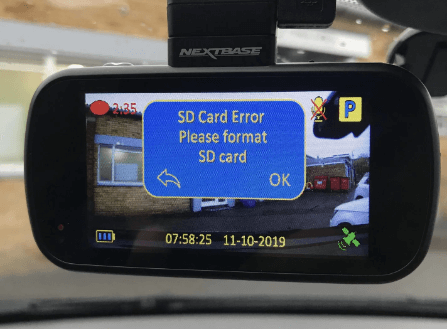
In this article, we will guide you through quick and effective solutions to fix dashcam SD card errors, including steps to repair the card, recover lost footage, and prevent recurring errors. Whether you’re dealing with a Thinkware or Vantrue dashcam SD card error, this guide provides practical fixes to get your dashcam back to reliable operation.
Why is My Dash Cam Saying Memory Card Error?
When your dashcam displays a "memory card error", it usually signals an issue with the SD card itself or how the device interacts with it. Understanding the root cause helps you choose the right repair method and prevent repeated errors. Common reasons include:
💾 Corrupted or Damaged SD Card: Physical damage, repeated writes, or improper removal can corrupt the card, making it unreadable.
✂️ Incompatible SD Card: Some dashcams require specific speed classes (e.g., UHS-I U3) or maximum storage capacities. Using an unsupported card can trigger the Dashcam SD card errors.
💽 Improper Formatting: If the card wasn’t formatted correctly in the dashcam or on a computer, the device may fail to recognize it.
📂 File System Errors: Logical errors within the card’s file system can prevent recordings from saving properly.
🔋 Power Interruptions or Removal During Recording: Removing the card while recording or sudden power loss can corrupt files and cause the dashcam to reject the card.
How to Recover Files from Dashcam with SD Card Error on Windows
Once you’ve identified that your dashcam SD card is corrupted or showing errors, the next priority is recovering any lost footage before attempting repairs or formatting. Even if the card cannot be read by the dashcam, the files may still exist on the SD card and can be retrieved using specialized recovery software.
MyRecover is a professional data recovery tool designed for situations like this. It can quickly scan damaged or corrupted SD cards and recover deleted or inaccessible files without requiring technical expertise. It supports a wide range of file types, including video formats commonly recorded by dashcams, and ensures that your recovered footage maintains its original quality.

 MyRecover
- Recover deleted & lost files from HDD, SSD, USB, SD card, camera as you need.
- Support 1000+ formats of photos, videos, docs, archives, emails, compressed files, etc.
- Reliable rescue for deletion, formatted disk, emptied Recycle Bin, system crashes and more.
 100% Secure
Step 1. Download and install MyRecover on your Windows supported computer from Microsoft Store or its official website. Connect the dashcam or the SD card to your computer using a USB cable or card reader.
Step 2. Launch the program and select the SD card or dashcam to scan, then click "Scan" to search for recoverable files.

Step 3. Browse the scan results and choose the files you wish to recover from the list, then click "Recover".
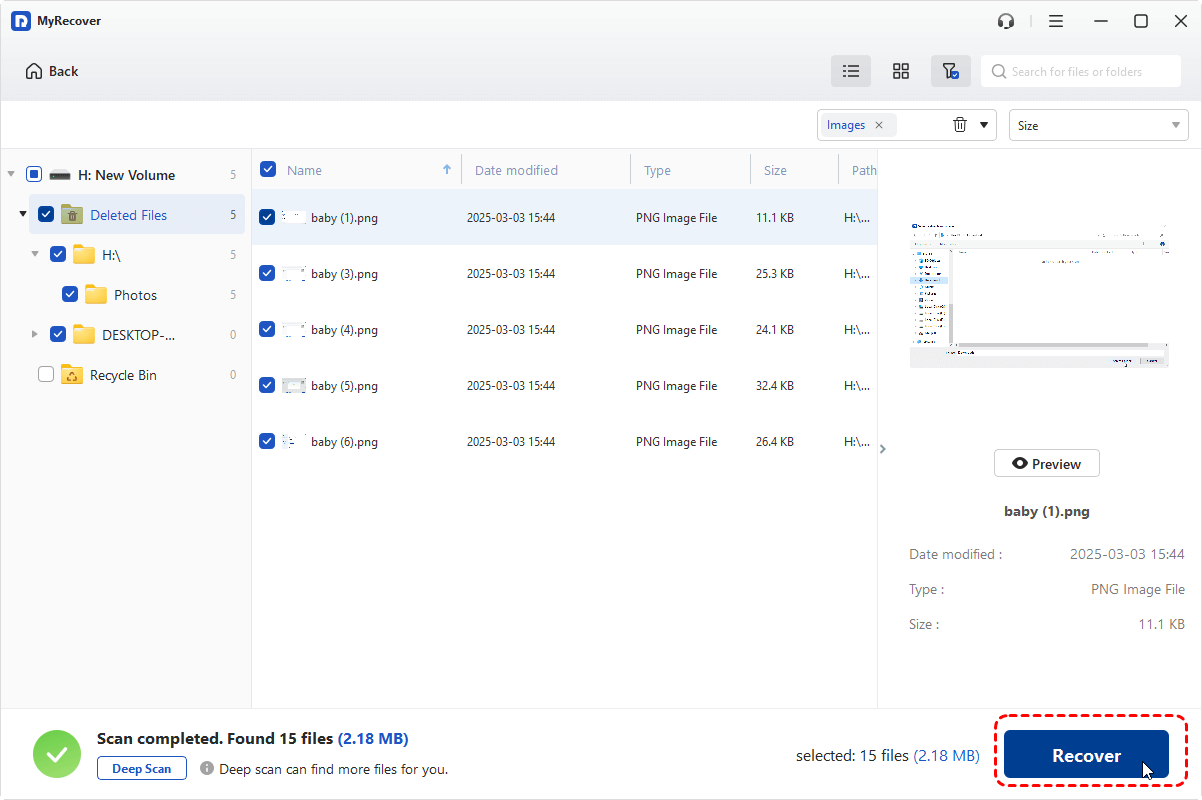
If the amount of data you want to recover exceeds 500 MB, you can upgrade to the MyRecover Professional edition, which allows unlimited data restoration and file content preview. It even supports recovering files from an unbootable Windows system.
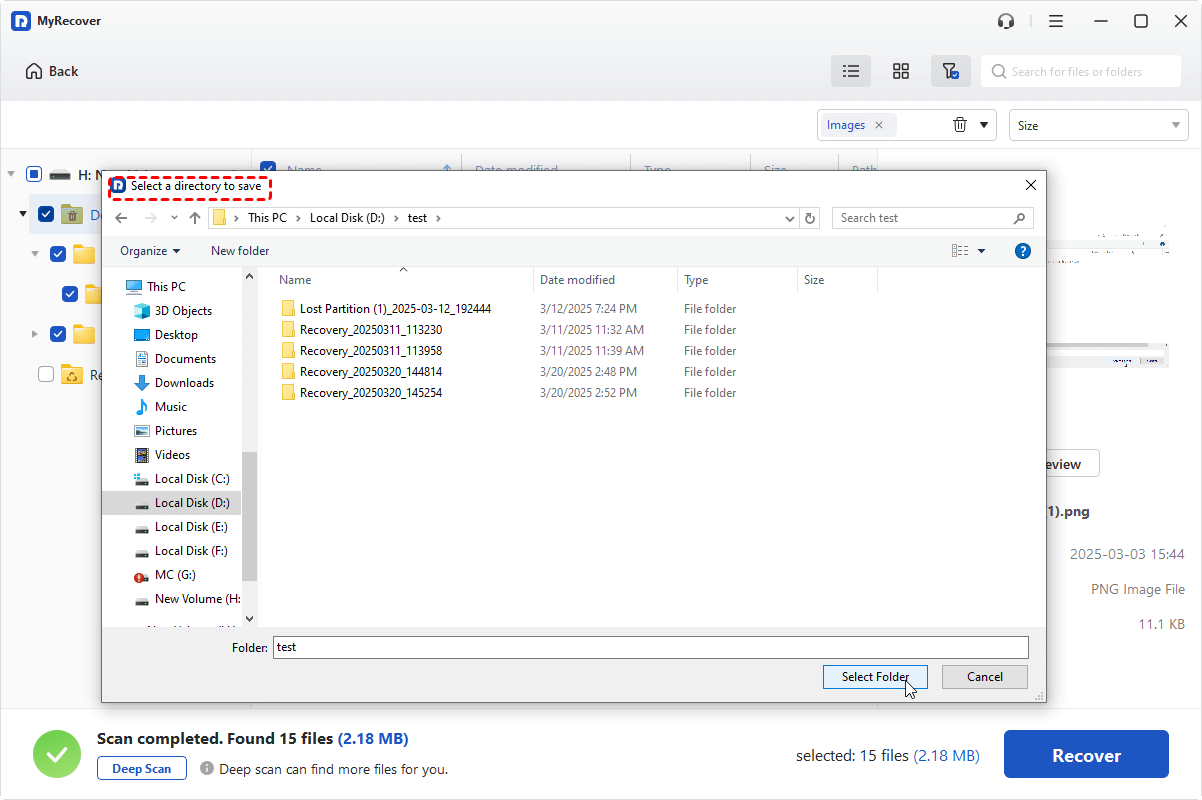
Step 4. Select a safe location to save the recovered files to avoid overwriting the original data.
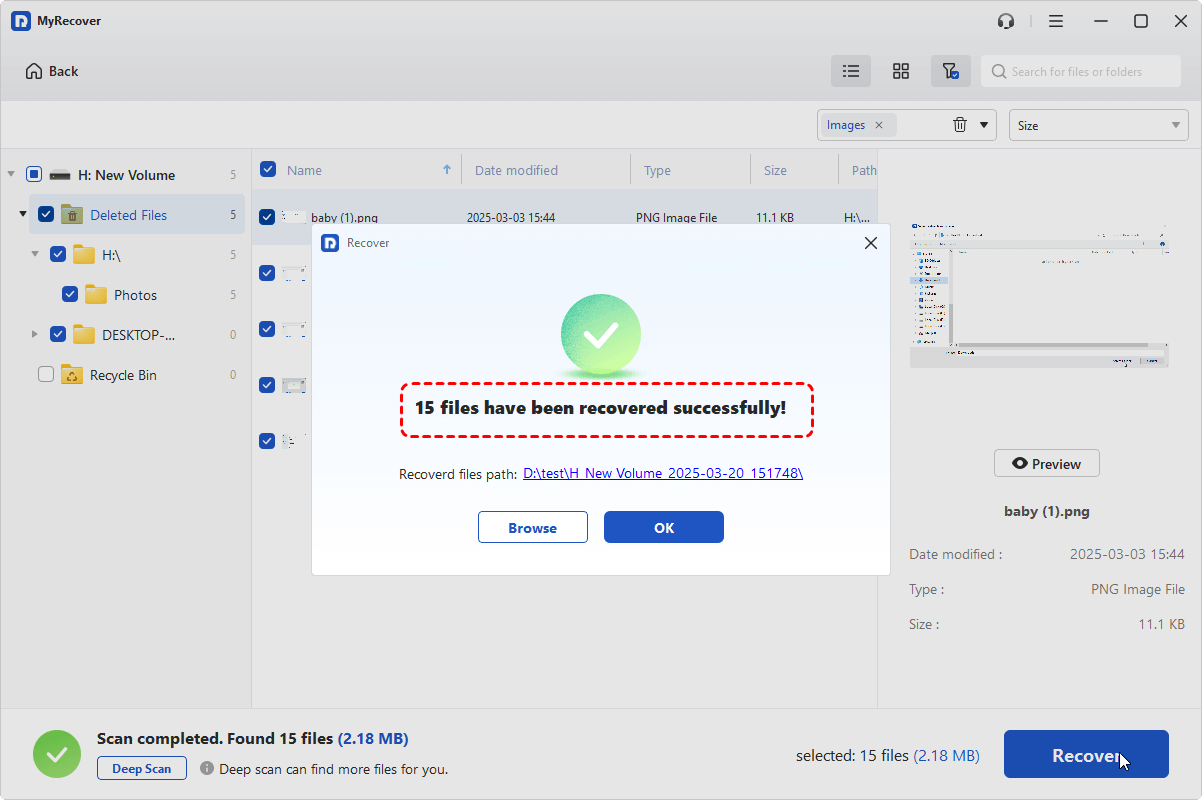
When the process is finished, the message "Files have been recovered successfully" will pop up. Then, you can access and verify the recovered files in the destination folder.
How to Repair Dashcam SD Card Error on Windows
After ensuring file safety, the next step is to repair the SD card itself to make sure it can be used reliably in your dashcam. Whether it’s a minor file system error, firmware issue, or physical damage, targeted repairs solutions are avaliable. The following solutions guide you step by step to restore the SD card to proper working condition.
1. Reinsert SD Card
Sometimes, the error occurs due to poor contact or temporary read errors. Reinserting the card can reset the connection and allow the dashcam to recognize it again.
Step 1. Power off the dashcam and carefully remove the SD card. Before re-inserting the SD card, ensure your hands are dry and the SD card slot is free from dust.
Step 2. Wait a few seconds, then reinsert the SD card firmly into the slot.
Step 3. Power on the dashcam and check if the "SD card error" persists.
2. Check the Card with a Computer
If the dashcam keeps saying format SD card, verifying the SD card on a computer helps determine whether the issue is with the card itself or the dashcam. This method can reveal if the card is accessible and identify minor errors.
Step 1. Connect the SD card to a Windows computer using a card reader.
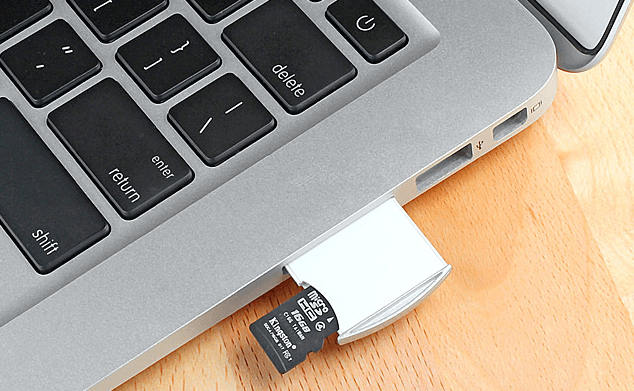
Step 2. Open File Explorer to see if the card is detected.
Step 3. Attempt to open a few files to check readability and integrity. If the computer cannot detect the card, physical damage may be present.
3. Use CHKDSK to Fix File System Errors
CHKDSK is a built-in Windows utility that scans the SD card for logical file system errors and attempts to repair them. This method is effective if the card shows as readable but cannot function properly in the dashcam.
Step 1. Connect the SD card to computer and note its drive letter like "F".
Step 2. Locate Command Prompt in the Start menu and right click on it, then choose "Run as administrator".

Step 3. Type the following command "chkdsk X: /f /r (replace "X" with your SD card drive letter) and press "Enter".

Step 4. Wait for CHKDSK to complete the scan and repair any detected errors, then safely eject the card and check if it's accessible.
4. Update Dash Cam Firmware
Firmware updates can resolve compatibility issues and improve the dashcam’s ability to read SD cards correctly. Outdated firmware may reject cards that previously worked fine and even trigger the dashcam SD card error. Update the Dahcam firmware usually can fix the error.
Step 1. Visit the dashcam manufacturer’s official website and download the latest firmware version.
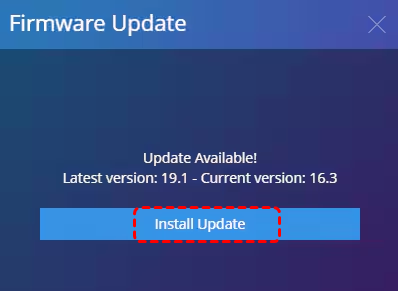
Step 2. Follow the manufacturer’s instructions to update the device via SD card or USB connection.
Step 3. Restart the dashcam and test the SD card to confirm the error is resolved.
5. Format the SD Card on Dashcam or Computer
Most dashcams only support the FAT32 or exFAT file systems. If you insert an SD card formatted with NTFS or EXT4, the dashcam will fail to recognize the file system, trigger the SD card error, and prompt you to format the card. Format the SD card to the file system recommended by the dashcam manufacturer. However, formatting will erase all data on the SD card, so make sure you have completed data recovery beforehand.
Step 1. Connect the SD card to a computer.
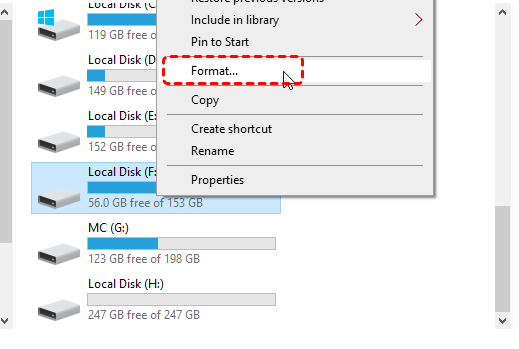
Step 2. Locate the SD card drive in File Explorer and right click on it, then choose "Format".
Step 3. Choose FAT32 or exFAT depending on your dashcam requirements.
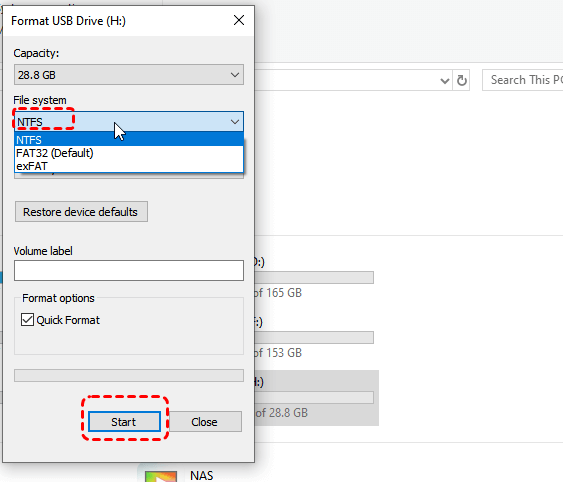
Step 3. Click "Start" to format, then safely eject the card.
6. Replace the SD Card
If the card is physically damaged or repeatedly triggers errors despite recovery and formatting attempts, replacement is the safest solution. Using a high-quality, dashcam-approved SD card ensures stable recording.
Step 1. Purchase a compatible SD card recommended by your dashcam manufacturer.
Step 2. Insert the new card into the dashcam and format it using the device’s built-in formatting option.
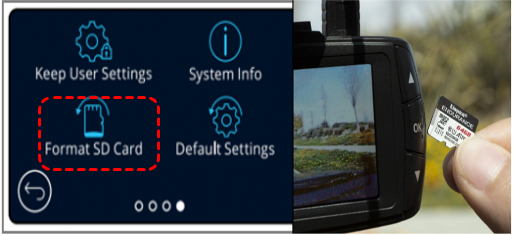
Step 3. Test the card by recording a short video to ensure proper functionality.
Summary
Encountering a "Dashcam SD Card Error – Please Format SD Card" can be frustrating, but timely action can prevent permanent data loss and restore your dashcam’s functionality. By first recovering lost footage with a reliable tool like MyRecover, you ensure your valuable recordings are safe. By applying the methods outlined in this guide, you can quickly fix SD card errors, recover important recordings, and keep your dashcam operating smoothly for long-term use.
People Also Ask
Q1: What does SD card error mean on dash cam?
An SD card error indicates that the dashcam cannot read the memory card due to corruption, improper formatting, incompatibility, or physical damage. It prevents the device from recording or accessing files.
Q2: How to reset SD card on Dashcam?
To reset SD card on Dashcam, insert the SD card into the dashcam, navigate to the settings menu, and select "Format SD Card" or "Reset Card". This clears existing errors and restores default file system structure.
Q3: Why is my dashcam not reading the SD card?
The dashcam may fail to read the card due to file system corruption, unsupported card type or capacity, physical damage, or loose connections between the card and device.
Q4: How to repair SD card error?
Repair can be done by recovering important files with recovery software like MyRecover, then formatting the card in the dashcam or a computer, checking for file system errors via CHKDSK, or replacing the card if damaged.
Q5: How to fix dashcam "The memory card has reached the end of its useful life" error?
This message signals card wear. The only solution is to replace the SD card with a new, compatible, high-endurance card designed for dashcams to ensure reliable recording.
Q6: Why does my camera keep saying SD card error?
Repeated errors often result from continuous corruption, incompatible card specifications, frequent power interruptions during recording, or a failing card. Replacing or formatting the card usually resolves the issue.

Stay Updated With Our
Latest Tips
Add us as a preferred source on Google to never miss helpful guides.
 Add as preferred source >>