 MyRecover



Lost Partition SD Card Recovery: How to Restore Data and Partitions on Windows
Are you also facing such a situation where the partition on your SD card is lost, making you unable to access the data inside? You've landed the right page. This guide explains how to recover the entire lost partition and, when necessary, recover individual files from it without immediately formatting the SD card.

By Aria / Updated on September 29, 2026


What Does a Lost Partition on an SD Card Mean?
When you find a lost partition on an SD card, it means that Windows can no longer properly recognize or display a partition that previously existed on the card. The partition may appear as Unallocated, disappear from File Explorer, or no longer have a usable drive letter, even though the data stored on it may still remain on the SD card.
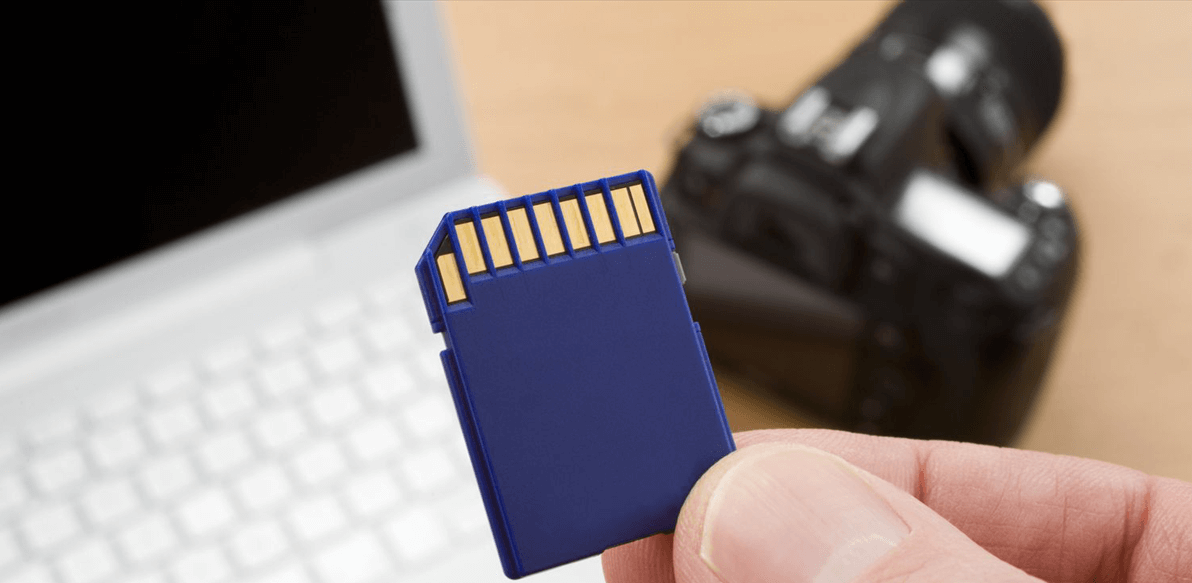
This is different from simply deleting a file. When a partition is lost, the problem can affect the partition's structure or how Windows locates the data stored within it. As a result, you may be unable to open the SD card or access the files through File Explorer, even though the data has not necessarily been erased.
Why Is a Partition Missing from an SD Card?
Thankfully, it's not the end. Lost partition recovery is possible with the right tool. But before jumping into the detailed steps, let's explore the potential reasons for lost partition on SD card to prevent similar situations from happening again in the future. Here are the possible reasons:
🔆Accidental Deletion: One of the most common causes is human error—users may mistakenly delete a partition while managing disk space or using disk tools.
⭕Unintentional Formatting: Formatting the SD card, especially when prompted by Windows saying “you need to format the disk before you can use it,” can remove the existing partition structure.
🔔File System Corruption: Improper removal of the SD card, sudden power loss, or failed read/write operations can corrupt the file system, making the partition unreadable or disappear.
🔍Virus or Malware Infection: Some viruses can damage or erase the partition table, hide partitions, or corrupt the card’s boot sector, resulting in lost partitions.
🛠️Bad Sectors or Physical Damage: Over time, SD cards may develop bad sectors due to wear and tear, leading to partition damage or disappearance.
How to Recover Lost Partitions on an SD Card Without Losing Data
This section will show you how to recover lost partition on SD card, including both file recovery and partition restoration. Whether you’re a beginner or an advanced user, find effective methods to fix the lost partition issue and get your SD card back to working order. Before trying to restore the partition, take a few precautions to avoid overwriting recoverable data.
Before Recovering a Lost SD Card Partition
Before attempting to recover a lost partition, avoid making changes to the SD card that could overwrite the remaining data or partition information.
- Stop writing new data to the SD card. Do not save photos, videos, or other files to it until the recovery is complete.
- Do not format or initialize the SD card. If Windows asks you to format or initialize the card, cancel the prompt first.
- Do not create a new partition immediately. Creating a new volume can overwrite information associated with the previous partition.
- Check whether the SD card is detected correctly. If the card is not detected at all, repeatedly reconnecting it or attempting recovery with software may not address a possible hardware problem.
Method 1. Recover the Entire Lost SD Card Partition with MyRecover
If the partition itself has disappeared from the SD card, you may want to restore the lost partition so that it can appear again in Windows and regain access to the data stored on it. MyRecover — the professional Windows data recovery software provides a Partition Recovery feature specifically for deleted or lost partitions. Instead of only scanning for individual files, it can identify recoverable partition information and help restore the lost partition along with its contained data. This makes it useful when an SD card partition no longer appears normally in Windows or is shown as unallocated.
✅ Recover the Entire Lost Partition – Restore deleted or lost partitions along with its contained data instead of recovering files one by one.
✅ Recover Data from Lost Partitions – In addition to restoring an entire lost partition, MyRecover can scan the available data on the SD card and recover individual files, including photos, videos, documents, and more.
✅ Support 1,000+ File Types – Recover photos, videos, documents, audio files, archives, and other commonly used data from your SD card.
✅ Support SD Cards and Other Storage Devices – Recover data from SD cards, USB flash drives, HDDs, SSDs, and other supported storage devices.
✅ Simple Visual Recovery – A graphical interface lets you scan for lost partitions, review the recovery results, and complete the recovery process without using command-line tools.
✅ Wide Windows Compatibility – Work with Windows 11, 10, 8.1, 8, 7, and Windows Server systems.
Step 1. Connect the SD card to your computer and make sure Windows can detect it.
Step 2. Download and install MyRecover on your computer from Microsoft Store or its website official. Avoid installing it on the affected SD card to prevent new data from being written to it.
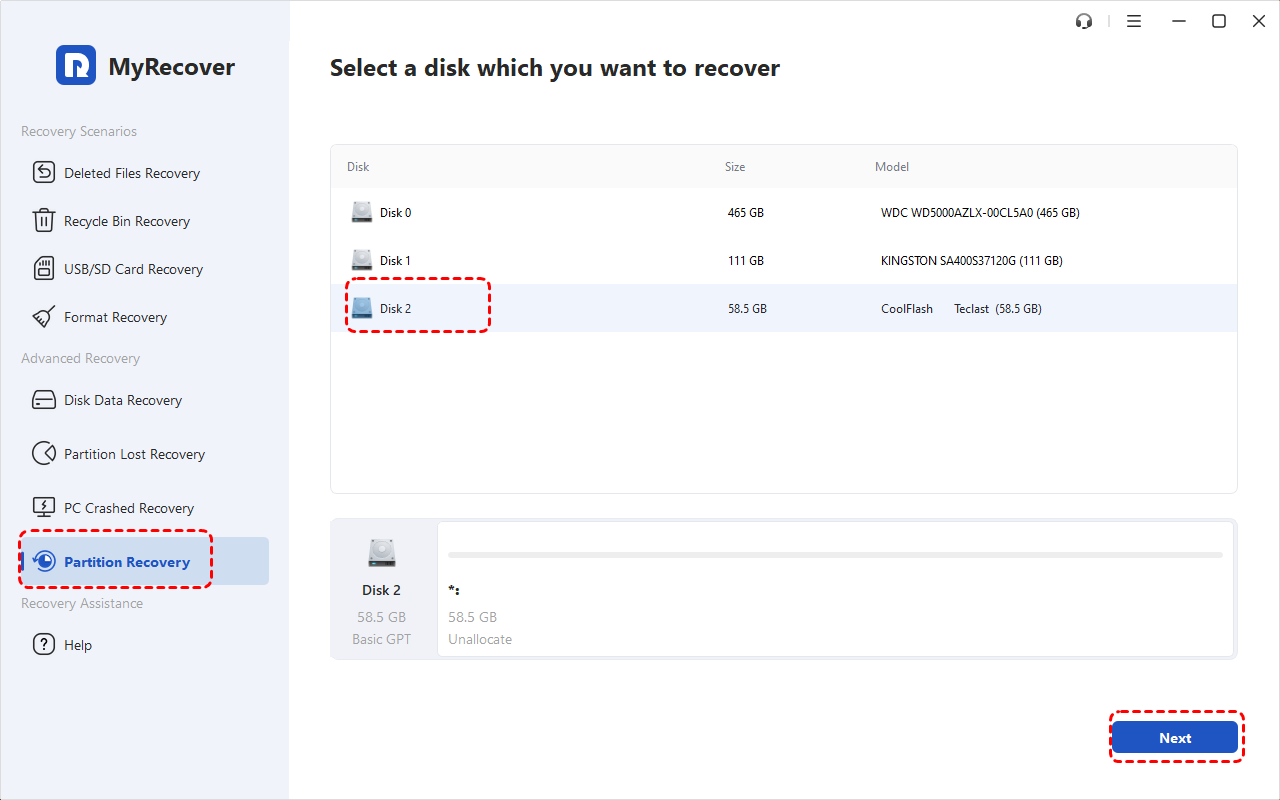
Step 3. Open the application and select Partition Recovery. Select the SD card containing the lost partition and click "Next".
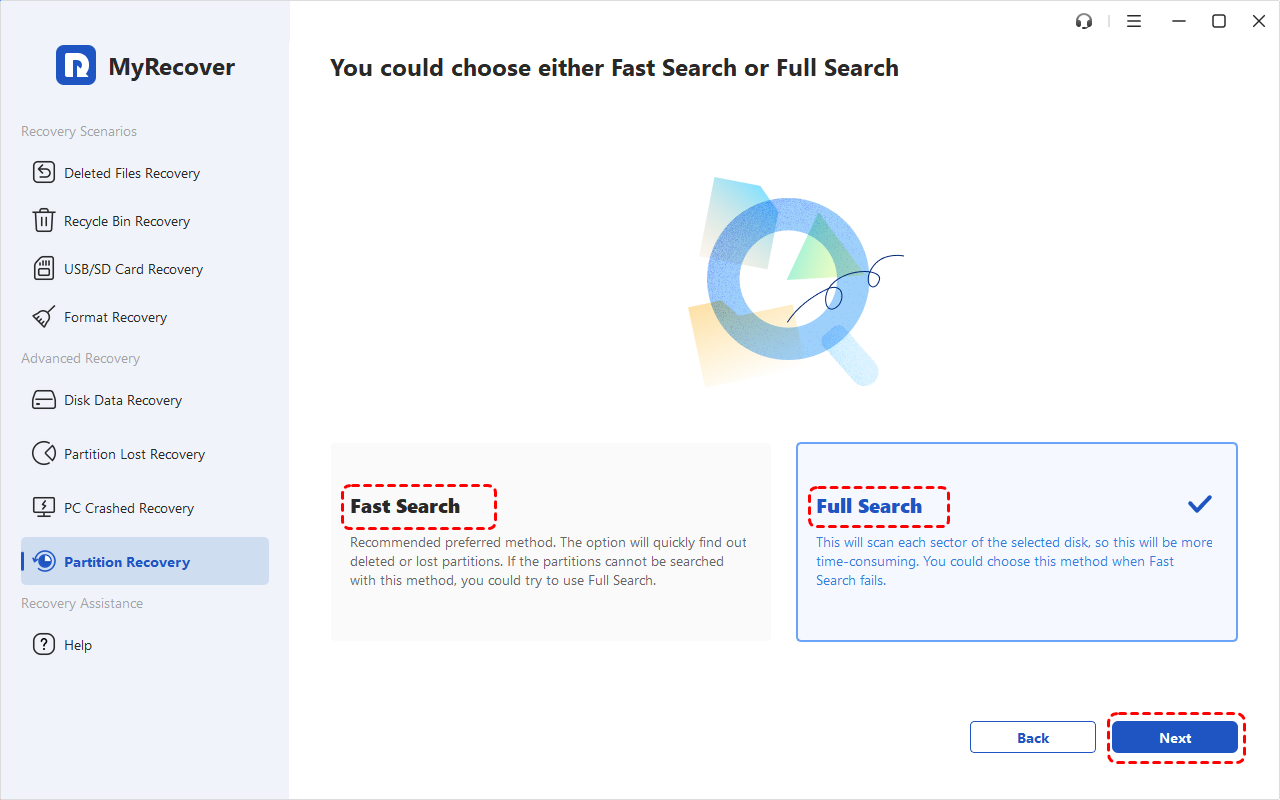
Step 4. Choose "Fast Search" or "Full Search" to scan your SD card and click "Next" to start the scanning process.
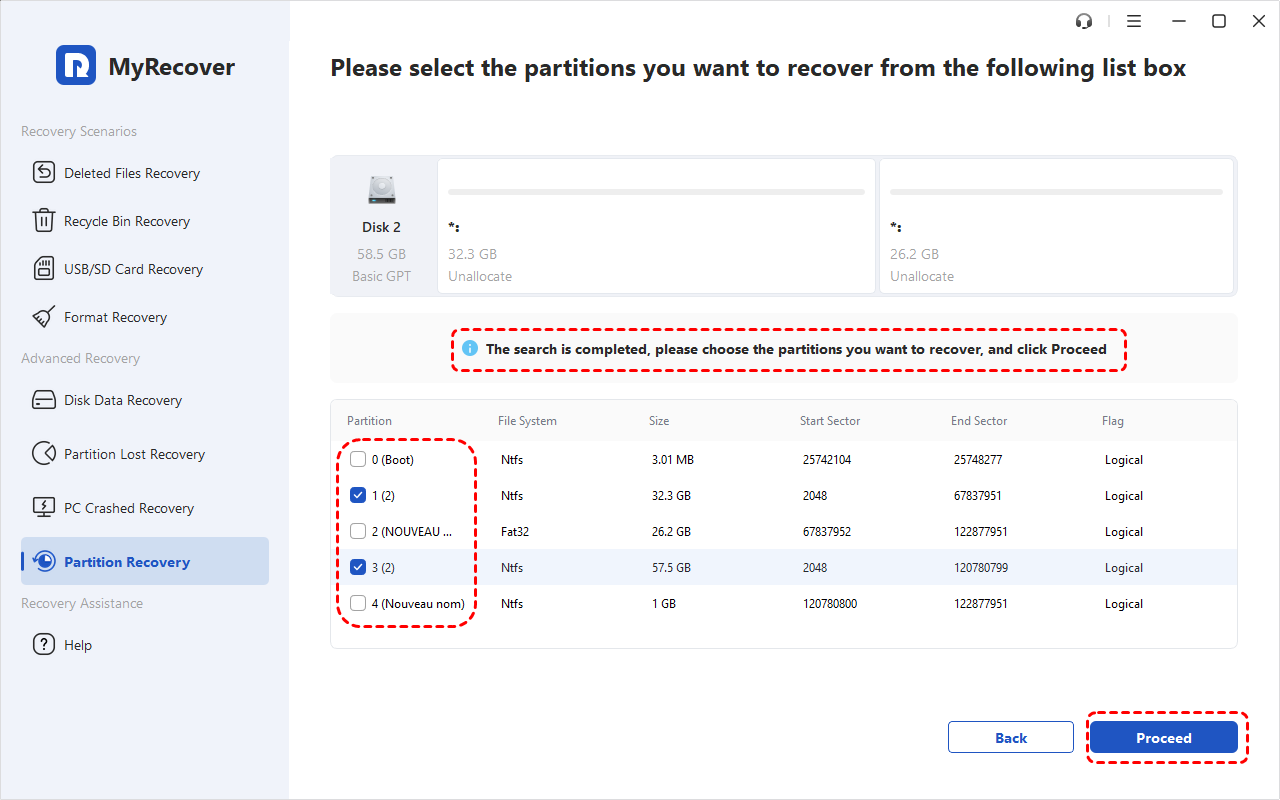
Step 5. Once the scan is completed, check the detected partition information to confirm that it is the one you want to restore. Select the desired partition and click "Proceed" to recover it.
Method 2. Recover Files from a Lost SD Card Partition with MyRecover
If you only need to retrieve the files stored on a lost SD card partition, you can recover the data directly without restoring the entire partition first. MyRecover can scan the SD card for recoverable files and lets you preview the results before saving the files to another storage location.
 MyRecover
A user-friendly Windows data recovery tool with highest success rates.
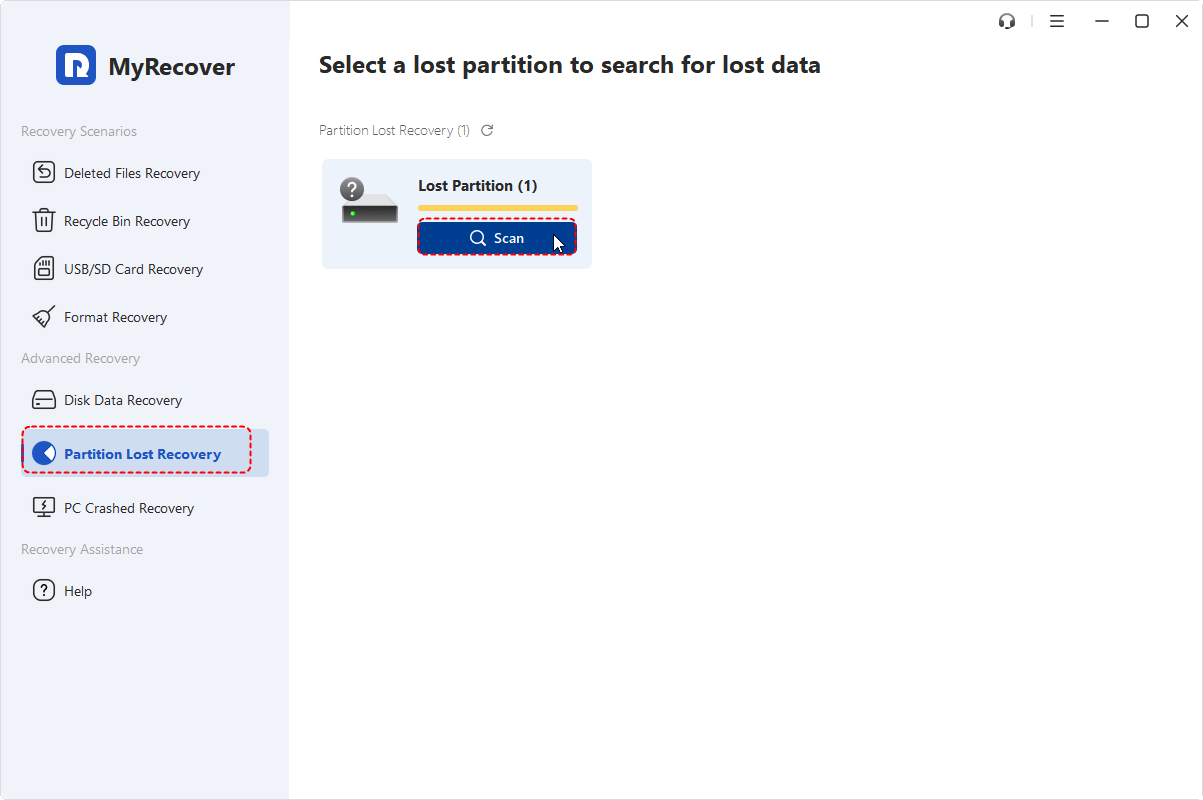
Step 1. Launch MyRecover and select the “Partition Lost Recovery" section, choose the lost partition to scan for lost files, then click "Scan". The lost SD card partition will be marked as "Lost partition" here. You can locate your target SD card partition by checking the partition size.
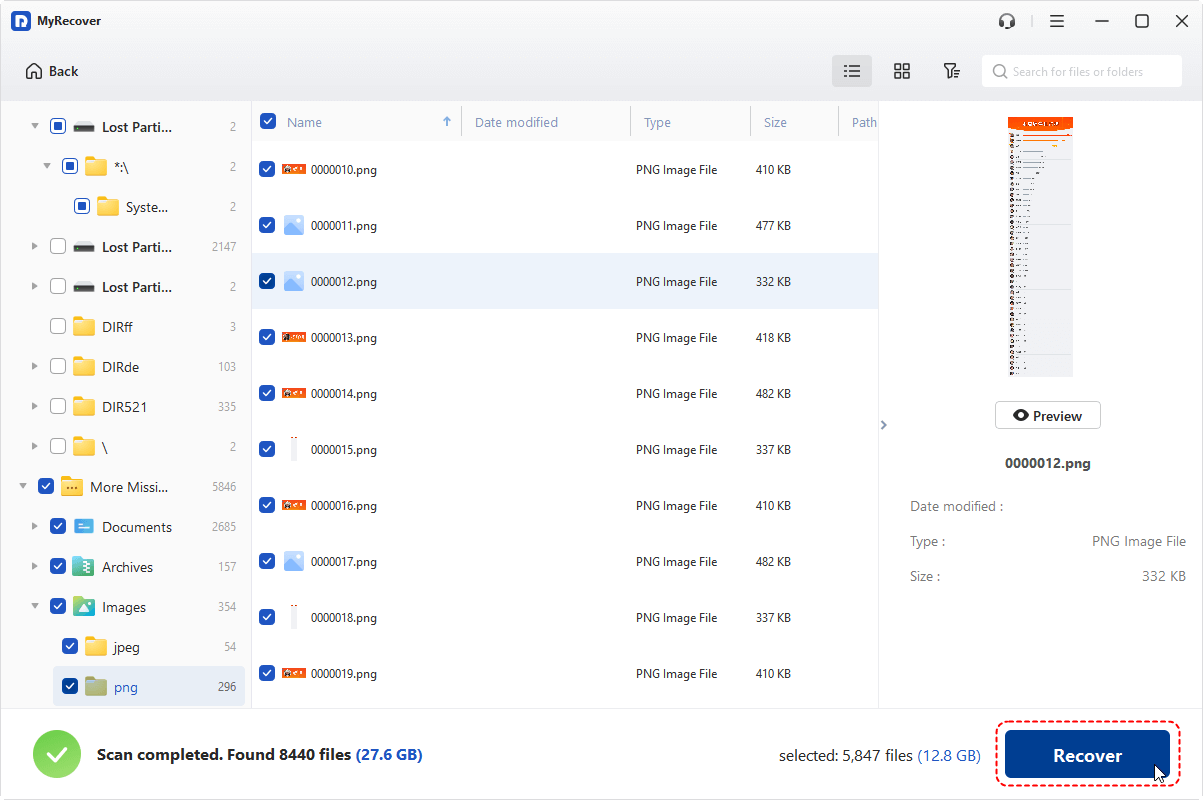
Step 3. Choose files you wish to recover from the recoverable lists and click "Recover". You can use the "Filter" function in the right upper corner to find the files you want to recover quickly.
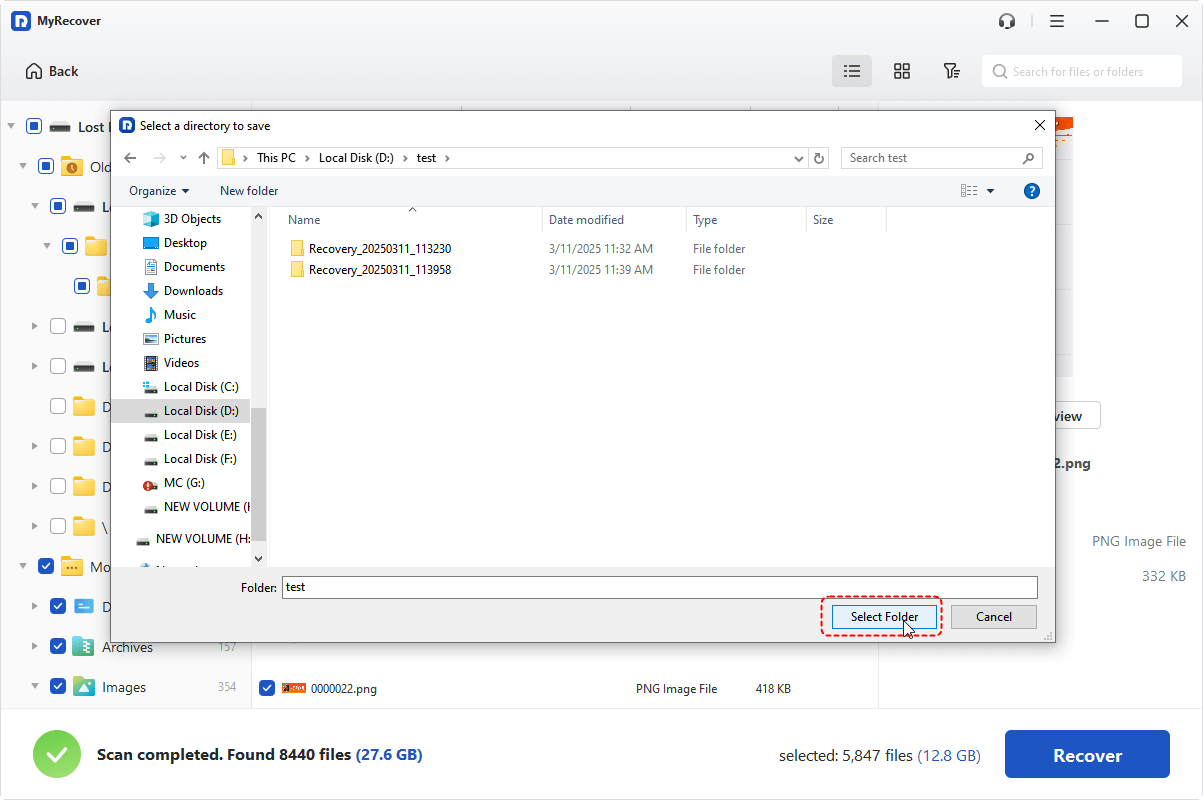
Step 4. Select a safe location to save the recovered files.
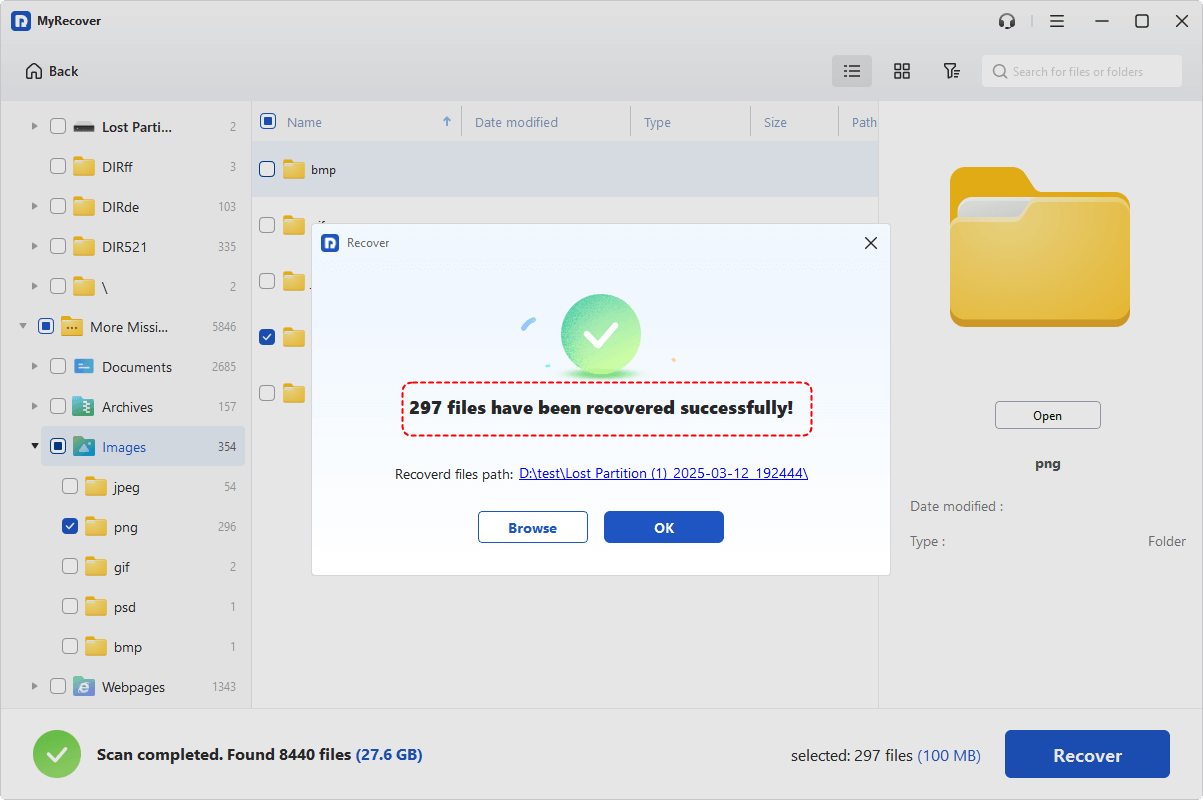
Once the process is completed, the message indicating successful recovery will be displayed. You can check and access the recovered files by clicking on "Browse" or the destination folder path.
Lost Partition Recovery vs. File Recovery: What's the Difference?
| Feature | Partition Recovery | Partition Lost Recovery |
| Primary goal | Restore the entire lost or deleted partition | Recover individual files from the lost partition |
| What is recovered | Partition information, file system, drive letter, folder structure, and contained data | Recoverable files and folders |
| Best for | When you want the lost partition to appear and become accessible again | When you mainly need to retrieve important files |
| Recovery scope | Entire partition | Selected files or folders |
| Useful when | The partition itself is missing, deleted, or inaccessible | You need specific photos, videos, documents, or other files from the lost partition |
Method 3. Check the SD Card in Disk Management
Once your important files have been recovered, you can check whether the SD card partition is still present but simply inaccessible in Windows. If the partition appears in Disk Management but has no drive letter, you may be able to make it visible again by assigning a new letter. This means your data hasn’t been lost and can restore normal access to the existing partition.
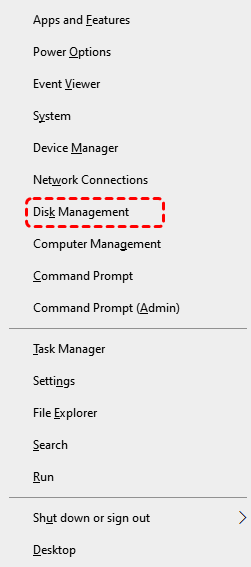
Step 1. Press "Win + X" and select "Disk Management".
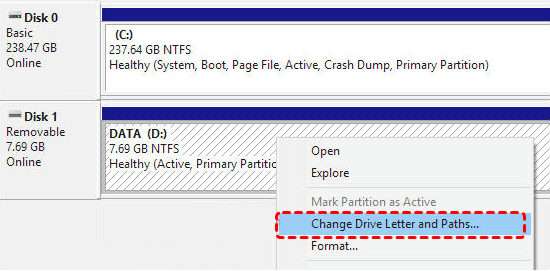
Step 2. Select the lost partition on SD card and right click on it, then choose "Change Drive Letter and Paths".
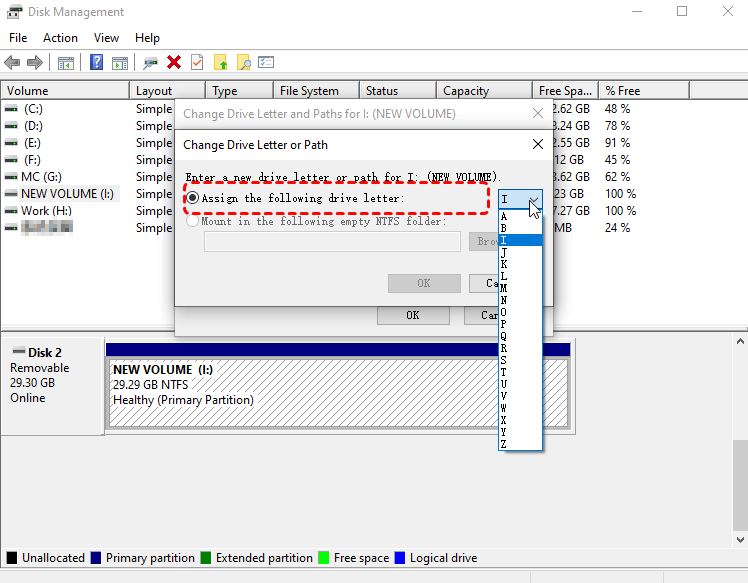
Step 3. Click "Add" to assign a new drive letter and click "OK" to save the changes. The partition should now be visible in File Explorer.
Method 4. Check for File System Errors with CHKDSK
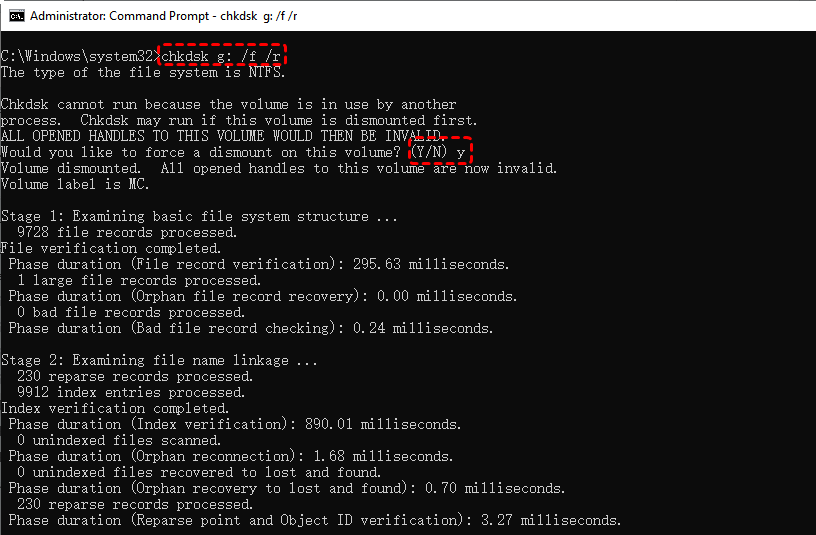
As mentioned earlier, file system corruption is also one of the causes of SD card partition loss. You can use the CHKDSK command to repair and eliminate logical errors on the SD card. CHKDSK may help when Windows can still recognize the SD card partition and assign it a drive letter, but the file system contains logical errors. It is not a general solution for a deleted or missing partition.
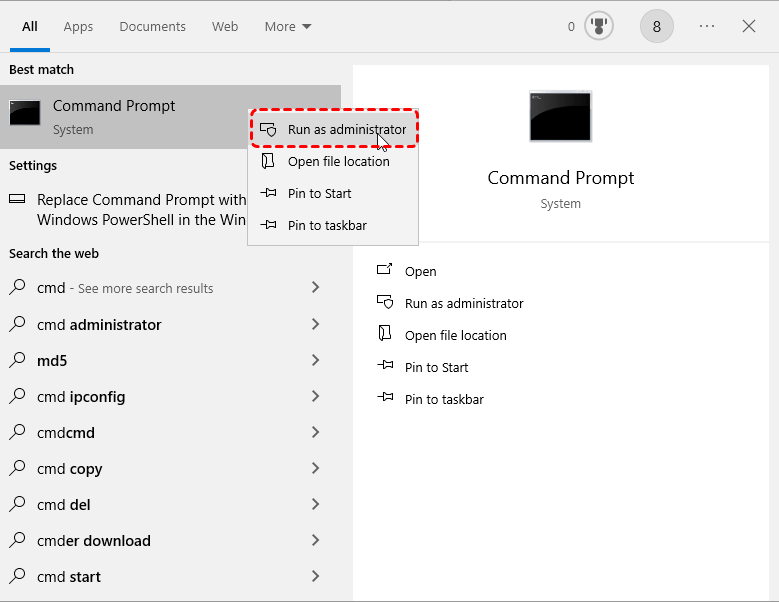
Step 1. Open "Command Prompt" and run it as administrator.
Step 2. Type the command "chkdsk G: /f /r" and press "Enter". Replace the drive letter "G" with your actual drive letter.
Method 5. Create a New Partition After Recovering Your Data
If the original partition still cannot be restored or you no longer need to preserve its previous partition structure, you can reuse the SD card after recovering the important data. Creating a new partition does not restore the original lost partition or recover its files. Instead, it creates a new partition from the available space so that the SD card can be used again.
Step 1. Press "Win + X" and select "Disk Management".
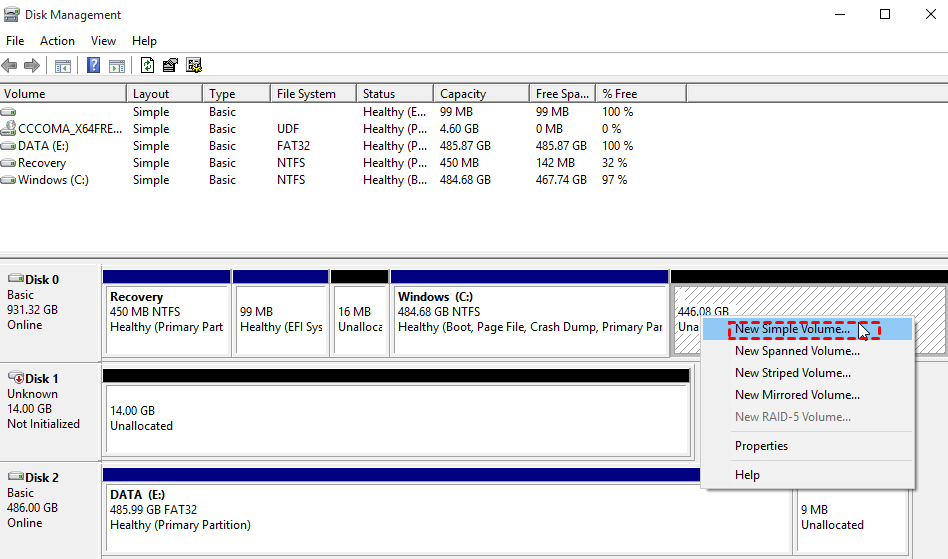
Step 2. Locate to the partition marked as "Unallocated", right click on it and choose "New Simple Volume".
Step 3. Check the new volume size and assign a new drive letter, then click "Next".
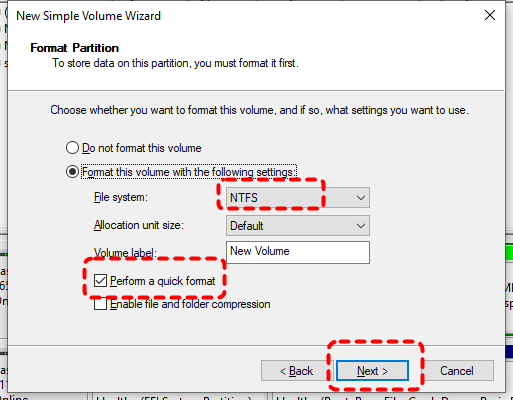
Step 4. Select a file system based on your needs and click "Finish" to start the process. Don't forget to check the "Perform a quick format" option. Then put the recovered files using MyRecover into the new partition.
Before proceeding, make sure that any files you want to keep have already been recovered and saved to another storage device. Once a new partition is created and formatted, the previous partition information and any remaining recoverable data may be overwritten.
Which Method Should You Use to Recover a Lost SD Card Partition?
Different methods are designed for different SD card conditions and recovery goals. If the partition itself is missing, MyRecover provides two recovery options: Partition Recovery for restoring the entire partition and Data Recovery for retrieving files stored on the lost partition. Other methods, such as assigning a drive letter or creating a new partition, are intended for different situations.
| Methods | When to Use it | Recovery Result |
| MyRecover: Partition Recovery | The SD card partition has been deleted or lost, and you want to restore the partition itself | Entire partition + contained data |
| MyRecover: Partition Lost Recovery | The partition is lost or inaccessible, but you mainly need the files stored on it | Selected files and folders |
| Assign a Drive Letter | The partition still appears in Disk Management but has no drive letter | Access to the existing partition |
| CHKDSK Command | The partition is recognized by Windows but has file-system errors | File-system repair, not data recovery |
| Create a New Partition | Important data has already been recovered and you want to reuse the SD card | A new usable partition; original data is not restored |
FAQs:
1. How to recover lost memory on SD card?
Connect the SD card to your computer using a suitable card reader, then use professional data recovery tools such as Windows File Recovery or MyRecover to scan the card and recover lost data from SD card.
2. How to recover an unknown partition?
First, use a professional data recovery tool like MyRecover to recover the data in the unknown partition, and then restore the partition through methods such as rebuilding the partition table.
3. Can you undo a hard drive partition?
Yes, you can delete the partition in Disk Management. But this way will delete all data from this partition, which is the only way to undo a hard drive partition. You’d better back up the data in the partition before deleting it.
4. Can I recover a lost partition on an SD card without formatting it?
Yes. If the partition is lost but the data has not been overwritten, you may be able to recover the partition without formatting the SD card. Avoid formatting, initializing, or creating a new partition first, as these operations can overwrite information needed for recovery. You can try MyRecover's Partition Recovery to restore the lost partition.
5. Can I recover files from an SD card if the partition is lost?
Yes. A lost partition does not necessarily mean that the files stored on it have been erased. MyRecover can scan the SD card for recoverable files and let you preview and recover needed photos, videos, documents, and other data. Save the recovered files to another storage device rather than the affected SD card.
6. Can MyRecover restore the entire lost SD card partition?
Yes. MyRecover's Partition Recovery feature is designed to recover deleted or lost partitions along with their contained data. It can scan the SD card for recoverable partition information and help restore the lost partition so it can become accessible again.
7. Should I create a new partition on an unallocated SD card?
Not if you still need the data from the lost partition. Creating a new partition can overwrite existing partition information and make data recovery more difficult. First try to recover the lost partition or important files. If your data has already been safely recovered and you simply want to reuse the SD card, you can create and format a new partition.
Summary
A lost partition on SD card doesn't mean your data is gone forever. By acting quickly and using the right approach, you can often recover lost partition SD card and retrieve your important files. For anyone facing data loss on Windows, MyRecover offers a reliable, beginner-friendly solution that balances power and safety, perfect for those who need their files back without complicated steps.
If you’d like to unlock more advanced features such as unlimited data recovery capacity, previewing file contents in advance, and recovering data from a crashed system, consider upgrading to the Professional edition of MyRecover.

Stay Updated With Our
Latest Tips
Add us as a preferred source on Google to never miss helpful guides.
 Add as preferred source >>