 MyRecover



OneNote Recover Deleted Page: Step-by-Step Guide
Accidentally deleting an important note can disrupt your workflow, especially when it contains meeting records, research information, or project plans. Fortunately, there are several ways to recover OneNote deleted pages. This guide will walk you through how to recover deleted OneNote pages step by step, helping you restore lost content quickly and safely.

By Aria / Updated on March 16, 2026


"How do I Find Deleted Pages Within My Notebook?"
Well, I accidentally deleted one page in OneNote but there is no 'restore' or 'recycle bin' option in the app. It's not available in OneDrive's 'Recycle bin'. And I don't see any option in PC either. So how do I do it? Can't I even restore a deleted note?
- Question from Shondra Boteler
Accidentally deleting an important page in OneNote can be frustrating, especially when it contains meeting notes, research materials, or project information. Many users assume that once a page is removed, it is permanently lost. In reality, OneNote provides several built-in recovery options that allow you to restore deleted pages in many situations.
Whether the page was recently deleted, removed from a section, or lost after syncing issues, there are practical ways to recover a deleted OneNote page. By following the methods outlined below, you can quickly locate and restore deleted pages, helping you regain access to important information with minimal effort.
How to Recover Deleted OneNote Pages on Windows
If a page disappears from your notebook, it does not necessarily mean the content is permanently lost. OneNote includes several recovery mechanisms that store deleted notes temporarily or preserve earlier versions of pages. The following solutions move from the quickest and most immediate fixes to deeper recovery options, helping you restore deleted OneNote pages efficiently.
Method 1. Undo the Deletion (Ctrl + Z)
If the page was deleted only moments ago, the fastest way to restore it is by using the Undo command. OneNote temporarily records recent actions, allowing users to reverse them instantly. This method works best when you realize the mistake immediately and have not closed the notebook or performed many additional actions.
Step 1. Open the notebook or section where the page was originally located.
Step 2. Press "Ctrl" + "Z" on your keyboard to undo the last action. Check if the restored OneNote page is the one you want.
Method 2. Restore Pages from the Notebook Recycle Bin (For Older Version)
When a page is deleted in OneNote, it is usually moved to the Notebook Recycle Bin instead of being permanently removed. This built-in feature stores deleted pages and sections for 60 days, allowing users to restore them easily. Checking the Recycle Bin is often the most reliable way to recover recently deleted pages.
Step 1. Launch OneNote and go to the notebook where the page was deleted.
Step 2. Click the "History" tab on the top menu, then select "Notebook Recycle Bin".
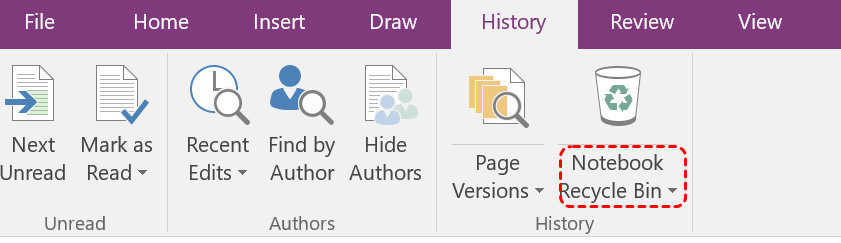
Step 3. Locate the deleted page or section.
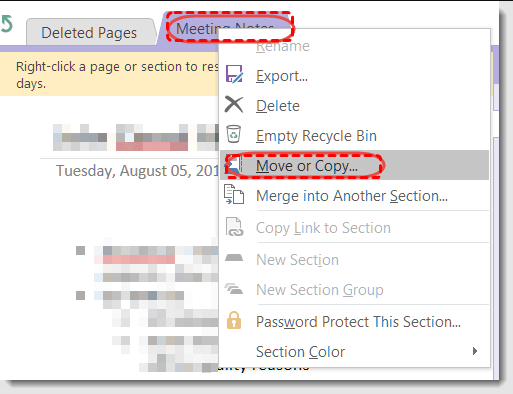
Step 4. Right-click the page and choose "Move or Copy", then restore it to the desired section.
Method 3. Check the Deleted Notes Section (For Newer Version)
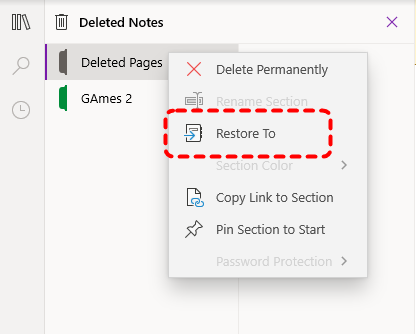
In some versions of OneNote, such as OneNote for Windows 10 and the web version, deleted pages are temporarily stored in a Deleted Notes section within the notebook before being permanently removed. This section acts as a transitional storage location where recently deleted pages may still be recoverable.
Step 1. Open the notebook that contained the deleted page.
Step 2. Click on the "View" tab on the top menu and select "Deleted Notes".
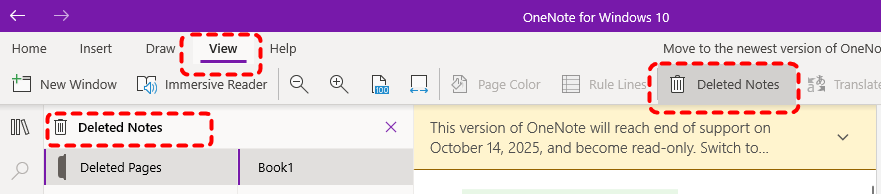
Step 3. Locate the missing page and right-click the page, then select "Restore to" to recover it to the correct section.
Method 4. Recover OneNote Pages from Local Backup
OneNote automatically creates local backup copies of notebook data on your computer. These backups can be extremely useful if the page has already been removed or the notebook has been modified significantly. By restoring a backup file, you may be able to retrieve the missing page from an earlier snapshot. This feature is mainly intended for OneNote 2016 / OneNote Desktop users.
Step 1. Locate the following path in File Explorer:
C:\Users\YourUserName\AppData\Local\Microsoft\OneNote\16.0\Backup
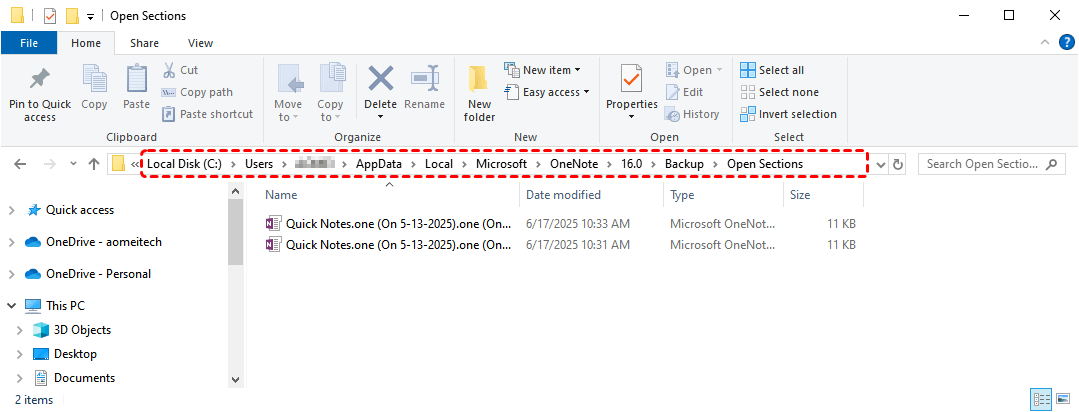
Step 3. Browse the available backup notebooks and look for the file with ".one" extension and named after your notebook or the OneNote version you're using.
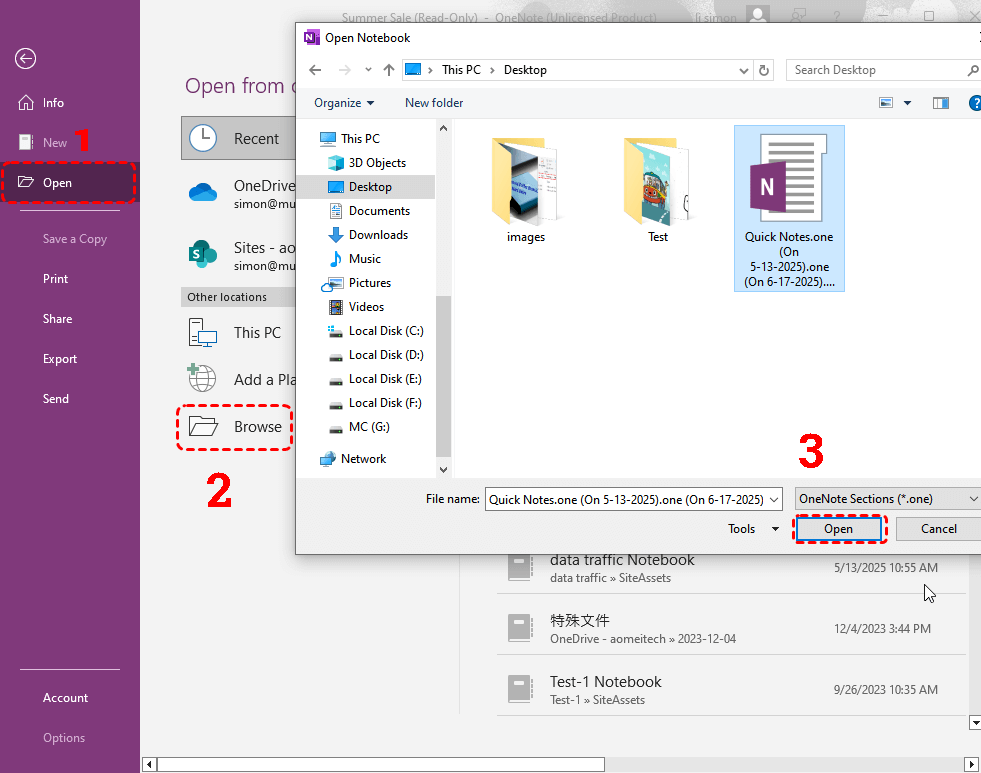
Step 4. Open it with OneNote to check if it's the page you want and save it to a safe location, then copy the page back to your current notebook.
Method 6. Recover Deleted OneNote Pages from OneDrive
If your notebook is synchronized with OneDrive, deleted pages or notebook files may still exist in the cloud recycle bin. This method is useful when the deletion has already been synced across devices or when the page is no longer visible in the desktop application.
Step 1. Go to the OneDrive website and sign in with your Microsoft account.
Step 2. Locate the Recycle Bin on the left panel.
Step 3. Locate the deleted OneNote notebook or file.
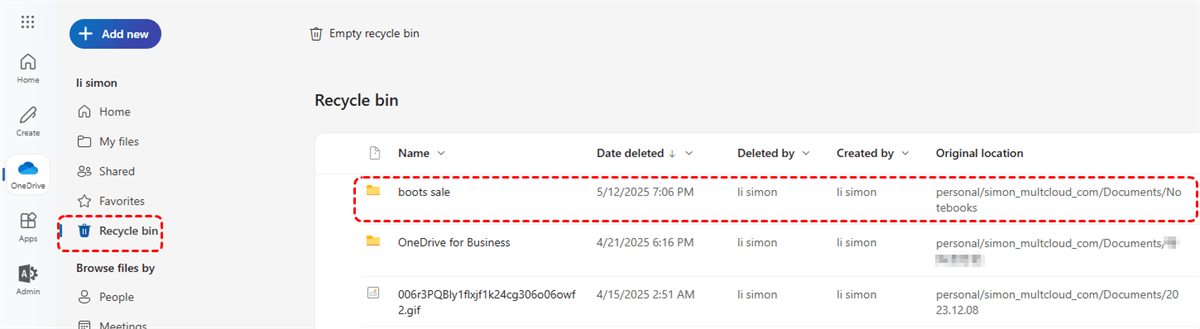
Step 4. Select the item and click "Restore" in the upper left corner.

Method 7. Recover Permanently Deleted OneNote Pages with MyRecover
If the deleted page cannot be found in OneNote, backups, or OneDrive, it may have been permanently removed from the notebook storage location. In this situation, a professional data recovery tool such as MyRecover can help scan the drive where the OneNote notebook files were stored and attempt to retrieve deleted data. It is designated to recover over 1000 file formats, including documents, videos, audios, design files, compressed files, etc.

 MyRecover
- Recover deleted & lost files from HDD, SSD, USB, SD card, camera as you need.
- Support 1000+ formats of photos, videos, docs, archives, emails, compressed files, etc.
- Reliable rescue for deletion, formatted disk, emptied Recycle Bin, system crashes and more.
 100% Secure
Step 1. Download and install MyRecover on your Windows computer from Microsoft Store or its official website.
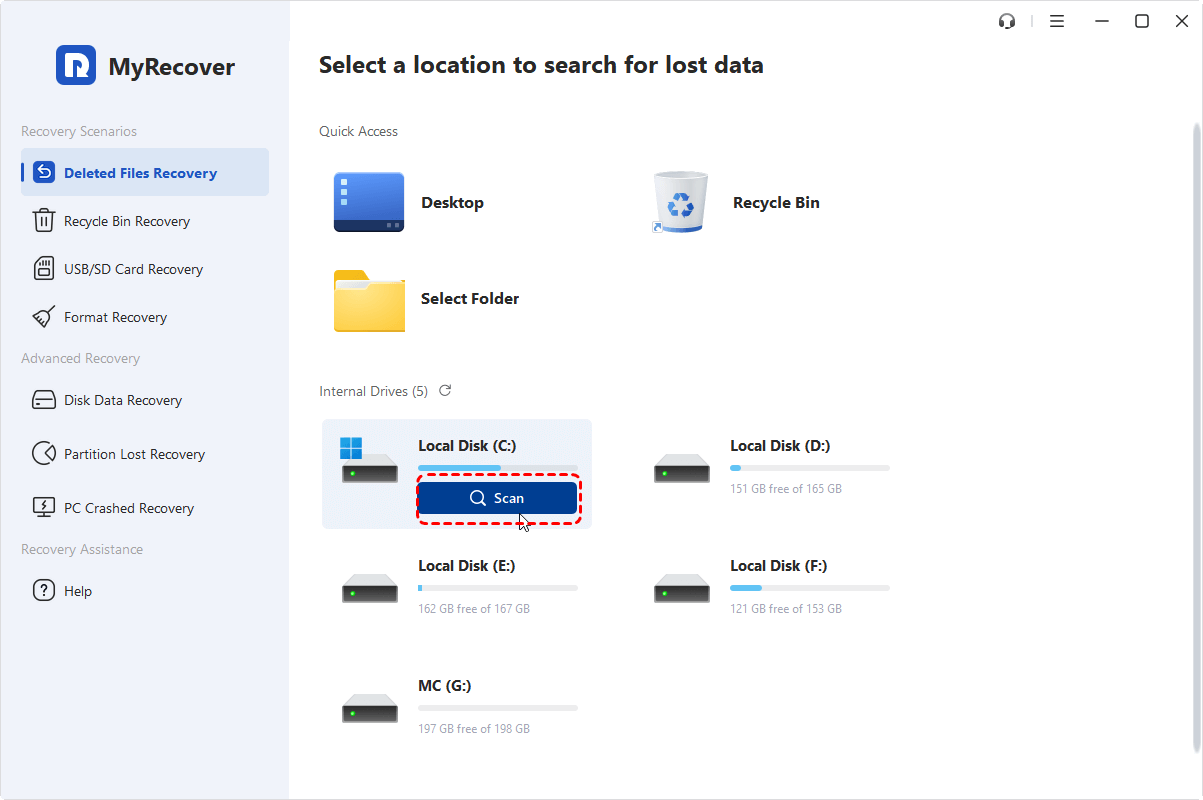
Step 2. Launch the app and select the drive where your OneNote notebook files were stored, then click "Scan" to start the scanning process.
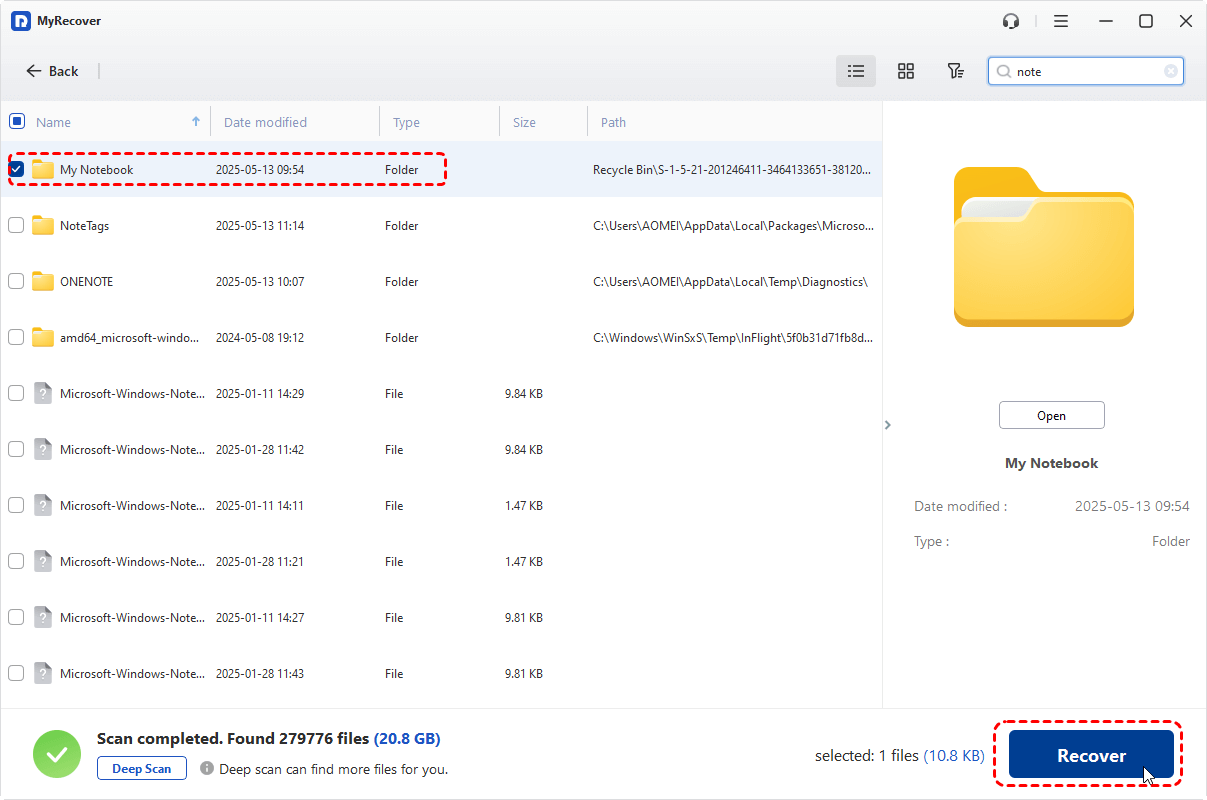
Step 3. After the scan is completed, locate the file you want to recover from the recoverable lists and click "Recover". You can also find the target files by using the "Filter" function.
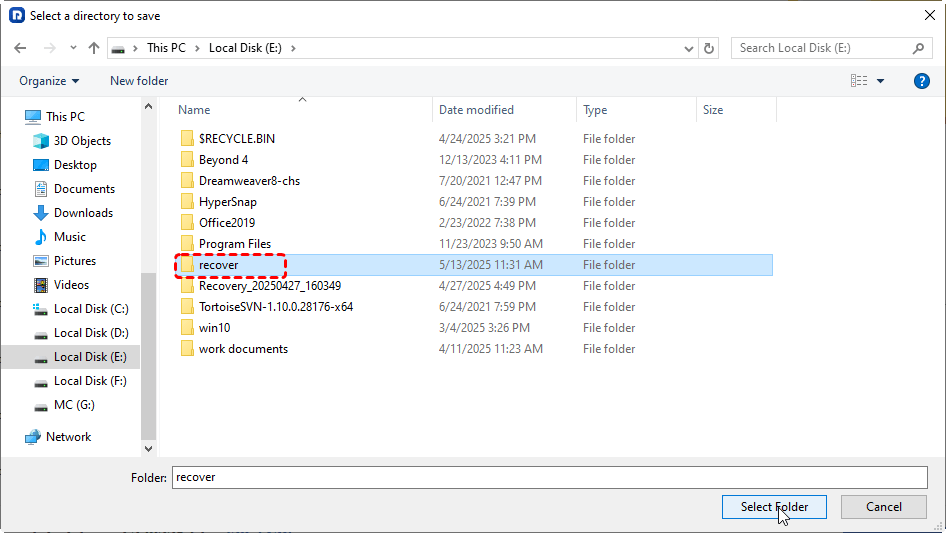
Step 4. Select a safe location to save the recovered files.
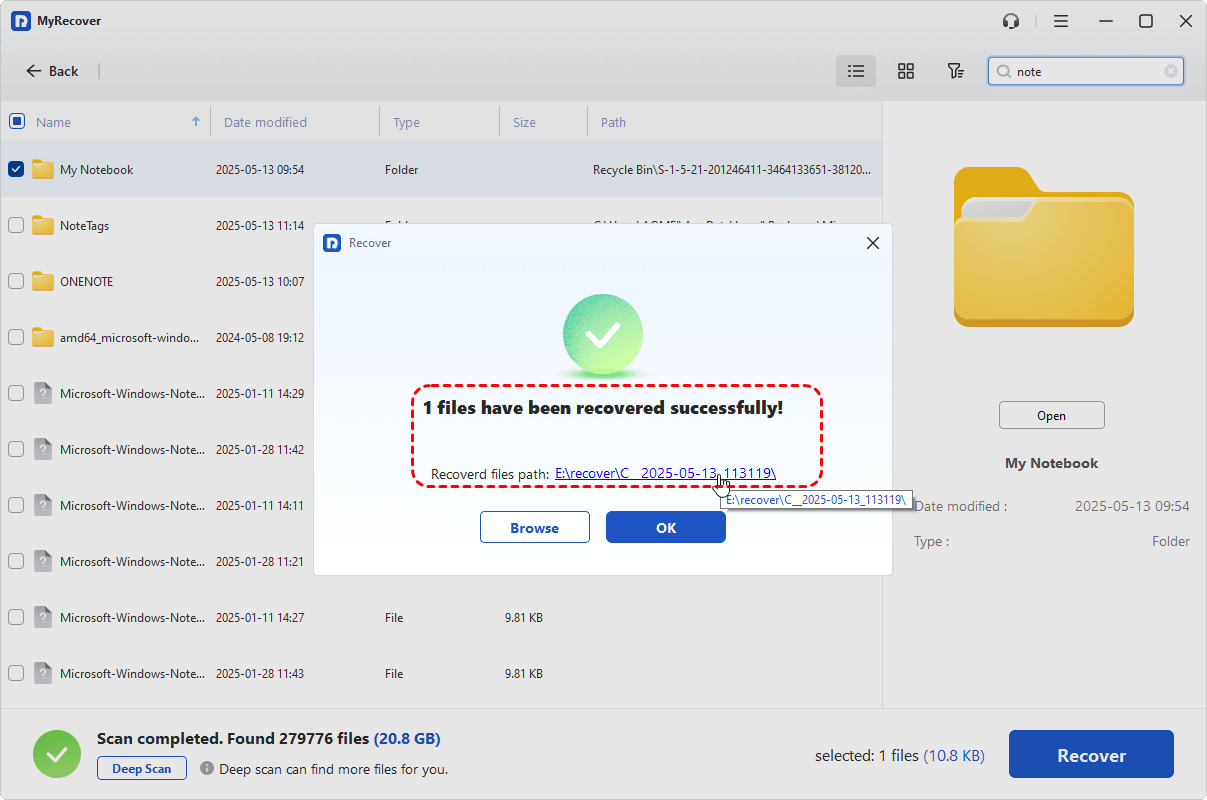
Once the process is done, you can access the recovered files in the destination folder by clicking on the "Browse" button.
How to Restore OneNote Previous Page Versions
If a page was not deleted but its content was overwritten or modified, the Page Versions feature can help restore earlier edits. OneNote automatically saves historical versions of pages, allowing you to revert to a previous state when necessary.
Step 1. Launch OneNote and click the "Clock" button to show recent notes.
Step 2. Locate the page where the content was lost or changed.
Step 3. Right click on it and choose "Page Versions".
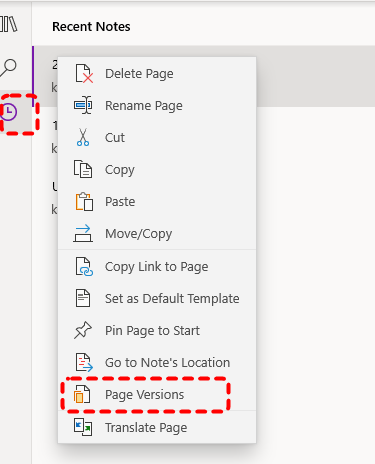
Step 4. Browse the list of earlier versions and open the one containing the desired content.
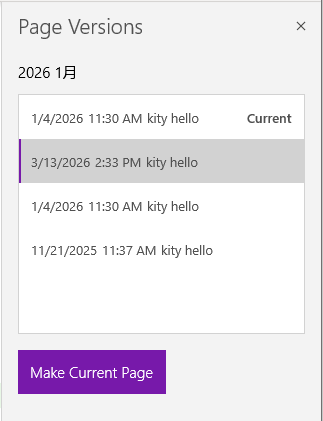
Step 5. Copy or restore the information back to the current page.
Summary
Accidentally deleting a page in OneNote does not always mean the information is permanently lost. In many cases, deleted notes can be recovered through built-in features such as Undo, the Notebook Recycle Bin, the Deleted Notes section, local backups. If your notebook is synchronized with OneDrive, checking the cloud recycle bin may also help restore missing content.
If the deleted page is no longer available in OneNote or OneDrive, a professional recovery tool such as MyRecover may still help scan the storage device and retrieve lost notebook files. When the files you need to restore are larger than 500 MB, consider upgrading to the Professional edition of MyRecover. This version offers unlimited data recovery and can also retrieve files from a computer that fails to boot normally.
FAQs
Q1: What Happens when you delete a OneNote Page?
When you delete a page in OneNote, it is usually not permanently removed immediately. The page is moved to the Notebook Recycle Bin, where it is temporarily stored. This allows you to restore the page if the deletion was accidental. If the Recycle Bin is later emptied or the retention period passes, the page may be permanently deleted.
Q2: Where is the Recycle Bin for OneNote?
The OneNote Notebook Recycle Bin is located within the notebook itself. In the OneNote desktop app, open your notebook and go to the "History" tab, then click "Notebook Recycle Bin". There you can view deleted pages and sections and restore them to their original location or another section. However, for newer versions of OneNote, "Deleted Notes" function similarly to the Recycle Bin. You can access it via the "View" menu at the top.
Q3: How do I recover permanently deleted notes from OneNote?
If a note is permanently deleted from the OneNote Recycle Bin, you can try restoring it from local backups, or OneDrive’s Recycle Bin. If these options do not contain the deleted content, a professional data recovery tool like MyRecover may help recover the notebook files from the storage drive where the OneNote data was saved.
Q4: How to Retrieve OneNote History?
You can retrieve OneNote history using the "Page Versions" feature. Open OneNote and click the "Clock" button, then right click on the note and select "Page Versions" to view earlier edits saved by OneNote. From there, you can review previous versions of the page and restore or copy the content back to the current note if needed.

Stay Updated With Our
Latest Tips
Add us as a preferred source on Google to never miss helpful guides.
 Add as preferred source >>