 MyRecover



Pagefile.sys Safe to Delete or Not? Everything You Should Know
Pagefile.sys is a system-managed virtual memory file that helps Windows handle processes when your physical RAM is insufficient. It can take up a significant amount of disk space, leaving users wondering whether it’s safe to delete it. This article explores when and how it is safe to delete or adjust pagefile.sys, explains the role of virtual memory, and offers clear instructions to modify its size or move it to another drive.

By Aria / Updated on March 20, 2026


What is Pagefile.sys?
My page file sys is using a bit of data. I was wondering it is safe to clear it to on shut down just once. I don't want to disable it just clear it. I saw online you can clear it to zero on shut down but I question whether it's safe and if it is safe how would I go about doing it so I thought I would ask here.
- Question from Baton94
Pagefile.sys is a system file in Windows that functions as virtual memory, acting as an extension of your physical RAM. When your computer’s RAM becomes full, Windows moves some data from RAM to pagefile.sys on the hard drive or SSD, allowing applications and processes to continue running smoothly. This file helps prevent system crashes, improves multitasking, and supports memory-intensive programs, making it a critical component of Windows memory management.
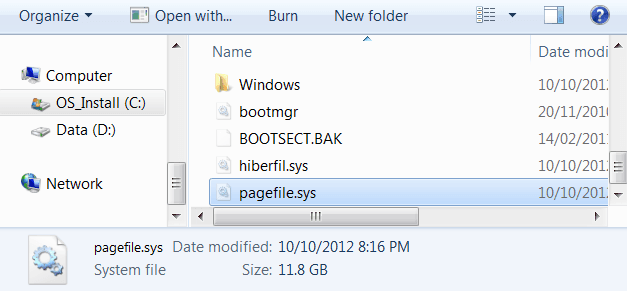
However, many users notice that this file occupies a large amount of disk space on the C: drive. Given its important role as a system file, many wonder: is pagefile.sys safe to delete? The short answer is that deleting pagefile.sys is generally not recommended for most users. Removing it can lead to system instability, application crashes, and errors, especially if your computer has limited RAM or runs memory-heavy software.
Why Does Pagefile.sys Take Up So Much Space?
The size of pagefile.sys is determined by Windows based on your system’s memory usage and configuration. By default, Windows automatically manages the file size to ensure there is enough virtual memory for peak workloads. This means that on systems with limited RAM or when running multiple applications simultaneously, pagefile.sys can grow significantly to support stable performance. Several factors contribute to its large size:
🔔System-Managed Settings: When Windows controls pagefile.sys automatically, it may allocate multiple gigabytes to accommodate potential memory demands.
💻Running Memory-Intensive Applications: Programs such as video editors, virtual machines, or games require more virtual memory, causing the pagefile to expand.
🛠️Crash Dump and Hibernation Support: Pagefile.sys can also store crash dump files for troubleshooting purposes, which adds to its size.
💡Multiple User Accounts or Background Processes: More active processes and users increase memory usage, leading Windows to increase the pagefile size accordingly.
Is it Safe to Delete Pagefile.sys Windows 10/11?
For most Windows users, deleting pagefile.sys is not safe. This system file is a crucial part of virtual memory management, and removing it can lead to instability, application crashes, and system errors. Even on computers with large amounts of RAM, certain processes and memory-intensive applications rely on the pagefile.sys to operate correctly.
Risks of Deleting Pagefile.sys
As one of the critical system files that affect Windows performance, deleting the pagefile.sys can lead to a series of serious consequences you may not anticipate. These risks show that deleting pagefile.sys is generally unnecessary and can create more problems than it solves.
- System Instability: Applications may crash or fail to start if virtual memory is unavailable.
- Performance Degradation: Without a pagefile, Windows cannot offload excess data from RAM, causing slowdowns during multitasking.
- Error Messages and Blue Screens: Critical system processes expect the pagefile to exist, and its absence can trigger warnings or stop errors.
- Impact on Crash Dumps and Hibernation: Windows uses pagefile.sys to store crash information and support hibernation; deleting it may prevent these functions.
When is it Safe to Delete or Adjust Pagefile.sys?
While deletion is usually unsafe, there are specific circumstances where adjusting or temporarily clearing the pagefile may be acceptable:
✅High-RAM Systems: Computers with 16GB or more RAM can handle most tasks without heavy reliance on virtual memory.
✅Temporary Testing or Troubleshooting: Advanced users may clear or resize the pagefile briefly to troubleshoot specific issues, but caution is required.
✅Relocating Pagefile.sys to Another Drive: Moving the file to a secondary drive preserves virtual memory functionality while freeing space on the system drive.
How to Safely Resize or Move Pagefile.sys on Windows 10/11
Since directly deleting pagefile.sys is not recommended, a safer and more effective approach is to resize or move the file based on your system needs. This allows you to free up disk space while maintaining system stability. Windows provides built-in options to manually adjust virtual memory settings, giving you control over how much space pagefile.sys uses and where it is stored. The following methods guide you through resizing and relocating pagefile.sys step by step.
Method 1. Resize Pagefile.sys on Windows
Resizing pagefile.sys helps reduce its disk usage without removing it completely. This is the best option if your goal is to free up space while still keeping virtual memory available. By setting a custom size, you can limit how large the file grows while ensuring your system continues to function properly.
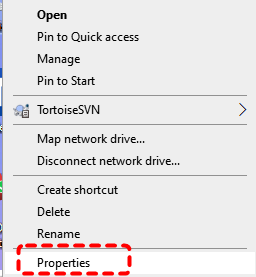
Step 1. Right click on "This PC" and choose "Properties" to open "Settings".
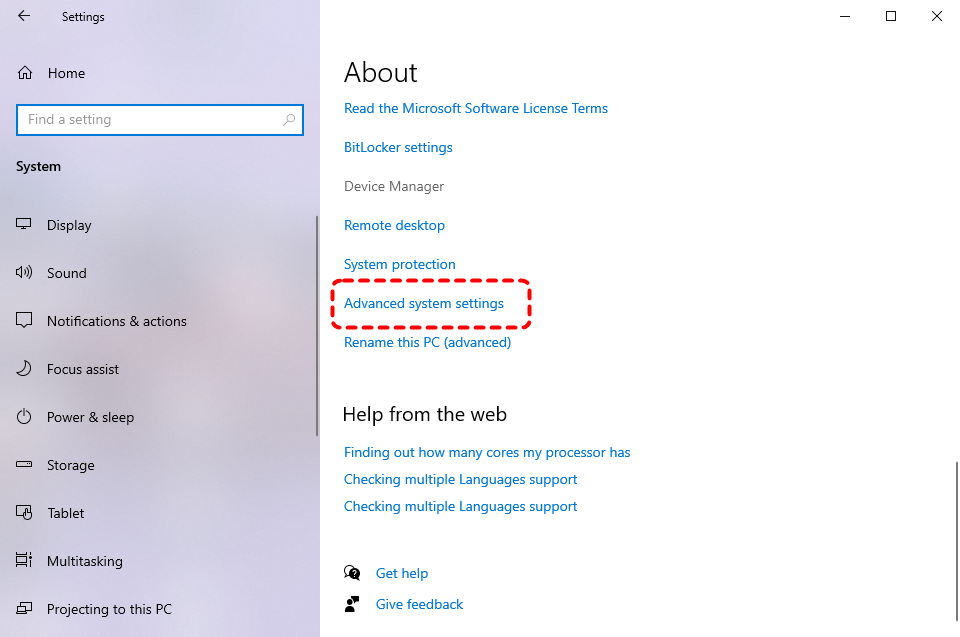
Step 2. Under the "Related settings" and click "Advanced system settings".
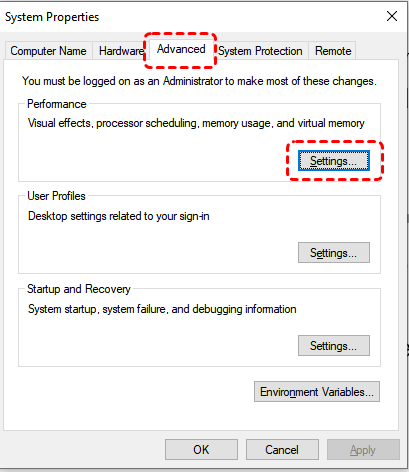
Step 3. In the opened System Properties window, locate the "Advanced" tab and click "Settings" under "Performance" section.
Step 4. In the Virtual Memory section, click "Change".
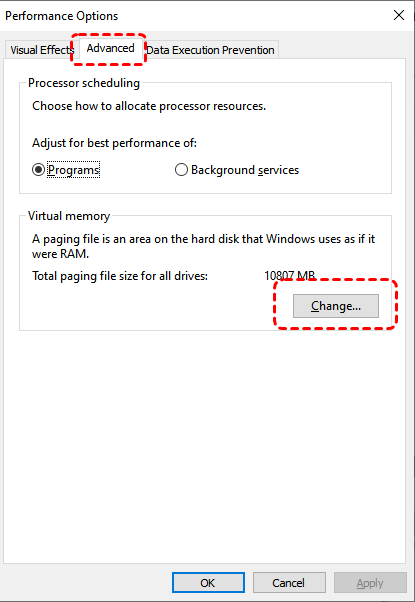
Step 5. Uncheck "Automatically manage paging file size for all drives", select your system drive (usually C:), then choose "Custom size", then enter an "Initial size" and "Maximum size".
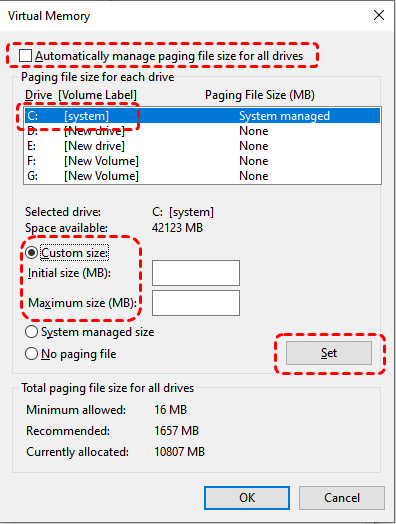
- Notes:✎...
- It is recommended to set the initial size to 1.5 times your physical RAM, and the maximum size to 2–3 times (1 GB = 1024 MB).
- For a more precise setup, you can set the initial and maximum sizes to the same value, which prevents Windows from dynamically resizing the page file.
Step 6. Click "Set" and "OK", then restart your computer to apply changes.
Method 2. Move Pagefile.sys to Another Drive
If your main concern is freeing up space on the C: drive, moving pagefile.sys to another drive is a better solution than reducing its size too aggressively. This method keeps virtual memory fully functional while relocating the file to a drive with more available storage, such as a secondary HDD or SSD.
Step 1. Open Virtual Memory section with the same steps described earlier, then click "Change".
Step 2. Uncheck "Automatically manage paging file size for all drives" and select the C: drive, then choose "No paging file". Click "Set" to save the changes.
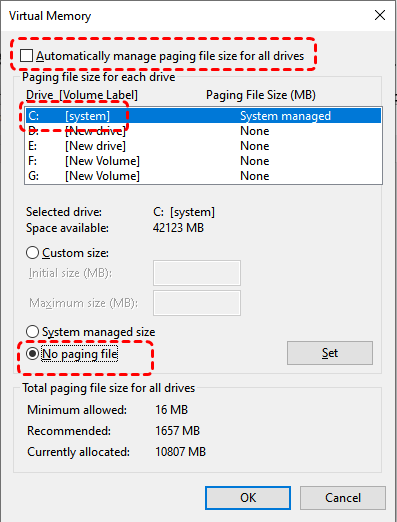
Step 4. Select another drive (e.g., D:), choose "System managed size" or "Custom size", then click "Set".
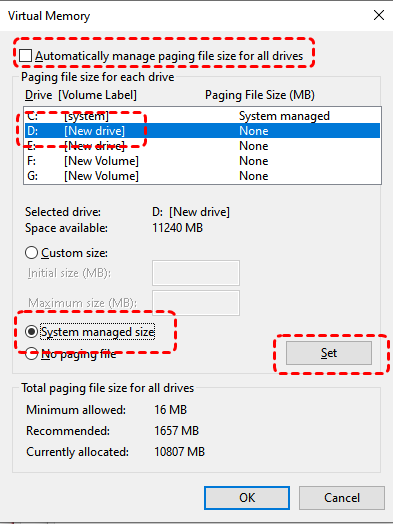
Step 5. Click "OK" and restart your computer to complete the process.
More Ways to Reduce Pagefile.sys Size & Increase Disk Space
In addition to resizing or relocating pagefile.sys, you can further reduce its impact on disk space by optimizing overall storage usage. The key idea is to free up space elsewhere or rebalance system resources, so Windows does not need to rely heavily on pagefile.sys. The following methods help you safely reclaim disk space while maintaining system performance.
Free Up Disk Space Using Disk Cleanup
Instead of aggressively reducing pagefile.sys, a safer approach is to remove unnecessary system files and temporary data. Windows includes a built-in Disk Cleanup utility that can clear cache, logs, and update files, instantly freeing up space on your system drive without affecting virtual memory stability.
Step 1. Type "Disk Cleanup" in the Search box and open it.
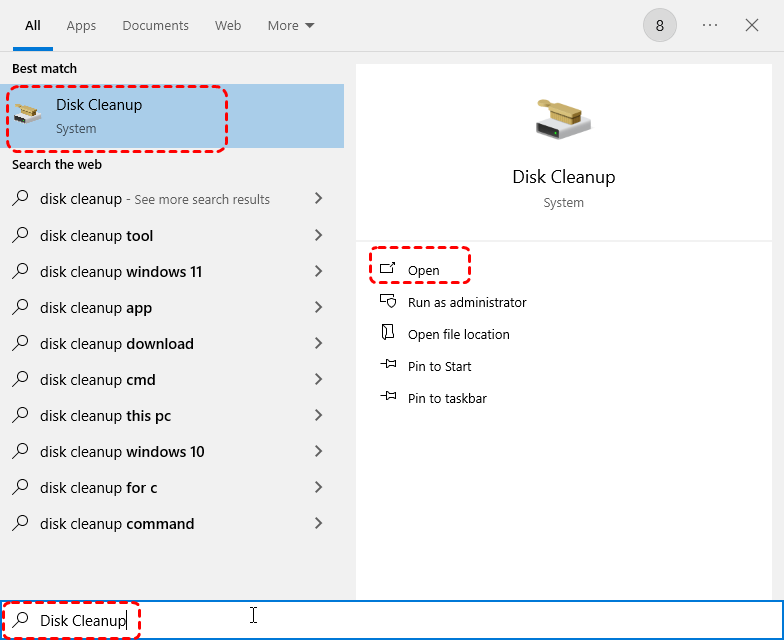
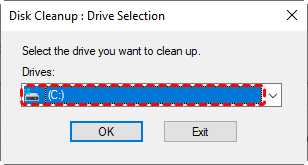
Step 2. Select the system drive (usually C:) and click "OK" to scan for files.
Step 3. Check categories such as Temporary files, Windows Update Cleanup, and Recycle Bin under the "Files to delete".
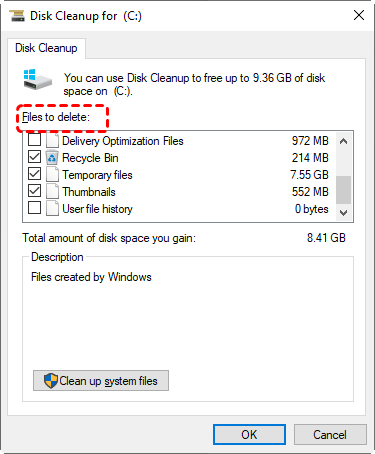
Step 5. Click "OK" to confirm the deletion to free up disk space.
Allocate More Free Space by Managing Storage
Another effective strategy is to reduce overall disk pressure so that pagefile.sys does not compete for limited space. By moving large files, uninstalling unused applications, or expanding available storage, you can maintain a properly sized pagefile without risking system performance. If your SSD has unallocated partitions, you can merge them with the system drive to increase available space.
Step 1. Press "Win" + "X" and choose "Disk Management" to open it.

Step 2. Locate your system drive and right click on it, then choose "Extend Volume".
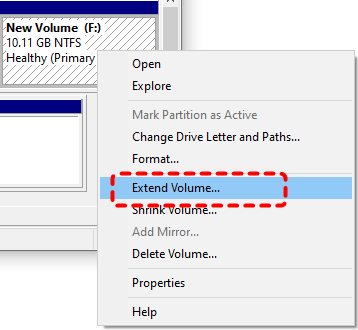
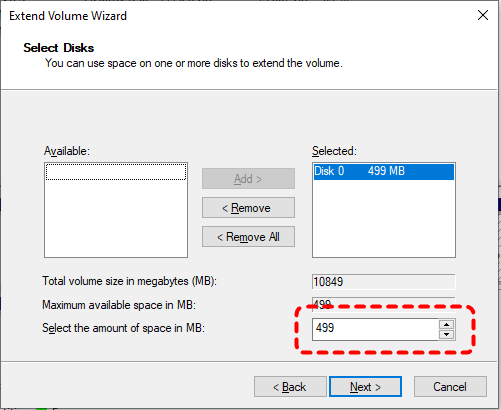
Step 3. On the Extend Volume Wizard, the maximum available unallocated space (in MB) is filled in by default. You can adjust the specific amount you want to add as needed, then click "Next" > "Finish".
In addition, you can move large files or space-consuming unused apps from the C: drive to other internal drives or external hard drives to free up more disk space.
How to Recover Deleted Pagefile.sys on Windows 11, 10
In most cases, users do not intentionally delete pagefile.sys. Instead, it is often removed during aggressive system cleanup, misconfigured virtual memory settings, or third-party optimization tools. Once deleted, Windows may recreate the file after a restart. But in some situations, improper configuration or system errors can prevent it from being restored correctly. This can lead to performance issues, memory errors, or even system instability.
At this point, using a professional data recovery tool like MyRecover becomes a practical and efficient solution to ensure system integrity. It is designed to scan storage devices at a deeper level and locate recoverable system files, even those that are no longer visible in the file system. Moreover, it can not only recover system files but also supports over 1000 file formats, including documents, photos, videos, design files, compressed files, and more.

 MyRecover
- Recover deleted & lost files from HDD, SSD, USB, SD card, camera as you need.
- Support 1000+ formats of photos, videos, docs, archives, emails, compressed files, etc.
- Reliable rescue for deletion, formatted disk, emptied Recycle Bin, system crashes and more.
 100% Secure
Step 1. Download and install MyRecover on your Windows computer from Microsoft Store or its official website.
Step 2. Launch the program and select the system drive (usually C:) where pagefile.sys was located, then click "Scan" to start a quick scan. You can find more lost file fragments by clicking on the "Deep Scan".

Step 3. After the scan is finished, use "Filter" feature to locate system-related files. Select the files you attempt to recover and click "Recover".
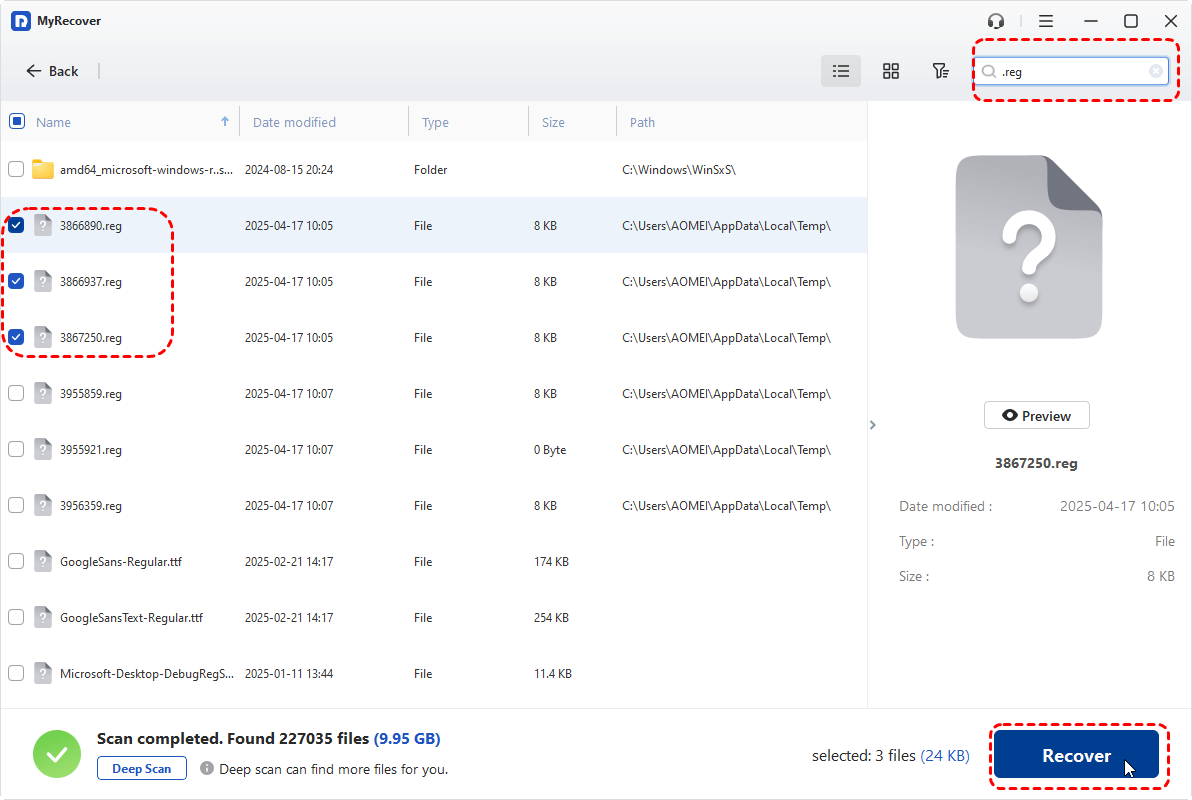
If your computer encounters more serious issues after the pagefile.sys is lost, such as being unable to boot normally, upgrading to MyRecover Professional edition can help you easily recover lost files even from crashed system.
Step 4. Save them to a different drive to avoid overwriting.
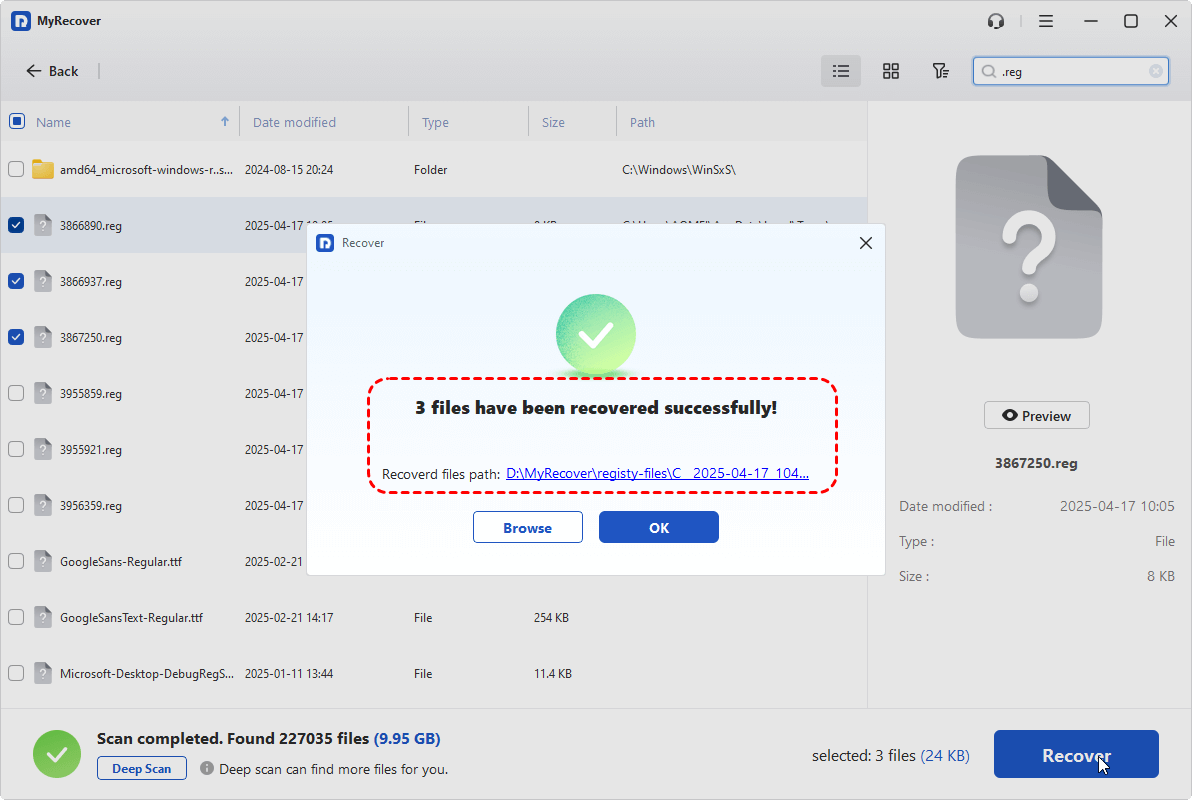
When the process is completed, you can verify the recovered files by clicking on the "Browse" button.
Final Words
Pagefile.sys plays a critical role in Windows memory management by extending physical RAM and ensuring system stability during heavy workloads. While it may occupy a significant amount of disk space, deleting it is generally not safe for most users and can lead to performance issues, application crashes, or system errors.
Instead of removing pagefile.sys, safer approaches such as resizing, relocating, or optimizing overall disk space should be prioritized. These methods allow you to balance storage usage without compromising system performance. In cases where pagefile.sys is accidentally deleted, using a professional recovery tool like MyRecover can help restore it and prevent further complications.

Stay Updated With Our
Latest Tips
Add us as a preferred source on Google to never miss helpful guides.
 Add as preferred source >>