 MyRecover



How to Fix "Restart Your PC to Repair Drive Errors"? Try These 7 Fixes
Seeing the 'Restart your pc to repair drive errors' message can be frustrating, especially when it keeps coming back after rebooting. This guide explains what causes the issue and walks you through effective ways to fix it on Windows. Whether the warning appears once or repeatedly, these fixes can help restore drive health, prevent further errors, and keep your PC running smoothly.

By Aria / Updated on May 6, 2026


What Does "Restart Your PC to Repair Drive Errors" Mean?
The "Restart Your PC to Repair Drive Errors" message means Windows has detected a problem with your drive that may involve the file system, disk integrity, or the drive’s ability to complete read/write operations normally. In other words, this is not just a routine reboot prompt. Windows is warning that the drive may need a repair process during startup because some checks cannot be completed while the system is actively using the disk.
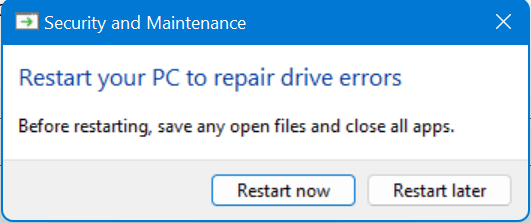
If this error is ignored, the result may be more than a persistent notification. The drive may continue to behave abnormally, causing slower performance, freezing, files or folders becoming inaccessible, write failures, repeated repair prompts, or even data loss. This guide will provide a step-by-step instruction to help you fix the error and restore your hard drive functionality.
Common Causes of the "Restart Your PC to Repair Drive Errors"
Since this warning usually appears when Windows detects something abnormal on the drive, the next step is to understand what may have triggered it. In most cases, the problem is not caused by a single factor, but by a storage issue that affects how Windows reads, writes, or verifies data on the disk. Common causes include:
📂 File system corruption: If the file system is damaged, Windows may fail to read, organize, or access data correctly, which can trigger a repair request after restart.
💾 Bad sectors on the drive: When some areas of the disk become unreliable, Windows may detect read/write errors and prompt you to restart for repair.
🛠️ Improper shutdown or sudden power loss: If the PC shuts down unexpectedly, the drive may not finish ongoing operations properly, leaving disk errors behind.
✂️ Interrupted file transfers or disk operations: A failed update, canceled transfer, or interrupted save process can leave the drive in an inconsistent state.
⚙️ Corrupted system files: In some cases, the problem is not the drive itself but damaged Windows system files that affect how the system interacts with the disk.
💽 Outdated or faulty disk drivers: Storage controller issues or incompatible drivers may cause Windows to misread drive status or repeatedly report disk errors.
🔌 Unsafe removal of external drives: Disconnecting a USB drive or external hard disk without ejecting it properly can damage its file structure and lead to repair prompts.
How to Fix the Restart Your PC to Repair Drive Errors on Windows
Now, you can fix the "Restart your pc to repair drive errors" with the following fixes. If they don't help, move on to deeper repair solutions that check the disk errors. These methods can help you avoid unnecessary risks and system changes while resolving this error step by step.
Fix 1. Restart Your PC
A restart is the lightest fix, but it is still worth trying first because Windows may have already scheduled a repair that can only run during startup. When the system is active, some disk checks cannot lock the drive completely, which means Windows postpones the repair until reboot. A proper restart also clears temporary glitches that may have triggered the warning after an interrupted write, minor system hang, or incomplete shutdown.
Step 1. Save your work and close all open apps.
Step 2. Select "Start" > "Power" > "Restart".

Step 3. After Windows loads again, check whether the warning is gone.
Fix 2. Run Error Checking in File Explorer
Error Checking is another built-in tool for checking disk errors in File Explorer, so it makes sense to use it before trying more advanced solutions. It can detect and attempt to fix common file-system problems without requiring advanced commands. If the issue is minor, this check may resolve the warning quickly.
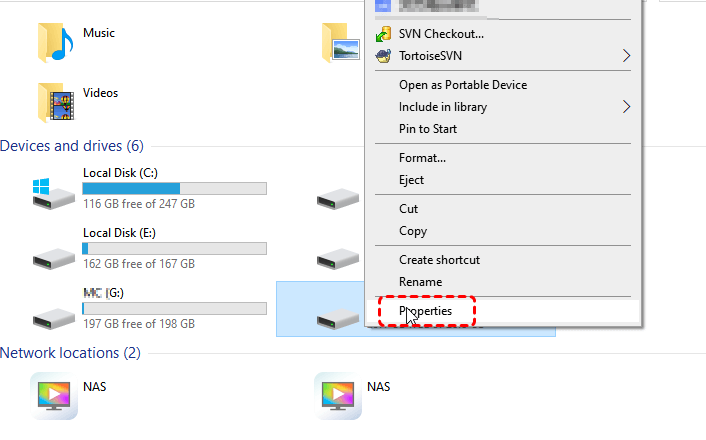
Step 1. Open File Explorer and locate the hard drive with the "restart your pc to repair drive errors" issue.
Step 2. Right-click the affected drive and choose "Properties".
Step 3. Go to the "Tools" tab and click "Check" under "Error checking".
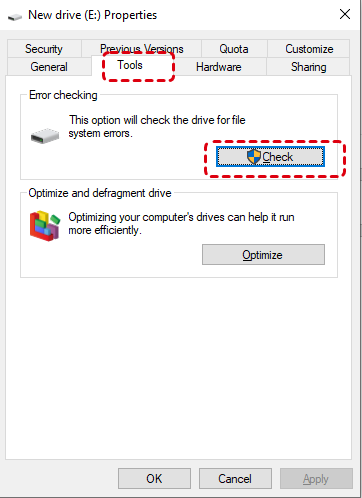
Step 4. Follow the on-screen instructions to scan and repair the drive.
Fix 3. Run Startup Repair
Windows Startup Repair works from the Windows Recovery Environment and is designed to fix problems that stop Windows from starting correctly. Even if your PC still starts, Startup Repair can help in cases where the disk issue has already begun interfering with Windows startup routines.
Step 1. Go to "Settings" > "Update & Security" > "Recovery" > "Advanced startup" and click "Restart" to get into WinRE.
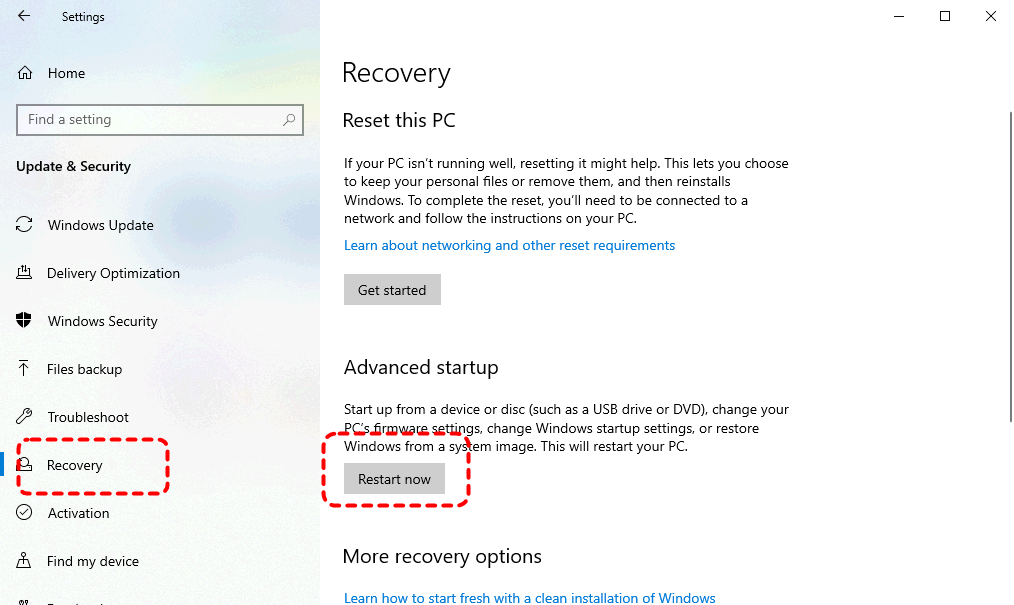
Step 2. Select "Troubleshoot" > "Advanced options" > "Startup Repair".
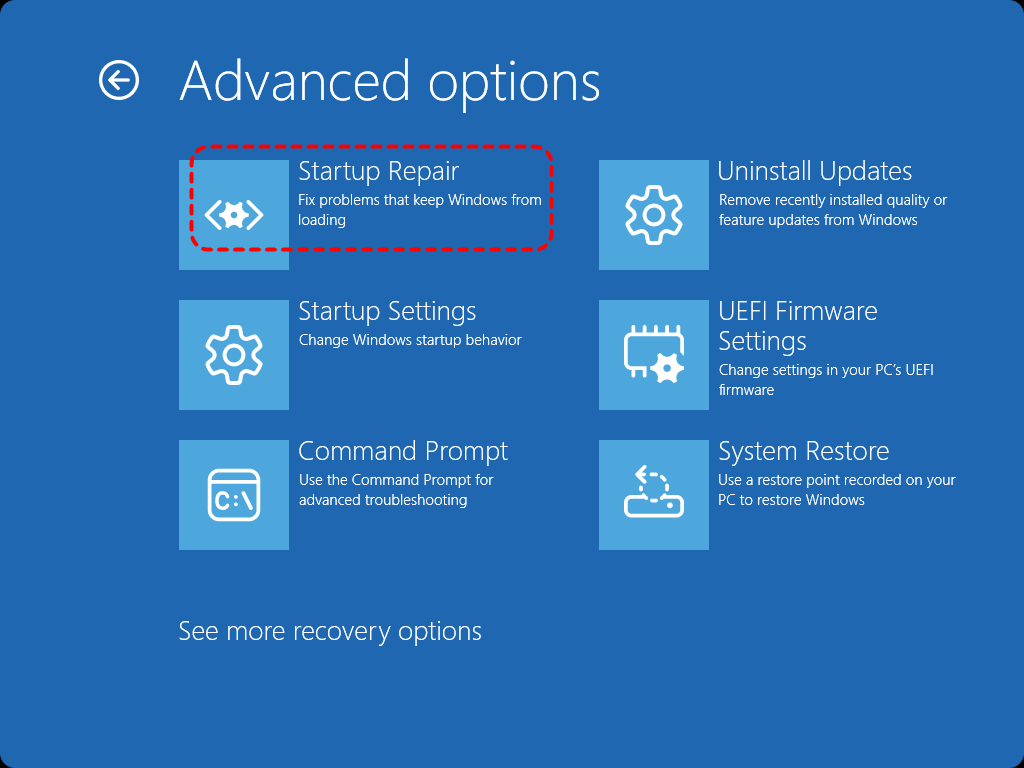
Step 3. Choose your account if prompted and enter the password.
Step 4. Let Windows run the repair, then restart the PC normally.
Fix 4. Run CHKDSK in Safe Mode
If the "restart your pc to repair drive errors" issue is persistent, CHKDSK is one of the most important tools to fix the issue because it checks the file system in more depth and can look for bad sectors and logical disk problems. Running it in Safe Mode is a practical choice when normal Windows startup is unstable or when background processes keep interfering with the repair. Safe Mode loads only the essentials, which reduces conflicts and gives the disk check a cleaner environment.
Step 1. Open Windows Recovery Environment as earlier descripted steps, then go to "Troubleshoot" > "Advanced options" > "Startup Settings" > "Restart".
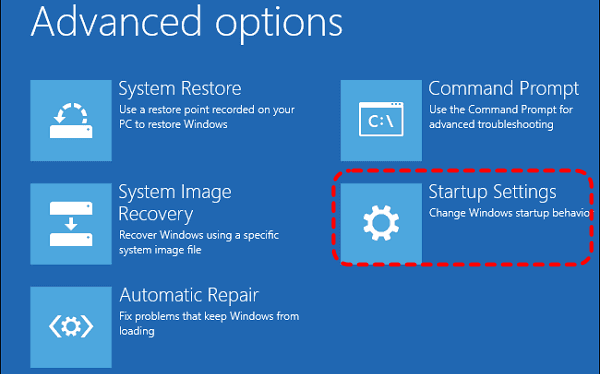
Step 2. After the PC restarts, press the F4 or F6 for Safe Mode or Safe Mode with Command Prompt.
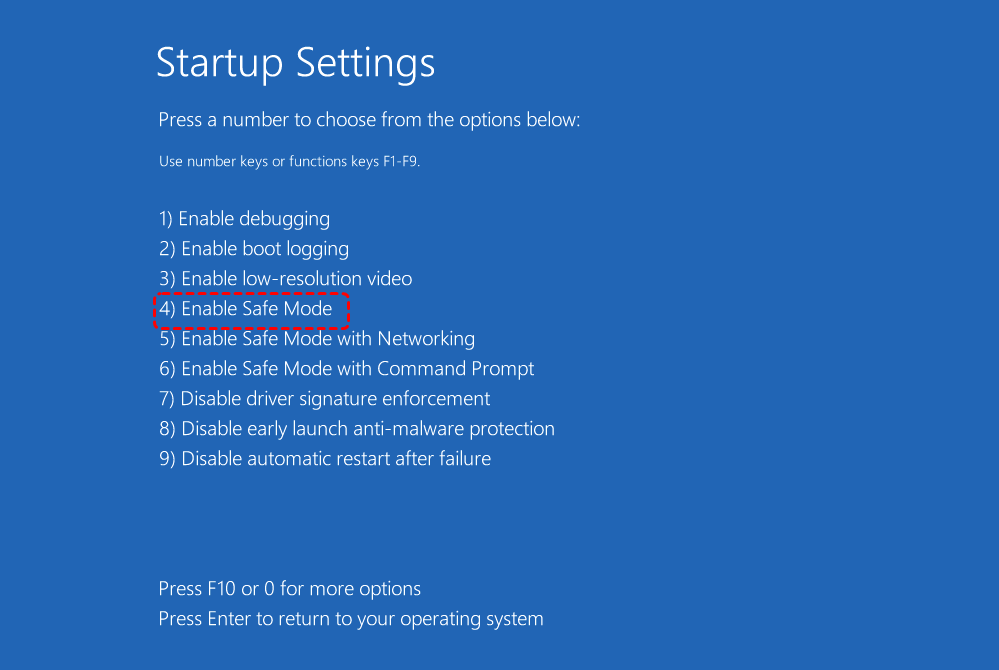
Step 3. Open Command Prompt as administrator.
Step 4. Type "chkdsk C: /f /r" and press "Enter". Replace "C:" with the affected drive letter if needed.
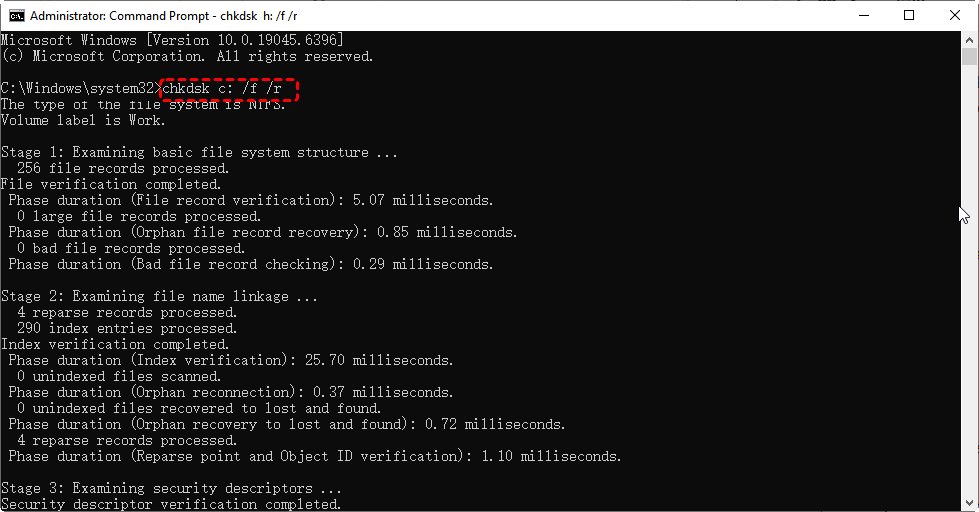
Step 5. If Windows says the drive is in use, type "Y" to schedule the check, then restart the PC.
Fix 5. Run SFC and DISM Commands
If the disk itself is not the only problem, corrupted Windows system files may be helping trigger the "restart your pc to repair drive errors" warning. CHKDSK focuses on the drive structure, while DISM and SFC repair the Windows image and protected system files that control how the OS interacts with storage.
Step 1. Locate Command Prompt in the Start menu, right-click it, and select "Run as administrator".

Step 2. Type the following command "DISM.exe /Online /Cleanup-image /Restorehealth" and press "Enter". Wait for it to finish.
Step 3. Then input "sfc /scannow" and press "Enter".

Step 4. Restart your PC after both scans complete and check whether the warning is gone.
Fix 6. Perform System Restore
If the message started appearing only recently, System Restore can be a smart rollback option. This method does not target the disk directly; instead, it reverses recent system changes that may have triggered the drive warning, such as problematic updates, driver changes, or configuration errors. System Restore rolls back system settings without removing your personal files, it is often less disruptive than reinstalling Windows.
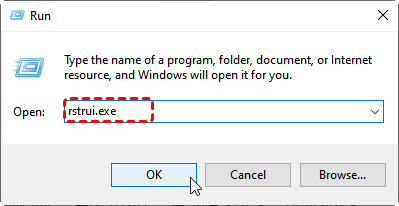
Step 1. Press "Win" + "R" to open Run dialog, type "rstrui.exe", and press "Enter".
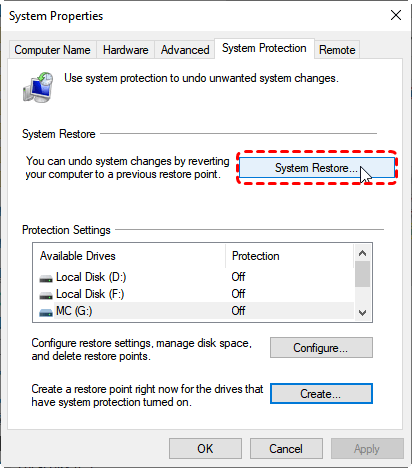
Step 2. In the System Protection tab, click "System Restore".
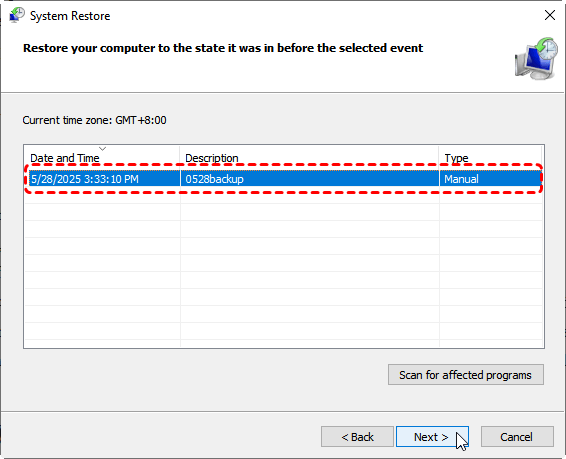
Step 3. Choose a restore point created before the drive error started and click "Next". You can check the affected programs by clicking on the "Scan for affected programs".
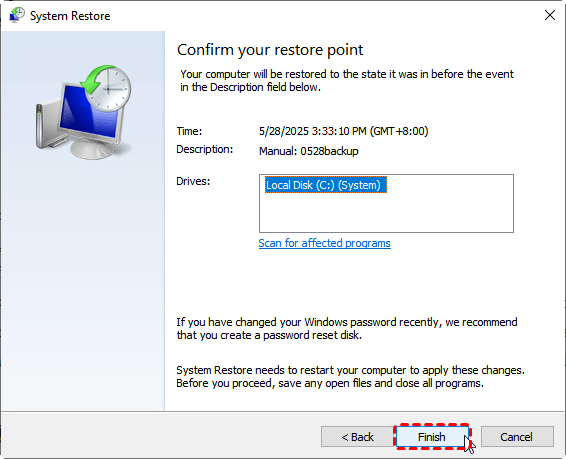
Step 4. Confirm the restore point and click "Finish" to let Windows complete the process.
Fix 7. Replace the Drive If the Warning Keeps Returning
If the message keeps reappearing after trying all of the repairs, you should start treating the issue as a possible hardware problem rather than a temporary Windows error. Continue to use the drive may increase the risk of data loss. At this stage, the priority shifts from fixing the warning to protecting your files and replacing unstable hardware with a new one.
Bonus Tips: How to Recover Missing Files After Fixing the Error
Even if the "Restart Your PC to Repair Drive Errors" message is gone, the problem may leave behind another practical issue: some files are still missing, inaccessible, or no longer where they used to be. At this stage, the priority is to check whether important files can still be recovered safely.
In this situation, using a dedicated data recovery tool like MyRecover is the best choice. It supports deleted or lost files from 500+ data loss scenarios including accidental deletion, formatting, inaccessible storage, corrupted SD card, etc. It can scan your hard drives and recover the deleted files effortlessly.

 MyRecover
- Recover deleted & lost files from HDD, SSD, USB, SD card, camera as you need.
- Support 1000+ formats of photos, videos, docs, archives, emails, compressed files, etc.
- Reliable rescue for deletion, formatted disk, emptied Recycle Bin, system crashes and more.
 100% Secure
Step 1. Download and install MyRecover on your computer from Microsoft Store or its official website.
Step 2. Run the application and select the drive where the lost files were stored, then click "Scan".

Step 3. After the scanning is completed, you can locate the target files by "Type" or the "Filter" function. Choose the desired files and click "Recover".

For data recovery tasks larger than 500 MB, upgrading to the MyRecover Professional edition allows unlimited data recovery capacity. It also provides support for recovering files from systems that fails to boot into Windows.
Step 4. Save the recovered files to a safe location to avoid overwriting original data.

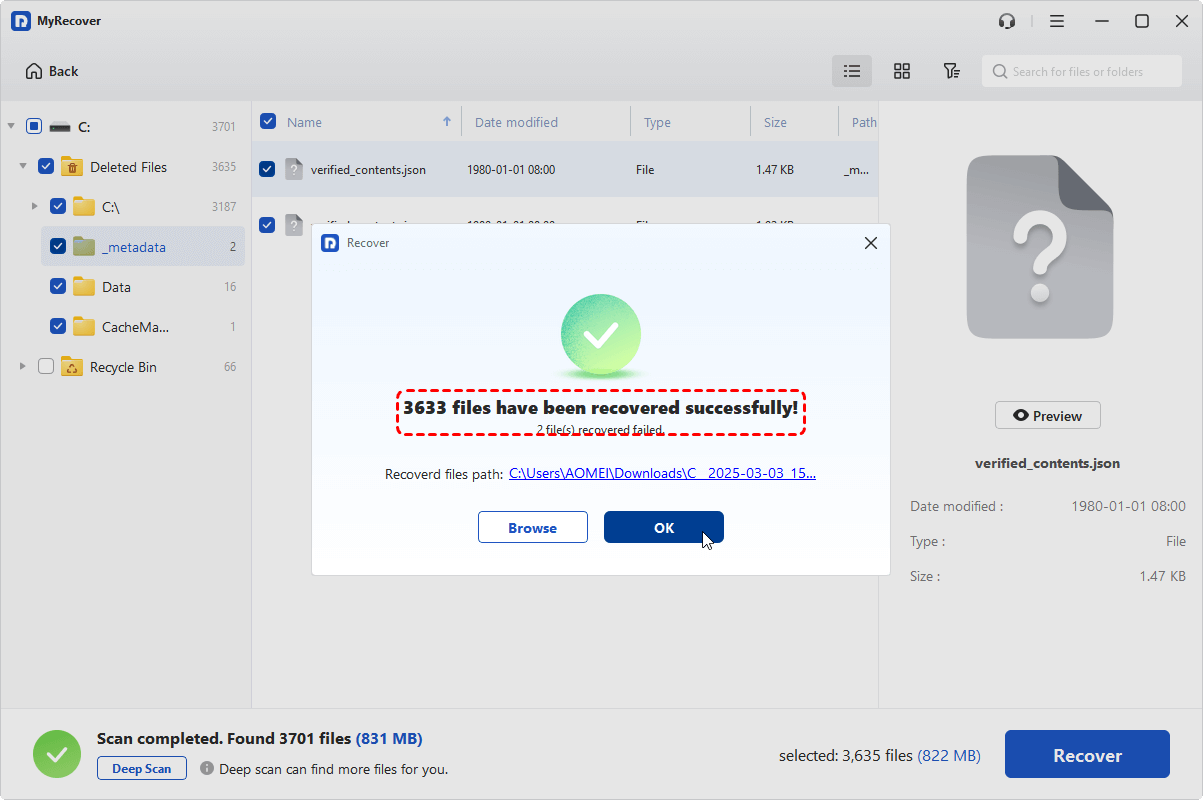
Once the process is done, you can access the recovered files by clicking on the "Browse" button or the destination folder path.
The Bottom Line
The "Restart Your PC to Repair Drive Errors" message should not be ignored, because it often points to underlying problems with the file system, disk structure, or overall drive health. With these solutions, you can resolve the error and restore access to your hard drive.
Just as importantly, clearing the warning does not always mean everything is back to normal. If the drive becomes accessible again but some files are still missing, inaccessible, or corrupted, use a dedicated recovery tool like MyRecover to scan the drive and restore recoverable files in a safer and more targeted way.
FAQs:
Q1: Should I restart to repair drive errors?
Yes, if Windows specifically asks you to restart to repair drive errors, restart first. Some disk checks and repairs can only run during startup, when Windows is not actively using the drive. If the warning returns after reboot, continue with Error Checking or CHKDSK rather than ignoring it.
Q2: Why is my PC saying repairing disk errors?
Windows shows this message when it detects problems with the drive’s file system, read/write operations, or overall disk health. Common triggers include file system corruption, bad sectors, interrupted writes, improper shutdowns, or storage-related system issues that prevent the drive from working normally.
Q3: How to fix repair drive errors?
Start with the least disruptive fixes: restart the PC, run Error Checking, then use CHKDSK. If the issue persists, try Startup Repair, DISM, and SFC to repair Windows-related corruption. If the warning still keeps coming back, back up your files and consider drive replacement.
Q4. How do I run CHKDSK to fix disk errors?
A4. Open Command Prompt as administrator, type chkdsk /f C: and press Enter. Replace C: with the affected drive letter if needed. If Windows says the drive is in use, confirm the prompt so the check runs at the next restart. Then reboot and let the scan finish.
Q5: How to fix drive errors without restarting my PC?
First, back up important files or extract files using data recovery software like MyRecver if the drive is still accessible. Then run Error Checking or CHKDSK to repair file system errors and scan for bad sectors. If Windows files may also be damaged, use DISM and SFC afterward. Repeated warnings may indicate hardware failure, and you may need to replace with a new one.
Q6. How to repair corrupted hard drive on Windows?
First, back up important files if the drive is still accessible. Then run Error Checking or CHKDSK to repair file system errors and scan for bad sectors. If Windows files may also be damaged, use DISM and SFC afterward. Repeated warnings may indicate hardware failure.
Q7: Can restarting my computer help resolve hard drive issues?
Sometimes, yes. Restarting can allow Windows to run a scheduled repair and may clear temporary glitches caused by incomplete writes or a dirty file system state. But if the drive has deeper corruption or physical problems, restarting alone usually will not fix it completely.
Q8: How to repair corrupted hard drive on Windows?
Run chkdsk C: /f in an elevated Command Prompt. If Windows says the drive is in use, type "Y" to schedule the disk check for the next restart. Then restart when convenient. On reboot, Windows will automatically run the repair before normal startup completes.

Stay Updated With Our
Latest Tips
Add us as a preferred source on Google to never miss helpful guides.
 Add as preferred source >>