 MyRecover



Sticky Notes Not Loading: How to Fix it on Windows 11/10
Experiencing Sticky Notes not loading on your Windows device can be frustrating, especially when important notes are inaccessible. This guide explores the most common causes behind Sticky Notes not working properly and also provides step-by-step solutions to help you fix the issue effectively.

By Aria / Updated on May 9, 2026


Microsoft Sticky Notes on Windows 10 not Loading
Any ideas on how to fix this Sticky Notes not loading. This all started after a version update and unfortunately a downgrade is not possible. Issue is with all user accounts on the PC. Sticky Notes opens a Sticky Note that just says: Loading Sticky Notes... but then nothing ever happens.
- Question from Allier
Sticky Notes is a simple yet essential built-in tool in Windows 11 and Windows 10, allowing users to quickly jot down reminders, to-do lists, and important information. However, many users reports that they encounter issues where Sticky Notes not loading, the app fails to open, or existing notes do not appear properly.
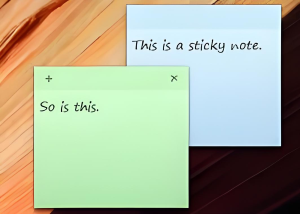
This problem often occurs after system updates, app crashes, or data corruption. When you click the Sticky Notes app but nothing happens or it gets stuck on the loading screen without displaying your saved notes. In some cases, the app may open but fail to sync or show blank content. This issue can disrupt your workflow and potentially lead to the loss of important information, especially if your notes contain critical tasks or reminders. This guide will walk you through how to fix this issue quickly and restore access to your notes.
Why is My Sticky Notes Stuck on Loading?
If your Sticky Notes is stuck on the "Loading…" screen or fails to open properly, it is usually caused by underlying system or application issues rather than a single error. Here are the most common reasons:
📌Corrupted application data: Sticky Notes stores your notes in a local database. If this file becomes damaged, the app may fail to load or get stuck during startup.
🖥️Outdated or conflicting app version: Running an outdated version of Sticky Notes, or having conflicts with other Microsoft Store apps, may prevent it from launching correctly.
📤Sync or account-related issues: If your notes are linked to a Microsoft account, sync failures or sign-in problems can cause the app to hang while loading content.
✂️System file errors: Corrupted or missing Windows system files can affect how built-in apps like Sticky Notes function.
🛠️Interference from third-party software: Security tools or system optimization programs may block or interfere with the app’s normal operation.
How to Fix the Sticky Notes not Loading on Windows 10/11
Now, it is time to apply targeted solutions to fix the "Sticky Notes not loading" issue. The following approaches help you quickly identify the issue without making unnecessary system changes and restore Sticky Notes opening normally.
1. Check Your Internet Connection
Some Sticky Notes features rely on syncing with your Microsoft account. A weak or unstable internet connection can prevent Sticky Notes from loading properly, especially if the app is trying to retrieve synced data. Ensuring a stable connection can resolve loading delays or blank notes.
- Make sure your device is connected to a stable Wi-Fi or wired network.
- Restart your router if the connection appears slow or unstable.
- Relaunch Sticky Notes to check if it loads normally.
2. Disable the Insights Feature
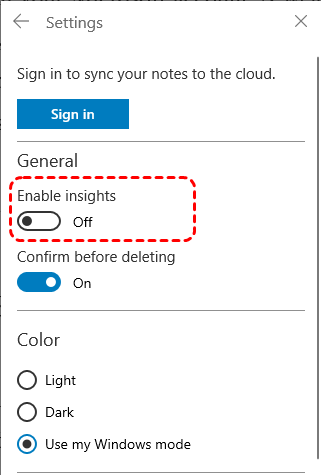
The Insights feature integrates online services (like Bing) into Sticky Notes. While useful, it can sometimes cause performance issues or prevent the app from loading properly due to unstable Internet connection. Disabling it can reduce conflicts and improve startup behavior.
Step 1. Open Sticky Notes (if accessible) and click the "Settings" icon.
Step 2. Locate the "Enable insights" option and turn it off, then restart the app to check if it loads normally.
3. Run Windows Store Apps Troubleshooter
Windows includes a built-in troubleshooter designed to detect and fix issues with Microsoft Store apps. Running this tool can automatically resolve configuration errors or permission issues affecting Sticky Notes.
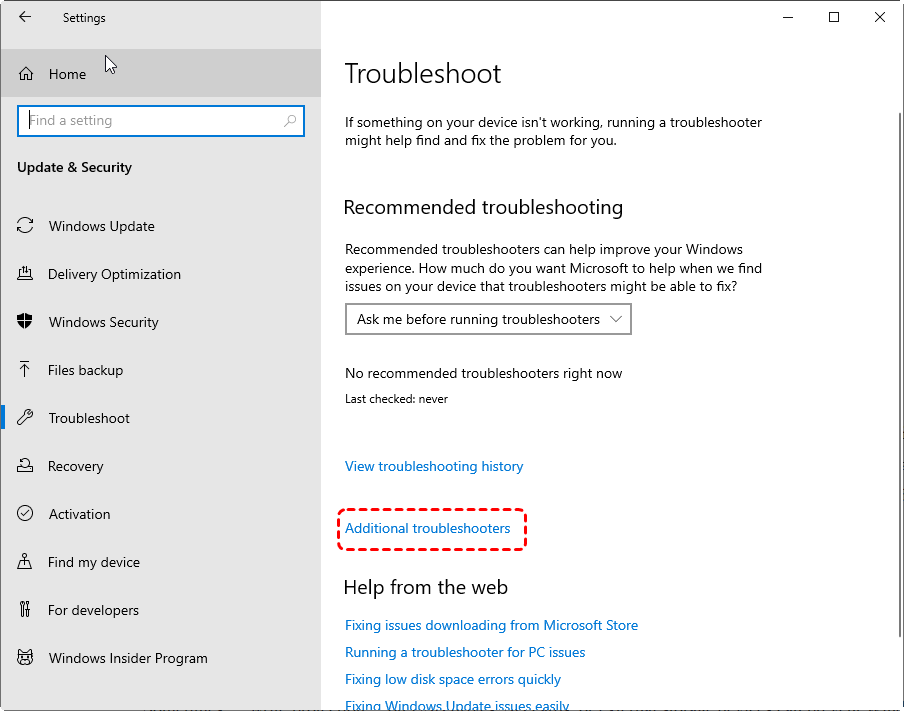
Step 1. Go to "Settings" > "Update & Security" > "Troubleshoot" > "Additional troubleshooters".
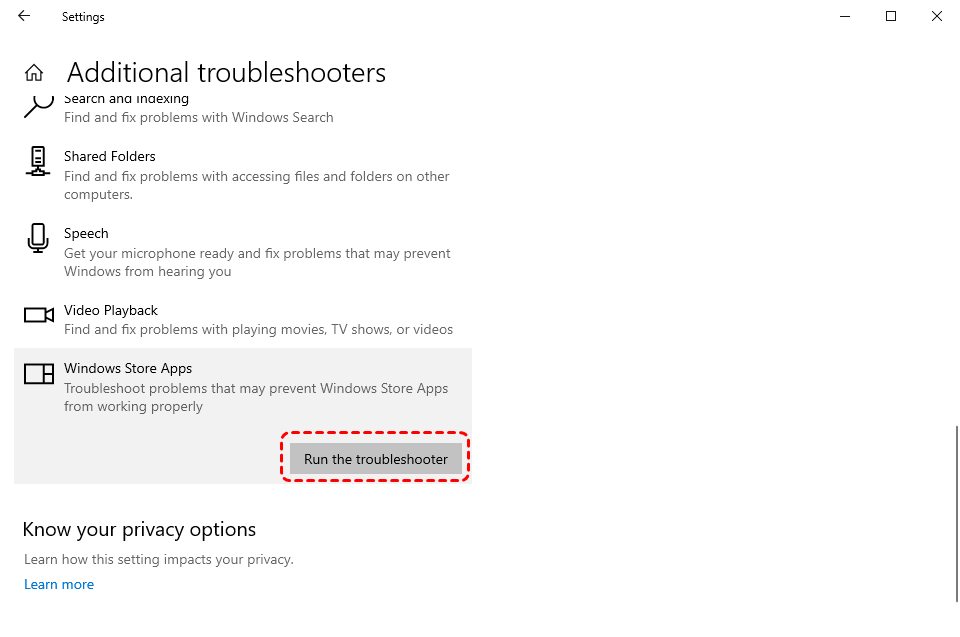
Step 2. Select "Windows Store Apps" and click "Run the troubleshooter" to start the process.
4. Run SFC Command
System File Checker (SFC) scans for corrupted or missing system files and repairs them automatically. Since Sticky Notes depends on core Windows components, try this command fixing system file errors can restore normal functionality of Sticky Notes.
Step 1. Type "Command Prompt" in the search bar, then right click on it and choose "Run as administrator".

Step 2. Enter the following command "sfc /scannow" and press "Enter".

Step 3. Wait for the scan to complete and restart your computer to check if the issue persists.
5. Update and Repair Sticky Notes
Outdated or partially damaged app files can cause the Sticky Notes loading issues. Updating ensures compatibility with your system, while the repair option fixes minor app-level errors without deleting your data.
Step 1. Open Microsoft Store and search for Sticky Notes, then click "Update" if available.
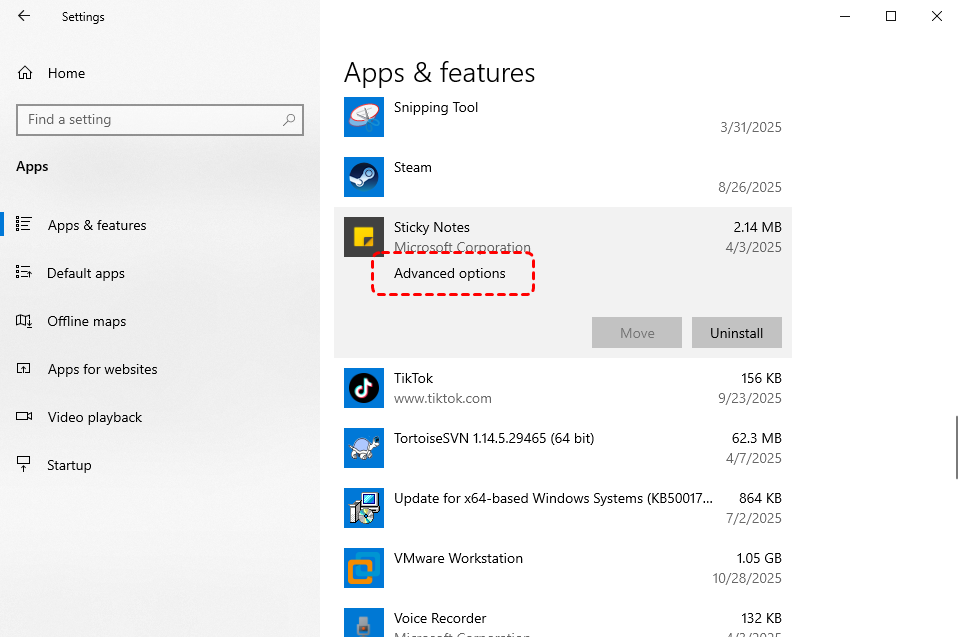
Step 2. Go to "Settings" > "Apps" > ”App and features" > "Sticky Notes" > "Advanced options", then click "Terminate" to close Sticky Notes or its related processes.
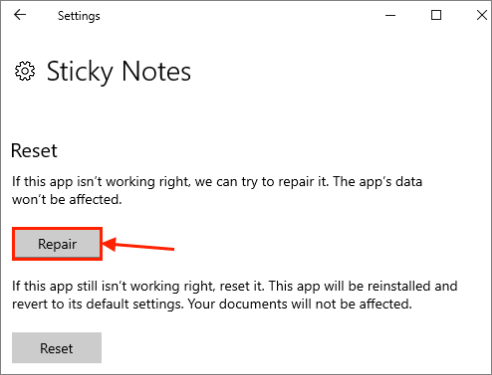
Step 3. Then, click "Repair" to fix the Sticky Notes not opening issue.
6. Reset Sticky Notes
Resetting the app restores it to its default state, which can resolve persistent issues caused by corrupted settings or cache. Note that this may remove locally stored notes, so proceed with caution. You’d better back up your Sticky Notes data before performing a reset.
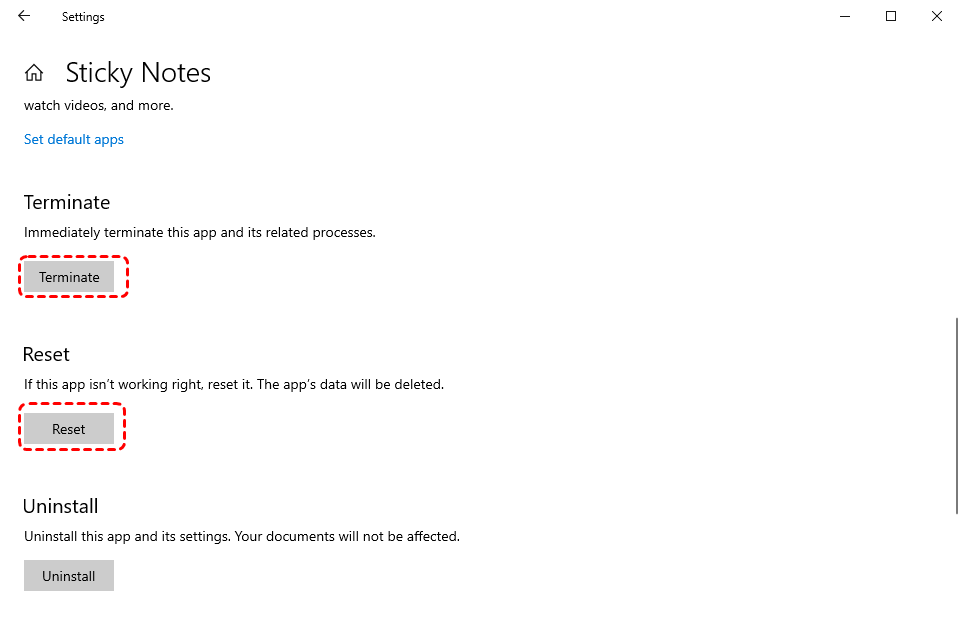
Step 1. Go to "Settings" > "Apps" > "Apps and features" > "Sticky Notes" > "Advanced options".
Step 2. Click "Reset" and confirm the action.
- ★How to back up Sticky Notes data on Windows:
- For Windows 10 and 11: Go to the following path and save the plum.sqlite file in the folder to a safe location: %LocalAppData%\Packages\Microsoft.MicrosoftStickyNotes_8wekyb3d8bbwe\LocalState.
- For Older Windows versions: Navigate to the following path in File Explorer and save the StickyNotes.snt in this folder to a safe destination: %AppData%\Microsoft\Sticky Notes.
7. Turn Off Other Note-Taking Apps
Running multiple note-taking applications simultaneously may lead to conflicts, especially if they use similar background services or sync features. Disabling other apps can help isolate the issue.
Step 1. Close all other note-taking apps (e.g., OneNote or third-party tools).
Step 2. Open Task Manager and end related background processes.
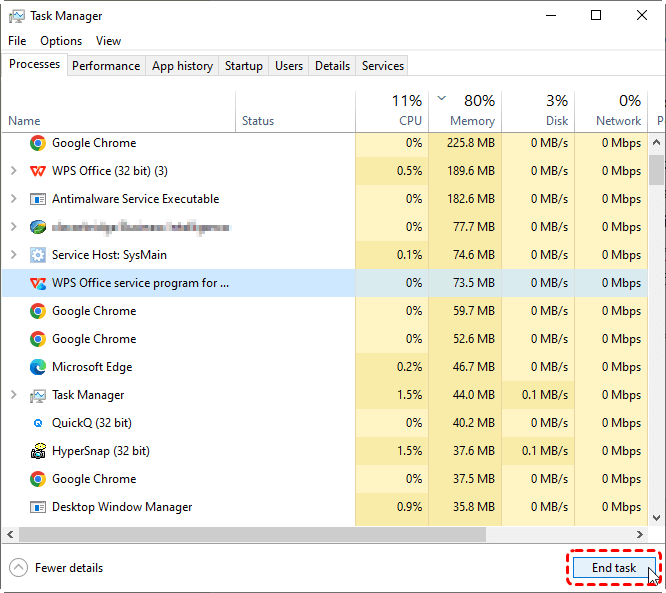
Step 3. Relaunch Sticky Notes and check if it opens properly on Windows 11/10.
8. Use the Web Portal of Sticky Notes
If the app still fails to load, you can access your notes through the web version. This is especially useful if your notes are synced with your Microsoft account and you need immediate access.
Step 1. Open a browser and go to the Sticky Notes web portal.
Step 2. Sign in with your Microsoft account.
Step 3. You can access and manage your notes online while troubleshooting the app.
How to Recover Lost Sticky Notes on Windows
After trying the fixes above, most users can restore Sticky Notes loading normally. However, there are situations where the app starts working again but some or all notes are missing, especially after resetting or reinstalling the app. Since Sticky Notes does not have a built-in feature like the Recycle Bin, deleted notes are permanently removed immediately.
But this does not mean the notes are gone for good. This is where a professional data recovery solution like MyRecover can help retrieve lost note data directly from your disk. As mentioned earlier, Sticky Notes data is typically stored locally on your system as the plum.sqlite file. If you can restore the plum.sqlite file, you will be able to get back your deleted Sticky Notes.

 MyRecover
- Quick scan to find deleted and lost data from any storage device.
- Supports over 1000 file formats with high recovery accuracy.
- Perfect for accidental deletion, formatting, and unexpected data loss.
 100% Secure
Step 1. Download and install MyRecover on your Windows supported computer from Microsoft Store.
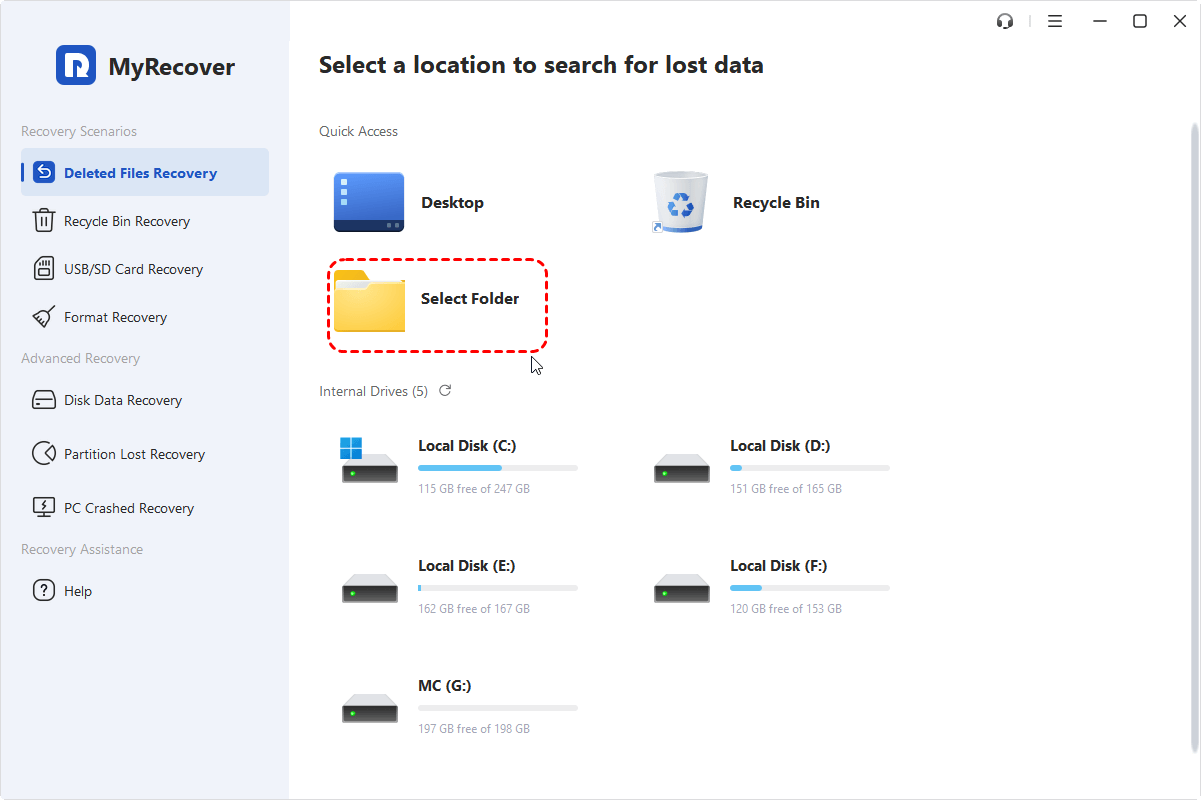
Step 2. Launch the application and select the drive or folder where your Sticky Notes data was stored (usually the system drive), then click "Scan" to search for deleted or lost files.
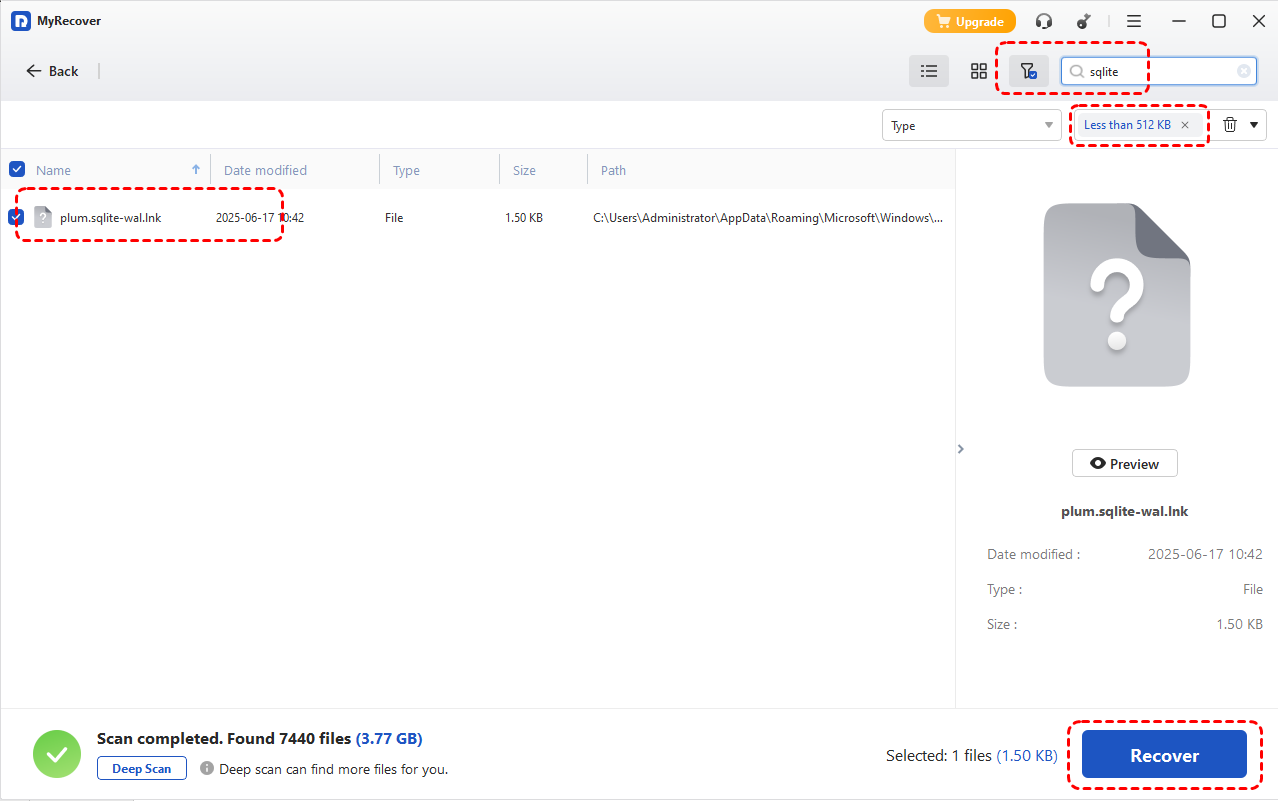
Step 3. After the scanning process is finished, you can use the "Filters" function to locate files plum.sqlite files. Select the desired files and click "Recover" to get them back.
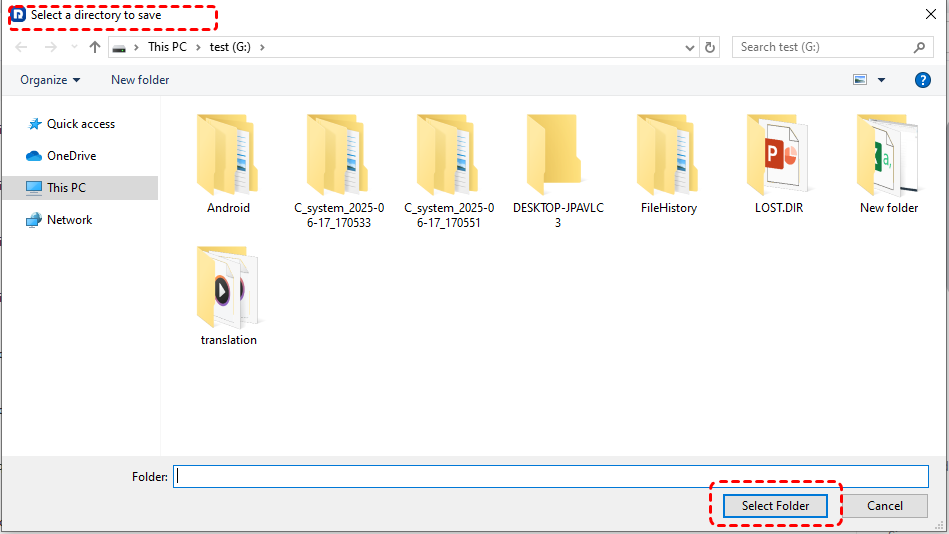
Step 4. Choose a different location to save the recovered the files to avoid overwriting existing data.
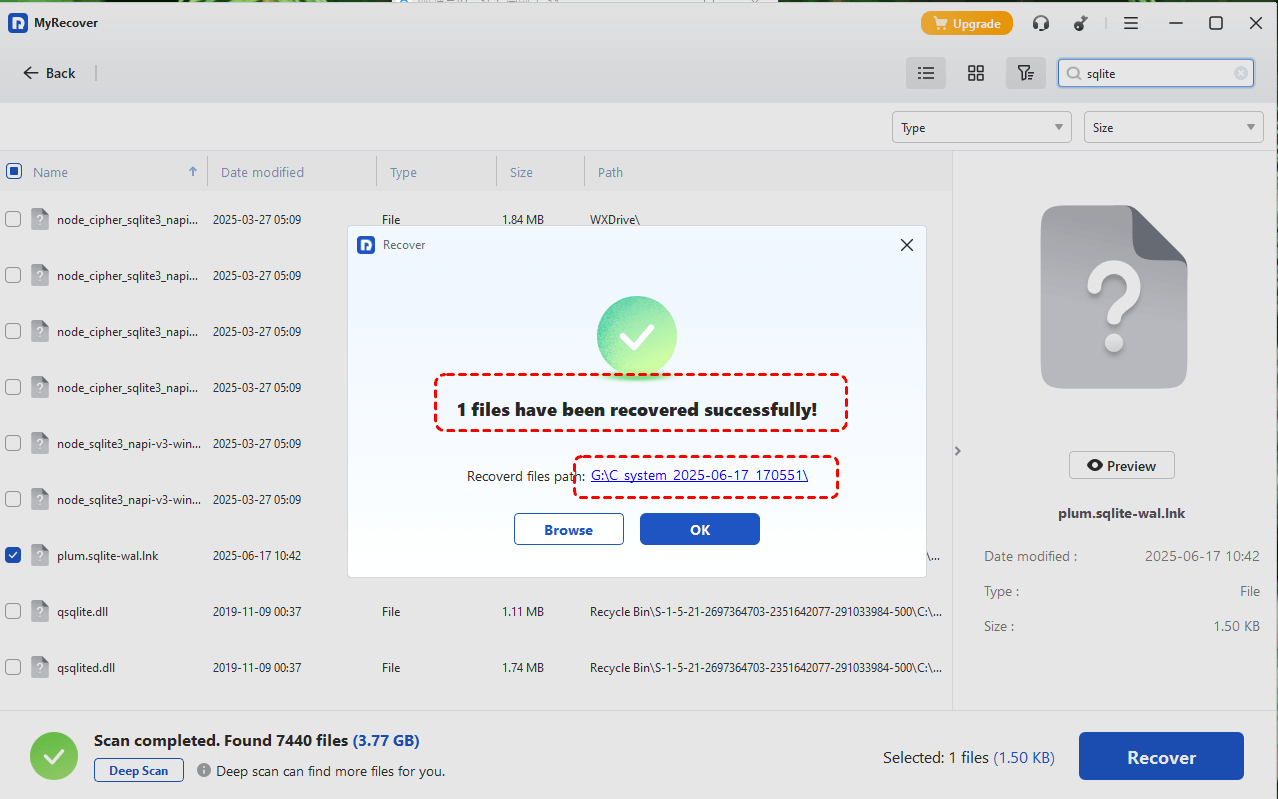
Once the recovery process is done, you can access and verify the recovered files by clicking on the "Browse" button or the destination folder path.
Summary
Sticky Notes not loading on Windows 10 or 11 is a common issue that can usually be resolved with these methods. From checking your internet connection and disabling certain features to repairing or resetting the app, each method targets a specific cause and can help restore normal functionality.
However, if the issue leads to missing or lost notes, it’s important to act quickly. Using a professional data recovery tool like MyRecover can help you retrieve important notes that would otherwise be difficult to recover. With its Professional edition, you can unlock unlimited data recovery quota and file content preview before recovery.

Stay Updated With Our
Latest Tips
Add us as a preferred source on Google to never miss helpful guides.
 Add as preferred source >>