 MyRecover



Fixed: This Device Is Not Configured Correctly (Code 1) Windows 10/11
The "this device is not configured correctly (code 1)" error is a common Device Manager issue that appears when Windows cannot properly configure or load the driver required for a hardware device. Follow these step-by-step troubleshooting methods to restore proper device functionality and eliminate Code 1 errors in Windows 10 and 11.

By Aria / Updated on March 12, 2026


This Device is Not Configured Correctly. (Code 1)
I have just updated my Windows Vista 64 bit, and now I keep getting prompted with this message "This device is not configured correctly. (Code 1)" every time I insert a flash disk. I have tried the "update driver", it didn't work at all! there is this message saying I need to contact the device manufacturer. I never have this kind of problem before. What should I do? Please, help.
- Question from THYchild
When checking Device Manager in Windows 10 or Windows 11, some users may encounter the error message "This device is not configured correctly (Code 1)" next to a hardware device. This warning usually appears with a yellow triangle icon, indicating that Windows failed to properly configure or load the driver required for that device.
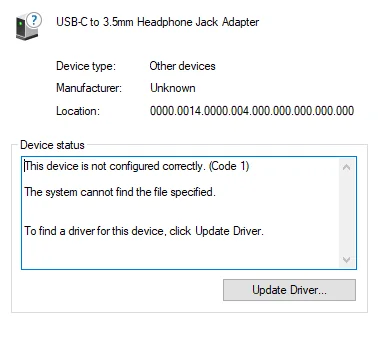
When this error occurs, the affected hardware such as a Bluetooth keyboard, network adapter, graphics card, or USB device may not function normally or may stop working entirely. In many cases, the device may not start at all because the operating system cannot initialize the necessary driver settings. Although this error may seem concerning, it is usually not caused by hardware damage. With the right troubleshooting steps, you can often resolve the issue and restore the device to normal operation.
Why the "This Device is Not Configured Correctly (Code 1)" Error Appears
In most situations, the problem is related to driver configuration issues, incomplete installations, or system conflicts that interfere with normal device initialization. Several common factors can trigger this error:
🔌Missing or Corrupted Device Drivers
If the required device driver becomes corrupted or is missing, Windows cannot apply the correct configuration to the device. This often occurs after system updates, driver installation failures, or accidental file corruption.
📟Incompatible Driver Version
A driver designed for a different Windows version may not work correctly on the current system. When Windows detects that the driver cannot properly support the device, it may display the Code 1 error in Device Manager.
💽Incomplete Driver Installation
If the driver installation process is interrupted or improperly executed, the device may remain partially configured. As a result, Windows cannot finish setting up the device and reports the configuration error.
✂️Registry or System Configuration Issues
Some driver settings are stored in the Windows registry. If these entries become damaged or incorrectly modified, the operating system may fail to configure the device during startup.
How to Fix the "This Device is Not Configured Correctly (Code 1)" Error
Since the Code 1 error is usually related to driver initialization or system configuration problems, most fixes focus on refreshing the device driver, correcting system settings, or repairing Windows components. It is recommended to try the following methods in sequence until the "This device is not configured correctly (Code 1)" error disappears and the device starts functioning normally.
Method 1. Restart Your Computer
If the Code 1 error was caused by a temporary system glitch or incomplete driver loading, restarting the computer may allow Windows to correctly configure the device again. A simple system restart can often resolve temporary configuration issues. During startup, Windows reloads system services, hardware configurations, and device drivers.
Step 1. Click the "Start" menu and select "Power" > "Restart".
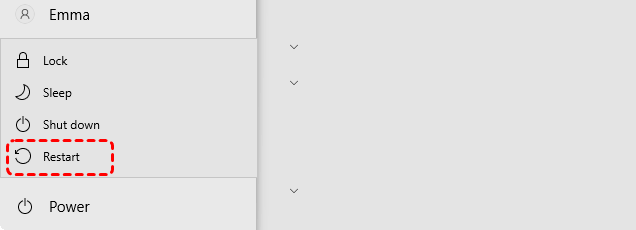
Step 2. After the system restarts, open Device Manager and check whether the device still shows the Code 1 error.
Method 2. Update the Device Driver
Outdated or incompatible drivers are one of the most common reasons behind the Code 1 error. Updating the device driver allows Windows to install a newer, compatible version that can properly configure the hardware and restore normal communication between the system and the device.
Step 1. Press "Win" + "X" and select "Device Manager" to open it.

Step 2. Locate the device showing the Code 1 error and right-click it, and choose "Update driver".

Step 3. Select "Search automatically for updated driver software" to install the latest driver.
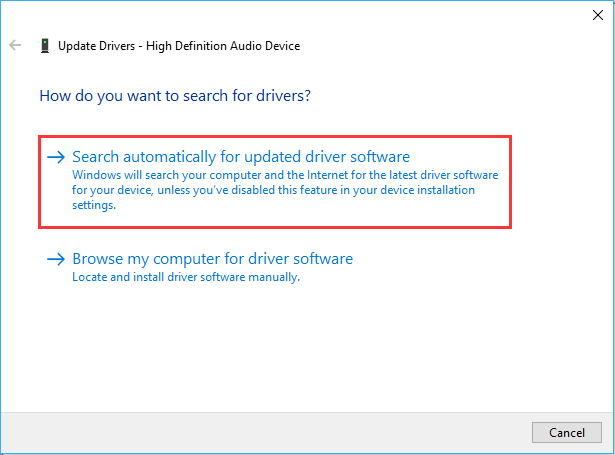
Then, check if the "this device is not configured correctly (code 1)" error persists.
Method 3. Roll Back the Driver
If the error appeared after a recent driver update, the new version may not be fully compatible with your system or device. Rolling back the driver restores the previously installed version, which may function correctly and eliminate the configuration problem.
Step 1. Open Device Manager and right-click the affected device.
Step 2. Select "Properties", then switch to the "Driver" tab.
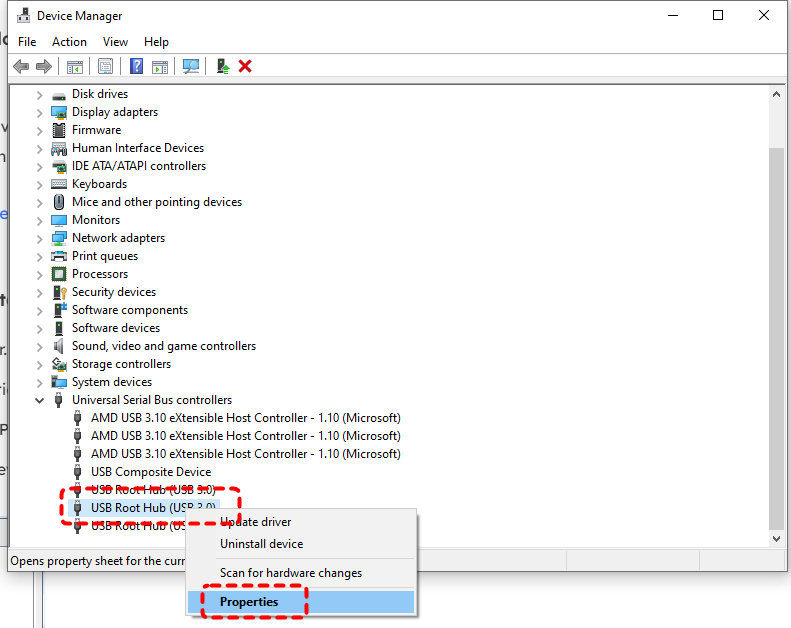
Step 3. Click "Roll Back Driver" and choose why you need to roll back the driver.
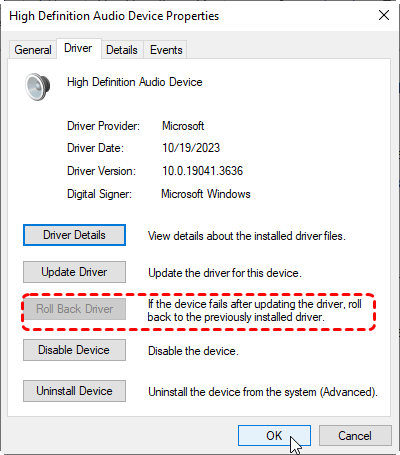
Step 4. Click "OK" to save the changes.
Method 4. Reinstall the Device Driver
If the driver files are corrupted or improperly installed, reinstalling the driver can rebuild the device configuration from scratch. Removing the problematic driver allows Windows to reinstall a clean version and restore proper functionality.
Step 1. Open Device Manager and right-click the problematic device.
Step 2. Select "Uninstall device" and confirm the removal.

Step 3. Restart the computer so Windows can automatically reinstall the driver.
Method 5. Install the Correct Driver from the Manufacturer
In some cases, the driver provided by Windows may not fully support the device. Installing the official driver from the hardware manufacturer ensures compatibility and may resolve configuration problems that built-in drivers cannot fix.
Step 1. Identify the device model in Device Manager.
Step 2. Visit the manufacturer’s official website and download the latest driver compatible with your Windows version.

Step 3. Run the download file and follow the on-screen instructions to install the driver manually.
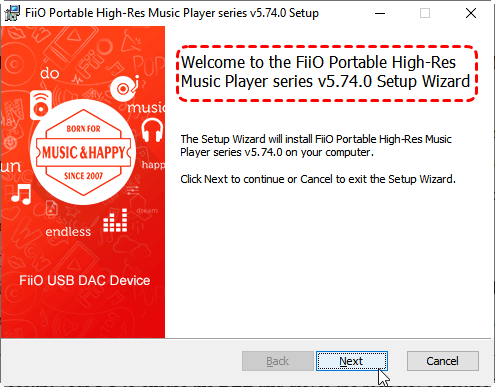
Step 4. After the installation, restart your computer to check for update affect.
Method 6. Delete UpperFilters and LowerFilters Registry Entries
Certain registry entries related to device drivers can become corrupted and prevent Windows from configuring the device properly. Removing problematic UpperFilters and LowerFilters entries can reset the driver configuration and resolve the Code 1 error.
Step 1. Press "Win" + "R" and type "regedit" in the Run dialog, then press "Enter" to open the Registry Editor.
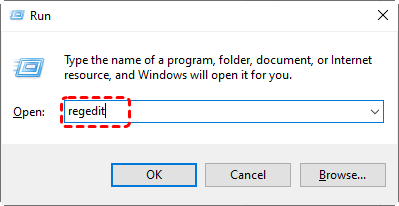
Step 2. Navigate to the following path and locate the class registry path associated with the affected device:
HKEY_LOCAL_MACHINE\SYSTEM\CurrentControlSet\Control\Class.
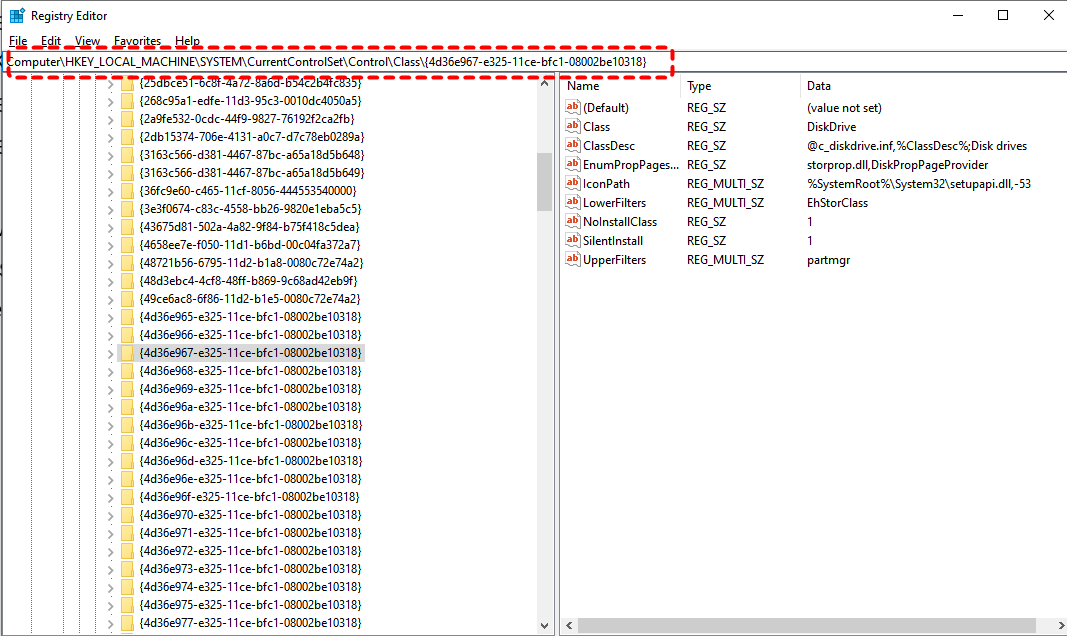
- Notes:✎...
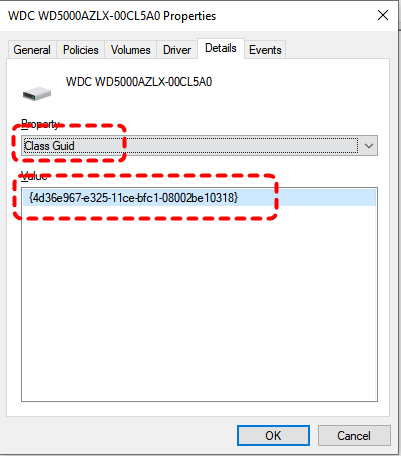
- Under the Class hierarchy, you will see many GUIDs (folders named with numbers and letters). If you need to confirm which one corresponds to the drive with the Code 1 issue, you can check your drive's GUID using the following method:
- Open Device Manager and double click the affected drive, then go to the "Details" tab. Select "Class Guid" from the drop-down menu; the content displayed in the Value field is the GUID of this drive.
-

Step 3. Locate the "UpperFilters" and "LowerFilters" values and right click on it, then select "Delete" to remove both entries.
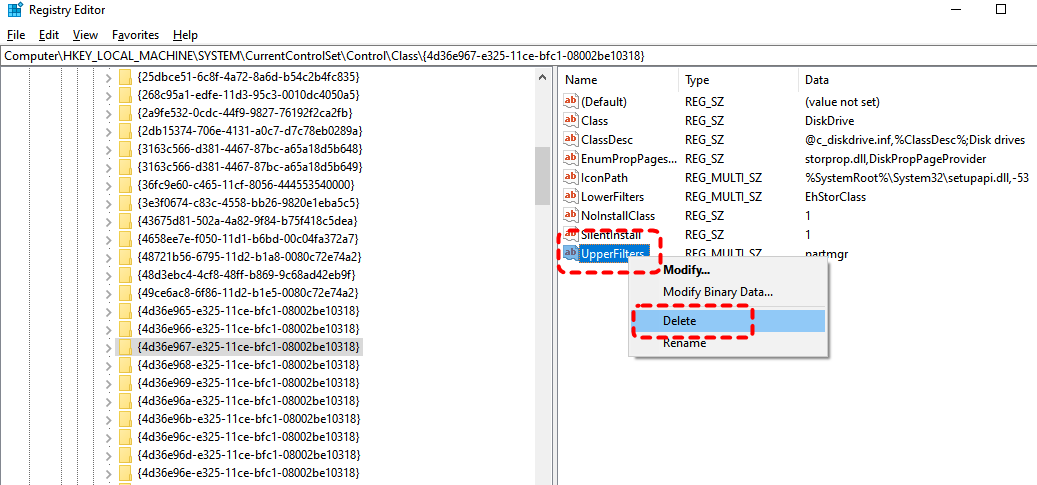
After that, restart your computer and check whether the "this device is not configured correctly" error continues.
Method 7. Run SFC and DISM Commands
If the Code 1 error is caused by corrupted system files, running SFC and DISM scans can repair the Windows image and restore essential system components. These tools help fix underlying issues that may prevent drivers from loading correctly.
Step 1. Locate "Command Prompt" in the Start menu and right-click it, then select "Run as administrator".

Step 2. Type the following command and press "Enter":
DISM /Online /Cleanup-Image /RestoreHealth
sfc /scannow

Step 3. Wait for the scan to complete, restart your computer to check if the code 1 error is still here.
Method 8. Check for Windows Updates
System updates often include important driver improvements and bug fixes. Installing the latest Windows updates may resolve compatibility issues that cause the Code 1 error.
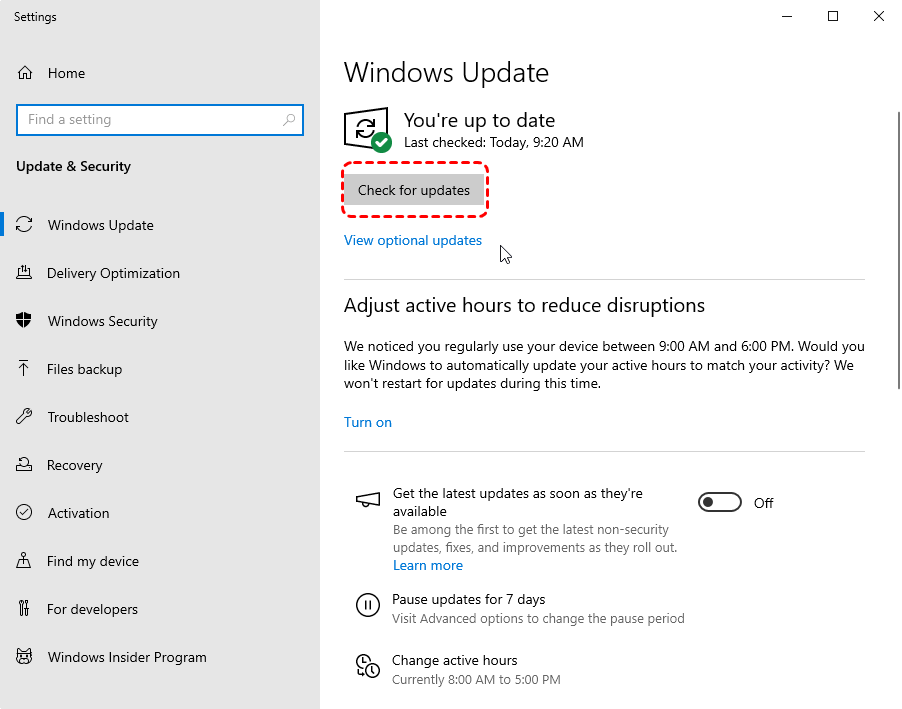
Step 1. Go to "Settings" > "Update & Security" > "Windows Update".
Step 2. Click "Check for updates" and install any available updates.
Method 9. Run the Hardware and Devices Troubleshooter
Windows includes a built-in troubleshooting tool designed to detect and fix hardware configuration problems automatically. Running the Hardware and Devices troubleshooter can identify driver conflicts or incorrect settings that may be causing the Code 1 error.
Step 1. Press "Win" + "X" and choose "Windows PowerShell (Admin)" to open it.
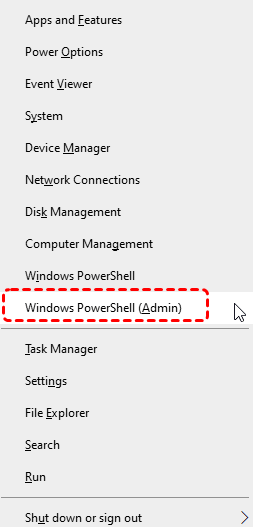
Step 2. Type the command "msdt.exe -id DeviceDiagnostic" and press "Enter".
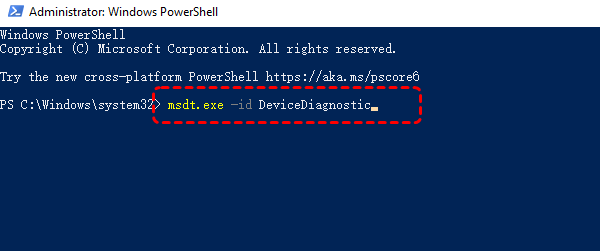
Step 3. In the opened Hardware and Devices window, click "Advanced" and check the "Apply repairs automatically" option, then click "Next" to complete the troubleshooting process.

How to Recover Data After Fixing the Code 1 Error
For more serious cases, if the "this device is not configured correctly (code 1)" error occurs on USB flash drive, external hard drive, SD card, or other storage device, you may notice that certain files are missing, inaccessible, or appear to have been lost after the device starts working again. To avoid permanent data loss, it is recommended to recover important files as soon as possible before writing new data to the device.
In such cases, a professional Windows data recovery tool like MyRecover can help locate and restore lost files from storage devices affected by driver or system issues. It is designed to scan drives deeply and identify files that were deleted, lost, or temporarily inaccessible due to system errors. You can follow these simple steps to recover your data:

 MyRecover
- Recover deleted & lost files from HDD, SSD, USB, SD card, camera as you need.
- Support 1000+ formats of photos, videos, docs, archives, emails, compressed files, etc.
- Reliable rescue for deletion, formatted disk, emptied Recycle Bin, system crashes and more.
 100% Secure
Step 1. Download and install MyRecover on your Windows computer from Microsoft Store or its official website.
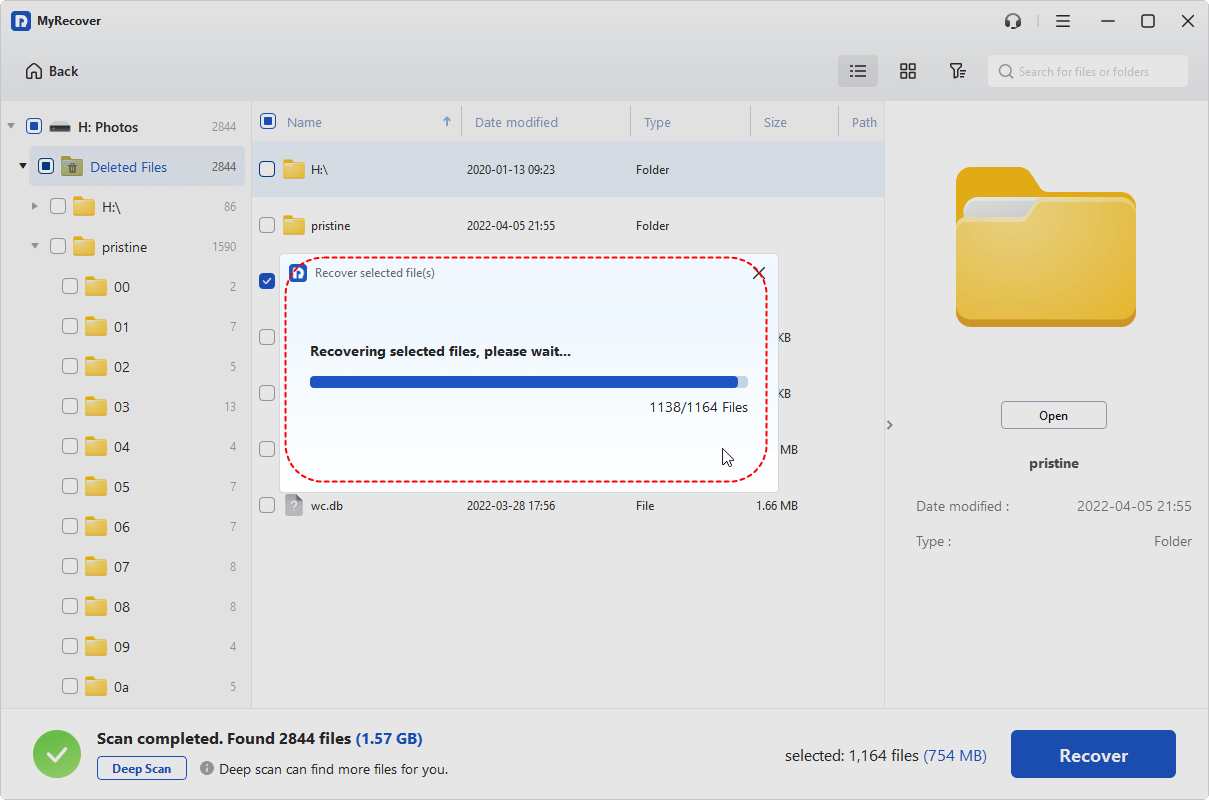
Step 2. Launch the program and select the drive where the files were stored, such as the USB drive or external disk, then click "Scan" to start searching for recoverable data.

Step 3. After the scan finishes, browse the results and use the "Filter" function to locate the files you want to restore. Choose the items you wish to recover from the lists and click "Recover".

Step 4. Select a safe location (different from the original one) to save the recovered files to avoid overwriting existing data.

When the process is completed, the message "Files have been recovered successfully" will pop up. Then, you can access the recovered files in the destination folder by clicking on the "Browse" button.
Conclusion
In short, encountering the "this device is not configured correctly (code 1)" error does not mean it cannot be fixed. Try the solutions mentioned above one by one, and you will usually be able to restore the device to normal operation. If the error affects a storage device, you need to be extra careful. Once you find data loss or inaccessibility, use a reliable recovery tool like MyRecover can help retrieve important data before further repairs. It's Professional edition even allows file content preview before restoration and to recover data from crashed Windows.

Stay Updated With Our
Latest Tips
Add us as a preferred source on Google to never miss helpful guides.
 Add as preferred source >>