 MyRecover



Where Is the Startup Folder in Windows 10/11? Quick Access Guide Here
Finding "where is the startup folder in Windows 10" is key to managing your system's efficiency. This article details the precise windows startup folder location paths and offers simple methods to access them, helping you take control of which applications launch automatically when you log in.

By Delores / Updated on March 20, 2026


Ever wondered why some apps magically appear the moment Windows finishes booting? Well, that's the startup folder at work. The startup folder lets you decide exactly which programs to run when your PC fires up. If you've been scratching your head asking where the startup folder is in Windows 10, I've got you covered.
About the Startup Folder in Windows 10
The startup folder is basically a special directory where Windows looks every single time you log in. Any shortcut you drop in here? It runs automatically. Simple as that.
Every program that launches at startup consumes system resources (CPU, memory, disk access) simultaneously. When too many applications load at once, your computer's performance slows considerably. The startup folder gives you direct control over which programs load during boot.
Two Startup Folders in Windows 10/11
To provide you with greater flexibility and control over the startup process, Microsoft includes two distinct startup folders in Windows, each with a specific purpose: Current User Startup Folder and the All Users Startup Folder.
The "Current User" Startup folder, which is unique to each account on the computer. Any shortcut placed in this folder will only launch its corresponding program when that specific user logs in. You can easily access your personal folder by opening the Run dialog (Windows Key + R) and typing shell:startup.
The "All Users" Startup folder operates system-wide and affects every person who logs in to the computer. Shortcuts placed here will launch for all user accounts, making it the perfect location for software that needs to be running (such as corporate security agents, IT management tools, or company-wide communication platforms) for everyone. Because modifications here impact the entire system, adding or removing items from this folder requires administrator privileges, ensuring that standard users cannot alter essential startup programs. This folder can be accessed by using the Run command shell:common startup.
Difference Between Startup Folder and Task Manager Startup Tab
The Task Manager startup tab displays all automatically launching items from various sources including the startup folder, Windows registry, and system services. The startup folder specifically contains shortcuts that users have manually added. Task Manager enables disabling items, while the folder is where you add new programs to the startup sequence.
The Exact Windows Startup Folder Location for Current User
For your personal user account—meaning just the programs that launch when you log in—here's where you need to go.
Windows 10 Startup Folder Location in File Explorer:
C:\Users\YourUsername\AppData\Roaming\Microsoft\Windows\Start Menu\Programs\Startup
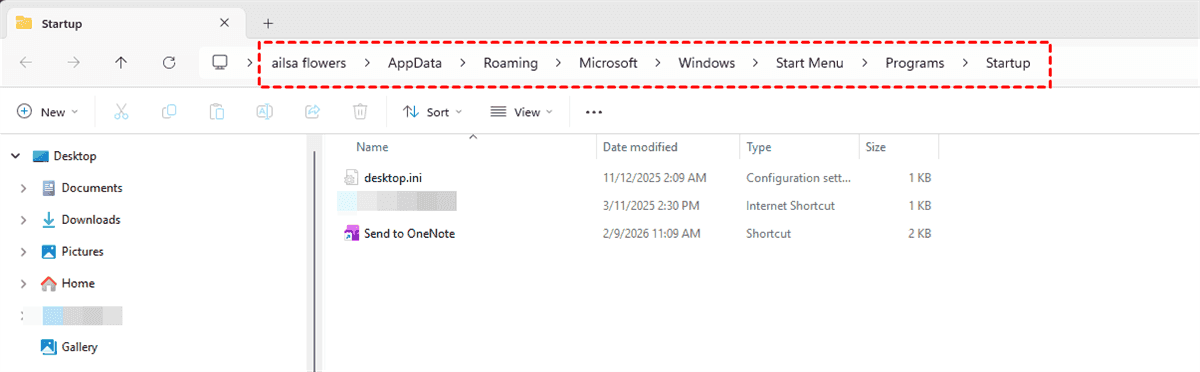
The AppData is a hidden folder by default. If you don't see it, you'll need to make hidden files visible. Click the "View" tab at the top of File Explorer, then check "Hidden items". Then check the startup folder location.
Besides, you can also use the Run command to access the startup folder instantly:
1. Press Windows key + R on your keyboard—that opens the Run dialog box.
2. Type this magic word: shell:startup and hit Enter.
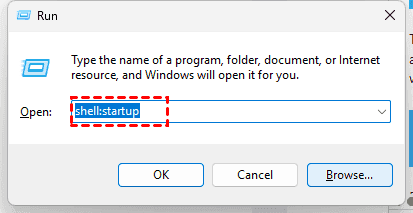
Now you're instantly in your personal startup folder. No clicking through a dozen folders, no messing with hidden items. This is hands-down the fastest way to get there.
Where to Find the Startup Folder in Windows 10 for All Users
Now, what if you want a program to launch for every single person who uses the computer? That's where the all-users startup folder comes in.
This folder is system-wide. Anything you put here runs when any user logs in. Perfect for IT admins, parents setting up family computers, or anyone managing a shared machine.
The path is different from your personal folder:
C:\ProgramData\Microsoft\Windows\Start Menu\Programs\Startup

ProgramData is also hidden by default, so you'll need to enable hidden items again if you're browsing manually. Then go to the startup folder location directly.
You can also access the folder quickly using the Run command:
1. Press Windows key + R.
2. Type shell:common startup, and you're there instantly.
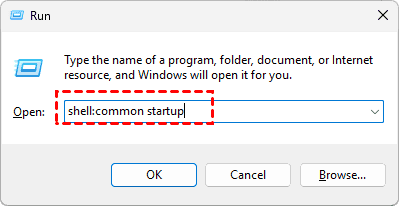
This opens the Windows startup folder location for all users without any folder digging.
How to Manage Programs from the Startup Folder in Windows 10/11?
It’s important to learn how to disable and add programs in the Startup folder in Windows 10 or 11. Check them out.
How to Add Programs to Startup in Windows 10/11?
It’s very easy to add programs to the Startup folder to run them automatically when logging in. Here it is:
1. Open your startup folder (user or all-users, your choice).
2. Right-click anywhere inside, select New > Shortcut.
3. Click Browse, find the program's .exe file (usually in Program Files or Program Files x86), select it, and click Next.
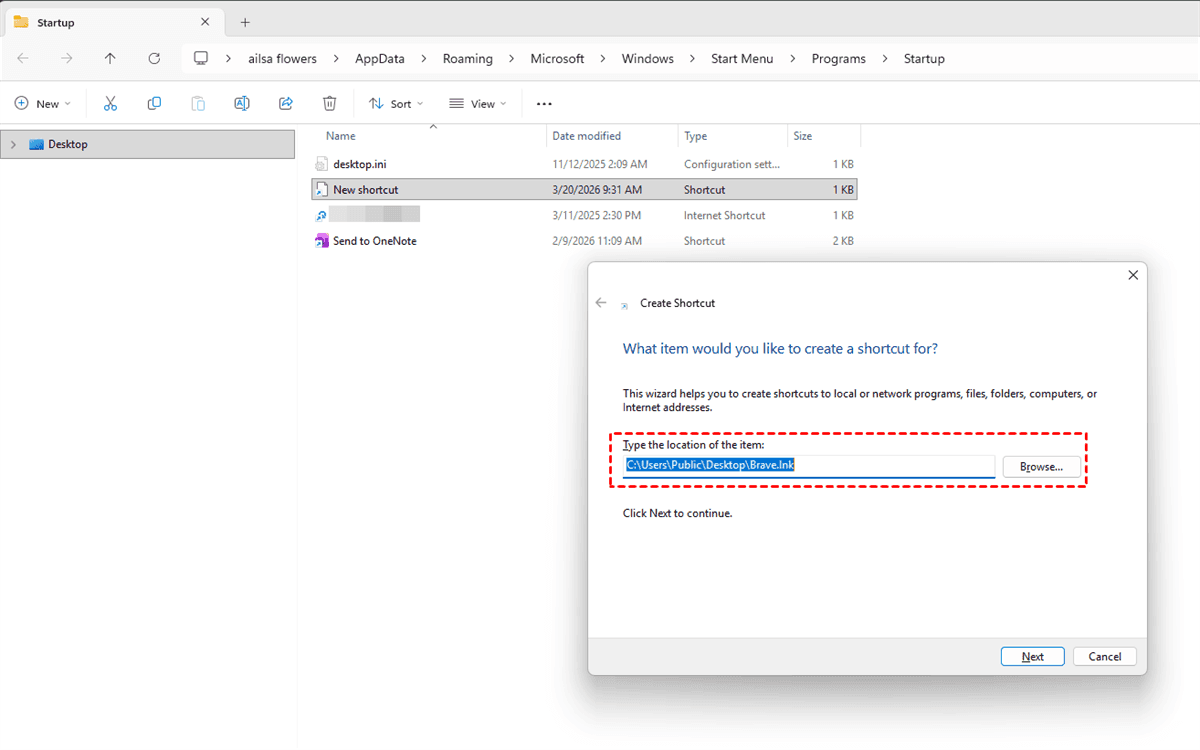
4. Name your shortcut, and click Finish. Next time you restart, that program launches automatically.
Want to know where to add something quickly? Right-click the app, choose "Open file location" to find its shortcut, then copy and paste it directly into your startup folder.
How to Disable Startup Programs in Windows 10/11?
To stop apps from opening at startup to speed up the booting time, try this:
Open your startup folder.
Find the shortcut for the program you don't want launching automatically, right-click it, and select Delete.
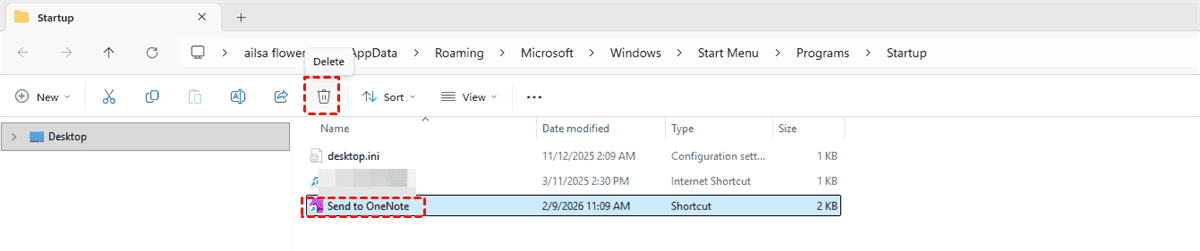
The program itself isn't uninstalled—just its auto-launch privilege is revoked.
Manage Startup Programs in Windows Settings
Right-click the Windows Start menu icon, choose Settings.
Choose Apps > Startup, then you can toggle on or off for many startup programs.
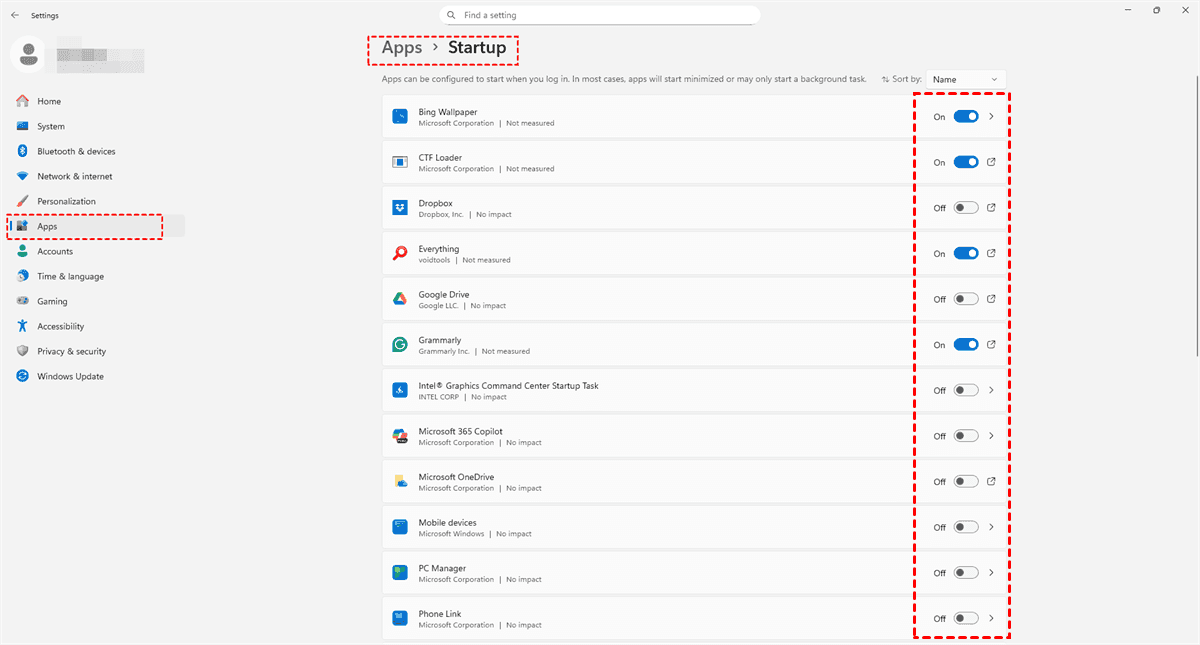
It's cleaner than digging through folders, but it doesn't show everything. Use it for quick changes; use the folder for manual additions.
Decide What Program Stays in Startup
If you're unsure which programs are necessary, Task Manager can help.
1. Press Ctrl + Shift + Esc, then navigate to the Startup tab.
2. You'll find a list of startup items along with their "Startup impact" ratings—classified as low, medium, or high.
3. For any high-impact programs you don't regularly use, consider disabling them.
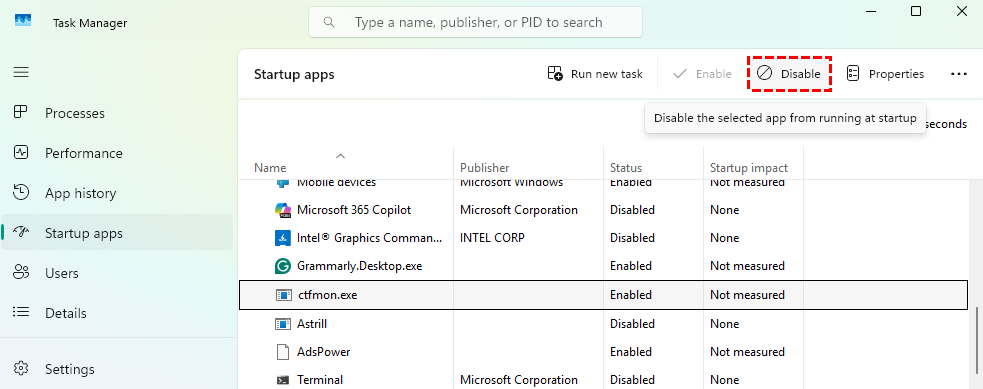
Use caution: essential software like antivirus tools and system drivers should typically remain enabled.
Troubleshooting Common Startup Folder Issues
Sometimes things don't work right. Here's how to fix them.
What to Do If Programs Don't Launch from Startup
After adding a shortcut and restarting, a program may fail to launch. First, check the Startup tab in Task Manager to confirm the program is listed and enabled.
If it is not, verify that the shortcut was placed in the correct startup folder, as the user-specific and all-users folders function differently.
Also, ensure the main program file is not corrupted or configured to require administrative privileges to run.
Standard startup folders cannot trigger elevation prompts. For programs that require administrative rights, you may need to use Task Scheduler to create a task configured to run with the highest privileges.
Restore Missing Startup Folder Locations
If a startup folder is missing from its expected path, first check the Recycle Bin. If the folder was accidentally deleted, restoring it from there is the simplest solution.
If it is not in the Recycle Bin, you can manually create a new folder at the correct file path, and Windows will recognize it. Alternatively, using the shell:startup or shell:common.
Check Permissions for All Users Folder Access
An inability to add programs to the "All Users" startup folder is typically due to insufficient permissions. To resolve this, right-click the folder, select "Properties", and navigate to the "Security" tab. Verify that your user account has "Write" permissions. If it does not, you will need an administrator to either grant you the necessary access or add the startup items on your behalf.
FAQs About the Windows 10 Startup Folder
Q: What's the difference between the startup folder and Task Manager's startup tab?
A: The startup folder stores shortcuts you manually add for automatic launching. Task Manager displays all auto-launching items from multiple sources, including the folder, registry, and system services. Use the folder to add programs and the Task Manager to enable or disable them.
Q: Can I put any file in the startup folder?
A: Yes. Shortcuts to programs, documents, folders, or scripts all work. Documents open in their default application at login. Remember that each item increases boot time.
Q: Why can't I find the AppData folder with hidden items enabled?
A: You must also disable "Hide protected operating system files." In File Explorer, go to View > Options > View tab and uncheck this setting.
Q: How many startup programs are too many?
A: This depends on your hardware. SSDs handle more programs than hard drives. If boot time feels slow, you have too many. Check Task Manager's "Startup impact" column and disable high-impact items.
Q: What if the shell:startup command doesn't work?
A: Verify correct spelling first. If it fails, create the folder manually using the full path. If problems persist, run "sfc /scannow" in Command Prompt to repair system files.
Q: Do startup folder changes require a restart?
A: Yes. Changes take effect after logging off and back on or restarting your computer.
Q: Can different users have different startup items?
A: Yes. Each user has their own startup folder at the C: drive location with their username. This allows customized startup configurations per user.
Fast Recover Deleted Files If Required
Accidentally deleted something important from your computer and don’t have a backup, can’t find them in the Recycle Bin? Don’t worry, the powerful Windows data recovery software MyRecover can save the day.
MyRecover is designed for situations exactly like this—when you've permanently deleted files (emptied the Recycle Bin) or lost folders due to system crashes or corruption.
- It supports over 1,000 file types.
- It supports all versions of the Windows operating system.
- You can recover files from 500+ devices easily, such as external hard drives, HDDs, SSDs, SD cards, PS4/5, Cameras, music players, Xbox One, etc.
- You can recover unlimited files at a time, very easy to use.
- Preview files before recovery to ensure their integrity.
- It supports quick scan and deep scan modes. So, you can easily find the recently deleted files and the files deleted long ago, as long as they are not overwritten.
- The highest data recovery rate, 99%, in the market. It’s worth trying.
1. Please download and install MyRecover on your computer, then launch it. (Do not install it on the drive you’re recovering files from)
 100% Secure
2. Tap Deleted Files Recovery, point at the drive where the deleted files were located before, and hit Scan.

3. Select the deleted files you need, and hit Recover.

4. Opt for a safe location to keep them safe.


- Notes:✎...
- Once scanned, you can find your deleted files by file type and path. Besides, you can also search files by file name, size, modified date, and extension.
- Upgrading to MyRecover Technician helps you to recover files from unlimited computers easily.

 MyRecover
- Recover Deleted Files Easily with Simple Clicks
- 1000+ File Formats Supported
- Support HDD, SSD, External Hard Drive, USB Drive, SD Card, etc.
- Quickly Find Files Using File Types, Name, Size, etc.
- Preview Files Before Recovering
- Recover Unlimited Data
 100% Secure

Stay Updated With Our
Latest Tips
Add us as a preferred source on Google to never miss helpful guides.
 Add as preferred source >>