 MyRecover



Will Dell Factory Image Restore Delete My Files? Find Out Now
This article answers the critical question: will Dell factory image restore delete my files? We explore the process, its impact on personal data, and solutions for when Dell factory image restore is missing, ensuring you can recover your system without losing important information.

By Delores / Updated on March 17, 2026


It's important to find out "Will Dell Factory image restore delete my files" when you are suffering from Dell computer issues, like a slow computer, malware-infected, etc.
Don't worry. Today, we're going to walk you through exactly what happens when you hit the reset button, what you stand to lose, and, most importantly, how to recover your precious data if things go wrong.

What Is a Dell Factory Image Restore?
What Dell Factory Image Restore actually means. This tool restores your computer to its factory condition, reverting it to the state it was in when you first unboxed it. The process completely erases any data, applications, or settings you've added and replaces them with the original factory configuration.
The recovery tool resides in a hidden partition on your hard drive and remains accessible only during system recovery. Dell pre-installs this partition with the operating system, necessary drivers, and the bundled software that came with your computer.
Users typically turn to factory restore when facing persistent malware that standard scans cannot remove, severe Windows corruption preventing proper booting, or when preparing to sell or transfer computer ownership to protect personal information, while performance degradation from years of accumulated software and temporary files, along with failed Windows updates that leave systems unstable, also drive this decision.
Will Dell Factory Image Restore Delete My Files
Will Dell factory image restore delete my files? The short answer is yes, and we need to be crystal clear about this. When you run Dell Factory Image Restore, it permanently removes any programs or files you've added after receiving the computer. This includes your precious data files—pictures, music, videos, documents, you name it. They're gone.
Personal Files and Data: What Gets Erased
We're talking about everything in your user folders—your Desktop, Documents, Pictures, Music, and Videos folders. Those vacation photos, downloaded music collection, and all are deleted.
It doesn't care that you've got important tax documents in there or that your child's school projects are stored on the desktop. It formats the C drive completely, which means the entire system partition gets overwritten with the factory image.
User Accounts and Installed Applications
Beyond your personal files, every user account you've created will be deleted. Your customized settings, browser bookmarks, and saved passwords—all gone. And those applications you installed over the years? Every single one of them gets wiped out.
The factory restore process restores the computer to exactly how it was when you first unboxed it, complete with only the original Dell software and trial versions.
System Settings and Drivers
If a recent driver update caused conflicts or blue screens, the restore wipes that headache away. The operating system itself gets reinstalled to its original condition, which is why this process can fix deep-rooted software problems that other troubleshooting methods can't touch.
Does a Factory Image Restore Delete Everything, Including the OS?
Does a factory image restore delete everything? Yes, it deletes everything on your main drive—all your files, all your applications, all your settings. But no, it doesn't leave you with an empty drive. Instead, it replaces all that deleted content with the factory-installed operating system and software.
So technically, the OS isn't deleted; it's replaced. The original factory version of Windows gets written back onto your drive, along with Dell's utilities and any bundled software that came with your system.
Does Dell OS Recovery Delete Files Compared to Factory Restore
Dell offers multiple recovery methods with different data retention behaviors. The traditional Factory Image Restore performs a complete system wipe without exception. Newer models feature SupportAssist OS Recovery, which occasionally provides options to refresh the system while preserving some files, though this should never replace proper backups. Thus, it’s highly recommended to back up your files before proceeding.
Preparation Before Performing a Factory Restore
Before you do anything else, back up your data. Copy your important files to an external hard drive, upload them to cloud storage, or burn them to DVDs—whatever works for you.
- Don't just grab obvious files. Check your Downloads folder, your Desktop, your Documents, Pictures, Music, and Videos folders.
- Export your browser bookmarks.
- Save your email if you use a desktop client.
- Look in your AppData folders for game saves or application data you might want.
Yes, it's tedious, but losing irreplaceable photos or critical work documents is far more painful than spending an hour on backup.
Recover Files from Dell Computer Before Factory Restore
Before you pull the trigger on that factory restore, you need to get your files off the computer. But what if your system is already too unstable to boot normally? What if Windows won't start, and you're panicking about accessing your data? This is where MyRecover comes in clutch.
MyRecover is a data recovery tool that specializes in one particularly scary scenario—recovering files when your computer won't boot at all. It lets you create a bootable USB drive or CD/DVD on another working computer, then use that to rescue data from your crippled Dell.
Here is how to use MyRecover to recover your files from a Dell computer that won’t boot:
1. Download and install MyRecover on a working computer, then launch it. Connect a blank USB Drive of at least 32GB for creating bootable media. On MyRecover, tap PC Crashed Recovery, choose the USB Drive, and hit Create to create the USB bootable media.
 100% Secure
2. Insert the USB drive into your malfunctioning Dell, restart the computer, and immediately press F12 to access the boot menu. Select your USB drive as the boot device. The system will load the MyRecover environment directly, bypassing your broken Windows installation entirely.
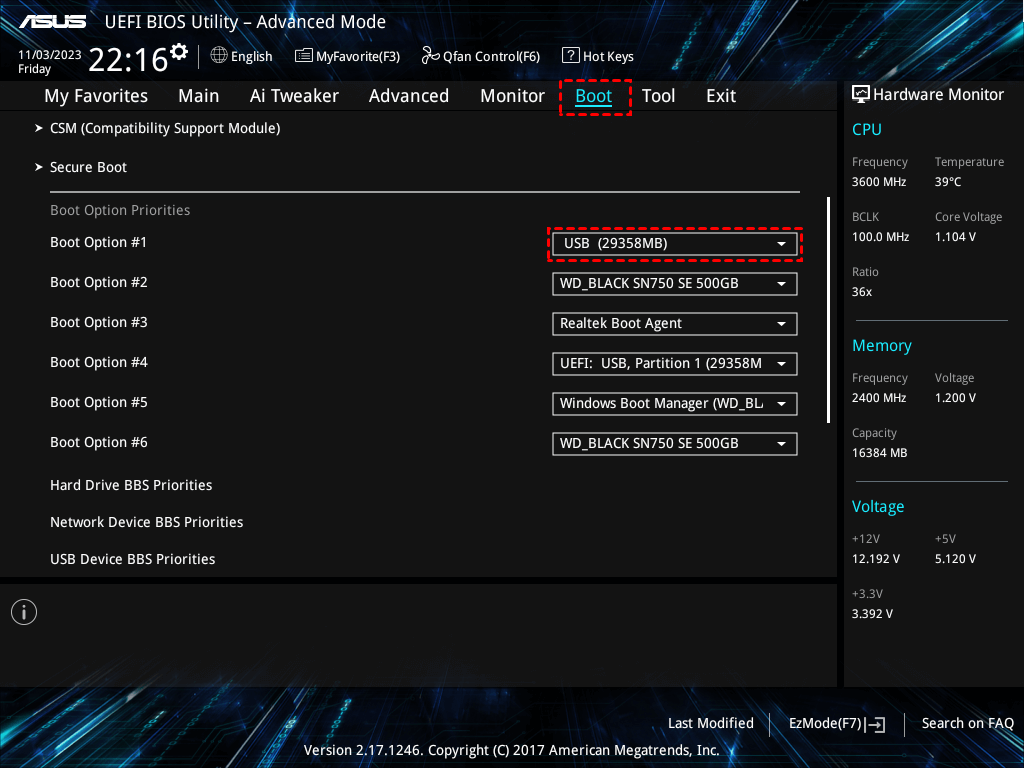
3. Tap Disk Data Recovery, choose the drive, and hit Scan while hovering over it. Wait for the process to complete.

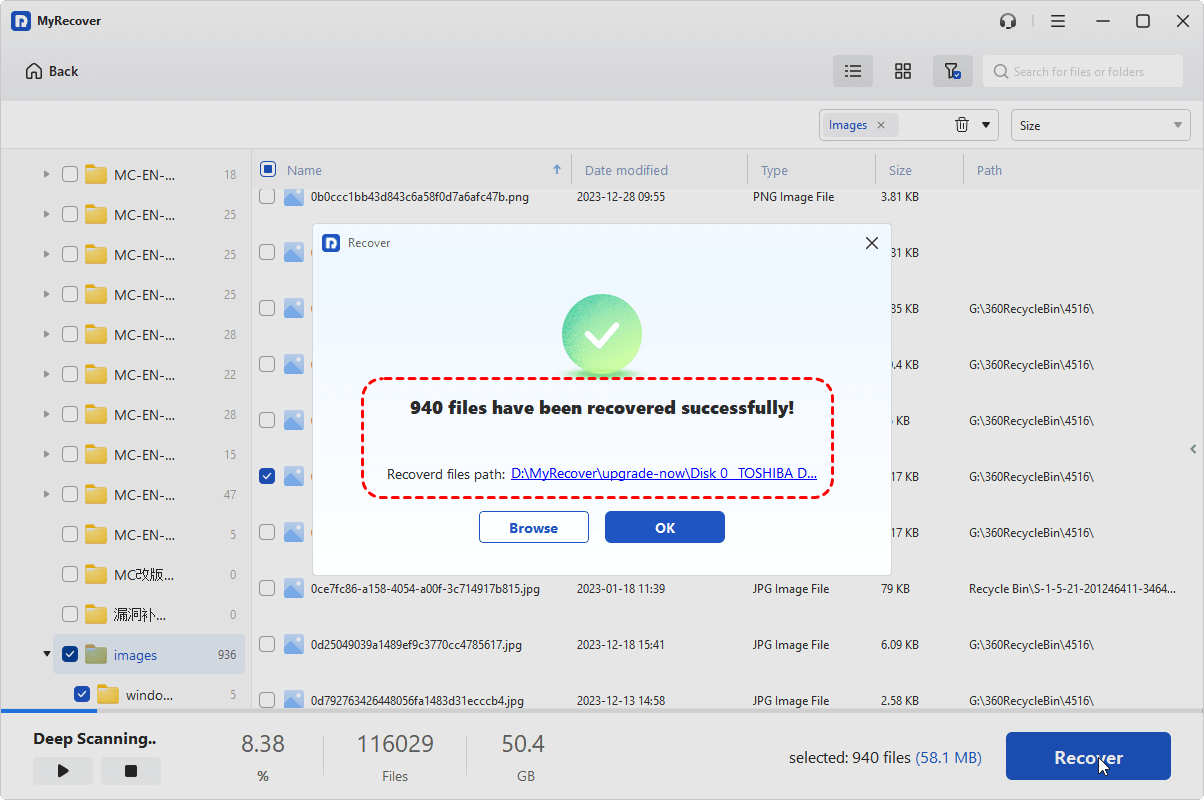
4. Preview and select the files you need, and hit Recover.

5. Opt for a new location to keep them safe.

- Notes:✎...
- Once scanned, your missing files will be sorted by file type and path. Besides, you can also search them by file name, size, modified date, and extension. It’s very useful and time-saving.
- Upgrading to MyRecover Technician is your best choice if you need to recover files from unlimited computers.

 MyRecover
- Recover Deleted Files Easily with Simple Clicks
- 1000+ File Formats Supported
- Support HDD, SSD, External Hard Drive, USB Drive, SD Card, etc.
- Quickly Find Files Using File Types, Name, Size, etc.
- Preview Files Before Recovering
- Recover Unlimited Data
 100% Secure
What to Do After the Factory Image Restore Completes
Step 1. Restore Your Backed-Up Data
Once the restore finishes and your computer reboots, you'll be greeted by the familiar "out of box" setup experience. Go through the initial Windows setup, create your user account, and get to the desktop. Now comes the rewarding part—restoring all those files you wisely backed up. Connect your external drive or access your cloud storage and start copying your files back.
Step 2. Reinstall Software and Drivers
Remember that all your applications are gone, so you'll need to reinstall them using the latest version. Start with essential software—your web browser, office suite, antivirus, and any specialized tools you use daily.
Check Dell's support site for any updated drivers beyond what the factory image included. While the factory image has basic drivers, newer versions might improve performance or fix issues.
Troubleshooting Dell Factory Image Restore Missing or Not Working
Why Is Dell Factory Image Restore Missing from My System
The factory image resides in a dedicated hidden partition. If this partition becomes corrupted, resized, or deleted, the recovery option disappears. The recovery partition may have been accidentally deleted through disk management tools. Windows updates can sometimes affect the recovery environment's visibility. Hard drive failure or replacement(upgrade hard drives or switch to SSDs without properly migrating the recovery partition)can also eliminate the hidden partition.
3 Solutions When Dell Factory Image Restore Is Not Working
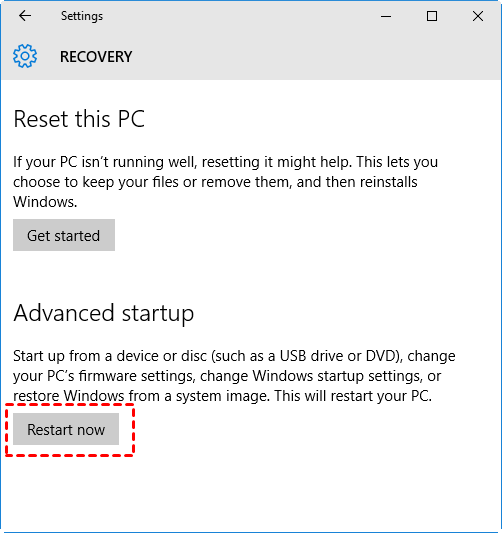
If you're facing a Dell factory image not working, don't panic just yet. First, try accessing it through the Advanced Startup options in Windows. Go to Settings > Update & Security > Recovery, and under Advanced Startup, click Restart Now. From there, navigate to Troubleshoot and look for Factory Image Restore options.
Another approach involves using the F8 key during startup, though this works better on older systems. Press F8 repeatedly as the computer boots, before the Windows logo appears. If you're lucky, you'll see the Advanced Boot Options menu where you can select Repair Your Computer.
For newer Dell computers, SupportAssist OS Recovery might be your answer even if traditional factory restore is missing. This tool can often be accessed by pressing F12 during startup and selecting SupportAssist OS Recovery from the boot menu. It can download a fresh copy of your factory image from Dell's servers, which helps if the local recovery partition is damaged.
FAQs About Dell Factory Image Restore
Will Dell factory image restore delete my files if I choose the "keep files" option?
A: Traditional Dell Factory Image Restore offers no "keep files" option—this distinguishes it from Windows Reset. The tool wipes everything and restores factory conditions. Some newer systems with SupportAssist OS Recovery may offer flexibility, but always assume files will be deleted. If you see file preservation options, verify whether you're using Windows Reset or Dell's factory restore.
Does a factory image restore delete everything on all drives or just the C drive?
A: Factory image restore typically targets only the system drive (usually the C drive). Files on separate partitions, like the D drive, often survive untouched. However, no guarantees exist—some recovery processes repartition the entire drive, especially during new hard drive restoration or with certain recovery media. External backup remains the only certainty.
Does Dell OS recovery delete files differently from factory restore?
A: Yes, differences exist between Dell recovery tools. SupportAssist OS Recovery on newer computers sometimes offers file preservation options, though Dell forums consistently advise backing up first, as preservation isn't guaranteed. Traditional Factory Image Restore accessed through F8 or Advanced Boot Options definitely deletes everything.
Why is the Dell factory image restore missing from my computer?
A: The recovery partition may have been deleted through disk management tools or during hard drive replacement. Windows updates can affect the recovery environment configuration. The option might remain hidden but present—try enabling it via Command Prompt with "reagentc.exe /enable" as administrator. If unsuccessful, use Dell's OS Recovery Tool to create recovery media.
Dell factory image not working—what should I do?
A: If restore starts but fails, pressing Enter at a blank screen might complete the operation. For persistent issues, create bootable recovery media using Dell's OS Recovery Tool on another computer. This downloads fresh factory image copies and bypasses local partition problems. As a last resort, perform a clean Windows installation, though Dell-specific drivers won't be included.
How do I back up files before Dell factory image restore if my computer won't boot?
A: Tools like MyRecover create bootable USB drives on another computer to recover files directly from non-booting systems. Alternatively, remove the hard drive, connect it to another computer using an external enclosure or adapter, and copy files. Both methods require technical comfort but enable data rescue when Windows remains inaccessible.
Will my Dell recovery partition be restored after factory image restore?
A: The factory image restore process typically recreates or preserves the recovery partition. After completion, your system should contain a functional recovery environment for future restores. For hard drive failure or replacement scenarios, using Dell's official recovery media ensures all partitions, including recovery, are correctly created.

Stay Updated With Our
Latest Tips
Add us as a preferred source on Google to never miss helpful guides.
 Add as preferred source >>