 MyRecover



Will SFC Scannow Delete My Files? A Complete Guide to Safe System Repair
If you're asking whether the SFC Scannow delete my data, you're not alone. This overview explains what SFC scans, how it restores corrupted Windows system files, and why your personal files, photos, and documents remain safe when running the command.

By Vera / Updated on July 23, 2026


Introduction
If you’ve ever searched for ways to fix Windows "Blue Screen of Death" (BSOD) errors, DLL crashes, or system instability, chances are you’ve come across the command sfc /scannow. It’s one of the most recommended troubleshooting tools for repairing corrupted system files.
But here’s the question many users worry about: Will SFC Scannow delete my files?
Nobody wants to risk losing photos, documents, or important projects just to fix a Windows problem. The good news is that SFC Scannow is designed to repair Windows system files—not delete your personal data. In this guide, we’ll explore the mechanics of the System File Checker, clarify the distinction between system and user data, and provide a failsafe plan in case your system issues have already compromised your personal files.
What Is SFC Scannow?
System File Checker (SFC) is a built-in diagnostic utility in Microsoft Windows that scans and repairs corrupted or missing system files. The command used to initiate this process is: sfc /scannow.
How System File Checker Works
The System File Checker operates through a verification and replacement mechanism. Instead of blindly overwriting data, Windows uses a "Reference and Restore" logic:
1. Identification: It scans all protected operating system files (DLL, SYS, EXE, etc.).
2. Integrity Check: It compares the digital signature and checksum of these files against the known "good" versions.
3. Source Retrieval: If a file is modified or corrupted, SFC goes to the WinSxS (Windows Side-by-Side) folder—a compressed "gold master" backup of the OS.
4. Automatic Repair: It replaces the damaged file with the clean version from the cache.
Why this matters: Because SFC compares files against a specific "System Map," it has no reason to interact with your "Documents" or "Desktop" folders. Your personal files are not on its "map."
Will SFC Scannow Delete My Files?
The answer is a definitive No.
SFC Scannow does not delete personal files or user-created data. The tool only examines protected Windows system files. Therefore, running SFC is considered safe for user data.
- 👉 System Files That SFC Repairs: Windows kernel components, system drivers, DLL files, and core services.
- 👉 Files SFC Does Not Affect: Your Word documents, Excel sheets, family photos, Chrome bookmarks, and installed third-party games (like those on Steam).
Crucial Distinction: While SFC won't delete your files, the underlying issue that is forcing you to use SFC (such as a failing hard drive or a virus) might already be putting your data at risk. This is why a recovery plan is essential.
How to Run SFC Scannow Safely: 2 Proven Methods
The SFC command should always be executed with administrator privileges.
Method 1: Run SFC via Elevated Command Prompt (Standard Repair)
This is the most common method. It is used when Windows is still bootable and you are experiencing minor glitches, such as slow performance or specific app errors. The logic is to fix the OS while it is running by using the background Windows Resource Protection (WRP) service.
Follow the standardized procedure below:
Step 1: Press Windows + S to open the search bar.
Step 2: Type cmd in the search field.
Step 3: Right-click Command Prompt and select Run as administrator. (This is vital; without admin rights, the scan will fail with an "Access Denied" error).

Step 4: In the command window, type: sfc /scannow and press Enter.

Step 5: Monitor the progress. If it stops at a certain percentage, wait at least 15 minutes. The tool is often verifying large driver files during these pauses.
Step 6: Once finished, read the final message. If it says "repaired successfully," restart your PC to finalize the file replacements.
While the standard Command Prompt works for most, sometimes corrupted third-party drivers or active malware can block SFC from replacing files. If Method 1 fails or gets stuck, you should move to a more "isolated" environment: Safe Mode.
Method 2: Run SFC in Safe Mode (Advanced Repair)
Safe Mode loads only the bare minimum of drivers. This is the ideal scenario for SFC because it ensures that no third-party software (like antivirus or custom UI skins) is "locking" the system files that SFC needs to replace.
Step 1: Hold the Shift key while clicking Restart from the Power menu.
Step 2: Navigate to Troubleshoot > Advanced options > Startup Settings > Restart.

Step 3: Press 4 or F4 to boot in Safe Mode.
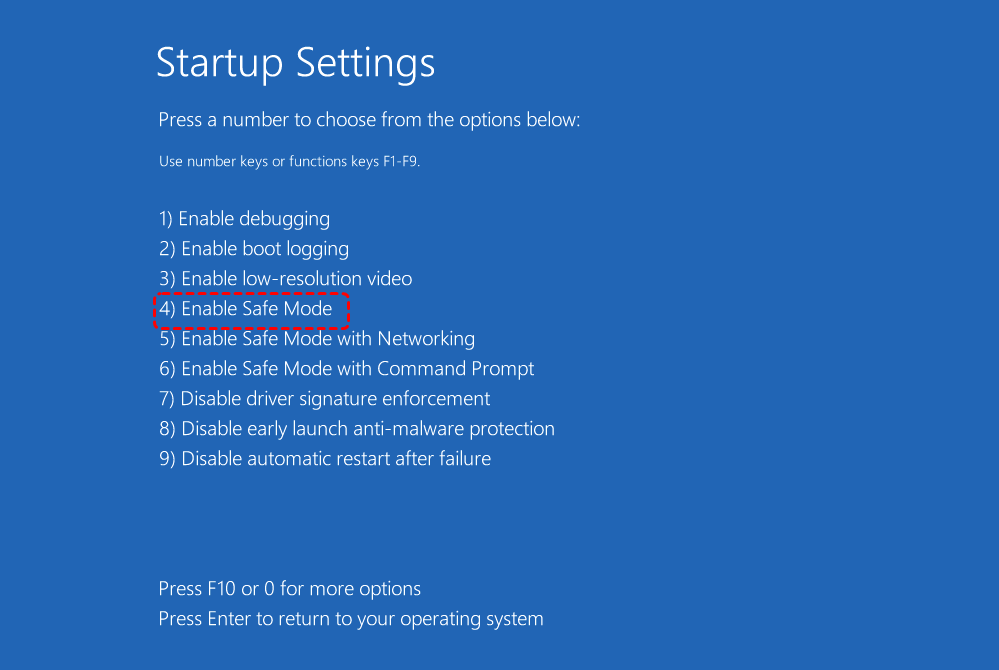
Step 4: Once in Safe Mode (the background will be black), open Command Prompt (Admin).
Step 5: Execute the command: sfc /scannow.
Step 6: In Safe Mode, SFC often runs faster because there is less disk contention. Once done, simply restart your computer to return to normal Windows.
Although SFC is safe, certain precautions are recommended.
- Back Up Important Data: Maintaining regular backups protects your data from unexpected system failures.
- Prepare a Recovery Tool Like MyRecover: Having a data recovery tool such as MyRecover installed ensures that lost files can be restored quickly if unexpected issues occur during troubleshooting.
Common SFC Scan Results
After the scan completes, Windows displays one of the following messages.
1. No Integrity Violations Found
Message: Windows Resource Protection did not find any integrity violations.
This indicates that all system files are intact.
2. Corrupted Files Successfully Repaired
Message: Windows Resource Protection found corrupt files and successfully repaired them.
The system issues have been resolved automatically.
3. Unable to Repair Some Files
Message: Windows Resource Protection found corrupt files but was unable to fix some of them.
Additional repair tools, such as DISM, may be required. What’s the difference between SFC and DISM?
| Tool | Purpose |
|---|---|
| SFC | Repairs corrupted system files |
| DISM | Repairs Windows system image |
- SFC cannot repair corrupted files;
- Windows updates fail repeatedly;
- System corruption persists.
Typical command: DISM /Online /Cleanup-Image /RestoreHealth.
What to Do If Files Are Missing After System Repair
While we have established that SFC doesn't delete files, the disk corruption that caused the system errors in the first place can often lead to data loss. If you notice personal files missing after your repair attempt, you need a professional data recovery solution.
MyRecover: Your Safety Net for System Failures
MyRecover is specifically engineered to handle data loss scenarios that often coincide with system file corruption. If your SFC scan was triggered by a system crash, "Blue Screen," or disk error, there is a high probability that the underlying file system (NTFS/FAT32) has suffered damage affecting your personal folders.

 MyRecover
- Tailored Advantage: Unlike generic tools, MyRecover excels at retrieving files lost during "system repair" attempts. If a disk error caused a file to disappear while SFC was trying to fix the OS, MyRecover’s Deep Scan algorithm can reconstruct those files from the raw sectors of your drive.
- Safety First: It is a non-destructive tool, meaning it won't further corrupt your Windows system files while searching for your lost photos or documents.
- Versatility: It works perfectly whether you lost data on an SSD, HDD, or even if the partition has become "RAW" due to the same corruption SFC was trying to fix.
 100% Secure
Standard Recovery Procedure:
Step 1: Install and launch MyRecover on your computer.
Step 2: Select the disk or partition where the data was lost.
Step 3: Start a quick Scan to locate recoverable files.

Step 4: Preview the files identified by the software.
Step 5: Select the required files and click Recover to restore them to a secure location.

This process allows users to recover files lost due to system crashes, accidental deletion, formatting, or disk errors.
Conclusion
Running SFC /scannow is a safe, essential practice for any Windows user. It acts as a digital mechanic, tuning up your operating system without touching your personal belongings. By understanding the logic of the WinSxS folder and knowing when to use DISM or Safe Mode, you can maintain a healthy PC.
For total peace of mind, always keep MyRecover in your digital toolkit. While SFC protects your Windows OS, MyRecover protects the data that makes that OS worth using.
FAQ: Everything You Need to Know
1. Does SFC scannow affect my installed programs like Office or Games?
No. SFC focuses exclusively on Windows System Files. It does not touch the registry entries or the program files of third-party applications like Microsoft Office, Steam games, or Adobe Creative Cloud.
2. Can SFC /scannow fix a computer that won't boot?
Yes, but you must run it from a Windows Recovery Environment (WinRE) using a bootable USB. In this mode, you use the command sfc /scannow /offbootdir=... /offwindir=... to repair an offline OS.
3. What should I do if SFC says "Access Denied"?
This almost always means you didn't run the Command Prompt as an Administrator. Close the window, right-click "Command Prompt" in the Start menu, and select "Run as Administrator."
4. Is it safe to stop an SFC scan while it is in progress?
While it's not recommended, stopping it usually won't break your computer. However, it may leave system files in a "half-verified" state. If you accidentally closed it and now notice files missing, use MyRecover immediately to check for partition instability.
5. SFC fixed my system, but my desktop files are gone. Why?
SFC didn't delete them. This usually indicates a Temporary Profile issue or severe disk sector failure that occurred before you ran the scan. In this case, MyRecover is your best chance to pull those files back from the failing sectors before the drive dies completely.
6. What is the difference between SFC and CHKDSK?
Think of it this way: SFC fixes the software (the Windows files), while CHKDSK fixes the hardware (the file system and physical disk sectors). If your hard drive is making clicking noises, run CHKDSK. If Windows is throwing error messages, run SFC.

Stay Updated With Our
Latest Tips
Add us as a preferred source on Google to never miss helpful guides.
 Add as preferred source >>