 MyRecover



AutoCAD Temp File Recovery Guide: Recover in 4 Ways
Losing an AutoCAD drawing is every designer's nightmare. We explain the complete AutoCAD temp file recovery process, including where Windows 10 hides.sv$ and.ac$ files, how to rename them to DWG, and what to do when the AutoCAD temp file location on Windows 10 is empty. Recover your work today.

By Delores / Updated on July 9, 2026


What Are AutoCAD Temp Files?
An AutoCAD temp file is a temporary backup file created automatically to help you recover your work if the AutoCAD program crashes or you lose power.
There are three main types of temporary files to be aware of, each with a different role.
- Automatic Save (.sv$) files: These are the autosave files. By default, AutoCAD creates one every 10 minutes while you're working. They are stored in your Windows Temp folder (C:\Users\[YourUsername]\AppData\Local\Temp) and are your best chance at recovering unsaved work after a crash.
- Backup (.bak) files: A backup copy of the previous version of your drawing. Created every time you manually save your work (using QSAVE or SAVE). It's saved in the same folder as your original.dwg file.
- Temporary (.ac$) files: These contain information used by commands like UNDO to function. Crucially, they do not contain any recoverable drawing data.

Thus, how to perform AutoCAD temp file recovery? This guide shows you where to look and how to use these files when disaster strikes. Let's walk through everything you need to know about recovering your precious drawings.
How Temp Files Protect Your Work During Crashes
When AutoCAD crashes unexpectedly, those .sv$ autosave files stick around. They don't get deleted like they would during a normal shutdown. That means you can grab them, rename them, and get back to work with most—if not all—of your progress intact.
Where to Find the AutoCAD Temp File Location
If you're hunting for a temp AutoCAD file, you need to know exactly where to look.
Default AutoCAD Temp File Location in Windows 10/11
The AutoCAD temp file location Windows 10/11 uses is typically found in your user's Temp folder. Here's the default path:
C:\Users\[YourUsername]\AppData\Local\Temp
You can just type %TEMP% into the Windows Start menu search or File Explorer address bar, and you'll jump straight there.
Besides, AutoCAD might be saving files in a different location. Check these spots:
C:\Windows\Temp
C:\Documents and Settings\[YourUsername]\Local Settings\Temp
Also, verify that your SAVEFILEPATH system variable points to a valid folder. You can type SAVEFILEPATH in the AutoCAD command line to see the current autosave location
Hidden Folders and System Directories You Should Know
Keep in mind that AutoCAD also stores autosave files in a location you can customize. To check or change this:
1. Open AutoCAD and go to Tools > Options.
2. Click the Files tab.
3. Expand Automatic Save File Location to see the current path.
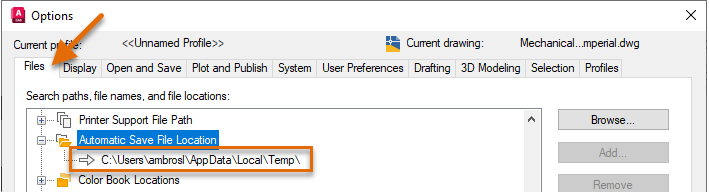
The autosave files follow a naming pattern that includes your original file name, an underscore, some random characters, and the.sv$ extension. For example,floor_plan_1_2_3456.sv$.
AutoCAD Temp File Recovery in 3 Ways
When AutoCAD crashes, you've got several ways to get your work back. Let's run through them from simplest to most advanced.
Way 1. Recover Unsaved Drawings from Backup Files (.bak)
Since backup files are saved in the same folder as your original drawing, recovering unsaved drawings from .bak file is often the quickest method.
1. Navigate to the folder where your drawing was stored.
2. Find the file with the same name but a .bak extension.
3. Copy the .bak file and paste it in the same location.
4. Rename the copied file from .bak to .dwg.
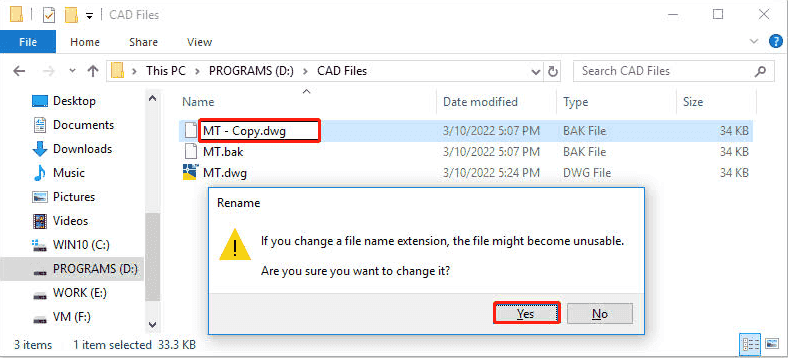
5. Open it in AutoCAD.
Way 2. Recover AutoCAD Drawings from .sv$ file
If the backup didn't work, look for the autosave file(.sv$).
1. Open the Temp folder by typing %TEMP% in the Start menu.
2. Make sure you can see file extensions. In File Explorer, go to View > Show > File name extensions.
3. Look for a file with a name matching your drawing and a .sv$ extension.
4. Copy the file, rename the copy from .sv$ to .dwg, and open it.
Way 3. Use the Drawing Recovery Manager
The Drawing Recovery Manager is a built-in tool that automatically shows up after a crash. It displays all the recovery files related to drawings that were open when AutoCAD went down.
When you launch AutoCAD after a crash, the Recovery Manager palette appears on the left side of your screen. You can also open it manually by typing DRAWINGRECOVERY in the command line.

Simply double-click any file in the Recovery Manager to open it. If you're opening a .sv$ or .bak file, AutoCAD will prompt you to rename it.
Once your recovered file is open, save it immediately under a new name.
Recover Permanently Deleted AutoCAD Files with MyRecover
What if you can't find any temp files because the original file was deleted or the autosaves were cleaned up? That's where data recovery software like MyRecover comes in handy.
MyRecover scans your hard drive sector by sector to find recoverable data, even if it's been deleted or lost. It supports over 1,000 file formats, including DWG files.
MyRecover offers key advantages when you need to recover lost or deleted AutoCAD files.
- Saves the Original DWG, Not Just a Temp Copy. Except for the AutoCAD temp files, MyRecover can locate the original saved .dwg file itself, preserving your most recent saved version.
- Direct DWG Preview Before Recovery. MyRecover supports direct preview of .dwg files, so you can confirm you're recovering the right drawing before committing.
- Works on Corrupted Drives. MyRecover can scan and recover files from corrupted drives, a RAW drive, or a damaged file system.
- Support 1000+ file formats and 500+ Devices. You can recover any file from any storage device in simple clicks.
Here's how to recover permanently deleted AutoCAD files with MyRecover:
1. Download and install MyRecover on a different drive than the one you're scanning to avoid overwriting data.
 100% Secure
2. Launch the software, tap Deleted Data Recovery, select the drive where your AutoCAD files were stored, and hit Scan.
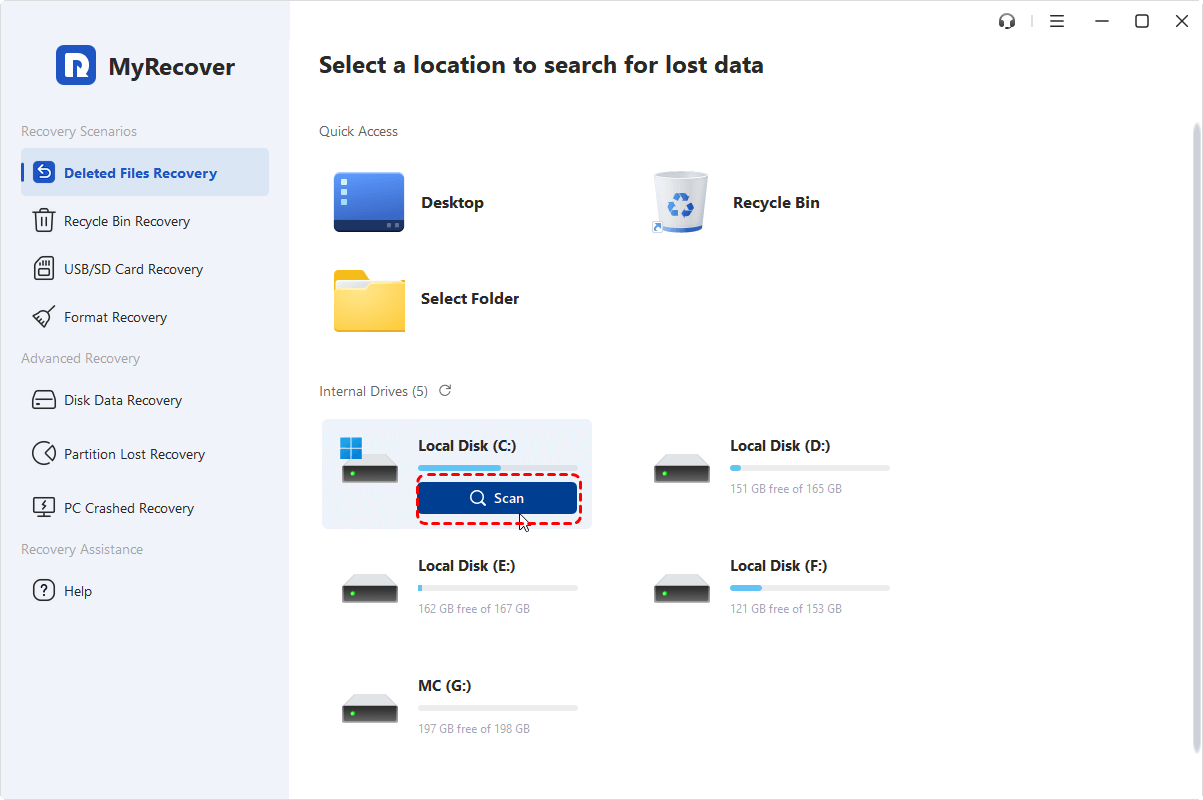
3. After the scan completes, browse the results. You can filter by file type (look for DWG, BAK, or SV$ files) or search by filename, file size, or modified date, etc.
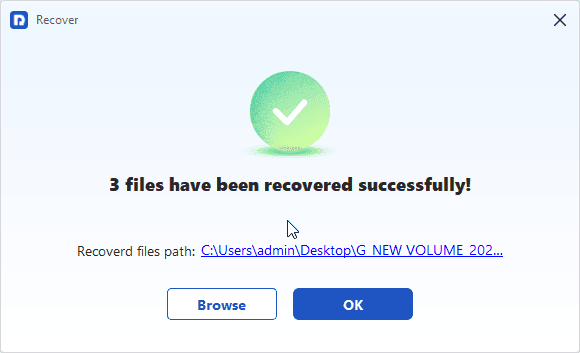
4. Preview and select the files you need, and press "Recover".
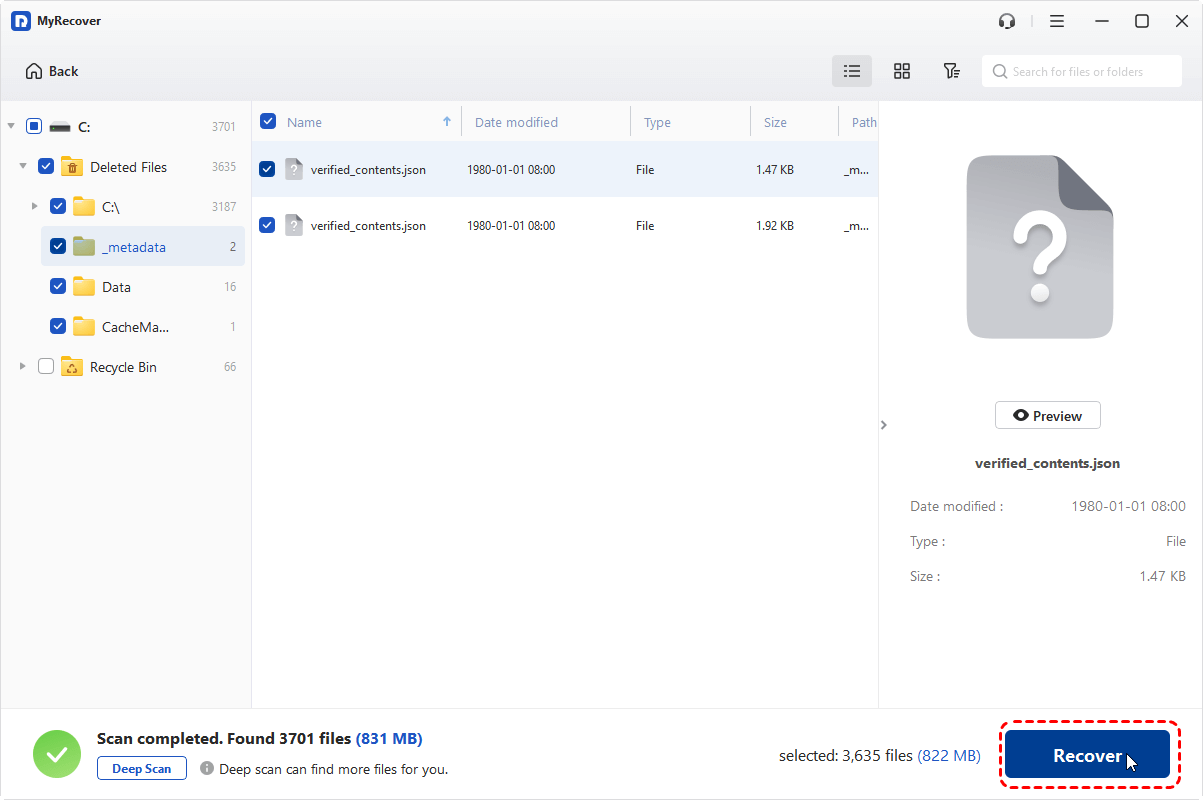
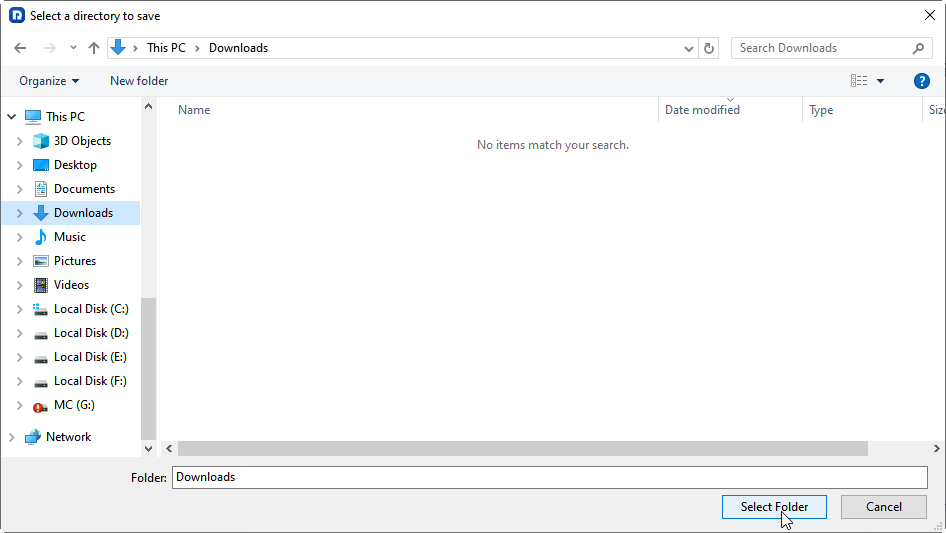
5. Choose a safe location to save them, and hit Select Folder to start recovering.
- Notes:✎...
- You can also recover the AutoCAD temp files using MyRecovers instead of recovering the .dwg file, according to your demands.
- You can recover unlimited files after upgrading to MyRecover Technician.
- Besides, MyRecover allows you to recover files from a crashed computer, a write-protected disk, a corrupted SD card, etc.

 MyRecover
- Recover Deleted Files Easily with Simple Clicks
- 1000+ File Formats Supported
- Support HDD, SSD, External Hard Drive, USB Drive, SD Card, etc.
- Quickly Find Files Using File Types, Name, Size, etc.
- Preview Files Before Recovering
- Recover Unlimited Data
 100% Secure
Best Practices to Prevent AutoCAD File Loss
Let's be honest: the best recovery is the one you never have to do. Here's how to protect yourself going forward:
- Enable autosave and keep backups on. The default 10-minute interval is good, but you can adjust it based on how often you're willing to redo work.
- Save regularly. The more often you manually save, the more recent your.bak file will be.
- Use a consistent file organization system. Keep all project files in one place to avoid hunting for them later.
- Consider changing your autosave location to a folder that gets backed up regularly, like a network drive. Just be aware that this can slow down autosave performance.
- Always eject external drives properly to prevent file system corruption that could wipe out your work.
FAQs About AutoCAD Temp File Recovery
How do I open an AutoCAD temporary file?
To open a temporary file, locate the.sv$ autosave file in your Temp folder, copy it, rename the copy to have a.dwg extension, and then open it in AutoCAD.
Where are AutoCAD autosave files stored on Windows 10?
The default AutoCAD temp file location Windows 10 uses is C:\Users\[YourUsername]\AppData\Local\Temp. You can quickly navigate there by typing %TEMP% in the Start menu or File Explorer address bar.
Can I recover an AutoCAD file that was never saved?
Yes, as long as AutoCAD's autosave feature was enabled. After a crash, the Drawing Recovery Manager will usually open automatically. You can also manually navigate to the Temp folder and look for.sv$ files that match your drawing's name.
What's the difference between .bak and .sv$ files in AutoCAD?
A.bak file is created when you manually save your drawing and contains the previous version of that file. A.sv$ file is created automatically at regular intervals while you're working, regardless of whether you've saved.
Why can't I see file extensions in my Temp folder?
Windows hides file extensions for known file types by default. To see them, open File Explorer, go to the View tab, and check File name extensions.
How do I change the AutoCAD autosave location?
Go to Tools > Options > Files tab, expand Automatic Save File Location, and modify the path to your preferred folder.
What should I do if my recovered file won't open?
Try using the RECOVER command. Type RECOVER in the AutoCAD command line, select the problematic file, and AutoCAD will attempt to repair it. You can also try AUDIT to fix errors in a file that opens but has problems.

Stay Updated With Our
Latest Tips
Add us as a preferred source on Google to never miss helpful guides.
 Add as preferred source >>