 MyRecover



[Solved]: BitLocker System Cannot Find the File Specified
The 'BitLocker System Cannot Find the File Specified' error is a common issue that prevents users from accessing their encrypted drives in Windows 10 and 11. By following this article, you'll be able to address the issue and get your encrypted drive working again without losing any data.

By Aria / Updated on May 19, 2026


System Cannot Find the File Specified
Does anyone having issue on Standalone Server using BitLocker? I am having issue indicating on C: Drive when trying to Bit-Locking. When using the powershell command to turn on Bit-Locker it is showing 0x80070002 ("The system cannot find the file specified"). Anyone know how to resolve?
- Question from Khare
When you get the message "The System Cannot Find the File Specified," you're likely facing an issue during the activation or decryption of your BitLocker-encrypted drive. BitLocker is a disk encryption tool in Windows that ensures the security of your data by locking your drive with a password or encryption key. This error typically occurs when the system is unable to access a critical file required to unlock or initialize the BitLocker process.
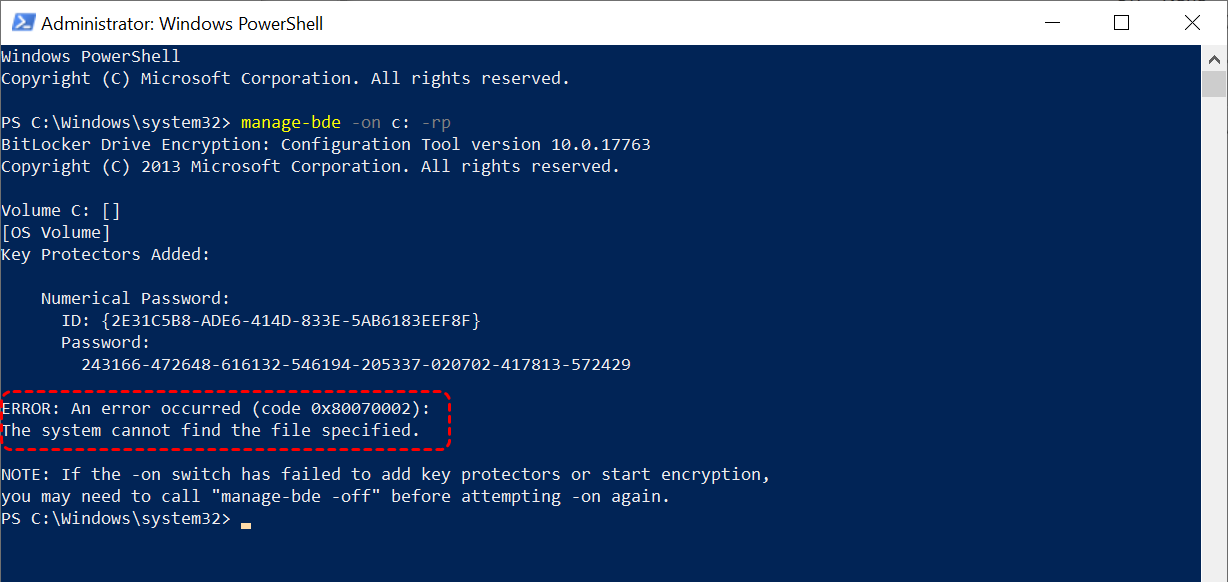
Along with it, you may also encounter the error code 0X80070002. The "System Cannot Find the File Specified" error can arise in several situations, such as during the system startup, when trying to recover a locked drive, or when attempting to activate BitLocker on an already encrypted disk. This can prevent you from accessing your files or completing the encryption process, potentially causing delays and access issues.
Common Causes of the BitLocker "System Cannot Find the File Specified" Error
When encountering the "System Cannot Find the File Specified" error while using BitLocker, it's important to understand the underlying causes. Several issues can trigger this error and below are some of the most common reasons for this error:
📂 Missing System Files or Corrupted System Files: If essential system files are missing or corrupted, BitLocker may fail to initialize or decrypt the drive. This often happens if the system is not able to locate files critical for encryption or recovery.
🔒 Improper BitLocker Initialization: Sometimes, BitLocker may not be properly initialized, especially if there’s a misconfiguration during the activation or decryption process. This can result in the system not finding the files needed for the encryption process.
🗂️ File System Errors: A damaged file system can prevent BitLocker from accessing required files. This can happen after improper shutdowns, power outages, or drive errors.
💽 Faulty Disk Configuration or Partition Issues: Incorrect partitioning or disk configuration can cause BitLocker to be unable to access necessary files. This issue is common when the disk has been modified, or a new drive is introduced into the system.
🔑 Missing or Inaccessible Recovery Key: BitLocker requires access to the encryption recovery key for certain processes. If this key is missing or improperly stored, you might encounter this error while attempting to recover or decrypt the drive.
How to Fix the BitLocker "System Cannot Find the Files Specified" Error on Windows 10/11
In this section, we will walk you through practical solutions to resolve this issue, including how to use Command Prompt, repair system files, and address any configuration or disk errors that may be causing the problem. By following these steps, you'll be able to unlock your drive and restore access without losing your data.
Fix 1. Start the BitLocker Encryption Service
BitLocker relies on several services to function correctly. If the necessary services are not running, you may encounter errors like "System Cannot Find the File Specified." Starting or restarting the BitLocker service can help resolve this error.
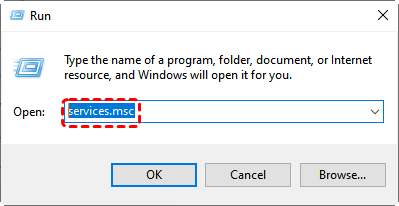
Step 1. Press "Win" + "R", type "services.msc" in the Run dialog, and hit "Enter" to open the Services window.
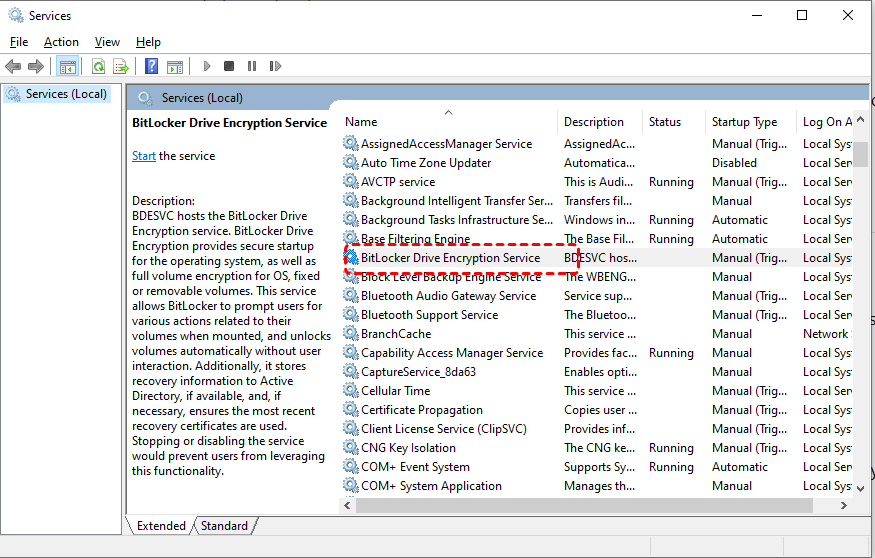
Step 2. Scroll down to "BitLocker Drive Encryption Service" and double-click it.
Step 3. In the "Startup type" dropdown, select "Automatic" if it’s not already set.
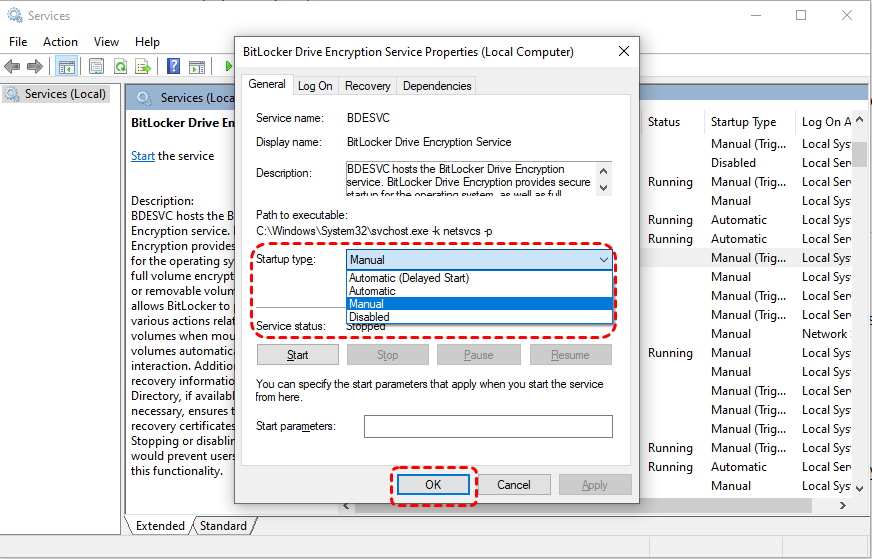
Step 4. Click "Start" if the service is not running, and then click "OK."
Fix 2. Reset REAgent.xml
When initializing encryption, BitLocker needs to interact with Windows RE. If the existing ReAgent.xml file is corrupted, misconfigured, or incompatible with the upcoming BitLocker operation, the encryption process will be interrupted and trigger the error "The system cannot find the file specified". Resetting it can help resolve the error.
Step 1. Open File Explorer and go to C:\Windows\System32\Recovery\ReAgent.xml.
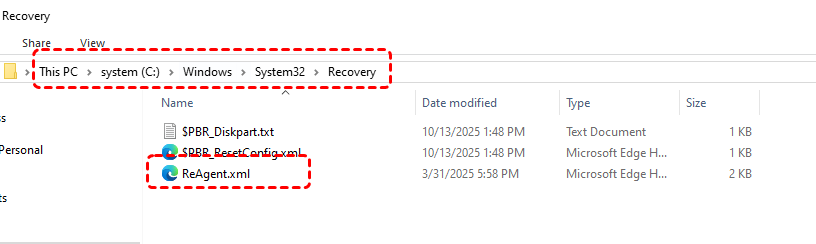
Step 2. Right click on it and choose "Rename" to rename it as ReAgent.old.
Step 3. Restart your computer and re-try the BitLocker encryption process to check if the error is resolved.
Fix 3. Re-Enable Windows Recovery Environment (WinRE)
If the Windows Recovery Environment (WinRE) image is not found, BitLocker may fail to work properly. Enabling WinRE can solve related issues.
Step 1. Locate Command Prompt in the Start menu and right click on it, then choose "Run as administrator".

Step 2. Enter the following command and press "Enter" after each one:
- reagentc /disable: to disable the current Recovery Environment
- reagentc /setreimage /path C:\Recovery\WindowsRE: link to correct recovery image path (Replace the drive letter C: with your actual system drive letter)
- reagentc /enable: re-enable the Recovery Environment
- reagentc /info: verify the configuration
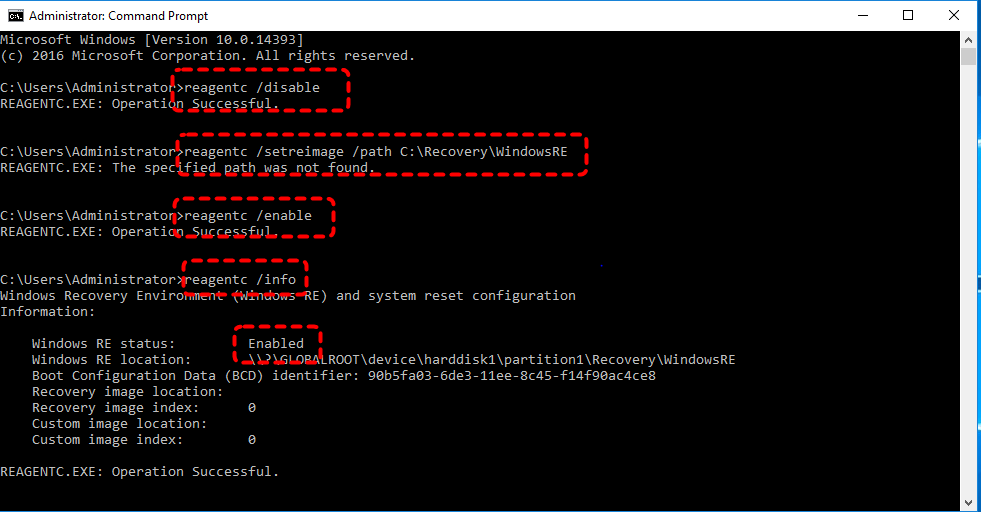
When you see the "Windows RE Status: Enabled", close Command Prompt and restart your computer to check if the "BitLocker system cannot find the file specified" error continues.
Fix 4. Run the SFC and DISM Command to Fix System Files
Corrupted system files can also trigger the "System Cannot Find the File Specified" error. Running the System File Checker (SFC) command and DISM command will scan for and repair any corrupted or missing system files.
Step 1. Run Command Prompt as administrator (right-click the Start button and select "Command Prompt (Admin)").
Step 2. Type "DISM /Online /Cleanup-Image /RestoreHealth" and press "Enter".
Step 3. Enter the command "sfc /scannow" to scan and fix corrupted or missing system files.

Step 3. Wait for the scan to complete. If any issues are detected, SFC will attempt to fix them.
Step 4. Restart your PC after the process finishes.
Fix 5. Check Disk for Errors
File system errors can prevent BitLocker from accessing necessary files and cause the "System cannot find the file specified" error. Running a disk check can help resolve these errors and fix the BitLocker activation issue.
Step 1. Open Command Prompt as Administrator.
Step 2. Type "chkdsk C: /f /r" and press "Enter" (replace "C:" with your actual drive letter if different).
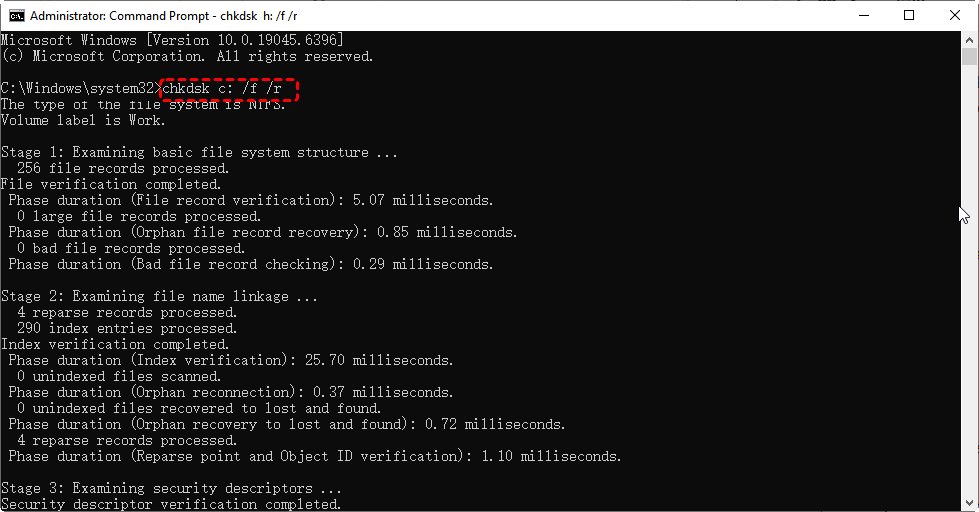
Step 3. Allow the disk check to complete. If the tool finds any issues, it will attempt to fix them.
Step 4. Restart your computer and check if the error persists.
6. Delete the Registry Key Related to BitLocker
A corrupted registry key can cause the error to appear during the BitLocker activation process. Deleting the faulty registry key may help restore proper function. Modifying the registry involves certain risks. It is recommended to back up the registry before making any changes.
Step 1. Press "Win" + "R", type "regedit" in the Run dialog, and press "Enter" to open the Registry Editor.
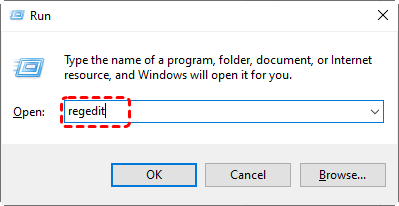
Step 2. Navigate to the following path:
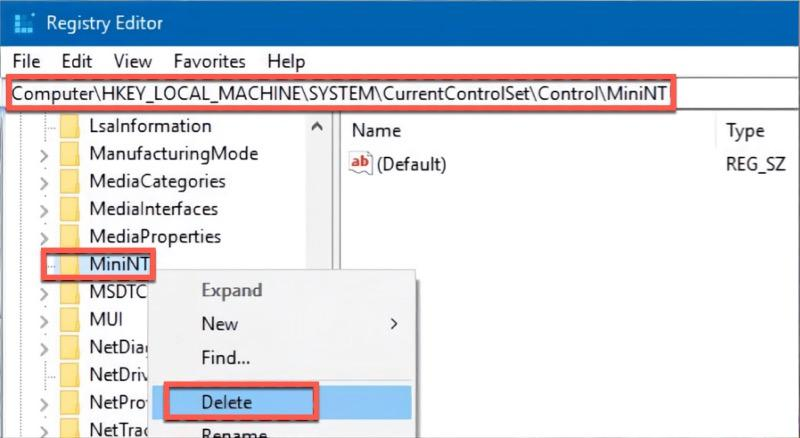
Computer\HKEY_LOCAL_MACHINE\SYSTEM\CurrentControlSet\Control
Step 3. Check if there is a key "MiniNT", right click the on it and select "Delete."
Step 4. Restart your computer and check if the issue is resolved.
Extra Tips: How to Recover Files from the Encrypted or Decrypted Drive
If you've encountered the "System Cannot Find the File Specified" error during BitLocker encryption or decryption, there's a possibility that some files might become inaccessible due to the encryption process or file system corruption. In such cases, it’s crucial to ensure that your data remains safe and recoverable.
To recover your valuable files from an encrypted or decrypted drive, MyRecover offers a reliable and efficient solution. It’s designed to work even with damaged or encrypted drives, providing an easy-to-use interface for retrieving lost data without risking further damage.

 MyRecover
- Recover deleted & lost files from HDD, SSD, USB, SD card, camera as you need.
- Support 1000+ formats of photos, videos, docs, archives, emails, compressed files, etc.
- Reliable rescue for deletion, formatted disk, emptied Recycle Bin, system crashes and more.
 100% Secure
Step 1. Download and install MyRecover on your computer from Microsoft Store or its official website.
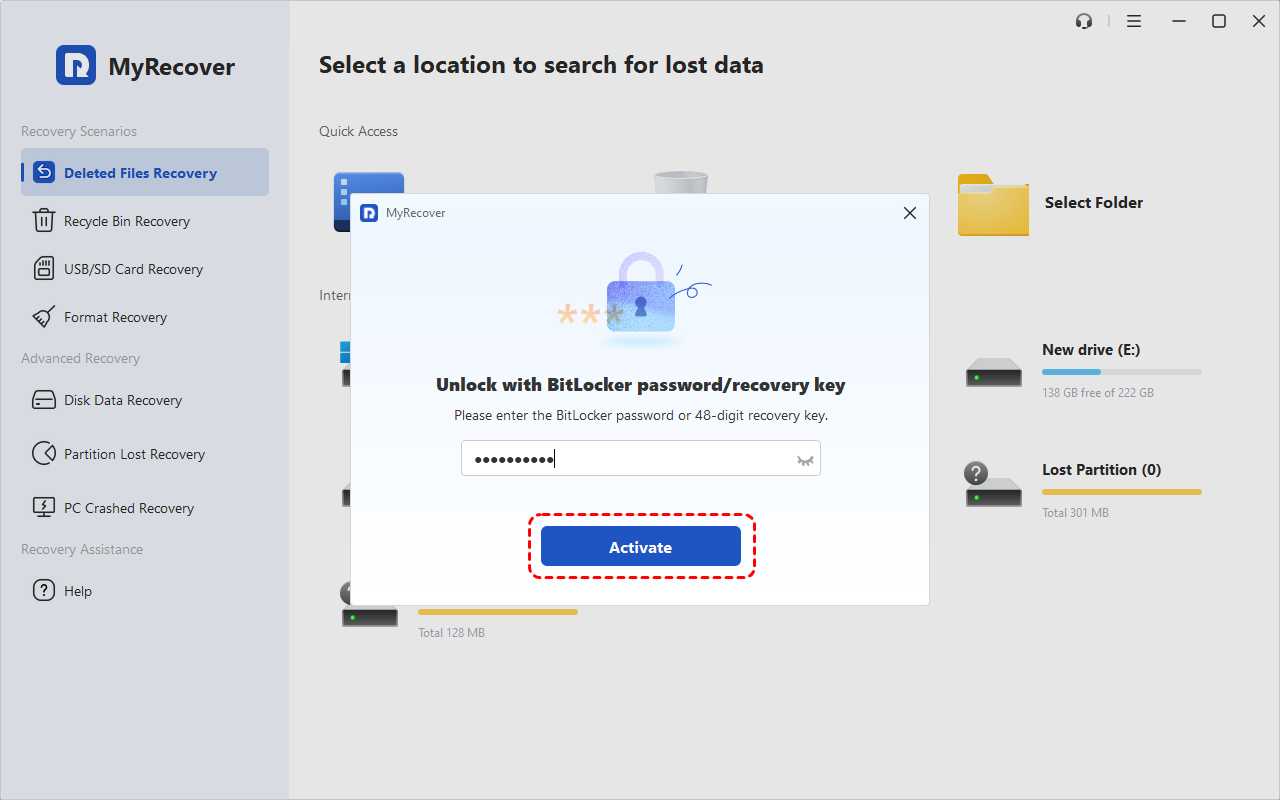
Step 2. Run the program and select the drive with lost files to scan, then click "Scan" to search for recoverable files. If your drive is encrypted, enter your password or recovery key to unlock it before scanning.
Step 3. Browse the results and choose the files you wish to recover from the list, then click "Recover". You can preview the file content to verify if it's the one you want.

Step 4. Choose a destination directory to save the recovered files to avoid overwriting original data.

Once the process is done, you can access the recovered files by clicking on the "Browse" button or the destination folder path.
The End
The "BitLocker System Cannot Find the File Specified" error can be frustrating, especially when it prevents you from accessing or activating BitLocker encryption on your drive. With the right troubleshooting solutions we've explored, you can resolve the issue and get your drive back to normal.
In cases where files may be inaccessible due to encryption or corruption, MyRecover offers a reliable recovery tool to retrieve lost data from encrypted or corrupted drives. Whether you are dealing with BitLocker-related issues or other types of file loss, MyRecover ensures a smooth and secure recovery experience.
FAQs
Q1: How to fix BitLocker system cannot find the file?
To fix the "system cannot find the file" error with BitLocker, try restarting the BitLocker encryption service, resetting the REAgent.xml file, or enabling Windows Recovery Environment (WinRE). Additionally, you can run system checks using the SFC and DISM commands to repair corrupted system files.
Q2: Why is BitLocker saying system cannot find file?
BitLocker may show the "system cannot find the file" error due to corrupted system files, missing BitLocker configuration files, improper initialization, or issues with Windows Recovery Environment. It can also occur if the disk or partition is misconfigured or the recovery key is missing.
Q3: How to unlock drive when BitLocker cannot find file?
To unlock a drive when BitLocker can't find the file, try restarting BitLocker services, resetting the REAgent.xml file, and enabling the Windows Recovery Environment. Running disk checks (CHKDSK) and repairing system files (SFC, DISM) can also help resolve the issue.
Q4: How to recover data from BitLocker file not found?
If BitLocker can't find the file and data is inaccessible, you can attempt data recovery using specialized software like MyRecover. This tool can recover files from encrypted or corrupted drives without compromising data integrity. Make sure to back up your recovery key to avoid future issues.

Stay Updated With Our
Latest Tips
Add us as a preferred source on Google to never miss helpful guides.
 Add as preferred source >>