 MyRecover



Cannot Delete a Protected Partition? 2 Effective Fix Solutions
Many Windows users encounter the frustrating issue where they cannot delete a protected partition, often due to system, recovery, or EFI partitions that are locked by default. This guide offers actionable techniques to address the 'cannot delete a protected partition without the force protected parameter' problem while maintaining system stability and data security.

By Aria / Updated on September 16, 2026


Introduction
When managing your computer’s hard drive using Disk Management, you might occasionally run into a stubborn issue: a partition that you simply cannot delete. When you right-click on it, the "Delete Volume" option is greyed out, or Command Prompt throws an error saying that Cannot delete a protected partition without the force protected parameter set.
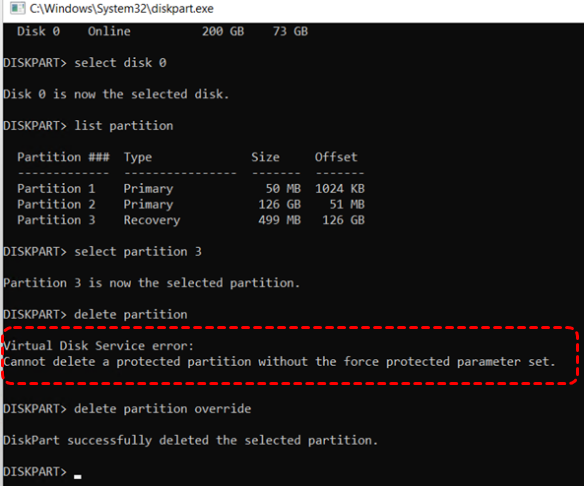
Whether it is an EFI system partition, a recovery partition, or an OEM manufacturing partition, these areas are shielded by Windows to prevent accidental data loss and protect system stability. However, when you need to reallocate disk space, clean up an old drive, or combine partitions, this security feature becomes an obstacle.
If you are struggling with the "Cannot delete a protected partition" error, don't worry. This guide will explain why Windows locks these partitions and show you effective, step-by-step solutions to remove them and reclaim your disk space.
The Possible Reasons of "Cannot Delete a Protected Partition" Error
Windows safeguards certain partitions to ensure your computer boots up and functions correctly. Understanding why a partition is protected is the first step toward unlocking it. Here are the most common causes:
System and Boot Partitions: Partitions containing critical files required to load the operating system (such as the EFI system partition or the System Reserved partition) are heavily locked. Windows will restrict deletion to prevent your computer from becoming unbootable.
Recovery Partitions: Built by the manufacturer (OEM) or Windows itself, recovery partitions hold system backup images used to restore your PC in an emergency. Because they are vital for system rescue, Disk Management natively blocks their deletion.
Operating System Protection Mechanism: Windows Disk Management is a GUI tool designed with safeguards for average users. It automatically greys out deletion options for any volume marked with system attributes (System, Active, or hidden OEM attributes) to prevent accidental mishaps.
Pagefile or Hibernation File Storage: If the partition hosts active system virtual memory (pagefile.sys) or hibernation files (hiberfil.sys), Windows will flag the partition as currently in use and protect it from modification.
Should You Delete a Protected Partition?
Windows may prevent you from deleting certain partitions because they are used for system booting, recovery, or other disk management functions. The exact reason depends on the type of partition you are trying to remove. Before trying to force-delete a protected partition, check its type and make sure you understand what it is used for. If you only want to make an existing partition visible or accessible, deleting it may not be necessary.
|
Partition Type |
What It Usually Contains |
Should You Delete It? |
|
EFI System Partition |
Windows boot files |
❌Usually no |
|
Recovery Partition |
Windows or manufacturer recovery tools |
❌Usually not recommended |
|
OEM Partition |
Manufacturer-specific recovery data |
Depends on your needs |
|
MSR Partition |
Reserved space for GPT disks |
❌Usually no |
|
Data Partition |
Personal files and other user data |
✅Usually yes, after backup data |
How to Fix "Cannot Delete a Protected Partition" Error on Windows 10/11
Since the built-in Windows Disk Management tool cannot bypass these system protections, we need to utilize more advanced methods to fix the "Cannot delete a protected partition" error. Below are the two most reliable ways to force-delete a protected partition.
Method 1: Delete Partition Override Command (Via DiskPart)
DiskPart is a powerful command-line utility built into Windows that allows for deeper disk configuration. By applying the override parameter, Windows will ignore the standard protection flags and force-delete the partition. Follow these steps to repartition the protected system:
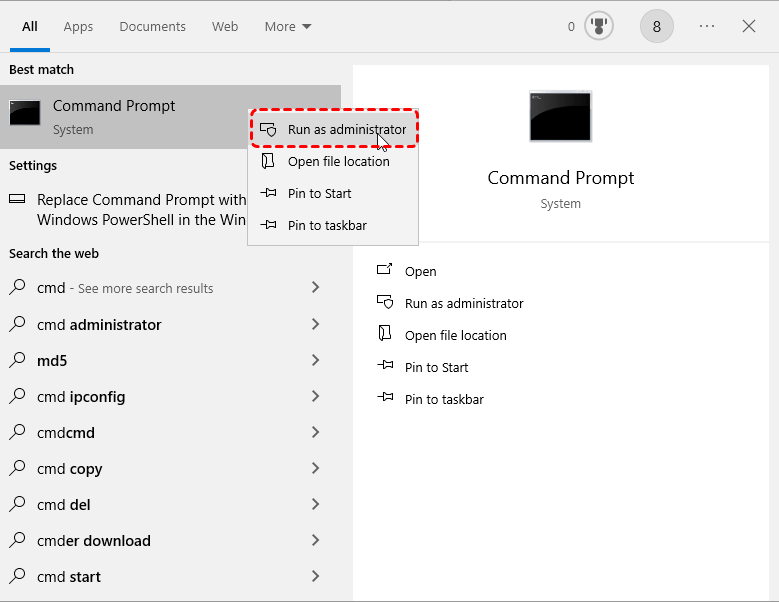
Step 1. Type Command Prompt in the Start menu and right click on it, then choose "Run as administrator".
Step 2. In the Command Prompt window, execute the following command one by one and press "Enter" after each one:
- diskpart
- list disk: This will display all connected hard drives.
- select disk X: Replace X with the disk number containing the protected partition.
- list partition: This will show all partitions on the selected disk.
- select partition Y: Replace Y with the number of the protected partition you want to delete.
- delete partition override: This parameter forces Windows to wipe out the protected status.
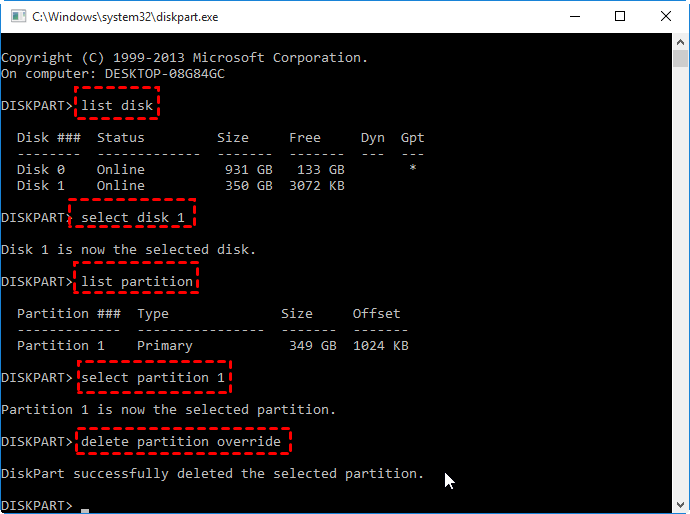
Step 3. Once you see the message stating "DiskPart successfully deleted the selected partition," type "exit" and press "Enter" to close the window. You can now open Disk Management to utilize the newly unallocated space.
- Notes:✎...
- These commands bypasses DiskPart's normal protection for the selected partition, so make sure you have selected the correct disk and partition before running it. If the partition contains important files or you are unsure whether it is still required, back up or recover the data first.
- Before deleting an EFI or boot partition, prepare a bootable recovery or installation drive. Removing a partition required for Windows startup can leave the PC unable to boot.
Method 2: Delete a Protected Partition with AOMEI Partition Assistant
If you find the command-line interface confusing or are worried about typing the wrong disk number and losing data, AOMEI Partition Assistant provides another way to delete a protected partition. After selecting the target partition, you can use its partition management functions to remove it without entering command-line instructions.
Step 1. Download and and launch AOMEI Partition Assistant on your Windows PC.
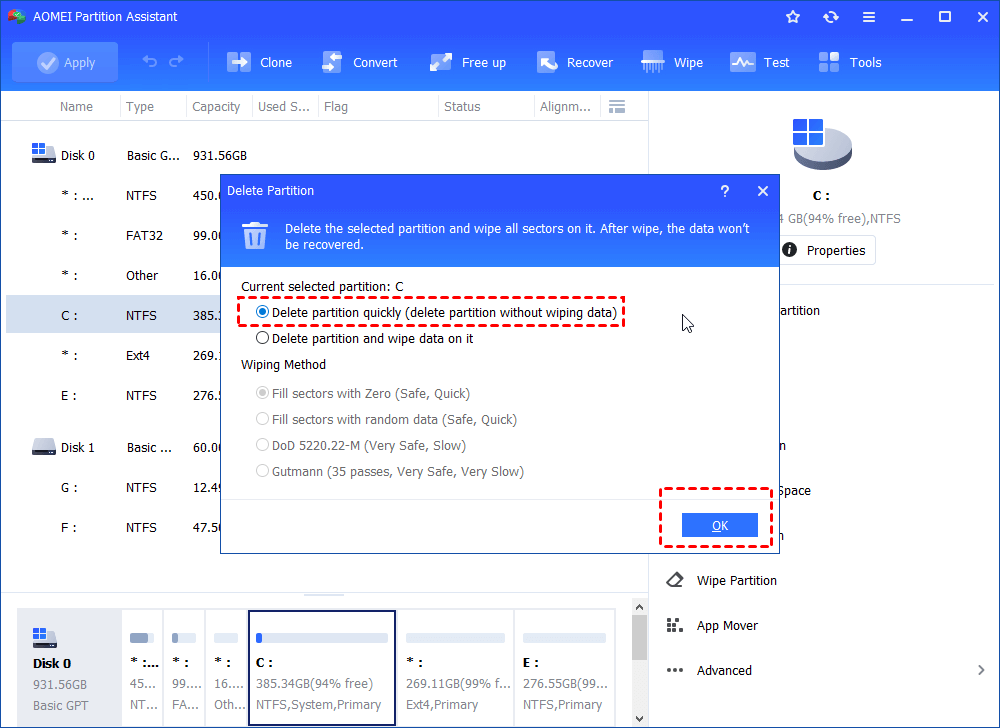
Step 2. On the home interface, find the hard drive and locate the protected partition you want to remove. Right-click on it and choose "Delete Partition".
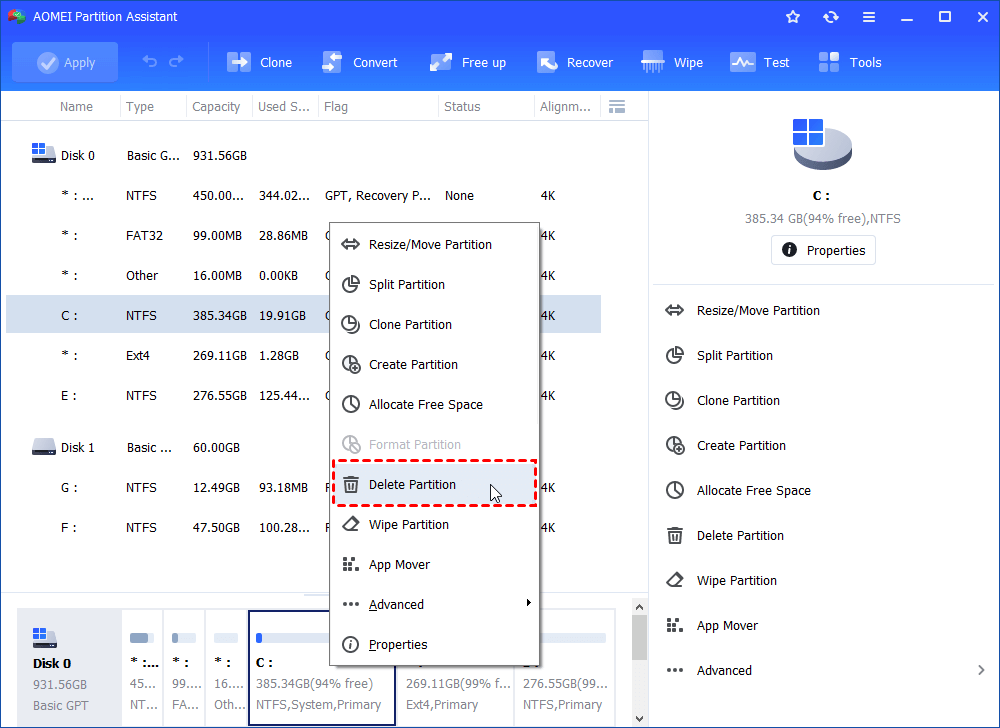
Step 3. Select a deletion method according to your preferences (e.g., "Delete partition quickly") and click "OK".
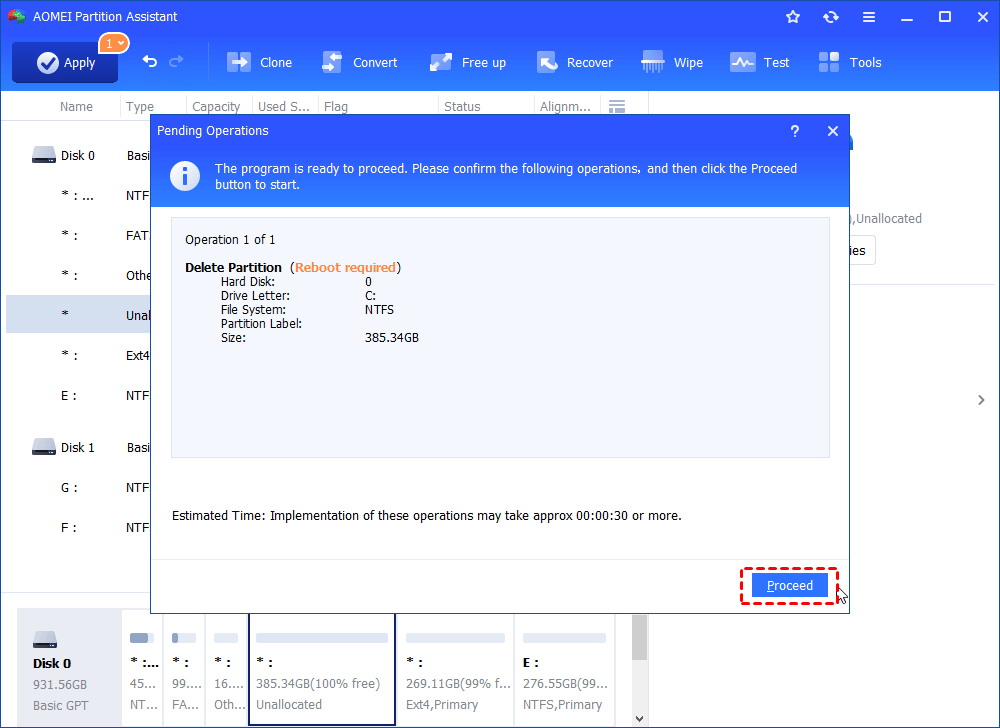
Step 4. Go back to the main interface, review the pending operations, and click "Apply" in the top-left corner followed by "Proceed" to execute the deletion.
How to Recover Deleted Data and Partitions Using MyRecover
Deleting a protected partition removes its partition entry from the disk's partition layout, which can make the partition and its files inaccessible. The data and partition may still be recoverable if it has not been overwritten.
If you deleted the wrong partition, stop using the affected disk and avoid formatting the unallocated space or creating a new simple volume. Writing new partition information or data to the disk may overwrite information that could otherwise be used for recovery.
If you accidentally selected the wrong partition number in Diskpart, or realized later that you needed important files stored inside that recovery volume, do not panic. You can easily get your files and partition back using MyRecover. It is a highly efficient and reliable Windows data recovery software designed to rescue the deleted, formatted, or lost partitions.
🔥 Key Features of MyRecover:
High Recovery Rate (99%) & Speed: Quickly scans your drive to find missing partitions and fragments of files.
Support for 1,000+ File Formats: Recovers documents (Word, Excel), photos, videos, audio, compressed files, and more.
Universal Compatibility: Works seamlessly with Windows 11/10/8/7/Servers and supports NTFS, FAT32, exFAT, and ReFS file systems.
Smart Scan Modes: Choose from Quick Scan for recent deletions or Deep Scan for formatted/corrupted drives.
Recover the Entire Deleted Partition
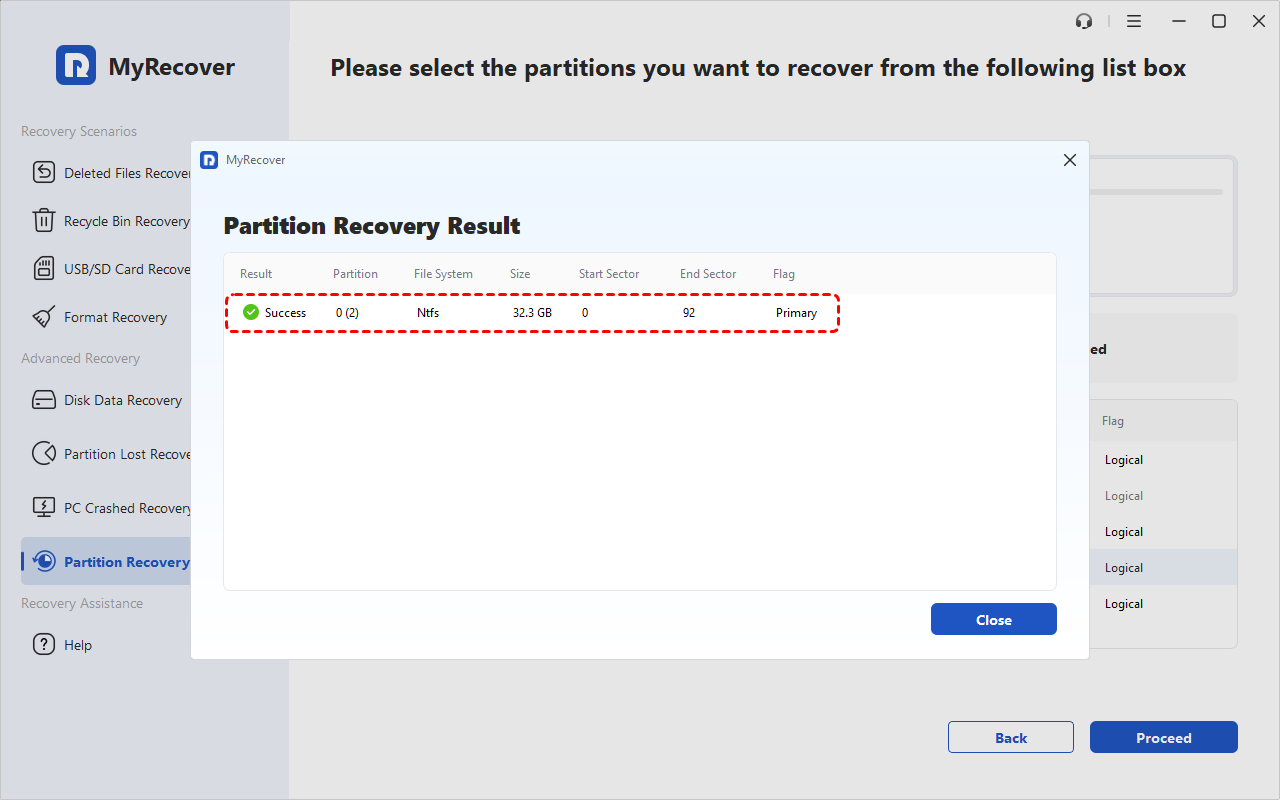
If you want to restore the deleted partition itself including files in the volume, try MyRecover's Partition Recovery feature first. It scans the affected disk for lost partition information and can restore the partition structure along with the data stored on the partition.
Step 1. Download and install MyRecover on your Windows supported computer from Microsoft Store.
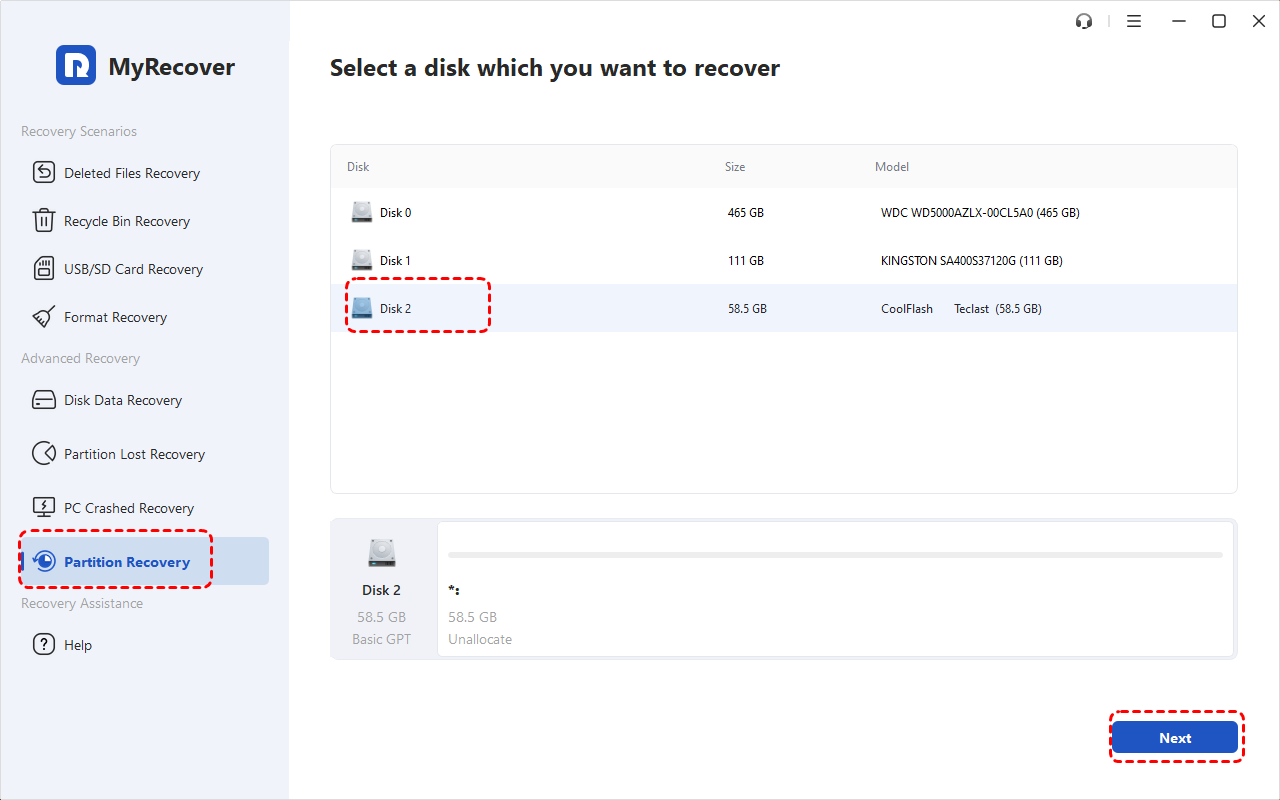
Step 2. Open the App and select "Partition Recovery", choose the disk you want to recover partition from, then click "Next".
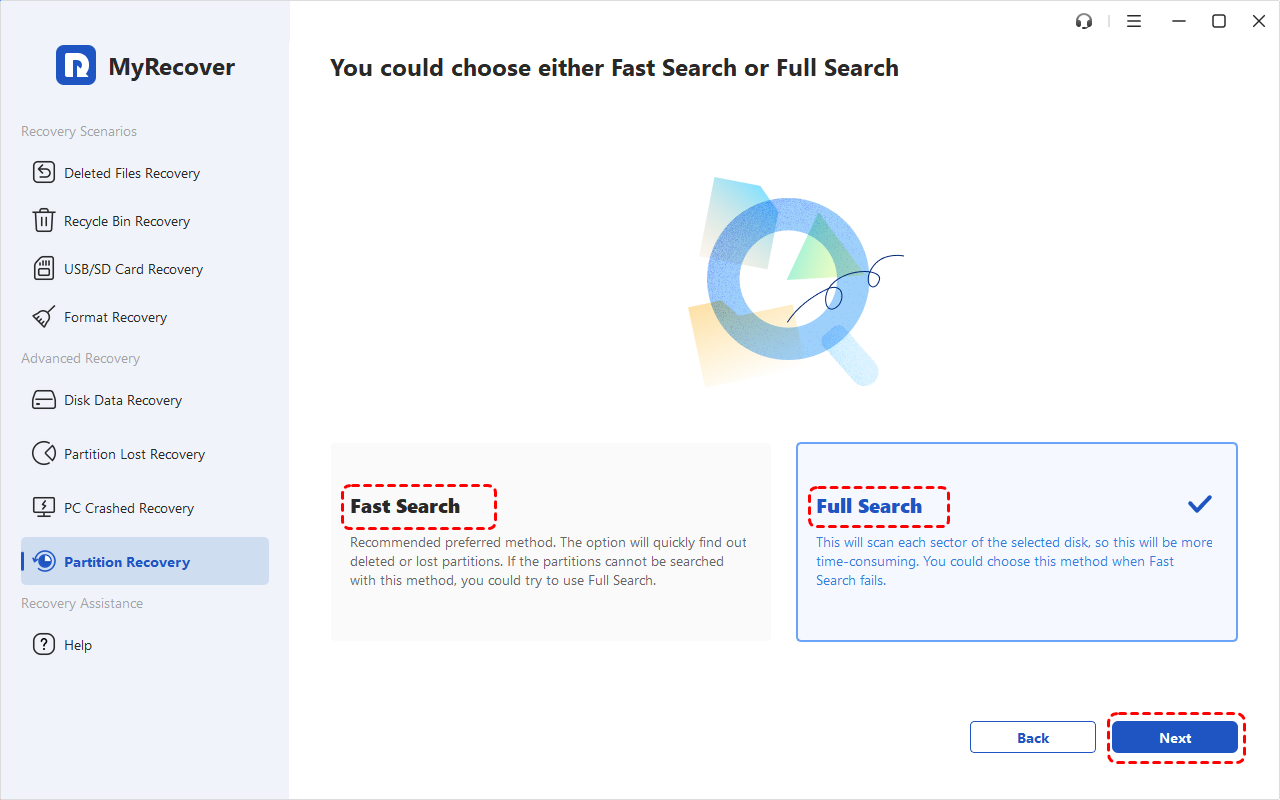
Step 3. Choose "Fast Search" or "Quick Search" to scan your disk, click "Next" to start the scanning process.
Step 4. When the search is completed, you can check the partitions you want to recover and click "Proceed". The deleted partition is now restored to its original state, just as it as before.
Recover Lost Data from the Deleted Partition
If the deleted partition cannot be restored as a whole, you can still use MyRecover to recover individual files from the lost partition. This allows you to retrieve important data without requiring the original partition structure to be restored.
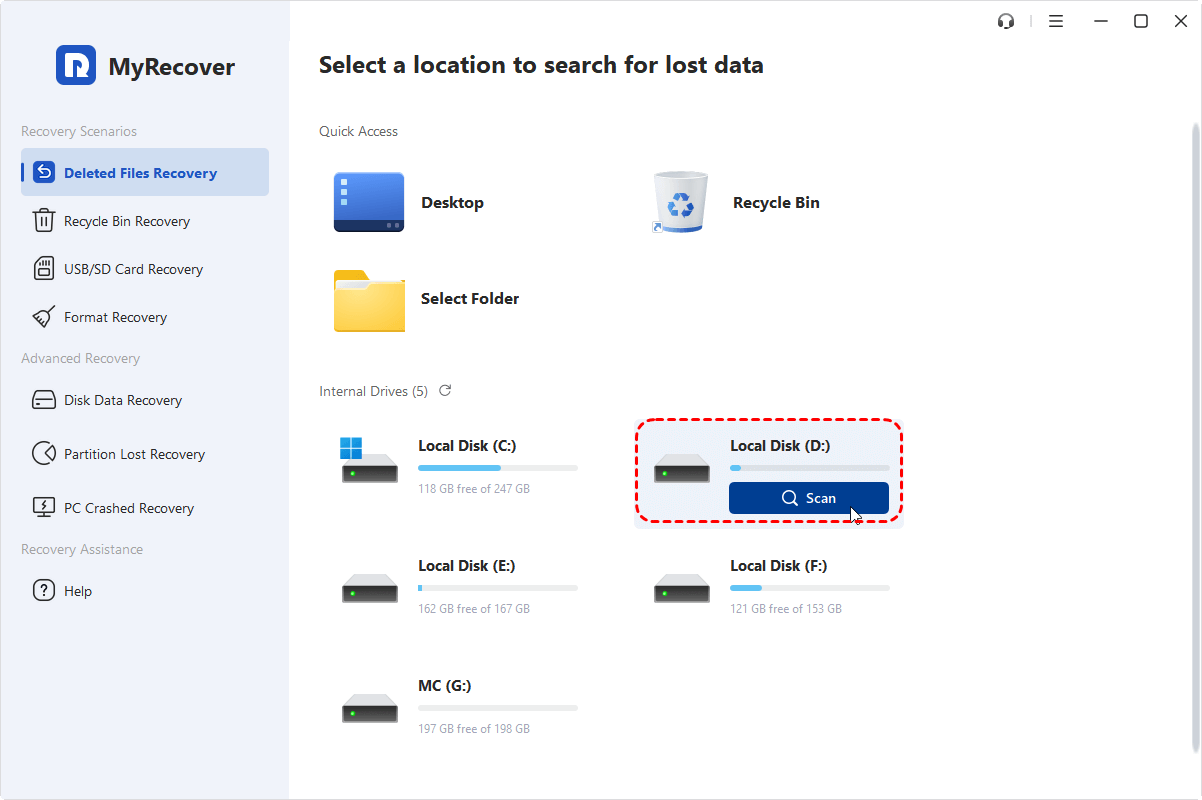
Step 1. Launch MyRecover and hover your mouse over the hard drive where the files were deleted, and click "Scan" to initiate search for lost data. For deleted partition, it will be show as "Lost Partition" in MyRecover. If needed, you can click "Deep Scan" after the quick scan completing to search more file fragments.
Step 3. You can use the "Filter" option or search bar in the top-right corner to locate specific files quickly once the scanning is finished.
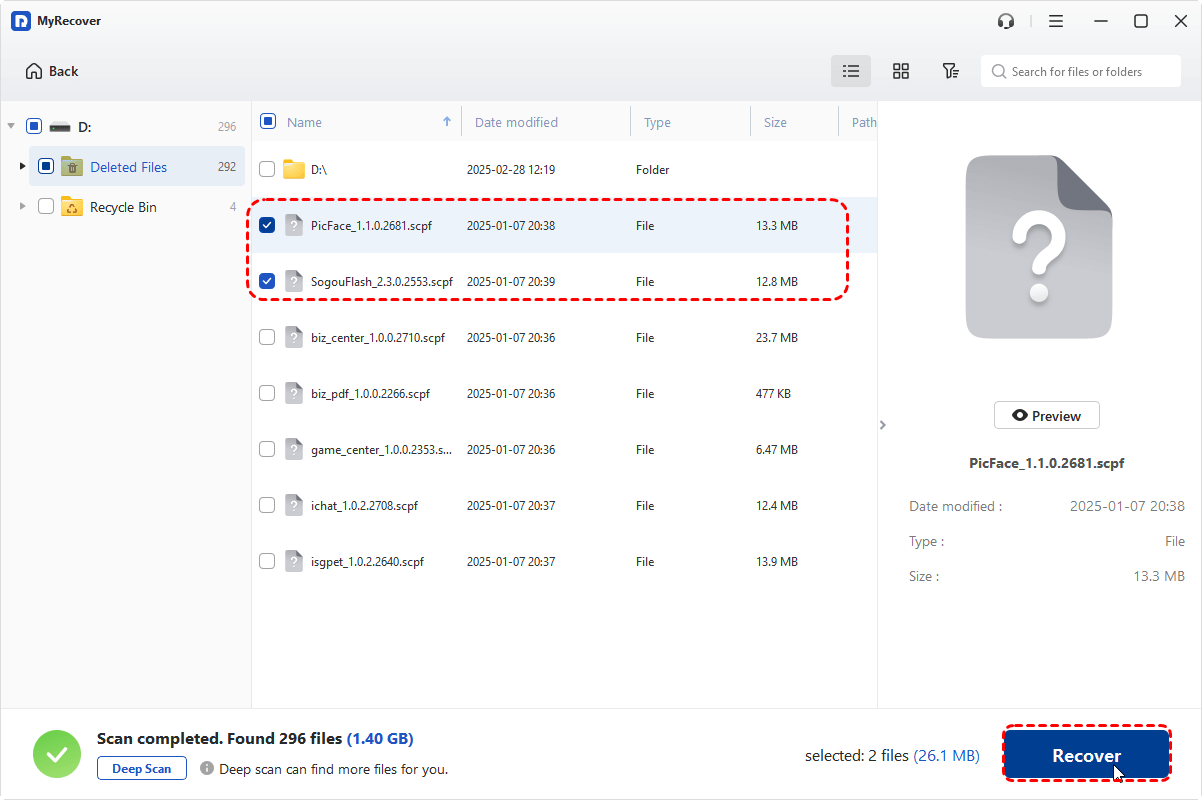
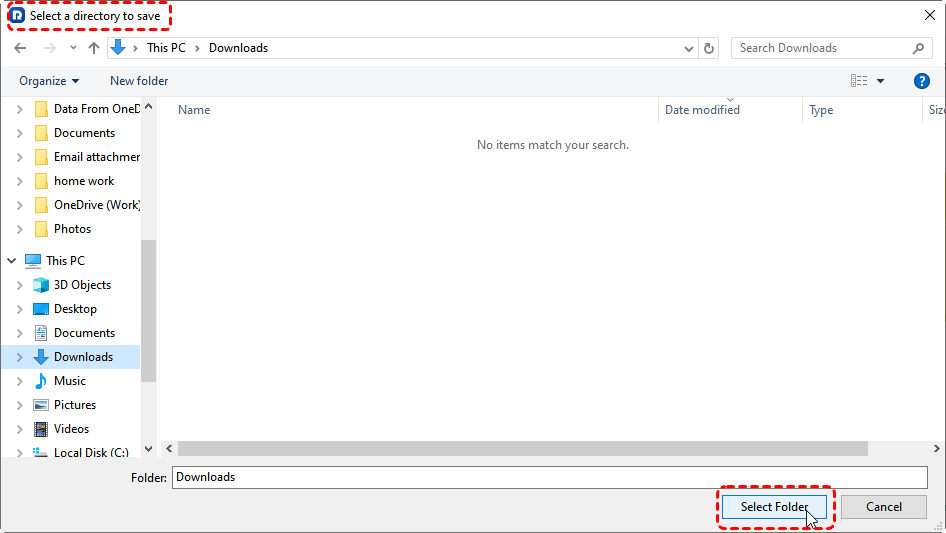
Step 4. Select the files or folders you want to restore. Click the "Recover" button and choose a new location (do not save them to the same hard drive to avoid overwriting data) to save the recovered files.
When the process is done, the message "Files have been recovered successfully" will pop up. Then, you can access the recovered files by clicking on the "Browse" button.
Summary
Deleting a protected partition can resolve certain partition-management issues, but removing an EFI or system partition may make Windows unbootable. Always confirm the partition’s purpose before deleting it.
If a partition has already been deleted or lost, MyRecover can recover files from it and, with Partition Recovery, restore the entire lost partition. For technicians and IT service providers handling multiple devices, MyRecover Technician Edition offers unlimited device activations under one license.
FAQs
Q1: How to force delete protected partition?
You can use Windows DiskPart to force delete a protected partition. Open Command Prompt as administrator, run diskpart, then use list disk, select disk X, list partition, and delete partition override. This bypasses protection flags, but it will permanently erase all data on the partition.
Q2: How to remove a protective partition?
To remove a protected partition, use Disk Management or DiskPart. If normal deletion fails, use delete partition override in DiskPart. Some OEM or system partitions may be locked and require bootable media or third-party tools. Always back up data before attempting removal, as the process is irreversible.
Q3: Is it possible to unpartition a hard drive?
Yes, but it means deleting all partitions and turning the drive into unallocated space. You can do this using Disk Management or DiskPart’s clean command. After that, you can recreate new partitions. However, all data will be lost unless recovered beforehand using MyRecover.
Q4: How to completely wipe a drive using DiskPart?
Open Command Prompt as admin, run diskpart, then use list disk, select disk X, and execute clean to remove all partitions. For deeper wipe, use clean all, which overwrites data. This permanently erases the drive and makes recovery much harder or impossible.
Q5: How to fix a corrupted hard disk partition?
You can try chkdsk /f /r to repair file system errors. Disk Management may also help assign a drive letter or format the partition. If corruption is severe or data is inaccessible, use a recovery tool like MyRecover to scan and restore files before repairing or formatting.
Q6: How to fix a USB drive that is write protected?
Check for a physical lock switch first. If none exists, use DiskPart: run diskpart, select the USB disk, then execute attributes disk clear readonly. You can also modify registry settings or format the drive. If data is important, recover it first using MyRecover before removing protection.
Q7: Will deleting a protected partition make Windows unbootable?
Yes, it can if the protected partition contains files required for Windows startup, such as an EFI or system partition. After deletion, the computer may fail to boot even if Windows itself remains intact. Before deleting any protected partition, identify its purpose and prepare bootable recovery or installation media if necessary.
Q8: Can I recover a protected partition after deleting it?
Yes, a deleted protected partition may be recoverable if its previous partition information and data have not been significantly overwritten. MyRecover can scan the lost partition to recover its files. With its Partition Recovery feature, users can also restore the lost partition itself, making the partition visible and accessible again.
Q9: What is the difference between delete partition and delete partition override?
Delete partition removes a partition through the normal Windows partition-management process. Delete partition override is a DiskPart command that bypasses certain protection restrictions and forces the selected partition to be deleted. The override option is useful when Windows blocks deletion, but it does not prevent data loss or make the operation safer.
Q10: Can I delete a protected partition without losing data?
Deleting a protected partition can make its data inaccessible, but the data may still remain on the drive. If it has not been overwritten by new data, you can use a data recovery tool such as MyRecover to recover the deleted partition and available files.

Stay Updated With Our
Latest Tips
Add us as a preferred source on Google to never miss helpful guides.
 Add as preferred source >>