 MyRecover



DiskPart Force Delete Partition -Wipe Any Protected Volume Now
Step-by-step tutorial to DiskPart force delete partition on GPT and MBR disks. Also master DiskPart delete volume force protected when Windows refuses to cooperate. Includes recovery tips and troubleshooting common permission errors.

By Delores / Updated on April 13, 2026


How to Force Delete a Partition Using DiskPart?
DiskPart Can't Delete Partition!
My boot drive stopped booting with a registry issue, and now I cannot wipe the drive from a fresh Windows image (on disk 1). I have tried to wipe the drive in many ways, and none of them work. I was able to read the data enough to get my data off, but I now have a "working drive" that I cannot touch. Is there a better way to wipe the drive, or is it dead and of the need for replacement? (The SSD is under warranty. I would just rather not deal with that)
This is what I get from DiskPart when I run delete partition.
Virtual Disk Service error: Cannot delete a protected partition without the force protected parameter set.
If I run the delete partition override command, it shows:
DiskPart has encountered an error: Incorrect function. See the System Event Log for more information.
- Question from reddit.com
If you are facing the same problem while using DiskPart to force delete a partition, don’t worry. We will show you the reasons why DiskPart can’t delete a partition, and how to make DiskPart delete volume force protected partition easily.
Why Diskpart Commands Fail to Delete a Protected Partition?
Windows aggressively locks down drives it considers important. A volume can be marked as "read-only" or "system", while a partition might carry a hidden flag that prevents deletion. You cannot simply bypass these restrictions. The regular delete partition command acts as a gentle request. The delete partition override in DiskPart can forcefully delete the partition under authorization.
If you need to delete a partition that is used by the Windows operating system, an OEM recovery partition, or an EFI system partition without force, Windows rejects the command outright. You must use the delete partition override parameters to instruct the system that you understand the risks and want to proceed.
Common Errors without Diskpart Force Delete Partition
Without using the override switch while using the DiskPart delete partition command, you will constantly run into these error messages:
- Virtual Disk Service error: Cannot delete a protected partition -This is the primary obstacle. It indicates the partition carries a flag, such as GPT attributes that prevent standard deletion.
- The operation is not allowed on a disk that is the system disk -You might be attempting to wipe the wrong drive, or Windows has become confused about which disk is active.
- DiskPart has encountered an error: Access is denied. Even with administrator privileges, sometimes the protection is so strict that you need specialized commands.
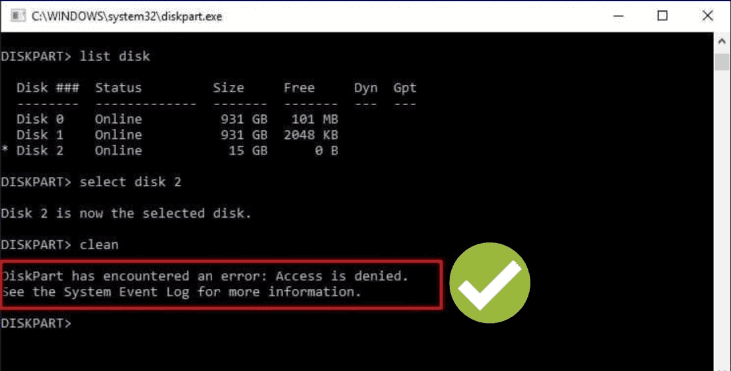
The only solution to this situation is to use advanced methods. That means using the override parameter or cleaning the disk entirely, which we will cover shortly.
Recover Important Files Before DiskPart Force Delete Partition Command
Before running DiskPart commands to delete the partition forcefully, it's wise to back up your important files. Because these commands: delete partition or delete partition override, destroy all data on the target partition. While the data might still be there physically, Windows sees it as an empty space that can be overwritten quickly.
Fortunately, MyRecover is a lifesaver in these situations.
- Deep Scan. It scans the raw drive and pulls out documents, photos, videos, and music—even if the partition table is corrupted.
- AI Fast Search. MyRecover uses AI algorithms to find your lost files quickly and keep the original filename and file path.
- 1,000+ File Formats. You can recover any file you need, like documents, Excel, PNG, JPEG, emails, archives, videos, audios, and many more.
- 500+ Devices. No matter what device you use, you can recover files from it directly, including SSDs, HDDs, SD cards, USB flash drives, cameras, PS4/5, music players, video players, Xbox One, etc.
- 99% Recovery Rate. You will enjoy the highest recovery rate in the market; try to enjoy it.
Here is how to recover important files from the disk that you're going to run the diskpart force delete partition command with MyRecover:
Note: If your computer won't boot, please create a bootable USB drive with MyRecover on a working computer, then boot up the problematic computer from the bootable USB drive, and MyRecover will run automatically. Then, recover files from that computer using the following steps.
1. Please download and install MyRecover on your computer instead of the disk you're recovering files from.
 100% Secure
2. Tap Disk Data Recovery, hover over the disk, and hit Scan. Hit OK when it’s done.

3. Preview and select the files you need, and press Recover.

4. Opt for a new location and hit Select Folder to keep them safe.

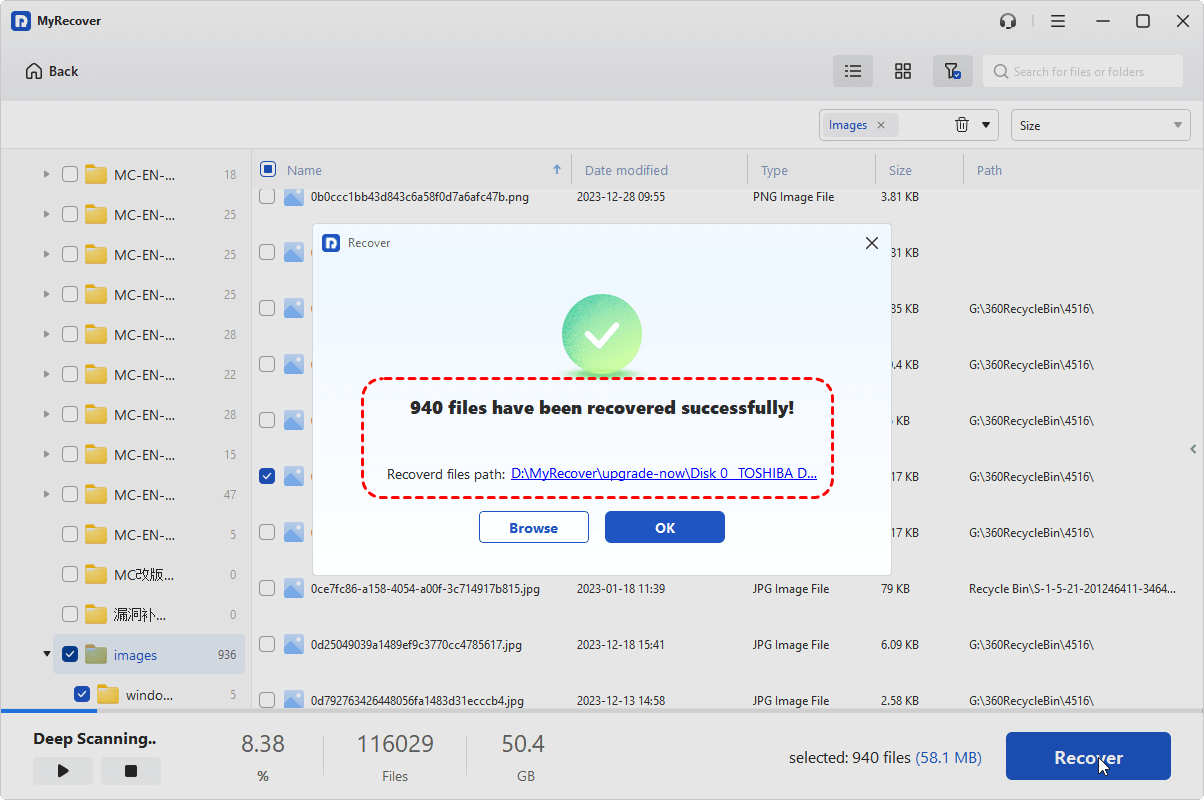
- Notes:✎...
- By default, MyRecover lists your files by file type so that you can find the files quickly. Besides, you can search them by file name, path, size, modified date, and others.
- Upgrading to MyRecover Technician is your best choice if you need to recover files from unlimited computers.

 MyRecover
- Recover Deleted Files Easily with Simple Clicks
- 1000+ File Formats Supported
- Support HDD, SSD, External Hard Drive, USB Drive, SD Card, etc.
- Quickly Find Files Using File Types, Name, Size, etc.
- Preview Files Before Recovering
- Recover Unlimited Data
 100% Secure
Diskpart Force Delete Partition Using Override Commands
Before we jump in, make sure you’ve backed up anything you can’t lose. When you use diskpart commands to forcefully delete a partition, there’s no "Undo" button. It’s permanent.
1. Press the Windows key, type cmd, right-click on Command Prompt, and select "Run as administrator". If you’re in Windows Recovery Environment (WinRE), you can get there via Troubleshoot > Command Prompt.
2. Now, type diskpart and hit Enter. You’ll see the DISKPART prompt.
3. Type list disk to see all your drives. Identify the one with the pesky partition. Double-check the disk number.
4. Type select disk X (replace X with your disk number).
5. Next, type list partition to see the specific partition you want to nuke.
6. Type select partition Y (replace Y with the partition number).
7. To forcefully delete the partition, type: delete partition override.
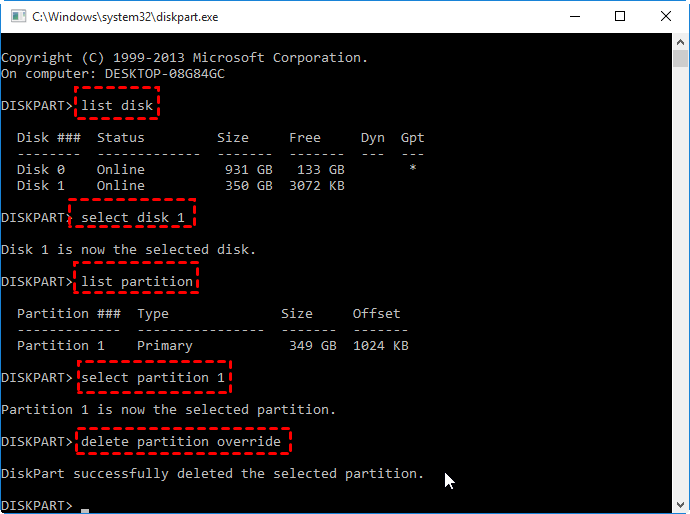
The override parameter is the key. It bypasses the protection checks. If you’re dealing with a volume that has a drive letter (like D: or E:), you might need to try "delete volume override" instead.
Diskpart Force Delete Partition for Protected System or OEM Volumes
However, you might also encounter the error message even if you follow the above steps to delete a protected system or OEM volumes:
Virtual Disk Service error: The operation is not supported by the object.
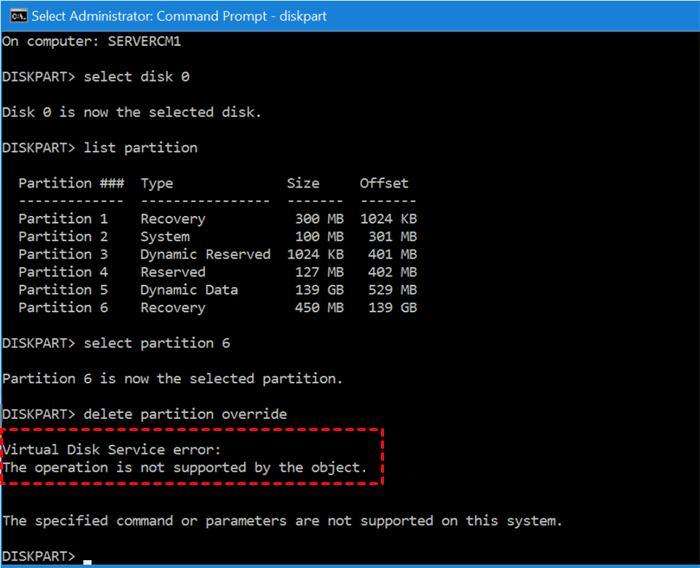
Virtual Disk Service error: Delete is not allowed on the current boot, system, pagefile, crashdump, or hibernation volume.
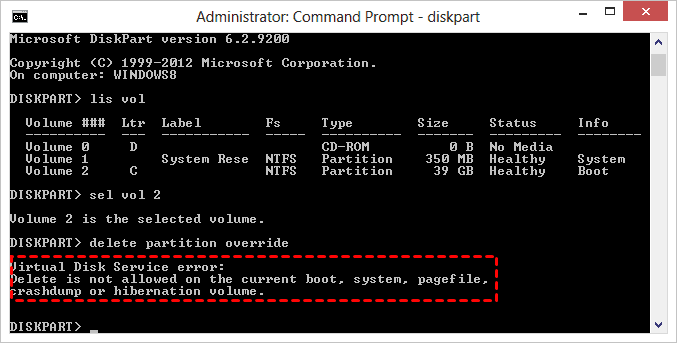
OEM partitions are a nightmare. That tiny 100MB system reserved partition or the 500MB recovery partition that Dell or HP hides on your drive.
Why do you encounter these errors? These partitions have specific GPT attributes (such as partition IDs 16 or 17) that mark them as essential for booting or recovery.
To kill them, you first need to remove those attributes. Type gpt attributes=0x0000000000000000. This wipes the protective flags.
Then, hit it with delete partition override.
Delete a Read-Only or a Locked State Partition with the Diskpart Delete Command
Sometimes, the partition isn't just protected; it’s locked because the disk is "Read Only". You’ll see a * under the "Dyn" or "Gpt" column, or you’ll get a "The disk is write-protected" error.
To fix this, you need to clear the read-only attribute first: Type attributes disk clear readonly.
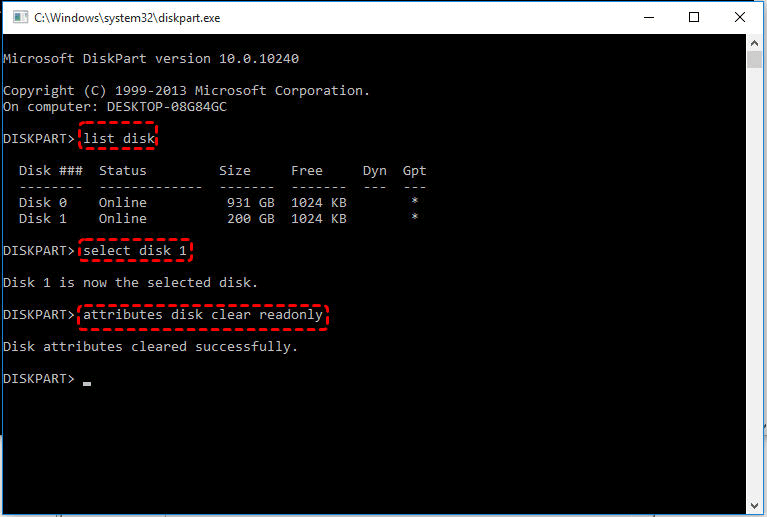
Then type select volume Z (the volume that's acting up).
Finally, type delete volume override to delete forcefully.
This brute-force approach is usually the last resort before throwing the drive in the trash. And frankly, it works about 99% of the time.
Full List of DiskPart Force Delete Partition for Any Drive
If you’re a power user or an IT admin, you want the cheat sheet.
The type of disk matters. For MBR disks (the old style), partitions don’t usually have the complex GPT attributes, but they can still be "system" partitions.
- Standard MBR Partition:
diskpart
list disk
select disk m
select partition X
delete partition
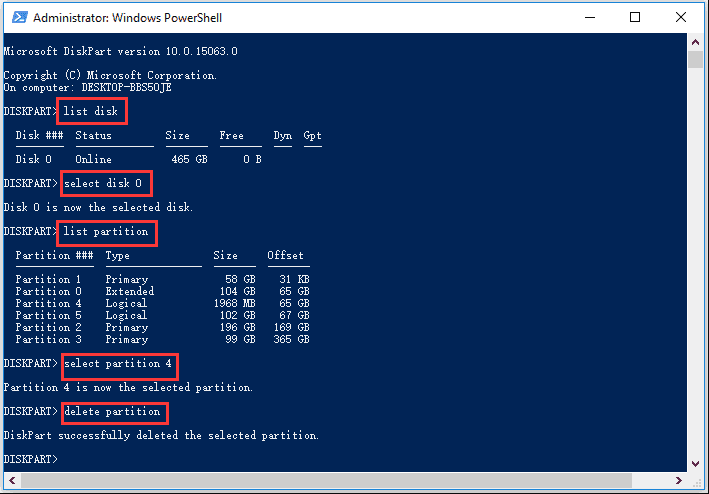
Usually works without force, but try "delete partition override" if it fails.
- GPT System Partition (ESP):
diskpart
list disk
select disk m
select partition X
gpt attributes=0x0000000000000000
delete partition override
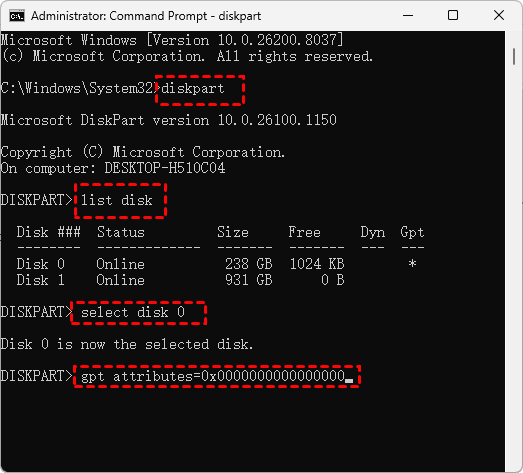
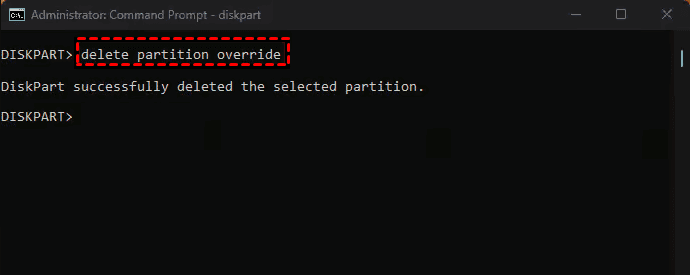
You must strip the attributes first.
- GPT MSR (Microsoft Reserved) Partition:
diskpart
list disk
select disk m
detail disk
clean all
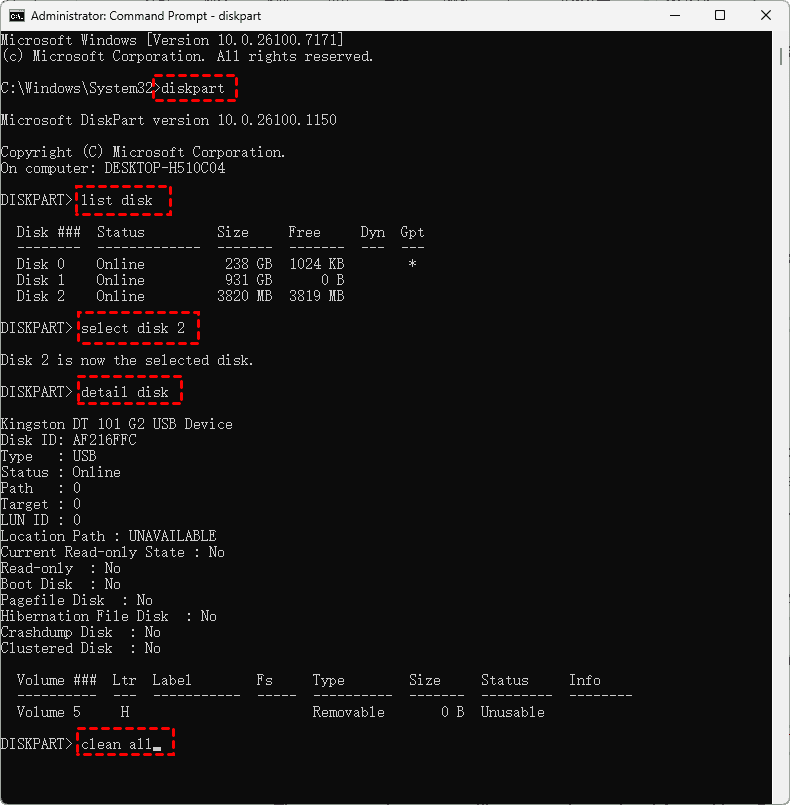
Tip: If the override command fails with "The request could not be performed because of an I/O device error", your disk might be failing. But if it's just logically broken, you can try this way to clean the entire disk, then initialize the disk (MBR or GPT) in Disk Management, and create a new volume.
This wipes everything—protection, partitions, volumes, all of it. Be careful. After a clean, the disk is a blank slate. But using the delete partition override usually does the trick if you can see them.
After running diskpart commands delete partition force, type list partition again. The partition should be gone. If you deleted everything, you’ll see "There are no partitions on this disk to show". Now the space will show as "Unallocated". Then you can now create a new simple volume or use the space for a fresh OS install.
Fix Boot Errors After DiskPart Force Delete Partition
If your computer won’t boot up, it’s time to fix boot errors like this after DiskPart force delete partition.
1. Boot from your Windows installation USB or recovery drive.
2. Go to "Repair your computer" > Troubleshoot > Command Prompt.
3. Once there, run:
bootrec /fixmbr
bootrec /fixboot
bootrec /scanos
bootrec /rebuildbcd
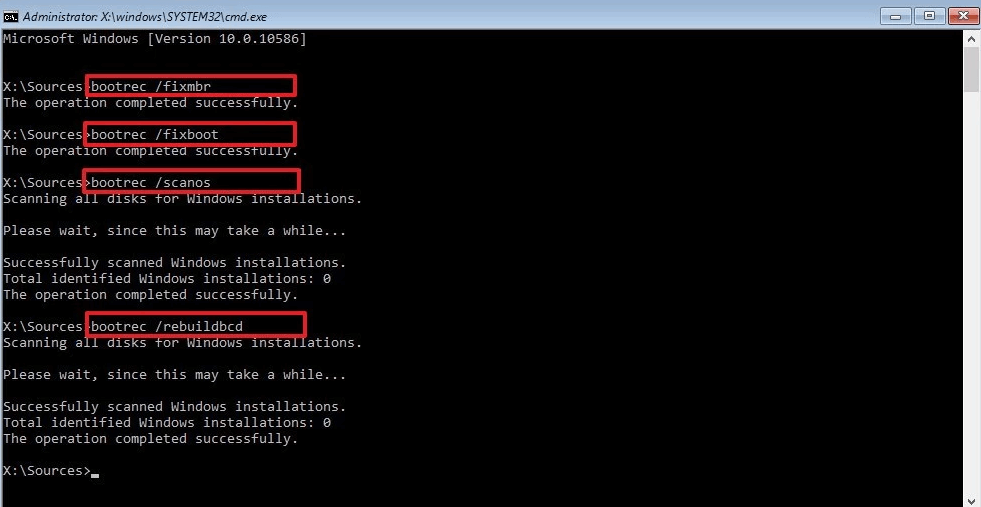
This scans for Windows installations and rebuilds the boot menu. Usually, this brings your PC back to life.
FAQs about DiskPart Force Delete Partition
How do I force delete a protected partition in Windows 11 using CMD?
A: Open CMD as admin, type diskpart, then list disk, select disk X, list partition, select partition Y. Type delete partition override. For GPT partitions, first type gpt attributes=0x0000000000000000, then run the delete partition override.
Can I use DiskPart to delete the EFI system partition?
A: Yes, but deleting the EFI partition prevents booting. Select the disk, list partitions, select the EFI partition, then type delete partition override. Run this only on a secondary data drive.
Why does DiskPart say "Cannot delete a protected partition"?
A: The partition has a special attribute flag to prevent accidental deletion. Type delete partition override. For GPT disks, first clear GPT attributes with gpt attributes=0x0000000000000000.
What is the difference between "delete partition" and "clean" in DiskPart?
A: delete partition removes one specific partition. clean removes the entire partition table, destroying all partitions at once.
How to delete a read-only partition using DiskPart?
A: Type diskpart, then list disk, select disk X. Type attributes disk clear readonly. Select the partition. Type delete volume override.
Will formatting a drive remove the partition protection?
A: No. Formatting wipes data, not partition attributes. Use the delete partition override in DiskPart.
Can I recover data after using DiskPart force delete partition?
A: Possibly, but difficult. Diskpart removes the partition table entry, but raw data may remain until overwritten. Use professional recovery tools like MyRecover. Always recover data before deleting the partition.

Stay Updated With Our
Latest Tips
Add us as a preferred source on Google to never miss helpful guides.
 Add as preferred source >>