 MyRecover



Fix Cleaning Up 100% Complete Stuck -Windows 10/11 Guide
Cleaning up 100% complete, often-stuck Windows during shutdown. This article covers why laptop stuck on cleaning up 100% complete happens, safe hard resets, disk checks, and other fixes.

By Delores / Updated on April 20, 2026


Windows 10 Laptop Stuck on "Cleaning Up 100% Complete. Don't Turn Off Your Computer!"
Windows 10 stuck "Cleaning up 100% complete. Don't turn off your computer."
Despite the fact that Windows JUST had an update on Monday that took hours to complete, Microsoft decided to push yet another update within the same five-day work week.
Today's update has been going on for seven hours now. Three hours were when my computer said, "Cleaning up 0% complete. Don't turn off your computer," and after three hours, it jumped to 100%, and it has been stuck at 100% for another two hours now.
100% by definition means done, so I have no clue what the additional two-hour hold up is!
I NEED to use my computer, and I do not have time to wait all day for this update.
And there is no guarantee that everything worked. Even if one minor tweak failed to install, my PC will remain at hostage by Windows 10.
What is going on here, and how do I remedy this so I can get the ball rolling?
HP Envy 17 j177nr. 16 GB ram. 8 core processor
- Question from reddit.com
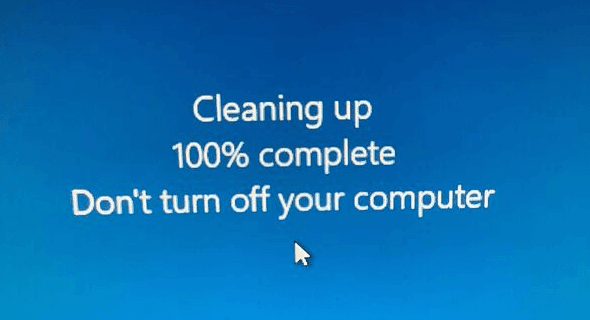
You've been waiting for what feels like forever. The screen says "Cleaning up 100% complete. Don't turn off your computer", but it's still stuck on that screen, and you're starting to sweat. Should you hit the power button? Unplug the laptop? Thousands of Windows users run into this exact nightmare after an update.
Don't worry, your files are safe in most cases. Thus, in this guide, we'll walk through why this happens, how long it should take, and—most importantly—exactly what to do when you're stuck. We'll also cover how to recover any missing files afterward.
How Long Does Cleaning Up Windows 10/11 Take?
Under normal circumstances, the "cleaning up"phase after a Windows update should take anywhere from 5 to 30 minutes. That's it. If you're on a slower machine or a massive feature update, maybe an hour tops. So when you see that screen linger for two, three, or even six hours, a problem has occurred.
Why the variation? Windows is deleting old update files, temporary system junk, and previous versions of Windows (if you upgraded recently). This process serves as routine maintenance for your hard drive. But when the process gets tangled—due to a corrupted file, a misbehaving driver, or an antivirus program that interferes—it freezes. And stuck on the Cleaning up 100% complete.
Why is My Update Stuck on Cleaning Up 100%?
To be honest, that screen saying "Cleaning up 100% complete. Don't turn off computer" isn't lying about the "don't turn off" part—but it might be stuck in a loop. Three main culprits usually cause this mess:
- A corrupted Windows Update cache. Every time you install updates, Windows stores temporary files in a folder called SoftwareDistribution. If one of those files gets damaged, the cleanup process can't finish. The system waits forever for a file that's essentially trash.
- Driver issues. Some drivers—especially graphics or audio drivers—refuse to unload during shutdown. When Windows tries to clean up after an update, it asks each driver to step aside. Stubborn drivers cause the whole process to freeze, especially after a GPU driver update.
- Disk errors or bad sectors. If your hard drive has physical damage or logical corruption, Windows can't read or delete certain files. The update process keeps retrying and shows you the window.
- Corrupted system files. Corrupted system files can interrupt the update process and give you a stuck window.
How to Fix an Update Stuck at 100% Complete? 5 Ways
Now it's time to fix the "Cleaning up 100% complete" stuck situation. Start with solution 1 and work your way down.
Solution 1. Wait Patiently
If the hard drive light is still blinking, it may still be working. But if it's been over 5 hours, it's likely stuck. And you can try the following solutions to fix.
Solution 2. Perform a Safe Hard Reset
A hard reset is not the same as yanking the plug during a critical update. But when "Cleaning up 100% complete" has lasted over two hours, it's your only choice. Here's how to do a hard reset without corrupting Windows:
1. Press and hold the power button for 10–15 seconds until the laptop completely shuts off.
2. Unplug the power cord (and remove the battery if it's removable).
3. Wait 30 seconds. This lets the motherboard capacitors drain.
4. Plug everything back in and turn on the computer.
5. Windows will likely say "Attempting to recover installation" or "Undoing changes". Let it work. This can take another 10–20 minutes.
A hard reset interrupts the stuck process. When Windows reboots, it detects that the previous cleanup didn't finish and rolls back to a safe state. You won't lose personal files, but you may need to reinstall the latest update later.
Solution 3. Boot into Safe Mode and Run Disk Cleanup
If the hard reset gets you back to the desktop, great. If not, you'll need Safe Mode. This method directly addresses Windows 10/11 stuck on "cleaning up 100% complete" caused by driver or cache issues.
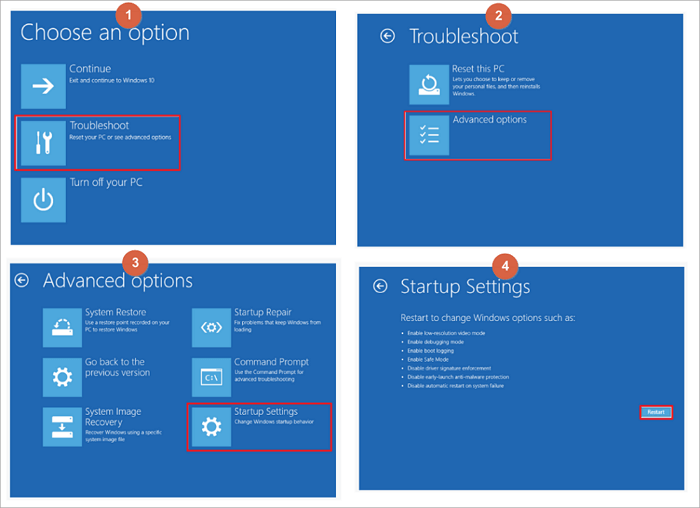
1. Turn the computer off and on three times in a row. On the third boot, Windows should automatically enter the Recovery Environment (blue screen with options).
2. Go to Troubleshoot > Advanced Options > Startup Settings > Restart.
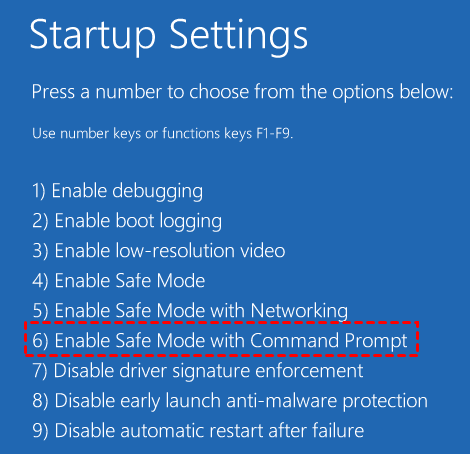
3. After the restart, press 4 or F4 to enable Safe Mode.
4. Once in Safe Mode, press Win + R, type cleanmgr, and hit Enter.
5. Select your C: drive and click OK.
6. Check the boxes for Temporary Files, Delivery Optimization Files, and Windows Update Cleanup.
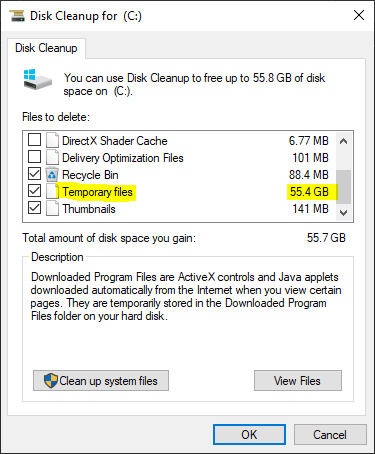
7. Click OK and let Disk Cleanup run.
This manually deletes the same junk Windows was trying to remove when it got stuck. Afterward, restart normally. In most cases, the "Cleaning up 100% complete. Don't turn off your computer" error won't come back.
Solution 4. Run System File Checker and DISM
Corrupted system files can make Windows 10/11 stuck on "Cleaning up 100% complete". Here's how to scan and repair the corrupted system files with SFC and DISM commands:
1. Boot into Safe Mode with Command Prompt (follow steps 1–3 above, but choose "Safe Mode with Command Prompt").
2. In the black window, type DISM /Online /Cleanup-Image /RestoreHealth and press Enter. Wait for the scan to finish.
3. After that, type sfc /scannow and press Enter.

4. Restart your computer normally.
If DISM can't find files, you'll need a Windows installation USB. But 90% of the time, this two-step combo fixes a laptop stuck on cleaning up 100% complete for good.
Solution 5. Disable Early Launch Anti-Malware Protection
Sometimes your antivirus or Windows Defender gets overzealous. It sees the cleanup process as suspicious and freezes everything. This trick solves "Windows 10 stuck on cleaning up 100% complete" when nothing else works.
1. Boot into the Recovery Environment (same three-fail-boot method).
2. Go to Troubleshoot > Advanced Options > Startup Settings > Restart.
3. Press 8 or F8 to disable Early Launch Anti-Malware Protection.
4. Start Windows normally.
The cleanup should be completed within minutes. Afterward, re-enable anti-malware protection by restarting normally.
Fast Recover Lost Files with MyRecover
Sometimes files go missing after troubleshooting. Don't worry, here comes the powerful and professional Windows data recovery, MyRecover, to help. And MyRecover provides the following features:
- High Recovery Success Rate. Up to 99% recovery success rate. The software uses advanced scanning algorithms combining "quick scan" and "deep scan" modes to locate lost files efficiently and accurately.
- User-Friendly Interface. The software features a simple, three-step recovery process: select the drive, scan for lost files, and recover.
- Wide File Type Support. MyRecover can recover over 1,000 file types, including documents, photos, videos, audio files, emails, compressed archives, and so on.
- Bootable Recovery for Non-Booting Systems. You can create a bootable CD/DVD or USB drive when Windows won't start. This proves especially valuable after a failed Windows update that leaves the computer unable to boot properly.
- Preview Before Recovery. You can preview recoverable files before restoring them, confirming file integrity and avoiding recovery of useless or corrupted data.
- Mass Storage Device Compatibility. MyRecover works with HDDs, SSDs, USB drives, SD cards, memory cards, and external storage devices.
So, how to recover missing files after Windows 11/10 update with MyRecover? Check the steps below:
1. Download and install MyRecover on a different drive (not the one you're recovering from).
 100% Secure
2. Launch MyRecover, tap Disk Data Recovery or Deleted Files Recovery according to your need, and hit Scan while hovering over the drive.

3. It will scan files quickly with a quick scan mode. Or you can try a deep mode if needed. Hit OK when it's done.
4. Preview and select files you need, and hit Recover.

5. Choose a destination folder and hit Select Folder to keep them safe.

- Notes:✎
- Once scanned, all the missing files will be listed by file type by default. You can hit Path to sort them by folder structure. Besides, you can search them by file name, size, modified date, and more.
- Recovering files from an unlimited number of computers is available in MyRecover Technician.

 MyRecover
- Recover Deleted Files Easily with Simple Clicks
- 1000+ File Formats Supported
- Support HDD, SSD, External Hard Drive, USB Drive, SD Card, etc.
- Quickly Find Files Using File Types, Name, Size, etc.
- Preview Files Before Recovering
- Recover Unlimited Data
 100% Secure
Other file recovery solutions:
Restore Data from File History (if you have enabled File History before the file went missing)
Restore Data from A System Image Point
Recover Files with Windows File Recovery
FAQs about Cleaning Up 100% Complete Stuck
Q: Can I turn off my computer when it says cleaning up 100% complete. Don't turn off the computer?
A: After two hours? Yes, but do a hard reset (hold the power button for 10+ seconds). Don't just flip the PSU switch.
Q: Will I lose my files if I force a shutdown?
A: Rarely. Windows usually just deletes temporary update files. Your documents, photos, and installed programs stay put 99% of the time.
Q: How do I prevent cleaning up 100% complete stuck in the future?
A: Run Disk Cleanup monthly, keep your drivers updated, and don't interrupt Windows updates unless necessary.
Q: Does this happen on Windows 11, too?
A: Yes. Windows 11 uses the same update engine. Everything in this guide works for both Windows 10 and Windows 11.
Q: My laptop is stuck on cleaning up 100% complete, even after trying all solutions. Now what?
A: Time for a repair install. Create a Windows installation USB, boot from it, and choose "Keep personal files and apps".This reinstalls Windows without wiping your data.

Stay Updated With Our
Latest Tips
Add us as a preferred source on Google to never miss helpful guides.
 Add as preferred source >>