 MyRecover



Does Windows 10 Automatically Delete Windows.old? The Truth Revealed
Does Windows 10 automatically delete Windows.old, we cover the automatic cleanup schedule. We also explain safe methods to manually delete old versions of Windows 10 after an update, including using Disk Cleanup and checking for important files before removal.

By Delores / Updated on December 25, 2025


About Windows.old
You’ve just updated your Windows 10 machine, and everything seems snappier. But then you check your C: drive, where did all your free space go?
You might find a huge folder named Windows.old. It’s a temporary backup of your previous Windows installation that lets you roll back, created automatically after major updates. Generally speaking, it takes up 20 or 30 gigabytes on your hard disk, which might have an influence on the computer's performance.
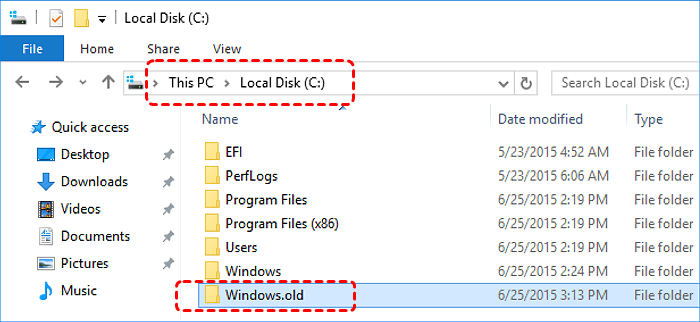
Does Windows 10 automatically delete Windows.old, or are you stuck with this folder forever? Is it safe to delete Windows.old? Can I delete it manually? Don't worry, you will learn all the truth about it. This isn't just about tidiness; it's about reclaiming precious real estate on your most important drive.
Does Windows 10 Automatically Delete Windows.old
Yes, Windows 10 is designed to automatically delete the Windows.old folder, but it's not immediate. The system keeps it for 10 days after a major update as a safety net, allowing you to roll back if needed. After that grace period, a cleanup task should remove it automatically to free up space.
However, this process can sometimes fail. If your disk space is too low, system tasks are interrupted, or the folder becomes corrupted, Windows.old might not delete itself. So, while automatic deletion is the rule, it’s not always guaranteed—you may need to step in and remove it manually.
The 10-Day Rule and Automatic Cleanup
The "10-day rule" isn't magic—it's a scheduled system task. When a major update finishes, Windows starts a 10-day countdown. During this time, it protects the Windows.old folder, giving you a safe window to test the new update and roll back if anything goes wrong.
Once the 10 days are up, the system authorizes a cleanup task—like Storage Sense or Windows Update Cleanup—to remove the folder. This doesn’t always happen exactly at midnight on day 11; Windows usually waits for an idle moment to run the process in the background, so you likely won't even notice it happening.
Check if Your System Has Already Removed It
To see if the cleanup has already occurred, simply open File Explorer and check your C: drive for the Windows.old folder. If it’s gone, the automatic removal succeeded. If it’s still there, right-click it, open Properties, and look at the "Date modified" field. If that date is older than 10 days and the folder size isn't changing, the automatic process likely failed.
You can also open the Disk Cleanup tool and click "Clean up system files". If "Previous Windows installation(s)" appears in the list, the Windows.old folder is still present and can be removed manually.
How to Manually Delete Old Version of Windows 10 After an Update
If the automatic process has ghosted you and the folder remains, don’t worry. Manually removing it is straightforward and safe, once you’re past the ten-day safety period and sure you won’t need to roll back. Dragging the folder into the Recycle Bin won’t work; you need the right tools for the job.
Way 1. Try Disk Cleanup to Delete Windows.old
You have to use the Disk Cleanup tool to delete the Windows.old folder.
This is the official, recommended highway for removal. The Disk Cleanup tool knows exactly what to delete and what to keep. Here’s how to use it:
1. Press the Windows key, type "Disk Cleanup", and select the app.
2. Choose your C: drive and click OK.
3. Once in the Disk Cleanup window, click the "Clean up system files" button.
4. Select your C: drive again. The tool will rescan with elevated privileges.
5. In the new list, look for and check the box next to "Previous Windows installation(s)". You’ll see the enormous amount of space it will reclaim.

6. Click OK, then click "Delete Files" to confirm. The tool will then get to work, safely dismantling the Windows.old folder.
Way 2. Delete Windows.old Manually with Command Prompt
While Disk Cleanup is the gold standard, you can also use a command-line method if you prefer.
1. Open the Start menu, type "Command Prompt", right-click it, and select "Run as administrator".
2. In the black window, type the following command and press Enter:
rd /s /q C:\Windows.old
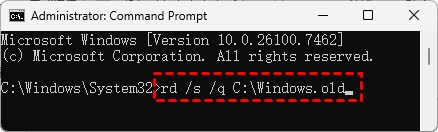
This command forcefully removes the directory and all its contents. Wait a moment—if the folder is large, it may take a minute.
If the command succeeds, you’ll simply see a new prompt line. If you get an "access denied" error, it means something is still accessing a file inside, or you need to ensure Command Prompt is truly running as Administrator.
Keep Important Files Before You Delete Windows.old
Backup important files before you hit that delete button! The Windows.old folder is a mirror of your previous C: drive. Inside, you’ll find subfolders like Windows (the old OS itself), Program Files and Program Files (x86) (old program installations, though they rarely work from here), and crucially, Users.
Going to the Users\[YourOldUsername] folder helps you find documents on the Desktop, downloads, or files in Pictures and Documents that, for some reason, didn’t get migrated forward during the update. It’s worth a quick browse.
Recover Deleted Files with MyRecover After Windows.old Deletion
What if there are important files in the Windows.old folder that you did not notice, and you deleted the folder? The moment you delete Windows.old, those sectors on your hard drive are marked as free space. A dedicated data recovery tool - MyRecover becomes your best choice, which helps you recover files from that situation.
- Deep Scan Targets Old System & User Data. MyRecover performs signature-based deep scans, which are crucial for finding files from the old Windows installation.
- Recovers Original Folder Structure. One of the standout features is its ability to often recover files with their original folder names and paths. This is invaluable when sorting through a recovered Windows.old directory, as it helps you locate specific user files quickly.
- Filters and Previews for Efficient Recovery. The software includes powerful filtering options (by file type, date, and size) and a preview function for images, documents, and more.
- User-Friendly Interface. Recovering system-level files can be technically daunting. MyRecover provides a clear, guided interface that simplifies the process.
- Effective Where Built-In Tools Fail. MyRecover directly scans the disk's raw data, providing a solution when all standard Windows options have been exhausted.
Here is a step-by-step guide to recover deleted files using MyRecover:
1. Download and install MyRecover on another drive instead of the C drive. This prevents the installation process itself from overwriting the very data you’re trying to save.
 100% Secure
2. Run MyRecover, tap Deleted Files Recovery, choose the C drive, and hit Scan. Wait for the scanning to complete, and hit OK.

3. Preview and select the files you need and hit Recover.

4. Choose a location to keep them safe.

- Tips:✎...
- Once the scan completes, MyRecover will present the results in a familiar folder tree view on the left pane. Look for entries labeled "Windows.old" or "Path" and expand them. You can also use the search bar at the top to filter for specific file types (like .docx, .jpg) or by the original folder name.
- Moreover, you can also recover files from a crashed computer, an emptied Recycle Bin, a formatted SSD, etc.
- You can try MyRecover Technician to enjoy recovering files for unlimited computers without limitation.

 MyRecover
- Recover Deleted Files Easily with Simple Clicks
- 1000+ File Formats Supported
- Support HDD, SSD, External Hard Drive, USB Drive, SD Card, etc.
- Quickly Find Files Using File Types, Name, Size, etc.
- Preview Files Before Recovering
- Recover Unlimited Data
 100% Secure
FAQs About Windows.old Deletion
How long does Windows 10 keep the Windows.old folder?
A: It’s kept for 10 days after a major update. This grace period lets you test the new version and roll back if needed. An automatic task should delete it afterward, but this isn't guaranteed if system tasks fail or disk space is low.
Can I delete Windows.old before 10 days?
A: Yes, using Disk Cleanup or commands, but it’s not advised. Doing so permanently removes your "go back" option. If the new update has problems, you’d need a full clean install instead of a simple rollback.
Is it safe to delete Windows.old folder?
A: It’s safe after the 10 days or once you're sure you won’t roll back. Using Disk Cleanup only removes the old system files and won't harm your current Windows. Just know you'll lose the rollback option and any leftover personal files.
Why is my Windows.old folder not deleting automatically?
A: Common reasons include low disk space, a disabled/corrupted cleanup task in Task Scheduler, or folder permission errors. If the folder's "Date modified" is old, the auto-process has stalled, and manual cleanup is needed.
How much space does Windows.old take up?
A: Usually 15–35 GB, but it can be larger depending on your old installation's size. It’s often one of the biggest items on your C: drive, so removing it frees significant space.
What is the difference between Windows.old and $Windows.~BT?
A: Windows.old is a backup of your previous OS, kept after an update for rollback. $Windows.~BT is a temporary folder used during the update to hold setup files; it should auto-delete after. If it remains, you can safely delete it manually. One is your old system backup; the other was the update’s workspace.

Stay Updated With Our
Latest Tips
Add us as a preferred source on Google to never miss helpful guides.
 Add as preferred source >>